Category: Windows

Windows – Here you can find Computer-related updates Windows 10, Windows 8, Windows 7, Linux, technology information, and more.

  • 13 Ways To Fix Error 0x80070643 on Windows 10 PC 2025

    13 Ways To Fix Error 0x80070643 on Windows 10 PC 2025

    13 Ways To Fix Error 0x80070643 on Windows 10 PC – What to do when you get error 0x80070643 while updating? When Windows updates fail to install, error code 0x80070643 may appear as follows:
    13 Ways To Fix Error 0x80070643 on Windows 10 PC
    13 Ways To Fix Error 0x80070643 on Windows 10 PC

    How To Fix Error 0x80070643 on Windows 10 PC

    Error 0x80070643 can also occur when you install or update any of the Windows applications.

    Read more:

    Note: The instructions in this article apply to Windows 10, Windows 8, and Windows 7.

    Cause of error 0x80070643
    Cause of error 0x80070643

    The error message 0x80070643 is usually the result of improperly configured system settings, corrupted drivers, malware or virus infection, corrupted or missing system files, or an old version of a program that was not properly removed when a new version was downloaded.

    Error 0x80070643 can also occur when a Windows computer or tablet is improperly shut down or disconnected from a power source during use.

    If you think you have malware on your computer, run your antivirus software to find and remove it before doing anything else.

    How to Solve Error 0x80070643 in Windows 10 PC
    How to Solve Error 0x80070643 in Windows 10 PC
    How to Solve Error 0x80070643 in Windows 10 PC

    If error 0x80070643 occurs on your device, here are some ways to solve error 0x80070643 that you can try until the message disappears and the update is successful:

    #1. Retry the installation

    Sometimes, trying to install or update again will work.

    This is how to solve error 0x80070643 on Windows 10 or other versions which is quite easy and can solve the problem immediately.

    So it’s worth trying at least one more time before proceeding with further troubleshooting.

    #2. Check internet connection

    If the update requires a connection to an online server, then a problematic internet connection can stop the installation process.

    If the internet speed test shows a weak connection, there are several ways to fix a slow internet connection.

    #3. Close all other programs

    Sometimes running other programs can affect updates or installations by accessing important files and using up device resources.

    Close all open programs on your Windows laptop, and close any programs that might be running in the background (like Zoom, Telegram, etc).

    #4. Re-download files

    If you download an update or app and it shows the error message 0x80070643, the file may be corrupted during the download process.

    Download again to see if that fixes the problem.

    Delete the original files you downloaded first so you don’t accidentally install those files instead of the new download.

    #5. Uninstall and reinstall the app

    If error 0x80070643 occurs during an app update, the existing version of the app may be corrupted.

    Use the Windows uninstaller to remove the program, then reinstall it.

    The latest version must be installed so you don’t need to update it.

    To quickly uninstall an app in Windows 10, right-click its name in the Start Menu and select Uninstall.

    #6. Pause the current download and update

    Other downloads and updates may interfere with the application you are trying to update.

    In Windows 10, open the Microsoft Store app and select the ellipse (…) in the upper right corner, then select Downloads and updates.

    Make sure no other apps are updated or installed, then try the installation again.

    #7. Run Windows Update Troubleshooter

    Windows Update Troubleshooter scans for and fixes problems related to the operating system and application updates.

    On Windows 10, go to Settings > Update & Security > Troubleshooter > Windows Update and select Run Troubleshooter.

    Tip: If you see error 0x80070643 when running, installing, or updating relatively old software, run the Program Compatibility Troubleshooter, which can be found on the same screen as the Windows Update Troubleshooter.

    #8. Restart the computer

    Rebooting a Windows PC can fix various problems on a Windows laptop or computer.

    #9. Install the latest .NET Framework

    A corrupted .NET Framework can cause installation and update errors.

    Make sure the latest .NET Framework update from Microsoft is installed on the computer.

    #10. Run the .NET Framework Repair Tool

    If you have the latest .NET Framework update and you’re still getting error 0x80070643, run the .NET Framework Repair Tool.

    #11. Disable antivirus software

    Antivirus programs are notorious for triggering conflicts with application installations and system functions.

    Turn off any software you have installed, then try updating or installing again.

    Tip: Restart your antivirus program after you complete this task.

    #12. Perform an SFC scan

    An SFC scan can detect and repair corrupted system files on a computer.

    To run a scan, open Command Prompt, type sfc /scannow, then press Enter.

    #13. Restart Windows Installer

    Windows Installer errors sometimes result in error 0x80070643.

    Open Windows Services and select Windows Installer once to highlight it, then select the Restart link on the left.

    Read more:

    Conclusion:

    This is the explanation of how to fix error 0x80070643 in Windows 10 for any type of laptop or PC, Hopefully, this short guide can help you solve errors that occur on your Windows laptop.

  • How to Delete Files on Windows 11 laptop 2025

    How to Delete Files on Windows 11 laptop 2025

    How to Delete Files on Windows 11 laptop – Everything there is to know about deleting files, recovering them, and emptying the Recycle Bin in Windows 11.

    How to Delete Files on Windows 11 laptop 2022
    How to Delete Files on Windows 11 laptop 2022

    How to Delete Files on Windows 11 Laptop

    Windows 11 is the latest iteration of Microsoft which offers a user-friendly interface.

    Opinions can be divided on whether that is the case, but one thing we will all agree on is that there has been a lot of change.

    Read more:

    From the Taskbar, Action Center, and Settings to File Explorer, everything looks fresh and alive.

    One of the changes you might notice is the revamped context menu.

    Right-clicking on a file doesn’t bring up the same context menu we used to do for years.

    Despite the changes, the relevant options remain, some in the form of tiles while others in the form of icons.

    If you plan to delete a file or folder, these options are still accessible with the same ease, but the steps are slightly different.

    However, the DEL key still works like a charm.

    How to delete files on Windows 11 laptop using the Delete icon in the Context Menu

    How to delete files on Windows 11 laptop using the Delete icon in the Context Menu
    How to delete files on Windows 11 laptop using the Delete icon in the Context Menu

    When you right-click on a file, a neat new context menu with far fewer options appears.

    If you can’t find the Delete option, here’s how to do it.

    To delete a file, right-click on it and select the Delete icon at the top or bottom of the context menu.

    The icon resembles a trash can and is placed together with icons for CutCopyRename, and Sharing.

    Click Yes, if a confirmation box appears.

    Note: The confirmation box only appears if configured in the ‘Recycle Bin’ properties.

    How to delete files on Windows 11 laptop from the Command bar File Explorer

    When you launch File Explorer, you’ll see the Command Bar at the top.

    This is a quick way to access some basic tools including the Delete icon.

    To delete a file, select it, then click the Delete icon in the Command Bar.

    How to delete files on Windows 11 laptop from the Legacy Context Menu

    After years of working on the old context menu, we don’t expect you to get to know the new one right away, and neither does Microsoft.

    Therefore, they have not completely removed the old context menu and it is still accessible.

    Here’s how you do it.

    To delete a file, right-click to open the context menu, then select Show More Options to access the old context menu. Alternatively, select a file and press SHIFT + F10 and the old context menu will appear.

    Next, click the Delete option to delete the file.

    How to delete files on Windows 11 laptop using Keyboard Shortcuts

    You can also delete files and folders in Windows 11 by selecting them and pressing the DEL key on the keyboard.

    When you press it, the file is moved to the recycle bin.

    To permanently delete a file in Windows 11, select the file you want to delete in File Explorer, then press the keyboard shortcut SHIFT + DEL.

    When the confirmation box appears, click Yes to confirm the deletion of the file.

    Files deleted this way will not be found in the Recycle Bin.

    That’s how to delete files on a Windows 11 laptop that you can choose according to the most convenient and easy way for you.

    How to restore deleted files on Windows 11 laptop

    If you accidentally delete a file, you can recover it from the Recycle Bin.

    However, you should restore it immediately because the recycle bin starts cleaning old files when the storage space runs low.

    You can recover many specific files or all those stored in the Recycle Bin at once.

    To restore a specific file, launch the Recycle Bin from either the Desktop icon or the Start Menu, right-click on the file, and select Restore from the context menu.

    To restore multiple files, hold down the CTRL key, click all the files you want to recover, and then click Restore the selected items near the top right corner.

    To recover all files in the Recycle Bin, simply click ‘Recover all items’ near the top right corner.

    Click Yes in the confirmation box that appears.

    How to empty the Recycle Bin to delete Files Permanently

    Files you delete will go into the ‘Recycle Bin’ and continue to take up space on the hard drive.

    If you don’t want it on your computer, you can empty the recycle bin and free up some space.

    To empty the Recycle Bin, click the Empty Recycle Bin option in the Command Bar at the top.

    Next, click Yes on the confirmation box that appears.

    Conclusion:

    You should now understand how to permanently or temporarily delete files on a Windows 11 laptop. Deleting files that are no longer needed can help increase your laptop’s performance and free up your storage.

  • 5 Ways To Fix Windows Script Host Access Is Disabled 2025

    5 Ways To Fix Windows Script Host Access Is Disabled 2025

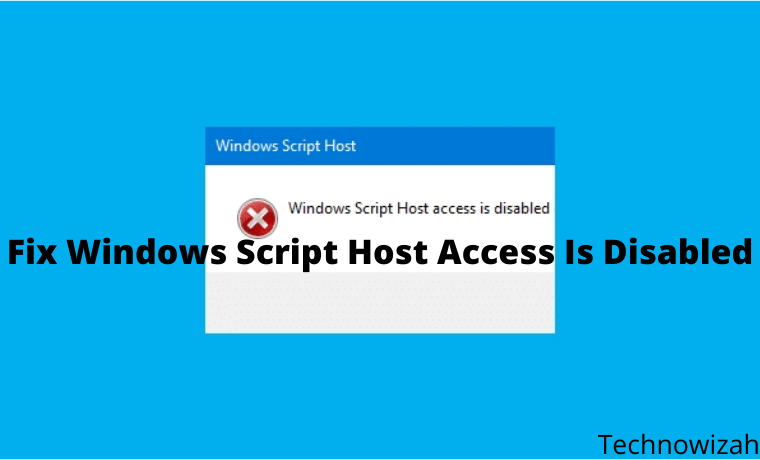
    5 Ways To Fix Windows Script Host Access Is Disabled on This Machine – Windows Script Host Access is disabled on this machine. Contact your administrator for details. This message is usually found in Windows 7, Windows 8, and Windows 10.

    5 Ways To Fix Windows Script Host Access Is Disabled
    5 Ways To Fix Windows Script Host Access Is Disabled

    How To Fix Windows Script Host Access Is Disabled

    Antivirus usually causes Windows Script Host or WSH messages. For example Smadav. Maybe you happen to be wearing it too?

    Read more:

    I usually encounter this message while browsing. For example, opening a site.

    Or also when opening certain applications. The effect is that the application cannot function properly.

    What is Windows Script Host?

    Just for those who don’t know. Windows Script Host is a Windows feature, to run certain commands related to scripting.

    Usually, there are special applications.

    To get rid of the message you can use the method I will explain this. I have tested it myself and it works.

    #1. Via Regedit

    Here we can manage the Windows system via Regedit. Setting so that WSH can be reactivated.

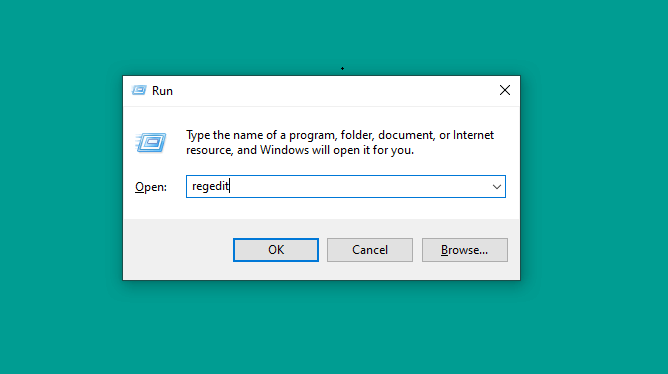
    • First please press the Windows key + R > Type Regedit > Then click OK

    Via Regedit
    Via Regedit
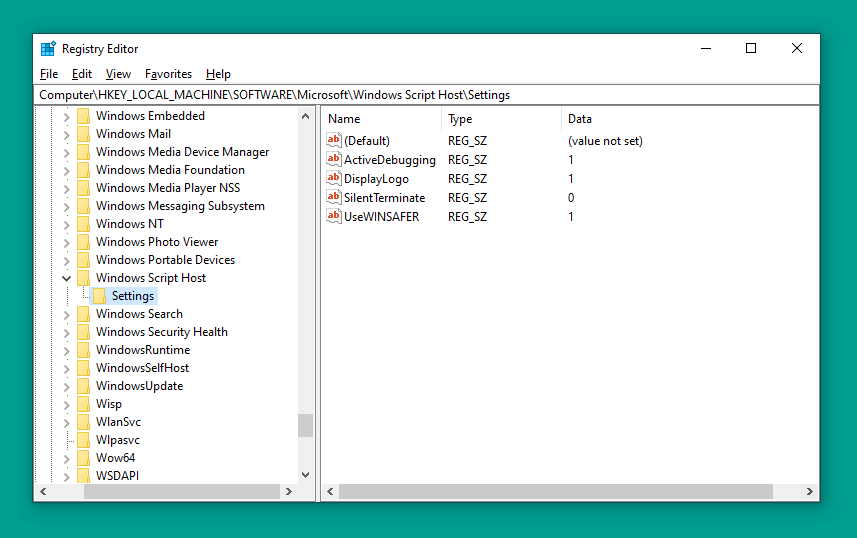
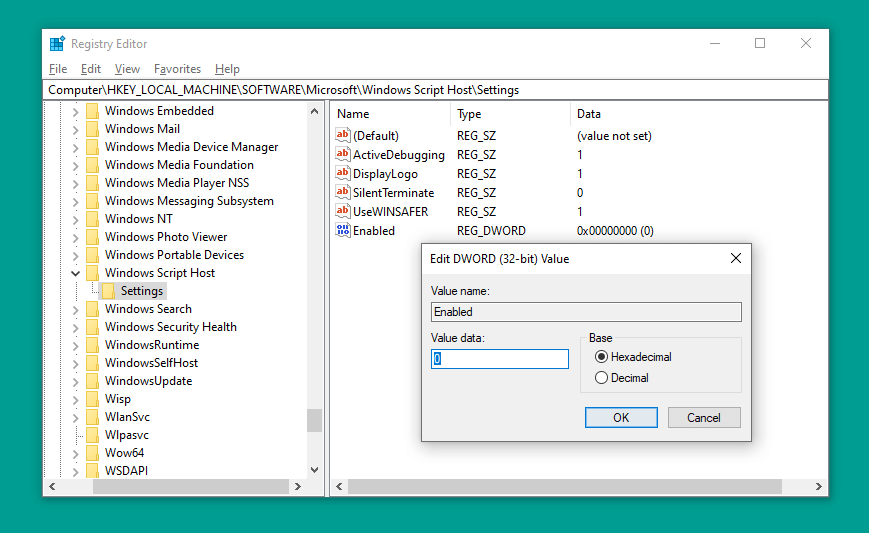
    • Next, please go to > HKEY_LOCAL_MACHINE > SOFTWARE > Microsoft > Windows Script Host > Settings.
    Via Regedit
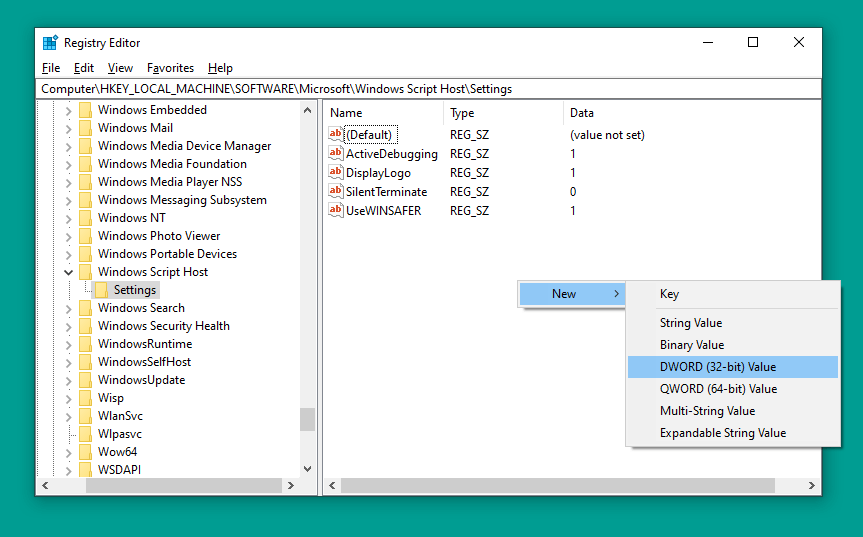
    • Right-click Mouse there > Then select option DWORD (32) bit value
    Via Regedit
    • Double-click the registry > Then set the name to Enabled
    • Right-click Registry > Select Modify > Then set Value Data to 0 > Click OK
    Via Regedit
    • Restart the computer if you have one.

    It’s done.

    Note: If the Windows Script Host Settings already has a registry with the name enabled, you don’t need to create it again.

    Just change the Value Data registry earlier, from 0 ( disabled ) to 1 ( enabled ). That way, there will be no double registry later.

    #2. If you are a Smadav user

    Windows Script Host that initially already exists does not work, usually because it is disabled by the Antivirus. For example Smadav.

    Smadav by default doesn’t give access permission on Windows Script Host. Therefore, this will cause notifications to be disabled later.

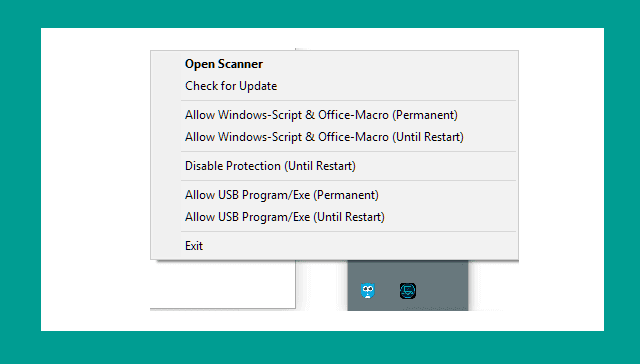
    1. Open the Smadav Icon tray (bottom right corner) > Then right-click on the Smadav icon
    2. Next, please select Allow Windows Script & Office Macro Permanent
    3. Restart your computer if you have

    If you are a Smadav user
    If you are a Smadav user

    For this step, I made it so that Windows Script continues to be active. If you want to use the Until Restart option, you can. But don’t forget to set it up again when it restarts.

    Permanent Until Restart
    Windows Script will always fire (permanently) Windows Script will run until the restart

    #3. System Configuration

    This method is simpler. The steps are more or less the same as those for Regedit. Through Run.

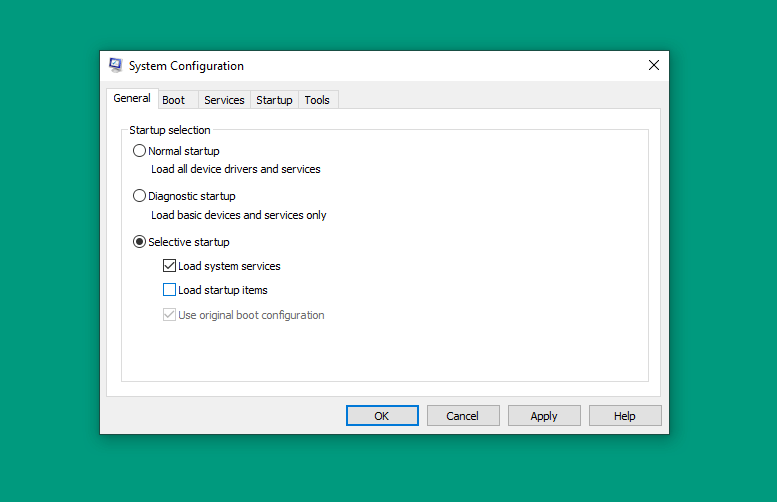
    • Click Windows key + R > Type MSConfig > Then click OK
    • Next, you uncheck Load Startup Items
    System Configuration
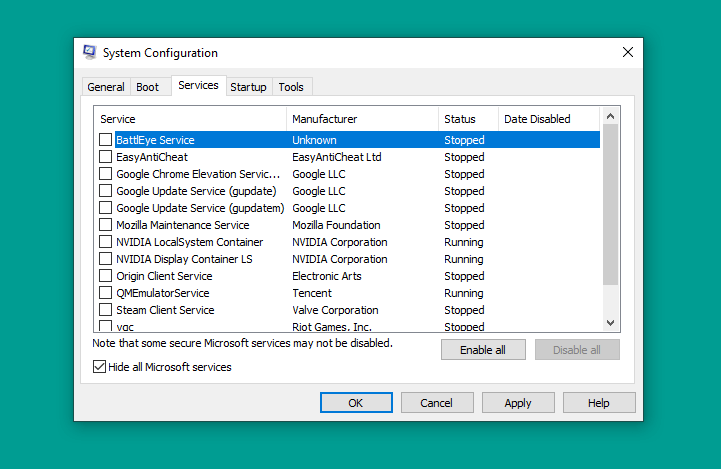
    • Continue to open the Service tab > Press Hide All Microsoft Service > Disable All > Then OK
    • If so, please restart the computer
    System Configuration

    #4. Via Command Prompt

    Command Prompt or CMD. The goal is the same as before. The difference is that we only need to write a few command lines.

    1. Press Windows key + R > Type CMD > Then Enter
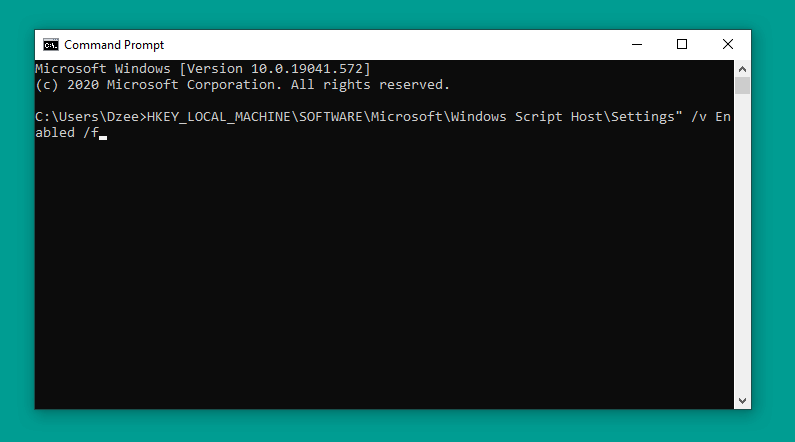
    2. In CMD > Enter the REG DELETE command “HKEY_LOCAL_MACHINE\SOFTWARE\Microsoft\Windows Script Host\Settings” /v Enabled /f
    3. If so, please press Enter
    Via Command Prompt

    Restart the computer as usual. When finished, try the test again.

    #5. Delete Registry After Userinit

    Back to Regedit. The last way is to delete the registry after the user has initiated it. Intended for Windows Script Host can run.

    1. Open Regedit the same as before
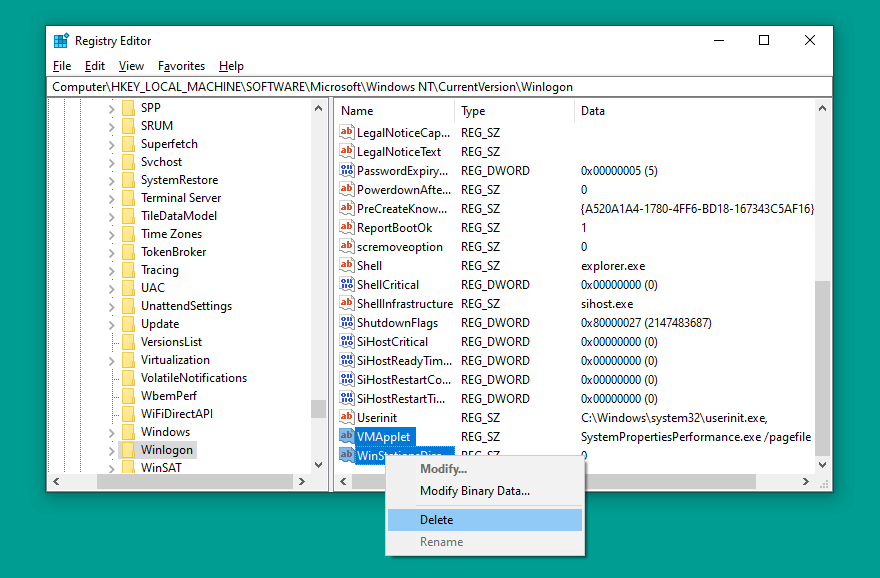
    2. Then go to HKEY_LOCAL_MACHINE > SOFTWARE > Microsoft > Windows NT > CurrentVersion > Winlogon.
    3. Under Userinit there is a registry. Please delete everything
    Delete Registry After Userinit

    If so, close Regedit then try again.

    Conclusion:

    This is the explanation of 5 ways to fix Windows script host access is disabled on this machine, the host script notification you found has been successfully resolved and does not come out again.

  • How to Restore Classic Volume Mixer in Windows 11 [2025]

    How to Restore Classic Volume Mixer in Windows 11 [2025]

    How to Restore Classic Volume Mixer in Windows 11 – Windows 11 is a desire that has been expressed by many users of the Microsoft operating system, who are not happy with the new look of the tool

    How to Restore Classic Volume Mixer in Windows 11

    How to Restore Classic Volume Mixer in Windows 11

    Luckily, the folks from Redmond and even the external developers thought it was important for the mixer to look the way we liked it, and they provided us with a solution that brought back the former aesthetic.

    Read more:

    The move from Windows 10 to Windows 11 means that there are no major changes in the PC user experience, although there are also some interesting developments in common elements of Microsoft’s OS.

    We noted, for example, that traditional volume mixers now have a brand-new look. Paradoxically, a lot of people aren’t comfortable with it, and if you’re not sure about the new design either,  you can always learn how to bring back the classic volume mixer in Windows 11.

    Indeed, this is just one of the many interface changes we noticed from Windows 10 to Windows 11.

    We can say that it only takes a second to get used to because the changes are all about aesthetics, nothing more. Even so, there will be people who prefer to return to their usual style, at least for a while.

    The most interesting thing is that we can effectively restore the Windows volume mixer for life. There are even two procedures to do it, and once you decide on one of them, it will return to the aspect you are used to, to set the volume you want in each program.

    What is a Windows 11 volume mixer?

    It’s enough to watch it for a few seconds, to verify that the Windows 11 volume mixer has a new location and that it works in a slightly different way than the Windows 10 controls.

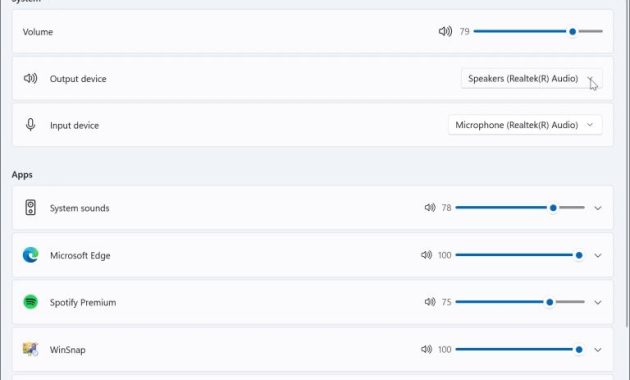
    You will now find it by left-clicking on the speaker icon in the lower right corner and accessing the universal soundbar, with Windows 11 Quick Settings above it.

    From there you can select the sound output, by clicking on the arrow to the right of the slider. You will enjoy a full system page where you can control various volume elements. You will also notice that it is divided into two parts, namely  System and Applications.

    What is a Windows 11 volume mixer

    How to Restore Classic Volume Mixer in Windows 11

    At this point, we know that something is up with the volume mixer that has been repeated a lot. Users who prefer to go back to the Windows 10 context menu will also want to know about this procedure.

    And best of all,  there are two ways to bring back the classic Windows volume mixer.

    #1. From Windows Settings

    The simplest way to accomplish this task is to use a shortcut in the Windows Taskbar. You just need to follow the steps we describe below, and you will complete the task.

    • Use the Windows + R keyboard shortcut to open the Run dialog
    • Type there sndvol.exe and click OK, wait a minute
    • Then the classic W10 volume mixer will appear
    • Once open, if you right-click on the mixer icon, you can pin it to the Taskbar
    • The idea is to pin the classic Windows 10 volume mixer to the Windows 11 Taskbar
    • Later, if you want to open the mixer, you just have to look for it on the Taskbar

    #2. With third-party apps

    The above shortcut method can be useful for many users, but other users will prefer a more advanced solution. We could, and should, consider downloading an app like Classic Volume Mixer.

    • Download the free and open-source Classic Volume Mixer app from GitHub at  this link
    • Once the file is downloaded, use the keyboard shortcut Windows + R
    • Type their shell: startup and click OK, paste the .exe file
    • Next, restart your PC and wait for it to turn on
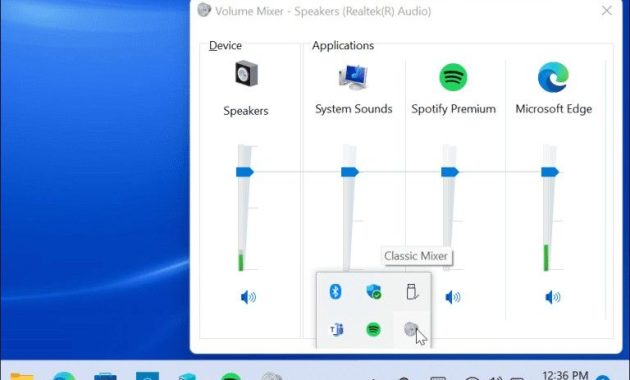
    • On, you will find a new speaker icon in the system tray
    • Clicking on that icon will launch the famous classic volume mixer

    The advantage of this method is that the original functionality of the Windows 11 volume mixer is not lost. You will be able to access both options whenever you want,  which is a plus point.

    How to Restore Classic Volume Mixer in Windows 11

    Undoubtedly, restoring the classic volume mixer in Windows 11 is a simple trick, that takes a few seconds, and it will make it easier for you to enjoy the experience closer to what you have adapted.

    You can choose any of the cheats and, however, undo the changes to update the mixer again.

    Read more:

    Conclusion:

    So, friends, This is the explanation of how to restore the classic volume mixer in Windows 11, After all, Windows 11 is worse than Windows 10 in some ways, and many of them are 100% aesthetic. It remains to be seen whether Microsoft decides to heed the complaints or, as is more likely, we have to get used to the new reality of many contextual elements.

  • 8 Ways To Fix Error Code 0x8000FFFF in Windows 10 PC 2025

    8 Ways To Fix Error Code 0x8000FFFF in Windows 10 PC 2025

    8 Ways To Fix Error Code 0x8000FFFF in Windows 10 PC – This 0x8000ffff error that occurs in Windows 10 is related to Windows Update. These error codes are known to affect the functionality of the Microsoft Store.

    8 Ways To Fix Error Code 0x8000FFFF in Windows 10 PC
    8 Ways To Fix Error Code 0x8000FFFF in Windows 10 PC

    8 Ways To Fix Error Code 0x8000FFFF in Windows 10 PC

    After you update Windows 10 and go back to the Microsoft Store, error 0x8000ffff indicates something is broken, somewhere. This error is not too severe and will not damage your computer. There are several ways to solve the 0x8000ffff error. Let’s see and fix this problem.

    Read more:

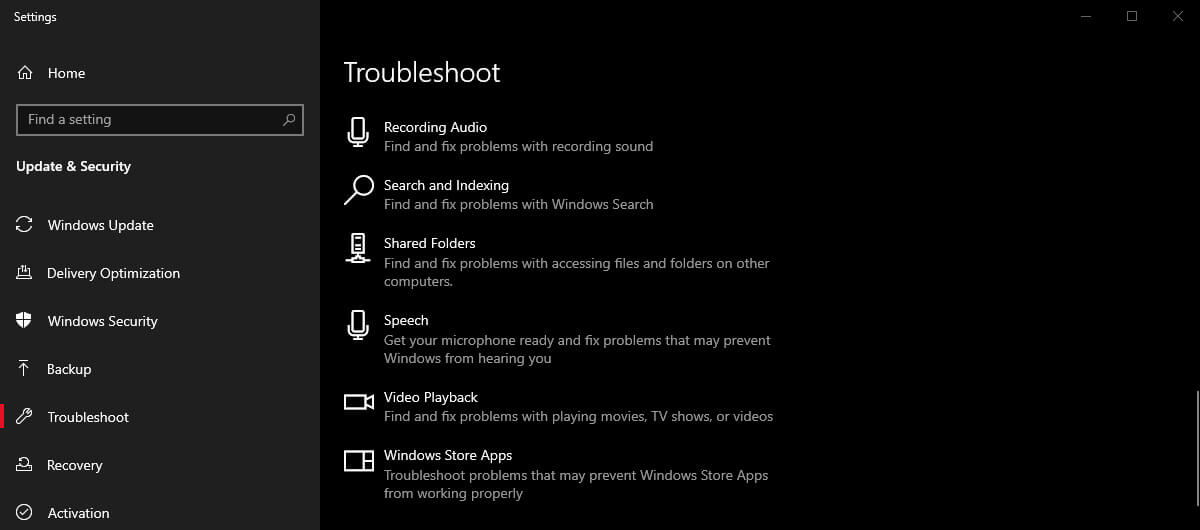
    #1. Use Windows Store Apps Troubleshooter

    Use Windows Store Apps Troubleshooter

    Did you know that Windows 10 has a lot of troubleshooters? One option is for the Microsoft Store. To run the troubleshooter:

    1. Press  Windows Key + I.
    2. Type  Troubleshoot in the search bar.
    3. Scroll down the long list until you find Windows Store Apps, then select Run the troubleshooter.

    Follow the on-screen instructions to fix your Microsoft Store error 0x8000ffff.

    #2. Clear Microsoft Store Cache

    Another quick fix for the 0x8000ffff error is to clear the Microsoft Store cache.

    1. Press  Windows Key + R  to open Run
    2. Type  wsreset.exe   and click   OK.

    An empty Command Prompt window will open in about ten seconds. After that, the Store will open itself. If that doesn’t work, press   Windows Key + R   again. Enter this:

    C:\Users\%USERNAME%\AppData\Local\Packages\Microsoft.WindowsStore_8wekyb3d8bbwe\LocalState

    If the Cache folder already exists, rename it   Cache. old. Then, if the Cache folder doesn’t exist, create a new folder called Cache. Then, run the Troubleshooter as outlined above and it will detect and resolve the issue.

    #3. Reconfigure Or Reinstall the Microsoft Store

    You can reconfigure the Microsoft Store in an attempt to clear the 0x8000ffff error. To reconfigure the Microsoft Store:

    1. Type  PowerShell into your Start menu search bar, then right-click and select Run as Administrator.
    2. Copy and paste the following command:
      powershell-ExecutionPolicy Unrestricted Add-AppxPackage-DisableDevelopmentMode-Register
    3. Now, do the same for this command:
      Env: SystemRoot\WinStore\AppxManifest.xml
    4. Reboot your system.

    Sometimes the reconfiguration options are not enough to clear the 0x8000ffff error. In that case, you can try reinstalling the Microsoft Store completely. It didn’t take long!

    1. Type PowerShell into your Start menu search bar, then right-click and select Run as Administrator.
    2. Copy and paste the following command:
      Get-AppXPackage *WindowsStore* -AllUsers | Foreach {Add-AppxPackage -DisableDevelopmentMode -Register "$($_.InstallLocation)\AppXManifest.xml"}
    3. Close PowerShell, then reboot your system.

    #4. Run CHKDSK And SFC

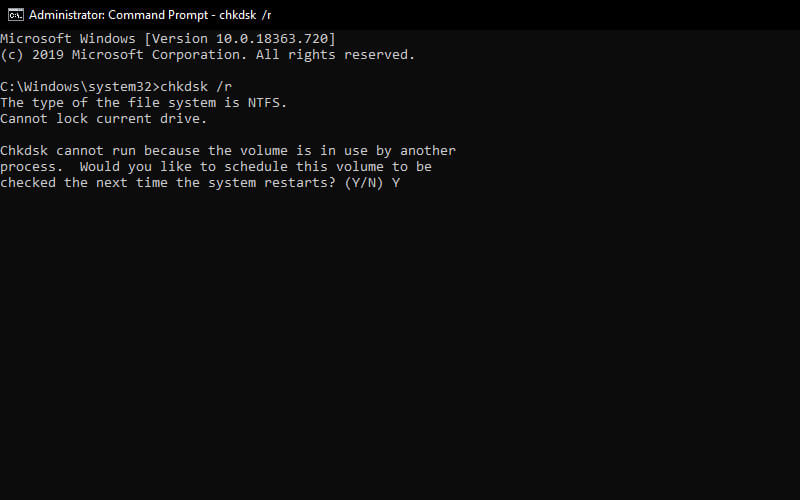
    Run CHKDSK And SFC

    CHKDSK is a Windows system tool that verifies the file system and with certain settings, fixes problems while running. You can run CHKDSK from the Command Prompt by:

    1. Type the command prompt in your Start menu search bar, then right-click the most suitable one and select  Run as administrator. (Alternatively, press the Windows key + X, then select   Command Prompt (Admin)   from the menu.)
    2. Next, type chkdsk /r  and press Enter. This command will scan your system for errors and fix any issues.

    If that doesn’t work, you can run Windows System File Check (SFC). System File Check is another Windows system tool that checks for missing and corrupted Windows system files. Sounds like CHKDSK, right? Well, SFC checks Windows system files specifically, while CHKDSK scans your entire drive for errors. But before running the SFC command, it is best to double-check if it works.

    DISM stands for Deployment Image Servicing and Management. DISM is an integrated Windows utility with multiple functions. In this case, the DISM Restorehealth command ensures that subsequent repairs will work properly. Perform the following steps.

    1. Type   Command Prompt (Admin) in the Start menu search bar, then right-click and select   Run as administrator to open a Command Prompt with higher access.
    2. Type the following command and press Enter: DISM /online /cleanup-image /restorehealth
    3. Wait for the command to complete. The process can take up to 20 minutes depending on the health of your system. The process seems to crash at times, but wait for it to finish.
    4. When the process is complete, type sfc /scannow and press Enter.

    #5. Delete the Software Distribution Folder

    Deleting your Software Distribution folder can bring your Windows Update back to normal, and remove the 0X8000ffff error.

    However, before proceeding with this fix, please note that deleting the contents of your Software Distribution folder does have some side effects. Especially, deleting your Windows Update history removes the folder. The effect will occur when you try to update your system again, the process may take a few minutes longer.

    1. Type the command in your Start menu search bar then right-click the most suitable one and select Run as Administrator.
    2. Enter  net stop wuauserv
    3. Enter the net stop bit
    4. Open a Windows Explorer window. Copy and paste C:\Windows\SoftwareDistribution into the address bar.
    5. Open the Software Distribution folder. Press  CTRL + A  to select all files, then Delete.

    If you can’t delete all the files, reboot your computer, and rerun the process. After you delete the files, reboot your system.

    #6. Check Your Cryptographic Service

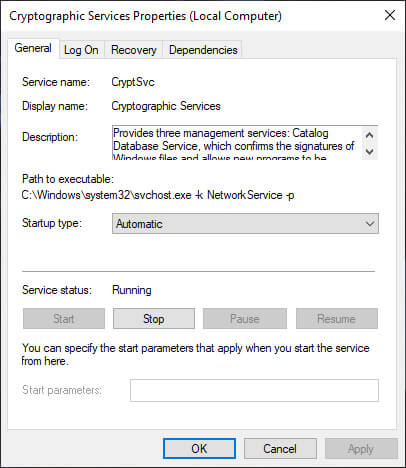
    Check Your Cryptographic Service

    The Windows Cryptographic Service has a close relationship with Windows Update and the Microsoft Store. If the Cryptographic Service does not work or is turned off, Windows will not update and throw up a lot of errors. Error 0x8000ffff is one of them.

    1. Type service in your Start menu search bar and choose the most suitable one.
    2. Look for Cryptographic Services.
    3. Make sure the service is set to start automatically.
    4. If Cryptographic Service is turned off, select Start.

    #7. Fix Network Problems

    Some users are reporting the 0x8000ffff error stems from a network issue. You can use the Windows 10 integrated network repair troubleshooter to fix it too. To run the troubleshooter:

    1. Press  Windows Key + I.
    2. Type troubleshoot the network in the search bar.
    3. Scroll down and select Network Troubleshooter, then follow the on-screen instructions.

    If that doesn’t work, try changing your DNS settings. Switching to an alternative DNS can sometimes resolve network-related issues.

    1. Type network in your Start menu search bar and select the most suitable one.
    2. Select   Change adapter options.
    3. Right-click your active connection and select Properties, then Internet Protocol Version 4, then Properties.
    4. Select Use the following DNS server addresses, and enter 1.1.1.1 and 8.8.8.8. Press OK.

    1.1.1.1 is Cloudflare’s privacy-focused DNS, while 8.8.8.8 is Google’s Public DNS.

    #8. Reset Windows 10 (Last Choice)

    Reset Windows 10 (Last Choice)

    Sometimes nothing but Reset Windows 10 will fix your problem. Windows 10 Reset replaces your system files with a completely new set of files and theoretically removes problems related to Memory Management errors while keeping most of your important files intact.

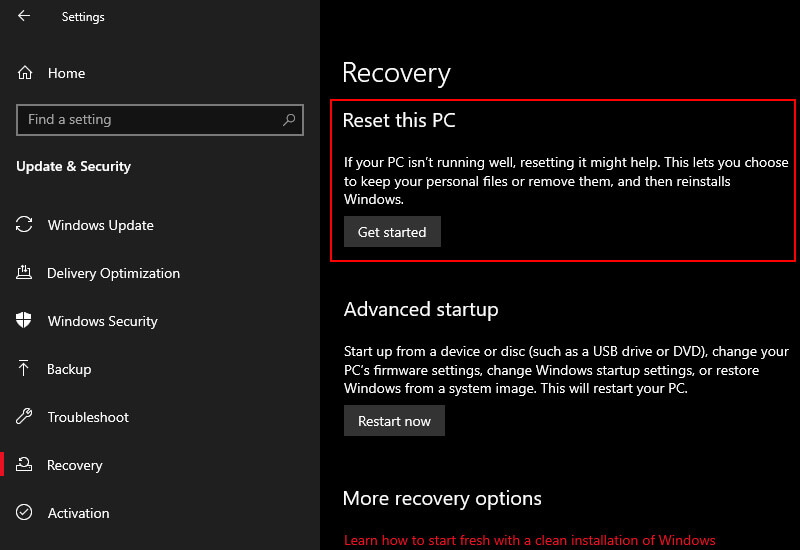
    Go to Settings > Update and Security > Recovery, then under Reset, this PC select Get Started.

    Your system will restart as soon as you press the button, so make sure you back up important files first. Your system will restart, then you can choose to Keep my files or Remove everything.

    Read more:

    Conclusion:

    This is the explanation of 8 ways to solve Error 0x8000ffff, One way or a combination of these seven fixes should clear your 0x8000ffff error and let you run normally on the Microsoft Store again. Admin hopes you don’t need to use the eighth option, Reset Windows 10.