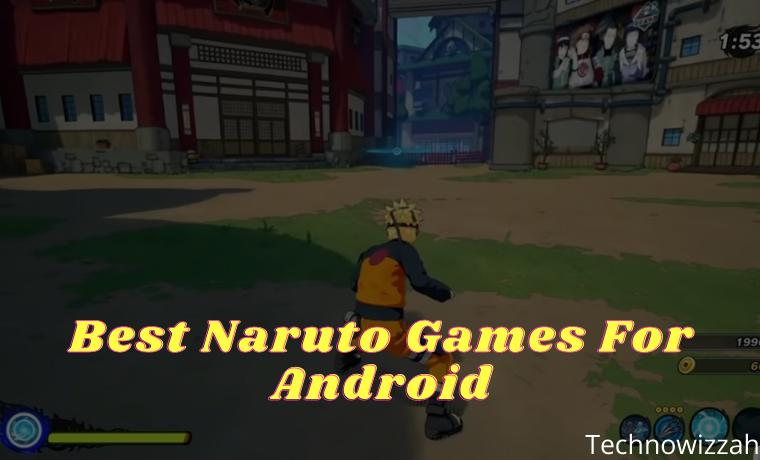
Top 15 Best Naruto Games For Android – Who doesn’t know the Naruto anime? Of course, most children born in the 90s love this anime. Because the Naruto anime is very inspiring.
Top 15 Best Naruto Games For Android
Top 15 Best Naruto Games For Android 2024
In addition, now there are lots of anime-themed games. several types of Naruto ninja games that can be played on Android smartphones offline or online.
So if you are a Naruto anime lover, then you should not miss the recommendations for the most exciting Naruto anime games to play on your Android.
Here below we will recommend some of the most exciting and challenging Naruto games.
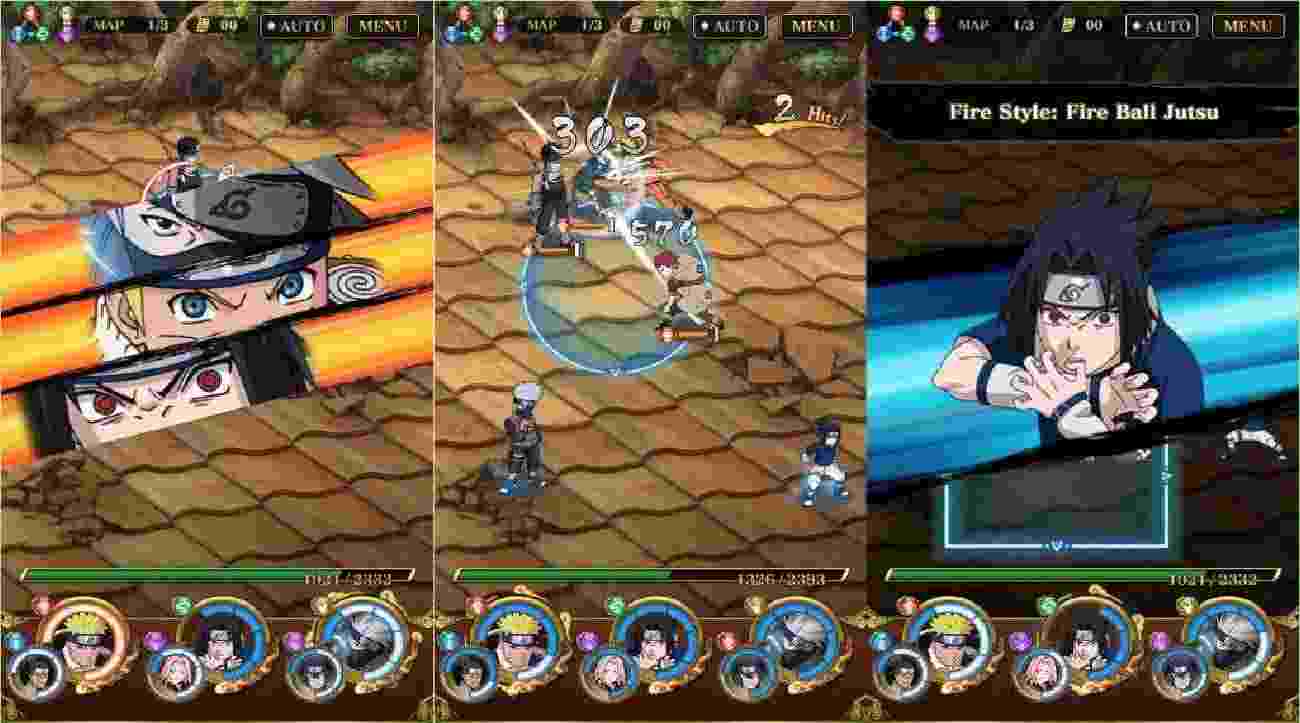
#1. Ultimate Ninja Blazing
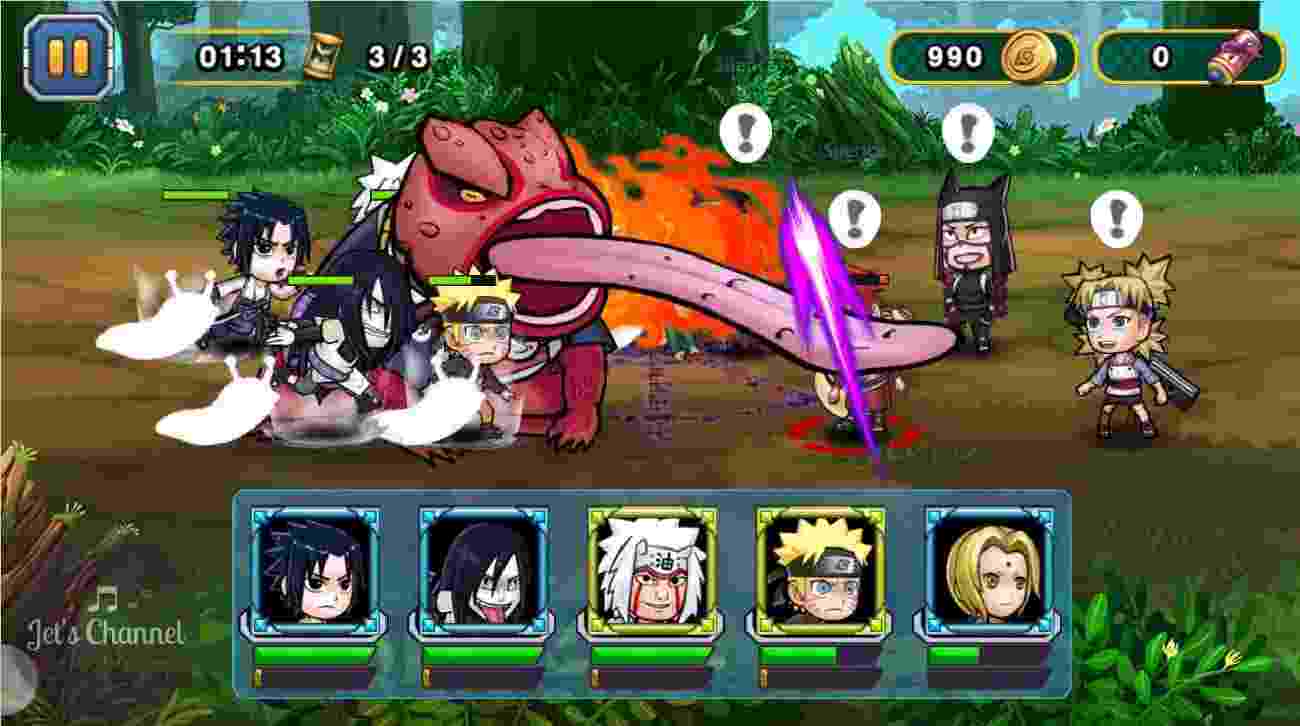
Ultimate Ninja Blazing is a game where players have to duel and hold battles using characters from the Naruto anime.
In addition, you can of course choose a variety of Naruto anime characters to be ready to fight in the places that have been provided in the ultimate ninja blazing game.
Plus, the Shinobi battle formation is also applied to this game. Anyway, if you try this game, you will definitely like it, and if you want to play, you can directly download it on the playstore.
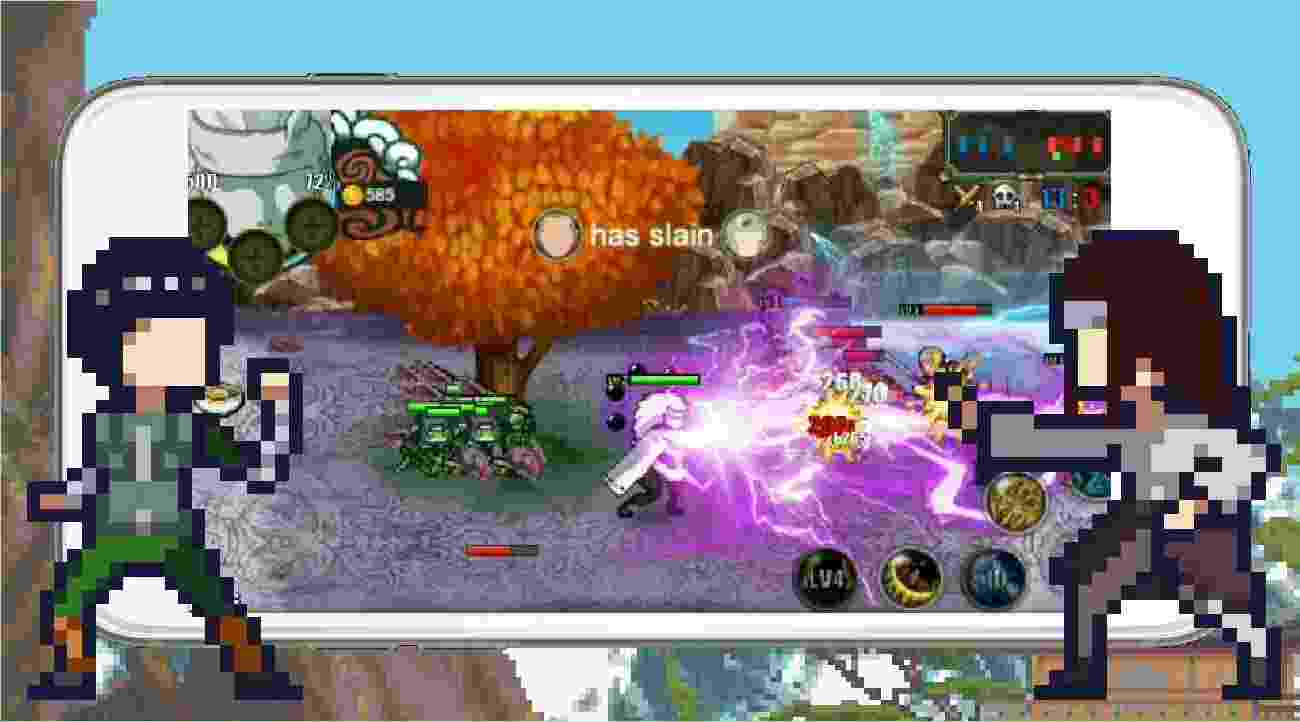
#2. League Of Ninja : Moba Battle
League Of Ninja: Moba Battle is an exciting game and has a MOBA game concept. And for the player characters follow the animation from Naruto.
In addition, the way of fighting this game is also different from other MOBA games. Because in this game the players will fight with ninja moves that are extraordinary.
Plus, players will play with a 5 versus 5 system. Then players are also asked to collect coins from every battle they do.
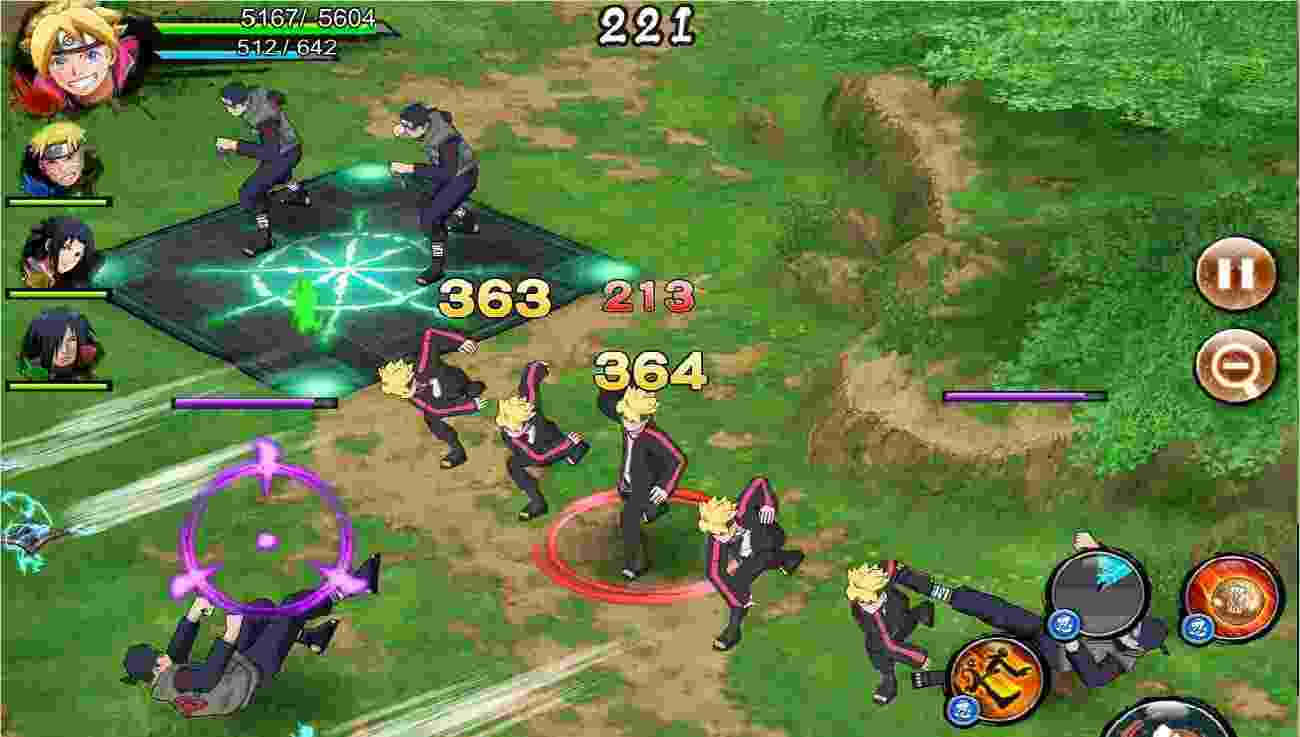
#3. Naruto X Boruto Ninja Voltage
Naruto X Boruto Ninja Voltage is an interesting and exciting game and is a game that is suitable for Naruto game lovers to play.
In addition, this game offers a cool and addictive atmosphere and also brings players into exciting and certainly more challenging battles.
In addition, there is a battle ranking system where each player will always be ranked based on the total score of the battles carried out. You can just download it on the playstore.
#4. Ninja Arena4. Ninja Arena
Ninja Arena is an interesting and simple game that can make the players feel an exciting atmosphere to play.
In addition, in this game, there are about 41 characters that players can choose from. Accompanied also by offering 20 stages for battles between ninjas.
Plus, you can play in three different modes. The first mode is team against (CPU & Arcade), single-player against (CPU & Arcade), and mode for practice.
#5. Ninja Rebirth – Monster Legend
Ninja Rebirth – Monster Legend is an interesting game that offers a type of play with PvP. In addition, there are more than 50 characters adapted to the Naruto anime.
The interesting thing, you can also play alone (single players) or create a guild with other Ninja Rebirth – Monster Legend players.
Plus, this game also always has exciting challenges that will definitely make you like playing this game more. If you want to try it, you can directly download it from the Playstore.
#6. Shinobi Legend – Ninja Battle
Shinobi Legend – Ninja Battle is a game that has the impression of being able to make the players feel challenged in the matches in this game.
In addition, this game also offers many characters from the Naruto anime. And of course, you can fight between Ninjas with a variety of cool and interesting moves.
Plus, you can fight in different places, for example in dungeons. And can form guilds with other games to fight together for rewards.
#7. Konoha Ninja Quiz
Konoha Ninja Quiz is an interesting Naruto game and is not inferior to other Naruto games.
So in this game, you will bring friends about a quiz that you have to answer.
In addition, an image will appear where you have to guess every character displayed in the image.
#8. Stickman Ninja 2
Stickman Ninja 2 is a game that looks like a stickman.
But the stickman is drawn according to the characters in the Naruto anime. And you only fight against the enemy.
In addition, this game has a display with a dynamic control system and is quite easy to use.
#9. Battle Of Ninja World: Super Kombat
Battle Of Ninja World: Super Kombat is one of the most fun Naruto games to play.
In addition, in this game, you will meet enemies that must be fought every time you walk.
Plus, this game also provides about 20 characters according to the anime in Naruto.
#10. Stickman Ninja
Stickman Ninja is the first game in the series of Stickman Ninja 2 and has an atmosphere that can make players like it.
In addition, what distinguishes stickman ninja and Stickman Ninja 2 is the challenge.
Although this game is not too much of a challenge has some challenges that are quite addictive.
#11. Shinobi Heroes
Shinobi Heroes is a Naruto android game that has the concept of an RPG game.
In addition, this game will bring more exciting and interesting challenges.
Plus, it has hundreds of missions that are ready to be completed by players of the Shinobi Heroes game.
#12. Narutoimates: Ultimate Ninja
Narutoimates: Ultimate Ninja is a game that can be the right choice for those of you who like the Naruto anime.
In addition, in this game, you can do battles and fights one on one with Naruto characters.
Each selected Naruto character has a unique skill. And the special techniques and moves are different for each character.
#13. Narutoimate Storm Ninja Heroe
Narutoimate Storm Ninja Heroes is a game that offers a fighting action game between Naruto anime characters.
In addition, there are interesting features that are equipped with items such as shiruken and kunai.
Plus, it has a background that is streamlined by Narutoimate Storm Ninja Heroes and the sound is appropriate and not too loud.
#14. Naruto Quiz
Quiz Naruto is an interesting game with the concept of fighting, adventure, or RPG games.
In addition, it offers a unique Naruto game where the to answer each question is given.
This game is easy to play, you just answer every question that comes up by typing every letter.
#15. Shinobi Wars
Shinobi Wars is a game that offers the concept of action, which will provide fun for game lovers.
In addition, this game is easy and simple but still fun and can be played on any Android phone.
To play the game you only need to rely on the buttons which are not much.
Top 15 Best Fish Fishing Games for Android – Fishing is an activity that can be for refreshing or just for a hobby. Fishing is generally done in fishing ponds, lakes, rivers, or the sea.
Top 15 Best Fish Fishing Games for Android
Top 15 Best Fish Fishing Games for Android 2024
In addition, there are also very exciting fishing games that you can play on Android devices. So you can feel the same sensation as real fishing.
So now we will discuss the list of the best and best fishing games. Of course, it can relieve your boredom.
Best Fish Fishing Game on Android
Here below are some recommendations for fishing games that you can download.
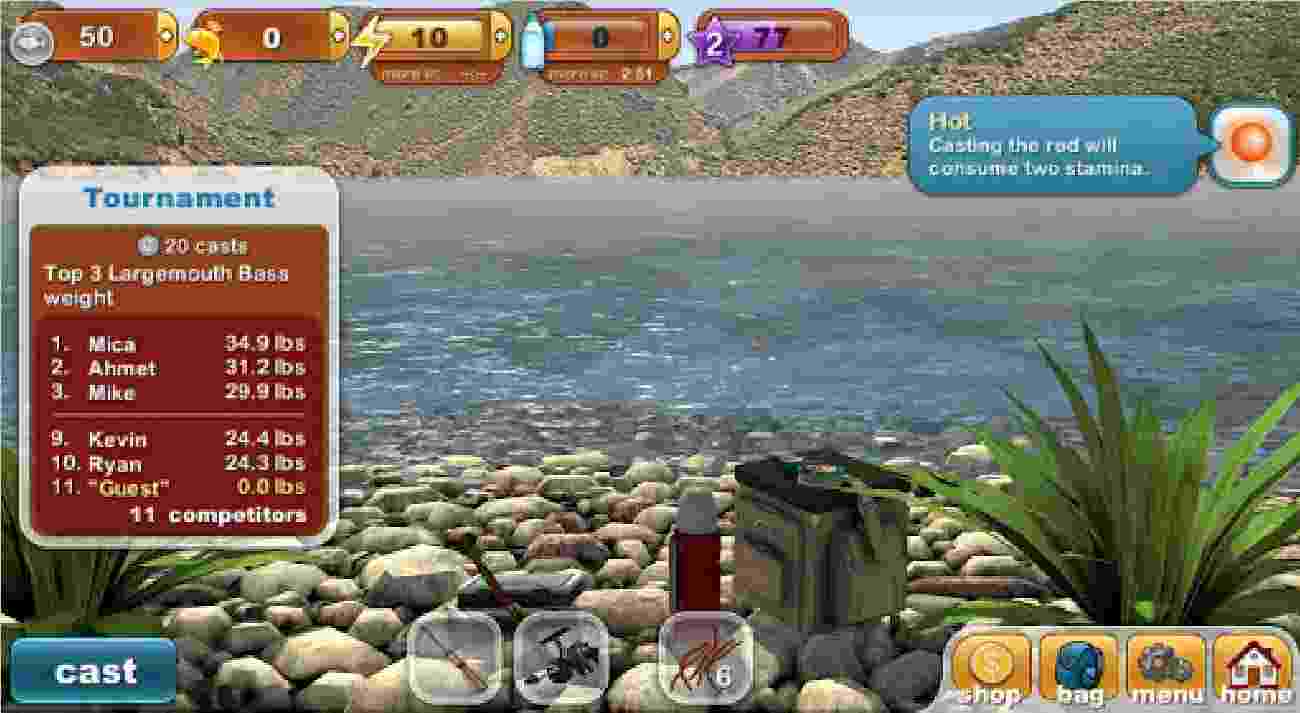
#1. Ace Fishing Wild Catch
This game made by Developer Com2uS offers a portrait game mode, this game makes you feel like holding your own fishing rod.
This game also has a place or spot where anglers can complete their fish collection.
In addition, this game also uses 3D graphics which makes this game look more real.
#2. Fishing Mania 3D
Fishing Mania 3D is a fishing game that has good graphics and interesting features so you don’t get bored while playing this game.
This game also offers the thrill of fishing in 10 of the best locations in the world, with 50 missions, 90 fishing gear combinations, and more.
This Android fishing game has been downloaded about 5 million times and this game is also only 16MB in size.
#3. Fishing Clash
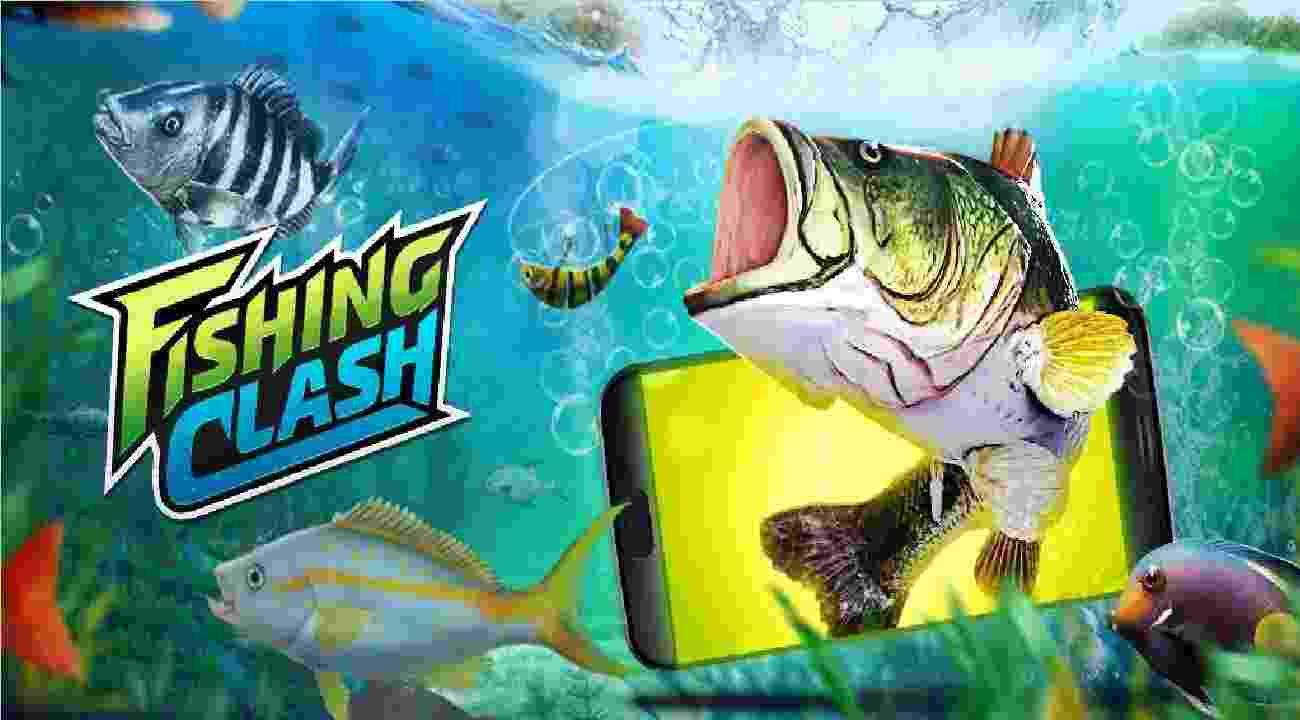
Fishing Clash is a game that will invite you to fish professionally and become an extreme and thrilling virtual fishing adventure.
In addition, you can join an elite fishing club to be able to compete in prestigious tournaments with exclusive prizes.
And will invite you to visit popular fishing locations in the world such as North America, Florida, Alabama, Kenai River to Alaska.
#4. Fishing Strike
Fishing Strike is a game that will give you a fishing atmosphere that looks alive. And you will travel the world to collect the best fish from several countries.
In addition, it is equipped with a dynamic display between anglers and fish. Where the fishing skills and equipment owned by the angler are very important equipment in this game.
This game is the first fishing game that supports VR (Virtual Reality) and AR (Augmented Reality) technology. In VR and AR settings you will have your own aquarium.
#5. Fishing Diary
Fishing Diary is a game that is suitable for gamers who prioritize fun.
The game offers cool graphics and in this game, you can use bombs, electric shocks, cannons, and others.
Your goal is to catch as many fish as possible in various ways to get a lot of coins.
#6. Fishing Hook
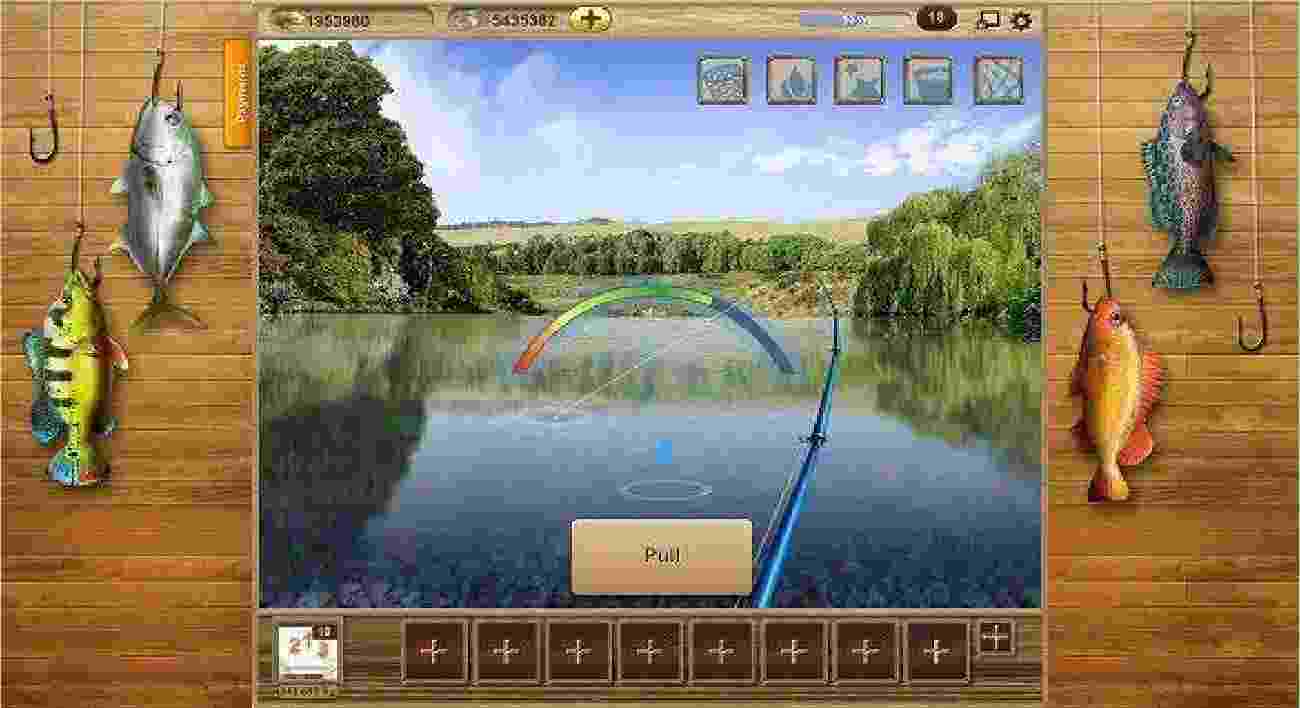
Fishing Hook is a fun fishing game and has a professional fishing rod so you are like a great angler.
In addition, if the fish is struck by the hook, you must be able to control the tension of the fishing rod.
Pulling and stretching according to the parameters that appear on the screen so that the fish do not escape and arrive safely.
But if you can’t control the fishing rod, the fish that has been grabbed will come off or the fishing line will break.
#7. Let’s Fish
Let’s Fish is a game that will free the players to use the fishing rod they want.
And can choose the equipment according to the selected location to fit the character of the fish in the location.
Uniquely, this game provides many species of fish, ranging from Salmon, Catfish, to White Shark.
#8. Fishing Paradise 3D Free+
This fishing game from App Holdings uses realistic 3D graphics. And will visit more than 14 exotic locations to catch fish.
In addition, you can build and manage your own fish farm and you can catch 50 species of rare fish of great value.
This game also provides a multiplayer tournament feature where you can compete for fishing prowess with other players.
#9. Rapala Fishing
The game comes with 3D graphics and there are also 24 different fishing locations that will be added from time to time.
In addition, it provides various competitions where anglers will fight with other anglers.
You can choose the fishing rod that will be used for fishing according to the character of the fish you will be fishing.
#10. Monster Fishing 2018
Monster Fishing 2018 is a fish monster fishing game that previously only fished ordinary fish.
This game has many challenges and events about fish or monsters that you can catch that will make you excited.
With 30 of the best fishing spots in the world, you will feel the sensation of real fishing.
#11. Bass Fishing 3D
Who is not familiar with Bass Fishing, a game that has a 3D format made by Pascal Inc. which is very worthy for you to play?
Cool gameplay with a classy presentation will make this game even more fun to play.
In addition, the existence of several modes of fishing makes it even more fun to play.
#12. Marble Fishing
There is one more cool game that might be one of the most interesting games that you can play.
Marbel fishing is the best fishing game because it comes with a FUN presentation.
This game is very suitable to be played when you feel bored with some games that are too serious.
#13. Fishing Kids
If you are looking for a fishing game with a fun genre, this game made by Ygroups is an interesting choice.
Where you will be given the character of cute animals in this game that can be played very excitingly.
There are many characters, places, and fish that will make this game even more fun to play.
#14. Fishing And Life
One of the most famous games is Fishing And Life, where this game has also received many awards.
This game that comes with a simple graphic presentation will make the players also feel the excitement of fishing.
The simple and practical graphics also make it very suitable to be played on smartphones with lower-middle specifications.
#15. Fishing Craft
For those of you who like games with genres like Minecraft then you can try fishing craft games.
This game is an interesting choice for those of you who like games in this genre.
In addition, the practical presentation with the presentation of simple controls is one of the advantages of this game.
20 Quick Tips To Learn How to Use Google Classroom—Google Classroom is one of the online learning platforms gaining popularity.
Complete Guide on How to Use Google Classroom
20 Quick Tips To Learn How to Use Google Classroom 2024
Using Google Classroom is also very easy, especially since many features support learning. Find various effective ways to do online learning in the article below.
Google Classroom itself is an application developed from the Google G Suite For Education program which focuses on education.
On May 6, 2014, Google officially announced the Google Classroom project to support online teaching and learning by teachers.
In the beginning, this application can only be run on a computer or laptop.
Then in January 2015, the mobile application version of Google Classroom can be accessed using a mobile phone.
Benefits of Google Classroom
Benefits of Google Classroom via freepik.com
With Google Classroom you can do many very useful things to support teaching and learning activities, such as the things below:
Can share course material or syllabus easily.
Give or distribute assignments very easily.
Provide exams or quizzes easily and facilitate monitoring.
Doing interactive question and answer with many students at once.
Plan assignments, quizzes, or exams with a Google calendar.
Have access to Google Drive, Hangouts Meet, Docs, Gmail, Jamboard Calendar, Slides, and Forms, because it is connected to G Suite which is accessible from Google features.
How to Use Google Classroom
How to create Google Classroom via freepik.com
Google Classroom can be used for various levels of education both colleges and schools.
Anyone over the age of 13 can create online classes with Google Classroom.
#1. How to Create a Class
It’s straightforward to create Google Classroom by looking at the steps below.
Enter the address classroom.google.com which will take you to the class creation page.
Then click Add + to create a class.
Next, two options will appear, namely, join the class and create a class.
Select Create a class to create a new class.
Then a notification appears and ticks the requirements.
Click next.
Enter the class name and fill in a brief class description such as class schedule, subjects, and rooms in the Column, Section, Subject, and Room.
Then click Create or Create.
Furthermore, after the class is finished, you will get the class code that you created.
The class code is used to add or invite students to the class that you created.
#2. How to Receive Class
The Google Classroom platform has a feature for creating classes created by administrators.
Before carrying out teaching and learning activities, you are required to first activate the classes provided.
This is so that students can be seen by students by logging into the Classroom.
Go to the address classroom.google.com.
Click Accept on the class card.
Next, enter the number of students and class activities for confirmation.
Then click Accept.
#3. How to Change the Class Theme
To enhance your class appearance, you can change the theme, color pattern, or default image as desired. With the easy steps below.
Go to the address classroom.google.com.
Click Class.
Click Choose Theme.
Then select the image you want.
You can also select an image from your gallery and then click Choose Class Theme.
If you choose a theme that has been provided by Google Classroom, click Pattern, then click Class Theme Options.
#4. How to Change Class Information
In addition to changing the class theme, you can also change or correct class information that is not correct or there are errors in the method below.
Go to the address classroom.google.com.
Click Other or the colon symbol.
Click Edit.
Look for the information you want to change.
When finished, click Save.
#5. Adding a Profile Photo
You can change or add a profile photo to Classroom through the Google account that you used when creating the Google Classroom.
Why is that? Because the profile photo that appears on Google Classroom is the profile photo of your Google account.
#6. How to Copy Class
Copying a class is intended to save the teacher time to create a new class again if teaching several different lessons or different classes.
Go to the address classroom.google.com.
Click Other or the colon symbol.
Click Copy.
Edit or enter the title and other information in the fields provided.
Click Copy.
Getting full access to class changes, it can only be done by the class teacher.
#7. How to Cancel Class Enrollment
Cancel class registration can only be done by the teacher.
If you want class cancellation for any reason, immediately contact the teacher to cancel the class.
The ways that teachers can cancel class registration are as follows.
Go to the address classroom.google.com.
Click the Three Line symbol.
Select the Class menu.
On the class page click Other or the colon symbol.
Click Cancel Registration.
#8. Viewing Classes Filed
The class will be archived when it is finished. Once a class has been archived it certainly won’t appear on the home page.
To see a class that has been archived can only be seen by the teacher.
Go to the address classroom.google.com.
Click the menu on the top left which is symbolized by the three lines.
Look at the bottom of the menu Class archived or Archived Classes.
Next, choose which class you want to see.
#9. How to Change Class Order
You can change the order of classes that already exist in Classroom.
One change will automatically change the existing order of all devices.
Go to the address classroom.google.com.
You can immediately shift the cursor by dragging it to the class position you want.
#10. How to Start a Video Meeting
Before starting your class meeting, you must first make sure that the meeting and the tools you are using are ready.
Go to the address classroom.google.com.
Then click Class.
Hit the Link Meet button at the top of the page.
You will see the Classwork menu.
Click Meet.
Then click the link for the video meeting.
As the first person to join the video call, you can invite more students, and close the meeting.
#11. How to Join Online Meetings
To take part in virtual meetings online through Google Classroom, you must first activate Meet for Classroom.
Previously, you also had to make sure that you were logged into Classroom.
Go to the address classroom.google.com.
Click Class.
Click the Class meeting link.
To be able to use the camera and video microphone on the device you are using, click Allow.
Then click Join Now to start and join the meeting.
#12. How to Add Material
When you add material to the classwork page, you can filter it or share it with as many items as you like.
Such as posting to one or more classes, only certain students, and adding material topics.
Go to the address classroom.google.com.
Click the Class menu.
Select Classwork.
Click Create or Create.
Select the Material menu.
Next, enter the title and description of the material.
If you want to divide it into several classes, follow the method below:
On the Material menu, click the Down arrow.
Select it by clicking the box next to the class you want to share.
If you want to share it with specific students:
In the material menu in the column for… change it by clicking it to the Student or Student option.
Next, select the student you want to provide material with by clicking the box to the left of the student’s name.
If you want to add a topic:
In the Material menu, look for the Topic button at the bottom.
Then click Create Topic or Create Topic.
#13. How to Join or Leave Class
As a co-teacher, if you want to leave the class the easy way, you can choose via the class page or the member’s page.
Logout via the member page:
Go to the address classroom.google.com.
Click the Class menu.
Select the Member or People menu.
Find your name and click the Colon symbol.
Select Leave class.
Exit via class page:
Go to the address classroom.google.com.
Look for the class card and select the class you will leave.
Click the symbol of point three or Lainya.
Click Leave class or Leave class.
#14. Adding Teaching Partners
It is possible to add or invite co-teachers to the Classroom, not only the teacher who invites it.
Go to the address classroom.google.com.
Next, select and click the class where you want to add.
Click the People symbol at the top of the people menu.
Next, enter your email address in the column provided for the class you have chosen.
Then click Teacher or Group.
Click Invite the co-teacher.
#15. Removing Fellow Teachers From Class
Besides you can add co-teachers you can also remove them from the class.
Go to the address classroom.google.com.
Click the Class where the co-teacher joined and wants you to leave.
Click Members on the menu above.
Click the colon next to the name you want to delete.
Click Remove or Remove.
#16. How to Invite Students to Class
You can do two ways to invite or include students in your class, namely by sending an email and providing a class code.
Email invitation:
Go to the address classroom.google.com.
Click the Class where you want to enter it.
Click the Member menu located at the top.
Click Invite Student or the person symbol.
Enter the student’s email in the column provided.
If so, please click Invite.
Class Code Invitation:
Go to the address classroom.google.com.
Then click the Class menu.
Click Settings or the gear symbol.
After a code appears you have to copy and paste it into the message.
On the General page, click the downward-facing arrow next to the Class Code column.
Click Copy.
To display the code click the down arrow and select Display.
Then send it to the student you want to invite.
#17. Removing Students From Class
You can also delete students from Classroom whenever you want.
When a student’s name is removed from the Classroom list, their grades will also be automatically deleted.
But you can still find the student work folder on Google Drive only.
Go to the address classroom.google.com.
Then click Class.
Click Members.
Click the small box next to the student’s name that you want to delete.
Look for the Actions menu.
Click Delete.
#18. How to Archive, Restore, And Delete Classes
When you archive a class, the class will be moved to another folder, and won’t be deleted unless it’s permanently deleted.
Enter the address classroom.google.com.
Click the colon symbol on the class card.
Click Archive.
Returns the archived class:
Enter the address classroom.google.com.
Click the Three-line symbol at the top.
Click the Archived Classes menu.
Then the class card that has been archived will appear.
Select the class you wish to restore.
Click the Other or Colon symbol.
Click Restore.
How to Delete an Archived Class:
Enter the address classroom.google.com.
Click the Menu or the triple line symbol at the top.
Find and select a class, then click Archived class.
Click the colon symbol on the class card.
Click Delete.
#19. How To Set Post Permits And Give Comments To Students
In this case, you can give permission access to anyone to do various activities.
Such as posts in the form of ideas, questions, or other information, and comments can also contain questions or student responses.
Controlling Forum Posts:
Go to the address classroom.google.com.
Click Class.
Click Settings or the gear symbol.
On the settings page, select an option such as Students can post and comment, only teachers can post or comment, or Students can comment. Choose the one that you allow.
Click Save. To save these changes, you will need to return to the forum page.
Deactivating Students From User Pages:
Go to the address classroom.google.com.
Click Class.
Then click Users.
Click the box next to the name of the student you want to turn off.
Select and click Actions.
Then click Deactivate.
Deactivating Students in Posts or Comments:
Go to the address classroom.google.com.
Click the Class menu.
Look for student comments or posts.
Click Other or the colon symbol.
Click the option Turn off student names.
Then click Deactivate.
To delete the name of a comment you can click the colon symbol on the comment you want to delete and click Delete.
Activating Students:
Go to the address classroom.google.com.
Then click the Class menu, and select the User menu.
Click on the box next to the name of the student you wish to activate.
Then click the Action menu.
And Click Activate.
Enable posting, commenting, or replying to posts on posts:
Go to the address classroom.google.com.
Select and click the Class menu.
Search for student posts, comments, or replies to posts.
Then click Other or Column Symbol.
Click Activate.
How to Delete Student Posts or Comments:
Go to the address classroom.google.com.
Select and click the Class menu.
Find the student post or comment that you want to delete.
Then click the Other menu or the Three Points menu.
Click Delete, then confirm.
How to view deleted posts or comments:
Go to the address classroom.google.com.
Select and click the Settings menu or Gear symbol.
Click the show button on deleted items.
Click Hide, to hide items that have been deleted.
Click Save. To save changes you must return to the forum page.
#20. How to Transfer Class Entitlement
You need to remember, that transferring classes can only be done by the class owner or teacher to class co-teachers, and cannot be done outside of that.
Go to the address classroom.google.com.
Then find and select the class and click the class that you want to transfer to another teacher.
Then select and click the Member menu.
Find the teacher’s name and click the three-dot symbol next to the name.
Click the menu option Make as class owner.
Then click Invite.
How to Log In It
How to login via freepik.com
You can login to Google Classroom using a registered account, which is usually an account from a school.
Now to log into Google Classroom you can use two ways, namely via a PC or computer and a Smartphone.
#1. Login with PC
Enter your registered account address in the available Classroom page column.
Then select and click the Open Classroom button.
Enter your username and password into the fields provided.
Then click Accept on the incoming message you receive.
If you’re already using a G Suite account, select the options I’m a teacher, or I’m a student.
#2. Login with Android
Open the Classroom app.
Enter the account address in the column provided.
Enter your username and password in the fields provided.
Then click Accept.
#3. How To Log In As A Student
A student can log in in two ways, namely with the class code and email invitation.
How to login to class with code:
Go to the address classroom.google.com.
Enter the account address in the column provided.
Press the + button and select the Join class option.
Write down the code given by the teacher in the Class Code column.
Then click Join.
How to login into class by invitation:
Go to the address classroom.google.com.
Enter the account address in the column provided.
Press the Join button on the class card inviting you to join.
How to do assignments
How to do assignments via freepik.com
Go to the address classroom.google.com.
Click the Open button on the title of the available task and you will work on it.
Select the tool that you will use to open it according to the instructions contained in the task.
Once again, make sure and pay attention to the form of the assignment instructed by the teacher, the form of the assignment can be in the form of a PDF, Ms. Word file, and others.
Upload Task From PC
Click the Add button on the assignment page.
Then select the Upload File button.
Select the file that you will upload from your PC that you will send.
Click Open.
Then click File.
Wait until the file uploading process is complete, this process will take a few moments.
Then click the Submit button.
Google Classroom In-Menu
Google Classroom menu via freepik.com
Google Classroom provides important menus to support teaching and learning activities that you can use. The menus are.
#1. Class
Used as a room or room for teaching and learning activities, and interacting with the parties involved.
#2. Calendar
Can be used as a reminder, task deadline, or schedule for teaching and learning.
#3. Tasks
Used to collect and check assignments from students.
#4. Settings
Used to change, and process passwords, or other policies.
This is the explanation of 20 quick tips To learn how to use google classroom, How easy is it to use Google Classroom, Make the learning process more effective by using adequate internet speed. Also use the G Docs, G Slides, G Sheets, and G Suites facilities because they are integrated with Google Classroom.
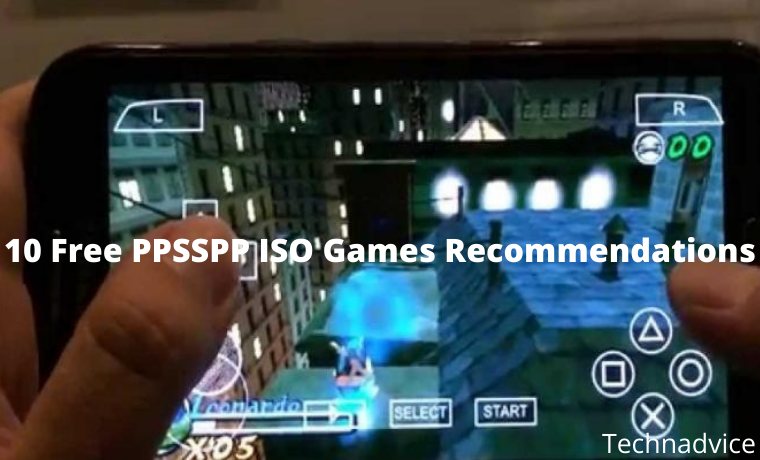
10 Free PPSSPP ISO Games Recommendations – The PSP game console made by Sony was once the prima donna for gamers. And for those of you who want to reminisce with typical PSP games, you can try downloading the PPSSPP ISO game and playing it on your Android phone.
Free PPSSPP ISO Games Recommendations 2024
PPSSPP itself is a PSP emulator for Android that is starting to be widely used. Of course, there are lots of typical PSP games that you can play on the emulator. Without further ado, just take a look at some PPSSPP games as follows.
Are you a fan of the adventure genre game? Or do you prefer racing games? Take it easy, below are several games with various genres that you can download the ISO file to play on the PPSSPP emulator.
#1. God of War: Chains of Olympus
It can be said that God of War: Chains of Olympus, is one of the best PSP games of all time. Like other God of War series, you will act as Kratos with a mission of revenge on all the gods on Olympus.
However, the journey that needs to be traversed is not easy. You have to defeat other gods as well as very terrible monsters. In addition to fighting, you also need to solve puzzles to move on to the next stage.
Almost all gamers know about a game called Grand Theft Auto. Well for the PSP itself, GTA has one of the best series called Grand Theft Auto: Chinatown Wars. True to its name, this game is set in Chinatown.
In this game, you will explore two crimes to uncover the crime of corruption in the Triad syndicate. You can directly download the PPSSPP ISO game, via the link below.
For those of you who like relaxing puzzle games, then you can try to download Lumines. Even though it has fairly simple gameplay, this game is guaranteed to be very fun to play in your spare time.
It can be said that this game is similar to the famous puzzle game, Tetris. But what distinguishes it, namely the role of music is very important to complete each game in it.
Name
Lumines
Release Date
December 12, 2004
Developer
Q Entertainment
Link Download
#4. Shin Megami Tensei: Persona 3 Portable
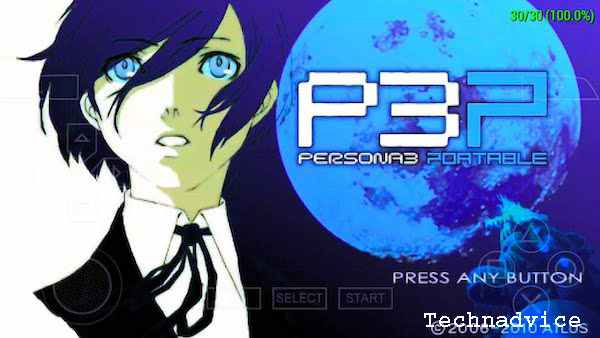
Shin Megami Tensei: Persona 3 Portable or more commonly referred to as P3P, is a game in the JRPG genre that is very interesting to play. In this game, you will take on the role of a club member at school who fights against various monstrous creatures with Persona powers.
Even though this game seems gloomy, the plot of the story is very exciting and also tense. Those of you who like Turn-Based RPG model games are guaranteed to be interested in this one.
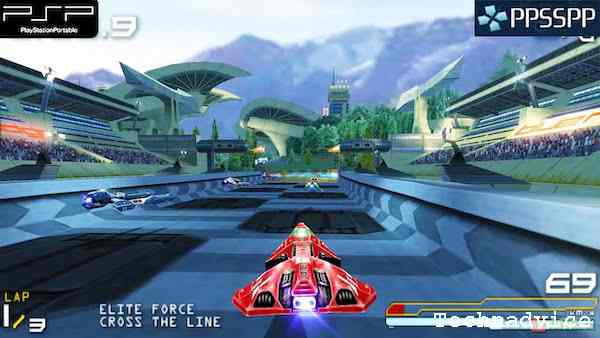
If you like racing games wrapped in fantasy graphics, it’s a must to have a game called Wipeout Pure. In addition, this game also carries the vehicular combat genre which allows you to attack opponents with weapons on vehicles.
With the futuristic elements it carries, the races that are carried out seem to be immune to gravity. The vehicle model used is also shaped like a combination of a jet and a motorcycle. The upbeat soundtrack will also add to the excitement of this game.
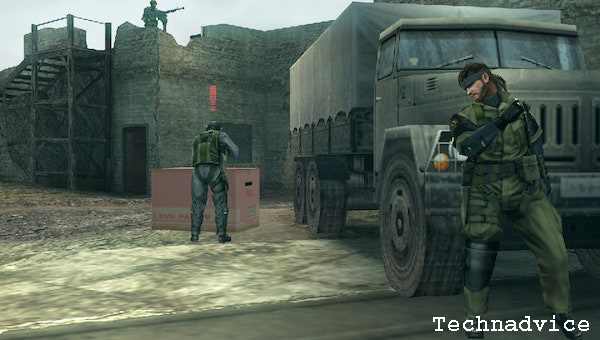
Fans of games made by well-known developers Konami and Hideo Kojima, of course, already understand the Metal Gear Solid game series. On the PSP platform, it turns out that there is also a series of Metal Gear Solid that is fun to play.
One of the recommended MGS series on the PSP is Metal Gear Solid: Peace Walker. In this game, you will be Snake, a Big Boss whose goal is to take control of the Peace Walker which is a dangerous nuclear bomb.
Not only Chinatown Wars but there is another GTA series that must be played on PPSSPP. The series is Grand Theft Auto: Liberty City Stories, which looks like the GTA series on PS2, namely Vice City and San Andreas.
This game is set in GTA’s New York, namely Liberty City, and invites you to adventure as Antonio Cipriani. Your goal is to form a gang of gangsters and become the strongest in Liberty City.
For those of you who like football games, do you know if it turns out that Pro Evolution Soccer 2012 or PES 2012 is also available for the PSP? However, do not equate PES 2012 graphics on PC or PS3 with graphics for PSP.
Because the graphics of PES 2012 on the PSP are more like PES games on the PS2. Even so, the teams and players in this game have been updated like they were in 2012. Starting from the team logo, and jersey, and transferring, to the faces of the players.
Name
Pro Evolution Soccer 2012
Release Date
5 September 2011
Developer
Konami
Link Download
#9. Daxter
Daxter is the right choice, for those of you who like platforming game models. In this game, you will find lots of fresh humor which is very entertaining. The concept art brought by Daxter seems to use bright colors and is attractive to look at.
Even so, the gameplay presented is not as simple as other platforming genre games. Several additions such as stages and power-ups can provide a new experience when playing this one game.
The last PPSSPP game recommendation is Harvest Moon, one of the most legendary game series. In this game, you will play the role of a farmer as well as a farmer who takes care of an empty field.
Just like other Harvest Moon series, you can raise various types of livestock and plant various plants on the land. The interesting thing is that you can establish relationships with girls in the village.
Playing PSP games isn’t really about how good the graphics are. But how exciting is the gameplay of the game being played? For that, please download the PPSSPP ISO game that you like the most.
Conclusion:
The PPSSPP emulator is a great way to play PSP games on your PC or mobile device, and there are many high-quality ISOs available for free online. Here are 10 recommendations for free PPSSPP ISO games.
7+ Ways to Root Android with PC Until Success (100% Working) – Several problems can occur when we root via a smartphone. If a problem occurs, the root becomes an error, which in turn causes the root process to fail.
7+ Ways to Root Android with PC Until Success (100% Work)
How to Root Android with PC Until Success (100% Working) 2024
If it’s like that, usually for the next root process it will end up the same. Namely, fail, fail, and keep failing.
Even though rooting on a cellphone is not that difficult, the process is simple, unfortunately for the result sometimes our cellphones find it difficult to show satisfactory things.
But besides that, there are other methods you can use. Namely, rooting through a PC. At least you can root even if you have to use help from another device, right?
This method is not that different from rooting the cellphone. Because even when using a PC, we ask for help from third-party applications/software.
Not much different from when we root on an Android cellphone which also uses additional root applications as assistance.
An example of an application that a cellphone uses to root is Kingroot.
That’s for the one on the cellphone, then what about the root software for the PC?
If on a PC, you will use some root software assistance such as Root Genius, iRoot, OneClickRoot, iSkysoft Toolbox, Kingo Root, and so on.
But unfortunately the root method via PC, it’s more complicated than on a cellphone. But if the results are satisfactory, why don’t we just try to follow them?
And here are some ways to root Android with a PC that you can follow.
How to Root Android with a PC Computer Laptop
Before rooting Android with a PC, we first prepare a few things that are mandatory for this cellphone root tutorial.
Things that must be prepared
1. Your smartphone battery is charged. At least 50%, if it is charged under that power, please charge it for a while until it meets the requirements.
2. Enable USB Debugging mode.
For how to activate this mode, follow the steps below:
Open Settings on your smartphone, then look for the About Phone menu then click on the menu.
On the About Phone menu, scroll your screen down to find a menu called ‘ Build Phone ‘.
Click ‘ Build Phone ‘ several times or about 5 times. Anyway, click until you see a warning that reads ‘ You are Now Developer ‘.
Then back in Settings, look for the menu named ‘ Developer Options ‘ or Developer Options.
Click on it and look for USB Debugging in the menu. If you have found it, all you have to do is click the checkbox to enable USB Debugging.
The activation process has been completed.
3. Enable the install feature of applications from unknown sources, the method is very easy:
Open the Settings menu
Then click Security or Security Settings
Inside the menu, find ‘ Unknown Source ‘ or Source Unknown
Activate that menu. That way, the feature to install applications from unknown sources is active
4. Prepare the USB cable that came with HP. If there is none, use whatever USB is as important as it is compatible
5. Have internet access on a PC
After you have the things above, it is time to enter the steps to root Android via PC.
Steps to Root Android Through a PC Computer Laptop
#1. Using Root Genius
First of all, first, turn off the antivirus that is on your PC. Because your PC antivirus may detect something dangerous in your Root Genius software or consider the software to be a virus
Download the Genius Root software at Shaume.com
Install and run
Plugin the data / USB cable into the PC to connect your Android phone. After that, a notification will appear as shown in the picture
Then click check the I Accept User Agreement option, then click ‘Root It’ to start the root process
The root process will run, you just wait until the process ends
When finished, unplug your data cable from the PC then check your Android phone. There will appear a new application called ‘Kinguser’
Until here you have successfully rooted Android via your PC
#2. Using Kingo Root
Download this software on their official site
After you download, install, and then open the application as usual
Then connect your phone to the PC using a data cable
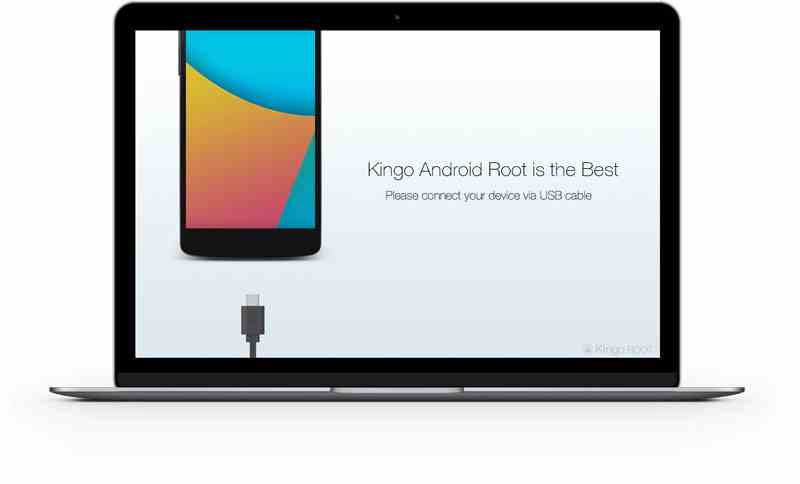
Kingo Root will search for devices connected to the computer. If your phone has been detected by Kingo Root, a notification will appear as shown
Click Root to start the root process
Wait for the process to end
When finished, unplug your data cable then check on your Android application menu. If successful, an application called Kingo Superuser will appear
#3. Using iRoot
Download the software on their official site. On the ‘Product’ page, there is a choice of iRoot devices for Android and PC. Since you are using a PC, then click download for PC devices
Once downloaded, install the application as usual
Then connect your Android phone to your PC using a data cable. After that, click the green command that says ‘Connect’
iRoot is looking for your device, just wait. And after your device is found, the name of your Android smartphone will appear on the laptop screen.
Click Root to start the root process on your Android
Wait for the process to complete. When it’s finished, unplug the data cable to disconnect then check your cellphone because a new application will appear as a result of your root
And congrats, your phone has been rooted successfully
#4. Using OneClickRoot
First of all, download the OneClickRpot application for PC devices on their official site
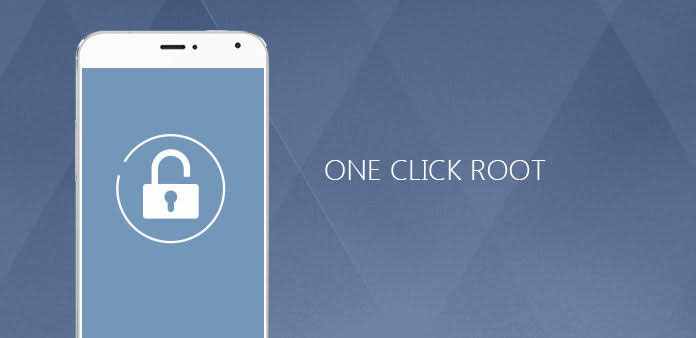
Open the software, then the display will appear as shown
Connect your phone to your PC with your data cable. Then click the command ‘Root Now
Unlike other software that recommends that the battery be charged with at least 50% power, for this OneClickRoot software, you must have a 25% remaining battery.
After you click the ‘Root Now’ command, the software will work in just one click, as the name suggests.
Wait until the process is complete, if so, unplug your data cable and the latest Superuser application from OneClickRoot will automatically appear
#5. Using iSkysoft Toolbox
Download this software by searching on Google. Just type the keyword download iSkysoft Toolbox for PC
Install and open the application as usual
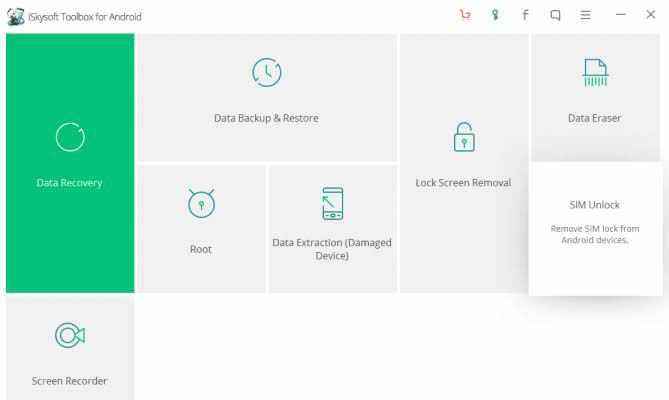
In the initial screen, several menu options will appear. You just click the ‘Root’ menu because here you will root the cellphone
Connect your smartphone to a PC using a data cable
Wait until iSkysoft Toolbox captures the devices connected to them
Let the detecting process run until 100%. After that, the ‘Root Now’ menu will appear, you click on the menu and the root process takes place
Wait for the root process to finish, if so, do the steps described above
Apart from the five software, there are other root software such as Kingroot, Baidu Root, Wondershare MobileGo, and others. You just have to choose one of these software.