Benefits of Changing Picture Size for Any Project – Changing picture size captures the eye and keeps a project looking sharp. A simple shift in size turns plain visuals into striking elements that draw people in. Each frame sets the tone and shapes how the entire piece feels.
The choice to adjust an image carries power in every creative project. What begins with one picture can shape the style of the whole design. This step often defines how strong the final result will be.
In this blog, we will discuss the benefits of changing the picture size for any project. Read more!
Enhancing Visual Balance in Print and Digital Designs
Design balance often begins with the right image proportions. When pictures align with layouts, they create order across a page or screen. This sense of harmony keeps the focus on the subject and supports the overall design flow.
In both print and digital projects, size guides the way visuals interact. Large images dominate while smaller ones support the story. A strong mix gives structure that feels natural and easy to follow.
Every element needs to play its role without taking over. Properly sized pictures help create a rhythm across different sections. The result is a design that feels organized, steady, and clear from start to finish.
Faster Website Loading with Well-Sized Images
Websites rely on speed to hold attention. Large, unfit images can slow this down, leaving visitors waiting longer. The right size helps keep the flow steady and keeps users engaged.
When files load smoothly, people stay focused on the content itself. Navigation feels seamless, and frustration does not build. This balance between visuals and function keeps users moving through each page.
Quick-loading visuals also show care for detail in design. It shows planning in how every part of the website works. The outcome is a space that feels light, efficient, and professional.
Improving User Experience by Reducing Image Bulk
Visuals that are too large can overwhelm the space around them. A reduced size ensures they blend into the design with ease. This keeps the focus on both text and images without either competing too strongly.
When people browse, they notice smooth interaction more than hidden adjustments. A well-sized picture adds to this experience without drawing attention to itself. The page feels complete without being crowded.
A balanced user experience leads to longer visits. Visitors enjoy the flow and spend more time engaging. The change in how images sit on the page can quietly guide people deeper into the content.
Perfect Fit for Social Media Platform Requirements
Each social media platform sets its own rules for image display. Pictures that fit these spaces capture the best possible view. They appear crisp, clear, and aligned with the format expected by the platform.
When an image is off-size, it may cut off important parts. A correct size makes sure no message is lost. The picture stands strong and communicates without distraction.
Consistency in presentation builds trust among audiences. A properly sized picture shows effort in preparation. This makes the visual message more reliable and appealing.
Consistent Branding Across Multiple Digital Channels
Branding depends on visual strength across many spaces. When images carry the right size, they hold the same look everywhere. This consistency makes the brand appear stable and professional.
Viewers connect better when they see a steady style. From websites to ads, a familiar image size reinforces brand identity. This builds recognition over time and strengthens trust.
Consistency also supports larger strategies in communication. It connects with the visual content strategy by aligning all parts of the design. This creates a shared look that works in every channel.
Resized Images for Better Mobile Responsiveness
Mobile users expect visuals that match their screens. Pictures that adapt well create smooth transitions between devices. This is a key part of responsive design that modern projects demand.
When images fit mobile layouts, scrolling feels natural. Users move through content without pauses or gaps in display. The flow encourages more interaction and less frustration.
Resized images also reduce strain on mobile performance. Files open faster, and browsing feels lighter. A design prepared for all screen sizes delivers a stronger overall impact.
Maximizing Storage Efficiency with Correct Image Dimensions
Storage is often overlooked in design projects. Large and heavy images take up unnecessary space. Correctly sized visuals lighten this load while still keeping strong quality.
This kind of control supports digital asset management goals. It creates order in how files are stored and shared. Teams save time by working with optimized assets.
A clear system for images prevents clutter in long-term projects. Efficiency rises as every picture fits its place in the library. The result is smoother workflows and easier access.
Sharper Visuals Without Losing Quality
Sharpness defines how well an image holds attention. A resized picture can stay crisp if adjusted with care. This balance keeps details visible while fitting design needs.
Modern tools make it possible to keep high quality. Many choose to change picture size online for simple and precise results. This approach blends convenience with accuracy in visual design.
Sharp images bring strength to both print and digital work. They highlight details without overpowering other parts. The result is a final product that looks clean and professional.
Increased Engagement Through Cleaner Visual Presentation
Engagement depends on how visuals speak to the viewer. A clean presentation removes distractions and draws focus to the main message. Properly sized images help achieve this sense of clarity.
Well-arranged visuals encourage people to explore more. A neat page invites attention and sparks interest in the content. This can guide users to interact more deeply.
A cleaner presentation also supports long-term design goals. It ties into image optimization and responsive design as a whole. Over time, this clarity increases trust and value for every audience.
Transform Your Projects Through Changing Picture Size
Changing picture size shapes the way projects connect with people. It guides layouts, improves flow, and supports stronger visuals. Each step taken to refine images builds a more complete design.
When used with care, it creates a smoother and more engaging presentation. This adds value across print, digital, and mobile projects. Start refining your images today and see how the results transform your work.
Did this article help you? Browse our blog for more interesting topics.
Businesses rely heavily on digital infrastructure to operate efficiently. However, with this reliance comes increased exposure to cyber threats that can disrupt operations, compromise sensitive data, and damage reputations. Firewalls have long served as a critical line of defense, designed to detect and prevent malicious activity before it infiltrates a network. Understanding the threats they counter helps tech teams appreciate the importance of deploying the right solutions.
Malware and Viruses
Malware, including viruses, trojans, and ransomware, remains one of the most common threats to networks. These malicious programs can infiltrate systems through email attachments, downloads, or vulnerable applications. Once inside, they can corrupt data, lock users out of systems, or even spread laterally across the network. Modern firewalls, particularly next-generation models, are equipped to identify and block these threats before they reach critical systems, providing real-time protection against evolving malware strains.
Phishing Attacks
Phishing attacks are deceptive attempts to trick users into revealing personal or corporate credentials. Attackers often use emails or fake websites to pose as legitimate entities, leading unsuspecting employees to disclose sensitive information. Firewalls with integrated web filtering and threat intelligence capabilities can block access to malicious websites and flag suspicious activity, significantly reducing the risk of successful phishing attempts. This protective measure ensures employees aren’t unknowingly providing cybercriminals with an entry point into the network.
Intrusion Attempts
Hackers constantly probe networks for vulnerabilities that can be exploited to gain unauthorized access. Intrusion attempts can come in the form of brute force attacks, SQL injections, or exploitation of unpatched software. Firewalls act as gatekeepers, monitoring inbound and outbound traffic for abnormal patterns and blocking suspicious activities. Advanced intrusion prevention systems (IPS) embedded in firewalls allow organizations to stay ahead of attackers by automatically detecting and neutralizing threats.
Denial-of-Service (DoS) Attacks
Denial-of-Service attacks aim to overwhelm a network or server with traffic, rendering it unusable for legitimate users. Such attacks can cripple business operations, leading to financial losses and reputational damage. Firewalls can mitigate these attacks by identifying unusual traffic spikes and filtering out malicious requests, maintaining network availability even under heavy attack. By providing robust DoS protection, firewalls ensure business continuity and minimize downtime.
Unsecured Remote Access
With the rise of remote work, unsecured remote connections have become a prime target for cybercriminals. Without proper safeguards, attackers can exploit weak VPNs or unprotected endpoints to infiltrate networks. Firewalls with VPN support and strict access controls help secure remote connections, ensuring that only authorized users can access sensitive resources. This layer of protection is crucial for organizations that allow employees to connect from multiple locations or personal devices.
Advanced Persistent Threats (APTs)
APTs are sophisticated attacks that target specific organizations, often remaining undetected for long periods. These threats can steal intellectual property, sensitive data, or even manipulate critical operations. Modern firewalls are designed to detect unusual patterns and behaviors indicative of APTs, using threat intelligence and real-time monitoring to stop attacks before significant damage occurs. Integrating these firewalls into a broader cybersecurity strategy enhances overall resilience.
Choosing the Right Firewall
Selecting a firewall that aligns with your organization’s needs is critical. Solutions like WatchGuard Online M Series Firewalls offer a comprehensive defense against malware, phishing, intrusions, DoS attacks, and APTs. With advanced security features and real-time monitoring, these firewalls equip IT teams with the tools necessary to maintain a secure and resilient network.
Conclusion
Firewalls are more than just a barrier; they’re an active defense mechanism designed to combat a wide array of network threats. By understanding the specific dangers they protect against, businesses can make informed decisions and safeguard their digital infrastructure against the ever-evolving landscape of cybercrime.
17 Best Photo Editors Applications Free For Linux – In this article, we will share with you some of the best photo editing apps available on various Linux distributions. These seventeen software lists are not the only photo editors available but include the best and most commonly used by Linux users.
17 Best Photo Editors Applications Free For Linux
Best Photo Editors Applications Free For Linux
#1. GIMP
The GNU image manipulation program (GIMP) is an open-source photo editing tool that has features such as:
image composition
photo retouch
image writing
GIMP is highly customizable and can be installed via third-party plugins and its users are graphic designers, photographers, and graphic illustrators.
#2. Photoshop WINE
Many users who have migrated from Windows to Linux may have used this software. Photoshop is one of the most popular photo editing tools available. Although you can’t install it directly on Linux, you can use WINE to install it and use it on many Linux distributions.
WINE helps Linux users to use some of their favorite Windows programs on Linux and Photoshop is just one of them.
#3. Inkscape
Is an illustration editor that has everything you need to create professional-quality computer art. You can use it to create diagrams and illustrations, technical drawings, web graphics, clip art, icons, and logos. There is excellent support for gradients, layers, alpha transparencies, and text flow control.
The software also has an extensive filter library that allows you to apply realistic effects and extensions with bitmaps and barcodes among other things.
Most common vector formats are supported, including PDF, Adobe Illustrator, and AutoCAD files, and have to support the SVG web graphics standard.
#4. Krita
A creative Linux photo editing application for raster images. Unlike other graphic design programs. It has a pluggable engine, some support resources like Gimp files, others offer an advanced simulation of real, color mixing, and image deformation.
In addition, Krita has full support for graphics tablets, including features such as pressure, tilt, and speed, making it a great choice for artists.
There are easy-to-use tools for drawing lines, ellipses, rectangles, and hand tools supported by a useable “drawing assistant” that help you draw shapes that still have a hands-free feel to them.
#5. ShowFOTO
ShowFOTO is a standalone image editor under the digiKam project. It’s free and comes with all the standard photo editing functionalities like transformations, adding effects, filtering, metadata editing, and much more.
This app is light and not feature-rich though, a good image editing app does not require any other software to run.
Do you want to remove the background of any images without any skill, well, then just try the free image background remover.
#6. RawTherapee
RawTherapee is a free, open-source photo editor for optimizing digital images. It’s feature-rich and powerful when you need quality digital images from RAW image files. RAW files can be modified and then saved in a compressed format as well.
It has many features as listed on the project homepage including:
various cameras supported
exposure control
parallel editing
color adjustment
option of using the secondary screen
metadata editing and more
#7. Fotoxx
Fotoxx is also a free and open-source photo editing and collection management tool. It is aimed at dedicated photographers who need simple, fast, and easy tools for photo editing.
It offers photo collection management and an easy way to navigate the collection directory and its subdirectories using the thumbnail browser.
It has the following features:
use a simple click to change the photo
the ability to improve photos in many ways
artistic photo transformation like animation
access to work with meta-data and more
#8. AfterShot Pro
AfterShot Pro is a powerful, fast, highly flexible, and pluggable photo workflow and management software. It offers RAW processing functionality and advanced non-destructive photo editing.
You can save images in folders and use the meta-data tool to search for images by keywords, tags, even camera settings, and more. It’s up to 30% faster under the new 64-bit performance.
#9. Darktable
Darktable is a free and open-source photography workflow software and RAW file, developer. It is a virtual light and darkroom table for photographers that helps them manage digital negatives in a database.
#10. Pinta
Pinta is also an excellent photo-editing application that functions similarly to Windows Paint.NET. Think of it as a Linux version of Windows Paint. This app is simple and easy to use which allows users to do quick photo editing.
#11. F-spot
It is a free and open-source photo editing and management software, featured for the Gnome desktop environment. F-spot allows users to easily edit, modify, save, organize, find, and share images.
It has the following user features:
Photo editor with rich color adjustment function
Tag icon editor
export image to the web
make a photo CD CD
#12. UFRaw
UFRaw which stands for “Unidentified Flying Raw” is software that reads and manipulates RAW image files from various types of digital cameras. You can use it standalone as standalone software or as a GIMP plug-in.
UFRaw uses Dave Coffin’s raw conversion utility, DCRaw to read raw images, and its color management workflow is based on Little CMS. This allows the user to apply an ICC color profile to the image being edited.
#13. Gallery GTKRaw
GTKRawGallery is a free and open-source workflow-oriented photo editing and retouching software. It also works with raw color 16-bit depth camera images using tools like Exiftool, Dcraw, and Imagemagick.
This allows the user to do the following:
image browser and photo album manager
image modification tool for 16-bit/channel post-processing
Batch Processor to speed up workflow and batch conversion with different styles available
quick image tagging
Color management
print support
Advanced Metadata Editor
dropbox uploader
Facebook, Flickr, and Picasa Web Album Publishers
#14. LightZone
LightZone is also a free and open-source photo editing software for photographers that offers processing and editing of RAW files.
It offers powerful, highly flexible, and customizable tools that users can build in a stack. The tool stack can be turned on or off, re-adjusted, and rearranged to suit the needs of users in different sessions.
#15. Pixeluvo
Pixeluvo is also a powerful layer-based image editing software that offers its users RAW image processing, color correction tools, different image enhancement filters, and much more.
It has the following features:
fix perspective distortion
Add a sketch to your photo
change the impression of an image with Quick Color filters
add text or captions to your images
removes JPEG compression noise and artifacts
improve image details
add tilt-shift effect to pictures
clone tool
text tool
warp tool
filter brushes and more
#16. Photivo
It is also an open-source free photo-editing application for Linux users. Its feature-rich can also offer processing of RAW files and bitmaps under 16-bit processing in a non-destructive manner. It is known to have some of the most powerful and flexible photo editing algorithms available.
It has the following features:
Internal 16-bit processing with LCMS2 Warna color management
work with RAW and bitmap files
Gimp workflow integration for import and export
adaptive saturation.
film grain simulation
cross processing
black and white conversion.
#17. DigiKam
It is a great open-source software and photo editor for dedicated photographers on KDE, it offers easy-to-use functions to enhance usability.
It has the following features:
directory for tutorials on how to use it
facial recognition support
easy import and export of photos to various formats
Conclusion:
This is the explanation of the 17 best photo editor applications free For Linux, Thank you for finding and reading this useful article. If you are interested in articles about other technologies, please read them only on the Technowizah.com website.
It can be challenging to find a convenient time to visit your doctor in person. You’re limited by your own schedule and by the availability of the doctor and the office you use. Rather than restricting yourself to these options, you can overcome these limitations by using telehealth alternatives. By relying on online healthcare services, you can find an appointment time that works for your schedule, without the back-and-forth process.
While every telehealth platform has its own setup, you can typically find same-day and next-day appointment availability to make it easy to get care quickly. There may also be prescription delivery service options to add to the convenience. You may be able to view your provider’s calendar and see their availability before you book.
Below, we discuss how digital healthcare can fit into your schedule from anywhere, anytime. With numerous options to connect with providers, you gain access to healthcare conveniently from home. Read on to learn more about the conveniences of fitting telehealth into your schedule and discover the benefits of virtual care.
Virtual Care Anytime, Any Place
Using virtual care for your health needs can be a time-saving approach to visiting the doctor. You may be able to schedule visits for various health concerns, including women’s health and chronic care. With platforms accepting most insurance and offering affordable subscription options, it’s more affordable to rely on telehealth for your care, wherever you’re located.
Additionally, you can search for on-site locations near you on the telehealth websites you’re using for certain platforms. While telehealth certainly has options for virtual care, you can often utilize it as a resource to find in-person care for additional healthcare accessibility. With so much access, it’s easy to receive care anytime, anyplace.
Platforms Hosting A Multitude Of Providers
By booking with a provider licensed to give care in your state, you can get the care you need right away. Your option to book online for virtual care may expand to in-office depending on the platform and location. Even if you’re traveling, you can connect with a licensed provider and get your treatment plan. Each platform hosts a multitude of providers, giving you access to many healthcare professions at one time. With the plethora of options, you can easily find a provider to address your concerns, often with same- or next-day appointment availability.
Pharmacy Access Wherever You Are
After answering some initial health questions and booking your appointment, you’ll complete your appointment, receive your treatment plan, and have any medications sent to a pharmacy of your choosing. For those who are out of town, choosing a local pharmacy can be an additional convenient way to get your medications from anywhere while using virtual care options.
Reaping The Benefits
With busy schedules and responsibilities, it’s difficult to find time to book healthcare appointments. With virtual care platforms catered to helping you get care in your area, you can easily find a provider with availability for your schedule. Reap the benefits of virtual care and more, anywhere, anytime.
How to Install and Setup Kodi Properly – This Kodi installs and setup guide is for Kodi version 17 users. If you are using an older version, most of the menu options in Kodi 17 look very similar. So, you can also apply this guide to older versions of Kodi.
How to Install and Setup Kodi Properly – Complete Guide
How to Install and Setup Kodi Properly – Complete Guide
The best thing about Kodi is that some so many options and customizations can be done.
So that Kodi can be truly ours, starting with skin settings, backgrounds, and of course third-party add-ons/add-ons.
However, that doesn’t mean you can easily install and configure everything, it can be said to be quite complicated, especially for those of you who are new to Kodi.
Complete Guide Kodi Installation & Settings
Kodi has a huge community of users, developers, and of course a great collection of Kodi Wikis.
This will be a tremendous resource once you start using it, even to the point of updating your own Kodi setup.
Currently, there are not many websites or blogs in Hindi that discuss Kodi.
Discussing the installation and settings, to discussing third-party add-ons that further enrich Kodi itself.
However, English-language websites or forums can be found, and for those of you who don’t understand English, installing and setting up Kodi can be a bit challenging.
While there are still many Kodi guide Wikis that provide a good overview, sometimes those Wiki guides don’t provide a clear enough way to do it.
Guide How to Setup Kodi
If you are new to what Kodi is and are just about to start from scratch, then you can read this Kodi installation and setup guide from start to finish to the complete installation.
Or, you can use the table of contents below to skip to the section you want and ignore the rest.
Kodi works on a lot of different hardware and has so many options and settings, that we think explaining them one by one, is almost impossible.
However, if you follow this guide, we believe you are on the right track, you can easily know and understand the basics according to Kodi itself.
So, whatever the device, and the OS, we believe you can install & set it up with ease.
One thing you should know is don’t be afraid to make mistakes when trying the Kodi installation and setup process.
Because you can always reset (reset) Kodi and start over again if you mess up the settings & settings.
Especially for setting up third-party Kodi Add-ons.
What is Kodi?
Kodi, formerly known as XBMC, is a thriving open-source entertainment media hub that started as an amateur project to play content on the original Xbox.
Versions of Kodi, generally named after popular sci-fi movies, comic books, or other general certificates, include:
XBMC v8.10 Atlantis (2008) – (Stargate)
XBMC v9.04 Babylon (2009) – (Babylon 5)
XBMC v9.11 Camelot (2009) – (King Arthur Mythos)
XBMC v10.0 Dharma (2010) – (Lost)
XBMC v11.0 Eden (2012) – (Garden of…)
XBMC v12.0 Frodo (2013) – (Lord of the Rings)
XBMC v13.0 Gotham (2014) – (Batman)
Kodi v14.0 Helix (2014) – (Helix TV Show)
Kodi v15.0 Isengard (2015) – (Tolkien)
Kodi v16.0 Jarvis (2016) – (Tony Stark – AI)
Kodi v17.0 Krypton (2017) – (Superman)
Kodi v18.0 Leia Beta version (2018) – (Star Wars)
Latest Kodi Features – Kodi v17 Krypton
Most of the previous Kodi features were in Kodi v17 Krypton, the latest update was added and one of the main things we noticed right away was the new Basic Appearance/Theme (default skin).
Kodi v17 modern base theme comes with two new default skins (new themes), Estuary for most devices & Estouchy for mobile devices using touch screens.
This skin replaces the primary Kodi interface based on the familiar central screen ribbon with the generic left-hand menu interface for some other streaming services.
That was, a glimpse of what Kodi is, and some versions of Kodi that you should know, as well as modern features of Kodi v17 Krypton.
Meanwhile, for Kodi v18 Leia is still in the Beta term, namely the development & testing phase.
Now, it’s time for us to install & set up Kodi.
How to Download & Install Kodi
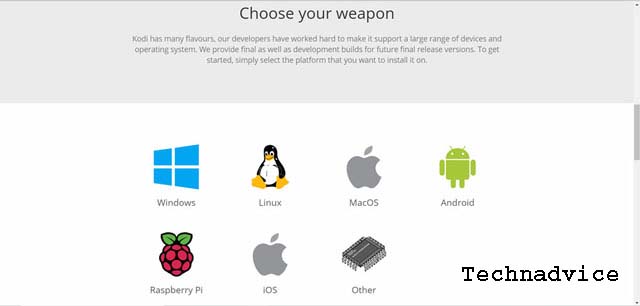
As we said earlier, Kodi runs on a lot of hardware and on all the OSs that are popular today.
So, before you download & install Kodi, you must first make sure the device and OS you are using to install Kodi.
Kodi download & installation depends on what device and OS you are using, as there are several different options on how to install Kodi.
Whereas for Android users you can install Kodi directly from the Google Play Store.
Once you find the correct implementation of the latest version of Kodi, go through the download and installation process as usual.
Next is how to set up Kodi, so that it can be used easily as an entertainment medium for your home.
How to Use Kodi
We assume that this is your first time setting up and installing Kodi, we will give you a brief way of navigating the Kodi interface (view).
Older versions of Kodi had primary controls placed on a ‘ribbon’ along the center of the screen and were configurable to an exclusive extent.
Kodi 17 introduces a new skin (theme) that aligns everything along the left side of the screen to suit Netflix and Plex.
This main menu by default includes categories such as:
videos,
Film,
TV shows,
Music,
Music Videos,
TV,
Radio,
Picture,
Add-ons, and
Weather.
Depending on the theme, you can sometimes add additional categories or hide the ones you don’t use.
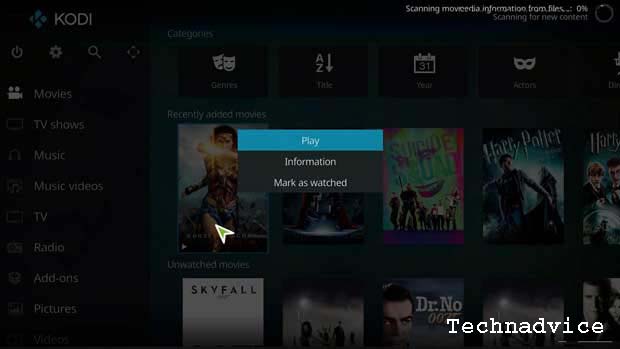
Context menu
The Context Menu will provide additional functionality depending on which screen you are on when you click on it.
As a model, in the image above, I open the contextual menu for the movie – Wonder Woman.
Here, the context menu gives us the option to play the video, mark it as watched, or view additional coverage of the film.
On other screens, the options you see may differ depending on the type of media itself.
To view the Context menu, depending on the type of device you are using, i.e. Kodi made:
Android: Press / Click the Menu and Hold for a while
Mouse: right-click
Keyboard: ‘C’
Amazon Fire TV: Menu button
NVIDIA Shield Controller: ‘X’ Button
Kodi Setup for Offline (non-streaming) Media Files
In this post, we will show you how to set up Kodi for offline media files.
So, media files such as music, movies, or TV series, are files that have been downloaded or rip by DVD or Blu-ray.
Which is then copied into the storage space that will be used by Kodi later.
Kodi Setup Guide: Video Library
One of the most important steps in setting up Kodi is creating your media library.
Let’s start with adding videos to your Kodi library.
If you haven’t copied (rip) your DVD or Blu-ray movie collection to your hard disk, you’ll need to do that first.
Or if you have a collection of videos or movies that you downloaded earlier, just add them to your external hard disk or flash or memory card that is connected to your device with Kodi installed.
Before you start adding any archives on your hard drive (HDD, flash, memory card), there are a few things you must do first.
Kodi runs media archives using proprietary formats, and each format differs between movie or TV show files.
If the file name is not registered correctly, then Kodi may not be able to run it.
Kodi uses a process called scrap to pull data from the archive.
If Kodi can’t read the file properly then it can do error one based on these two things:
Kodi may ignore files and skip them while creating a movie/video library for you, or
Worse still, Kodi thinks it’s the wrong movie/video file.
How to Set Up a Kodi Media Library
There are two common ways to organize Kodi media folders:
Folder containing all media files
Every movie, Music, and TV Series is in its folder
It all depends on how you want to set it up.
But we recommend that you manage your media files in separate category folders.
This makes it easier if your media files are large, and will likely continue to grow larger over time.
How to Add Movies to the Kodi Library
Kodi uses generally the same process to add Movies, Music, or Images to your Kodi media library.
Of course, there are differences, but the three processes will all start in the same way.
If you skip this section & plan to ignore the Add Music or Add Images sections, then you will see the same poly captions repeated.
However, it is a good idea to read each topic, because there will be some specific information for each section that will not be included in the other 2 sections.
Start by scrolling down to Movies on the menu.
Once you are there, click on the button that says Enter Files Section.
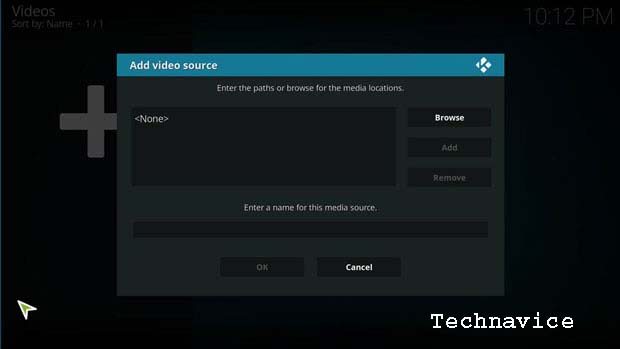
If you don’t have anything in your Kodi library, it will take you directly to the screen below.
You can directly type the path or address of the drive and folder where you store your media locally (HDD, Flashdisk, Memory Card).
Or you can click the browse button and browse & navigate yourself to the drive & folder where the media files are stored.
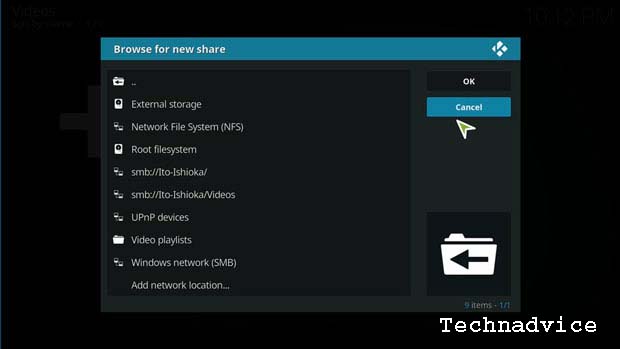
You can even add media files that have been shared within your local network.
In this case, we will put a model of how to retrieve the media archive from the local network.
You’ll see the multiple media archives listed in the screenshot above, along with multiple subfolders.
If your storage device is not on the list, you can click “Add Network Location” at the bottom of the list.
Or if you save it on an external storage device, you can specify the “External Storage” menu, and if it’s in the internal storage you can specify “root filesystem”.
Then you can browse or search for the drives and folders where your media files are stored.
Kodi Setup for Online (Streaming) Media Files
When running entertainment media files such as videos, music, and images offline, this means that Kodi acts as an Offline Media Player, like other video, and music player applications.
The advantage of Kodi compared to other media players is that it can run media files stored on other online storage media such as Open Cloud, Google Drive, and other media storage servers.
That is, we can run or play videos, music, and pictures online or in other terms do exclusive streaming based on online storage servers.
Just like when we stream movies directly from lk21.
What sets it apart is that you won’t get a lot of pop-up screens that occur in the browser when we try to stream directly from an internet browser like Google Chrome or Mozilla.
This means that you won’t find a lot of ads on Kodi when you’re streaming privately.
Because Kodi fetches media archives exclusively according to the server where the media files were stored.
To do this, you are required to install a Kodi Add-on or add-on. Especially Add-ons or add-ons according to third parties.
In addition, you are also required to make special settings so that then you can just stream & enjoy home entertainment easily, without having to download.
How to Install and Setup Kodi Add-ons
Add-ons are the heart of Kodi.
Many people will argue that without third-party developers creating add-ons and adding additional functionality, Kodi would never be as popular as it is today.
Kodi includes the Official Kodi Repository filled with hundreds of add-ons provided and supported by either the members of the Kodi Team or the developers they trust.
You can find add-ons for anything you want, for example:
Theme,
streaming,
Sport,
Live TV, and much more.
There are many unofficial repositories on the Internet that you can download add-ons from.
How to Install & Setting the Official Kodi Add-on
In this section, we will show you how to install the Kodi Add-on officially.
Namely:
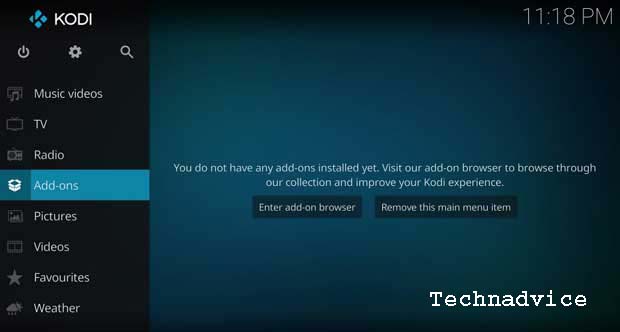
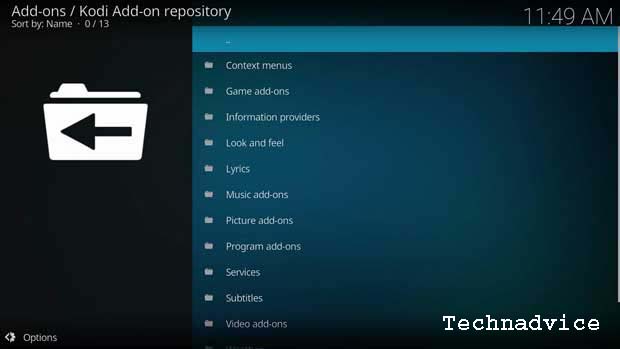
The easiest way to install Kodi add-ons is to scroll down to the Add-ons menu and then Enter Add-on Browser.
Browser Add-ons/ Kodi Add-ons
Once you open the Add-on browser, you will find several different options.
My Add-Ons: This will bring up a list of all add-ons, grouped by category, and whether they are enabled or disabled on this Kodi installation.
Install from Repository: These are all the add-ons available for installation in the official Kodi repository.
Install from Zip File: This is how to install Add-ons that are not in the official Add-ons list. In other words, this is how you install unofficial Add-ons and explore them. To do this, it gets a little more complicated, and we’ll cover that below (keep reading this article).
Search: If you know what add-on you are looking for, or just have an overview of the topic, you can enter it here and see the results.
Recently Updated: This will show the add-ons that have been updated.
For our purposes, we will be installing error one of the official video add-ons, so click Install from Repository.
Add-ons are broken down into asynchronous categories such as the Context menu, Program Add-ons, & Look and Feel Add-ons.
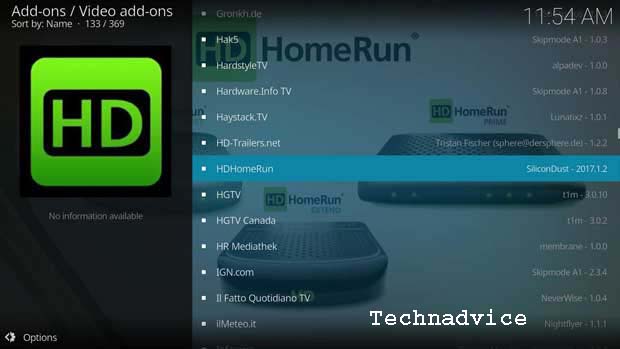
As a model, we will install the official Kodi Video Add-on.
In this model, we will install the HomeRun HD tuner addon.
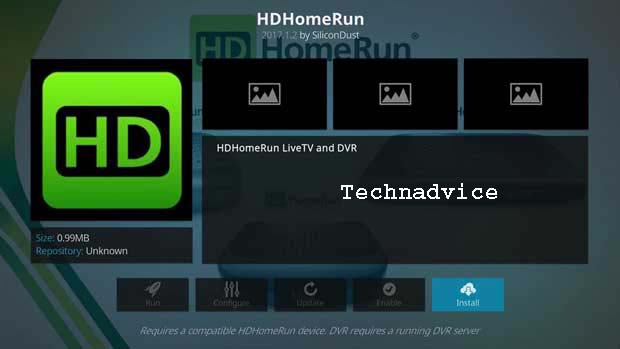
Once you’ve selected the addon you want to install, you’ll be taken to a screen with a brief description and some additional options.
Since we haven’t installed the add-on, most of these options are not available to us.
Click Install to continue.
Once you have decided to install the add-on, you will be taken back to the Add-on Browser and the installation will begin.
You will receive a notification when the add-on installation is complete.
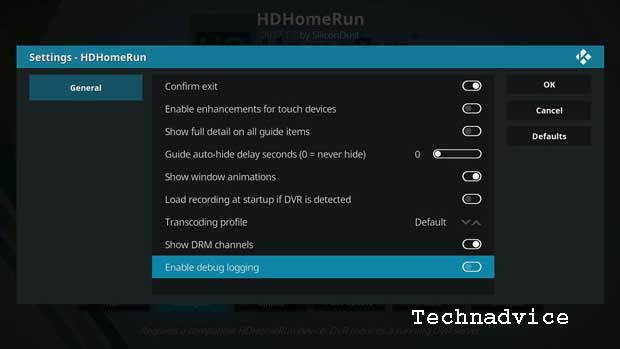
Once that happens, click return to addon and all clicked options on the drawing page will now be available.
The one you probably use the most is the Configure button.
This is where you’ll find whatever options the addon programmer has enabled.
Many add-ons have nothing on this screen, so don’t be surprised if it’s empty.
Kodi now gives you the option to configure each add-on to automatically update itself, or never update.
Generally, I set add-ons to update Kodi automatically because I want to make sure that I have a modern version with new features or bug fixes.
But, sometimes, updating an add-on will cause it to crash, so this allows you to find a working version & keep it indefinitely.
How to Install and Set Up Unofficial Kodi Add-ons
The advantage that Kodi has is that many independent Kodi add-on developers leave the freedom for us to use them.
But this is still a controversy because most people think that this is illegal.
Just as you stream directly from streaming sites such as LK21, that is also actually illegal, so don’t be surprised if today these sites can still be opened, but tomorrow they will be blocked & as “positive internet”.
So, we provide this method to you for general knowledge only, if you intend to continue and use it, at your own risk.
We are not responsible if something happens to privacy or lawsuits regarding intellectual property.
Before we install and set up unofficial Kodi add-ons, it’s a good idea to know first, trusted (unofficial) third-party add-ons.
Even if you use an unofficial Kodi add-on from a third party, you must make sure that the add-on is bona fide.
For that, here we provide a list of the 10 best and most trusted third-party add-ons in 2024:
Covenant
Exodus (Version 8)
The Magic Dragon
Nemesis
Incursion
Exodus Redux
Yoda
Maverick TV
Gen-X
Movie Theater Butter
From the list of 10 add-ons above, in this article, we only provide 1 example of installing and setting up the Kodi add-on.
And as a model, we will install the Kodi Exodus Add-on.
This guide will show you how to install Exodus Kodi Addon on Kodi 18.0 Leia and Kodi 17.6 Krypton.
The steps given in this tutorial work for Kodi on PC, Amazon Fire TV Stick/ FireStick 4K, Nvidia Shield, Android, and other Android TV Boxes.
Exodus is one of the best third-party Kodi Addons for users who love to watch movies, TV Shows, Anime, Documentaries, and Sports.
How to Install and Setup the Kodi Exodus Add-on
You need to know, if this is your first time installing a third-party Kodi Addon, I’m sure the “Unknown Sources” option is still disabled in your Kodi program.
Therefore you need to enable it to be able to download and install the Kodi Add-on that arrives from an unofficial Kodi developer.
Next, follow these steps to install the Exodus Add-on on Kodi.
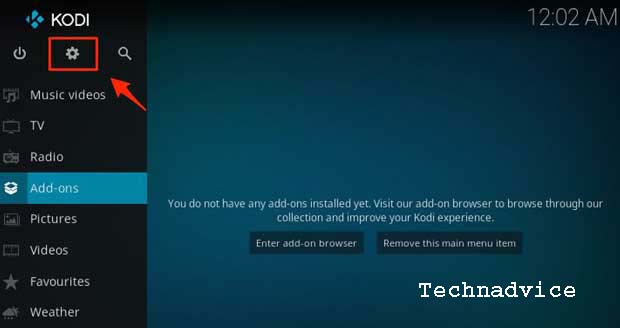
Step 1: Run your Kodi App, according to the device and OS you are using.
Step 2: Click the Gear (Settings on the left of the screen)
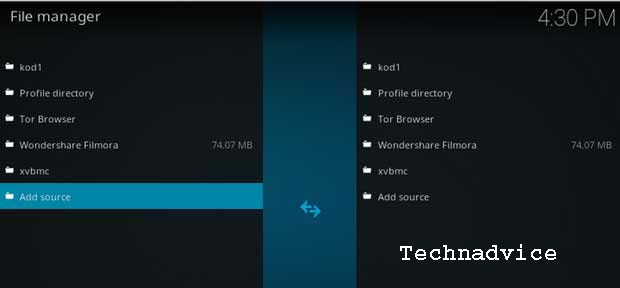
Step 3: Open “File Manager” then click “Add Source”
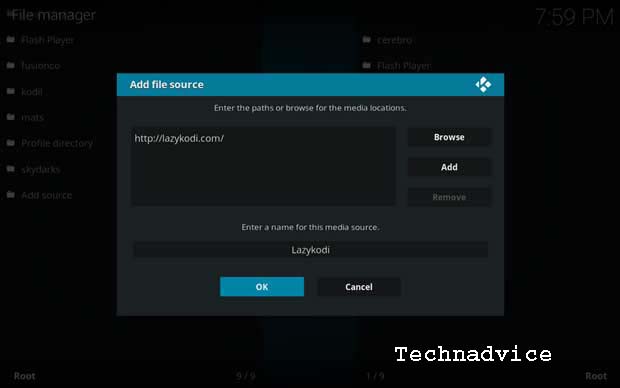
Step 4: Replace “None” with this URL – http://lazykodi.com/ then name it “Lazykodi” in the name field. Then click OK.
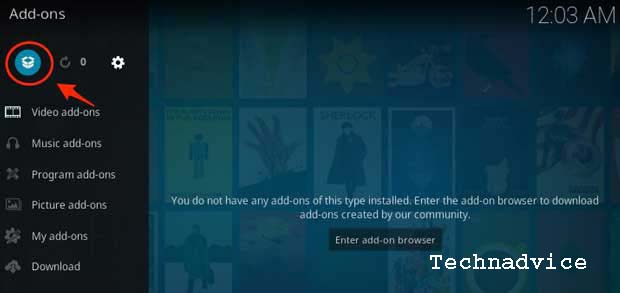
Step 5: Go back to the Kodi home screen. Click “Add-ons” on the left side of the screen, and then open “Package Installer” at the top left of your Kodi screen.
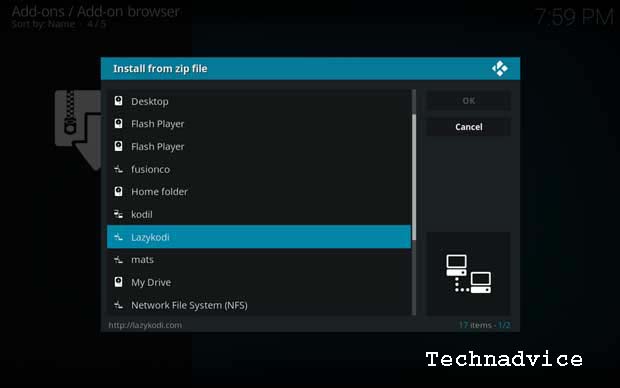
Step 6: Open “Install from Zip File” and Click on “Lazykodi”
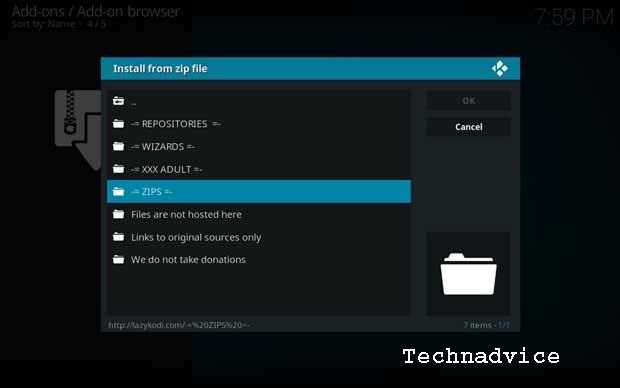
Step 7: Click “ZIPS” to install the “KodiBae repository” for Exodus.
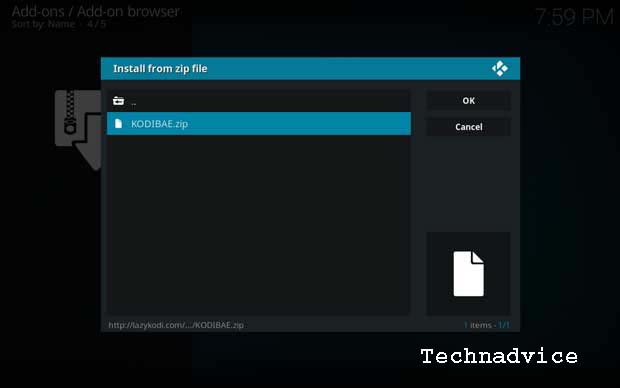
Step 8: Click “KODIBAE.Zip
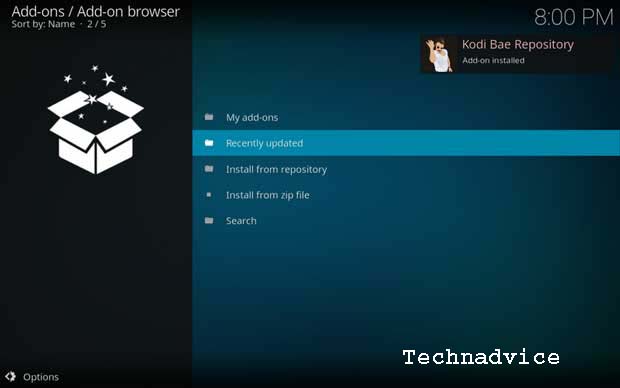
Step 9: Wait for the successful notification to appear on the top right of the screen. After the “Kodi Bae Repository Add-on is installed” notification, you are ready to proceed with the next step.
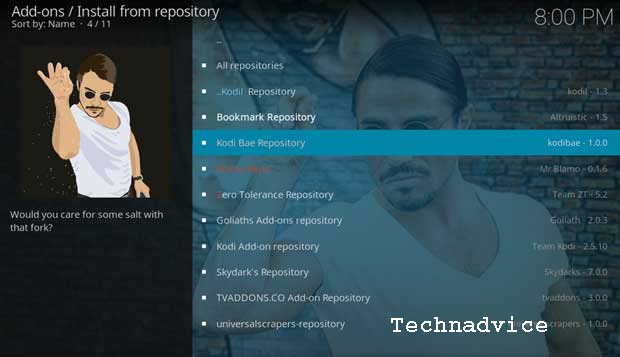
Step 10: Click “Install from Repository” and select “Kodi Bae Repository”
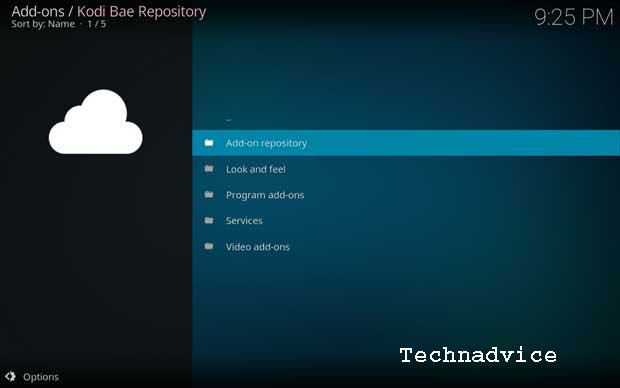
Step 11: Open “Add-on repository”
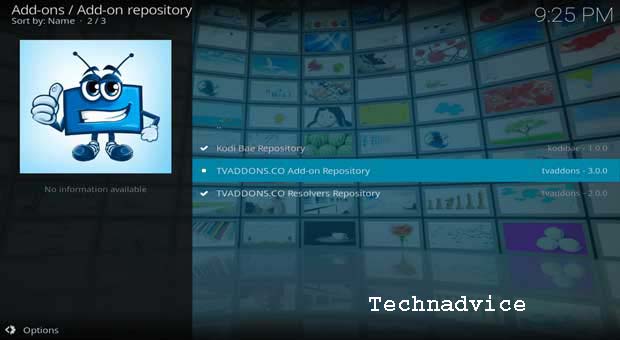
Step 12: Click “TV ADDONS.CO Add-on repository”
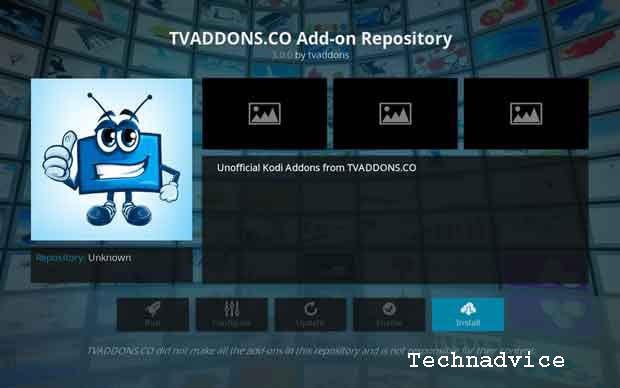
Step 13: Click “Install”
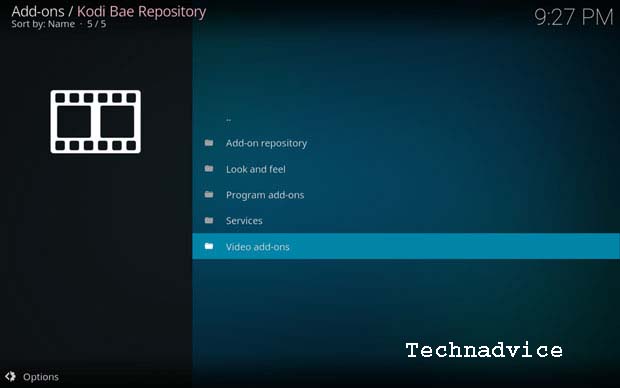
Step 14: Now go back to the Kodi Bae Repository and Open the “Video Add-ons” folder.
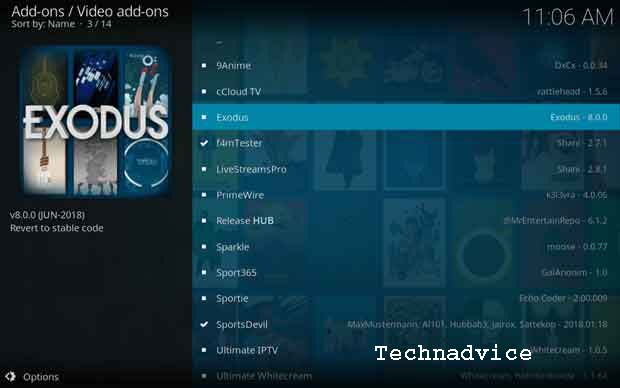
Step 15: You will see a list of Kodi Add-ons on your screen. Find and open “Exodus.”
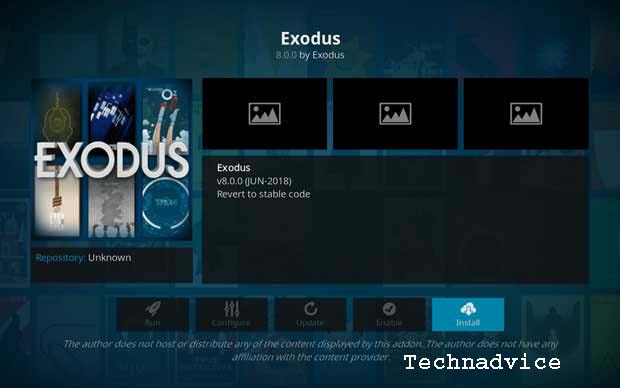
Step 16: Now click “Install” to complete the installation process.
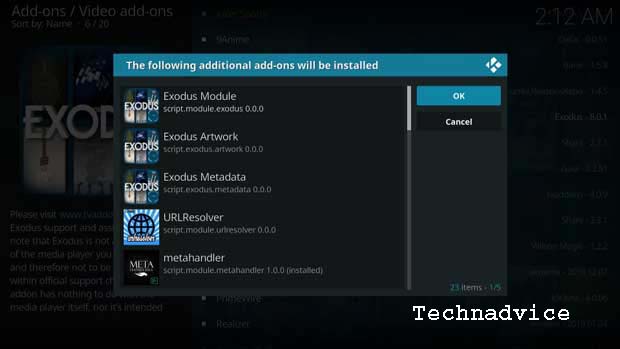
Note: If you installed Exodus in Kodi 18.0, you will see the following prompt after clicking Install above. This prompt lists all additional addons that will be installed using the Exodus addon. Click ‘OK to continue
Step 17: Wait for Exodus Kodi Addon to download and install from the Kodi Bae Repository. Once you get the success notification on the top right of your screen, you are done with the installation process.
Conclusion:
This is the explanation of how to install and set up Kodi properly. Furthermore, we will continue to update, legitimate third-party add-ons, to enrich your Kodi usage.