Category: Windows

Windows – Here you can find Computer-related updates Windows 10, Windows 8, Windows 7, Linux, technology information, and more.

  • 9 Ways To Fix Windows 10 Can’t Connect To WiFi Network 2024

    9 Ways To Fix Windows 10 Can’t Connect To WiFi Network – The most common problems experienced by Windows 10 users are WiFi that can’t connect with the error message ” Can’t connect to this network “, the network is not detected, or even WiFi can’t be turned on at all. Without knowing what caused it, dealing with this would be quite troublesome.
    9 Ways To Fix Windows 10 Can't Connect To WiFi Network
    9 Ways To Fix Windows 10 Can’t Connect To WiFi Network

    How To Fix Windows 10 Can’t Connect To WiFi Network 2024

    On this occasion, we will try to provide several solutions that you can try to fix your PC and laptop that cannot connect to WiFi.

    Read more:

    WiFi is a wireless network protocol that we can use to connect to the internet. Thanks to current technological advances, getting WiFi access is not a luxury anymore, we can use a smartphone or modem to create our own WiFi network at home.

    In addition to accessing the internet, WiFi networks can also be used for file sharing between devices and printer sharing. This way the work will be faster and the place where we work will be neater because there is no need for many cables to connect these devices.

    How to Solve Windows 10 can’t connect to WiFi

    1. Open Device Manager

    Connection problems on WiFi are often related to drivers, therefore the first thing we need to try is to make sure the WiFi drivers on the laptop are working properly.

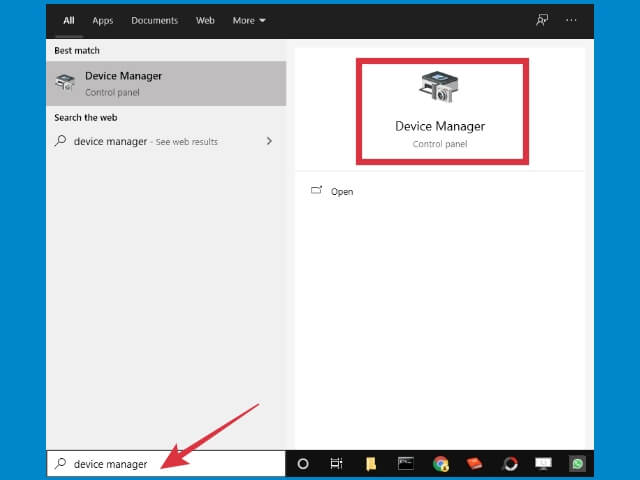
    Open Device Manager by clicking on the Start button > typing Device Manager in the search field > clicking on the Device Manager program that appears on the Start menu.
    9 Ways To Fix Windows 10 Can't Connect To WiFi Network

    2. Find the laptop WiFi driver in Device Manager

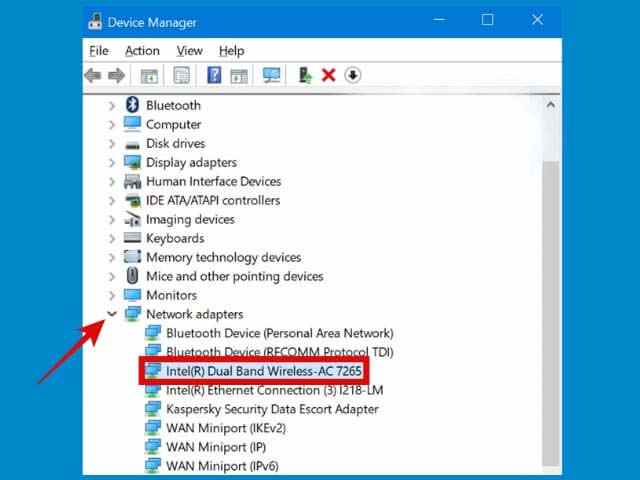
    After entering the Device Manager, you will see all the devices and their drivers on your computer. Click the arrow on Network adapters then find your WiFi driver.
    9 Ways To Fix Windows 10 Can't Connect To WiFi Network

    3. Check if there is an error in the driver

    A corrupt or deleted driver can cause WiFi to be lost on the laptop, in the Device Manager, the problematic driver will see a yellow exclamation mark icon. This means that the driver cannot run properly, causing the device it is driving to stop working.

    See if the WiFi driver on your laptop has a yellow icon. If there is, it can be ascertained that the driver is experiencing a problem.

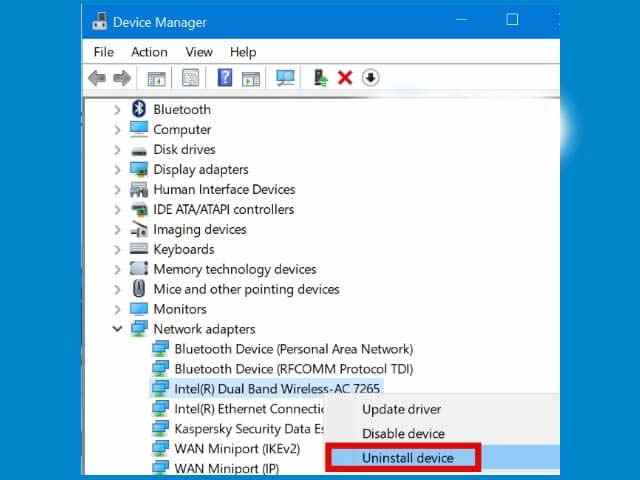
    4. Uninstall WiFi drivers

    Fixing the WiFi driver can be done by uninstalling and then reinstalling the driver. In this way, we will get a clean version of the driver to remove corrupted files.

    Right-click on the WiFi driver > then select Uninstall device
    9 Ways To Fix Windows 10 Can't Connect To WiFi Network

    5. Restart the computer

    After the driver is uninstalled, the last step you need to do is restart the computer. After the computer restarts, the WiFi driver will be automatically reinstalled by Windows.

    What if the above method still doesn’t work?

    WiFi that can’t connect on Windows 10 can have various causes, so the solution to fix it will also vary, depending on the source of the problem.

    To be able to fix it yourself to succeed it takes patience and thoroughness.

    If you have tried the first method but it didn’t work, you can try some of the solutions below.

    #1. Turn on airplane mode then turn it off

    Before trying anything else, try to do this simple thing first. Turn on airplane mode on your laptop to turn off all available signals disable airplane mode, then reconnect with the hotspot network.

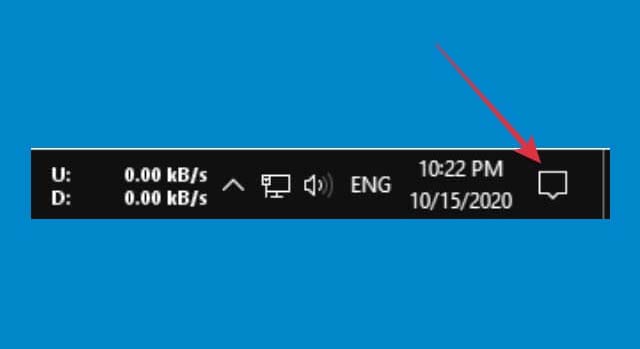
    How to do it is very easy, first, click the notification button in the right corner of the taskbar.
    Turn on airplane mode then turn it off

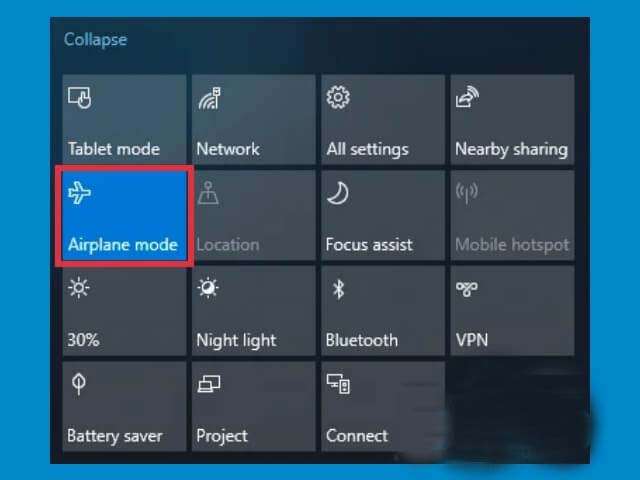
    Then click on the Airplane mode button.
    Turn on airplane mode then turn it off

    The Airplane mode button will change color to blue, this is a sign that it is active.

    Leave it for about a minute, then press the button again to turn it off.

    After that try to connect the laptop again to the WiFi network.

    #2. Use automatic IP and DNS

    The solution to dealing with problematic WiFi connections on Windows 10 is to set IP and DNS to automatic. This is usually powerful enough to fix WiFi that is already connected but the internet doesn’t work, especially on laptops that are often connected to different hotspot networks.

    Follow these steps:

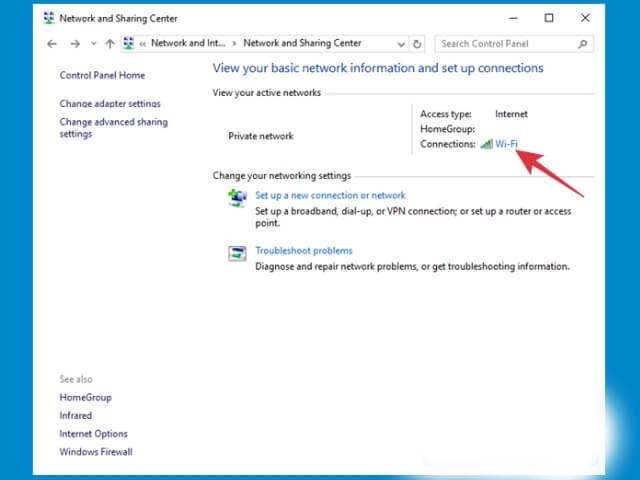
    First, open the Control Panel then select the Network and Sharing Center menu.

    In the Access type section, click on your WiFi network.
    Use automatic IP and DNS

    Then click the Properties button > select Internet Protocol Version 4 (TCP/IPv4) > then click the Properties button again.
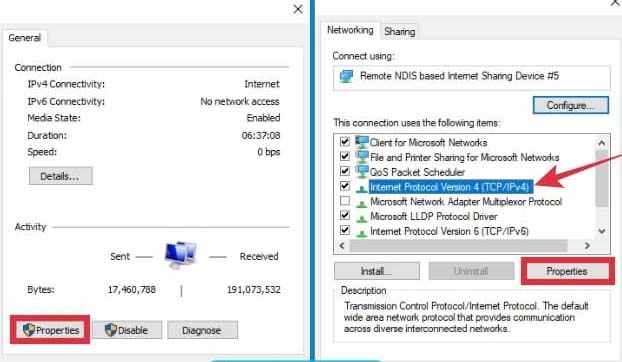
    Use automatic IP and DNS

    Check the following options,

    Obtain an IP address automatically

    Obtain DNS server address automatically
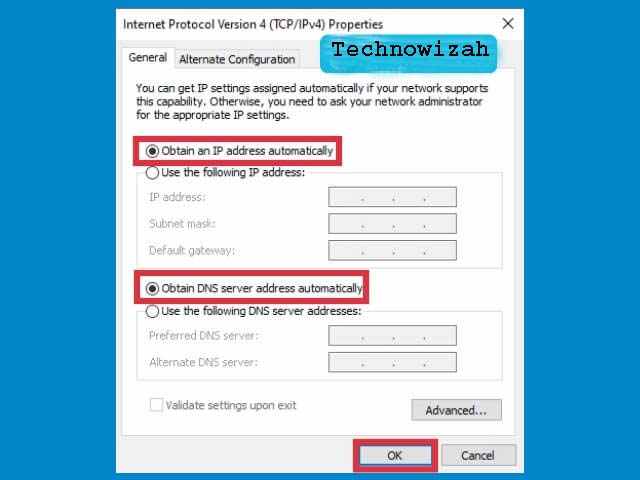
    Use automatic IP and DNS

    Click OK.

    #3. Forget the network then reconnect

    When there is a problem with the WiFi network, forgetting the network and then connecting it again is a pretty powerful solution. This is the same as restarting the computer.

    If the WiFi on your laptop can’t connect, try the following steps.

    Right-click on the WiFi icon on the taskbar > select Open Network & Internet settings.

    Click on the Wi-Fi menu > select the Manage Known Networks menu.
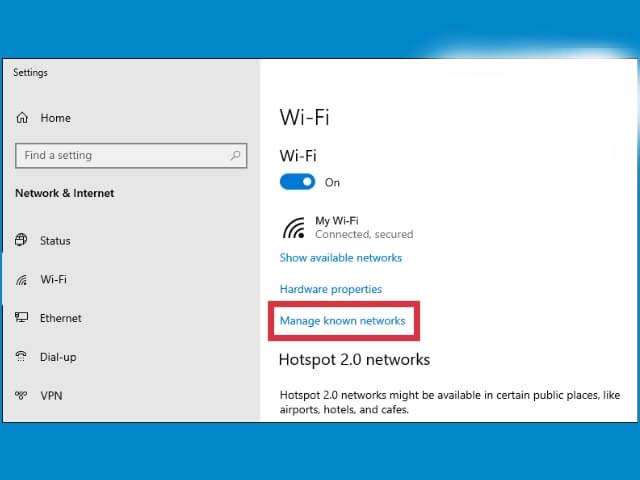
    Forget network then reconnect

    You will see a list of WiFi networks that have been used there, click on the problematic WiFi then click the Forget button.
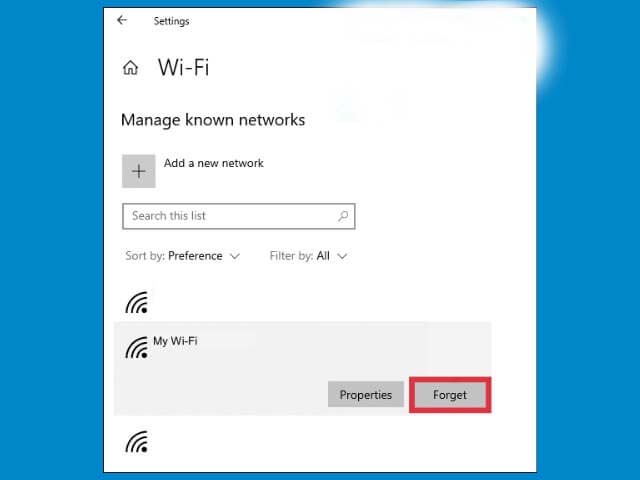
    Forget network then reconnect

    Close the settings window, wait a moment, and then try again to connect to the WiFi network that was unable to connect.

    Most likely this method will work, but if not, do the next steps below.

    #4. Reset network settings

    WiFi connection can also be problematic due to incorrect network configuration on your Windows. The best way to fix this is to do a network reset, this way the settings will be returned to default, and you can adjust the settings again as needed.

    First, click on the Start button > click the Settings button (gear icon). You can also press the Windows key + I on your keyboard.

    After entering the Settings page > select the Network & Internet menu.

    Click on the Status tab > on the right pane find the Network reset menu > click once > click on the Reset now button.
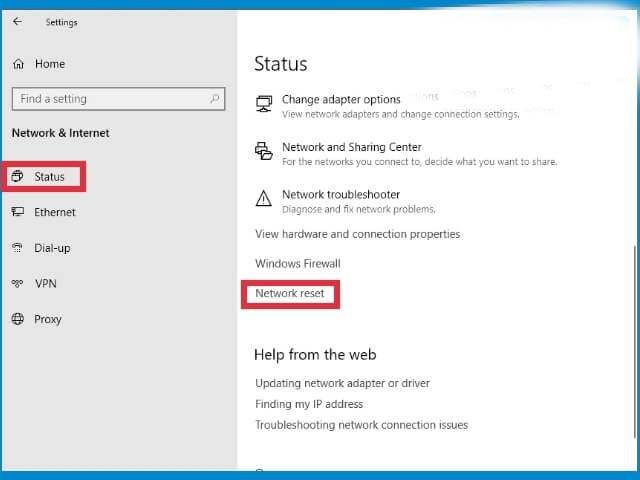
    Reset network settings

    Wait a moment until the process is complete. After that, the network settings on your laptop will return to the initial settings. Try connecting to the WiFi network that was problematic earlier and see if it works.

    #5. Disable IPv6

    You can also try turning off the IPv6 version to resolve this issue. Most PCs and laptops can connect to the internet via IPv4, so actually, IPv6 is not needed.

    How to right-click on the WiFi icon on the taskbar > select Open Network & Internet settings.

    Click on the Change adapter options menu > find the WiFi network you want to repair > right-click > select Properties.

    Uncheck the Internet Protocol Version 6 (TCP/IPv6) option > then click the OK button.
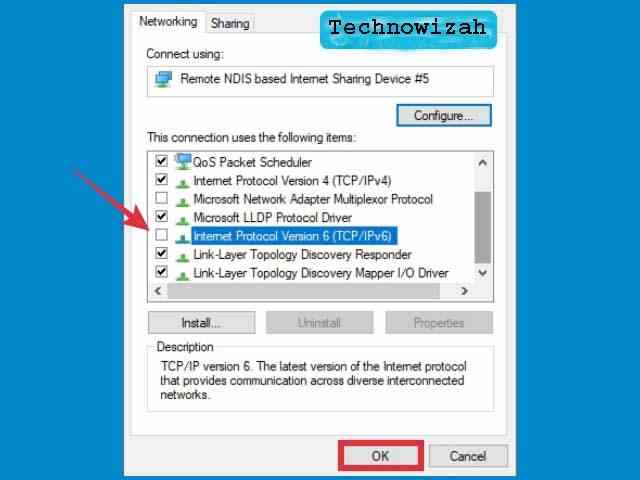
    Disable IPv6

    Close all settings windows and try again to connect to the WiFi network on your laptop.

    #6. Fix WiFi can’t connect with CMD

    We can also use the Command Prompt to solve the internet network on a problematic laptop, and this is a pretty powerful way.

    First, open the CMD program with administrator access on your Windows, how to click on the Start button > in the search field type cmd > the Command Prompt menu will appear > in the right pane click on Run as administrator.

    After that type the following command, followed by pressing the ENTER key after each finish typing each line:

    netsh winsock reset

    netsh int ip reset

    ipconfig /release

    ipconfig /renew

    ipconfig /flushdns

    When finished close the cmd program, then restart your laptop. After turning it back on, try again to connect to the WiFi network that was problematic, it should now work.

    #7. Restart the modem and router

    Based on reports from many users, restarting the modem and router that is used sometimes manages to solve the problem of WiFi not being able to connect to the laptop.

    If you’ve tried all of the steps above but haven’t been successful, then the problem could be with your modem and router, and restarting is the simplest way to fix the problem.

    The easiest way to restart is to turn off the device, let it sit for a while, then turn it back on. If you are using hotspot tethering from the cellphone then restart the cellphone.

    After that try again to connect the network to your laptop and see if the problem is resolved.

    #8. Use an external wireless adapter

    WiFi that can’t connect on a laptop can also be caused by damaged hardware. If this is the case then all the methods above will not work until the hardware is repaired.

    If you have free time you can take it to a service center, but if you are very busy then using an external wireless adapter is a very effective way.

    External wireless adapters can be found at computer stores at a low price. To use it is also very easy, just connect it to the USB port, and the WiFi on your laptop will work again.

    #9. Reset PC (without reinstalling)

    Some people suggest that to solve the WiFi problem in Windows 10 that can’t connect, you have to do a reinstall, but this is not a wise choice. Windows 10 has a reset feature and similar features like a factory reset on smartphones that we can use without having to reinstall.

    By resetting the PC, the Windows configuration will return to the state after reinstalling, but you can choose not to delete the data on the C drive so that only third-party programs are missing.

    Read more:

    Conclusion:

    Those are some ways that you can try to fix the problem of a Wi-Fi network or Hotspot that can’t connect on Windows 10 PCs and laptops. Hopefully, this helps, if it still doesn’t work, please comment below and explain what kind of problem you are experiencing.

    Don’t forget to bookmark and always visit every day Technowizah.com because you can find here the latest Tech Computer Android games How-to Guide Tips&Tricks Software Review etc, Which we update every day.
  • 6 Ways to Fix System Thread Exception Not Handled in Windows 10 [2024]

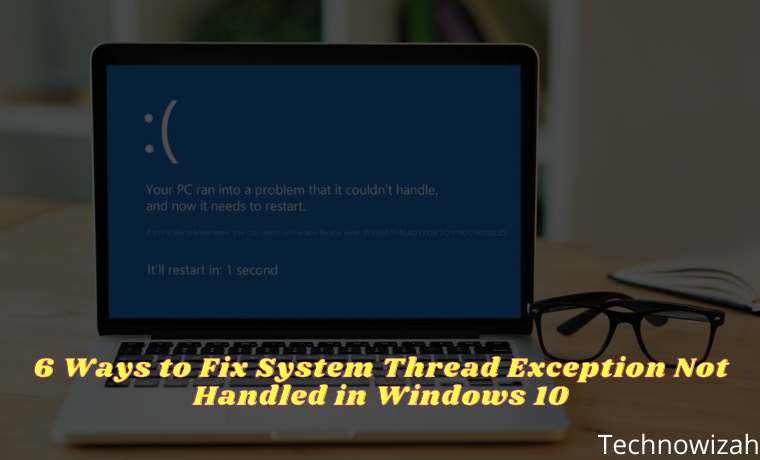
    6 Ways to Fix System Thread Exception Not Handled in Windows 10 – A SYSTEM THREAD EXCEPTION NOT HANDLED is a common error in Windows 10 due to out-of-date or unsuitable drivers.

    6 Ways to Fix System Thread Exception Not Handled in Windows 10
    6 Ways to Fix System Thread Exception Not Handled in Windows 10

    How to Fix System Thread Exception Not Handled in Windows 10 [2024]

    Usually, some drivers can cause problems, and sometimes your computer may not detect them. That’s why the first step users should take when dealing with these errors is to find the driver that’s causing this problem. Here are some ways to solve system thread exceptions not handled in Windows 10.

    Read more:

    #1. Boot Into Safe Mode

    The first step users should take before trying to fix this problem is to boot their computer into Safe Mode. There are several ways to do this:

    Boot Into Safe Mode Via Settings

    1. Click the Start button, then select   Settings.
    2. Navigate to Update & Security then click  Recovery.
    3. Under  Advanced startup,   click  Restart now.
    4. When your PC restarts, the Choose an option screen will appear.
    5. From here go to  Troubleshoot > Advanced options > Startup Settings. Then click   Restart
    6. When your PC reboots, press  F5  to boot your computer in  Safe Mode with Networking.

    Boot Into Safe Mode Via the Sign-In Screen

    1. Just hold down  Shift and select the Power button followed by  Restart.
    2. Follow steps 4, 5, and 6 from the section above.

    Boot Into Safe Mode Via Blank Screen

    1. If you can’t use the sign-in screen, follow these steps.
    2. Hold down the power button on your device for 10 seconds to turn it off.
    3. Press the power button again to boot it up.
    4. When the manufacturer logo on your PC appears, press the power button again for 10 seconds.
    5. Press the power button to start your device.
    6. If done correctly, your computer will boot into the Windows Recovery Environment.
    7. Follow steps 4, 5, and 6 from the first section.

    #2. Finding the Driver That’s Causing The Problem

    Since the error is most likely caused by a malfunctioning driver, you can use the Windows Log to find out the source of the problem. To do so, simply follow the steps below:

    1. Press Windows Key + R  and in the  Run dialog box, type eventvwr.
    2. Navigate to the Windows Logs menu then expand it, then select  System.
    3. Look for the log named  system_thread_exception_not_handled  and click on it to find out which driver is causing the problem.

    Usually, the driver that often causes problems is the display driver or network driver because these are known to often cause BSOD.

    #3. Rollback Or Update the Driver

    Depending on which driver is causing the system thread exception not to handle the error, you may need to update or reinstall the related driver.

    If the driver hasn’t been updated for a long time, updating the driver will most likely fix the problem. If your drivers have recently been updated, maybe rolling back drivers or reinstalling updates is something you should try.

    How to Update Drivers in Windows 10

    How to Update Drivers in Windows 10
    How to Update Drivers in Windows 10
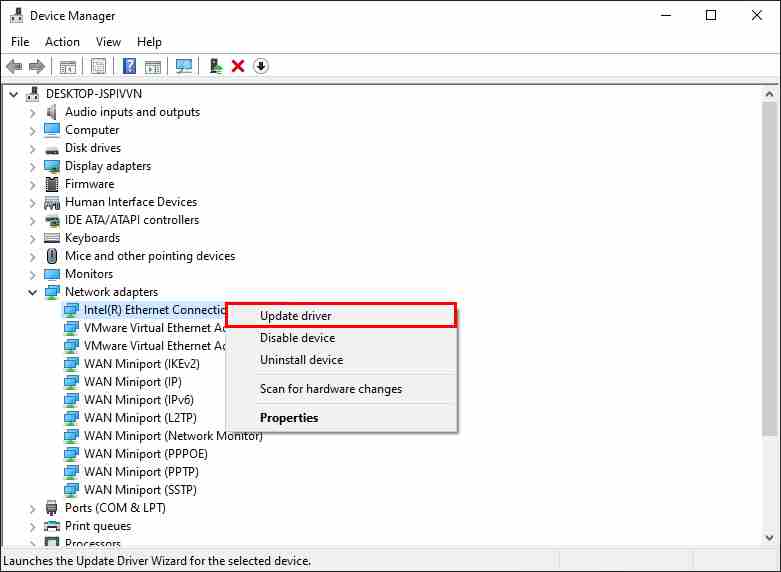
    1. Press  Windows Key + R  and type devmgmt.MSC  to open  Device Manager.
    2. Navigate to the related device and expand the menu. For example, if the error is caused by the display driver, you should expand the Display adapters option.
    3. Right-click on the driver and click Update driver.
    4. In the dialog box that opens, click  Search automatically for updated driver software.
    5. Windows will then automatically search for the latest drivers and then install them.

    How to Rollback Driver In Windows 10

    How to Rollback Driver In Windows 10
    How to Rollback Driver In Windows 10
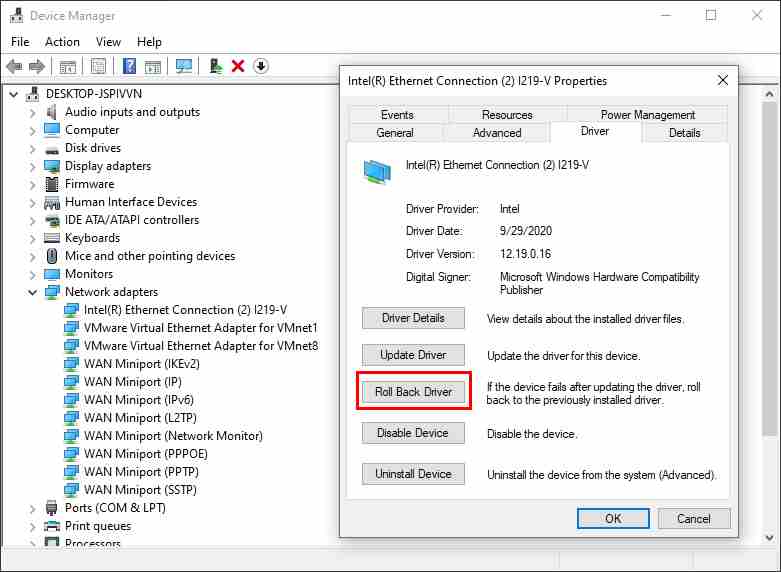
    1. Open  Device Manager and navigate to the driver in question.
    2. Expand the menu and right-click on the driver.
    3. Click  Properties.
    4. Under the Driver tab, click  Roll Back Driver.
    5. Windows will automatically roll back to the last available driver version.

    #4. Rename Damaged Files File

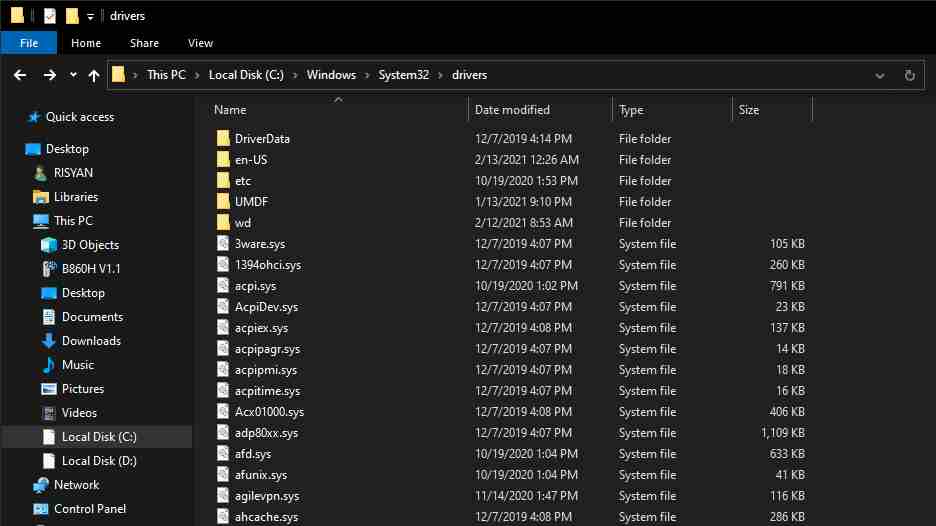
    After retrieving the filename associated with the system thread exception not handled the error, the user must rename the file. Doing this will cause Windows to make a fresh copy and reinstall it. Driver files are located in  C:\Windows\System32\drivers. Follow these steps to rename the file:

    Rename Damaged Files File
    Rename Damaged Files File
    1. Open  File Explorer and go to  C:\Windows\System32\drivers.
    2. Look for the affected driver.
    3. Click on it and press  F2.
    4. Replace the filename extension with  .old.
    5. Press Enter and restart your computer.

    #5. Use SFC And DISM To Repair System Files

    SFC and DISM are two powerful tools available to every Windows user. In combination, they can find and fix almost any system-related error. They are also quite easy to use.

    How to Use DISM

    How to Use DISM
    How to Use DISM
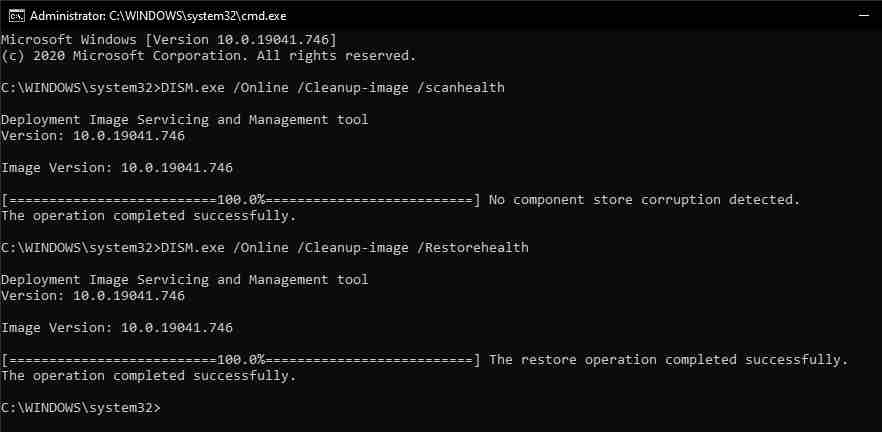
    1. Run  Command Prompt as Administrator.
    2. In the console, type  DISM /Online /Cleanup-Image /ScanHealth and press Enter.
    3. Wait for Windows to finish scanning. Then type  D ISM /Online /Cleanup-image /RestoreHealth.
    4. Windows will fix any problems found during the scan.

    How to Use SFC

    How to Use SFC
    How to Use SFC
    1. In the Start menu search bar, type cmd then right-click on  Command Prompt and run as administrator.
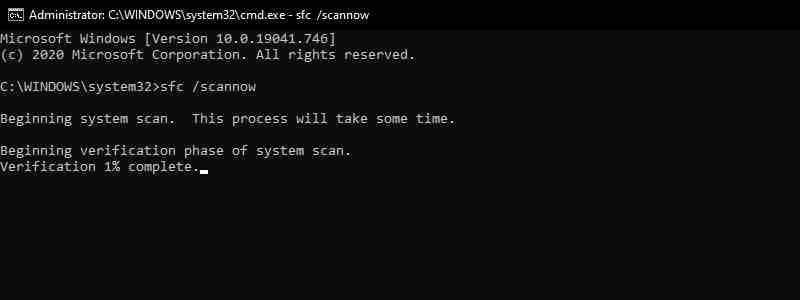
    2. In the console, enter sfc /scannow.
    3. Wait a few minutes as Windows will take some time to scan and replace corrupted system files.

    #6. Use System Restore To Restore the PC

    If the problem is still not resolved, you should use System Restore as a last resort. System Restore is a feature that restores Windows to a previous state. These restore points are created periodically and when installing new software. To do this, follow the steps below:

    Use System Restore To Restore PC
    Use System Restore To Restore PC
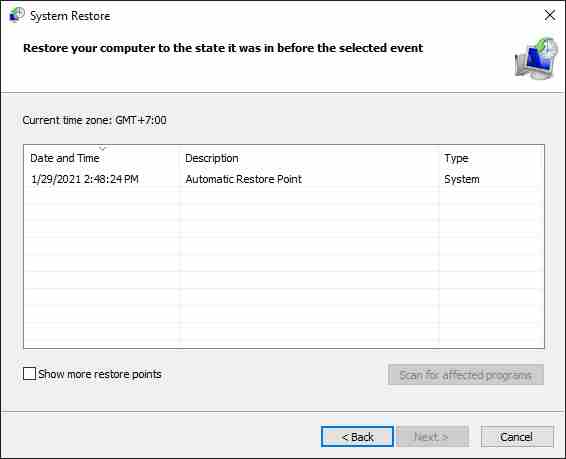
    1. In the Start menu search bar, type  Recovery and click to open it.
    2. Click  Open System Restore.
    3. Click  Next and select a restore point from the list.
    4. Click  Finish.

    Read more:

    Conclusion:

    So those are some ways to solve SYSTEM THREAD exceptions NOT HANDLED in Windows 10. The tips listed above will fix glitches caused by Blue Screen Of Death (BSOD) such as system_thread_exception_not_handled.

    Don’t forget to bookmark and always visit every day Technowizah.com because you can find here the latest Tech Computer Android games How-to Guide Tips&Tricks Software Review etc, Which we update every day.
  • 6 Ways to Fix Error Code 0xc0000005 on Windows 10 PC 2024

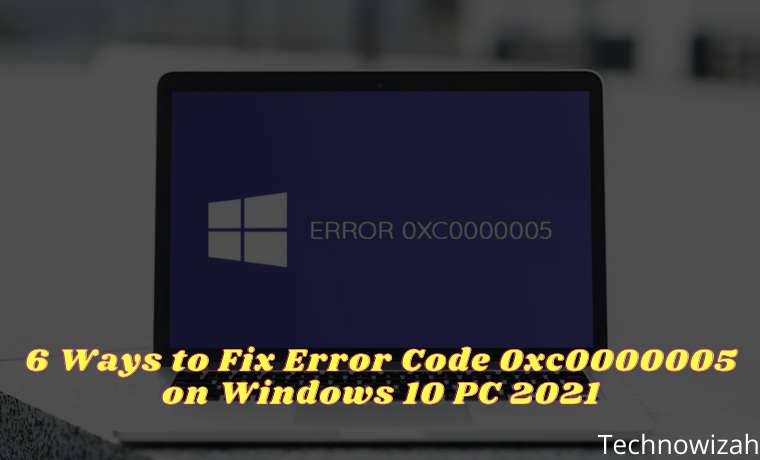
    6 Ways to Fix Error Code 0xc0000005 on Windows 10 PC – Are you currently experiencing error code 0xc0000005? If so, don’t worry, because there are many solutions available to fix it. In this article, the admin will give you several methods on how to solve the error code 0xc0000005 on Windows.

    6 Ways to Fix Error Code 0xc0000005 on Windows 10 PC
    6 Ways to Fix Error Code 0xc0000005 on Windows 10 PC

    What Causes Error Code 0xc0000005?

    Actually, error code 0xc0000005 in Windows can be caused by several reasons like corrupt or low RAM, malware infection, corrupted registry files, wrong hardware configuration, etc. This is one of the most common errors that appear on Windows systems especially in three different situations.

    Read more:

    Windows Installation Error

    The error stops the Windows OS installation and is mostly related to temporary hardware issues with RAM or hard drive damaged due to bad sectors. Usually, an error message appears like this:

    Error:  Windows installation encountered an unexpected error ….

    Access Violation Error

    This error occurs when a program in Windows tries to access a location or data from a location that is not assigned to it. This can happen with any Windows application due to registry issues, corrupted RAM, corrupted drivers, virus infection, or faulty security updates, etc. Usually, an error message will appear like this:

    Error:  Exception: Access violation error (0xc0000005) at ….

    Application Unable To Start

    The error appears when you launch a program installed on your Windows PC like Chrome, VLC, games, etc. For the most part, reinstallation does not help in fixing the problem as it is caused by some invalid issue or incomplete DLL file which helps the software run on the Windows platform. Usually, an error message appears like this:

    Error: The application was unable to start correctly (0xc0000005)

    How to Fix Error Code 0xc0000005 on Windows

    #1. Check the RAM

    Check RAM
    Check RAM

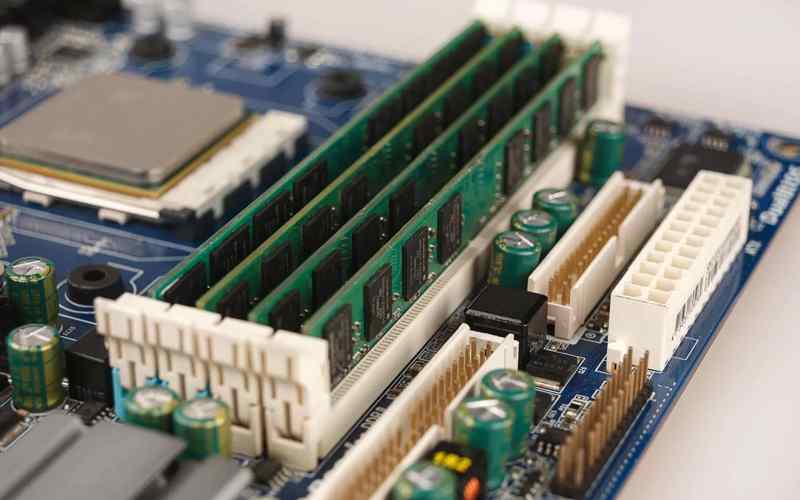
    One of the best ways to fix the error code 0xc0000005 is to replace your RAM. Before doing so, you should make sure that RAM is the culprit behind the problem. So, turn off your computer, and try using another RAM. After you’ve done that, turn on the computer again, then check if the error still persists. This is an ideal solution when the problem is caused by physical damage to the RAM connector or hardware.

    #2. Fix Registry

    If there is a corrupted file or key in your registry, it can cause serious system problems, including error code 0xc0000005. So, if you have previously made a registry backup, you can restore the system registry and fix the problem.

    However, before you proceed, note that changing the registry can be tricky and risky. Invalid changes or simple errors can cause big problems on your PC. So, follow the instructions below only if you are sure you can do it right.

    Fix Registry
    Fix Registry
    1. Press Windows key + R . This will bring up the Run dialog box.
    2. Type “ Regedit ” (without the quotes), then press Enter.
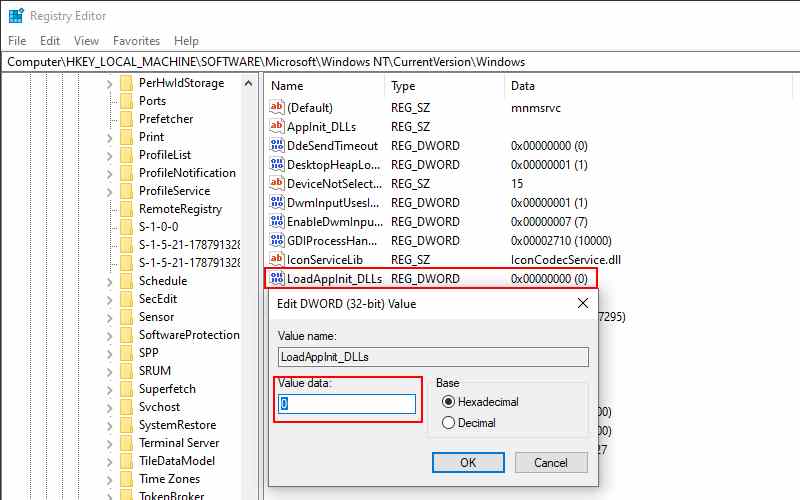
    3. Navigate to this path: HKEY_LOCAL_MACHINE\SOFTWARE\Microsoft\Windows NT\CurrentVersion\Windows
    4. Go to the right pane and double-click LoadAppInit_DLLs.
    5. Change the value data from 1 to 0.
    6. Save changes by clicking OK.
    7. Exit the Registry Editor, then restart your computer.

    #3. Run SFC Scan

    If the error is caused by corrupted system files, you can fix it by using System File Checker (SFC). You can run an SFC scan by following the steps below:

    Run SFC Scan
    Run SFC Scan
    1. Click the Search icon on the taskbar.
    2. Type “ cmd ” (without the quotes).
    3. Right-click Command Prompt from the search results, then select Run as Administrator.
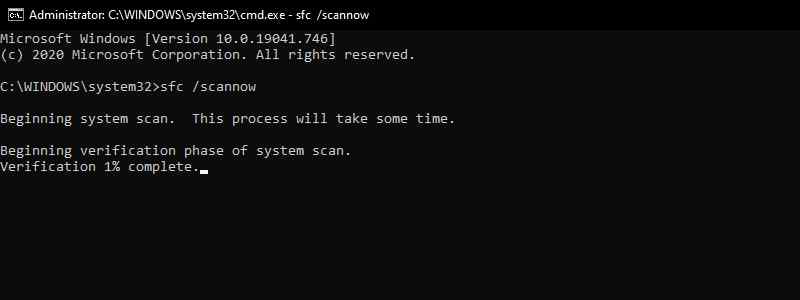
    4. After the Command Prompt is finished, type “ SFC /scannow ” (without the quotes), then press Enter. This tool will automatically repair any corrupt system files it finds.

    #4. Disable DEP

    Windows has built-in features that protect the system from damage caused by viruses and other security threats. The Data Execution Prevention or DEP feature is useful in most cases. However, there are programs that are not compatible with it, which is why error code 0000005 appears. You can disable this by following these steps:

    Disable DEP
    Disable DEP
    1. Run Windows with administrative privileges.
    2. Press Windows key + R.
    3. Type “ sysdm.cpl ” (without the quotes), then press Enter.
    4. Go to the Advanced tab, then click Settings in the Performance section.
    5. Go to the Data Execution Protection tab.
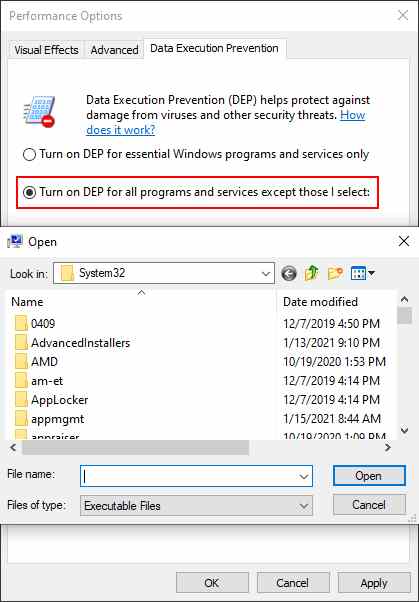
    6. Click the ‘ Turn on DEP for all programs and services except those I select ‘ option.
    7. Click Add, then look for the executable file that is causing the problem. Add them to the list.
    8. Click OK.
    9. Restart your computer, then check if the problem still persists.

    #5. Run CHKDSK Utility

    It’s possible that bad sectors or damage to the drive caused the error code 0xc0000005. In this case, try running the CHKDSK utility to fix the error. To do that, follow the instructions below:

    Run CHKDSK Utility
    Run CHKDSK Utility
    1. Right-click the Windows icon on the taskbar.
    2. Select Command Prompt (Admin) or Windows PowerShell (Admin) from the list.
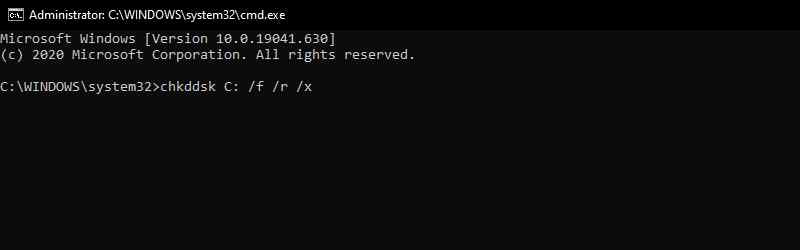
    3. Type “ chkdsk Z: /f /r /x ” (without quotes). Replace ‘ Z ‘ with the hard drive you need to repair, then press Enter.

    #6. Update or Reinstall the Driver Disk

    Most likely, your system already has the latest drivers. However, if you are facing any issues with your device, updating the device drivers will fix most of the problems and will ensure that your system has the latest fixes for errors and bugs.

    Update or Reinstall the Driver Disk
    Update or Reinstall the Driver Disk
    • Click the Windows button, type it and click Device Manager.
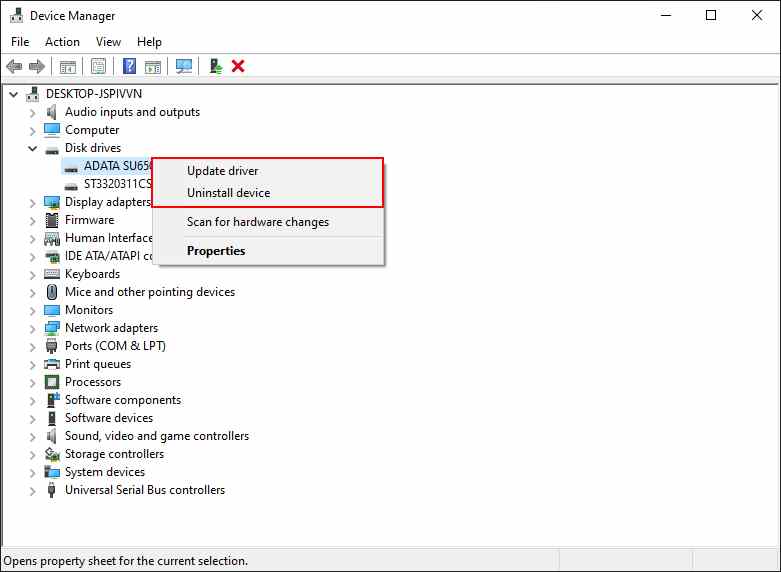
    • Double-click on Disk Drives and then right-click on the drive where Windows and other programs are installed.
    • Select Update Driver and then click Search automatically for updated driver software in the Update Driver dialog box.
    • Wait for Windows to find the driver. If you can’t find a new driver, download and install it from your disc manufacturer’s site or the easiest way is to use a third-party application such as Driver Booster or DriverPack

    If updating the driver doesn’t help, try reinstalling the driver. Right-click on the disk and select ‘ Uninstall device ‘ and then restart the system. Windows will automatically reinstall the drivers.

    Read more:

    Conclusion:

    So those are some ways to solve the error code 0xc0000005. This error can lead to data loss, either directly or indirectly, if not resolved quickly. So follow the methods above in order. Admin hopes that one of these methods can solve your problem.

    Don’t forget to bookmark and always visit every day Technowizah.com because you can find here the latest Tech Computer Android games How-to Guide Tips&Tricks Software Review etc, Which we update every day.
  • How to Reinstall Applications on Microsoft Store 2024

    How to Reinstall Applications on Microsoft Store 2024

    How to Reinstall Applications on Microsoft Store – If you have deleted Windows 10 apps that were purchased or downloaded from the Microsoft Store you can still use them again by reinstalling the apps on the Microsoft Store. You can also install applications on other PCs with the same Microsoft account. Here’s how.

    How to Reinstall Applications on Microsoft Store
    How to Reinstall Applications on Microsoft Store

    How to Reinstall Applications on Microsoft Store 2024

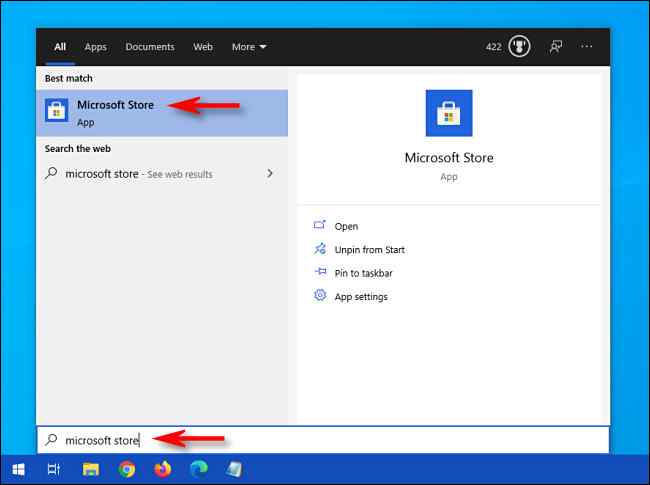
    First, open the Microsoft Store. If you can’t find it, open the Windows 10 Start menu and type “Microsoft Store”, then click the ” Microsoft Store ” icon when it appears.

    How to Reinstall Applications on Microsoft Store

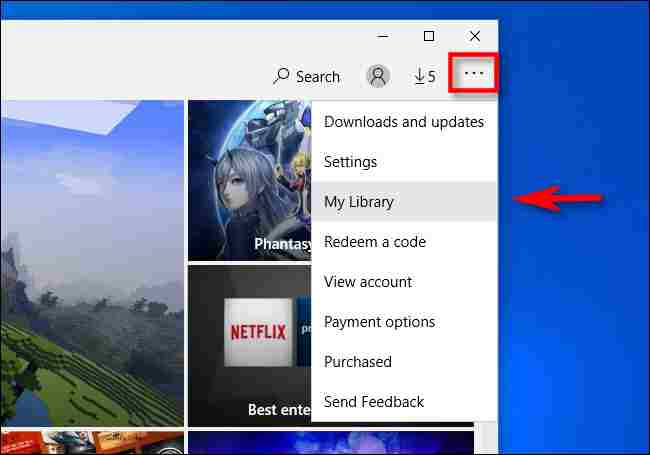
    When the Microsoft Store app opens, click the ellipsis (three dots) button in the upper right corner of the window and select ” My Library ” from the menu.

    How to Reinstall Applications on Microsoft Store

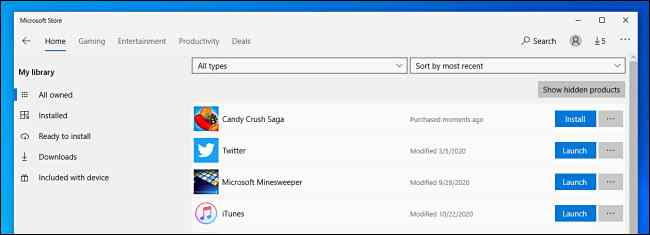
    In the “My Library” section, you will see a list of your Windows 10 apps that have been purchased or downloaded from the Microsoft Store.

    How to Reinstall Applications on Microsoft Store

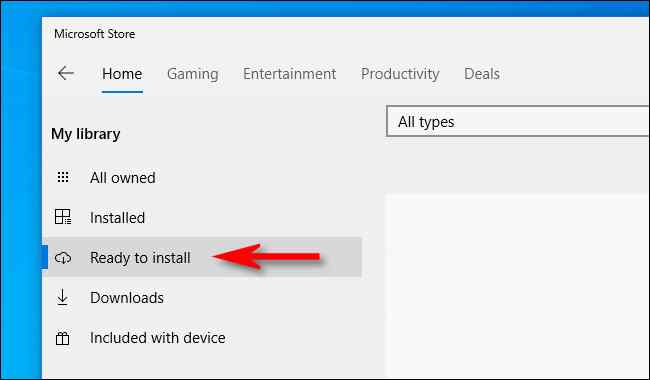
    By default, you will see a list of applications, including those you have installed. To narrow it down, click ” Ready to install ” in the sidebar menu, and you will see a list of applications that are not installed on the computer.

    How to Reinstall Applications on Microsoft Store

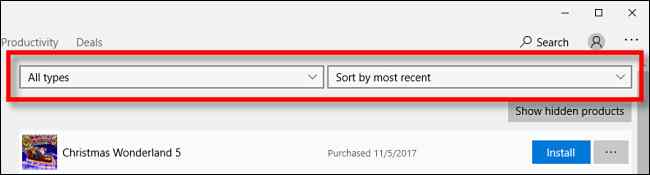
    If you need help narrowing the list, you can sort the list by name, date of purchase, or type (app or game) using the drop-down menu above the list.

    How to Reinstall Applications on Microsoft Store

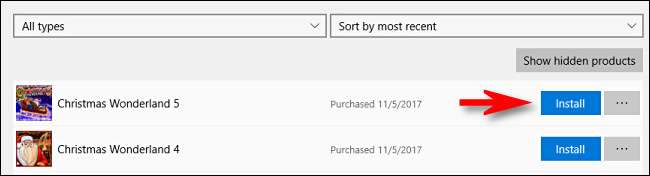
    Once you find the application you want to reinstall, click the ” Install ” button next to it.

    How to Reinstall Applications on Microsoft Store

    Windows 10 will download and install automatically on the Microsoft Store. After the installation is complete, you can launch the application using the ” Launch ” button in the list, or simply run it from the Start menu.

    If you need to reinstall another application, click the button next to each application on the “ My Library ” page of the Microsoft Store. Download and installation will be carried out automatically. Happy computing!

    Conclusion:

    If you previously uninstalled the app but still have it in your library, you can follow these steps to reinstall it. If you don’t see the app in your library, it may have been removed from the Microsoft Store or is no longer available for download.

    Don’t forget to bookmark and always visit every day Technowizah.com because you can find here the latest Tech Computer Android games How-to Guide Tips&Tricks Software Review etc, Which we update every day.
  • 7 Ways to Fix Windows Was Unable To Complete The Format 2024

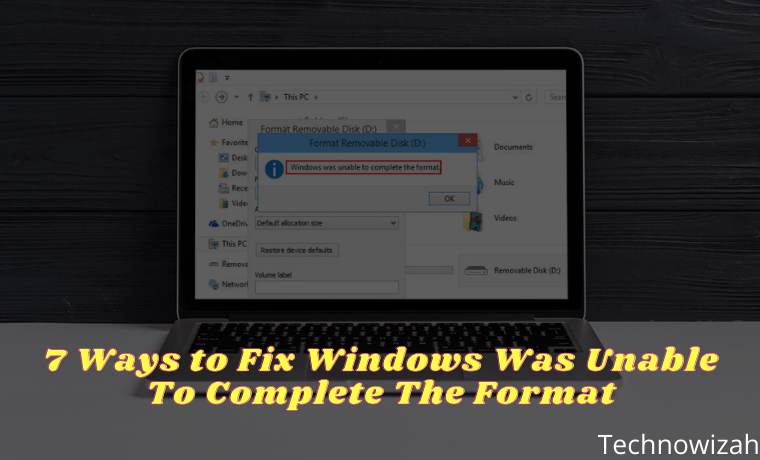
    7 Ways to Fix Windows Was Unable To Complete The Format – Have you tried to format the flash drive and see the “Windows was unable to complete the format” error? You may feel irritated, as this leaves you with an unusable device.

    7 Ways to Fix Windows Was Unable To Complete The Format
    7 Ways to Fix Windows Was Unable To Complete The Format

    How to Fix Windows Was Unable To Complete The Format 2024

    Do you see this error format with a flash, micro SD, SD card, or something similar, don’t worry! Because the Admin will show you how to solve Windows was unable to complete the format error.

    Read more:

    How to Format Pendrive in Windows?

    To make sure we’re starting on the same page, let’s take a quick look at how to format a flash drive in Windows 10. Keep in mind that this process will delete all the files currently on your Pendrive!

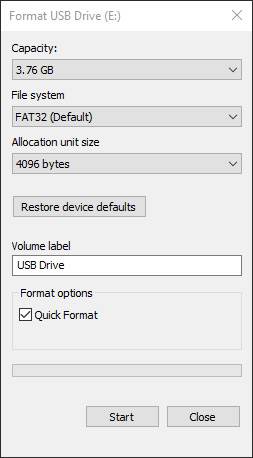
    Open a File Explorer window and browse to  This PC  to see all the drives connected to your computer. On that page, find your flash drive, right-click and select  Format.

    This will bring up the basic Windows format menu. If you are not sure which option to choose press the Restore device defaults button to use the included device. Click  Start to format the flash.

    How to Format Pendrive in Windows
    How to Format Pendrive in Windows

    If when you try this several times and keep getting the message “Windows was unable to complete the format”, proceed to the steps to fix it.

    #1. Try Formatting Through Disk Management

    For advanced disk needs, Windows provides the Disk Management tool, which has more options than This PC. So, this should be your first pick when standard formats don’t work.

    Press  Win + X  or right-click on the Start button to open a list of shortcuts, then click  Disk Management to access them.

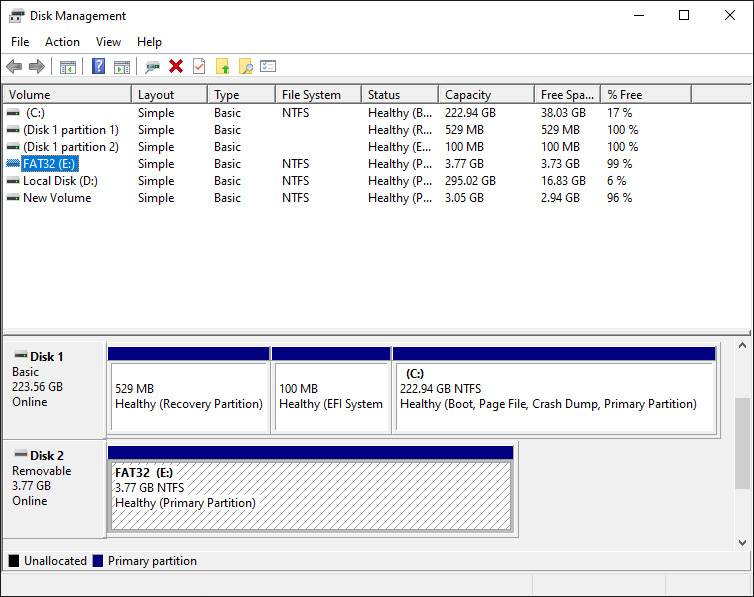
    You’ll see a list of volumes attached to your computer at the top, as well as a visual representation of them at the bottom.

    Try Formatting Through Disk Management
    Try Formatting Through Disk Management

    If you see  RAW next to the drive size at the bottom (and under  File System in the top pane), it means Windows doesn’t recognize the drive’s file system.

    In some cases, this indicates that the drive is formatted with a macOS or Linux file system that Windows cannot use.

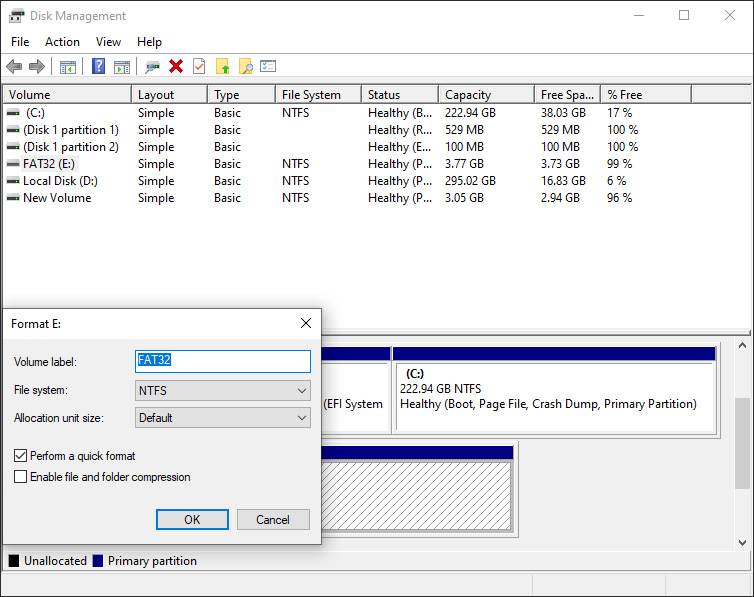
    Right-click on your USB drive (make sure you choose the correct one) and select  Format. You will see an interface similar to the one you used before.

    Select the Volume label, specify the File system  (FAT32 is best for smaller devices or devices you plan to use across platforms), and leave the Allocation unit size as  Default.

    Try Formatting Through Disk Management
    Try Formatting Through Disk Management

    If you leave  Perform a quick format checked, Windows will not check for bad sectors on the disk. We’ll cover this in a later troubleshooting step, but you can feel free to uncheck it now and see if Windows finds any issues. Keep in mind that this may take longer to complete.

    Delete And Recreate Volume

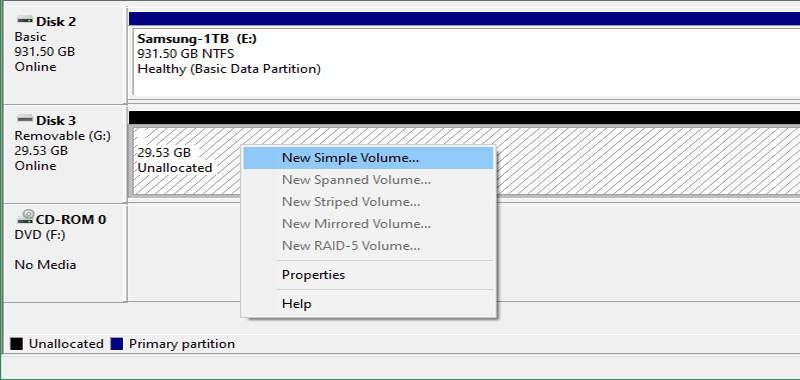
    If this fails, you can try the Delete Volume option in the drive’s right-click menu. Deleting a volume will erase everything Windows has assigned to disk, leaving only unallocated space.

    Therefore, you need to create a new volume by right-clicking it, selecting  New Simple Volume, and following the steps (which are similar to other formatting methods).

    Delete And Recreate Volume
    Delete And Recreate Volume

    #2. Remove Write Protection On the Drive

    Write Protection, as the name suggests, prevents any system from adding new data to the drive.

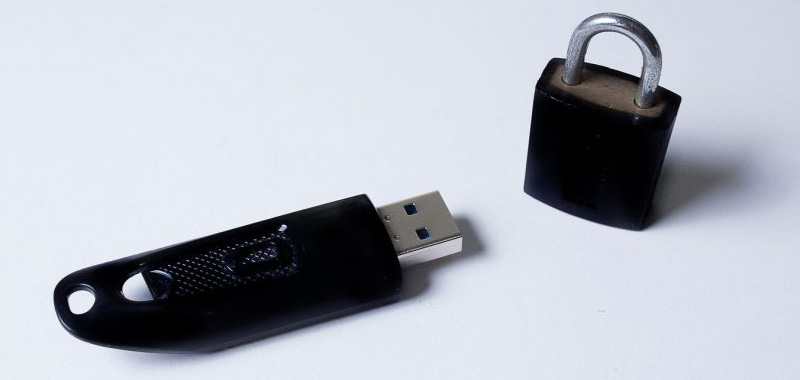
    The most common reason for this is the physical switch on the drive itself, especially with SD cards. Look at your drive and make sure all the sliders or switches are not locked or read-only.

    Remove Write Protection On Drive
    Remove Write Protection On Drive

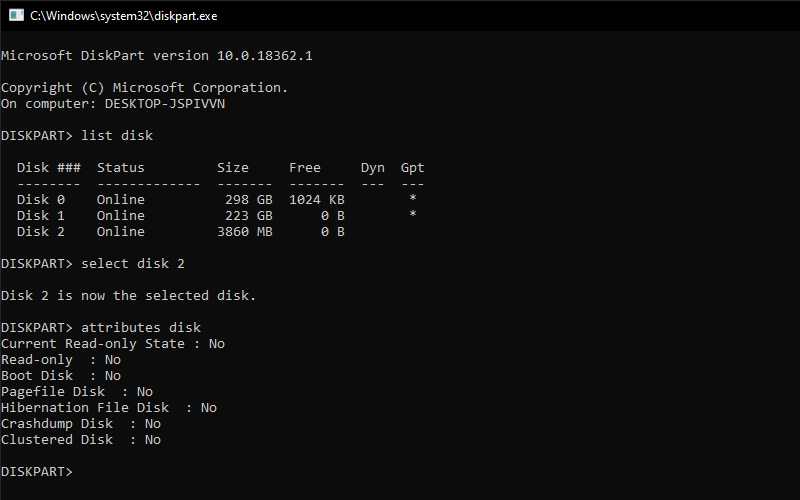
    After checking this, you should also remove the write protection software on your drive. To do this, press  Win + R  to open the Run dialog and enter diskpart. Confirm the UAC prompt that appears, then you will see the Command Prompt interface.

    Enter the list disk and press  Enter. You will see a list of disks and should be able to identify the USB flash drive by its size. Insert select disk X  to make changes to the proper device.

    Once you see confirmation that you have selected the correct disk, enter disk attributes to view the information. If you see  Yes next to the Current Read-only State, then the disk has to write protection.

    Remove Write Protection On Drive
    Remove Write Protection On Drive

    To remove this, enter the disk’s clear read-only attributes. Windows then displays a message that the attribute was successfully removed, enter the exit command to exit the window. Now that there is no write protection, try formatting your disk again.

    #3. Use SD Memory Card Formatter

    If you can’t format the SD card in Windows, the fix might be using a specific utility instead of the Windows tool.

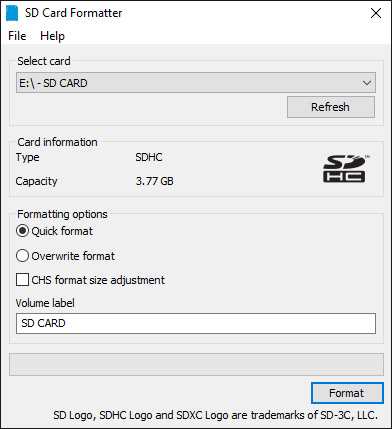
    The SD Association recommends using the  SD Memory Card Formatter,  not the one provided by your operating system. Download the tool if you are specifically having problems with the SD card.

    The tool is simple and looks similar to the options you tried above. Make sure you choose the right card in the dropdown menu at the top.

    Use  Format Overwrite to erase the current card content for best results and give it a name in the Volume label field.

    Use SD Memory Card Formatter
    Use SD Memory Card Formatter

    #4. Scan the Drive for Errors

    Sometimes, you will encounter a format error because the drive has bad sectors or similar issues. At this point, it’s worth checking the drive to see if there’s anything wrong with it.

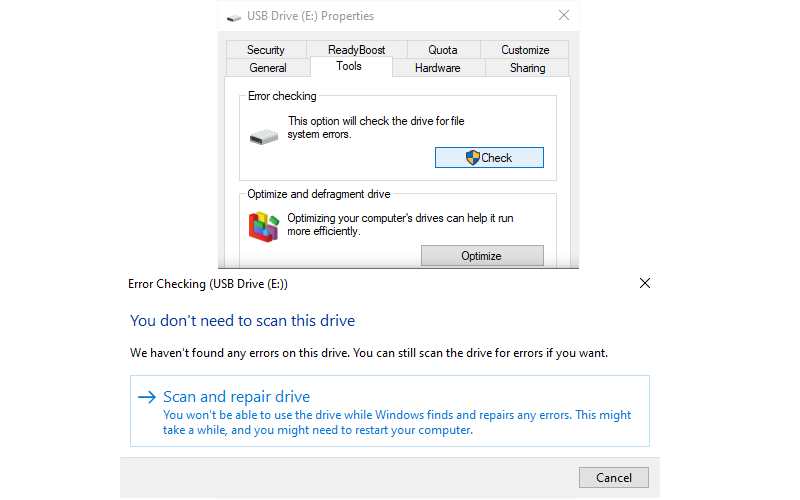
    To do this, open  This PC  again. Right-click on the Flashdisk and select  Properties. On the resulting menu, switch to the Tools tab and click the Check button under  Error-checking. Select  Repair drive to run a scan on the drive then wait for it to finish and try again.

    Scan the Drive for Errors
    Scan the Drive for Errors

    #5. Use the Third-Party Formatting Tool

    If you still can’t format your disk, a third-party tool can solve your problem. Oftentimes, such tools use a different formatting method than Windows and can bypass any issues Windows has with your disk.

    You can download and install third-party formatting tools like Paragon Partition Manager, it’s an application that has been around for years and has won several awards.

    #6. Scan for Malware

    While it’s most likely not the cause of your problem, it’s worth running a malware scan if you’re still unable to format the drive. Some malware can interfere with normal file operating systems, including formatting drives.

    The admin recommends running a scan with the free version of  Malwarebytes and seeing if it finds the infection. Then try formatting again.

    #7. Try Formatting On Another OS

    Try Formatting On Another OS
    Try Formatting On Another OS

    Before you give up on an unformatted drive, there is one more way you can try to solve the problem. If you have access to a machine running macOS or Linux, try using those operating systems to format your external drive.

    Even if you have to reformat the drive again to use it with Windows, it’s good to know if the problem is with your hardware or Windows.

    If your drive formats fine on Mac or Linux, it means that there is some problem with your Windows operating system.

    Read more:

    Conclusion:

    So those are some ways to solve Windows was unable to complete the format error. If you’ve done all the steps above and still get the format error, your drive may be dead.

    Unfortunately, flash drives and SD cards have a limited number of uses, and cheap or old drives are more prone to damage. This also happens if your drive is physically damaged.

    Don’t forget to bookmark and always visit every day Technowizah.com because you can find here the latest Tech Computer Android games How-to Guide Tips&Tricks Software Review etc, Which we update every day.