Category: Windows

Windows – Here you can find Computer-related updates Windows 10, Windows 8, Windows 7, Linux, technology information, and more.

  • How to Install Linux on Windows 10 PC Laptop 2025

    How to Install Linux on Windows 10 PC Laptop 2025

    How to Install Linux on Windows 10 PC Laptop – Linux is an open-source operating system. Linux is based on the Linux kernel and is free to download. Linux can be installed on a Mac or Windows computer. Here’s how to install Linux on Windows 10.
    How to Install Linux on Windows 10 Not Complicated
    How to Install Linux on Windows 10 Not Complicated

    How to Install Linux on Windows 10 Laptop PC

    If you want to dual-boot, Linux and Windows, you need to make room for a Linux OS. To do this, you must partition your main hard drive.

    Read more:

    How to partition a Windows 10 hard disk

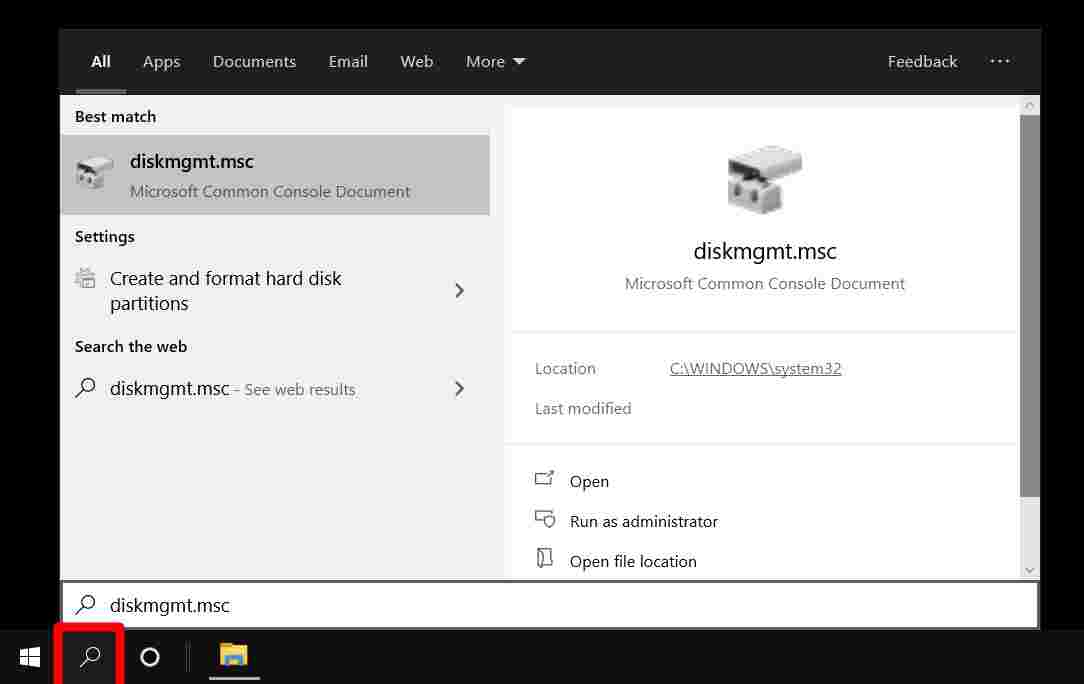
    1. Open the Windows Search Bar. It’s a magnifying glass icon in the bottom-left corner of the screen.
    2. Then type “DISKMGMT.MSC” in the search bar and hit enter.
    How to partition a Windows 10 hard disk

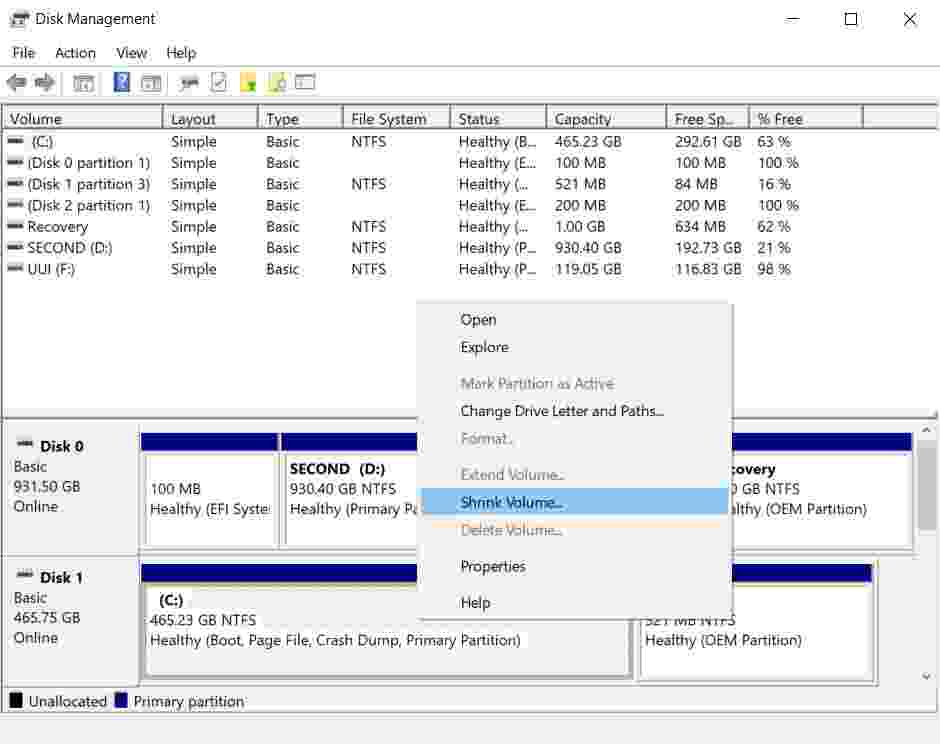
    3. Right-click on your main hard drive and select Shrink Volume. If you have more than one drive, make sure to select the one that says Primary Partition. This will usually be labeled as the C: drive.
    How to partition a Windows 10 hard disk

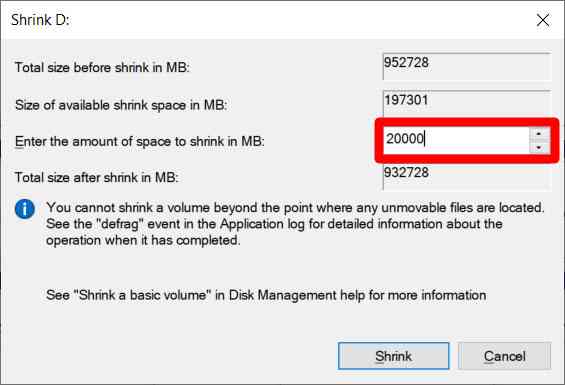
    4. Then select how much you want to shrink the drive. It’s recommended that you set aside at least 20GB (20,000MB) for Linux
    How to partition a Windows 10 hard disk

    5. Finally, click Shrink.

    Once you have the designated space to install Linux, you’ll need to write the Linux Distro to a USB thumb drive or an external drive of 4GB or greater.

    How to Make a Linux Bootable USB

    1. Download the Linux distro in ISO format. ISO files are disk images. Some of the best options are Ubuntu,  Mint, or  Fedora, free to download from their respective main websites. For this article, we are using Ubuntu
    2. Insert a USB drive into the computer. You may be asked to format the drive, so make sure to back up files before starting.
    3. Download Rufus. You can find the latest version of this application here.
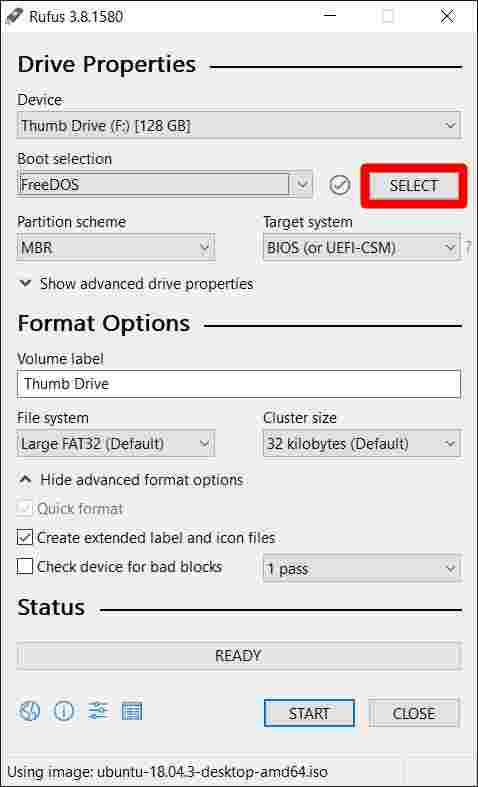
    4. Open Rufus and select your USB drive from the Devices list. If you don’t know which drive to use, remove all drives until you only have one to choose from.
    5. Under Boot selection, click on the Select button and select the ISO file you downloaded earlier. Don’t change any other default settings.
      How to Make a Linux Bootable USB
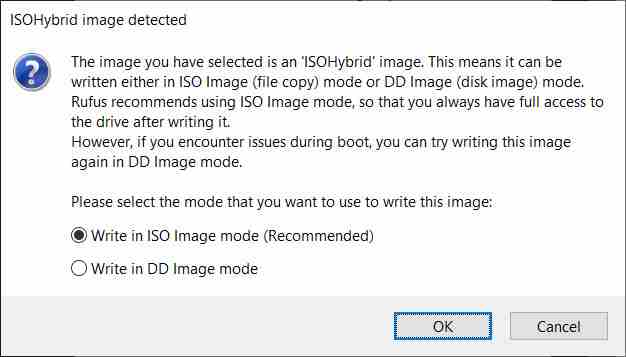
    6. Finally, click Start. If you get a pop-up message asking you to choose the mode you want to compose the image in, choose ISO.
    How to Make a Linux Bootable USB

    Then wait for Rufus to mount your ISO file onto your drive. This may take some time, so be patient.

    How to install Linux on Windows 10 from a USB

    Now you have a Linux distro on USB,

    1. Insert a bootable Linux USB drive.
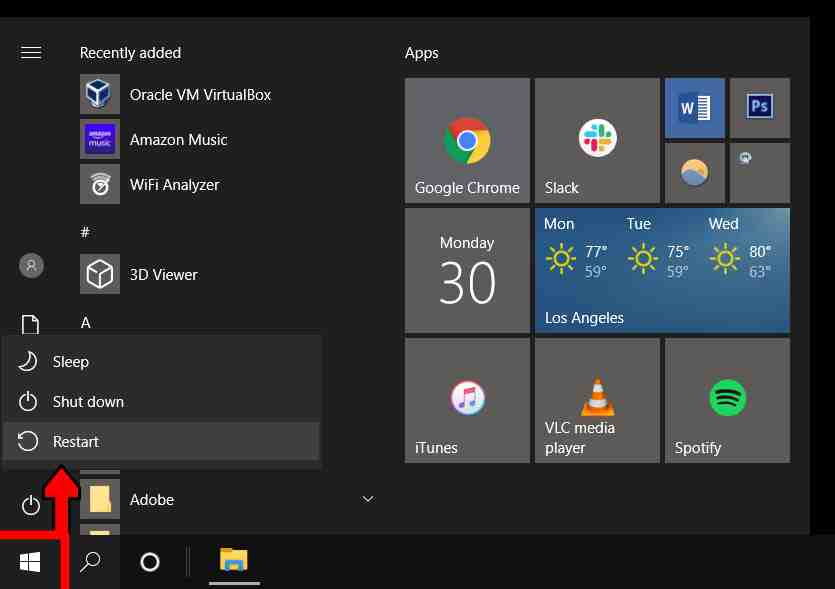
    2. Click the Start menu. It’s in the bottom-left corner of the screen that resembles the Windows logo.
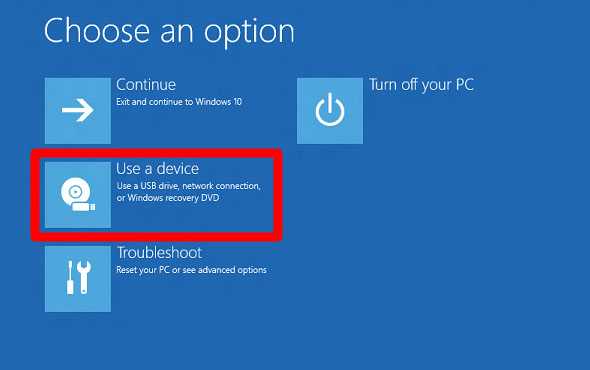
    3. Then hold down the SHIFT key while clicking Restart. This will take you to the Windows Recovery Environment.
    How to install Linux on Windows 10 from USB

    4. Then select Use a Device.

    How to install Linux on Windows 10 from USB

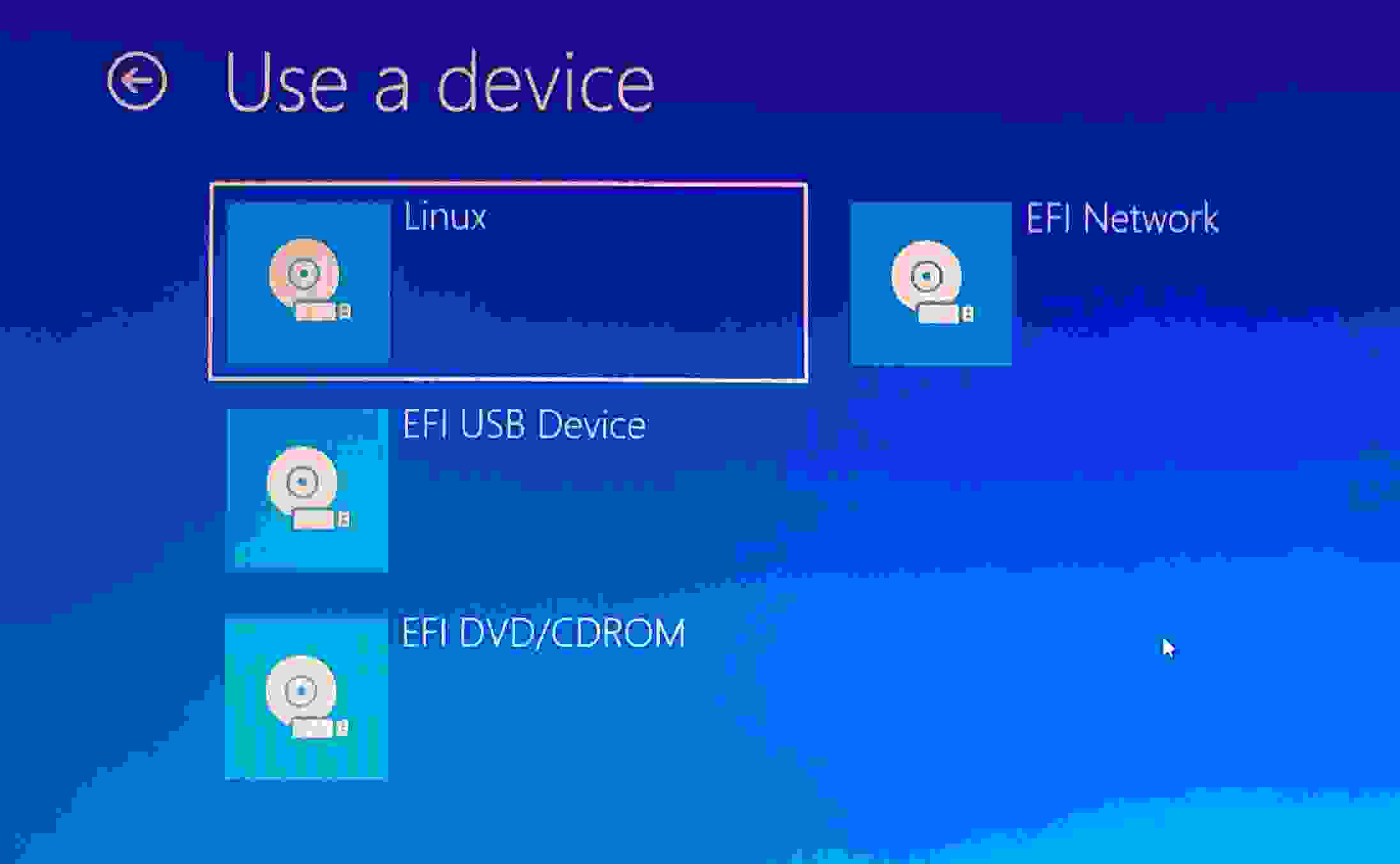
    5. Find your device in the list. If you don’t see your drive, select EFI USB Device, then select your drive from the next screen.

    How to install Linux on Windows 10 from USB

    6. Your computer will now boot Linux. If your computer reboots Windows, there may be a problem with your drive, or you will need to change a setting in the BIOS.

    Warning: Changing BIOS settings can damage your computer if you don’t know what you are doing.

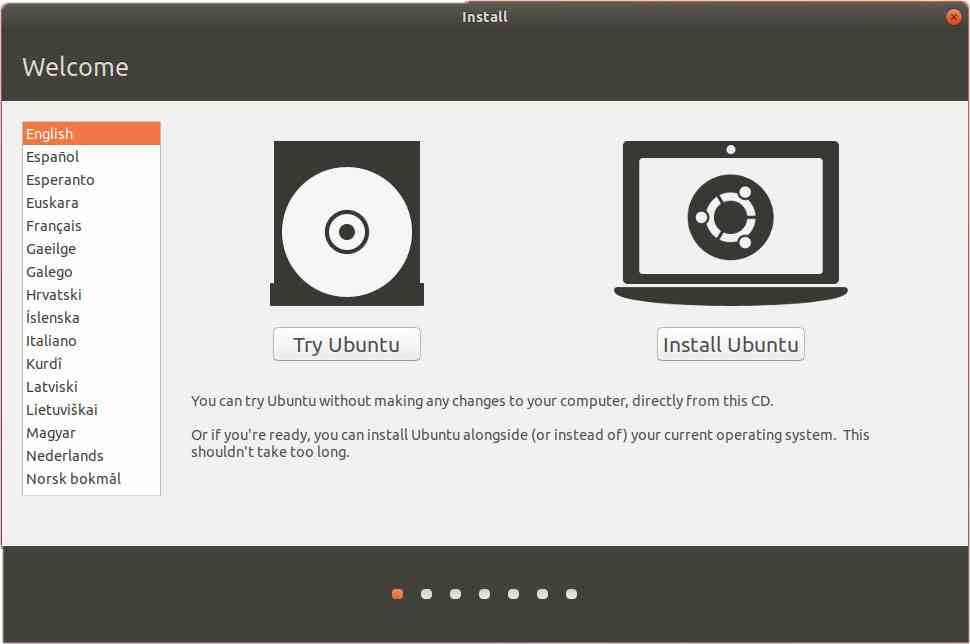
    7. Select Install Linux. Some distributions also let you try the OS before installing it here.
    How to install Linux on Windows 10 from USB

    8. Follow the installation process. It will depend on which distro you are trying to install. These details may include WiFi network, language, time zone, keyboard layout, etc. You may be asked to create an account with a username and password. Make sure to write them down in detail, as you will likely need them in the future.

    9. Most distributions allow you to partition the drive or erase it and perform a clean install during installation.

    Warning: Erasing a disk means that you will lose your Windows settings, files, and operating system. Only select Delete if you saved copies of all files before starting the installation process.

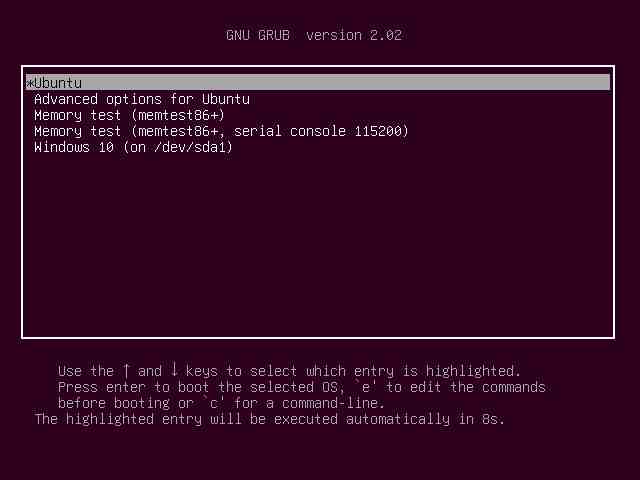
    10. Restart the computer when prompted. If you have more than one OS on your system, you will be taken to the GNU GRUB screen after rebooting. This screen allows you to select which OS you want to boot from.
    How to install Linux on Windows 10 from USB

    If you don’t see the GRUB screen when you boot your computer, you can try moving your Linux distro higher on your boot list in the BIOS.

    Read more:

    Conclusion:

    This is the explanation of how to install Linux on a Windows 10 PC Laptop, Once done, you can perform a hardware check. In some cases, you need to download additional drivers to make some hardware work.

    The option to download the driver can be found in Systems Settings on the new Linux OS. After verifying that the hardware is working properly, you can start using your Linux distro.
  • 5 Ways To Fix Word Files That Can’t Be Opened 2025

    5 Ways To Fix Word Files That Can’t Be Opened 2025

    5 Ways To Fix Word Files That Can’t Be Opened – Microsoft Word is probably one of the most widely used programs from Microsoft in the world. Especially considering its very useful function, and because this program may have many features.

    5 Ways To Fix Word Files That Can't Be Opened
    5 Ways To Fix Word Files That Can’t Be Opened

    How To Fix Word Files That Can’t Be Opened

    Not infrequently Microsoft Word is used to complete various kinds of work, school and campus assignments, to create mail merges, and various important documents related to schools, businesses, and companies.

    Read more:

    Of course, if there is damage or the Word file suddenly cannot be opened, we as the file owner can be confused. Especially if the file is important and there is no copy.

    But don’t worry, because we can fix Word files that won’t open.

    #1 Change Word File Extension

    Change Word File Extension
    Change Word File Extension

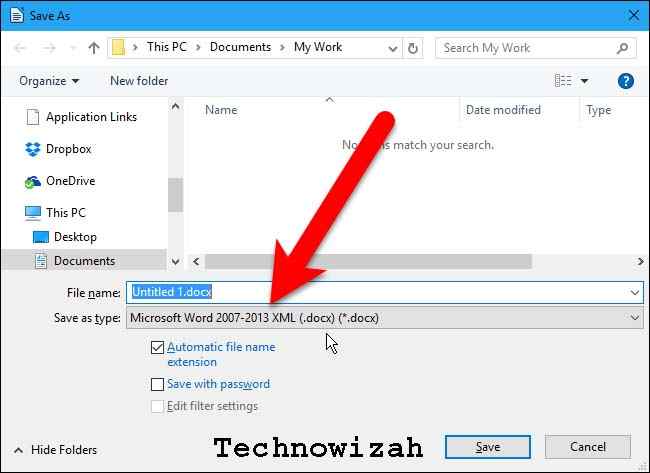
    The easiest first step and you can do it yourself at home is to change the extension of the Word file that can’t be opened. This step will generally open most files.

    This is because most errors or Word files that cannot be opened are caused solely because the file is not supported by the program, or in a more standard language unsupported file extension.

    The steps you can take to change the file extension are as follows:

    1. First of all, you can directly open the Microsoft Word program that you have.
    2. After that open the Open menu and then Export.
    3. In the Export menu, you can click Change File Type and then you can directly search for the file you want to open.
      • If no choice of extension matches the file you want to open, it means that the Microsoft Word you have is not compatible.
      • Take the next step.
    4. Open the folder where the file is stored, then click Tools and click the View tab, and check the File Name Extension option.
    5. After that just click on the file that can’t be opened and change the extension according to your Word compatibility.

    This method is the easiest way and in general, can fix almost all Word file extension problems that can’t be opened in conventional ways.

    #2 Open Word Files with Open and Repair Features

    Open Word Files with Open and Repair Features
    Open Word Files with Open and Repair Features

    If the first step didn’t solve the problem, then you can try opening the file with the ‘open and repair’ feature. This step itself according to Kani is actually quite easy considering this feature is a built-in feature of Microsoft Word.

    Now, as for the way you can do to use the ‘open and repair’ feature in Microsoft Word, the following are the steps:

    1. First of all, you can directly open the Microsoft Word program that you have on your laptop or computer.
    2. After that, you can directly open the File menu in the upper left corner.
    3. Then proceed by going to the Open tab and clicking options
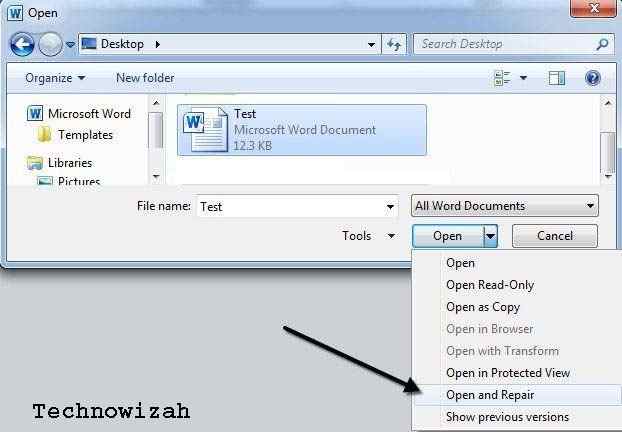
    4. After that, you can find the folder where you saved the corrupted file and click once on the file. However, in the drop-down menu in the lower right corner, replace the Open option with the Open and Repair option.
    5. If the damage is not severe, Microsoft Word should be able to recover and repair the file.

    This step is the default step and should be more likely to repair the file if the file that can’t be opened is damaged. If it still doesn’t work, you can try the next step.

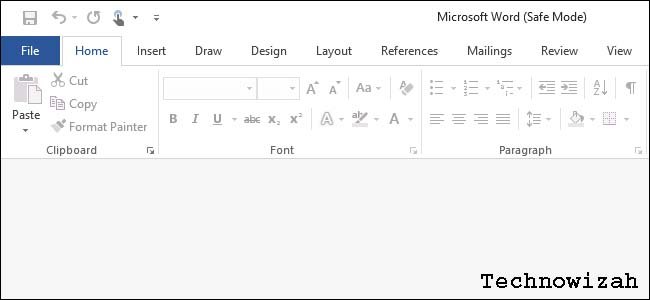
    #3 Open Word Files in Safe Mode or Disable Add-Ins Microsoft Word

    Open Word Files in Safe Mode or Disable Add-Ins Microsoft Word
    Open Word Files in Safe Mode or Disable Add-Ins Microsoft Word

    This third step is a step that you should rarely do because with the two steps above the average person can already handle the problem of the Word file that cannot be opened.

    Besides that, in our opinion, this third step is also relatively more difficult than the previous one, although it is quite easy too. Now, the steps you can take to open files using Safe Mode  are as follows:

    1. First of all, you can open Run by pressing the Windows key + R.
    2. After opening Run, you can directly type exe /safe and immediately click OK.
      • Supposedly Microsoft Word will open at a minimum, the alias will not include additions or Add-Ins that you gave earlier.
      • Usually, the basic functionality of Microsoft Word will remain, but additions such as Mendeley for example will not open when using safe mode.
    3. If Word still opens normally, then you can just manually check the additions you provided earlier and disable them manually as well.

    If this step can’t be done or it still doesn’t work to open a locked Word file, it means you have to move on to the next method.

    #4 Open with a different version of Microsoft Word

    Open with a different version of Microsoft Word
    Open with a different version of Microsoft Word

    Another reason the Microsoft Word file that you don’t have can’t be opened using your laptop or computer is simply that the file you have is not compatible with the version of Microsoft Word you have.

    Therefore, one solution that we think is quite effective is to open the file using a different version of Microsoft Word. You can use other family members’ laptops or your friends’ laptops.

    The condition is, of course, that the laptop has Microsoft Word with a different version from the one you have. If later it turns out that it can be opened, you can borrow their laptop or just install Microsoft Word with the same version.

    If you’re lazy, you can change the format of the file that can’t be opened by Save As and replace it with a Word 97-2003 file or one that matches your version of Microsoft Word.

    If this step still opens the file, it means that there is considerable damage to the file. In addition, you should try to continue to the next step.

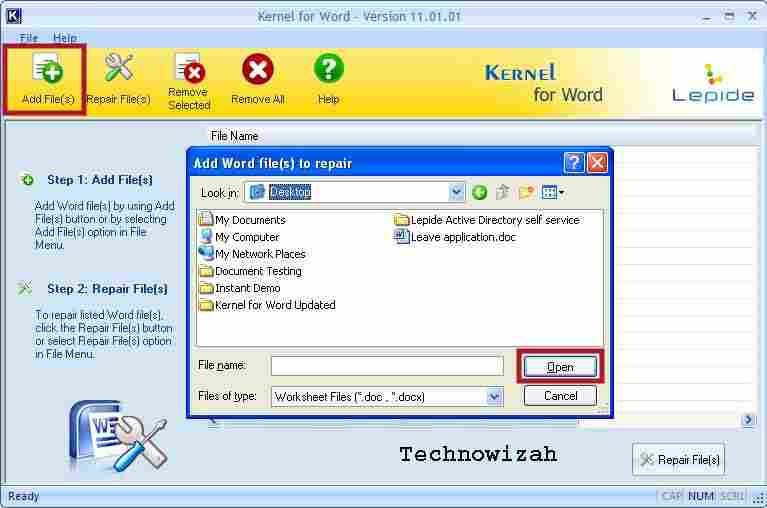
    #5 Use Third-Party Repair/Recovery Programs

    Use Third-Party RepairRecovery Programs
    Use Third-Party RepairRecovery Programs

    This last step can be done if you are really in a hurry and the file is so important. That’s why we put this last step not in the last position because it does contain some risks.

    To find a trusted third-party program on the internet in our opinion is quite difficult, especially if you are looking for free programs. Furthermore, if you are not experienced in this kind of thing.

    The worst possibility that you can get is that you download viruses, malware, adware, and other scary things that can then infect your laptop / PC and damage it.

    However, there are several programs that we think you can try to help solve the problem of corrupted Word files, including:

    • Kernel Word Repair Software is one application that is quite recommended to repair damaged Word files. There are several advantages offered by this application, including the following:
      • Can repair files with *.doc and *.docx formats
      • There is no limit on the size of the file you want to repair.
      • Compatible with various versions of Word, and even includes Microsoft Word 2016.
      • Classified as easy to use, with a user interface that is also quite simple.
    • EaseUS File Repair Tool, basically this program is a program that can repair various kinds of data with various extensions, and of course, Word is one of them. Some considerations that you can think about using this third-party program are as follows:
      • Can repair files with *.doc and *.docx formats
      • There is no limit to the size of the file you want to repair and can repair files at the same time.
      • Real-time preview of damaged repairs so you can make sure first before completing the repair.
      • Compatible with various versions of Word, and even includes Microsoft Word 2016
    • Disk Internals Word Recovery is a program for recovering damaged files, which we recommend with several advantages, namely:
      • Can repair files with *.doc and *.docx formats
      • There is no limit on the file size you want to repair.
      • Compatible with various versions of Word, and even includes Microsoft Word 2016.

    Don’t forget to bookmark and visit Technowizah.com every day. You can find here the latest Tech Computer Android games, How-to Guides, Tips and Tricks, Software Reviews, etc., which we update every day.

  • 8 Ways to Fix TDR VIDEO FAILURE Nvlddmkm.sys on Windows 10 [2025]

    8 Ways to Fix TDR VIDEO FAILURE Nvlddmkm.sys on Windows 10 [2025]

    8 Ways to Fix TDR VIDEO FAILURE Nvlddmkm.sys on Windows 10 – VIDEO TDR FAILURE nvlddmkm.sys is a BSOD stop code that can occur on computers with NVIDIA graphics cards.

    8 Ways to Fix TDR VIDEO FAILURE Nvlddmkm.sys on Windows 10
    8 Ways to Fix TDR VIDEO FAILURE Nvlddmkm.sys on Windows 10

    How To Fix TDR VIDEO FAILURE Nvlddmkm.sys on Windows 10

    The user’s entire screen turns blue, showing the error message Your PC ran into a problem and needs to restart the message and showing nvlddmkm.sys as the problematic file. Nvlddmkm.sys is a driver, and its full name is NVIDIA Windows Kernel Mode Driver.

    Read more:

    In this article, we will discuss how to solve VIDEO TDR FAILURE nvlddmkm.sys in Windows 10. First, let’s discuss what exactly is the VIDEO_TDR_FAILURE error and what causes it.

    What is VIDEO_TDR_FAILURE?

    TDR stands for Timeout Detection Recovery. The Video_TDR function is designed to prevent blue screens of death from occurring. This is done by resetting the driver or GPU if an error occurs. Therefore, if there is a Video_TDR_Failure, a blue screen of death will appear.

    The nvlddmkm.sys error is an issue most likely related to the Nvidia graphics card display driver. Fortunately, several solutions can help to solve this problem. If one of the solutions below doesn’t fix the problem, then you can try something else. Since there are several possible causes of the error, there are also several possible fixes.

    How to Overcome VIDEO TDR FAILURE Nvlddmkm.sys

    Before finding a solution for the VIDEO TDR FAILURE error, it’s a good idea to create a Restore Point. If something happens and you need to undo all changes, you can easily revert Windows 10 to a checkpoint and start troubleshooting from scratch.

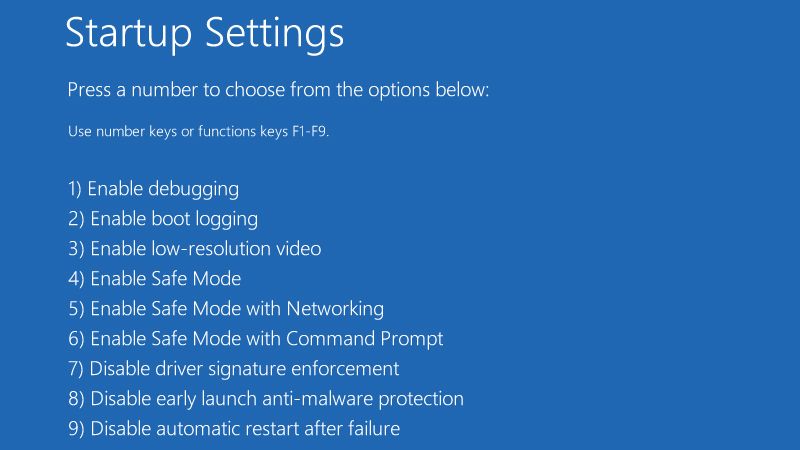
    #1. Run Windows 10 Safe Mode

    Run Windows 10 Safe Mode
    Run Windows 10 Safe Mode

    If you are having trouble using your computer because the system immediately crashes, displays a blue screen, and enters a reboot loop, you can run Windows 10 in Safe Mode.

    1. Turn your PC on and off three times to trigger Windows 10 troubleshooting mode.
    2. Go to Troubleshoot  >  Advanced options  >  Startup Settings.
    3. Click Restart and wait a moment.
    4. Press F5 to enable Safe Mode with Networking.
    5. After Windows boots, check if you are still getting the nvlddmkm error. If you are still there, follow the steps above to reach the Safe Mode option and select F4 to enable the Safe Mode without the networking feature.

    #2. Check System Update Pembaruan

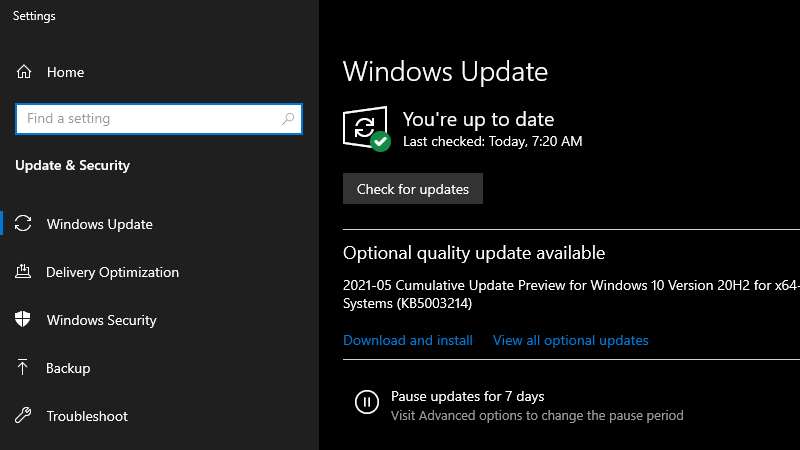
    Keeping Windows up to date is important. This is useful so that your Nvidia GPU drivers can run smoothly. Updates are also sometimes accompanied by fixes that resolve errors or bugs.

    Usually, computers using Windows 10 OS will automatically update when a new update is released. However, if automatic updates are disabled, inevitably the update must be run manually. Follow the instructions below to do this:

    Check System Update Pembaruan
    Check System Update Pembaruan
    1. Press the Win key, type Check for updates, and press Enter.
    2. Click Check for updates and wait.
    3. If Windows finds something, click Download.
    4. If there is an update, wait for the update to be downloaded and installed.
    5. Restart your computer.

    #3. Check for Graphics Card Driver Updates

    Out-of-date graphics drivers can cause video card problems, game problems, and even blue screen errors like nvlddmkm.sys. For that, you need to update the driver. Follow the instructions below to do this:

    Check for Graphics Card Driver UpdatesCheck for Graphics Card Driver Updates
    Check for Graphics Card Driver Updates
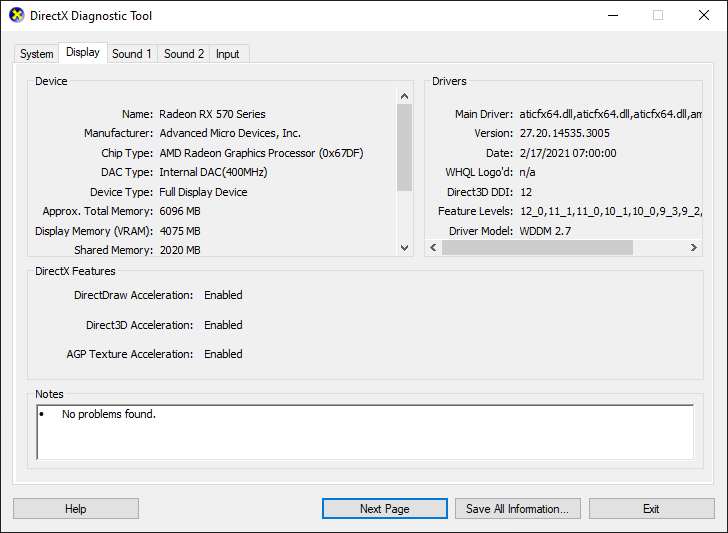
    1. Press the Windows key + R to the Run dialog box, and type dxdiag in the search box.
    2. Press Enter, navigate to the Display tab, and verify the details about your GPU.
    3. Navigate to the System tab and verify the details about your operating system.
    4. Visit the NVIDIA website and download the latest drivers for the graphics card.
    5. Select the latest driver from the list on the NVIDIA website and download it.
    6. Select the required update for your graphics card, accept it, and download it.
    7. Install and restart your computer.
    8. Check if the problem is solved.

    This solution can be used if you don’t know what model of graphics card is used on your computer. After getting this information from step two, you know what to download. After entering the NVIDIA website, the admin recommends downloading only certified or recommended updates. So avoid drivers that are still in the beta development stage.

    But if you find it difficult to do so, you can use third-party applications such as Driver Booster or DriverPack to make it easier to update out-of-date drivers. So you don’t need to update it manually.

    #4. Reinstall the Graphics Card Driver

    Reinstalling the driver will also replace the corrupted files with the ones that work properly. Before we begin, restart your computer into Safe Mode. If updating the graphics card driver still doesn’t solve the problem, then you may need to reinstall the driver completely. Follow the instructions below:

    Reinstall the Graphics Card Driver
    Reinstall the Graphics Card Driver
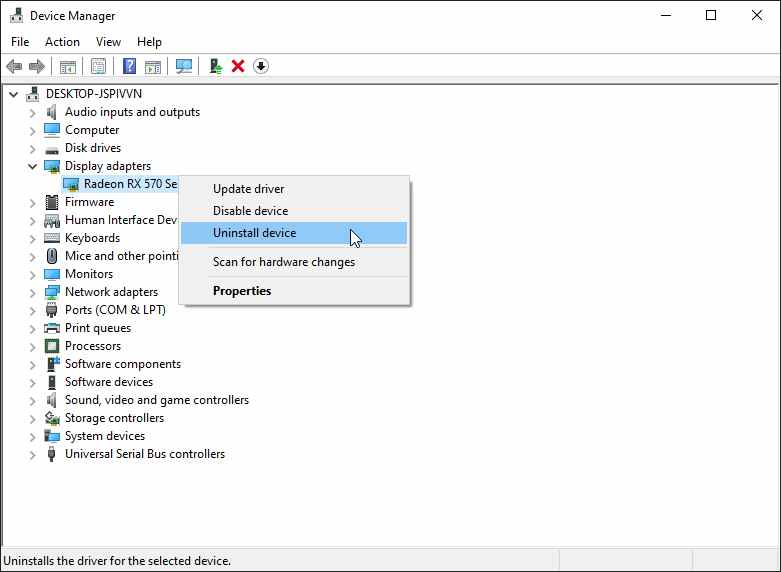
    1. Open Windows in Safe Mode, and navigate to Device Manager.
    2. Select the Display Adapter section, right-click, and uninstall your graphics card driver.
    3. Select  Delete the driver software for this device, and click  OK.
    4. Download and update the latest drivers for your GPU.
    5. Go to C:/Windows/System32/drivers, search for nvlddmkm.sys, and name it nvlddmkm.sys.old.
    6. Type Command Prompt in the search bar, and select Run as administrator.
    7. Type  exe nvlddmkm.sy_nvlddmkm.sys  to create a  new nvlddmkm.sys file.
    8. Open the C drive and look for this file in the NVIDIA folder.
    9. Copy it to C:/Windows/System32/drivers.
    10. Restart your computer.

    #5. Turn Off Overclocking Apps

    Turn Off Overclocking Apps
    Turn Off Overclocking Apps

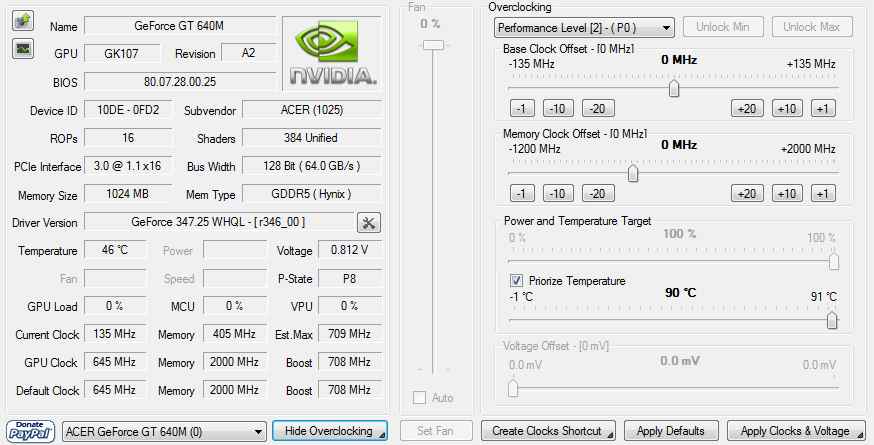
    People use memory overclocking software to enhance their gaming experience. However, suppose the computer is not accompanied by a cooler strong enough to withstand the extra heat. In that case, Windows will eventually shut itself down and display a blue screen message such as VIDEO TDR FAILURE to prevent HDD damage and data loss. Unless you know exactly what you’re doing

    For that, you have to disable all overclocking applications, such as MSI Afterburner, CPU-Z, or GPU-Z, and reset the computer’s clock settings to default.

    #6. Remove And Reinstall the GPU Card

    Remove And Reinstall GPU Card
    Remove And Reinstall GPU Card

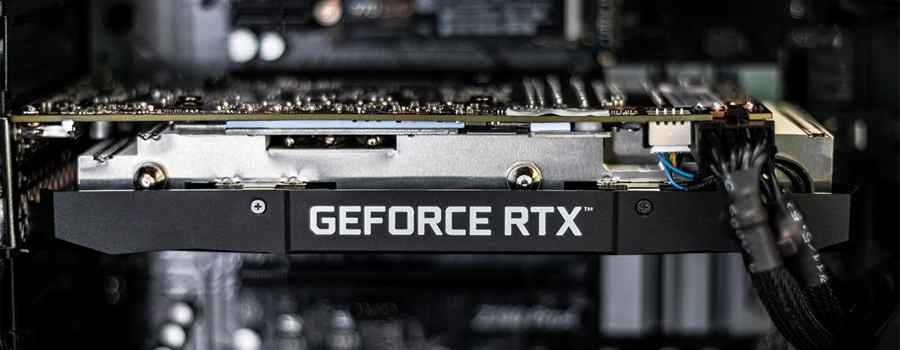
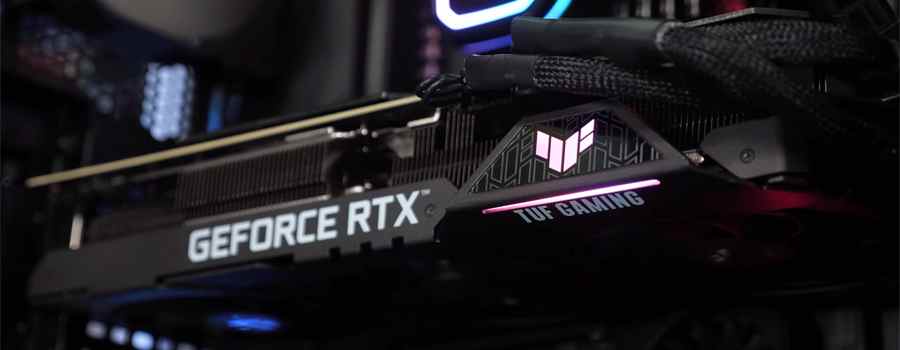
    There is a possibility that your graphics card needs to be removed and then reinstalled into the computer unit. If not connected properly, it can trigger Blue Screen of Death errors such as VIDEO TDR FAILURE stop code.

    Shut down your desktop, unplug all cables, remove the computer chassis, and carefully remove the GPU card. Then, insert it back into the same slot firmly but not forced. Turn on the computer and see if anything changes.

    #7. Try GPU Card On Another Computer

    Try GPU Card On Another Computer
    Try GPU Card On Another Computer

    If the graphics card is not working and needs to be replaced, all your efforts to try to solve the blue screen problem in the software will be in vain. A simple way to test this is to remove the GPU card from the computer and insert it into another PC, preferably with a clean Windows installation. If the system starts to crash, it should be pretty clear that you need to replace the hardware.

    #8. Reset Windows 10

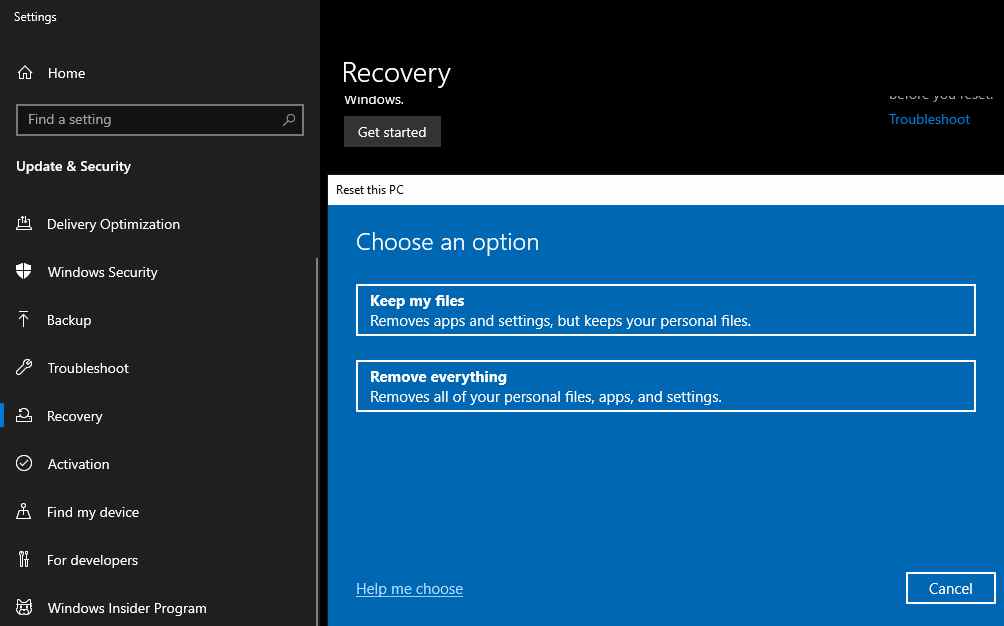
    If all else fails so far, you will be forced to reset Windows 10 to remove all programs and restore system settings to default. The good news is that your private files will not be touched.

    But make sure to write down all the apps you need to install, save program preferences, and get the serial key needed for re-activation. Then, proceed to the following steps:

    Reset Windows 10
    Reset Windows 10
    1. Right-click the Start button and open Settings.
    2. Select Updates & Security.
    3. Select Recovery and click Get Started.
    4. Click Keep My Files and follow the rest of the instructions.

    Read more:

    Conclusion:

    So that’s how to solve VIDEO TDR FAILURE nvlddmkm.sys on Windows 10. VIDEO TDR FAILURE is a BSOD error that indicates a problem with your GPU settings. I hope one of these eight solutions helps you fix the annoying video_tdr_failure (nvlddmkm.sys) error on Windows 10.

  • 12 Reasons Why WiFi Is Slow And How To Fix It 2025

    12 Reasons Why WiFi Is Slow And How To Fix It 2025

    12 Reasons Why WiFi Is Slow And How To Fix It – If you’re experiencing WiFi that feels sluggish or slow, there could be several reasons.

    12 Reasons Why WiFi Is Slow And How To Fix It
    12 Reasons Why WiFi Is Slow And How To Fix It

    12 Reasons Why WiFi Is Slow And How To Fix It

    Luckily, there are steps you can take to fix slow WiFi. So, let’s take a look at the reasons why WiFi is slow.

    Read more:

    #1. Router Placement: High VS Low

    The placement of your router plays an important role in your home WiFi network. Even a slight change in position can slow down your WiFi. In fact, finding the correct position is one of many ways to increase the speed of your router.

    As it turns out, the height of the router makes no difference. Mounting the router on the ground or behind another object usually results in much worse performance. Instead, place the router as high as possible to extend the radio broadcast range. It also helps rid the router of interference.

    #2. Building Materials Block WiFi Signals

    Materials like concrete and metal are usually the biggest blockers of WiFi signals. So, you might want to avoid placing your router in the basement, as a lot of concrete usually covers this area. Other materials can also hamper the performance of your wireless network. Make sure other large objects are not blocking your router.

    #3. Distance To Router

    The further your device is from the router, the weaker the WiFi signal will be. Therefore, the best option is to place your router as close to your device as possible.

    If your broadcast router looks very weak or if your house is very large, then you may need to increase the range of the WiFi band. A WiFi extender or repeater is an additional device that connects to the main router and covers a wider area.

    #4. Other Household Users

    Have you ever let a big download run on your PC? That might be the cause of your slow WiFi. Downloading large files can seriously hurt your WiFi performance. So if you’re running a non-urgent task, try pausing it.

    What’s more likely, however, is that people in your network such as friends, roommates, or family members are taking part in activities that require a lot of bandwidth such as playing games or streaming videos.

    #5. Too Many Devices Connected To WiFi

    You need to count how many devices are connected to your WiFi. Because the more devices connected, the slower your internet speed.

    Many devices automatically download and upload which can eat up bandwidth. Therefore, if you have many devices connected to WiFi, make sure you buy an adequate internet package.

    #6. Digital Disturbance

    Digital disruption can occur for a number of reasons. There is a wireless signal from WiFi, electronic devices, cell towers, satellites, and other sources. While WiFi typically uses a different signal than these other devices, radio noise can still cause interference.

    Some older routers only use a single band on the 2.4 GHz frequency. However, Bluetooth devices, microwave ovens, and cordless phones also use the same 2.4 GHz frequency range. This overlap causes WiFi interference. If possible, try connecting to the 5 GHz frequency band as it is less congested, or try selecting a different channel.

    #7. Noise From Your Neighbors

    Almost every household has its own WiFi network, which can create overlapping channels. Overlapping channels are a problem for routers that can only broadcast at 2.4GHz, or if you have devices that can only receive 2.4GHz wireless signals. This is because there are only 14 channels to transmit. Two routers broadcasting on the same channel on the same frequency will interfere with each other.

    That’s why you have to choose the right channel in your router settings. Modern routers can select the channel for you automatically, but sometimes it’s better to search and find the best WiFi channel for your network.

    #8. Router is Old

    Routers older than 5 years may not meet the latest standards (802.11ac / WiFi 5) or provide simultaneous dual-band support for 2.4 GHz and 5 GHz.

    Especially when it comes to ISP-provided router/modem units, it may be time to upgrade to the latest and greatest. Let’s take an analogy like this, having the latest smartphone serviced by an old router is like having a good race car with the cheapest tires you can usually find.

    #9. ISP Downtime ISP / Network Clogged

    Sometimes, ISPs suffer from downtime and poor connections. Nothing is perfect. It must have been experienced by every ISP. However, dealing with internet rush hour is the same as Monday morning traffic.

    Especially after people get out of work or on lazy weekends, when everyone in the neighborhood is using the internet at the same time, congestion occurs and ends up creating a network with heavy traffic.

    #10. Quota Limitation By ISP

    Do you know how much data you use each month? Home users typically spend more than 200 GB per month. All the videos, online games, and hours of browsing on the web lead to high data usage. Therefore, many ISPs reduce their customers’ internet speed because they have passed the reasonable usage limit. For example, Indihome applies the FUP (Fair Usage Policy) system or fair usage limits to each of its customers.

    #11. Someone Steals Your WiFi

    First, let’s hope your WiFi is password protected. Second, make sure your passwords are strong and varied. And don’t use weak passwords like “123456” “password” or “qwerty”. Because if other people connect to your WiFi without your consent, they steal your bandwidth.

    #12. ISP DNS Not Good

    When someone types a website address into their browser, the computer automatically uses DNS to convert the address into an understandable IP address.

    In some cases, the computer is using a DNS server that is having problems. Your router usually uses your ISP’s DNS servers, but that doesn’t guarantee speed. Better DNS can help speed up loading times.

    How to Fix Slow WiFi

    Identifying the cause of your slow WiFi can be a challenge. From technical to non-technical things, it can be the cause of your router being slow. Therefore, to fix it, start with simple things like restarting your WiFi router device. If you’re still having slow internet issues it’s time to call your ISP for an answer.

  • How to Disable Battery Health Management on Mac PC 2025

    How to Disable Battery Health Management on Mac PC 2025

    How to Disable Battery Health Management on Mac PC – The macOS Catalina 10.15.5 update brings you a new Battery Health Management feature, designed to extend the battery life of Apple MacBooks by changing how often the device is fully charged. Here’s how to turn off Battery Health Management.

    How to Disable Battery Health Management on Mac
    How to Disable Battery Health Management on Mac

    How does the Battery Health Management feature work on a Mac?

    Battery Health Management on Mac is similar to the Optimized Charging feature on iPhone and iPad but designed for a different use case. This method only works on MacBooks shipped with a USB-C Thunderbolt 3 port  (all of which include the 2016 MacBook Pro, 2018 MacBook Air, and later).

    Read more:

    If you’re using a MacBook with a monitor, the charger may stay plugged in most of the time. This means your MacBook is almost always fully charged.

    This is great if you’re used to going out with your MacBook and charging it several times a day. But if your MacBook battery is always fully charged it decreases battery life and battery health.

    The Battery Health Management feature takes care of this by not always fully charging your MacBook. In this way, it can reduce the number of full battery charge cycles and extend the life of your battery.

    Apple says they do it this way smartly, by monitoring your MacBook usage and only stopping the MacBook from reaching a 100 percent charge level if it knows that the MacBook will be plugged in for a long time (based on your usage patterns).

    However, the feature is enabled by default if you buy a new MacBook or after you upgrade to macOS Catalina 10.15.5 (or later). What if you wanted your MacBook to be charged 100 percent, so even if you wanted to log out, you knew that your MacBook wouldn’t run out halfway? You can disable the Battery Health Management feature.

    How to Disable Battery Health Management on Mac

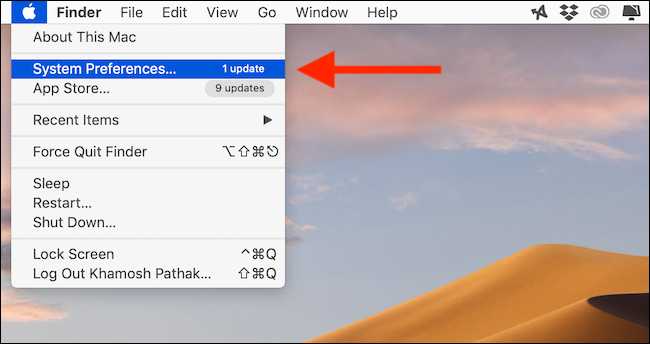
    Battery Health Management is an energy-saving feature. To disable it, click the Apple icon in the top left corner of the menu bar and then select the option ” System Preferences ”

    How to Disable Battery Health Management on Mac
    How to Disable Battery Health Management on Mac

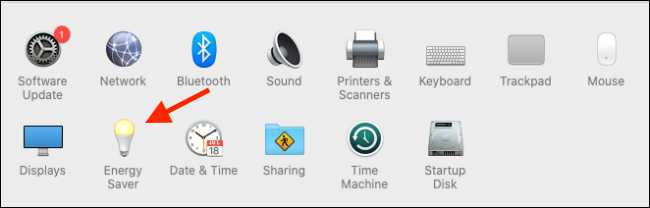
    Here, click on the ” Energy Saver ” button.

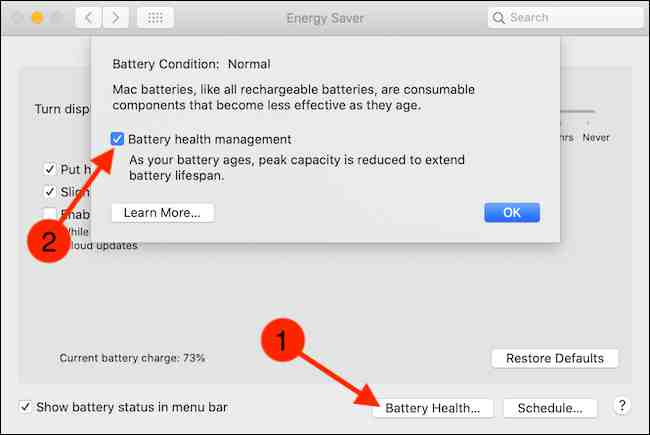
    How to Disable Battery Health Management on MacNow, click on the ” Battery Health ” button which is on the bottom toolbar. Here, uncheck the Battery Health Management option.
    How to Disable Battery Health Management on Mac

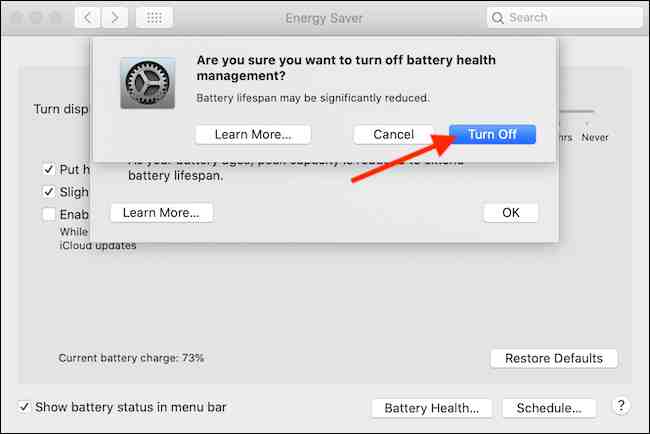
    From the confirmation box, select the button ” Turn Off ” to confirm.

    How to Disable Battery Health Management on Mac

    Read more:

    Conclusion:

    This is the explanation of How to Disable Battery Health Management on a Mac PC, If the Battery Health Management feature has been disabled on your Mac, then the Mac will charge regularly.