How to Install Apps from Microsoft Store on Windows 10 PC – Windows 10 includes the Microsoft Store, which allows you to download free or paid applications/software from the internet. Here’s how to install an application via the Microsoft Store.
How to Install Apps from Microsoft Store on Windows 10 PC 2024
Free vs. Paid Application
Before using the Microsoft Store, it’s important to understand the differences between the two types of software in the Store: Free apps and paid apps.
Read more:
- How to Reinstall Original Windows 10: Quick Way
- How to Install Linux on Windows 10 Not Complicated
- 7 Ways To Open Windows Task Manager
- How to Force Close an Application on Windows 10 PC
With “Free” software, you can download applications without making a purchase, but there are usually problems. This app works with subscription services (such as Amazon, Netflix, Apple, Adobe, Facebook, or Slack), or lets you use the basic version of the app for free, sometimes with annoying ads. If you wish to unlock the feature, you may be asked to make app purchases.
The second type is a “paid” application or software, which you buy before downloading and you usually have the right to fully use it.
How to Install Apps from Microsoft Store on Windows 10
Before we start, make sure you have a Microsoft account and are logged into the Microsoft Store. For app purchases, you will need several forms of payment linked to your Microsoft account.
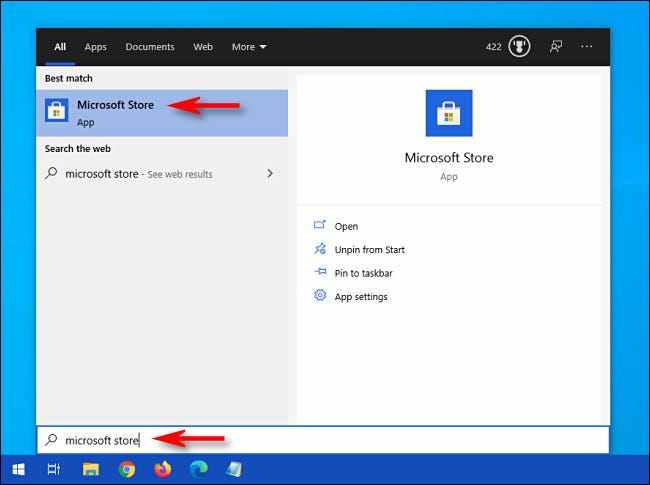
First, open the ” Microsoft Store “. If you can’t find it, open the Windows 10 “ Start ” menu and type “ Microsoft Store ”, then click the “Microsoft Store” icon. Or you can find it in your application list.
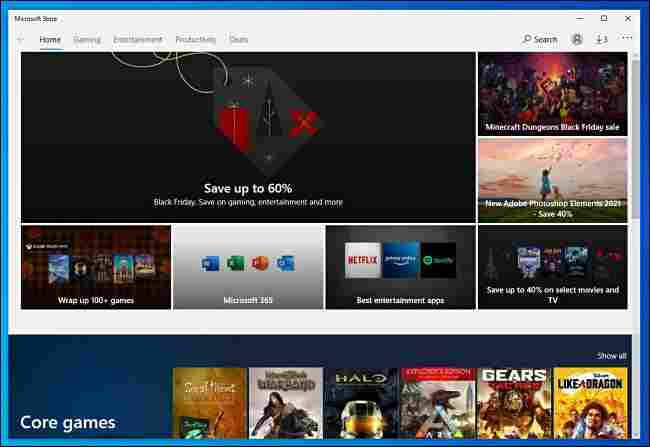
When the “ Microsoft Store ” app opens, you will see a screen filled with lots of flashy banners advertising the latest offers and promotions.
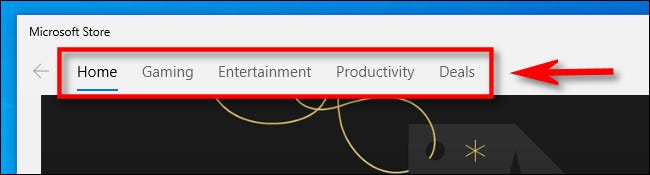
If you’re looking for a specific app, click a category at the top of the window, such as “Gaming,” “Entertainment,” or “Productivity”.
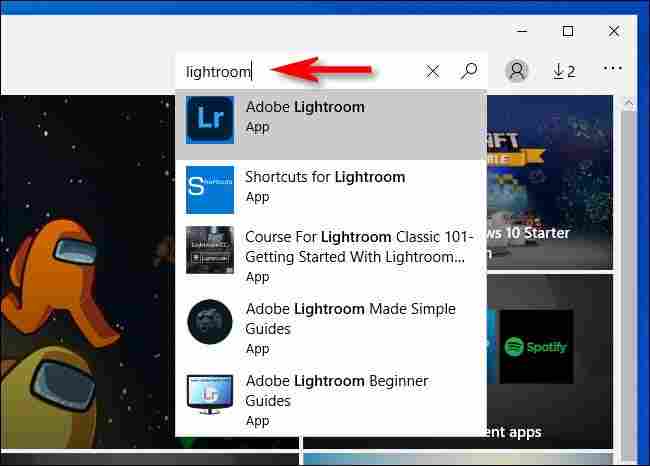
Or you can search for the application by clicking the search button. In the search bar that appears, type what you want to find, and then click the item in the results list.
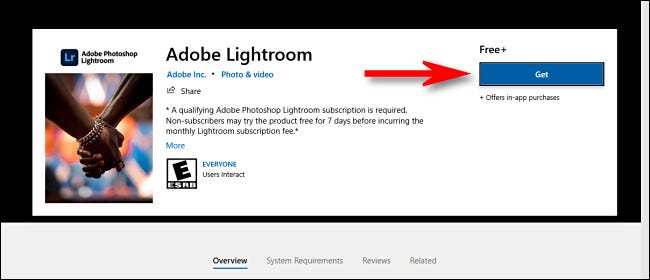
Once you’ve found a program you want to install, first check whether it’s a free or paid app. If the app is free, you will see the words “Free” just above the “Get” button. Click the ” Get ” button and it will change to the ” Install ” button. After you click “Install”, the download starts automatically.
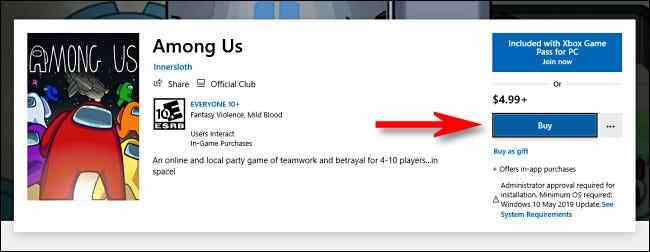
If the program requires a purchase, you will see the price listed just above the “ Buy ” button. If you want to buy the item, click ” Buy ”
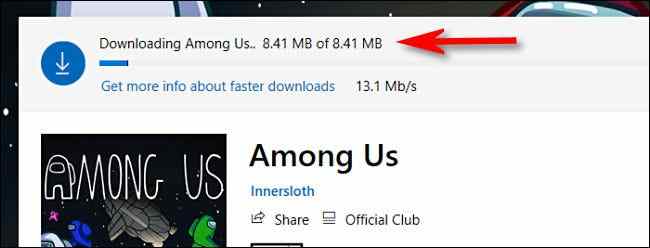
After following the purchase steps, the download process will begin. You will see the status bar when the program is downloaded from the Internet to your computer.
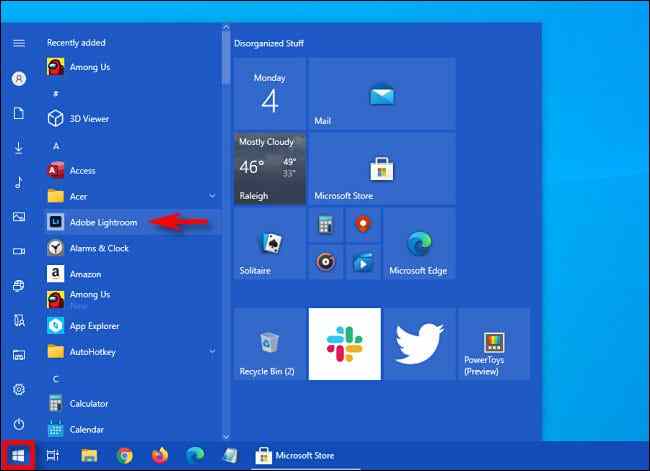
Once the application is installed, you can launch it by clicking on the ” Launch ” or ” Play ” button which is located just beside the download indicator bar. Or you can open the “ Start ” menu and search for the name of the application in an alphabetical list. Click the app icon when you find it, and the app will launch.
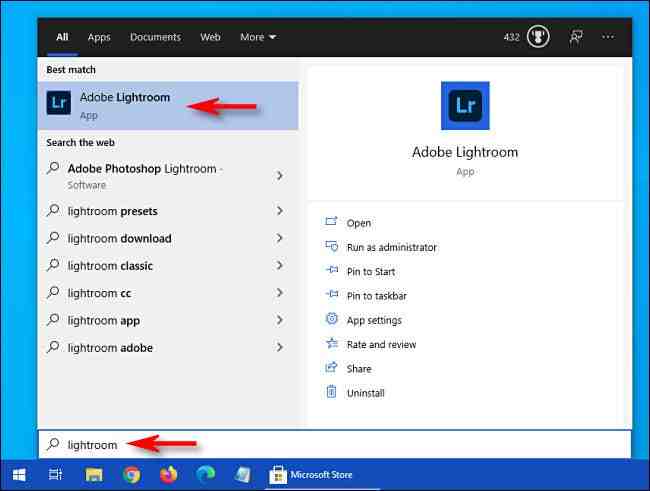
If you have trouble finding the application you just downloaded in the “Start” menu, open “Start” and start typing the name of the application to perform a search.
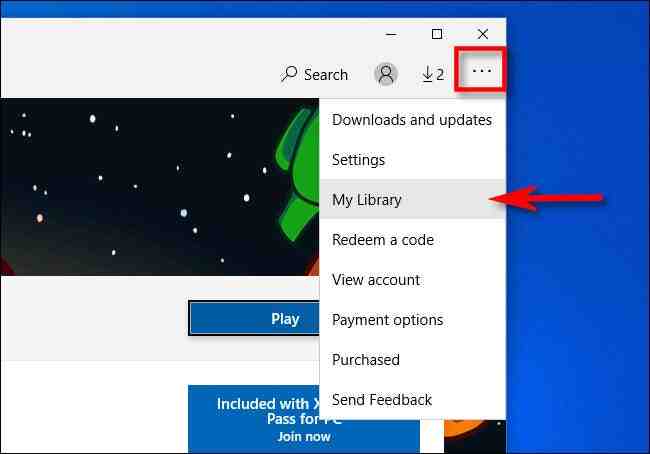
Also, if you want to see a complete list of all the applications that you have purchased or installed from the Microsoft Store, open the “Microsoft Store” application and click the ellipsis (three dots) button on the toolbar. Then select ” My Library “.
Conclusion:
Now that you know how to install apps from the Microsoft Store on Windows 10, you will see a list of all the apps you have installed via the Microsoft Store, and you can sort them by install date and other criteria.
If you want to remove an application, you can go to Settings> Apps, select the program, then click ” Uninstall “.