How To Enter Safe Mode In Windows 10/8/7 PC – Entering safe mode is a common step in the process of solving various errors that occur in Windows. Safe mode is a state when Windows runs in basic mode, where the services, drivers, and programs that are loaded are limited to the cores.

How To Enter Safe Mode In Windows 10,8,7 Laptop PC
In other words, entering Safe mode will disable all programs that are not part of the core Windows operating system.
Read more:
- How To Send Files Via Bluetooth on Windows 10
- How To Activate Office 2013 Without Product Key
- What is The Definition of Software Functions
- How to Activate Windows Defender
There are two types of safe modes, namely Safe mode and Safe mode with networking. Safe mode will make Windows run only with core services and drivers, while Safe mode with networking will make Windows run with core services and drivers plus networking support.
In this post, Winpreso will provide a tutorial on how to enter Safe mode in Windows 10, 8, and Windows 7.
#1. How to enter Safe mode on Windows 7 PC Laptop
1. Turn on the computer
The first step is to turn on the computer, or if the computer is already on, all you need to do is restart it.
2. Press the F8 key as soon as the computer starts
As soon as the computer starts or restarts, press the F8 key repeatedly.
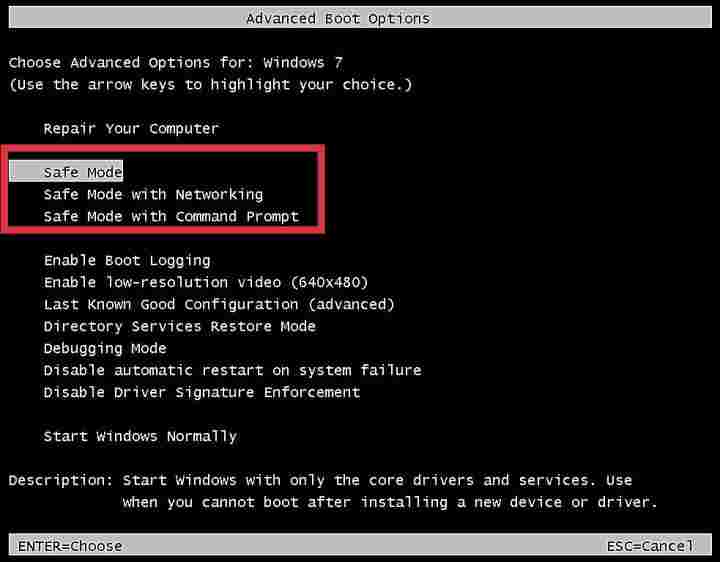
3. Wait for the Advanced boot options menu to appear
If successful, the Advanced boot options menu will appear. If this menu doesn’t appear and the computer enters Windows instead, repeat steps 1-3 again until it works.
4. Use the arrow keys on the keyboard to select Safe mode
After entering the Advanced boot options menu, use the arrow keys on the keyboard to select the type of Safe mode you need. To enter basic mode select Safe mode, if you need networking support then select Safe mode with networking, then click enter to start it.
5. Boot Windows into normal mode when finished troubleshooting
Make any necessary repairs, once the error is fixed and the problem is resolved, boot Windows into normal mode. You do this by repeating the steps above and then selecting Start Windows Normally on the Advanced boot options menu.
#2. How to enter Safe mode in Windows 8 PC Laptop
1. Press the Windows key and select Settings
While the computer is on, press the Windows key and select Settings.
2. Click the Power button then click Restart while holding down the Shift key on the keyboard
In the menu in the lower right corner click the Power button then press and hold the Shift key on the keyboard then click the Restart button.
3. Wait for Windows to enter the WinRE menu
The computer will restart, and wait for Windows to enter the WinRE (Windows Recovery Environment) menu.
4. Select Troubleshoot
After entering WinRE, select the Troubleshoot menu.

5. Select Advanced options
Then select Advanced options.

6. Select Startup settings
Then select Startup settings
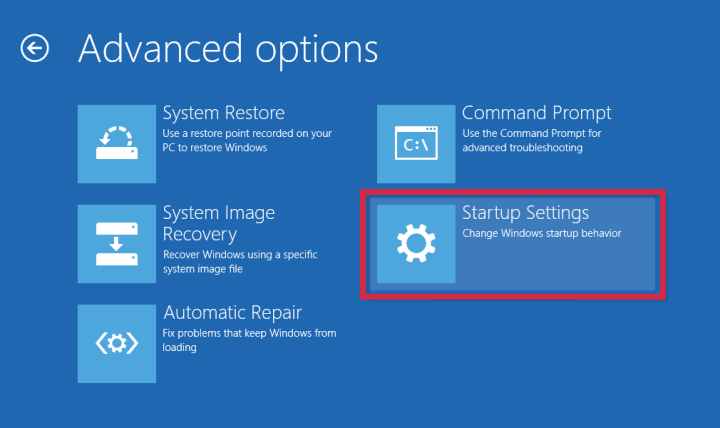
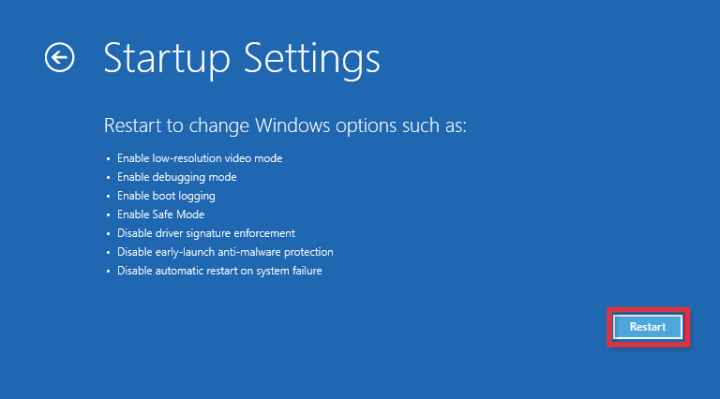
7. Click the Restart button
Then click the Restart button. The computer will restart again, wait for the computer to turn on again.
8. Select Safe mode
After returning to WinRE mode, we will go directly to the Startup settings menu. Here are several options for setting up a startup and troubleshooting.
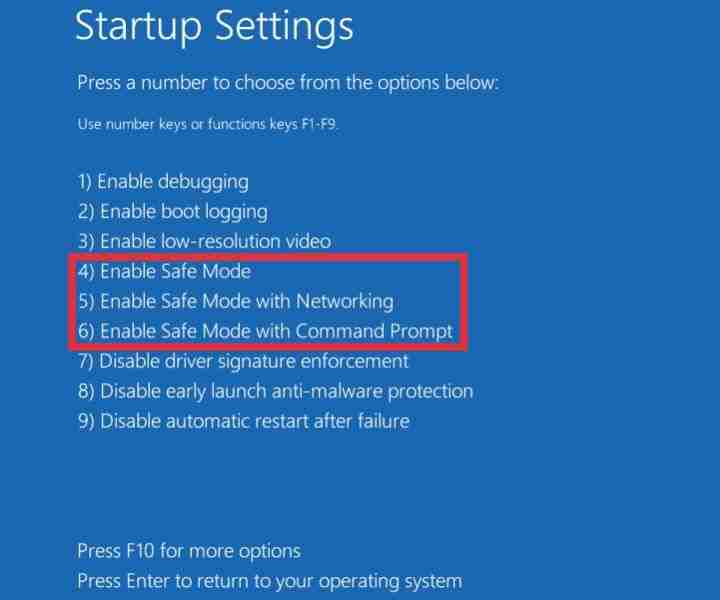
Press F4 to enter Safe mode, F5 to enter Safe mode with networking, and F6 to enter Safe mode with the Command prompt.
9. Restart the computer to normal mode when finished
After finishing solving the errors, return the computer to normal mode by restarting as usual.
#3. How to enter Safe mode in Windows 10 PC Laptop
1. Click the Start button and then click Settings
When the computer is turned on, click on the Start button and then click Settings (gear icon).
2. Enter the Update & Security menu
After entering the Settings window click on the Update & Security option.
3. Select the Recovery menu then click the Restart Now button
Then select the Recovery menu, find an option called Advanced Startup then click the Restart Now button underneath.
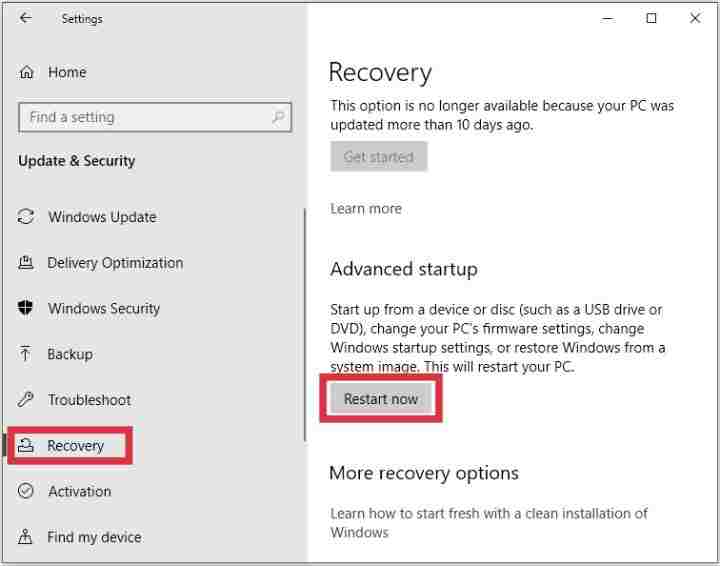
4. Wait for the computer to turn back on and enter the WinRE menu
The computer will restart, wait a moment, then we will automatically enter the WinRE display
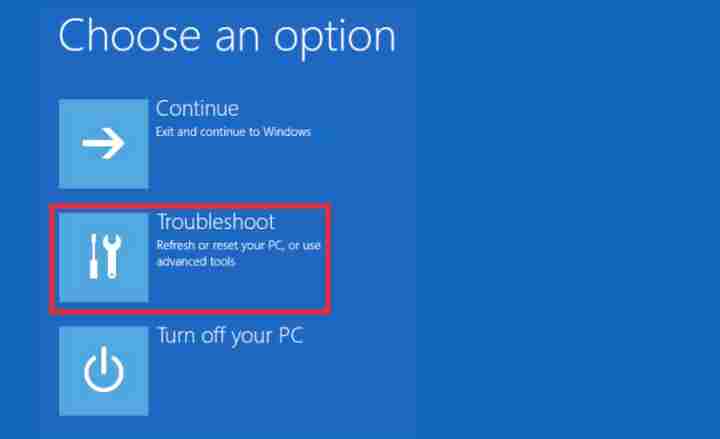
5. Select Troubleshoot
In the WinRE menu, select Troubleshoot.
6. Select Advanced options
Then select the Advanced options menu.

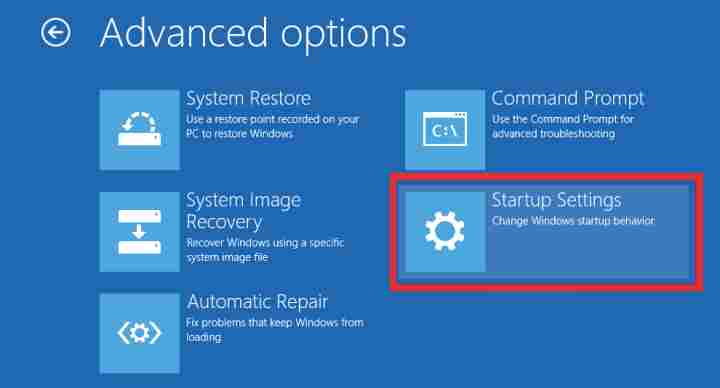
7. Select Startup settings
Then select the Startup Settings menu.
8. Click the Restart button
Before we can bring up the Safe mode menu we have to restart once, how to click on the Restart button.

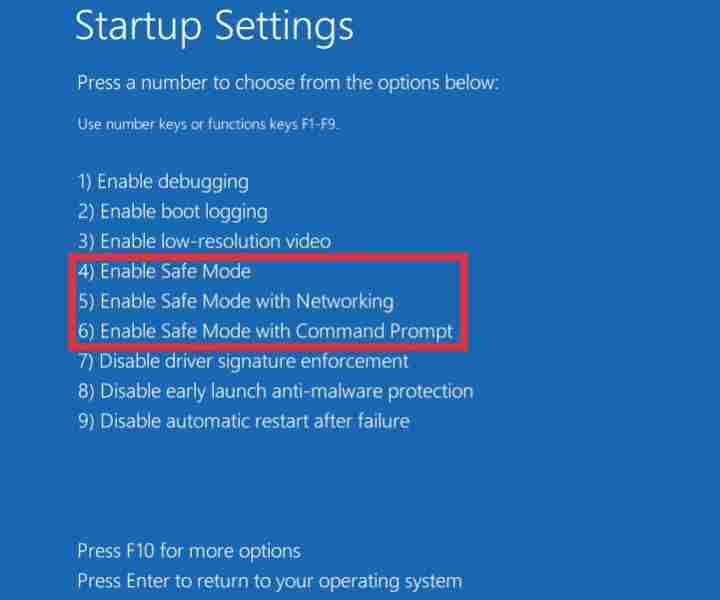
9. Enter Safe mode
After the computer turns back on, we will automatically be taken to the Startup Settings menu, there are several options to choose from. To enter Safe mode press the F4 key, to enter Safe mode with networking press the F5 key, and to enter Safe mode with the command prompt press the F6 key.
10. Restart the computer to return to normal mode
Read more:
- Fix Wireless Capability Is Turned Off In Windows
- 15+ Best and Free Apps from the Microsoft Store
- Quick Ways to Remove Old Windows on Windows
Conclusion:
This is the explanation of How To Enter Safe Mode On a Windows 10/8/7 PC. When you’re done using Safe mode, restart the computer, as usual, to return it to normal mode.