3 Ways To Remove Login Password on Windows 10 PC – Using Windows 10 using a password it is always recommended to keep your device and files safe from prying eyes, sometimes, depending on the situation, the password may just add an extra step during the login process.
Table of Contents
How to Remove Login Password on Windows 10 Laptop PC 2024
If you have computer files without important files and don’t care about security, Windows 10 includes many ways to remove account passwords.
Read more:
- How to Scan Laptop With Microsoft Defender Antivirus
- How to Disable Sleep Mode on a Mac Computer
- How to Disable Sleep Mode on Windows 10 Laptop
- How to Turn Off Laptop Keyboard on Windows 10
In this guide, you’ll learn the steps to automatically sign in (or remove login passwords ) on Windows 10 devices, whether you’re using a local or Microsoft account.
#1. How to Disable Login Password in Windows 10
If you are using a Microsoft account, you cannot remove the password completely, because the credentials are linked to your online account, but you can configure your device to sign in automatically without a password with the following steps.
- Open Start in Windows 10.
- Search for netplwiz and click on the top result to open the Control Panel.
- Under the “Users for this computer” section, select the account whose password you want to remove.
- Delete the option User must enter a username and password to use this computer
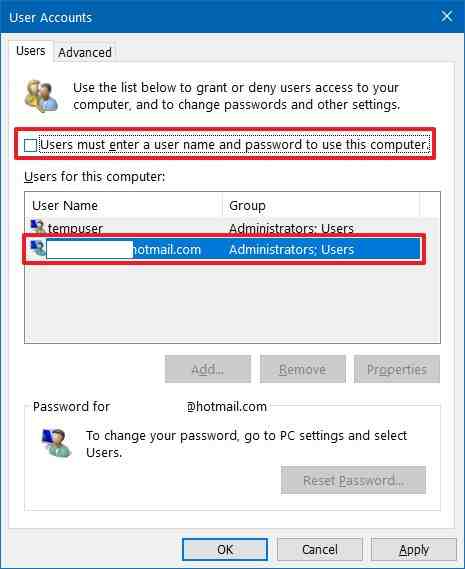
5. Click the Apply button.
6. Confirm your Microsoft account information to sign in automatically.
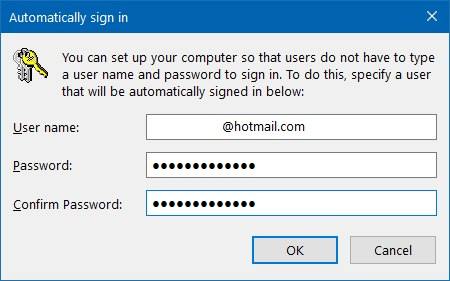
7. Click the OK button.
8. Click the OK button again.
After you complete the steps, the tool file will continue to have the password but will be entered automatically.
#2. Remove Login Password in Windows 10
Alternatively, if you’re using a Microsoft account, you can remove the password completely, but you’ll have to switch to a local account.
Remove the password for the Microsoft account
To switch to a local account and remove the password, use these steps:
- Open Settings.
- Click Accounts.
- Click Your info.
- Click the Sign in with a local account option instead.
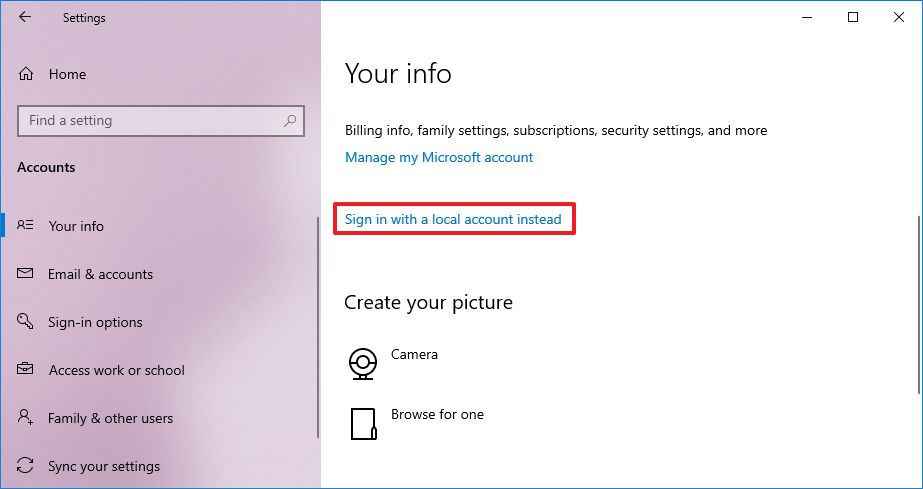
5. Click the Next button.
6. Confirm your current password.
7. Click the Next button.
8. Create a username for the account.
9. Leave the “Password” and “Reenter password” fields blank to remove the password completely.
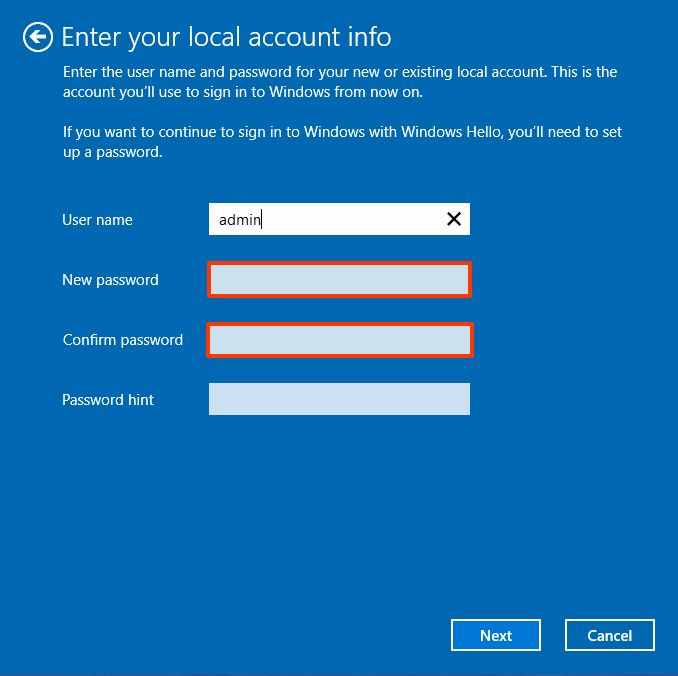
10. Click the Next button.
11. Click the Sign-out and Finish button.
After you complete the steps, the device will no longer be associated with the Microsoft account, and you will be automatically logged in every time you start the system.
#3. Remove passwords for local accounts
To remove Windows 10 password from a local account, use these steps:
- Open Settings.
- Click Accounts.
- Click Sign-in options.
- Under the “Manage how you sign in to your device” section, select the Password option.
- Click the Change button.
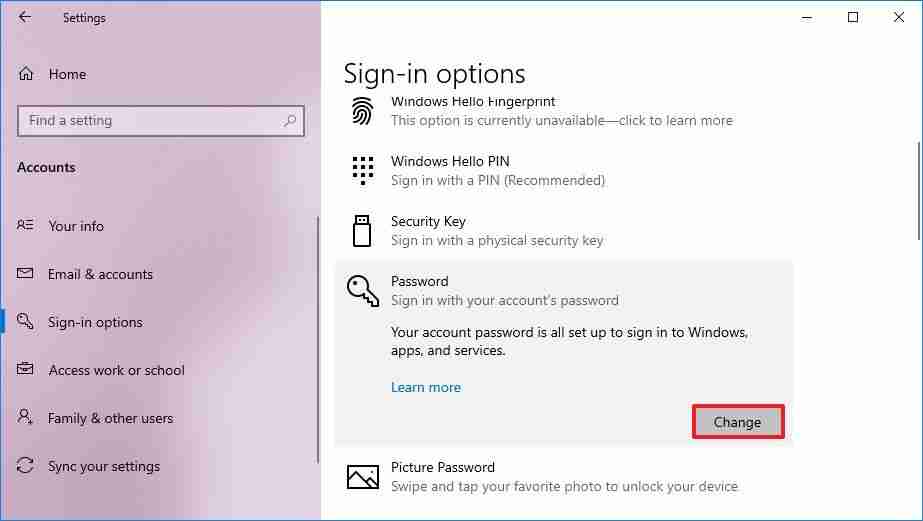 6. Confirm your current account password.
7. Click the Next button.
8. Leave the “Password” and “Reenter password” fields blank to remove the password completely.
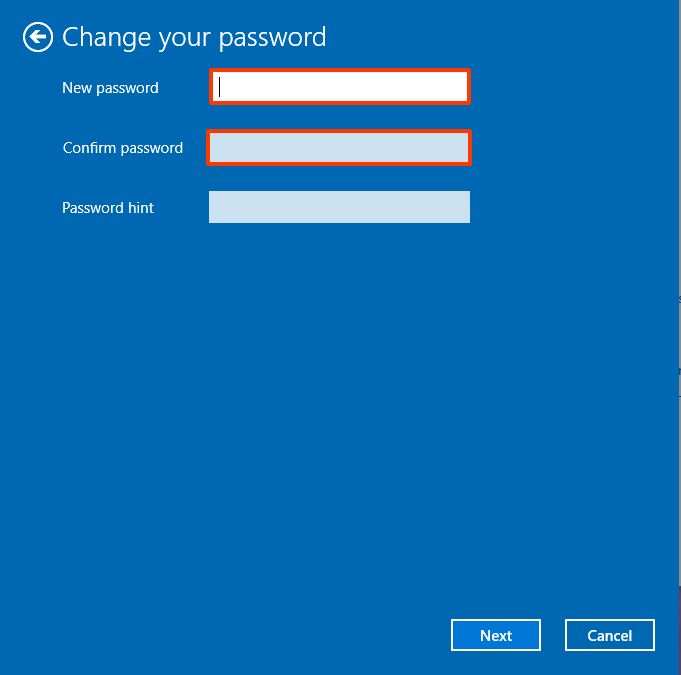
9. Click the Next button.
10. Click the Finish button.
Read more:
- How to Download Files From Google Drive: Quick Ways
- 5 Best Free Antivirus for Windows 10 (100% Free)
- How to Update Drivers in Windows 10: Quick Way
Conclusion:
This is the explanation of 3 ways to remove login passwords on Windows 10 PC, Once you have completed the steps above, you will no longer need a password to access your Windows 10 laptop or desktop.
Leave a Reply