Category: Guide

Guide – Here you can find Reviews-related updates, How-to, Tips & Tricks, information, and more.

  • 10 Recommended Lightest Android Emulators for PC 2024

    10 Recommended Lightest Android Emulators for PC 2024

    10 Recommended Lightest Android Emulators for PC – For those of you who want to run Android games or applications but your Android smartphone specifications don’t support it, or you want to feel the sensation of playing Android games on a PC with a wider screen, you can try using an Android emulator.
    10 Recommended Lightest Android Emulators for PC
    10 Recommended Lightest Android Emulators for PC

    10 Recommended Lightest Android Emulators for PC 2024

    By using the Android Emulator, you can easily run Android games or applications on your Laptop or PC.

    Read more:

    In addition, you can also play Android games longer using a PC that has an Android emulator installed because you don’t need to worry about the health of your smartphone battery.

    Currently, there are many Android emulators that have been developed by technology companies to run Android games or applications on PCs, but not all of these Android emulators have lightweight specifications and are suitable for your PC.

    The Lightest Android Emulator For PC Laptop

    Here we provide a list of 10 of the lightest Android emulators for PC or laptops, even some of the emulators below only require a minimum specification of 1.6GB of ram only.

    #1. NoxPlayer

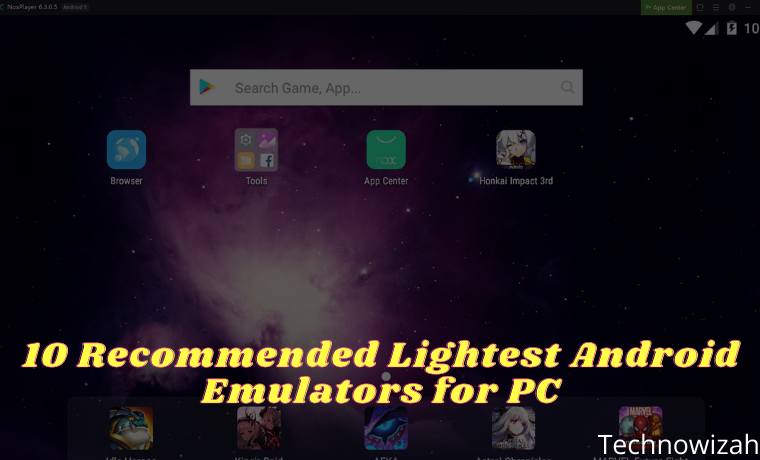
    NoxPlayer is one of the most popular Android emulators for gamers, in addition to its many features, this emulator is also very light when run.

    NoxPlayer can be used on PCs with Windows or Mac OS operating systems with excellent features such as Multi simulator which can open different games or applications in one emulator so you can use multiple accounts at once easily.

    In addition, NoxPlayer also supports the use of game consoles such as joysticks, mice, and keyboards using the Android 7 operating system and very powerful performance.

    Specifications needed:

    OS Windows 7/8/8.1/10 (32-bit/64-bit)
    CPU Intel/AMD Dual-core processor
    GPU OpenGL 2.0 and above
    RAM 1.5GB RAM/4GB RAM (recommended)
    Memory 1.5GB
    File Size 310MB

    #2. Droid4x

    Droid4x
    Droid4x

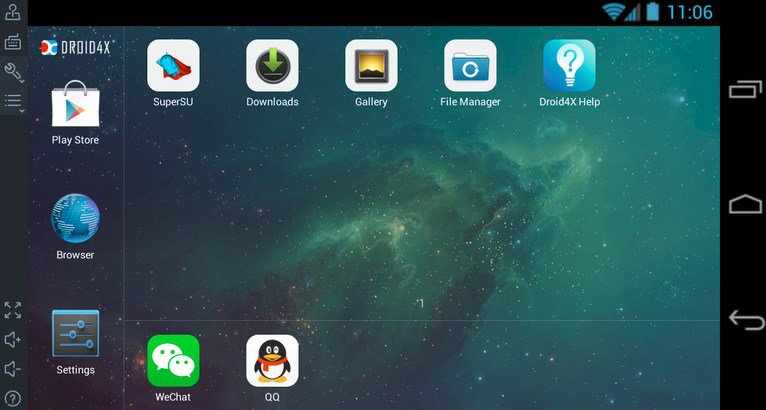
    The next lightest Android emulator is Droid4x, Droid4x has various advantages compared to other Android emulators. In addition to its small and light size, this emulator can be used for game recording and it supports a touchscreen if your laptop screen can be operated with a touch screen.

    In addition, Droid4x also supports add-ons that allow you to use your smartphone as a controller using the accelerometer.

    You are also allowed to customize the keyboard and gamepad as a  controller, which will certainly make it easier for you to play Android games.

    Specifications needed:

    OS Windows 7/8/8.1/10 (32-bit/64-bit)
    CPU Intel/AMD Dual-core processor
    GPU OpenGL 2.0 and above
    RAM 1GB RAM/4GB RAM (recommended)
    Memory 4GB
    File Size 8MB

    #3. LDPlayer

    LDPlayer
    LDPlayer

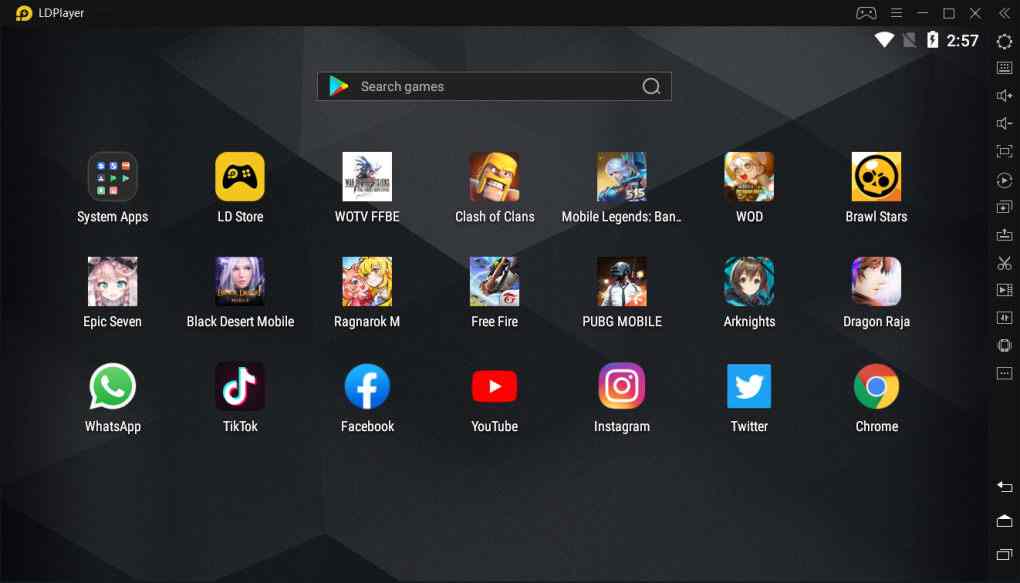
    LDPlayer was created with the aim of making it easier for gamers to play Android games using a PC.

    LDPlayer has a myriad of excellent features such as Custom Control to configure keyboard, mouse, and gamepad, Multi-Instance which allows you to open several games at the same time, Macros/scripts to manage, and run games automatically, and supports high FPS.

    For those of you who want to experience the experience of playing Android games on a PC that supports high performance with full custom control of the keyboard, mouse, and gamepad, LDPlayer is the right choice.

    Specifications needed:

    OS Windows 7/8/8.1/10 (32-bit/64-bit)
    CPU Intel/AMD Dual-core processor
    GPU OpenGL 2.0 and above
    RAM 2GB RAM
    Memory 2GB
    File Size 3MB

    #4. MEmu Play

    MEmu Play
    MEmu Play

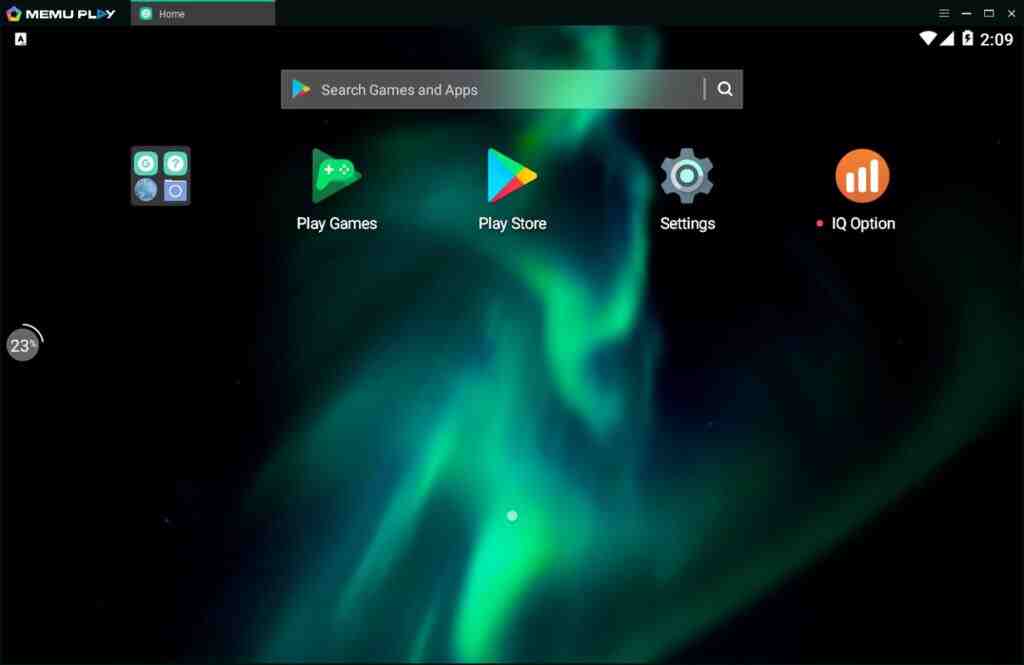
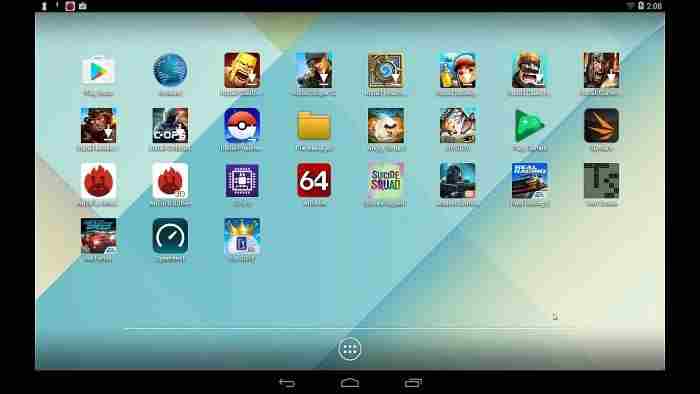
    The next lightest Android emulator is MEmu Play, With MEmu Play you can easily run games with high frame rates without fear of lag, MEmu Play will also make it easier for you to configure gameplay with its built-in key mapping feature.

    With improved OpenGL and DirectX 3D rendering, it allows you to play games with high-quality graphics to perfection.

    OS Windows 7/8/8.1/10 (32-bit/64-bit)
    CPU Intel/AMD 64-bit processor
    GPU OpenGL 2.0 and above
    RAM 2GB RAM
    Memory 2GB
    File Size 341MB

    #5. KoPlayer

    KoPlayer
    KoPlayer

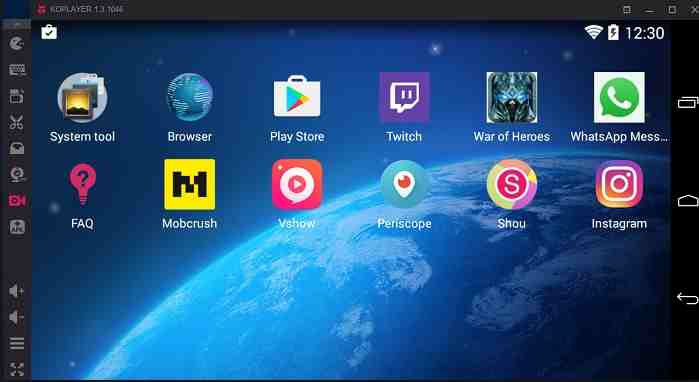
    KOPlayer is an Android emulator that can be run on Windows and Mac operating systems with several advantages such as ease of use due to its simple interface that allows you to install downloaded applications just by drag and drop.

    In addition to its simple interface, Koplayer also has a screen recording feature that you can use to record the game you are playing so you can share or upload it to social media and even YouTube.

    Overall, this Android emulator doesn’t really feature great features, but for those of you who are quite satisfied with a simple, lightweight, and smooth emulator to play Android games, then KOPlayer is the right choice.

    OS Windows 7. Windows 8.1, Windows 10, OSX-10.8+
    CPU Dual-core AMD or Intel CPU
    GPU OpenGL 2.1 and above
    RAM 2GB RAM/4GB RAM (recommended)
    Memory 2GB
    File Size 3MB

    #6. Phoenix OS

    Phoenix OS
    Phoenix OS

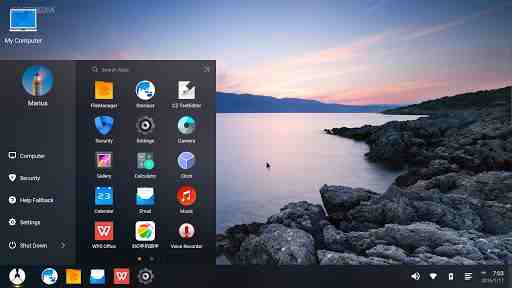
    Then there is Phoenix OS, from the name alone you should already know that this OS comes from China. Phoenix OS is an Android-based operating system intended for PCs.

    yes right, this is an operating system, not just an Android emulator. However, this operating system should be an alternative for you to use as a medium to run Android applications on a PC.

    In addition to its light size, the OS installation process is also quite easy, but you need to know because this OS comes from China, you won’t find Google Play services, but you can still play Android games by installing the apk directly.

    OS Windows 7. Windows 8.1, Windows 10, OSX-10.8+ (for installation)
    CPU Dual-core AMD or Intel CPU
    GPU OpenGL 2.0 and above
    RAM 2GB RAM (minimum)
    Memory 4GB (minimum)
    File Size 634MB

    #7. LeapDroid Android Emulator

    LeapDroid Android Emulator
    LeapDroid Android Emulator

    LeapDroid is an Android emulator that is quite light, its size is only 250MB with a very simple interface.

    You can easily customize the controller in this emulator so that the Android games you play can run smoothly as you wish.

    OS Windows 7. Windows 8.1, Windows 10
    CPU Dual-core AMD or Intel CPU
    GPU OpenGL 2.1 and above
    RAM 2GB RAM (minimum)
    Memory 2GB (minimum)
    File Size 250MB

    #8. YouWave

    YouWave
    YouWave

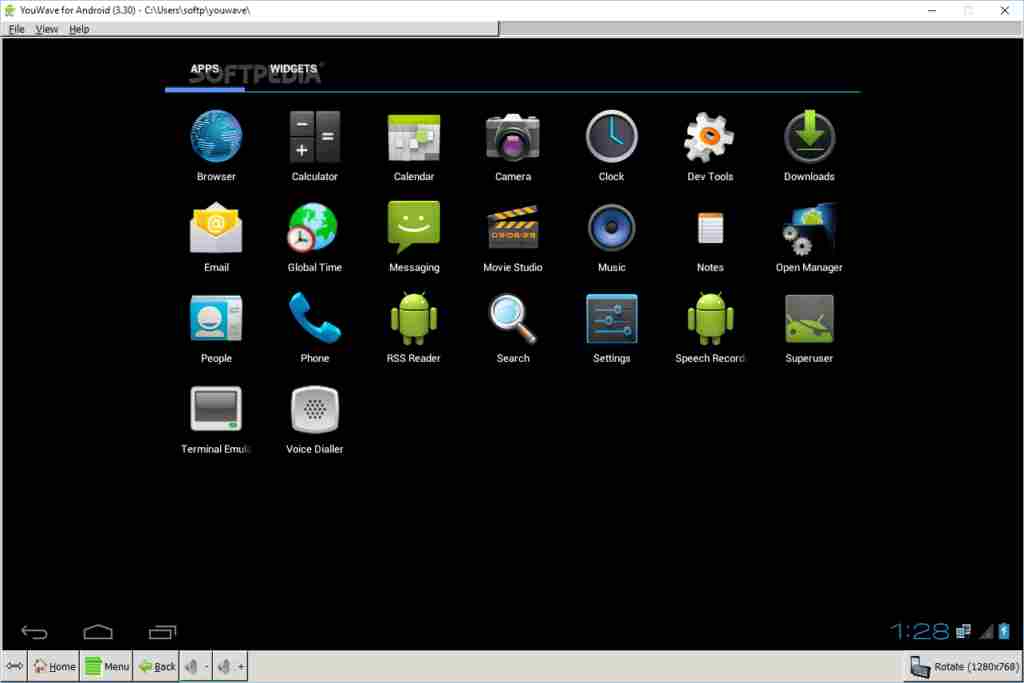
    When viewed from the appearance, this emulator really has nothing special at all, the interface is very simple and seems old school.

    But in terms of performance, this Android emulator is one of the fastest emulators that you can try.

    Youwave supports Android version 4.0 ICS for the free version and Android 5.1 lollipop for the premium version.

    This emulator also supports multiplayer features so you don’t have to worry about playing online games with your friends.

    #9. Gameloop
    Gameloop
    Gameloop

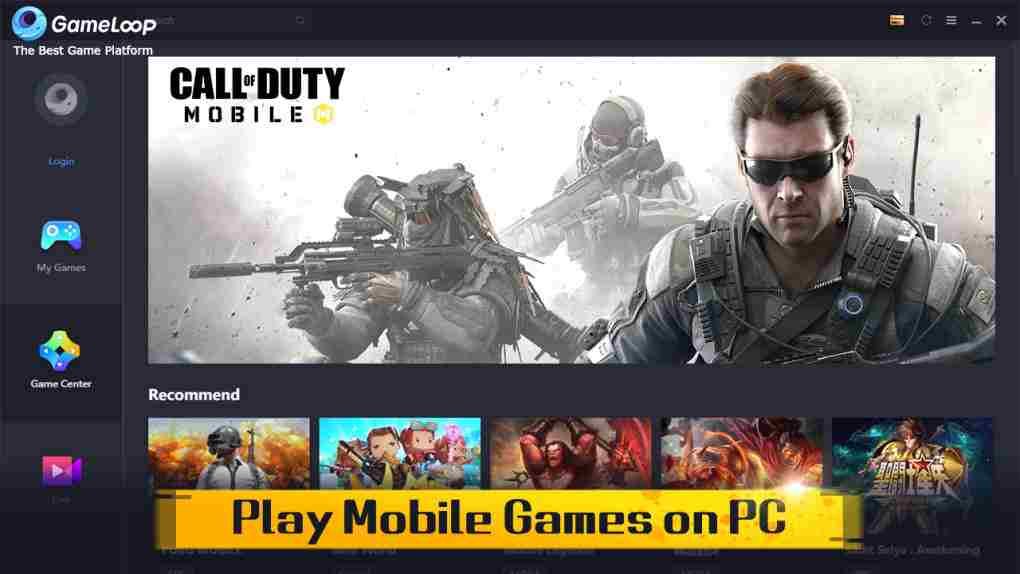
    For those of you lovers of PUBG Mobile games, you should try this Android emulator, because this gameloop emulator was developed directly by Tencen as the developer of PUBG Mobile.

    With direct support from Tencent, of course, the features in this emulator are very supportive and make it easier for you to play Android games, especially PUBG.

    This emulator is indeed specifically for playing games because its performance is also very powerful, besides being able to play PUBG this emulator can also be used to run other popular games such as mobile legend, free fire, Call of Duty, and various other popular games.

    OS Windows 7/8/8.1/10 (32-bit/64-bit)
    CPU Intel/AMD Dual-core processor
    GPU OpenGL 3.0 and above
    RAM 3GB RAM/8GB RAM (recommended)
    Memory 6GB
    File Size 9MB

    #10. Bluestacks

    Talking about Android emulators, it will be less if you don’t include bluestacks in the list because this emulator is one of the most popular Android emulators in the world.

    The initial version is indeed quite heavy to run but after various developments, until Bluestacks version 4 this emulator feels lighter.

    The advantage of this emulator is that in terms of its stable performance, it is used for both Mac and Windows PCs, besides that you can play several games simultaneously or you can also play the same Android game with different accounts simultaneously with the multi-instance feature.

    OS Windows 7 and above
    CPU Intel/AMD processor
    GPU OpenGL 3.0 and above
    RAM 2GB RAM
    Memory 5GB
    File Size 452MB

    Read more:

    Conclusion:

    that’s a list of the 10 lightest Android emulators that you can try, each emulator has its own advantages and disadvantages both in terms of minimum requirements and the user interface and features offered.

    Before deciding to use one of the emulators above, you must first adjust your usage needs, whether just for playing games, testing applications, or other needs, also adjust to the specifications of the PC or computer you have so that the lightest Android emulator above can run optimally. on your device.

  • 10 YouTube URL Tricks You Should Know 2024

    10 YouTube URL Tricks You Should Know 2024

    10 YouTube URL Tricks You Should Know – Although YouTube remains the premier video site on the web. But whether you’re a casual user or a daily online video viewer, there are many ways to transform YouTube.

    10 YouTube URL Tricks You Should Know
    10 YouTube URL Tricks You Should Know

    10 YouTube URL Tricks You Should Know 2024

    The main category of these is custom YouTube URLs. Let’s take a look at some YouTube URL tricks to help you get more out of the service.

    Read more:

    #1. Link To Any Video Section

    This YouTube URL trick is usually used when you copy a link to a YouTube video, it starts from scratch. If you want to show someone a little video or skip a long intro, you can add a timestamp to the URL to start it at that time. You can do this in a number of ways.

    By manually adding  &t=YmXX to the end of the video URL, you will set it to start Y  minutes and  XX seconds into the video. You can also eliminate minutes, or simply use a second, like 90  – for one and a half minutes. So this video:

    youtube.com/watch?v=ne9QZ2MCO24
    

    Shareable 90 seconds in using this URL:

    youtube.com/watch?v=ne9QZ2MCO24&t=1m30s
    

    If you don’t want to use the manual method, pause the video when you want to share it, then right-click and select Copy video URL at the current time.

    #2. Unlimited Video Loop

    YouTube is a great place to listen to music. If you like a song and want to listen to it over and over again, you can add a repeater after youtube in the URL. This will open the video on  YouTubeRepeater.com which plays the video for you. You just change this URL:

    youtube.com/watch?v=oeb5LdAyLC8

    Here’s to repeating it:

    youtuberepeater.com/watch?v=oeb5LdAyLC8
    

    You can change the playback using the options below the video if you want to start or end at various points. To do this without changing the URL, just right-click any YouTube video and turn on Loop.

    #3. Bypass Age Restrictions

    YouTube has an age limit for certain videos marked as containing adult content. If you don’t have a YouTube account or feel like logging in to watch it, you can do a little trick to bypass the login process. Take the YouTube URL for a restricted video like this:

    youtube.com/watch?v=wvZ6nB3cl1w
    

    Just add the gene  in front of  youtube  as shown here:

    genyoutube.com/watch?v=wvZ6nB3cl1w
    

    The video will open on a new page that has no age limit.

    #4. Skip a Specific Number of Intros

    Similar to the trick that lets you choose a start time, you can also choose to skip a certain number of seconds at the beginning of the video. You can’t specify minutes with this one, so use 90 (seconds) for a minute and a half. So, to get past the first 30 seconds of this video:

    youtube.com/watch?v=fEErySYqItI
    

    Add  &start=30 at the end of the URL and get this:

    youtube.com/watch?v=fEErySYqItI&start=30

    It’s similar to timing but a bit faster to type and doesn’t require you to remember specific timestamps.

    #5. Claim Custom YouTube Channel URL

    If you have your own YouTube channel and meet certain requirements, you can set a vanity URL for your page. So it’s worth doing for easier connecting. To get a custom URL, your channel must meet the following criteria:

    • Have at least 100 subscribers
    • Minimum age 30 days
    • Have uploaded profile photo and channel art

    If you meet this, go to   YouTube’s Advanced settings page by clicking the gear on the top right, selecting  Settings, and clicking Advanced settings on the left.

    Here, under Channel settings, you’ll see the text You’re eligible for a custom URL  if that’s the case. Click the link next to this and proceed through the steps to create a custom URL and confirm the terms of use.

    Once your custom URL is set up, anyone can head to youtube. com/[YourCustomURL] to visit your channel. Note that you can only have one custom URL at a time. You cannot change it, but you are allowed to delete your current URL and create a new one, if available.

    #6. Watch YouTube TV

    YouTube TV is an interface designed for smart TVs and apps on consoles. It’s still YouTube but with less clutter and some easier shortcuts for the remote. You may not want to make this your primary YouTube interface, but you do need to check out a cleaner look. Just visit this URL to try it out:

    youtube.com/tv

    #7. Go to Your Subscriptions

    Even if you try, much of the advice YouTube offers is useless. Whether your recommendations are filled with weird content or a homepage with videos you don’t care about, you can set up a better YouTube landing page. When you are logged in, try changing your YouTube bookmarks from the main site to your subscriptions page using this URL:

    youtube.com/feed/subscriptions
    

    It lets you see the latest videos from your subscribed channels, so you don’t miss their new content. That way, you control what you see rather than YouTube deciding for you.

    #8. Get Thumbnails of Any Video

    It’s common when Google searches for images to see images from YouTube videos, usually titled maxresdefault. You can actually view high-quality thumbnails for any YouTube video (if any) by visiting the following URL:

    img.youtube.com/vi/[VideoID]/maxresdefault.jpg
    

    Replace  [VideoID]  with the text after v =  at the end of the YouTube video. So to see the thumbnail for this video:

    youtube.com/watch?v=YMbm_SFJugQ

    Visit this link:

    img.youtube.com/vi/YMbm_SFJugQ/maxresdefault.jpg
    

    #9. Create GIF From a Video

    Found a YouTube video that has a GIF-worthy moment? You can easily create an animated GIF from any part of the video by adding the gif before the YouTube link. So to edit this video into a GIF:

    youtube.com/watch?v=5rX1EF_VzeE
    

    Change the URL to this:

    gifyoutube.com/watch?v=5rX1EF_VzeE

    You will be taken to gifs.com, where you can add various effects and crop the GIF to your liking. Once done, share the GIF to social networks with an easy link or you can download it. Note that very long videos will not work with this service.

    #10. Destroy YouTube Videos

    This one is not a real URL hack, as you can’t visit it directly from YouTube. However, it still uses the YouTube URL, so we include it. Visit YouTubeDoubler and you can add two YouTube URLs to mix together.

    You can choose to start any video at any given time to help them sync. Whether you’re looking at how two songs sound when playing simultaneously or want to add funny background music to a clip, look and see what you can come up with!

    Conclusion:

    So those are 10 YouTube URL tricks that you should know. This trick will let you get more experience from YouTube. Some are built on YouTube itself, while others rely on outside services. It’s possible that all of this may stop working in the future, so your mileage may vary over time.

  • How To Install TWRP Advan I5C Without a PC 2024

    How To Install TWRP Advan I5C Without a PC 2024

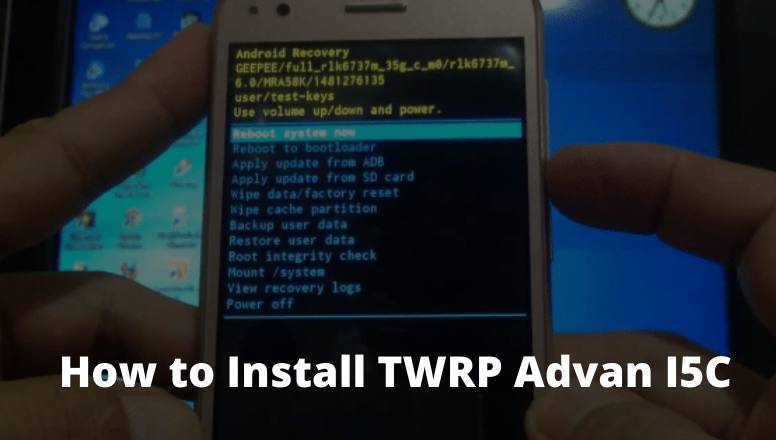
    How To Install TWRP Advan I5C Without a PC – If you are someone who likes Android Oprek and often installs custom ROMs without the help of a PC, surely the media used is TWRP.

    How to Install TWRP Advan I5C
    How to Install TWRP Advan I5C

    How to Install TWRP Advan I5C: Best and Quick Ways 2024

    If the Android phone has TWRP installed, then you can easily customize the Android phone, starting from installing a custom ROM, root, installing applications and even re-flashing can be done via TWRP.

    Read more:

    Using TWRP is also relatively easy, besides that, it has a more complete menu.

    Thus the flashing process using TWRP will be more efficient because there are already various options needed when the flashing process takes place.

    Every brand and type of Android phone has different methods and files when it is flashed.

    So in cases like this, we specifically provide a tutorial on how to install CWM / TWRP on Advan I5c Marshmallow, and of course, you don’t need additional devices or you could say without a PC.

    If you are an ADVAN i5C user but your cellphone is not yet installed with TWRP, then now is in the right place.

    Because in this post the admin will share a tutorial on installing TWRP Advan I5c Marshmallow without a PC.

    The way to do this is arguably very easy, but with the condition that your cellphone must be rooted first.

    How to Install TWRP Advan I5C without PC

    If all the conditions are met, just follow the tutorial on how to install TWRP on the following phone Advan i5C:

    How to Install CWM / TWRP Advan I5c Marshmallow

    • Download the Advan I5C TWRP Recovery file.
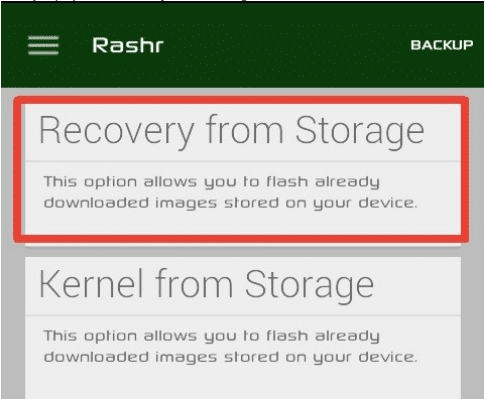
    • Download and install the Rashr Flash Tool application.
    • If so, just open the Rashr application, then after the application opens, the option to root will appear.
    • Just choose grant / allow.
    • Next, select the option  “Recovery From Storage”.

    How to Install CWM TWRP Advan I5c Marshmallow
    How to Install CWM TWRP Advan I5c Marshmallow
    • Then navigate to the TWRP file that you downloaded.
    • select  “RECOVERY.IMG” followed by YES.
    • If the process is complete then select Reboot To Recovery.
    • After that, your cellphone will restart automatically.

    How to enter Advan I5c Recovery Mode

    1. Turn off your phone Advan i5c.
    2. Then press the volume up button and the power button simultaneously.
    3. After the Android logo appears, press the power button but keep the volume up button pressed.

    Apart from the method above, it turns out that there are still other ways to enter the advanced i5C recovery mode, namely using the Terminal Emulator. Check out the following tutorial:

    1. Use the Terminal Emulator application which you can download here.
    2. Open the application, then type the command SU and press enter
    3. Then type the command reboot recovery and continue by pressing. enter again.
    4. Just wait a few moments your cellphone will restart and go straight to TWRP.

    How to Hard Reset Advan I5C

    Through the Settings Menu

    1. Enter your smartphone’s settings menu.
    2. Then select the option to back up and reset.
    3. If you have selected Erase everything.
    4. Wait for the process for a while until your cellphone restarts.
    5. Done, and your phone feels lighter like new.

    Through Recovery Mode

    1. Make sure your phone battery is above 50%.
    2. Next, turn off your ADVAN I5C.
    3. If it’s dead, just press the power + volume up button simultaneously until it enters recovery mode.
    4. If you have entered, select the Wipe data/factory reset option (you can use the volume button to navigate up and down and the power button to OK).
    5. Then select Yes – delete all user data.
    6. After that, the hard reset process starts and the data erase process. take place, just wait until the process is complete.
    7. When it’s finished you can select the Reboot System Now option.
    8. Then your cellphone will restart automatically.

    The explanation of how to install TWRP Advan I5c Marshmallow that the admin has described above is a method that is very simple and also very complete.

    Advan i5C uses a 5-inch wide array that has a resolution of 720 x 1280 pixels which is combined with IPS LCD screen technology.

    With this feature, this smartphone becomes more comfortable when used to play games or watch movies.

    In addition, 720 x 1280 pixels is equipped with the main camera on the back with a 5 MP resolution with autofocus and LED Flash features, as well as a 5 MP front camera which will greatly support your selfie activities.

    Advan i5C already uses the Android v5.1 Lollipop operating system and also supports the 4G LTE network, which will make it faster to use the third time for browsing.

    Read more:

    Conclusion:

    So, friends, that’s on above how to install TWRP Advan I5C, Hopefully, the explanation of the tutorial above can be useful for you, make sure you also follow the tutorial without missing a thing.

  • How To Change Font Colour of WhatsApp Chats And Status 2024

    How To Change Font Colour of WhatsApp Chats And Status 2024

    How To Change Font Colour of WhatsApp Chats And Status – WhatsApp has evolved over the years to add many useful features for its users. But when it comes to customization, WhatsApp has remained simple. Users cannot add their fonts or styles to text and status to make it more personal.

    How To Change Font Colour Of WhatsApp Chats And StatusHow To Change Font Colour of WhatsApp Chats And Status 2024

    This is a big limitation that many users find it limiting. But it too can be changed with the help of a few tricks. With the tricks that are listed below, you can change the font color of WhatsApp chat and the status.

    Changing the Font Color in Chat: 3rd Party Application

    You can only change the fonts to a few different styles natively. You cannot even change it to any color other than black with the default option. To use different styles and colors, you have to use a 3rd party application from the play store.

    As there is no native option, there are a ton of 3rd party apps present in the play store to do this such as “color texting messenger”, “cool fonts for WhatsApp”, and “WhatsBlue Text”. These apps are free and easy to use. You can choose anyone but be careful about the permission that you give.

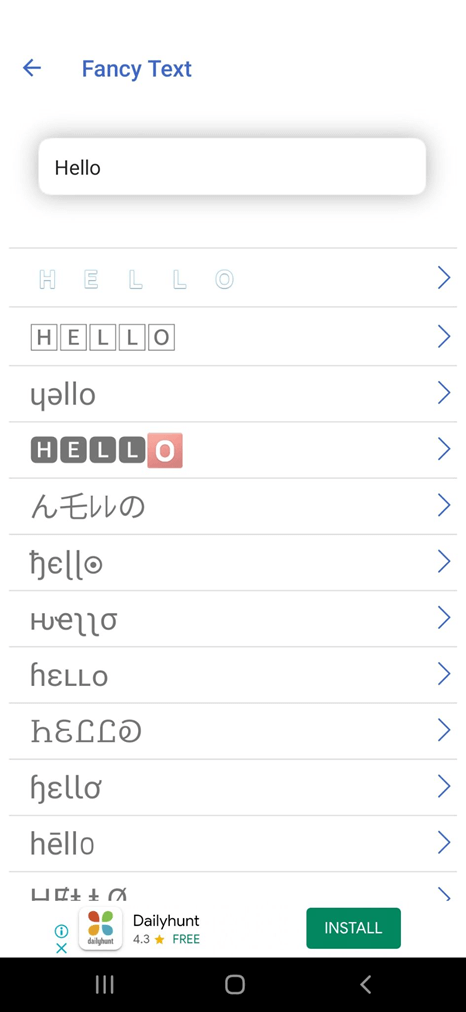
    WhatsBlue Text is a great 3rd party app that lets you customize your font in a million ways. There is a ‘Fancy Text’ option in this app that lets you format your message in different styles and colors including Blue.

    You can view different styles and select the one that suits you the most to send through WhatsApp chat. There are many WhatsApp mods like FMWhatsApp available, that can be used for these tricks.

    Changing the Font Color in Chat 3rd Party Application

    Changing the Font Color in Chat 3rd Party Application

    Changing the Font Style: The default way

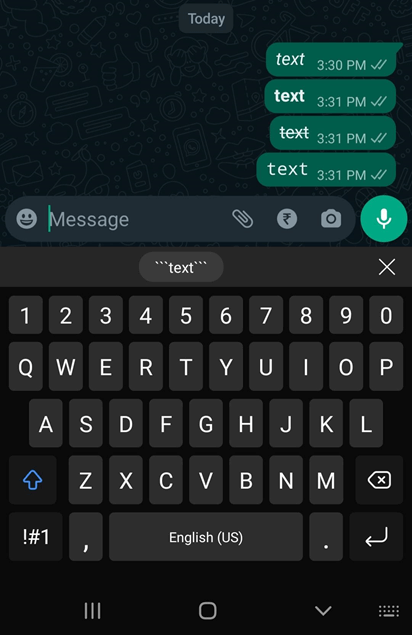
    WhatsApp does have some features to make your chat a bit more personal. You can change the style of your font natively on WhatsApp. You can make your text bold, italic, strikethrough, and even monospace.

    For Bold option

    Type the text on your chat or status.

    Enclose the text with a single ‘*’ character and hit send.

    *This is a sample message*

    For Italic option

    Type the text on your chat or status.

    Enclose the text with a single ‘_’ character and hit send.

    _This is a sample message_

    For Strikethrough option

    Type the text on your chat or status.

    Enclose the text with a single ‘~’ character and hit send.

    ~This is a sample message~

    For the Monospace font  option

    Type the text on your chat or status.

    Enclose the text with a single ‘“`’ character and hit send.

    “` This is a sample message“`

    You can also combine the different font style options and send them in a single chat text. You just have to enclose the different characters around the text that you want to format.

    Changing the Font Style The default way

    How to Format chat using the WhatsBlue text app.

    • Open the WhatsBlue Text app and start typing the message that you want to send as a chat.
    • This app will list the written text in all different types of styles and colors.
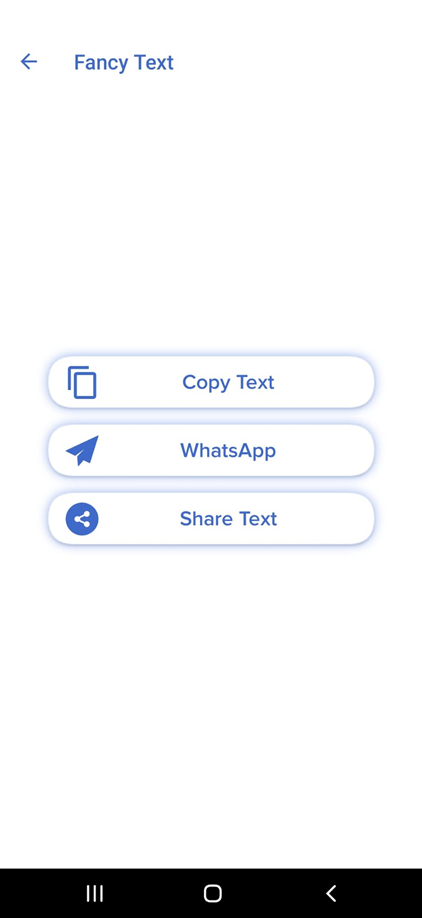
    • You can choose the desired one that suits you the most and select one of the three options available.
    • You can share, copy, or WhatsApp the formatted text. Select the WhatsApp option to send the formatted text to your favorite chat.

    In this way, you can change the default color and style of the WhatsApp font and use your own.

    Changing the Font color in the WhatsApp status

    Unlike WhatsApp chat, you do have some formatting options with WhatsApp status natively. You can change the background color, add pictures, and many more. With text, you can only format it with limited options such as bold, italic, strikethrough, and monospace. To expand your personality with the text on WhatsApp status, you should use a good 3rd party app. You can even use the above-mentioned WhatsBlue text app to format the font of your WhatsApp status.

    How to Format status font using WhatsBlue text app.

    The steps to format the status font is very similar to changing the chat font.

    • Open the WhatsBlue Text app and start typing the message that you want to send as a chat.
    • This app will list the written text in all different types of styles and colors.
    • You can choose the desired one that suits you the most and select one of the three options available.
    • You can share, copy, or WhatsApp the formatted text. Now select “My status” in the WhatsApp option to keep the formatted text as your status.

    As you can see, the steps to format the status font is very similar to changing the chat font. You just have to select “My status” instead of sending it to your chat.

    Conclusion:

    Changing the font color and style of WhatsApp chat and status is straightforward with 3rd party app. You can use the WhatsBlue app to personalize your WhatsApp communication which can never be done with the default app. We hope this post helps you to easily personalize your WhatsApp font for chat and status.

  • Here’s How to Use Emojis on Windows PC Laptop 2024

    Here’s How to Use Emojis on Windows PC Laptop 2024

    Here’s How to Use Emojis on Windows PC Laptop – Who doesn’t like Emoji? Almost everyone will like emojis to give variety to the message or note that we want to convey. But Emoji that we usually use on smartphones. How about emoticons on a Windows laptop or PC?

    Here's How to Use Emojis on Windows PC Laptop
    Here’s How to Use Emojis on Windows PC Laptop

    How to Use Emojis on Windows 10,8.1,7 PC Laptop 2024

    Thanks to Microsoft for making the operating system the most universal among all operating systems. Now, Emoji can be used on any PC running Windows 10 platform via the on-screen keyboard (touch screen or using the mouse).

    Read more:

    Plus, in the upcoming Windows 10 Anniversary Update, we’ll be treated to a large and new emoji created by the Microsoft design team. This emoji is also built-in for Windows 8.1 and is also supported in Windows 7 which means we can technically use it by copying/pasting.

    If you still don’t know and want to know how to bring up emojis on laptops and PCs? No need to worry, the Technowizah team has prepared a Windows 10, 8.1, and 7 emoji tutorial for you.

    How to Bring Up Emojis in Windows 8.1 and 10

    How to bring up emoticons on a Windows laptop is easy. To access it, we must use the on-screen keyboard. The trick is to just press the keyboard icon in the system tray.How to Bring Up Emojis in Windows 8.1 and 10

    How to Bring Up Emojis in Windows 8.1 and 10

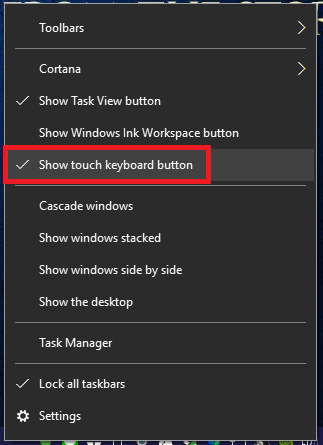
    If there is no keyboard icon, right-click on the taskbar and check the Show Touch keyboard button. For Windows 8.1 users, you can find it by right-clicking the taskbar, then Toolbars  > Touch keyboard.

    How to Bring Up Emojis in Windows 8.1 and 10

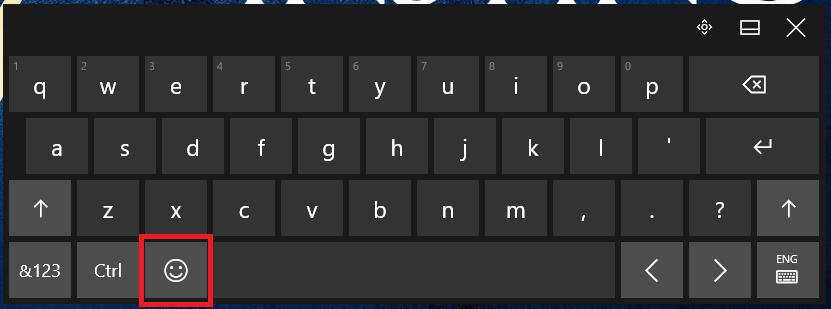
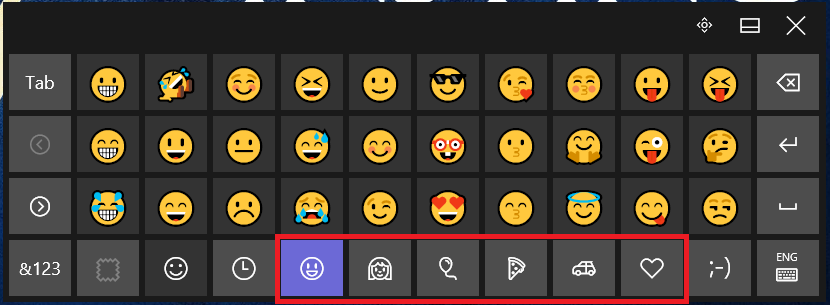
    To use an emoji, just press the emoji key which is to the left of the space key. Emojis here have been categorized into 7 types.

    How to Bring Up Emojis in Windows 8.1 and 10

    To change the category, press the emoji category button at the bottom of the keyboard.

    How to Bring Up Emojis in Windows 8.1 and 10

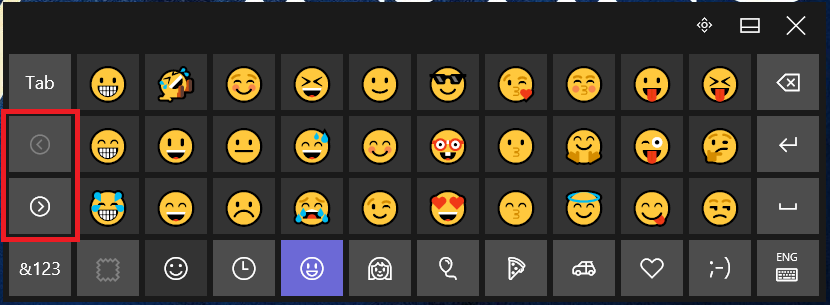
    To search for emojis in the same category, press the ( > ) or ( < ) keys on the left of the keyboard.

    How to Bring Up Emojis in Windows 8.1 and 10

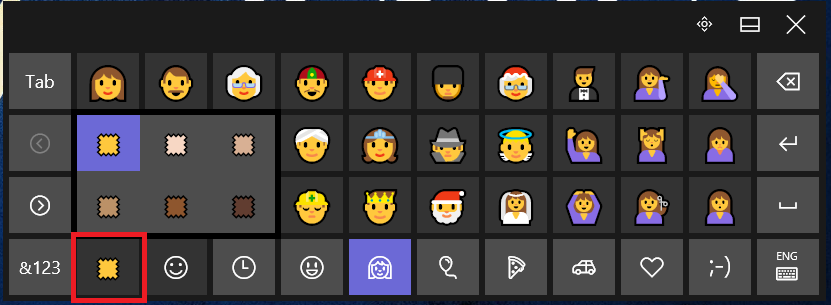
    To change the color of the emoji, select a category of people and then press the color button at the bottom left of the keyboard. There are six different types of colors.

    How to Bring Up Emojis in Windows 7

    How to Bring Up Emojis in Windows 7Windows 7 supports emojis, which means we can see emojis when we access a website that contains emojis (usually it looks just like a box).
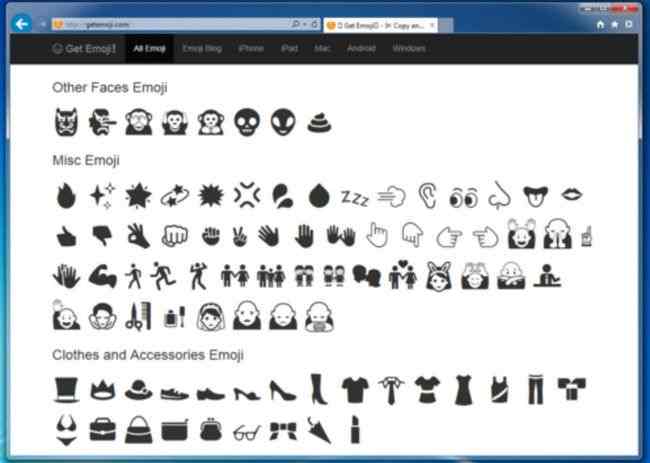
    But Windows 7 does not have a touch keyboard (the on-screen keyboard) that allows us to use emojis when typing.

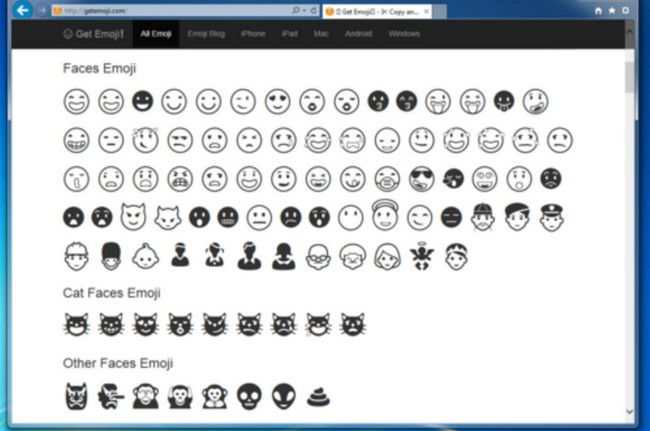
    How to Bring Up Emojis in Windows 7To bring up emoticons on a Windows 7 laptop, we only have to copy and paste (copy-paste) Emoji from Get Emoji or other Emoji providers.

    Select the desired Emoji, then Ctrl+C, and paste the Emoji into your writing with Ctrl+V. For the record, Windows 7 can only support black and white emojis.

    Read more:

    Conclusion:

    That was the tutorial on how to use emojis on a Windows PC. The method is very easy, you still immediately try it on your PC device.