Category: Guide

Guide – Here you can find Reviews-related updates, How-to, Tips & Tricks, information, and more.

  • 5 Ways To Fix Windows Update Error 0x800703ee on PC 2024

    5 Ways To Fix Windows Update Error 0x800703ee on PC 2024

    5 Ways To Fix Windows Update Error 0x800703ee on PC – Windows update error 0x800703EE mainly occurs when you try to forcibly copy (copy/paste) a file from your PC to an external device. This can also happen in the reverse process. This update error is preventing you from copying the files.
    How to Fix Windows Update Error 0x800703ee
    How to Fix Windows Update Error 0x800703ee

    How to Fix Windows Update Error 0x800703ee on Laptop PC 2024

    This problem occurs in almost all versions of Windows, so it is not certain whether it only occurs in certain versions of Windows. But certain sources have confirmed the 0x800703EE error occurs in Windows 7, Windows 8.1 as well as in Windows 10.

    Read more:

    Causes of Windows Update Error 0x800703ee on Windows 10

    Before you look for a solution, you need to understand why this problem occurs. So you can properly fix this problem.

    There could be several reasons for this problem. After analyzing several reports from various sources, we conclude the most common reasons for this problem.

    • Conflicts with Third-Party Antivirus: Third-party applications can sometimes be very protective. When Windows tries to copy files, third-party antivirus tries to stop them. Here a conflict begins.
    • System Backup Program Lockout: If files are protected with system backup program lockout, error 0x800703ee may occur. Because Windows behaves unpredictably when it comes to operating files from the protection of third-party applications.
    • Different Third-Party Applications: When you are using different third-party applications that are still not reported by other users, errors can also occur.
    • Corrupt USB Controllers: USB Controllers that are bugged or have errors can also cause Windows Update error 0x800703ee.
    • Windows Backup and Volume Shadow Copy Service are disabled: If Volume Shadow Copy and Windows Copy are disabled then it will affect the damage because copying Windows files is completely dependent on two software.
    • Burner Drivers: If you are copying something with a pen drive or SD card, then it is very clear that the damage is caused by the burner software.
    • Corrupt System Files: Errors can also be the reason for corrupted system files. The motto of corrupted system files is to stop Windows from doing basic work like copying or moving.

    Who said you need to have extensive knowledge of computers to solve such a problem? This article provides you with several solutions to error 0x800703EE.

    It is recommended that you take the following solutions and follow them completely. If you do it right, you will achieve the desired results and there will be no problems afterward.

    Fix Windows Update Error 0x800703ee

    If you are struggling to resolve Windows Update Error 0x800703ee, we recommend you to follow these 5 methods.

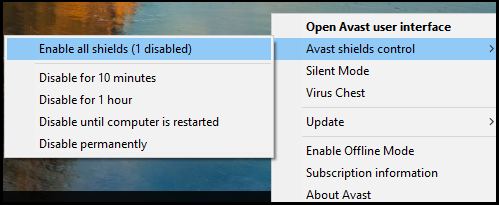
    #1. Disable Third-Party Antivirus

    Over-protection from third-party Antivirus applications can lead to crashes when copying files to or from the computer. In most cases, the security suite actively locks files when a security check is being performed. Windows will throw this error message if the process is taking a long time.

    You will be able to avoid problems if Antivirus protection is disabled during the operation. But if the error code 0x800703ee bothers you more and causes problems frequently then you should uninstall that antivirus app.

    To remove third-party apps just follow the process,

    1. Press the Windows key and then press R at the same time, to start Run.
    2. Write cpl in the box and press the Enter key to continue.
    3. Right-click on the third-party application.
    4. To remove an app, tap on Uninstall.
    Disable Third-Party Antivirus
    Disable Third-Party Antivirus

    The application will be deleted successfully. Restart your computer for repair.

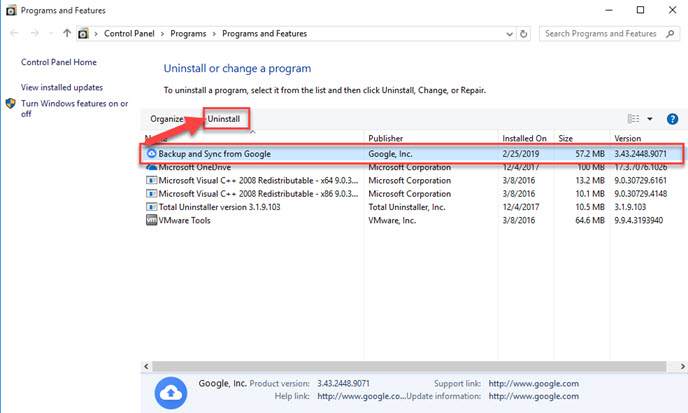
    #2. Uninstall a Different Backup Program

    According to reports I have received from several Windows users, various types of backup programs are proving to be the culprit behind Windows Update Error 0x800703ee. A simple way to do this is to uninstall the program and restart the computer.

    Follow the instructions for uninstalling a different backup program,

    1. Press the Windows and R keys together.
    2. Write cpl in the command box.
    3. Press the Enter key to continue to Programs and Features
    4. Identify suspected backup software by scrolling down slowly.
    5. Then right-click to go further.
    6. Touch Uninstall to start the process.
      Uninstall a Different Backup Program
      Uninstall a Different Backup Program
    7. Reboot your computer.

    After performing this method, all of your backup programs will be uninstalled and you won’t be annoyed with the same problem.

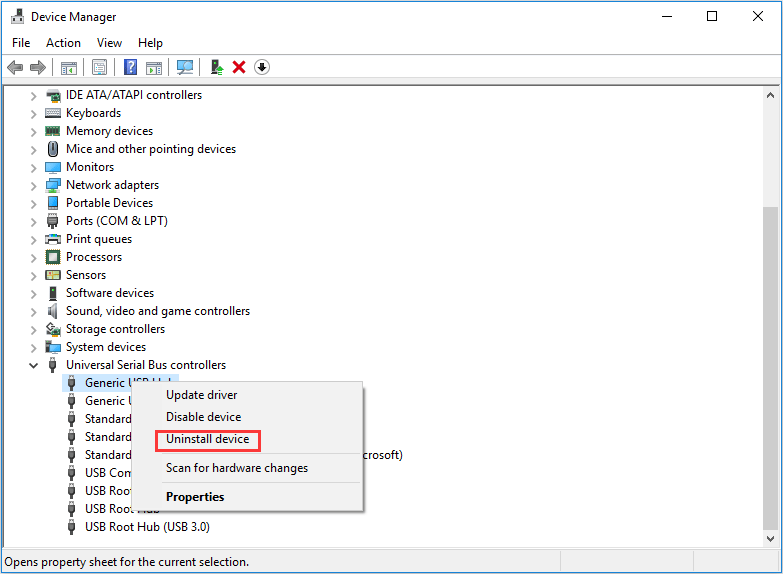
    #3. Reinstall the USB Controller to Fix Error 0x800703ee

    In some cases, it has occurred that incorrectly installing USB Controllers could affect and cause error 0x800703EE to occur.

    If you are experiencing this problem then you will have to remove and reinstall all your USB Controllers with the help of Device Manager.

    Follow the procedure to delete USB Controllers.

    1. Press the Windows key and R simultaneously to start the process.
    2. Write MSC in the command box.
    3. Press the Enter key to open the Device Manager.
    4. Click YES to grant permission.
    5. Scroll down from the given list.
    6. Click the Right Button on every controller.
    7. Select the ‘Uninstall Device’ option.

      Reinstall the USB Controller to Fix Error 0x800703ee
      Reinstall the USB Controller to Fix Error 0x800703ee
    8. Press Yes to confirm the deletion.

    Repeat this process until all USB Controllers are removed. Windows will automatically detect that some USB drivers are missing. Then install it according to the required driver.

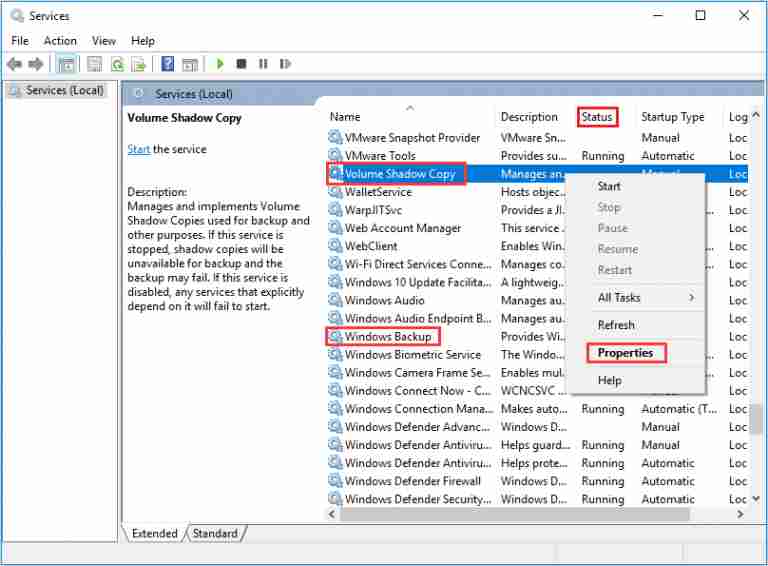
    #4. Enable Volume Shadow Copy with Windows Backup

    Disabling Windows Backup and Volume Shadow Key can cause error code 0x800703ee and prevent users from copying files. It doesn’t matter if it was disabled manually or by a third-party app, it will still hinder the system.

    In such a case, all you need to do is change the status of both automatic services using the services screen.

    Follow the steps to activate the service,

    1. Press the Windows key and R simultaneously to start running.
    2. Write MSC in the commend box.
    3. Press the enter key to open the service screen.
    4. In the case of UAC click Yes to proceed further.
    5. Scroll down and find Volume Shadow Copy.
    6. Press the right mouse button.
    7. Select properties.
    Enable Volume Shadow Copy with Windows Backup
    Enable Volume Shadow Copy with Windows Backup
    1. Visit general.
    2. Change the startup tab to automatic.
    3. Hit apply to save further.
    4. After this, look for Windows backup.
    5. Then it also changes to automatic from the startup tab.
    6. Once enabled, check whether the problem is solved or not.

    #5. Delete Filter Drivers

    When transferring files with your PC, if you encounter a problem, it may be because you are the victim of a conflict between the burner software device and the services used during the process.

    Using the registry editor to remove the filter driver is the simplest way to Fix Windows Update Error 0x800703ee in Windows 10. Follow the description to remove the filter driver.

    1. Press the Windows key and then press R at the same time to start a run.
    2. Write RegEdit in the box.
    3. Press the enter key to access the Registry editor.
    4. In the case of UAC press Yes to go a step further.
    5. Use the left-hand panel and come after this location { 4DC6E965-E325-11CE-BFC1-08002BHE10318 } to make a backup.
    6. To make a backup, right-click on { 4DC6E965-E325-11CE-BFC1-08002BHE10318 }.
    7. Select exsport.
    8. Select a save option to confirm the backup.
    9. Switch to the right panel after selecting { 4DC6E965-E325-11CE-BFC1-08002BHE10318 }.
    10. Press ctrl and select Upperfilters and Lowerfilters.
    11. Right-click on a filter.
    12. Select delete

    Read more:

    Conclusion:

    So, friends, that’s on above how to Fix Windows Update Error 0x800703ee, Now both filters are removed successfully from your PC. It is recommended that you reboot your computer and then check if the problem is fixed or not.

    We hope that it is not a waste of time to go through this article to Fix Windows Update Error 0x800703ee in Windows 10. We try to empower you with as much knowledge as possible. Please write in the comment box which solution helped to solve this error quickly.

  • 100+ Avast Premier License Key And [Activation Codes] 2024

    100+ Avast Premier License Key And [Activation Codes] 2024

    100+ Avast Premier License Key And [Activation Codes] – If you want a real Avast Premier License Key that works 100% of the time, you should pay more attention to this post. In this article, we’ve made a list of Avast Premier License Keys that you can use for free.

    100+ Avast Premier License Key And [Activation Codes]100+ Avast Premier License Key And [Activation Codes] 2024

    Avast Premier 2024 is one of the most popular security software that offers the highest level of PC security. This antivirus protects your computer from all kinds of threats and gives you extra security tools like a file shredder and a safe browser.

    Read more:

    When you use the Internet, you can get bugs on your computer. Malicious threats could also spread from one device to another when data is moved between them. Since computers were first made, there have been a few antivirus apps. The well-known Avast anti-virus Premier has given all devices the best safety. You can either connect to the internet to get it or use online data sharing to get it.

    With our keys, you can use the full version of Avast on your PC, mobile, Android, or iOS device. So, carefully read this article, and you’ll get a free Avast Premier License Key.

    What Is Avast Premium Security Antivirus?

    Avast Anti-virus is an app of software that is made to find, stop, and get rid of harmful software on computers. Premium Security, made by Avast Software, is a full-featured web security app that protects all working devices, including computers, phones, and tablets. Avast Premium Antivirus has settings that can be changed to meet your specific security needs.

    The software helps people take strong online security steps to protect themselves from possible threats from people on the internet. Also, its main goal is to guard against a wide range of online threats, including but not limited to fake websites and malicious ransomware attacks. The Avast anti-virus activation keys are easy to find in the next part.

    Why is the Avast Premier License Key Used?

    There are a lot of good things about Avast Premier License Key that help you do some important jobs. The biggest perks are less stress on the system and more security and privacy. In AV tests, it got an excellent score for how well it protects computers and how easy it is to use.

    Avast Premier Antivirus and a lot of other free antivirus apps don’t scan all platforms the way they should. Malware is checked now and then. With an Avatar registration code, your antivirus can fully protect your computer. The license key does more than just get rid of infected and broken files from your computer. It also optimizes and improves the speed of your computer.

    How to use the Avast Premier License Key?

    1. First, you need to get the software from the Avast website.
    2. Wait for it to finish downloading, and then install it on your computer.
    3. When the installation is done, close the app.
    4. Now, go to “My license” and enter any key from the list below.
    5. To turn on Avast Premier, Next, click Enter activation code.
    6. The software’s activation will happen soon.

    List of 100+ Avast Premier License Key And [Activation Codes]

    The list of Avast antivirus activation codes is necessary if you want to enjoy the Pro features it. Here are the Avast Premier Activation Keys.

    #1. Avast Premier License Forever

    You will also get the Avast Premier license key. Get it by copying the codes below:

    1. N7Q8R9TBUCVEXFYG2J3K4N6P7Q
    2. 4M5N6Q8R9SBUCVDXFYGZJ3K4M6
    3. H2J3M5N6P8R9SAUCVDWFYGZH3K
    4. XFYH2J3K5N6P7R9SATCVDWEYGZ
    5. CVEXFYG2J3K4N6P7Q9SATBVDWE
    6. SBUCVDXFYGZJ3K4M6P7Q8SATBU
    7. 8R9SAUCVDWFYGZH3K4M5N7Q8R9
    8. N6P7R9SATCVDWEYGZH2J4M5N6Q
    9. 3K4N6P7Q9SATBVDWEXFZH2J3M5
    10. GZJ3K4M6P7Q8RATBUCWEXFYH2J
    11. 938TMH-VYE5LJ-4P4B9J
    12. ELAADX-TLAVC2-4PCBJN
    13. 86K6RB-7T2LV2-4MLBK6
    14. W8S4GM-MKURU2-4MLB26
    15. 5WUXDW-JDFCX2-4MLBKJ
    16. 2ZKGDC-7JDUL2-4MLBGA
    17. QBMDET-QAP582-4MLBH6
    18. 32ATW6-7R4UA2-4MLBYS
    19. DQQ9YX-6A4U5J-4MLBP2
    20. H2UG83-WQEU52-4MLBPA
    21. FV5ZBW-4HBC32-4MLBC6
    22. ZFUA38-VBE5J2-4MLBYN
    23. cgudq2-krk4r2-4p4bf6
    24. ZYZL2X-VCZY92-4P4BT2
    25. BH7U9J-4QQ8W2-4PCBUE

    #2. Avast Premier License Key for Mobile (Android & iOS)

    1. 8MBYLZ-BVTLSJ-5NC5RE
    2. UHFDN3-97X5C2-4Z443S
    3. NXNW5H-4AKMF2-4EU5F2
    4. 3DWS9E-CW75YJ-4Q48YA
    5. RGXUTX-8DJXCJ-4TL73A
    6. S2CYJQ-C6MD82-4ZL4LS
    7. GWBB3M-ND3R3J-4EL4QA
    8. BHECJD-WASZCJ-54C4UA
    9. NPRNW5-3JEVT2-4YL492
    10. XHZ8FT-JUAKMJ-4KL496
    11. NPW579-RD2842-4B44BN
    12. AGHSPE -982YJJ- 5YU56N

    #3. Avast premier activation code

    1. 0MG7G-5KFXH-Y25ZQ-FXKJR-DWI75-OK76M
    2. 5HHE0-NG4OT-MULM3-C9GOX-Y3GJ5-N89V0
    3. OGCMM-VCBYN-PLNLM-777QH-1U3UH-CX66M
    4. P4XIS-CLT02-P791F-529QJ-2NWGJ-SXCAT
    5. YKKPB-NHWZ5-JE0W2-V6PAL-SBOZ6-CYBW3
    6. AJHRSD-JOPFRE-EHBJQW-BIPEFD-JKSDHB
    7. BHVJFB-RGYWEF-OUFEWD-MKLQWD-IOPDSA
    8. DHJGYU-VVGWEF-MPOXSA-JVIFOF-BIPEWQ
    9. DJKSFD-RBUIDH-BVFHDK-WQNKVF-XASGYU
    10. DRTCFG-NJKHIU-VCXUIO-DRTCFG-JIOGYU

    #4. The latest free Avast Premier License Key

    1. DSXERT-BNMUIY-DRTCFG-JIOPLK-FTYVGH
    2. GHFUIE-NIPFDX-EWQDSA-HBJERT-VUORWE
    3. JNHTRF-LKIPOK-CVFTRD-ZXCREW-KJLYUG
    4. JNSDCK-VDASUY-VIVRBD-WNQKJE-BVHJVY
    5. LKDRYG-VBJHYU-ZSFDRT-LKTYHG-MNBGHJ
    6. NJKGYU-AWEXDF-AQWZDS-VGHNJK-POITYU
    7. NJUYTJ-AWESZX-YUGVRD-ZXIUGY-MNRTVC
    8. VBHKIR-NIPEWF-UYRVFD-BHJREW-WQDVGH
    9. XDFLKJ-CFGHYT-ZSDXCV-VGHFTY-HUIFTY
    10. 45EYD-M07BX-G65CA-UECZW-23ZBX
    11. ANZ78-MK7TF-VB45V-CX78B-FD34R
    12. DFT89-MNB56-VXZLA-SDB45-ZCV45
    13. S7MKF-CV25R-FNXOP-LAZSE-WDCVG

    #5. Avast Premier Activation Code

    1. AGHSPE -982YJJ- 5YU56N
    2. NPRNW5-3JEVT2-4YL492
    3. RGXUTX-8DJXCJ-4TL73A
    4. RPRWFT-PV7LEJ-5LC7LN
    5. UHFDN3-97X5C2-4Z443S
    6. 3DWS9E-CW75YJ-4Q48YA
    7. 8MBYLZ-BVTLSJ-5NC5RE
    8. GWBB3M-ND3R3J-4EL4QA
    9. BHECJD-WASZCJ-54C4UA
    10. DFJIEIWKSS-DFKOWKS
    11. XHZ8FT-JUAKMJ-4KL496

    #6. Avast Premier License Code

    1. 0MG7G-5KFXH-Y25ZQ-FXKJR-DWI75-OK76M
    2. 5HHE0-NG4OT-MULM3-C9GOX-Y3GJ5-N89V0
    3. OGCMM-VCBYN-PLNLM-777QH-1U3UH-CX66M
    4. P4XIS-CLT02-P791F-529QJ-2NWGJ-SXCAT
    5. YKKPB-NHWZ5-JE0W2-V6PAL-SBOZ6-CYBW3
    6. AJHRSD-JOPFRE-EHBJQW-BIPEFD-JKSDHB
    7. BHVJFB-RGYWEF-OUFEWD-MKLQWD-IOPDSA
    8. DHJGYU-VVGWEF-MPOXSA-JVIFOF-BIPEWQ
    9. DJKSFD-RBUIDH-BVFHDK-WQNKVF-XASGYU
    10. DRTCFG-NJKHIU-VCXUIO-DRTCFG-JIOGYU

    #7. Avast Premier License Key

    1. DSXERT-BNMUIY-DRTCFG-JIOPLK-FTYVGH
    2. GHFUIE-NIPFDX-EWQDSA-HBJERT-VUORWE
    3. JNHTRF-LKIPOK-CVFTRD-ZXCREW-KJLYUG
    4. JNSDCK-VDASUY-VIVRBD-WNQKJE-BVHJVY
    5. LKDRYG-VBJHYU-ZSFDRT-LKTYHG-MNBGHJ
    6. NJKGYU-AWEXDF-AQWZDS-VGHNJK-POITYU
    7. NJUYTJ-AWESZX-YUGVRD-ZXIUGY-MNRTVC
    8. VBHKIR-NIPEWF-UYRVFD-BHJREW-WQDVGH
    9. XDFLKJ-CFGHYT-ZSDXCV-VGHFTY-HUIFTY
    10. 45EYD-M07BX-G65CA-UECZW-23ZBX
    11. ANZ78-MK7TF-VB45V-CX78B-FD34R
    12. DFT89-MNB56-VXZLA-SDB45-ZCV45
    13. S7MKF-CV25R-FNXOP-LAZSE-WDCVG

    #8. Avast Premier License Serial Keys

    1. BTE5X-PC5VU-YNEGY-UX7E8
    2. 95GQ3-987T9-8HO89-SEH9W
    3. BES89-78YYU-DESWAQ-W4RTJ
    4. 98XTY-KMI21-698DA-BSB85-98SPO
    5. WXYT6-B3DFM-Q3KGA-UP7WG-X5506
    6. 89XQY-78YYU-NK7VN-W4RTJ-7X96T
    7. ZXD5T-FVBG8-HUNJ9-HUY7T-V67CD

    #9. Avast Premium Product Keys

    1. 460HS-NCZ1F-Z2BJX-6YO7M-M5S4V
    2. ECR7O-IFOZA-OGM3Z-KL7LP-VN9GG
    3. T21DF-HBT3Y-NACQA-DNK9I-Z0IOX
    4. R9HCP-ETIPU-RZBLQ-RYEBV-WJN06
    5. KAEJV-DDOHJ-DUF0Y-MESLF-PWKKB
    6. 5R8KT-KJERP-5T152-AMN23-9QCX8
    7. WTTSV-LGL6P-FQSUP-6QB0X-P4XQ0
    8. WBKUH-TJM4W-UQ20G-VCGEM-OYDEL
    9. ANJCY-4537W-SXIRQ-1460H-SNCZ1
    10. X6YO7-MM5S4-VXFY5-1ECR7-OIFOZ
    11. ZKL7L-PVN9G-GFIY3-8T21D-FHBT3
    12. ADNK9-IZ0IO-XGUGW-9R9HC-PETIP
    13. QRYEB-VWJN0-6ZLHI-HKAEJ-VDDOH
    14. YMESL-FPWKK-BBU08-S5R8K-TKJER

    #10. Avast Premier Activation Codes with lifetime

    1. MKLVGH-FRETYU-XSAGYU-VFDTYU-BIOEWD
    2. BPIFDS-YRFDXC-IPNDSA-WBDKJH-VYIREW
    3. HFJTYU-JNASDE-YUVFDS-YGFIER-BIPXSS
    4. BHCJSD-VYOFEW-HJSDKA-BJHVFD-UHIEWQ
    5. HBDCSS-UBRFEF-XNSLWE-VGHERE-BNMVCX
    6. JIOREW-DVGIUE-VUOFDS-IBPGSD-VUOREW
    7. JKBCVX-TEQWNB-YVBUKD-MKWQLD-CXBDSA

    #11. Free Avast Premier License Keys

    1. NXNW5H-4AKMF2-4EU5F2YY90K
    2. DF9S93IR-ERDFOEK-DFKLDOE
    3. 2EFA6-B8E87-37A45-D385M
    4. DFKODOE-DFJKDIEE-DFKLDO
    5. DFKOFGO-FGJOFORK-FGKOFO
    6. AKSI7YT-18UBVF-QOJUY7
    7. 15C7AD-A6DDFC-1A6148
    8. 37E67C-94FB3A-FD93GR
    9. 433U4Y-TWQESJ-4KL47W
    10. 71EA53-B1AF43-8AA8AS
    11. 7B345A-C32ED8-5551A2
    12. 7F1F4A-62224F-2AD46C
    13. AJSHYP-JUHFGR-7UJSGR

    #12. Avast Secureline VPN Keys x10

    1. VUJF2S-YWD9XJ-5MUAD6
    2. K364PP-VVGDC2-5MUAPJ
    3. NLHLH6-HPL5R2-5K4A46
    4. YCJC5H-3LXLZJ-5K4AGA
    5. 9HKNF5-5A956J-5K4AAW
    6. JZNAVB-6WYZVJ-5K4AME
    7. 23E6NZ-JF78Y2-5K4AGS
    8. ZD5CDU-RSY85J-5JUAZJ
    9. KQDWJQ-Z4SH62-5JUAM2
    10. 8RYJRU-3KQHMJ-5JUAZS

    The Avast premium activation code and how to use it have been described, which will be very helpful if you want to use all of the features. So, your device can be kept as safe as possible.

    Features of Avast Premier License Key

    The main features of Avast’s free antivirus program end every month. Either you have to download it again or buy the paid version to keep it going.

    Here are some of the best things about antivirus. You can use the Avast antivirus activation code below to get these benefits for free.

    Let’s start with some simple steps. Avast’s antivirus scans your files, drives, and PC very fast. In other words, antivirus software keeps you safe from online risks:

    1. It’s rated as one of the best antivirus programs that protect against malware and always acts as a shield to protect you from unknown threats.
    2. The browser is one of the best places to get anti-virus software. Because of this, keeping in mind the need to clean up the browser is a benefit.
    3. The Avast activation code comes with a smart scanning system that lets users scan external hardware before starting the program.
    4. Privacy protection with Avast’s premier registration code has become one of the most important jobs in this digital world. So, it keeps people from getting to your information without your permission.
    5. A piece of software is either the best or the worst depending on how easy it is to use. As far as the UI of Avast goes, it is made with all basic and advanced Human-Computer Interaction features in mind.
    6. This is the world of “Big Data,” so how could Avast be left out? With all the Cloud Scanning tools, it’s built up.
    7. The Deep Scanning tool lets you do a thorough scan of your PC or laptop to find more threats.
    8. Your PC, laptop, and other devices are safer and more secure on the internet because the latest thread detection methods are always being updated. Also, it keeps trying to see if any of the installed apps have newer versions.
    9. This great feature of Avast makes it easier to use the internet.
    10. The Rescue Disc System can help you get out of trouble.

    Disclaimer: We do not support hacking tools or the illegal use of accounts in any way. Technowizah posts these keys or gets them from the Internet or other open sources. If you think you own one of the keys, feel free to get in touch with us. We will remove it soon.

    Disclaimer: All forms of download files on the Technowizah.com site are just for educational purposes only.

    DMCA: Technowizah.com complies with 17 U.S.C. * 512 and the Digital Millennium Copyright Act (DMCA). It is our policy to respond to any infringement notices and take appropriate action. If your copyrighted material has been posted on the site and you want this material removed, Contact us.

    Conclusion:

    Avast is one of the best protection programs that will always keep your device safe. It works in the background and can easily find viruses, malware, trojans, and other things that could harm your device. For Avast Premier to work properly, you need a digital license key.

  • How to add a printer in Windows 10 Laptop PC 2024

    How to add a printer in Windows 10 Laptop PC 2024

    How to add a printer in Windows 10 Laptop PC – Adding a printer to your current Windows 10 laptop or desktop is very easy for users with little technical knowledge. You can add a printer via USB, a wireless network such as WiFi, or Bluetooth. Here’s how to add a printer in Windows 10

    How to add a printer in Windows 10
    How to add a printer in Windows 10

    How to add a printer in Windows 10 Laptop PC via WiFi 2024

    If your printer supports networks that Windows does not automatically detect, you will need to set it up manually. Through the printer menu, configure the TCP / IP port, and install the driver. Follow the below steps to add a network printer in Windows 10.

    Read more:

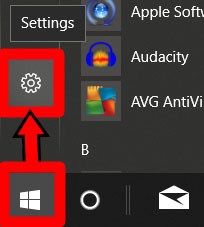
    1. Open the Windows Start menu. It’s a button in the bottom-left corner of your screen that resembles the Windows logo.

    2. Then click Settings. It’s the gear icon directly above the power button in the Start menu.

    How to add a printer in Windows 10 via WiFi

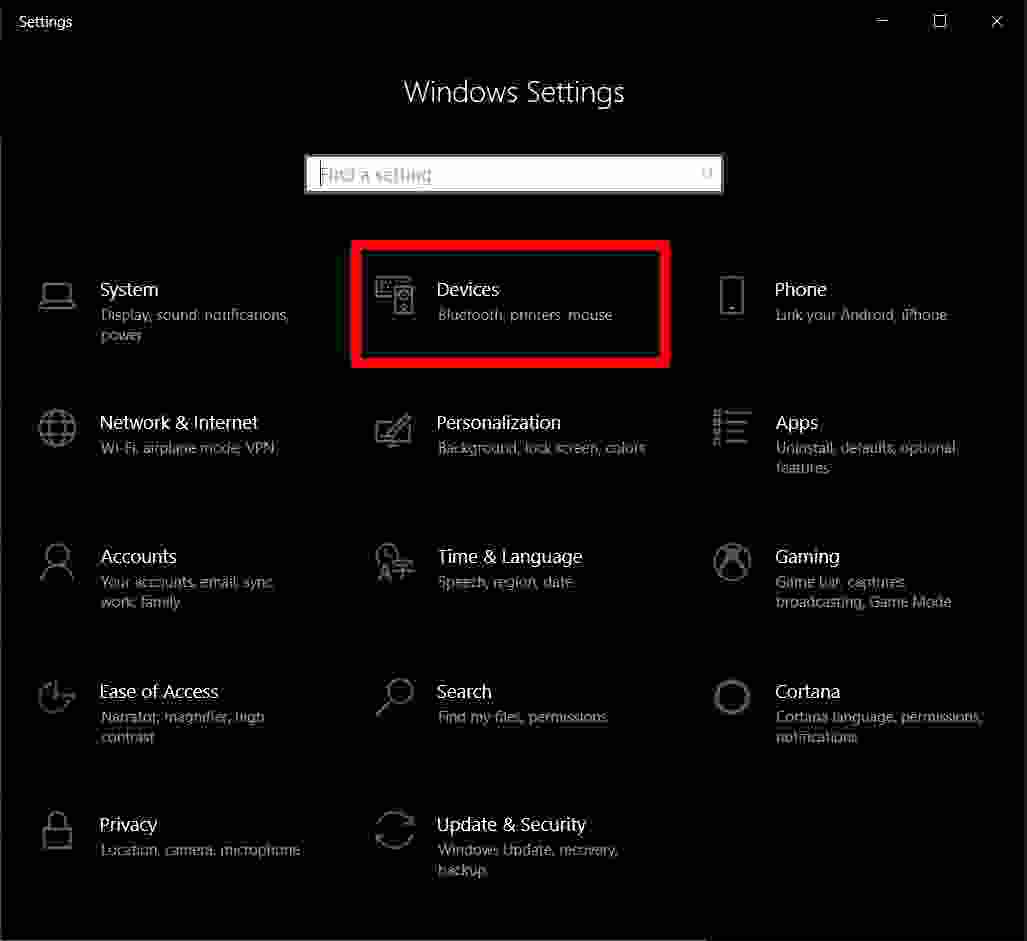
    3. Then click Devices.

    How to add a printer in Windows 10 via WiFi

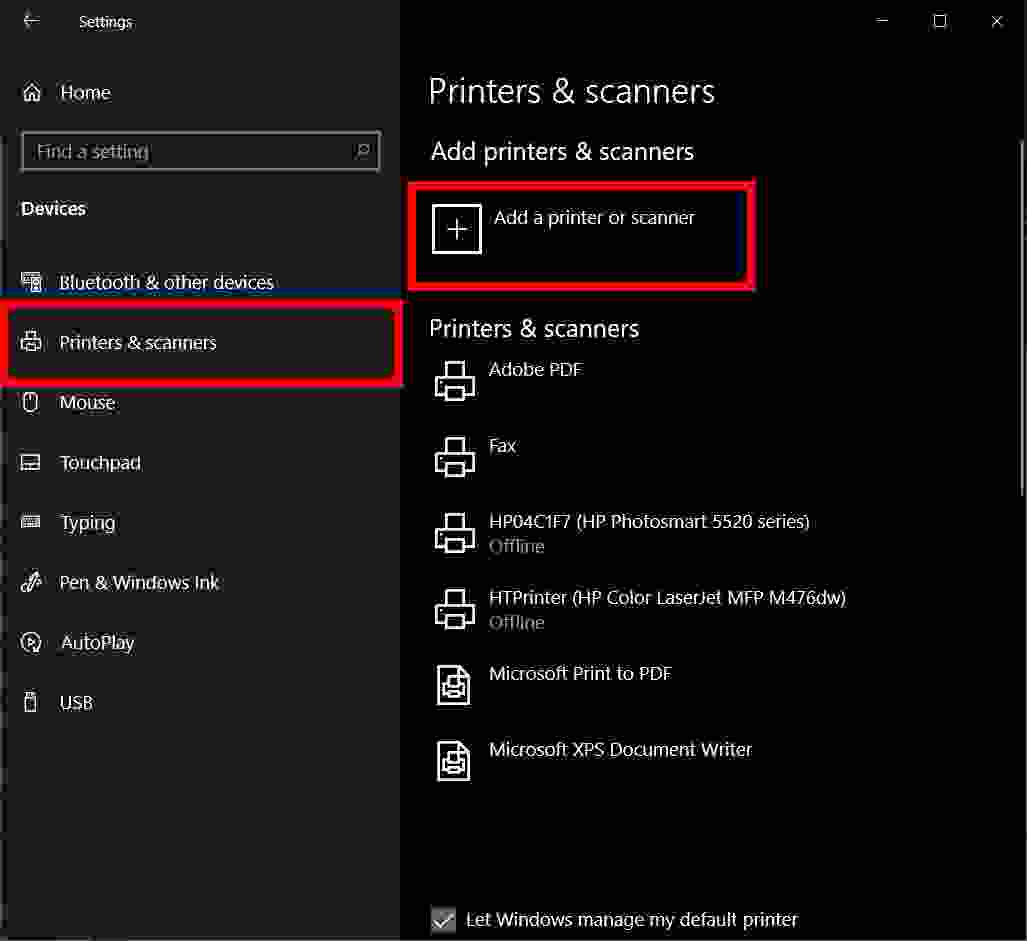
    4. Next, select Printers & ScannersYou can find it on the left sidebar.

    5. Then click Add a Printer.

    How to add a printer in Windows 10 via WiFi

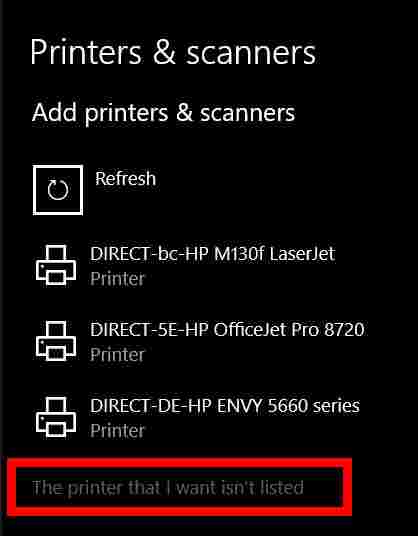
    Once Windows detects your printer, all you have to do is follow the on-screen instructions to set it up. If this is the case, you can stop here. However, if Windows doesn’t automatically detect your printer, continue to the next step.

    6. Click “The printer that I want isn’t listed”. After you select this, the “Add Printer” screen will appear.

    How to add a printer in Windows 10 via WiFi

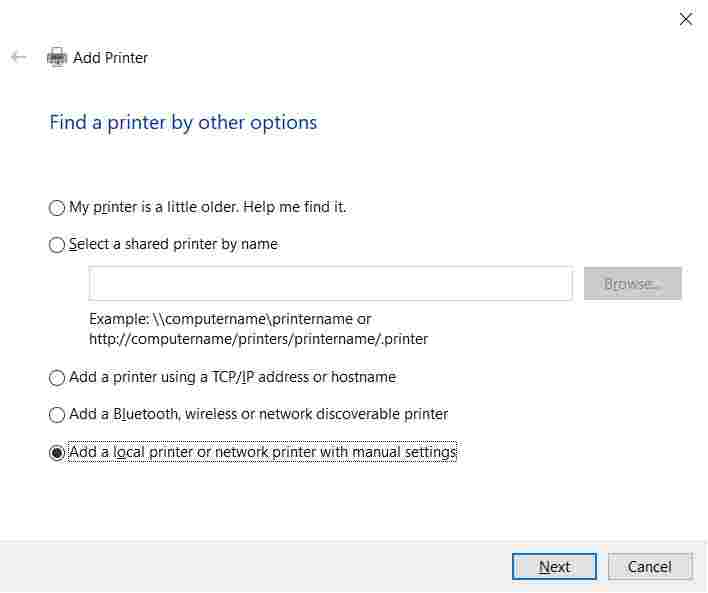
    7. Select “Add a local printer or network printer with manual settings”, and click Next.

    How to add a printer in Windows 10 via WiFi

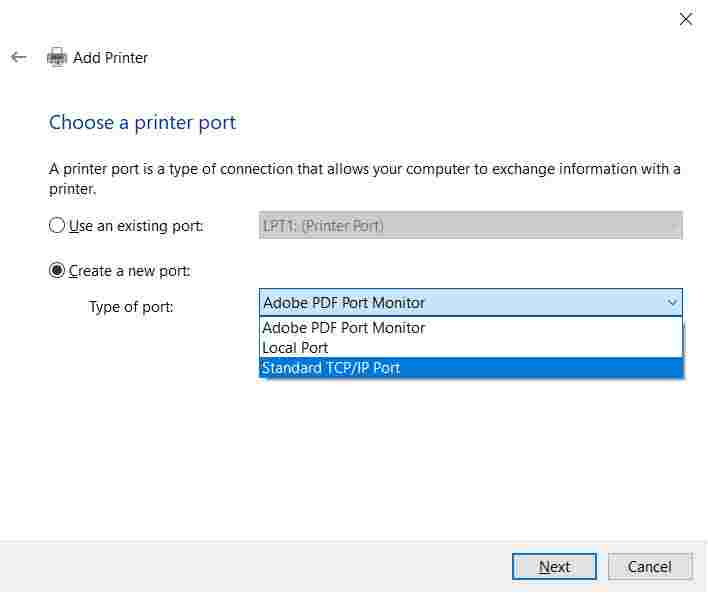
    8. Click “Create a New Port” and select Standard TCP / IP from the drop-down box.

    How to add a printer in Windows 10 via WiFi

    9. Type the IP address of your printer and click Next. At this point, your computer will try to detect the TCP / IP port. This may take some time.

    10. Select the appropriate device type

    In the drop-down menu for Standard Device Type, select the device type that matches the printer brand. For example, if you have a Canon printer, choose Canon Network Printer or Canon Network Printing Device. Windows will detect the driver model. You will notice that after detecting the driver, your printer will be added to the list of devices in the Printers & Scanners menu.

    11. Install the print driver. Select your printer manufacturer in the left-hand column and the driver for your printer model in the right-side column. Click Next.

    If you don’t see a driver for your model, click the box that says Have Disk. You will be instructed to install the driver from the manufacturer’s installation disc and copy it from the drive where the driver is located.

    12. Select “Use the driver that is currently installed (recommended)” and click Next.

    13. Set up optional preferences. Type a name for the printer if you want. If not, click Next. In the next window, you can set up printer sharing if you want. When finished, click Next.

    14. Print a test page. You will get a message that you have successfully set up the printer. From here, you can print a test page or click Finish.

    How to add a printer in Windows 10 via USB

    Before setting up your printer, make sure it is connected to a power source and your computer is connected to the internet to download the required drivers.

    1. Connect your printer and computer with a USB cable. Plug one end of your printer’s USB cable into your computer’s USB socket.

    2. Follow the on-screen installation steps. Windows will automatically detect your printer and guide you through the steps for installing the print driver.

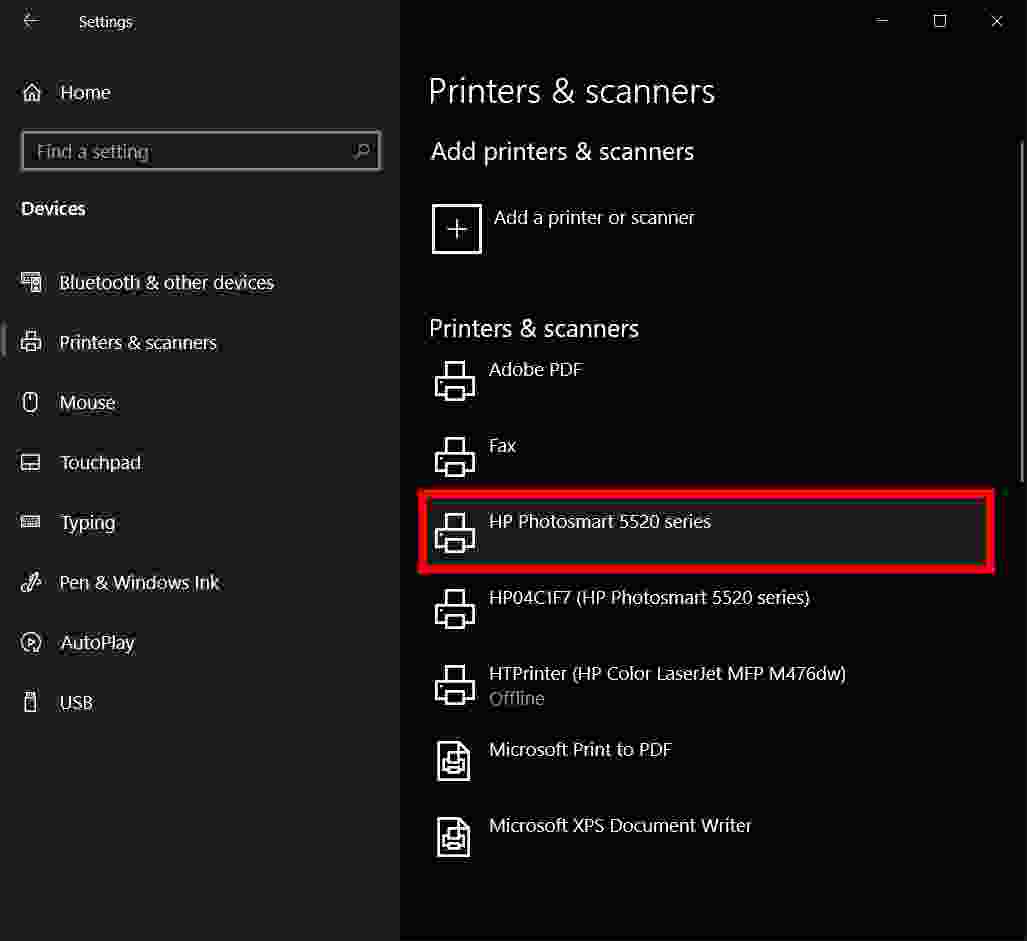
    3. Check if your printer is set up successfully. To do so, click the Start button, which resembles the Windows logo, in the lower-left corner of your screen. Then navigate to Settings> Devices> Printers & Scanners. Alternatively, you can do this under Control Panel. Just go to Hardware and Sound> Devices and Printers.

    If you’ve set it up correctly, you should be able to see the printer in the printer list. You can print a test page to confirm that the setup is complete.

    How to add a printer in Windows 10 via USB

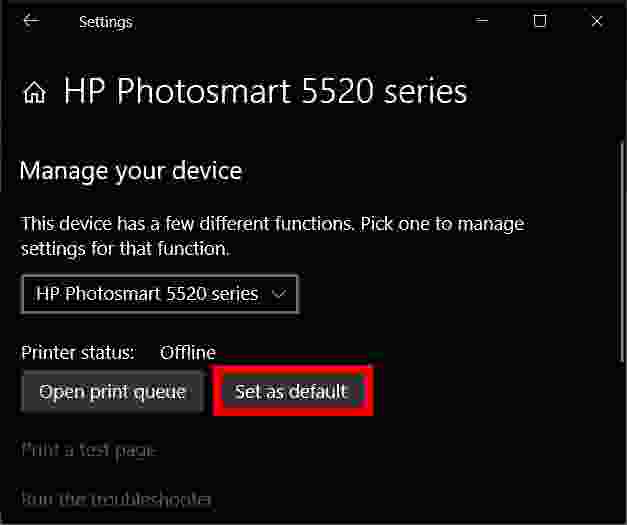
    You can set any printer to be the default printer. Windows will send a print job to the default printer every time you print. You can set this in the Printers and Scanners menu under Settings. Just click on the printer you want to set as default, then click Manage> Set as Default.

    How to add a printer in Windows 10 via USB

    How to add a Printer in Windows 10 Via Bluetooth

    Adding a printer in Windows 10 via Bluetooth requires you to pair the device just like you would any other Bluetooth device. You have to check if the communication port or COM port that appears in Windows is the same as the one in the print driver. Here’s how to connect your Bluetooth printer to Windows 10.

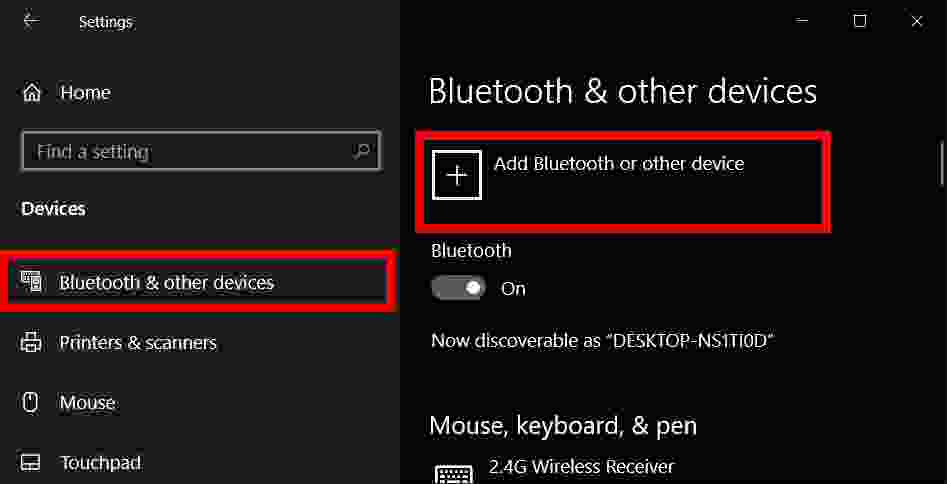
    1. Go to Start> Settings> Bluetooth and Other Devices. Make sure to activate the switch for Bluetooth.

    2. Click “Add Bluetooth or other devices “.

    How to add Printer in Windows 10 Via Bluetooth

    3. Then select Bluetooth as the type of device to add. Windows will display a list of detected Bluetooth devices. Select your Bluetooth printer from the list by clicking Ready to Pair.

    4. Set up your computer and printer.

    Some devices will pair automatically if your printer does not require a PIN. If not, enter the PIN for your Bluetooth printer on your computer when prompted. Click Connect. If your printer has a user interface, you may also be asked to enter a PIN on the printer. Follow the on-screen instructions on both devices to confirm the connection.

    5. Check COM Port in Device Manager.

    Go to Control Panel> Hardware and Sound> Devices & Printers. Right-click on the Bluetooth printer and select Properties. In the Services tab, you can see the COM port used by the printer.

    6. Install a print driver with a suitable COM Port.

    Follow the on-screen instructions to set up your print driver. On the Ports tab of the printer driver installation window, make sure the port in Windows Device Manager is the same as the one you set up with the print driver. If you have COM3 in Device Manager, for example, check the COM3 box during installation.

    7. Print a test page. Make sure your printer is connected by printing a test page.

  • How to Create a Table of Contents in Word 2024

    How to Create a Table of Contents in Word 2024

    How to Create a Table of Contents in Word – In this post, we will explain how to create a table of contents automatically and also explain how to create pages in Microsoft Office ( Ms.Word ).

    How to Create a Table of Contents in Word

    How to Create a Table of Contents in Word 2024

    In writing, a table of contents is a very mandatory component. The reason is that writers are required to provide a table of contents in a written work.

    Read more:

    For example in writing a book, the table of contents is very important in writing scientific papers such as theses, papers, theses, dissertations, and many more.

    What are the benefits of a table of contents in an essay?
    The first is initial information about what will be discussed in a book or scientific paper.

    The term table of contents is the subject of discussion, in some books have written a synopsis at the back of the book that tells the reader about the material topics or discussions in a book.

    The table of contents also contains information on discussion topics contained in chapters or sub-chapters on each page.

    In addition, the table of contents can also make it easier for readers to find information in a book or written work they are looking for.

    The contents of the book are applied based on chapters and subchapters on each page. The existence of flat content can make it easier for people who are looking for material on the book page because it can be seen from the table of contents.

    The discussion below will explain also how to create pages in the word correctly. Check out the explanation below!

    How to Create an Automated Table of Contents and Pages in Word

    #1. Create an Automatic Table of contents

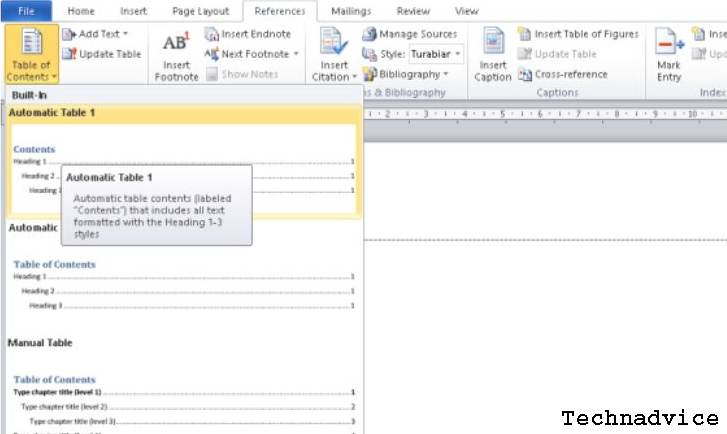
    1. Open the Microsoft Word that you use, then create a file in Microsoft Word. If you have selected the References menu, then select the Table of Contents menu. Choose according to your needs. The explanation here selects the Automatic Table 1 type.
      Create Automatic Table of contents

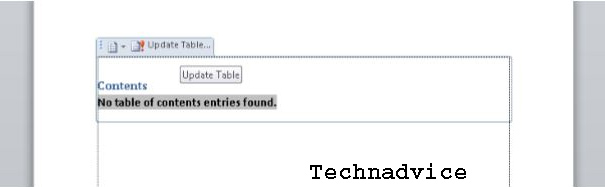
      Then on your word screen will appear as shown below.

      Create Automatic Table of contents

      It can be seen in the picture above that there is a Table of Contents description or the table of contents is not found. Because several steps must be made first.

    2. Next, you must first create any chapters or sub-chapters that you will create in the table of contents. For example, as follows:> Preface
      >Prologue
      > Introduction
      > Introduction to Ms. Word
      > Benefits of using Ms. Word
      > How to use Ms. Word
      > About the Author
      > IndexThe chapter above is made with different pages.

      Create Automatic Table of contents
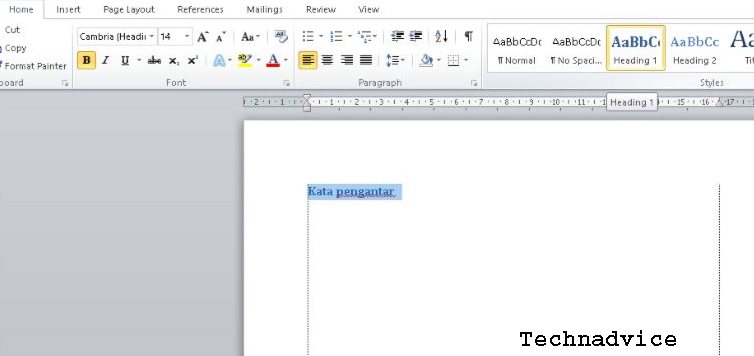
    3. Then set the style of the chapter title writing to be Heading 1 or Heading 2. The trick is to block writing and then on the Styles menu in Home select Heading 1 or Heading 2 and do it on all pages.
      Create Automatic Table of contents
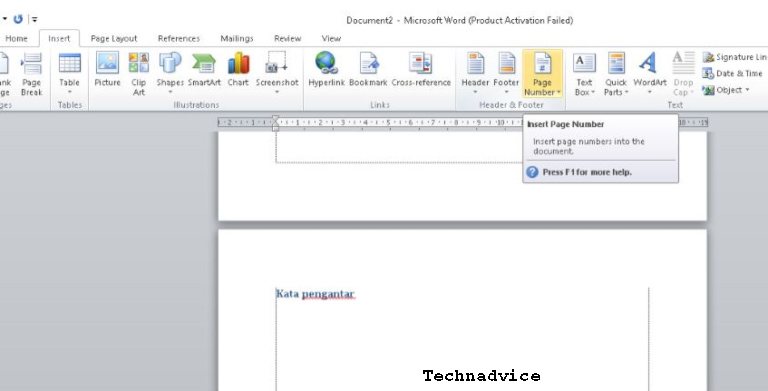
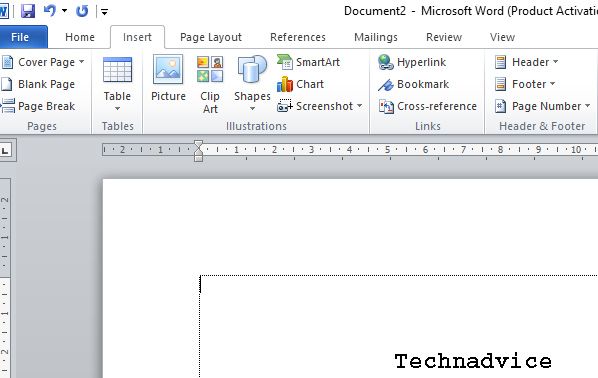
    4. Then if every page has been completed, the next step is to create a page or Page Numbers. The step is that you select the Insert menu, then in the Header and Footer column click Page Number.
      Create Automatic Table of contents

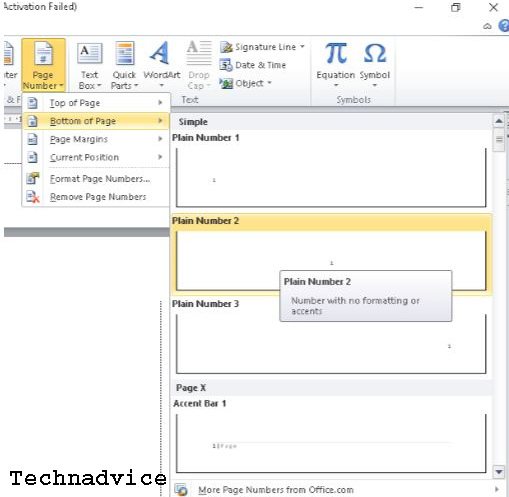
      If you have selected Page Number, you will see that there are several page number options. Here is an example of using page numbers in the bottom center, see the image below.Create Automatic Table of contents

    5. Then the next step is to open the first page where the table of contents will be created, then click Update Table.
      Create Automatic Table of contents

      If you have selected the update table it will appear writing on each chapter of your page.Create Automatic Table of contents

    Note: The following explains how to create an automatic table of contents for page chapters, if you make changes to each page, change titles or add pages, you only need to click on the update table as in the fourth step above.

    The changes you make will appear as shown above. Select Update Page Numbers Only if the table of contents page has not changed, on the title name then select Update Entire Table if there is a change in the title name or the addition of a title on the page.

    #2. Creating Word Pages

    Creating a Page Number 

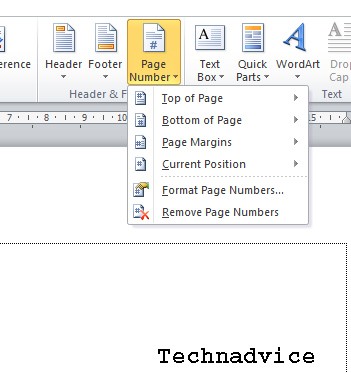
    • Open Microsoft Word, select Insert in the header & footer section, then click page number.
    Creating Word Pages
    • Then select the page number location:
    1. Top of Page, the placement of the page number at the top or header.
    2. Bottom of the Page, placement of page numbers at the bottom or footer.
    3. Page Margins, the placement of the page number of the page margin.
    4. Current Position, the placement of the page number at the cursor position.
      Creating Word Pages
    • Then click the page number according to your wishes
    • If you have closed the header or footer by double-clicking on the inside of the document you can click the Close Header & Footer button.

    Change Page Number 

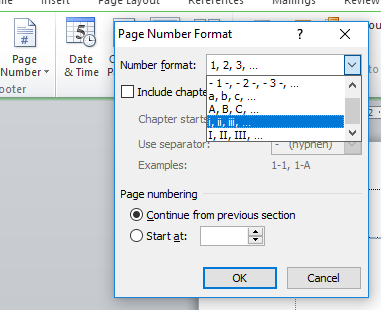
    The example here will change the page number format from 1,2,3 to I, ii, iii.

    • First Double- click on the header or footer on the page number to display the Header and footer Tools.
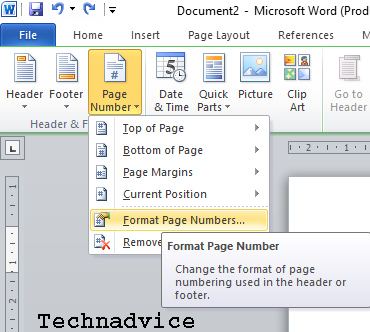
    • Then on the Design tabHeader & Footer, select and click Page Number, then click Format Page Numbers in the selection.
      Creating Word Pages
    • In the Page Number Format box view, in Number format, click the arrow section and select the one you want.
      Creating Word Pages
    • Then click OK.

    Creating Word Page Margins Size

    • Open the Microsoft Word that you are using
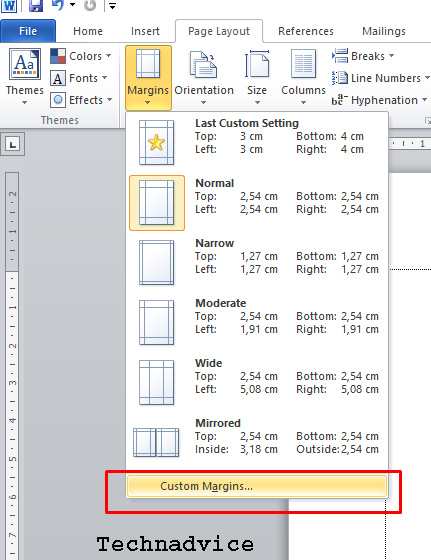
    • Then on the top menu of the word page select page layout.
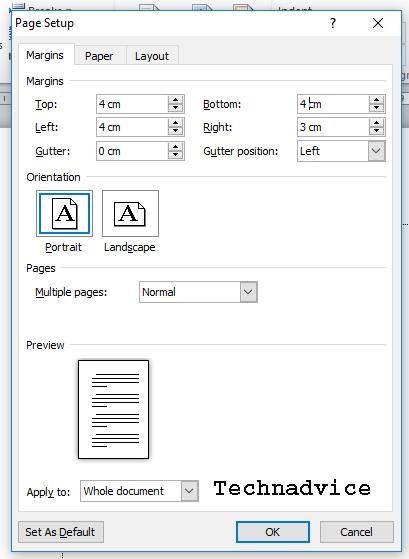
    • If so, there are many choices, just click on the very bottom ” Custom Margins “.
      Creating Word Pages
    • If you have clicked on the customs margins section then you will be shown a setup page.
    • In the page setup section, set the margins to op, left, bottom, right, gutter, and gutter position according to your needs.
      Creating Word Pages
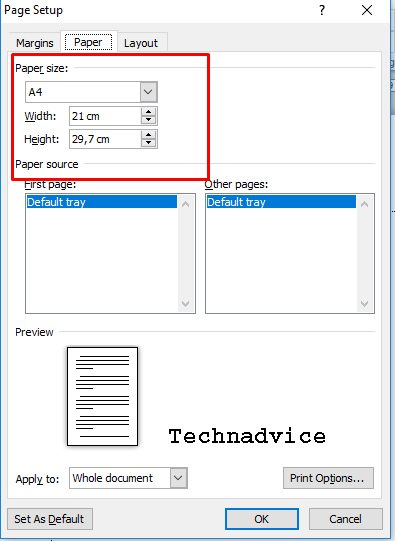
    • Then click paper in the page setup section, to set the paper you are using.
      Creating Word Pages
    • Then click OK.

    Conclusion:

    That’s the discussion on how to automatically create a table of contents and pages in Word, hopefully, it’s useful.

  • 10 Ways to Fix The System Cannot Find The File Specified 2024

    10 Ways to Fix The System Cannot Find The File Specified 2024

    10 Ways to Fix The System Cannot Find The File Specified – A faulty operating system can prevent you from running applications or accessing any files. Speaking of errors, many Windows 10 users have complained about the issue on forums that they can’t access their files because of ‘ The System Cannot Find The File Specified.

    10 Ways to Fix The System Cannot Find The File Specified
    10 Ways to Fix The System Cannot Find The File Specified

    How to Fix The System Cannot Find The File Specified on Windows 10 [2024]

    If you’re experiencing The System Cannot Find The File Specified as an error message, don’t worry. Because this is a pretty standard Windows error. There are various factors that can trigger the ‘The System Cannot Find The File Specified’ error message.

    Read more:

    You may get error messages because your system files are missing or corrupted, files required for certain software are missing or corrupted, disk failure, partition issues, incorrect file information, etc.

    How to Fix The System Cannot Find The File Specified

    Luckily, we have found some of the best methods that can fix the ‘The System Cannot Find The File Specified’ error message in no time. So, here we are going to share the 10 best methods to fix ‘The System Cannot Find The File Specified’ from Windows 10 computers.

    #1. Install Windows Updates

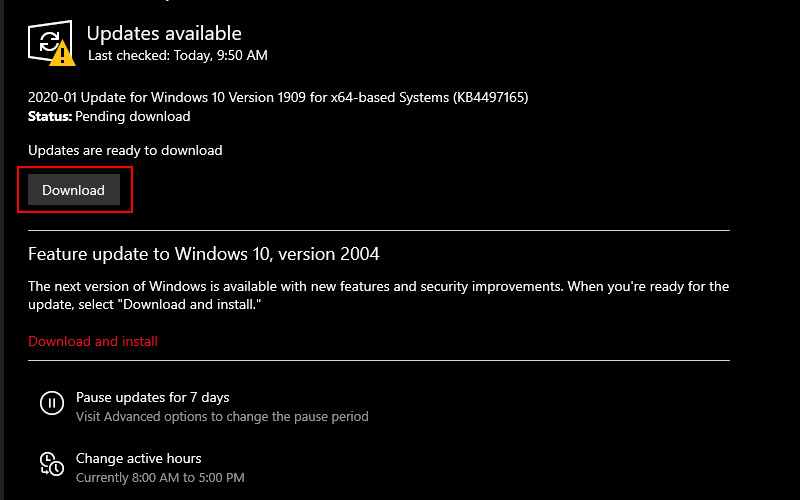
    The ‘The System Cannot Find The File Specified’ error message mostly occurs on older versions of Windows. So, the solution to fixing the error message also lies in installing Windows Update. So, to install pending Windows Updates, follow some of the simple steps listed below.

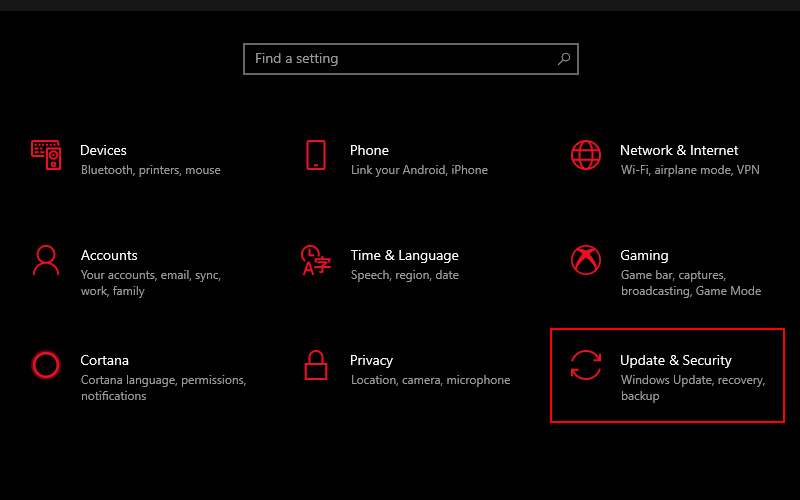
    1. First press Windows Key + I on your keyboard to open Windows Settings.

    2. Once the Settings window opens. There you need to click on ‘ Update & Security ‘.

    Install Windows Updates
    Install Windows Updates

    3. In the next window, you need to click on the ‘ Check for Updates ‘ button.

    Install Windows Updates
    Install Windows Updates

    Now the Windows update utility will check for pending updates, if it finds it, it will install them on your computer.

    #3. Update Drivers

    If you get the error message ‘The System Cannot Find The File Specified’ due to a driver issue, then you need to update the old driver. You can either uninstall & reinstall the drivers from the Device Manager, or you can rely on third-party tools to update the drivers. We highly recommend you use a third-party tool to update all drivers, as updating all drivers manually is a troublesome task. So, you can install an application to update all your drivers such as Driver Booster.

    #4. Use System File Checker

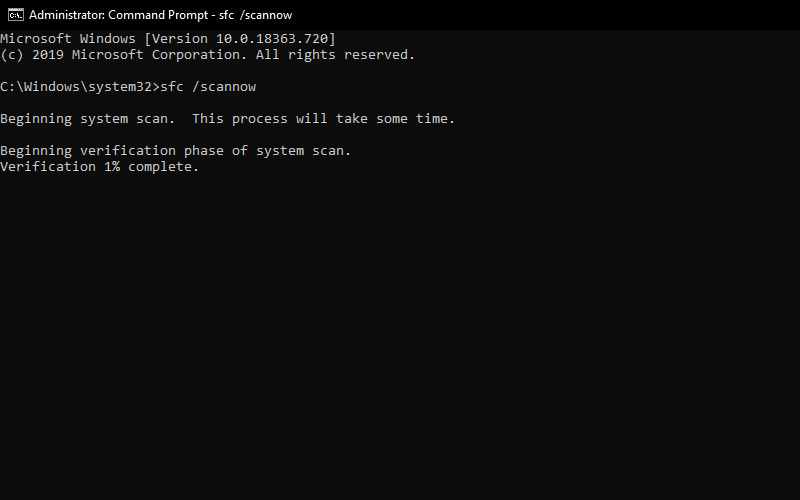
    In this method, we need to use the Command Prompt to use the System File Checker (SFC) to fix the error message ‘The System Cannot Find The File Specified’. So, let’s check how to use the SFC command in CMD.

    1. First press Windows Key + R then type cmd then press CTRL + SHIFT + ENTER to open Command Prompt in Administrator mode.

    2. You will now see a Command Prompt window open. There you have to enter the following command ‘  sfc /scannow‘ and press Enter.

    Use System File Checker
    Use System File Checker

    3. Now, wait for the System File Checker (SFC) utility to complete the scan.

    Make sure to restart the computer after the scan is complete. This will most likely fix the ‘The System Cannot Find The File Specified’ error from your computer.

    #5. Use CHKDSK Scan

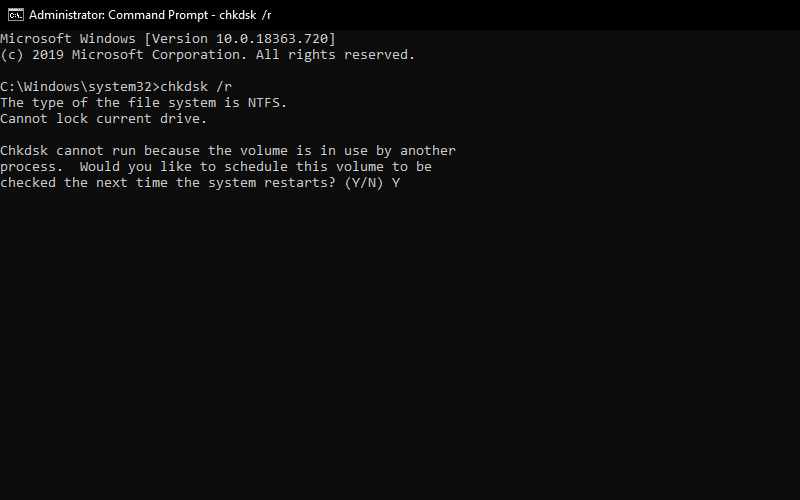
    If the SFC command still doesn’t work to solve the problem. You can run CHKDSK to scan for corrupted files and fix the “The System Cannot Find The File Specified” error. To use it, follow the steps below.

    1. Just as before, open Command Prompt in Administrator mode.

    2. Now enter the following command in Command Prompt chkdsk /r

    Use CHKDSK Scan
    Use CHKDSK Scan

    3. Press the Enter key to run this command and it will automatically fix the error.

    4. After this command is finished, restart your PC.

    #6. Check System Log

    If all the above methods still fail to fix The System Cannot Find The File Specified from your computer, then we suggest you check the system log file. Here are the steps you need to follow.

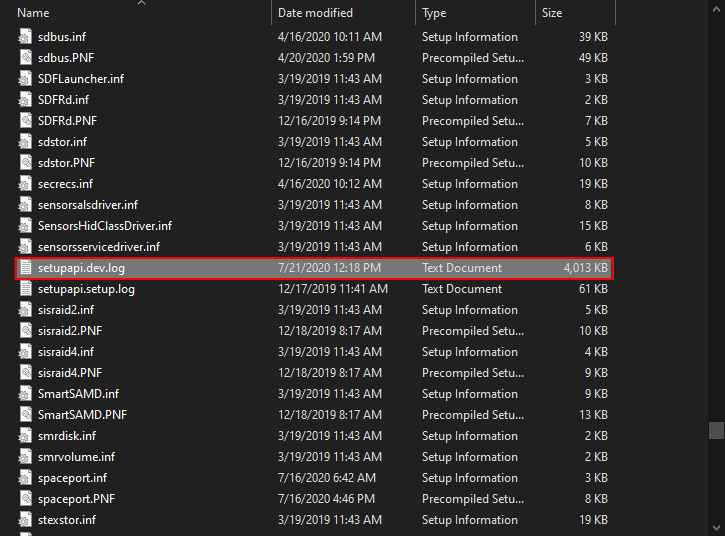
    1. Go to the C:/Windows/INF file  directory  and open the INF folder folder
    2. In the INF folder, find the setupapi.dev.log file and open it.
    3. Now press  CTRL + F search for cannot find the file ‘  and press Enter.
    4. Now you will get the missing files. Simply, copy & paste to the Windows/INF folder.

    Check System Log
    Check System Log

    Now restart your computer to fix ‘The System Cannot Find The File Specified’ from Windows 10.

    #7. Edit Registry File

    This is one of the methods you can try to fix the “The System Cannot Find The File Specified” problem.

    1. Press  Windows Key + R  simultaneously to open the Run Dialog box then type Regedit and press  Enter.

    Note: Modifying the registry comes with certain risks, you should export the registry first to make a backup. Click  File  >  Export to create it.

    3. After you have backed up the registry, navigate to  HKEY_LOCAL_MACHINE\SOFTWARE\Microsoft\Windows\CurrentVersion.

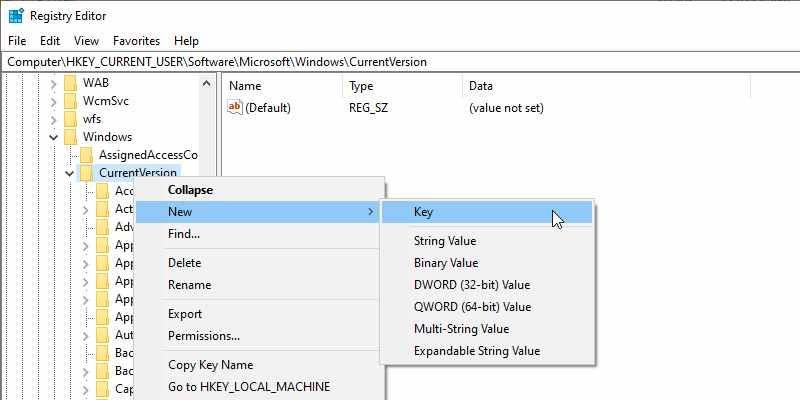
    4. Open the key and look for the RunOnce button. You can create it if this key doesn’t exist. Click the CurrentVersion button and choose  New  >  Key from the menu.

    Edit Registry File
    Edit Registry File

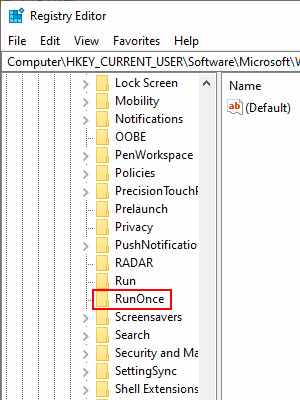
    5. Type  RunOnce as the new key.

    7. Check if the RunOnce key is there.

    Edit Registry File
    Edit Registry File

    8. Exit Registry Editor and restart your PC.

    #8. Delete ProfileImagePatch Key

    Well, if you are still getting the error message ‘The System Cannot Find The File Specified’ when creating system images or backups, then you need to try this method. The problem occurs when Windows caches the old Profile image path. So, follow this method to fix the ‘The System Cannot Find The File Specified’ error message from Windows 10.

    1. First, press Windows Key + R to open the Run Dialog box. In the RUN Dialog box, enter ‘Regedit and press Enter.

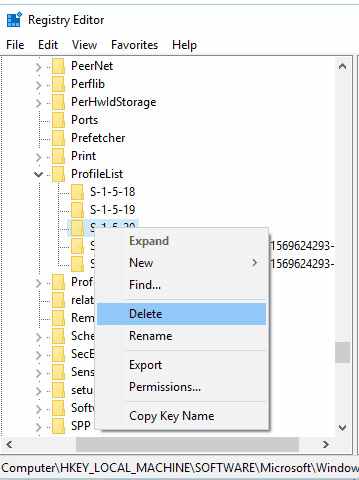
    2. Now in the Registry editor, you need to browse to the HKEY _LOCAL_MACHINE\\SOFTWARE\\Microsoft\\Windows NT\\CurrentVersion\\ProfileList patch

    3. Now go to the ProfileLisk key and check all sub-keys if they have the ProfileImagePatch value in the right-side panel.

    4. If you find a sub-key that has a ProfileImagePath value, delete it.

    Delete ProfileImagePatch Key
    Delete ProfileImagePatch Key

    Now simply restart your computer and ‘The System Cannot Find The File Specified’ will be fixed.

    #9. USB Format

    Maybe The system cannot find the file specified error may occur while inserting your USB flash disk, for that can format your drive to fix the problem. Follow the steps below to do it.

    Note: This will erase all the data on the USB flash drive, so make sure to back up your USB to avoid data loss.

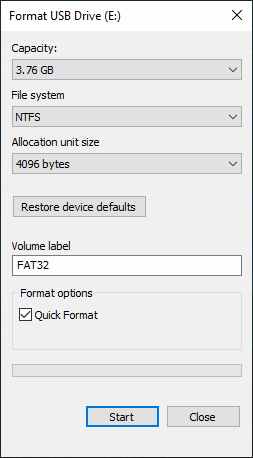
    1. First open This PC  > right-click on your USB flash drive then click  Format.

    2. Make sure the Quick Format option is checked.

    3. Click  Start to format it.

    USB Format
    USB Format

    #10. Scan for Virus And Malware

    Malware and Viruses sometimes damage important system files. So, the System cannot find the specified file errors can also occur due to threats and viruses. So, if you are using an Antivirus program, then run a deep scan. If you don’t have an antivirus application, you can try an application like Malwarebytes to remove virus and malware threats from your computer.

    Easy Solution To Fix The System Cannot Find The File Specified

    Although the fixes given earlier are a bit technical and if you don’t have any technical computer knowledge then it will be difficult for you to do. So, to make this process easier for you, try installing the PC Repair Tool application.

    It is one of the best repair tools that can easily deal with all kinds of Windows-related problems such as registry errors, DLL errors, driver issues, update errors,  and more.

    And most importantly, you don’t have to type any commands and do anything manually. It will automatically scan, detect, and fix errors and also improve the performance of your PC.

    Read more:

    Conclusion:

    So, here are some of the best methods to resolve the ‘The system cannot find the file specified error’ from a Windows 10 computer. Make sure to carry out the repairs one by one carefully and hopefully one of these methods can help you fix your problem.