Category: Guide

Guide – Here you can find Reviews-related updates, How-to, Tips & Tricks, information, and more.

  • 6 Ways to Fix Content File Locked on Steam 2024

    6 Ways to Fix Content File Locked on Steam 2024

    6 Ways to Fix Content File Locked on Steam – Are you Steam users facing locked content files? If so, surely this problem is preventing you from updating the game so you can’t play it without installing the game update.

    6 Ways to Fix Content File Locked on Steam
    6 Ways to Fix Content File Locked on Steam

    How to Fix Content File Locked on Steam 2024

    But you don’t have to worry anymore because the admin will show you the solution to how to solve the content file locked error on Steam and then you can follow the steps and fix it. But before that, let us have a quick overview of the matter.

    Read more:

    What Is The Content File Locked Problem on Steam

    This error occurs when a user tries to update any game on Steam. This may be because Steam cannot write any file updates to the hard disk. So, when it fails to update the file, it will throw this error.

    In addition, users complained that they found csgo content file locked, pubg content file locked, space engineers content file locked, dota 2 content file locked, paladins content file locked, smite content file locked, miscreated content file locked, payday 2 content file locked, ark content file is locked in this game.

    This error is not limited to the games mentioned above. It can happen in any game on Steam. Fortunately, here the admin will teach you how to fix locked content files on Steam.

    How to Fix Content Files Locked On Steam

    Now without wasting any more time, let’s move on to the content file-locked solution.

    #1. Find And Repair Corrupt Files
    Find And Repair Corrupt Files
    Find And Repair Corrupt Files

    There might be corrupted files and problems might occur because of these files. You can try to find and delete the corrupted file and then Steam will download it again automatically.

    Follow the steps below to do this: 

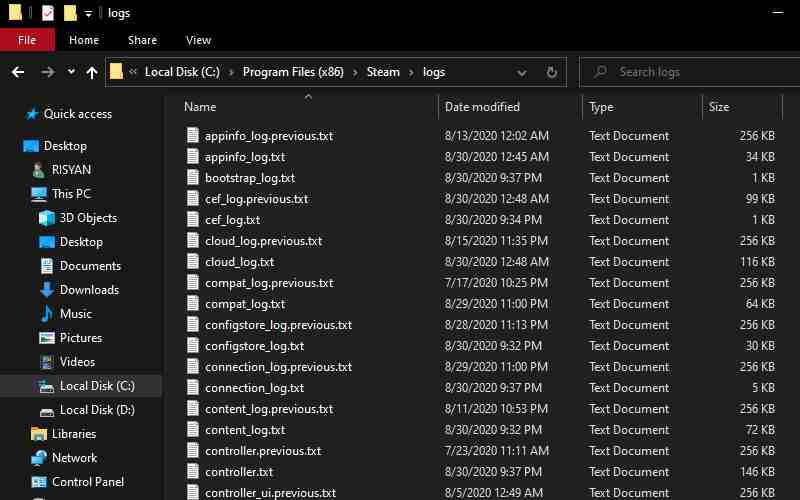
    1. The first step is to close Steam and navigate to your Steam directory. Most are located in C:/Program Files (x86)/Steam. At the time of installation, if you have chosen another location then you have to navigate to it.
    2. Now go to the ‘ logs ‘ folder and open ‘ txt ‘.
    3. Now, after opening the file, go to the bottom of the text file and look for the latest error.
    4. There may be various errors shown here with date and time, APPID, and error description.
    5. Now, you have to navigate to the root of the mod folder and delete it.
    6. Now, try restarting Steam and you will see that Steam is asking for an update because you have deleted the files. Update and then check if the problem is resolved or not.

    #2. Move Steam Installation And Game Files
    Move Steam Installation And Game Files
    Move Steam Installation And Game Files

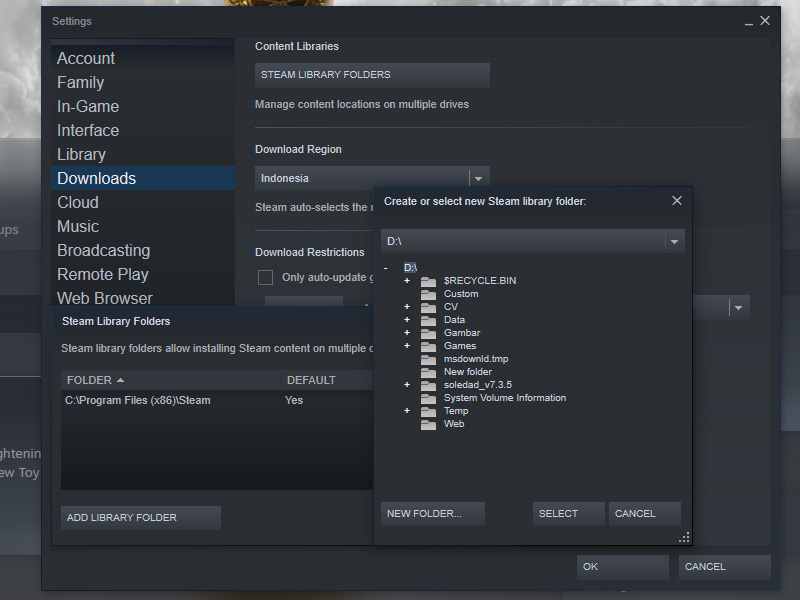
    Another solution is to relocate the Steam Installation and Game files. Relocating Steam to a new location may fix the problem so let’s do it.

    Follow the steps below:

    1. Open Steam and click Settings.
    2. Click on ‘ Download ‘ and click on ‘ Steam Library Folders ‘.
    3. Now, it’s time to add a new path for Steam, so click on ‘ Add Library Folder ‘ and add a new path.
    4. Now, you have to move the file from the current location to the new location.
    5. Close Steam now.
    6. Now, open the current Steam location on the C drive (C:\Program Files\Steam).
    7. Cut all the files and folders from here and paste them into the new location you have decided on.
    8. Now, you have to launch Steam again and log into your account.

    Now, if you are facing any problems while migrating files and folders from their previous location to a new location or after launching them again, have a look at the below steps and follow them.

    1. The first step is to close Steam.
    2. Now, go to the location where you have moved all the files and folders, i.e. the new location.
    3. Now, find the ‘SteamApps’ folder and move it from here to your desktop.
    4. Now, you have to take the hard step of Uninstalling Steam. You can do this by going to the Control panel–> Programs and features then right-clicking Steam and clicking Uninstall. This will remove Steam from your system.
    5. Now, install Steam again.
    6. Now, move the SteamApps folder to the new directory where you just installed the game. With this step, all games and saved data will be back with you.
    7. Now, open Steam and log into your account.
    8. Now, check the status of the problem.

    #3. Reset Winsock
    Reset Winsock
    Reset Winsock

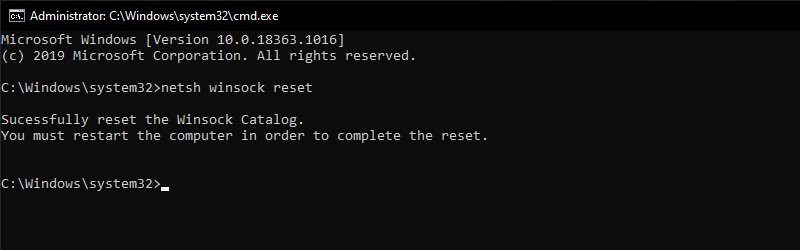
    The problem may occur because of the Winsock catalog. Follow the steps below to run the command to reset Winsock.

    1. Type run in the Windows search box and right-click the first result that appears. Click Run as administrator.
    2. Now, type netsh Winsock reset in the Run box and hit enter.
    3. The command will run and then restart your system and check if the problem is resolved or not.

    #4. Check Disk Scan
    Check Disk Scan
    Check Disk Scan

    Oftentimes, the game and its files are perfectly fine but the Hard disk where the files are stored is corrupted. There may be bad sectors on the drive and therefore certain parts of the disk cannot be accessed. Disk speed slows down due to bad sectors.

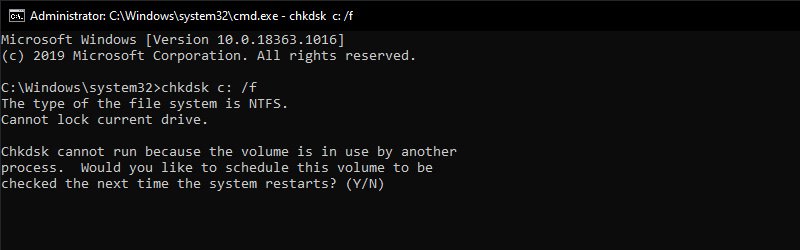
    Now, you need to check if the problem is related to your hard disk. You can try running a scan using “Disc Check” to check the drive for bad sectors. Follow the steps below to do this:

    1. Press Windows Logo key + R type cmd in it and press Enter.
    2. Type “ chkdsk c: /f ” and run the command by pressing the enter key.
    3. Now, press “ Y ” and it will confirm the disk scan.
    4. Now, the disk scanning process will start and you will be notified if there is a problem on the hard disk or is it fine.
    5. After the disk scan is complete, check if the problem is still there or is it solved.

    #5. Run Steam As an Administrator
    Run Steam As Administrator
    Run Steam As Administrator

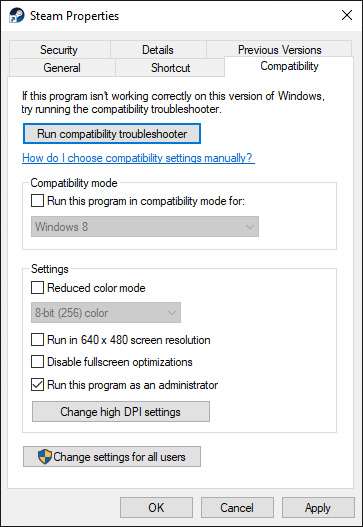
    Let’s try running Steam as an administrator and see if the problem persists or goes away. You have to grant full access to Steam to be able to access all the folders and files. If access is not granted, the message ” Content File Locked ” will appear. Follow the steps below and check if the issue is resolved or not.

    1. The first step is to right-click on the Steam icon and select the “ Properties ” option.
    2. Now, the Properties window will open and you have to click on the “ Compatibility ” tab.
    3. Now, there will be an option to “ Run as Administrator “. Put a checkmark.
    4. Now, click on Apply and Ok so the changes will be saved.
    5. Now, fire up Steam and see what happens.

    #6. Disable Antivirus

    Antivirus might cause the problem. It might block the work you want to do, so try to disable the antivirus until you update the game and then you can turn it back on.

    Disabling antivirus is easy. You just need to go to the Antivirus dashboard and look for the Disable option. Disable for 30 minutes or more. You can also search the documentation on the antivirus site to disable the antivirus you are using.

    Read more:

    Conclusion:

    So those are some ways to overcome Steam Content File Locked. So follow the above solution properly and fix the problem.

    Note: If none of the above methods have solved the problem for you, we recommend using the Restore Repair Tool which can scan the repository to replace corrupted and missing files. This works in most cases, where the problem stems from a corrupt system. Restore will also optimize your system for maximum performance. You can download Restore.
  • 9 Ways to Fix No WiFi Networks Found Windows 10 PC 2024

    9 Ways to Fix No WiFi Networks Found Windows 10 PC 2024

    9 Ways to Fix No WiFi Networks Found Windows 10 PC – WiFi networks that are within range of your PC appear automatically in the list of available networks. If you have a password to one of the available networks, you can connect it. If the network isn’t secured, you don’t need a password for it just connects.

    9 Ways to Fix No WiFi Networks Found Windows 10
    9 Ways to Fix No WiFi Networks Found Windows 10

    How to Fix No WiFi Networks Found Windows 10 PC Laptop 2024

    If you have a list of available networks open and you see the No WiFi networks found message when you are supposed to see at least one network, here are a few things you can try to fix the problem.

    Read more:

    Before you proceed with any of the fixes in this article, take the following actions, and check whether the network appears or not.

    • Restart your PC.
    • Please check if other devices in the house (tablets, phones, etc.) can detect other Wi-Fi networks
    • Restart your computer and reset your Wi-Fi router
    • If you’re using a laptop, make sure your physical Wi-Fi switch is turned on
    • Check if your Wi-Fi is active by going to the Start button and then going to Settings. Click on Network & Internet and then check whether Wi-Fi is active or not.
    • Make sure airplane mode is disabled. To do this, go to the Start button and click on Network & Internet. Open Airplane Mode and make sure it is not active.

    If no network appears, here’s how to fix No WiFi Networks Found in Windows 10:

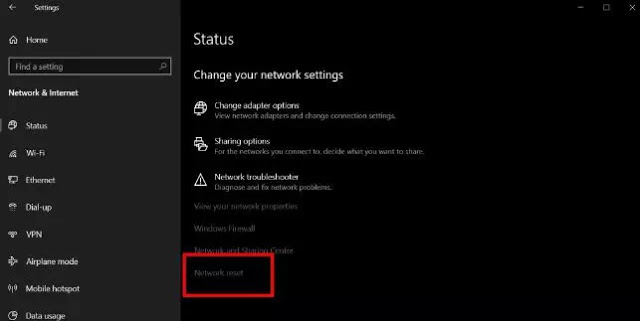
    #1. Reset network adapters

    Your network adapter may be experiencing a problem that a system restart cannot fix. In that case, resetting it is a good idea.

    1. Open the Settings app.
    2. Open the Network and Internet group.
    3. Select the Status tab.
    4. At the bottom, click the Network Reset option.

    Reset network adapters
    Reset network adapters

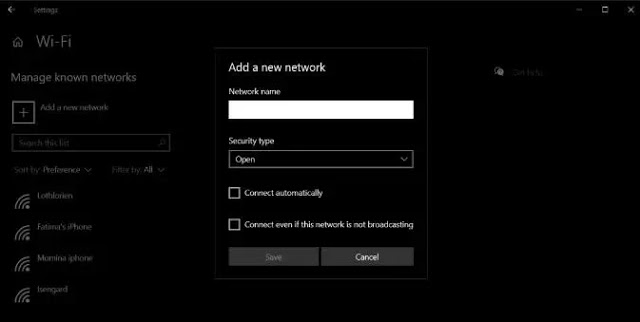
    #2. Hidden SSID

    The SSID or name for the network you want to connect to may be hidden. To be able to connect, you need to contact your system administrator and find out the name and password. Once you know both of them, you can connect to the network.

    1. Open the Settings app and go to Network and Internet.
    2. Select the WiFi tab.
    3. Click Manage known networks.
    4. Click Add a new Network.
    5. In the window that opens, enter the network name, select the security type (check with network admin), and enter the password.

    Hidden SSID
    Hidden SSID

    #3. Test network signal

    WiFi networks have a limited range and the range is determined by the router used. In general, a typical home router has a maximum range of approximately 50 meters. If your Windows 10 PC is far from the router, then it can’t get a strong enough signal, it won’t show the network.

    1. Move your PC as close to the router as possible.
    2. Check if the network appears in the list of available networks.
    3. If yes, start moving slowly until the network disappears or you return to where it was.
    4. Connect to the network.

    This solution is temporary as your problem is basically from a weak signal. Try moving a place closer to the router, or try installing additional access points that can improve the router signal.

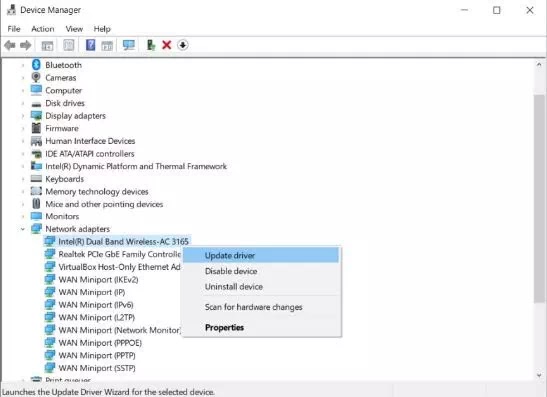
    #4. Update the network adapter driver

    Outdated network drivers can prevent Windows 10 from reading available networks. Check and install available driver updates for your network adapter.

    1. Open the Device Manager.
    2. Open the Network Adapters group and expand it.
    3. Right-click on your network adapter and select Update driver from the context menu.
    4. Install any available updates, and start restarting your PC.

    Update the network adapter driver
    Update the network adapter driver

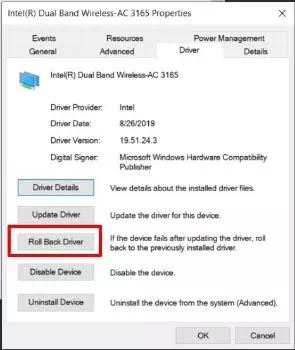
    #5. Downgrade the network driver

    It is possible that a driver update was installed and that is what is causing the problem. In this case, you will have to roll the driver back to an older version.

    1. Open the Device Manager.
    2. Open the Network Adapters group and expand it.
    3. Right-click on your network adapter, and select Properties.
    4. Open the Driver tab.
    5. Click the Roll Back Driver button.
    6. Restart your PC.

    Downgrade the network driver
    Downgrade the network driver

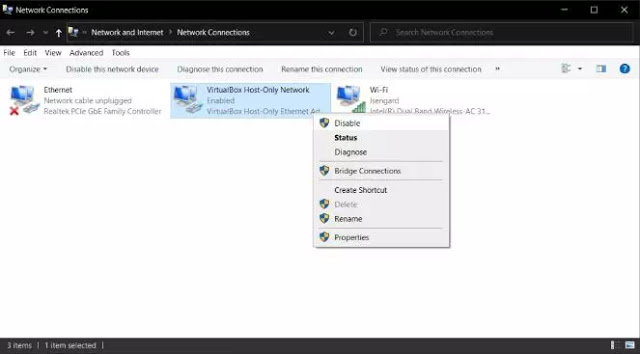
    #6. Uninstall / disable virtual network adapters

    Some applications may install a virtual network adapter on your system. A common example of an application that does this is a virtualization application, for example, VirtualBox. Removing it, or disabling it can fix your network problems. To disable virtual network adapters:

    1. Open Control Panel.
    2. Open Network and Internet.
    3. Select Network and Sharing.
    4. Click Change adapter settings.
    5. Right-click the virtual network adapter, and select Disable from the context menu.

    To uninstall a virtual network adapter, uninstall the application that was installed it.
    1. OpenControl Panel.
    2. Open Programs.
    3. Select Uninstall a program.
    4. Open the list of installed applications, select the one that installs the virtual network adapter, and click the Uninstall button.

    Uninstall disable virtual network adapters
    Uninstall disable virtual network adapters

    #7. Disable VPN

    The VPN app can modify network settings on a Windows 10 PC and the modifications might result in your system no longer detecting the wireless network.

    1. Turn off the VPN service you are using, restart the system, and check the network. 2. After the network appears, connect to one and then enable the VPN service again. 3. If the connection is lost or stops working after activating the VPN, check if the service you are using is prohibited by your ISP or in your country. 4. Try using a different VPN service or try using a VPN that only controls your browser or certain apps rather than network traffic for the entire system.

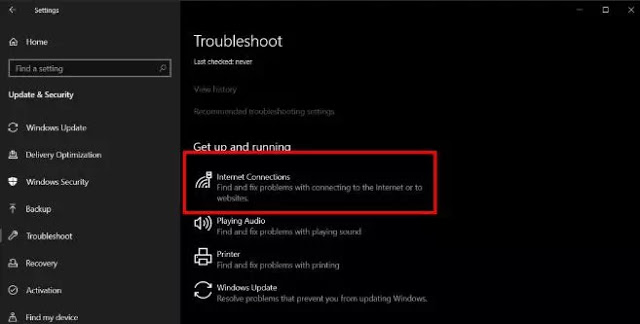
    #8. Run the Internet Connections troubleshooter

    The Internet Connections troubleshooter might be able to find out and fix any faulty settings or those that have been corrupted by other applications and prevent Windows from reading the available networks.

    1. Open the Settings app.
    2. Open Update and Security.
    3. Select the Troubleshoot tab.
    4. Select and run the Internet Connections troubleshooter. It might force Windows 10 to show you available networks.

    Run the Internet Connections troubleshooter
    Run the Internet Connections troubleshooter

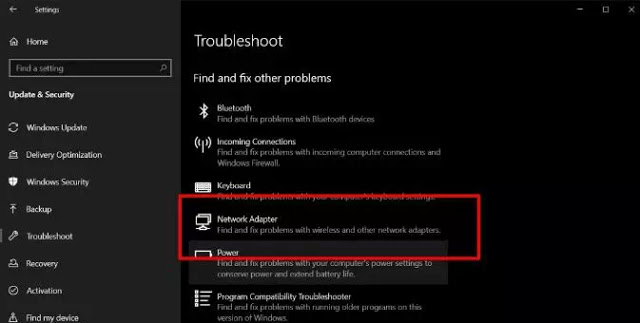
    #9. Run the Network adapter troubleshooter

    Like an Internet Connections troubleshooter, a Network adapter troubleshooter can also help solve No WiFi Networks Found in Windows 10.

    1. Open the Settings application.
    2. Open the Update and Security group.
    3. Select the Troubleshoot tab.
    4. Select and run the Network adapter troubleshooter.

    Run the Network adapter troubleshooter
    Run the Network adapter troubleshooter

    Read more:

    Conclusion:

    Those are some solutions to fix the lack of WiFi networks found in Windows 10. I hope that one of the solutions above can help you solve this problem. If not, you may have to check if the hardware on your PC is damaged. A sign of hardware damage is if other devices can connect to the network you are trying to connect to but your PC is not connected.

  • 2 Ways to Root Oppo A3s without PC (100% Working) 2024

    2 Ways to Root Oppo A3s without PC (100% Working) 2024

    2 Ways to Root Oppo A3s without PC (100% Working) – If you have an Android phone and want to root Oppo A3 without a PC, Computer, or laptop safely then you are in the right place. This article will guide you to Root Oppo A3s.

    2 Ways to Root Oppo A3s without PC (100% Working)
    2 Ways to Root Oppo A3s without PC (100% Working)

    How to Root Oppo A3s without PC (100% Working) 2024

    A 1.8GHz octa-core processor powers Oppo A3 and comes with 2GB RAM. The phone packs 16GB of internal storage which can be expanded up to 256GB via a microSD card.

    Read more:

    Regarding the camera, the Oppo A3 packs a 13-megapixel main camera on the back and an 8-megapixel front shooter for selfies.

    Why Root Oppo A3s?  

    Root your Android device, and you can do as much customization on your device, Just as you can install Custom ROMs, Remove Pre-installed Bloatware, Block Ads in All Apps, Install Incompatible Applications, Change Themes for Your Android,  Increase the Speed of Your Android device, and Battery Life, Add External Storage, and much more.

    How to easily root Oppo A3s without a PC

    Advertisements

    Please choose which root method is suitable for your Oppo phone A3s below:

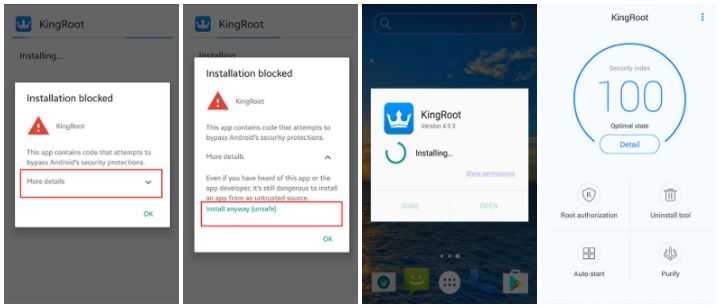
    #1. How to Root Oppo A3s without PC with Kingroot

    • Download the latest version of KingRoot APK.
    • After downloading KingRoot is complete, install  Kingroot APK.
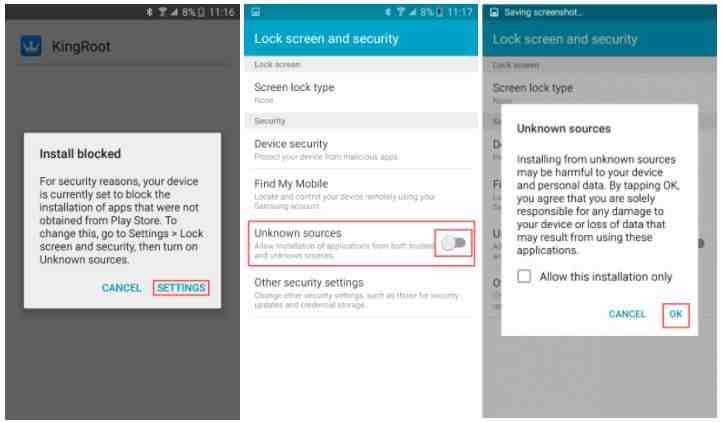
    • If you receive a ”  Google installation blocked  ” message, take the following steps.
    How to easily root Oppo A3s without a PC
    • If you have not set it before ”  install blocked  “, will set a reminder, like the steps in the following picture, if you have set it before, skip this step.
    How to easily root Oppo A3s without a PC
    • On the System installation screen, click ”  install  ” to start the installation, when the installation is complete, click the ” open ” button to start using Kingroot.
    • Click ”  try  ” to enter the main interface, and click the ” get it now  ” button to start rooting.
    • The implementation process is complete and complete, and after that, you will return to the main screen, then Rooting is complete.
    • Lastly, go to Google Play App Store search and Download: Root Checker to Check Root oppo a3s successfully.
    • Done!!

    #2. How to Root Oppo A3s without PC with Kingoroot

    How to Root Oppo A3s without PC with Kingoroot
    • Download the latest version of KingoRoot APK.
    • After Download KingoRoot is complete, install   KingoRoot APK.
    •  If Chrome warns you about KingoRoot.apk, click “OK” to continue.
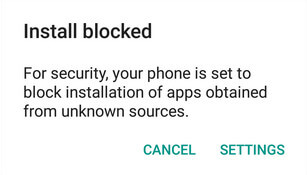
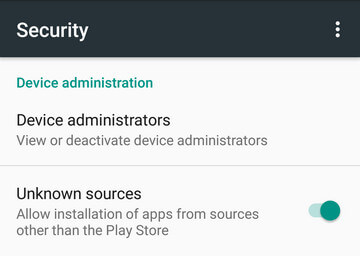
    • Install KingoRoot.apk on your device. If you don’t check “Unknown Sources” in Settings> Security, then during the installation, you will get “Install blocked”, which states that “For security, your phone is set to block the installation of applications obtained from unknown sources”.
    How to Root Oppo A3s without PC with Kingoroot
    • Just follow the phone instructions and install Kingo Root on your device and allow installation from “Unknown Sources”.
    How to Root Oppo A3s without PC with Kingoroot
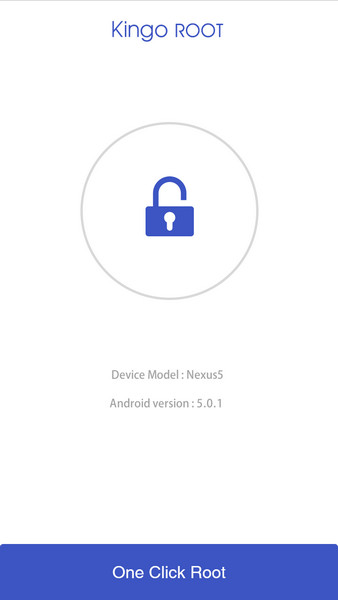
    • Launch the “Kingo ROOT” application and Click  One Click Root to start rooting.
    • Wait a few seconds for the result screen to appear.
    • Finally, go to Google Play App Store search and Download: Root Checker to Check Root is successful, as the following image represents success.
    • Done!!

    Read more:

    Conclusion:

    This is the explanation of 2 ways to root oppo A3s without a PC (100% Working), Well, I hope this article is helpful for you.

  • Top 10 Best Online Video Downloader Applications 2024

    Top 10 Best Online Video Downloader Applications 2024

    Top 10 Best Online Video Downloader Applications – Watching videos is one of the fun entertainment activities. Especially now that there is a lot of interesting video content that is a shame to miss.

    Top 10 Best Online Video Downloader Applications
    Top 10 Best Online Video Downloader Applications

    Best Online Video Downloader Applications 2024

    Because, apart from being mere entertainment, many videos are useful and provide interesting information. Well, watching videos can be done anywhere online.

    Read more:

    But there are times when we also want to save the video and watch it offline. Either for reasons to save internet quota or to watch in special places, such as on an airplane.

    Therefore, to save videos offline, many of the best video download applications appear.

    Apart from just downloading videos, these applications also have a variety of useful features, such as being a video converter.

    For those who are curious about what are the best online video download applications on smartphones, Kuotabro will review some of them. Just take a look at the following reviews.

    #1. YouTube Go

    YouTube Go
    YouTube Go

    The first best video download application comes from Google LLC, namely YouTube Go. As the most popular video channel in the world, of course, there are many interesting videos on YouTube. The presence of YouTube Go is of course good news for content fans on YouTube because they can watch videos offline and without quota.

    One of the interesting features of YouTube Go is that users can choose to watch or download. Including determining the size and quality of the downloaded video. Once downloaded, the video can be stored on the device or SD Card for further viewing anytime and anywhere without an internet quota.

    Unfortunately, the YouTube Go download application is only able to download videos on YouTube. Equipped with simpler features than regular YouTube, users also cannot leave comments or click profiles on YouTube Go. However, YouTube Go is lightweight and compatible with many devices.

    Pros

    • Best YouTube video downloader
    • Lightweight and compatible with many devices

    Cons

    • Can only download YouTube videos
    • Very limited features
    Download on Play Store

    #2. Video Downloader

    Video Downloader
    Video Downloader

    Video Downloader is the best video download application developed by InShot Inc. headquartered in California, USA.

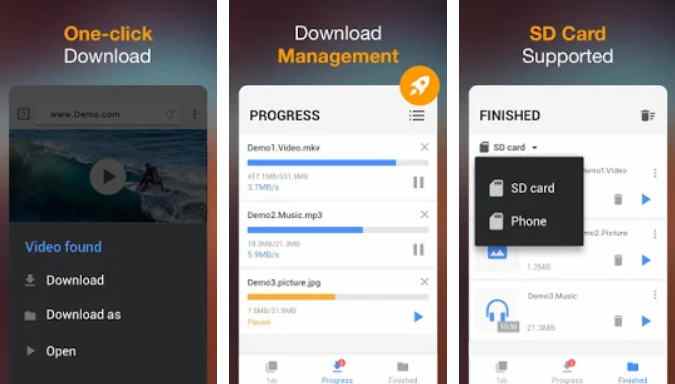
    The Video Downloader application can be used to download videos and even music directly from the internet to your smartphone device. Interestingly, Video Downloader is 100% free.

    Through the features provided by Video Downloader, users can easily download videos. Moreover, there is pause and resume features, a built-in player, a built-in browser, automatic video detection, and can run in the background and can be used to download several videos at once.

    Video Downloader also supports various video formats, such as mp3, m4a, mp4, m4v, MOV, Avi, WMV, even including doc, Xls, pdf, txt, and others. Even so, some features can only be used if the user pays in advance. In addition, there are ads in the application and sometimes the speed is interrupted.

    Pros

    • Can download in the background
    • Equipped with video player features

    Cons

    • The free version of the app has limited features
    • There are ads in the application

    #3. All Video Downloader 2020 – Repost, Download Video

    All Video Downloader 2020 – Repost, Download Video
    All Video Downloader 2020 – Repost, Download Video

    All Video Downloader 2020 is the best video download app launched by Hard Tool Studio.

    Video Downloader 2020 application can be used to download videos from various places including from social media. For example, website URLs, Facebook, Instagram, Twitter, YouTube, and so on.

    The features in All Video Downloader 2020 are also interesting. As there are features built-in web browser, able to download many files at one time, pause and resume, and download in the background. All Video Downloader 2020 also supports many video formats, namely, mp3, m4a, mp4, m4v, MOV, Avi, WMV, and others.

    To download videos from All Video Downloader 2020, users only need to click on the download button and it will be automatically saved on the device. But unfortunately, All Video Downloader has some drawbacks. For example, there are many ads in the application so you can’t download YouTube videos.

    Pros

    • Can download multiple videos at once
    • Equipped with a default browser

    Cons

    • Can’t download YouTube videos
    • Lots of ads inside the app
    Download on Play Store

    #4. Free Video Downloader – private video saver

    Free Video Downloader – private video saver
    Free Video Downloader – private video saver

    Free Video Downloader, an application made by Studio Video Downloader X is also the best video download application.

    Besides being easy, stable, and free, Free Video Downloader is also claimed to have a better level of security. You can download videos on the Free Video Downloader application with just one click.

    Free Video Downloader is also equipped with excellent features. Such as removing watermarks in videos, supporting multi-downloads, converting videos to mp3, video editing support, built-in-browser, and can run in the background. You can download videos from social media like Facebook, Twitter, or IG.

    In addition, Free Video Downloader also supports various video formats. Starting from mp4, m4a, mov, avi, WMV, 3gp, and other video formats. But the Free Video Downloader application also has its drawbacks. The app can’t download videos from YouTube due to policy issues and occasional bugs.

    Pros

    • Support video editing
    • Equipped with a default browser and can download videos on social media

    Cons

    • Can’t be used to download YouTube videos
    • Occasionally there are bugs in the application
    Download on Play Store

    #5. Code

    Code
    Code

    Code is a browser application but focuses more on the function of downloading music, videos, and photos.

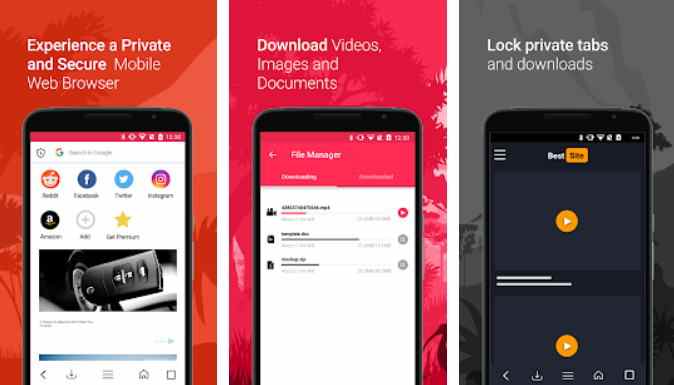
    Mirmary Limited launched Kode as a browser that is safe, lightweight, and capable of playing quality audio and video. The code has also been equipped with VPN, multi-tab, including password protection.

    Well, of course, what makes Kode included as the best video download application is because of its download feature. For example, high download bitrate, a download manager that supports URLs from anywhere, and background downloads. There are also media features, such as a built-in player and the ability to export videos.

    Code also supports many video formats, such as m4a, mp4, m4v, MOV, Avi, WMV, doc, Xls, pdf, txt, and other popular file extensions. But after the latest update, Kode has experienced some speed, application performance, or lag issues, and some users are experiencing problems with the download feature that can’t be used anymore.

    Pros

    • Is a browser with a download manager
    • High download speed

    Cons

    • Less simple and occasionally lags
    • The download feature sometimes doesn’t work
    Download on Play Store

    #6. Top Master Downloader

    Top Master Downloader
    Top Master Downloader

    Top Master Downloader is the best video download application developed by Hoang Nga.

    You can easily download videos and music directly from the internet to your smartphone device. Top Master Downloader can automatically detect videos and download them with one click.

    The features in the Top Video Downloader application are also not inferior to other video download applications. Such as the download manager feature with pause and resume buttons, download in the background screen, support large files and download many files, can be used on many devices, and other interesting features.

    Before downloading a video, you can also see a preview of the video at a glance, and after downloading it can be watched offline. Top Video Downloader can even be used to download videos or music from YouTube. Some of the weaknesses of the Top Video Downloader application are usually related to bugs or application crashes.

    Pros

    • Capable of auto-detecting video
    • Support downloading large files

    Cons

    • Occasionally there are bugs and lags in the application
    • Ads in the application are quite annoying
    Download on Play Store

    #7. BOX Video Downloader

    BOX Video Downloader
    BOX Video Downloader

    BOX Video Downloader is quite popular as one of the best video download applications.

    The application, which was developed directly by the BOX Video Downloader Dev Team, has been downloaded millions of times. Equipped with a built-in browser, you can also browse videos that hit in various formats.

    BOX Video Downloader supports video formats ranging from mp3, m4a, mp4, m4v, MOV, Avi, WMV, and others. Other interesting features offered by BOX Video Downloader also include downloading multiple files simultaneously, private folders, dark mode, background downloads, and various other interesting features.

    Videos from social media, such as Facebook, Twitter, and Instagram, can easily be downloaded with BOX Video Downloader in one click. However, you cannot download videos from YouTube because it is related to the privacy policy. In addition, BOX Video Downloader also has paid features.

    Pros

    • Comes with a built-in browser
    • Able to download multiple videos at once

    Cons

    • Can’t download YouTube videos
    • Many paid features
    Download on Play Store

    #8. Video Downloader for Facebook

    Video Downloader for Facebook
    Video Downloader for Facebook

    As the name implies, the application created by the Photo and Video App called Video Downloader for Facebook can only download videos from Facebook.

    As a result, when you find interesting videos while browsing the Facebook homepage, Video Downloader for Facebook can be the right choice.

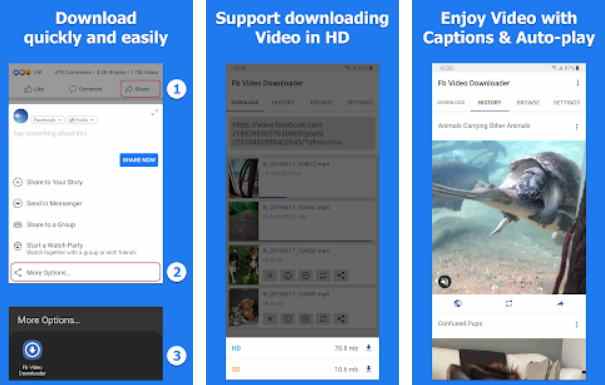
    Through the application, you can download videos from Facebook to save on your device and watch offline. Video Downloader for Facebook works simply. When you open Facebook and see an interesting video, all you have to do is copy the URL link and it will be saved automatically.

    After that, you just need to click the download button on the Video Downloader for the Facebook application. You can also adjust the quality of the video, for example, HD or SD, with different sizes. Unfortunately, the application only functions to download videos from Facebook, so it is very limited.

    Pros

    • Focus on downloading Facebook videos
    • Video quality can be adjusted

    Cons

    • Limited to Facebook videos only
    • Very limited features
    Download on Play Store

    #9. Pix Video Downloader

    Pix Video Downloader
    Pix Video Downloader

    Another interesting best video download application is Pix Video Downloader.

    Developed by Pix Video Downloader Studio, the application is equipped with a . Interestingly, the browser on Pix Video Downloader features browsing privacy, and ad blocking, and is claimed to have 5x the download speed.

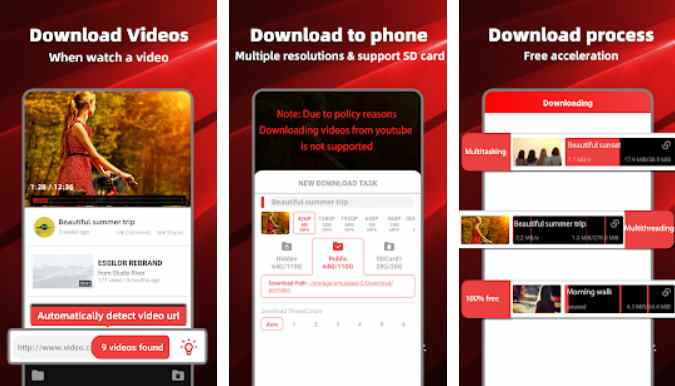
    Pix Video Downloader can also detect videos automatically. In other words, when you visit a website or social media and find a video, you can immediately download it with one click. In addition to detecting videos, Pix Video Downloader is also able to download videos simultaneously.

    Other features include a built-in player, supporting many formats from mp4 to avi videos including even HD, 4K resolutions, and so on. However, there are some websites that Pix Video Downloader can’t open. Apart from that, the Pix Video Downloader app also has a lot of ads and occasional bugs.

    Pros

    • Equipped with automatic video detection
    • Able to download video files simultaneously

    Cons

    • Lots of in-app ads
    • Occasionally there are annoying bugs
    Download on Play Store

    #10. Torrent®

    Torrent®
    Torrent®

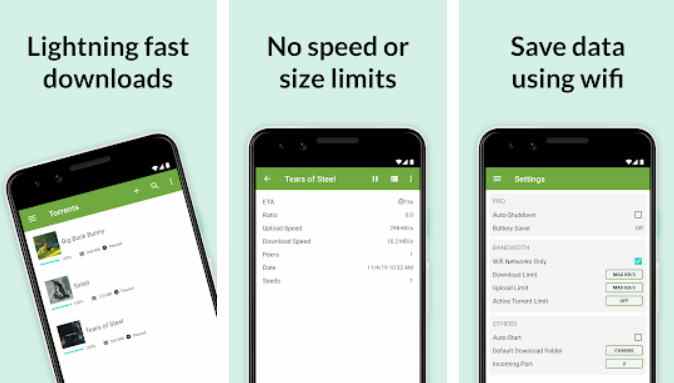
    Lastly is the Torrent® application, which is considered the best video download application.

    However, as the name suggests, the application can only be used to download videos that are torrent files. This means that apart from torrent files, you cannot download them through applications made by BitTorrent, Inc.

    With the Torrent® app, you can download free music, videos, and even movies straight to your smartphone. One of the excellent features of Torrent® is that there is no limit to the speed and size of the file to be downloaded. But to be able to download, you must already have a magnet link from the torrent file.

    Then the magnet link is connected to the Torrent® application and it will automatically download. The torrent method allows video files to be shared between users or peer-to-peer, meaning they don’t come from just one server. However the weakness, security, and flexibility of the video become very dependent on the client.

    Pros

    • Able to download videos and even movies
    • Very high speed

    Cons

    • Limited to torrent files only
    • Less simple and high-security risk
    Read more:

    Conclusion:

    Well, that’s the 10 best video download applications that you can use for free. Please choose one of the applications that you think is the most practical and has full features, according to the type of video to be downloaded.

  • 3 Easy Ways To Find Wifi Password on Laptop 2024

    3 Easy Ways To Find Wifi Password on Laptop 2024

    3 Easy Ways To Find Wifi Password on Laptop – Have you ever really needed a Wi-Fi network but forgot the Wi-Fi password? No need to worry, here you will find how to find out the wifi password on a Windows PC and laptop easily.

    3 Easy Ways To Find Wifi Password on Laptop
    3 Easy Ways To Find Wifi Password on Laptop

    How to Find Wifi Password on Laptop and PC 2024

    There are several ways to find out the wifi password on a PC, one of which is to see the wifi password on the laptop using CMD. Please note, that this is not breaking into other people’s wifi networks, more precisely, you can see the wifi passwords that were previously stored on your Windows laptop.

    Read more:

    Apart from going through the command prompt, you can also see the wifi password on the PC through the control panel, precisely in the network settings. Usually, Windows 7 uses the control panel method, while Windows 8 and Windows 10 use cmd to see the wifi password.

    Best and Easy Ways To Find Wifi Password on Laptop and PC

    How to see the wifi password is quite easy, with this method, you can see any wifi password. You simply follow the following steps below.

    Only by using the Command Prompt (CMD), you can see the wifi password on the laptop. Keep in mind again that this guide is not breaking into other people’s wifi, but only looking at the saved wifi passwords.

    You can apply how to find this wifi password using Windows 7, Windows 8, and even Windows 10.

    Viewing WIFI Password on Windows

    In Windows, the system saves the previously connected wifi password. In Windows 7 or earlier, you can simply open the wireless profile saved in the Network and Sharing Center.

    Whereas in Windows 8 or Windows 10, you have to use the Command Prompt to find out the wifi password that has been connected.

    #1. Knowing Wifi Password in Windows 7

    Knowing Wifi Password in Windows 7
    Knowing Wifi Password in Windows 7

    Windows 7 already has a feature to see the wifi passwords that have been connected. The connected wifi password will usually be stored on the Windows system.

    Here’s how to see the wifi password:

    1. The first step is to open the Network and Sharing Center.
    2. Click the Manage Wireless Networks menu in the left sidebar.
    3. A list of networks that have been connected will appear.
    4. Double-click on the network name and select properties.
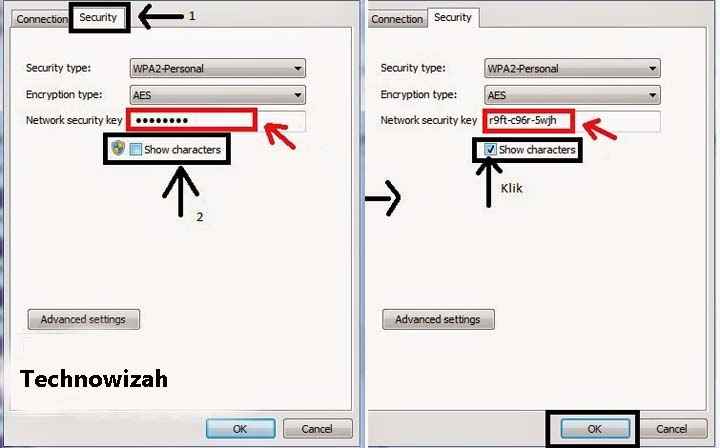
    5. Go to the Security tab and check the Show characters box.
    6. Then you will see the wifi password.

    Very easy isn’t it? You can use this method for all wifi networks that have ever been connected to your PC or laptop. In only 6 steps, you have managed to find out the wifi password.

    #2. View Wifi Password in Windows 8 and 10

    View Wifi Password in Windows 8 and 10
    View Wifi Password in Windows 8 and 10

    In Windows 10 and Windows 8, you need to use the command in cmd to see the wifi password. To do this, follow the following guide below.

    How to find out the wifi password:

    1. Click on the Start button and select Command Prompt.
    2. Type the following command:
      netsh wlan show profiles
    3. You will see a list of all the WiFi networks you have ever connected to.
    4. To see the wifi password type the following command, do not forget to replace namawifi with the wifi name you want to see her password.
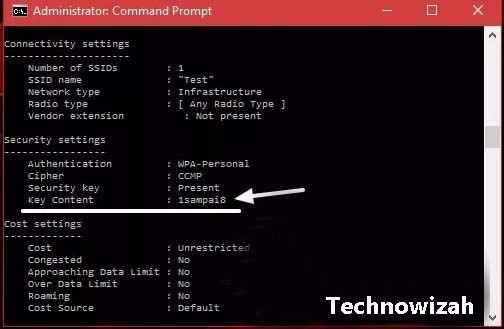
      netsh wlan show profile name=namewifi key=clear
    5. Then you will see Key Content which is the wifi password.

    #3. View the connected Wi-Fi password on the PC

    If you want to share the wifi password with your friends but forget the wifi password that is currently connected, you don’t need to worry. These easy steps will help to see the wifi password that is currently connected to your laptop.

    1. Right-click the small WiFi icon on the taskbar.
    2. Click Open Network and Sharing Center.
    3. Then click on the name of the WiFi network you are currently connected to.
    4. Just click Properties. Then move to the Security tab and check the Show Characters box.
    5. After the show character box is checked, you can be sure to see the wifi password.

    Cause Wi-fi is Not Connected

    If you fail to connect to wifi using the tutorial above, maybe the wifi password has been changed by someone. Windows only save wifi passwords only when you connect wifi.

    So if at any time the wifi password has been changed, then you have to break the new wifi password first.

    Windows, systems can also implement automatically connect to a wifi network. If the wifi password is still fixed and not changed, you can automatically be connected to the wifi network.

    And vice versa, if the wifi password has been changed, you cannot connect automatically even though you have activated the automatic connection setting.

    Read more:

    Conclusion:

    There are several ways to find the Wi-Fi password on a laptop, such as Windows 7, 8, and 10, via CMD and control panel settings.