Category: Guide

Guide – Here you can find Reviews-related updates, How-to, Tips & Tricks, information, and more.

  • PS2 Emulator for PC and Android and How to Use It 2024

    PS2 Emulator for PC and Android and How to Use It 2024

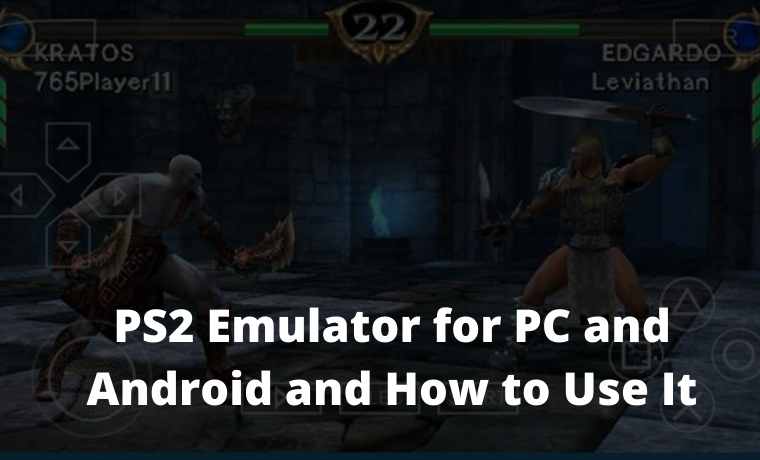
    PS2 Emulator for PC and Android and How to Use It – An easy way to play all PlayStation 2 games using only the PS2 emulator. In addition to PCs/laptops, currently, there is a Playstation 2 emulator for Android.
    PS2 Emulator for PC and Android and How to Use It
    PS2 Emulator for PC and Android and How to Use It

    PS2 Emulator for PC and Android and How to Use It

    The presence of emulators, both for PC and Android, allows us to play a large number of games. So, we won’t get bored playing the same type of game.

    Read more:

    We can also play Playstation 2 games using the PS2 emulator on Android and PC / laptop. Currently, there are even many PS2 Android game download sites that you can access.

    We can play almost all PlayStation 2 game titles using an emulator. To play it, there is even a free emulator available.

    PS2 Emulator Recommendations for PC / Laptop and Android

    PS2 Emulator Recommendations for PC Laptop and Android

    For those of you who want to play it, we will share some of the best emulators here.

    There is also a full BIOS PS2 emulator download file for Android. Well, here’s the full review:

    #1. Damon PS2 Pro (Android)

    To play PS2 games in this application, unfortunately, you have to spend money. Because Damon PS2 Pro is a paid application.

    However, the features don’t disappoint either. This application is claimed to have a better speed than the free emulator.

    #2. PCSX2 (PC / Laptop)

    This application is very popular among PC game lovers. This emulator for PS2, including the most popular.

    To play PS2 games through the PCSX2 emulator, you don’t need high PC specifications.

    In fact, this application can run on Pentium 4 and above, you know. For RAM size, a minimum of 2GB can use it.

    #3. Free Pro PS2 Emulator (Android)

    If you don’t have the money to buy a paid application, this emulator can be a solution. Small in size, only about 7.8 MB.

    In addition, this emulator has been downloaded by 1 million Android users worldwide.

    #4. PPSS2 Golden Pro (Android)

    Gold PS2 emulator is quite popular. Its application is relatively light and ranks among the best.

    In this application, we can also freely change the theme and controls according to the convenience of each.

    How to Play PS2 Games on a PC / Laptop
    How to Play PS2 Games on PC Laptop

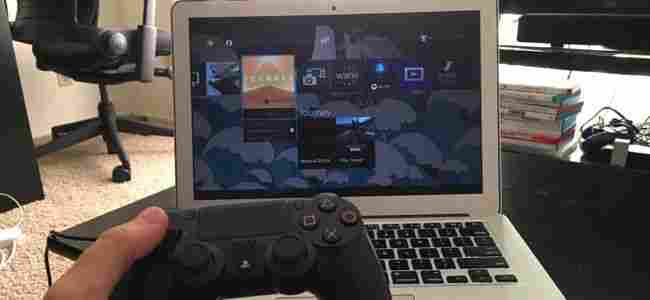
    To play it, first download the Windows 10 PS2 emulator, PCSX2. Or, it can also be used in other Windows series.

    Make sure you download the PS2 emulator complete with the BIOS. After that, please follow the steps below:

    1. If the emulator file is still in RAR form, please extract it first. After the Playstation 2 emulator application icon appears, please click and install.
    2. Follow the installation steps according to the instructions. It’s easy, the same as installing software in general.
    3. On the application installation menu, please select the control to be used. Select PAD if using a keyboard. PAD 1 for Player 1 and PAD 2 for Player 2. You can also adjust the use of the sticks.
    4. After the setup is complete, please click Next to finish installing the emulator.
    5. Once installed on your PC / laptop, you haven’t played PS2 games. To play it, please download the game first.

    You can download it on Coolroom PS2, or a similar website. Please select one or more game titles.

    1. Extract the game file if it is in RAR form. Once extracted, an ISO game file will appear.
    2. Please open the emulator application. Then, please select BIOS to run it.

    Make sure you put the BIOS in a place that is easy to find. In the BIOS selection menu, please browse and then find where you saved it.

    1. Please select an existing BIOS. Then click End to end.
    2. Finally, please run the game. Select the play game menu on the emulator, then browse the game in the form of an ISO file. Please click the file, and the game starts.

    For additional information, the BIOS settings above are for initial purposes only. Furthermore, you no longer need to adjust the BIOS.

    This means that then you just have to play the game. Unless you want to replace the already-used BIOS with a new one.

    How to Play PS2 Games on Android

    How to Play PS2 Games on Android

    To play various Playstation 2 games on Android, please download the application first.

    We have recommended some of the emulators above that can be downloaded via the Play Store.

    After the application is installed, please follow the steps below:

    1. After the PS2 emulator application is installed, please download the BIOS. You can search for it on Google. Please search with the keyword “SCPH 70012 BIOS”.
    2. After the emulator and BIOS are installed, please find the PS2 game you want to play.

    Games, now they can be found easily through Google. PS2 games can now be downloaded for free.

    1. After the emulator, BIOS, and game are ready, please open the emulator. Select the “Scan ROM” menu to scan PS2 games on your smartphone.
    2. If the game has been detected, please check the BIOS so that it can play smoothly.
    3. You can play PS2 games on Android.

    Tips for Playing PS2 Games on Android Not Broken

    Tips for Playing PS2 Games on Android Not Broken

    The emulator for PS2 that you use on Android, is equipped with various features. Well, you can use some of its features to deal with lagging games, or not running smoothly.

    We take the example of the Damon PS2 application. The emulator is equipped with a feature called Debug Mode.

    In this feature, you can make settings so that the game can be played smoothly. Another way you can do this is to choose the type of application that is Pro or paid.

    Or pay attention to the specifications of the smartphone, and make sure it is qualified to run PS2 applications and games.

    Well, that’s information about PS2 emulator reviews that you can use on PC and Android.

    Conclusion:

    For those who want to reminisce about old-school games, let’s install the application, then find the PS2 game you want to play.
  • 5 Ways to Fix The Disk Structure Is Corrupted And Unreadable 2024

    5 Ways to Fix The Disk Structure Is Corrupted And Unreadable 2024

    5 Ways to Fix The Disk Structure Is Corrupted And Unreadable – If you experience the error message “The disk structure is corrupted and unreadable” when trying to access the drive partition, you can use the 5 solutions in this article to fix it.

    5 Ways to Fix The Disk Structure Is Corrupted And Unreadable
    5 Ways to Fix The Disk Structure Is Corrupted And Unreadable

    What Is The Disk Structure Is Corrupted And Unreadable Error?

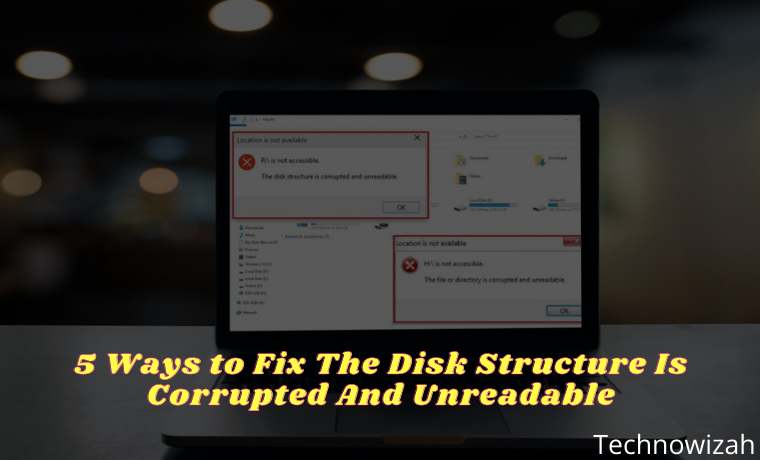
    The disk structure is corrupted and an unreadable error usually occurs when a Windows user tries to access a partition from a hard drive whose structure is damaged. When a hard drive partition has an unreadable disk structure, it fails to access it.

    Read more:

    This error can occur on both internal and external HDDs, but it is more common with removable media i.e. USB flash drives, SD Cards, etc. The correct error message is displayed in the “Location is not available” wizard which reads “The disk structure is corrupted and unreadable.” This means that the hard disk drive cannot be accessed because the Master File Table (MFT) is corrupted and the disk structure cannot be read.

    What Causes The Disk Structure to be Corrupted And Unreadable?

    Why is the hard drive, USB, or SD card suddenly inaccessible? Generally, the error “The disk structure is corrupted and unreadable” is caused by the reasons listed below:

    1. The Master File Table (MFT) of the NTFS drive is corrupted
    2. Incorrectly ejected or unplugged USB disk drive
    3. Broken file system which makes the RAW file system
    4. There are bad sectors on the hard disk drive
    5. Unstable Power Supply
    6. viral infection Infeksi

    How to Solve The Disk Structure Is Corrupted And Unreadable

    Don’t worry if you can’t figure out how your USB, SD card, or external or internal hard disk drive became unreadable. There are several solutions to overcome the error message “The disk structure is corrupted and unreadable” to return the problematic drive to normal again.

    #1. Unplug And Reinstall the External HDD Or USB Drive

    If you get the error message “The disk structure is corrupted and unreadable” with removable storage such as a USB drive, unplug the storage device. Then, close all the software on your taskbar and reinstall the external storage.

    Or, reboot Windows before you reconnect the external HDD. Then, try to open the same file as you did before when you get the error message “The disk structure is corrupted and unreadable”.

    #2. Use the Windows Error Checking Tool

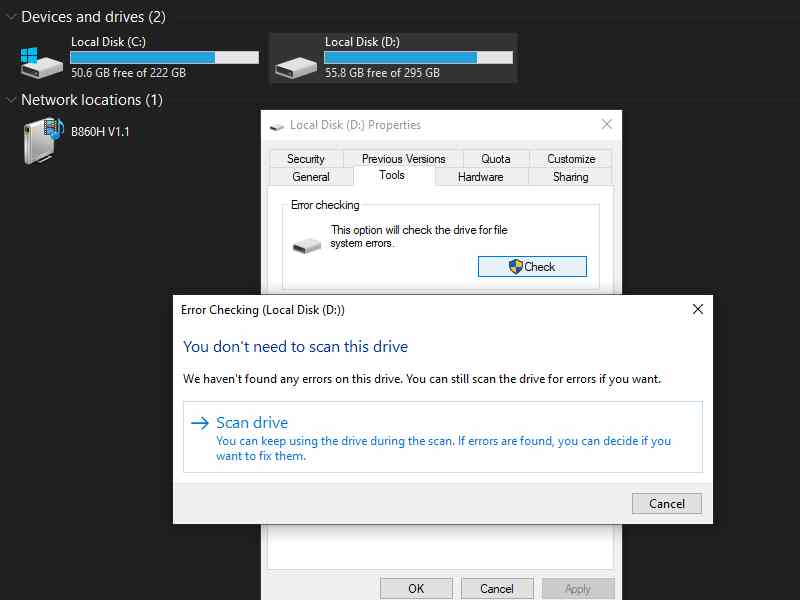
    Windows systems have a built-in utility to check for and fix disk-related problems. One such utility is the Windows Error Checking Tool. You can use this tool to fix drive problems which can help resolve the “The disk structure is corrupted and unreadable” error message. To do this, follow the steps below:

    Use the Windows Error Checking Tool
    Use the Windows Error Checking Tool
    1. Connect the storage media (if external) to your Windows system.
    2. Go to  This PC  in the system.
    3. Right-click on the drive showing the error, then select  Properties.
    4. Select  Tools and then click the Check button, then click. This will start checking the drive and be able to fix the problem if any.
    5. After the disk check process is complete, restart your computer system and check if the error message has disappeared.

    #3. Run CHKDSK

    CHKDSK is a built-in utility of the Windows OS, which can be used to troubleshoot and repair hard drives connected to the computer. Someone could run it on the HDD partition causing the problem and creating an error message the disk structure is corrupted and unreadable every time you try to access it. For this, follow the steps below:

    Run CHKDSK
    Run CHKDSK
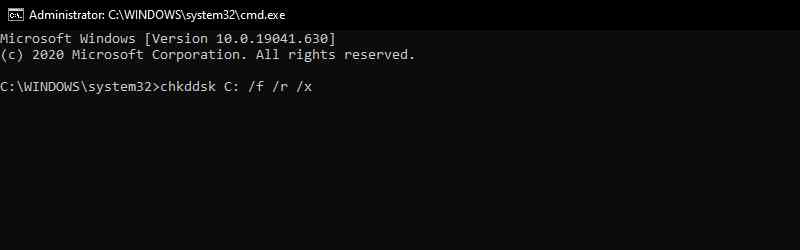
    1. Press the “ Windows Key + X  ” key and select  Command Prompt (Admin).
    2. Enter the command “ chkdsk C: /f /r /x ” in cmd then, press Enter key.
    3. Now,  Reboot your PC to save the changes, and check if the problem is solved or not.
    4. In most cases running the Check, Disk command fixes the error, however, if the same error message persists, move on to the next method.

    Note:  C is the drive letter of the associated hard drive indicating the error, make sure you enter the correct drive letter.

    #4. Uninstall & Reinstall Disk Drive

    Important Note: It is highly recommended not to try this solution on your system disk i.e., C: drive (the drive where Windows is installed), which displays the error message the disk structure is corrupted and unreadable. Skip this solution if this error occurs on your C: drive.

    Uninstall & Reinstall Disk Drive
    Uninstall & Reinstall Disk Drive
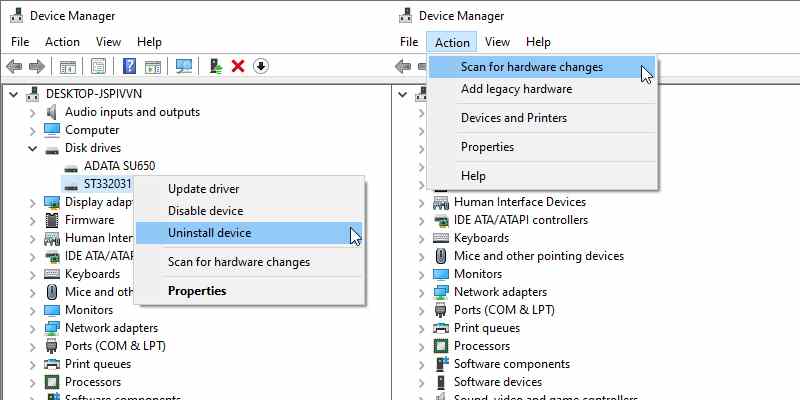
    1. Press “ Windows key + R ” and type “ devmgmt.msc “. Press the OK button.
    2. Expand the Disk drives section right-click on the damaged disk and hit  Uninstall device.
    3. Then, click  Action >> Scan for hardware changes to confirm the action taken.
    4. Wait for Windows to detect and install the driver from the deleted disk drive
    5. Once done, restart your computer and check if the problem is resolved or not

    #5. Repair HDD With M3 RAW

    There are many third-party programs that you can use to repair the disk structure that is corrupted and unreadable. M3 RAW checks and repairs file systems. Although this is not freeware, you can still use the trial version. You can download it here.

    1. Open M3 RAW and select the drive to repair.
    2. Click the Next button to scan the disk drive.
    3. This software will display a list of files on the disk drive. Press the Fix Drive button to repair the disk drive.

    #6. Format External Disk Drive

    This is a more specific fix for external drives that don’t include Windows, such as USB flash disks. Formatting the drive will erase all of its contents and create a new file system to replace the damaged one. This is a great fix if the files on the storage drive aren’t that important.

    But if you need to save some files on the drive, you can use an application like EaseUS Data Recovery Wizard which helps you recover data from inaccessible drives, including RAW drives. Then format the drive as follows:

    Format External Disk Drive
    Format External Disk Drive
    1. Plug the external storage device into your desktop or laptop.
    2. Open File Explorer and click  This PC  to open a list of devices and drives.
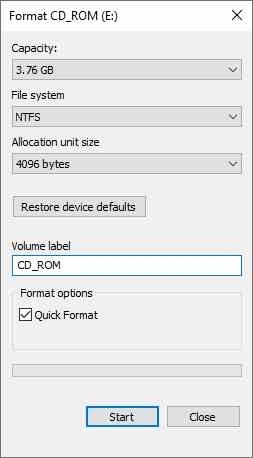
    3. Then, right-click the drive listed there and select  Format to open the window below.
    4. Select a file system format from the File System drop-down menu.
    5. Select the Quick Format option if it is not already selected, and press the Start button to format the drive.

    Read more:

    Conclusion:

    So those are some ways to fix the disk structure that is corrupted and unreadable with Windows tools and third-party software. While there are many potential causes for the error to occur, many users find the root cause to be a file system error, which can be perfectly fixed by formatting the device.

  • Best Trick To Download Instagram Application on PC 2024

    Best Trick To Download Instagram Application on PC 2024

    Best Trick To Download Instagram Application on PC – Is there an official Instagram application from Microsoft for Windows 10 PC users? The answer is yes, and you can install it on your Windows 10 laptop.

    Best Trick To Download Instagram Application on PC
    Best Trick To Download Instagram Application on PC

    How To Download Instagram Application on PC Laptop

    The Instagram application for Windows 10 was made by Instagram for the Windows 10 operating system. So this is an official app and not a fake app made by obscure developers.

    Read more:

    The Instagram application for Windows 10 is a free download, so there is no need to pay because it is free to install on your Windows 10 laptop.
    The Instagram application for PC Windows 10 was first released on February 26, 2016, just like the information displayed on this Microsoft website page.
    But before you install and download Instagram on a Windows 10 laptop, you must first know the specifications of your laptop or computer. Don’t get an error later and it’s too late to run on your PC OS.

    System requirements

    Minimum OS: Windows 10 Mobile version 10240.0 or higher, Windows 10 version 10240.0 or higher.
    Minimum memory 2 GB.
    So what about Windows 7 and Windows 8? For Windows 7 and Windows 8 users, you cannot install this official Instagram application. So this Instagram application is specially made by Instagram Morning users of the Windows 10 operating system.
    So if you can’t wait to download and install it on your Windows 10 PC, just go ahead without waiting any longer, here’s how to download the Instagram application on a Windows 10 laptop easily and quickly:
    How to download the Instagram application on a Windows 10 laptop
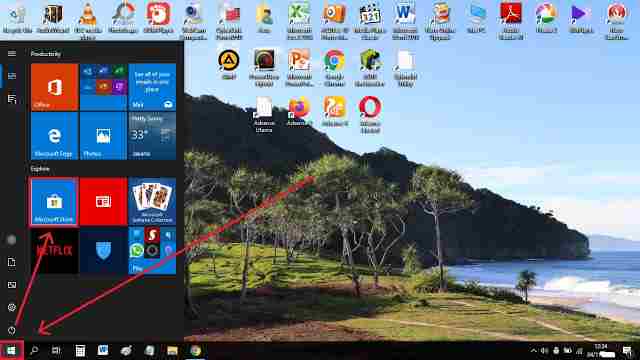
    1. The first step you have to do to download the Instagram application on a Windows 10 laptop is to open the Microsoft Store first. Please click “Start” in the lower-left corner, then click the “Microsoft Store” menu.
    How to download the Instagram application on a Windows 10 laptop
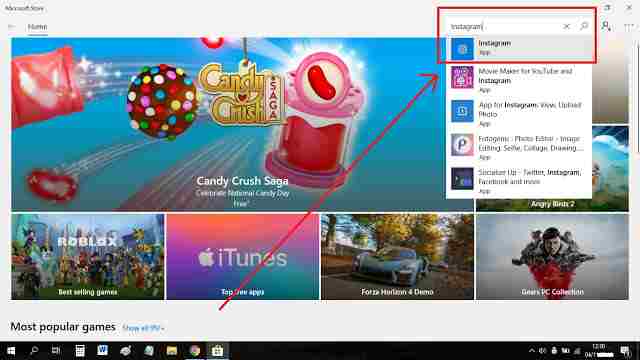
    2. Please click on the top right search box “Instagram”. When it appears, please click to open.

    How to download the Instagram application on a Windows 10 laptop

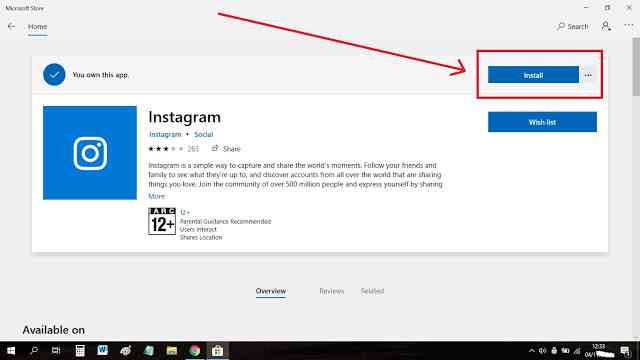
    3. Click “Install” to install the official Instagram app on your Windows 10 PC.

    How to download the Instagram application on a Windows 10 laptop

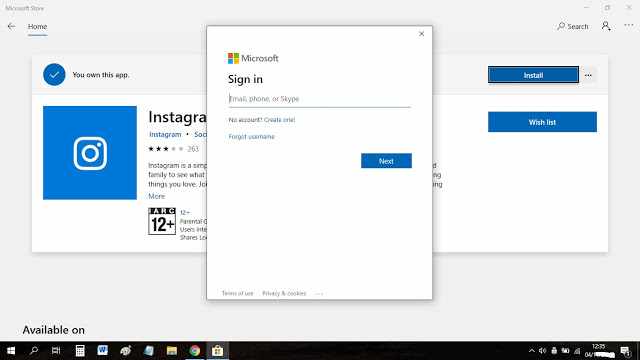
    4. When asked to sign in, it means that you are not logged in to your Microsoft account on your Windows 10 PC. Please login first with your Microsoft account email and password. If you don’t have a Microsoft account, you can create one here first.

    How to download the Instagram application on a Windows 10 laptop

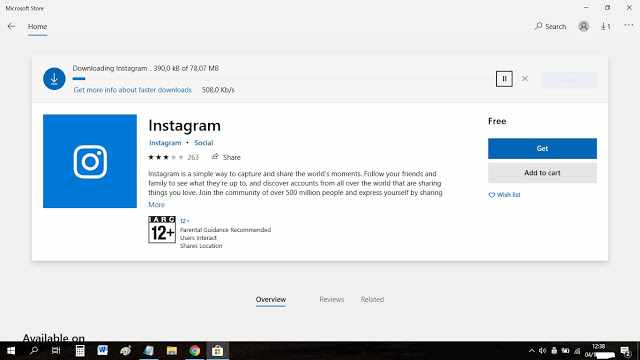
    5. If you have successfully logged in, the Instagram application for Windows 10 computers will automatically start the download process. Please wait until it’s finished because the size is quite large compared to the Instagram application on cell phones.

    How to download the Instagram application on a Windows 10 laptop

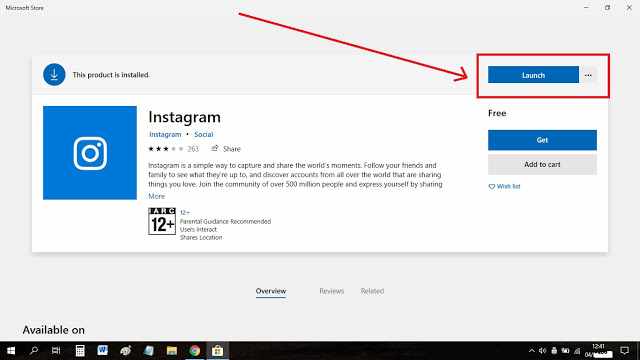
    6. Click “Launch” directly to open the Instagram application. You can also click the dot icon next to it so you can put the Instagram icon as a shortcut on your PC’s start taskbar.

    How to download the Instagram application on a Windows 10 laptop

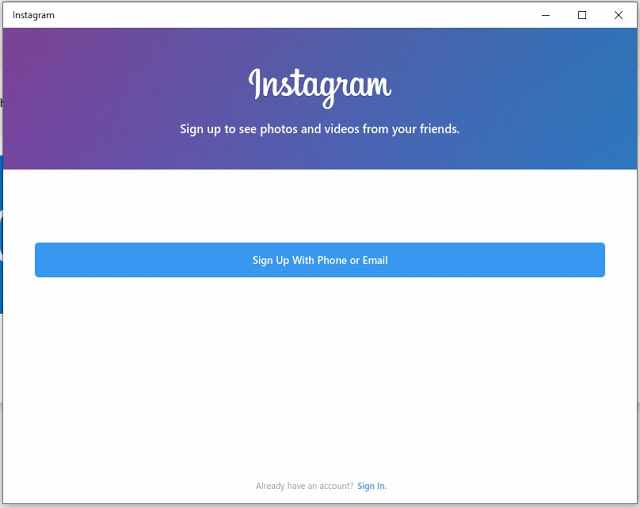
    7. Now that the Instagram application is open, please log in with your Instagram account, or you can also create a new Instagram account. Click “Sign Up With Phone or Email” to create a new Instagram account via cellphone number or email. Click “Sign In” to sign in with your existing Instagram account.

    How to download the Instagram application on a Windows 10 laptop

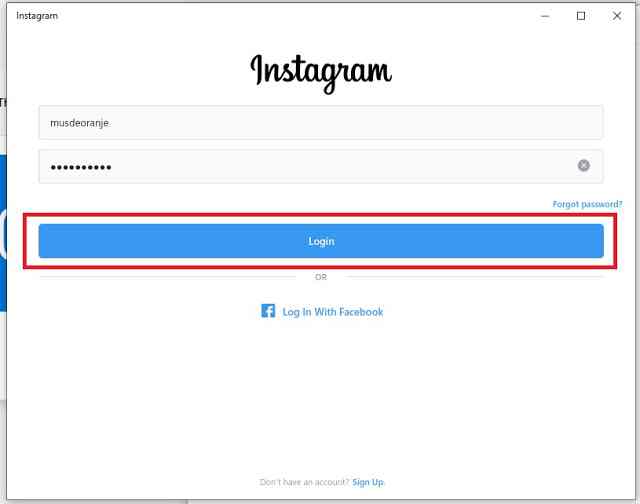
    8. Please enter your Instagram account username and password. Then click “Login”.

    How to download the Instagram application on a Windows 10 laptop

    9. Congratulations on successfully logging into your Instagram account via the Instagram application on your Windows 10 laptop.

    How to download the Instagram application on a Windows 10 laptop

    You can now use Instagram as you open the Instagram application via your Android or iPhone.

    The advantages of the Instagram application on a Windows 10 PC

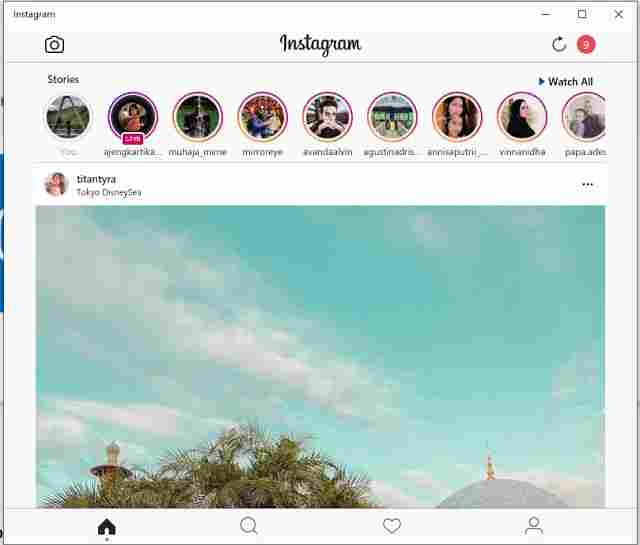
    Through the Instagram application on your Windows 10 laptop, you can update your Instagram story via your laptop’s web camera, see the Instagram story viewers that you have created, see the stories of the accounts you follow, watch their live videos, read and reply to DM messages, see notifications, reply to and comment on posts, and like posts.

    If you want to see an Instagram story anonymously using the web you can try Gramvio. Gramvio is a fast secure and reliable site to view someone’s profile without logging in

    Lack of the Instagram application on a Windows 10 PC

    When this article was written, in addition to the above advantages, it turned out that there are many shortcomings of the Instagram application specifically for Windows 10 laptops in the Microsoft Store, namely you cannot upload photos or videos both on the Instagram story and on your Instagram account fees.

    The Instagram application for Windows 10 laptops also cannot open IGTV and makes calls and video calls among Instagram users.

    Hopefully, later these missing features can be added to the Instagram application for this laptop in the next update. So don’t forget to update the Instagram application when it’s time.

    So it turns out that there are also many shortcomings of the Instagram application from Microsoft for Windows 10. Have you installed it on your Windows 10 laptop?

    But at least when you are working on a laptop, if there are notifications and DM messages that come in, you can find out and read them first before replying and the person who sent the message will not know that you already know the contents of the message.

    Read more:

    Conclusion:

    That’s how to download the Instagram application on a Windows 10 laptop. To be able to upload photos on Instagram via a PC without an application, you can see in the article how to DM on Instagram on a PC without an application.

  • What Is The Difference Between Virus And Malware 2024

    What Is The Difference Between Virus And Malware 2024

    What Is The Difference Between Virus And Malware – If you are one of those people who think Malware and Viruses are the same things, then you are currently wrong. So, let’s find out the difference between viruses and Malware in detail.

    What Is The Difference Between Virus And Malware
    What Is The Difference Between Virus And Malware

    What Is The Difference Between Virus And Malware

    Have you ever tried to understand the difference between viruses and malware? Even though they are meant to damage devices, steal data, and spy on victims, why are they given different names?

    Read more:

    What is Malware?

    Malware is an acronym for the phrases Malicious and Software. Malware is software specifically designed to work undercover with the aim of damaging devices, stealing data, and causing chaos. Malware is usually created by a group of hackers who want to make money by spreading it or selling victim data to buyers at the highest price. However, Malware is also often created to test the security of a system.

    What are Viruses?

    The virus is a type of malware that attaches itself to files and infects other files. They can spread uncontrollably, destroy core system functions, and then delete or at least corrupt files so that you can’t open or use them again. Viruses are usually in file format (.exe). W32.Sfc! mod, ABAP.Rivpas. A, Accept.3773 are some examples of virus programs.

    Difference Between Virus And Malware

    Viruses are one type of Malware. Malware is a general term for malicious software designed to damage computers such as viruses, trojans, ransomware, bots, spyware, etc. So basically, terms like virus or trojan are one type of malware.

    Why Do People Create Malware?

    After reading all this, you might be wondering why people create malware. Here are some reasons that might compel coders to write malware programs:

    • Controlling someone’s computer for personal or group reasons.
    • For financial gain. This also includes hackers who collect money for a purpose. Maybe you’ve heard of cases of ransomware attacks where hackers collect money to feed people. But that doesn’t mean what they are doing is right.
    • To steal confidential data.
    • To prove their point. For example, by committing a security breach on a vulnerable system.
    • To log individual computers or complete networks.

    Impact of Malware on Computers

    Many people have become victims of the malignancy of malware. Hackers use it to steal passwords, delete files, and render computers inoperable. Malware infections can cause many problems that affect day-to-day operations and long-term security. Reporting from  Console Tech, the impact of malware on computers includes:

    • Interfere with the operation.
    • Steal sensitive information.
    • Allows unauthorized (illegal) access to system resources.
    • Slow down computer speed.
    • Creates problems when connecting to the network.
    • Often results in freezing or crashing.

    How to Prevent Malware?

    Maybe you’ve heard the saying prevention is better than cure. So before you learn how to remove Malware, you should first know the things that can be the entrance of the Malware to your device. Below are some actions that can minimize the entry of Malware.

    • Keep the system up to date.
    • Use genuine software or not pirated.
    • Install an anti-virus or anti-malware application and update it regularly.
    • Use a unique password.
    • Check the software you want to download.
    • Never open unknown emails which are generally in the Spam folder.
    • Never open unknown links or sites, use the online website security checker tool if you are not sure to open the website.

    By taking these simple steps, you can effectively keep your device free from Malware and other potential threats.

    Read more:

    Conclusion:

    So that’s the difference between viruses and Malware. In essence, Virus is a type of Malware and it is a threat to any device that is connected to the internet. Because hackers are now more creative in developing ways to infect a device’s system.

    Staying aware of your online activity, and knowing the signs of a Malware attack is the best way to protect your device from Malware attacks. Therefore, make sure your device is strongly protected.

  • 5 Ways To Ping Google To Check Internet Connectivity 2024

    5 Ways To Ping Google To Check Internet Connectivity 2024

    5 Ways To Ping Google To Check Internet Connectivity – A simple way to test your internet connection is to ping Google.com – the Ping network command is available on all versions of the Windows operating system.

    How To Ping Google To Check Internet Connectivity
    How To Ping Google To Check Internet Connectivity

    How To Ping Google To Check Internet Connectivity 2024

    This command tests whether you can reach a particular website – Ping also measures the interaction time or time round to receive a reply from that website.

    Read more:

    Ping is the ideal way to check for errors with your internet connection – but keep in mind that problems with your internet connection are not always due to your broadband connection, it could be a problem with your web browser.

    When reporting errors to your broadband provider or internet service provider ( ISP ), you may be asked to ping Google to test whether or not you have internet access – so it’s a good idea to know how to ping Google.

    #1. Ping Google to check the internet connectivity

    The ping command is run from a Command Prompt window – to open it:

    • XP – Click ‘Start’ then ‘Run’ and type CMD into the ‘Open:’ text box then press ‘OK’ to open a Command Prompt window.
    • Windows 10, 8, 7, and Vista – Click the Start button (not required in W10) and type CMD into the ‘Search’ text box then click on the program/desktop program ‘cmd.exe’ or Command Prompt ‘ at the top of the results search to open a Command Prompt window.

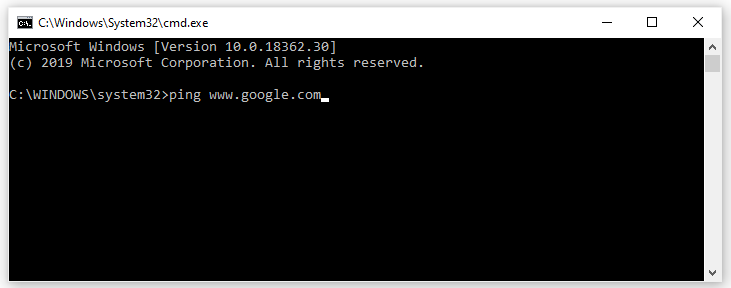
    Type ping www.google.com then press Enter to ping Google (you can ping any other website in the same way).

    Note that you can use ping www.google.com or ping google.com.

    Ping Google to check the internet Connectivity
    Ping Google to check the internet Connectivity

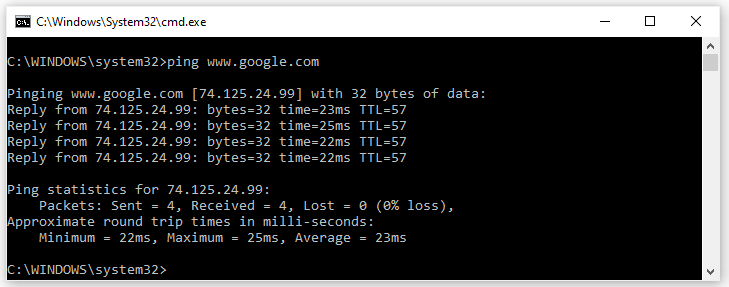
    After a few moments, you will see several responses, similar to this:

    Ping Google to check the internet Connectivity
    Ping Google to check the internet Connectivity

    #2. What Do the Ping Test Results Mean?

    The ping command sends 4 small ‘packets of data to Google – each packet asks Google to send it back if Google accepts it.

    We can see in the example from the image above that all 4 requests made it to Google because we got 4 Replies from Google – so we know our internet connection is working.

    These are summarized at the bottom of the results: Sent = 4 (packets sent by us), Received = 4 (received by Google), Lost = 0 missing (0% missing) i.e. no packet was lost on the way.

    The test also shows how long it takes for each packet to reach Google and get a reply back. The ‘time =’ value next to each reply is measured in ms (milliseconds) and a lower number means better (faster).

    These are summarized at the bottom of the results: Minimum = 22 ms, Maximum = 25 ms, Average = 23 ms.

    The response time ’round trip time’ or ’round trip time’ is often referred to as ‘lag’ and is very important to gamers (when super fast responses can be useful).

    Times 20ms to 60ms is very fast (broadband is good), over 250ms are slow (typical of satellite internet), and over 1000ms are very slow – not suitable for gaming but common with slow mobile broadband.

    #3. Ping Google.com constantly

    Instead of pinging just once (which sends 4 requests to the website), you can run a continuous ping by simply adding a space followed by -t to the end of the original command:

    Type:

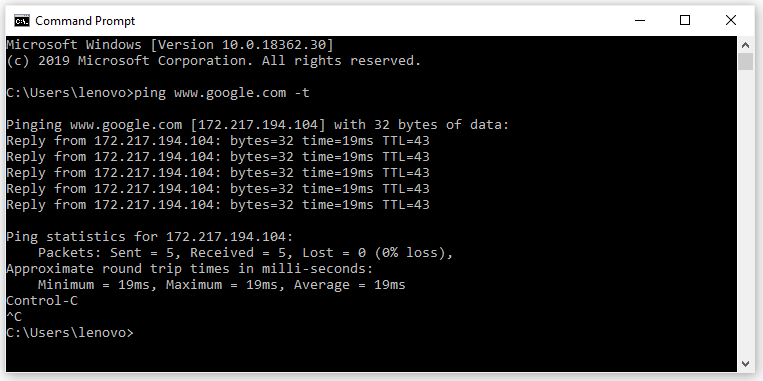
    ping www.google.com -t

    Then press Enter.

    This command will send Google continuous ping requests (not just 4 requests) so you will receive a constant stream of Replies scrolling down the window.

    This is especially useful for rigorous testing if your internet connection is intermittent:

    ping www.google.com -t
    ping www.google.com -t

    Keep an eye out for error messages and also check that the ‘time’ in ms remains fairly consistent (it should be done if your internet connection is good).

    Press CTRL and C when you want to stop the continuous ping Google.com.

    Tip: It’s not good to keep pinging a website for hours as it will use up the resources of that website. We are using Google in this example because Google has enormous resources so your ping is fine for them, but if you apply to a small site, it will affect the performance of their site.

    #4. Usual Ping Test Error Messages

    Since 4 requests are sent to the website, you may see this error message repeated up to 4 times – once for each request.

    • “Request timed out” – your network/internet connection is wrong or the website you are pinging is having problems.

    Try pinging some of the other sites to test if the problem is with that particular website or with your network/internet connection.

    • “Ping request could not find host www.google.com… etc” – either your network/internet connection is wrong or you are pinging the wrong website name or there is a DNS error (see next section below).

    Check the spelling or try another website for example ping www.yahoo.com.

    #5. Ping IP Address

    It’s also possible to ping IP addresses instead of website names – this is a good way to get rid of DNS (Domain Name System) errors.

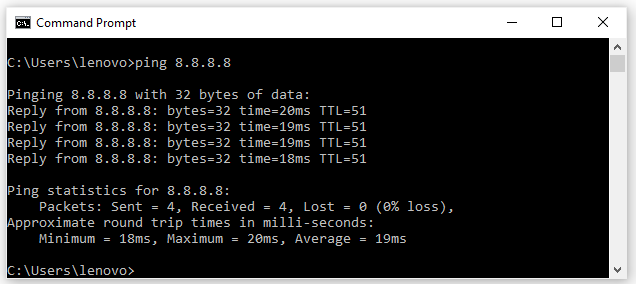
    Choose one of the Google Public DNS servers – 8.8.8.8 or 8.8.4.4 as they will most likely always be available. In the Command Prompt window:

    Type ping 8.8.8.8 then press Enter to ping the Public DNS server.

    Ping IP Address
    Ping IP Address

    If you’re still getting the error then it’s not a DNS error and you’re in a no-access situation – most likely your network/internet connection is wrong.

    Try resetting Windows internet settings to fix network configuration errors.

    So, What Can You Do with Ping?

    Now that you know how to use the ping command, here are some interesting things you can do with it:

    • Ping a URL (such as www.google.com) or IP address to see if you can reach your internet destination. If you get a successful response, you know that all network devices between you and the destination are working, including the network adapters on your computer, your router, and any devices on the internet between your router and the destination. And if you are interested in exploring further routes.
    • Ping, a URL to resolve its IP address. If you want to find out the IP address for a specific URL, you can ping the URL. The ping function shows you right above where the IP address goes.
    • Ping, your router to see if you can reach it. If you can’t successfully ping an internet location, you can try pinging your router. A successful response tells you that your local network is functioning properly and that the problem is reaching an internet location is out of your control.
    • Ping your loopback address (127.0.0.1). If you can’t successfully ping your router, but your router appears to be up and working, you can try pinging what’s known as a loopback address. That address is always 127.0.0.1, and pinging it successfully lets you know that the network adapter on your computer (and the network software on your OS) is working fine.

    Ping is a useful first step in troubleshooting any possible ‘internet’ problem – if you receive error-free replies from various websites, then you know that your internet connection is working properly.

    Read more:

    Conclusion:

    So, If your internet connection is good, but you can’t surf, then the problem with web browsing is more likely due to the web browser you are using (try changing browsers) or perhaps a firewall problem (temporarily disable it).