Author: Nazrul Islam

  • 8 Ways to Fix WHEA Uncorrectable Error Windows 10 PC 2025

    8 Ways to Fix WHEA Uncorrectable Error Windows 10 PC 2025

    8 Ways to Fix WHEA Uncorrectable Error Windows 10 PC – Windows often has a history of blue screen error messages. Known as the Blue Screen of Death, this error also contains important information regarding sudden death on your system.

    8 Ways to Fix WHEA Uncorrectable Error Windows 10 PC
    8 Ways to Fix WHEA Uncorrectable Error Windows 10 PC

    How to Fix WHEA Uncorrectable Error Windows 10 PC Laptop

    Some Windows crash errors are more subtle than others and therefore more difficult to troubleshoot. WHEA Uncorrectable Error is one of them. In this article, we will explain how to Fix the WHEA Uncorrectable Error and how to stop it from happening again.

    Read more:

    What is WHEA Uncorrectable Error?

    WHEA_UNCORRECTABLE_ERROR (Windows stop code 0x0000124) is a hardware error. There are several common causes for WHEA_UNCORRECTABLE_ERROR, most of which are directly related to your system hardware:

    •  Faulty hardware Faulty hard drive, GPU, CPU, PSU, faulty RAM, etc.)
    • Driver compatibility issues
    • Heat and voltage issues  (Overclocking and voltage changes)
    • Corrupt Windows system files or registry files

    Although not always the source of the problem, voltage issues are a very common cause of this WHEA Uncorrectable Error. The WHEA message and stop code 0x0000124 give us an indication of the nature of the error, but viewing the error dump file will provide more information. Your Error dump file (.DMP) was found in C:/Windows/Minidump and will have timestamps. Unfortunately, we can’t offer a solution for every problem, but the following fixes should reduce or remove your WHEA Uncorrectable Error.

    How to Fix WHEA Uncorrectable Error

    Step 1: Run CHKDSK

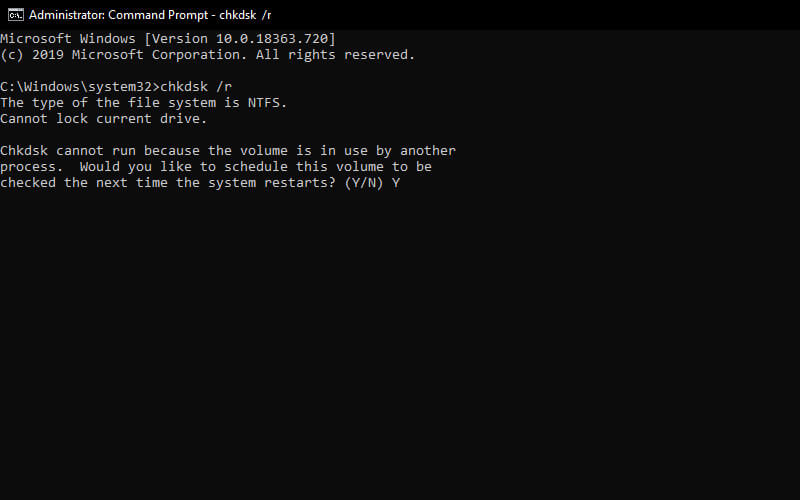
    First, before making any specific hardware changes, try running Windows Check Disk from the Command Prompt. CHKDSK is a Windows system tool that verifies the file system and with certain settings, fixes problems as it runs.

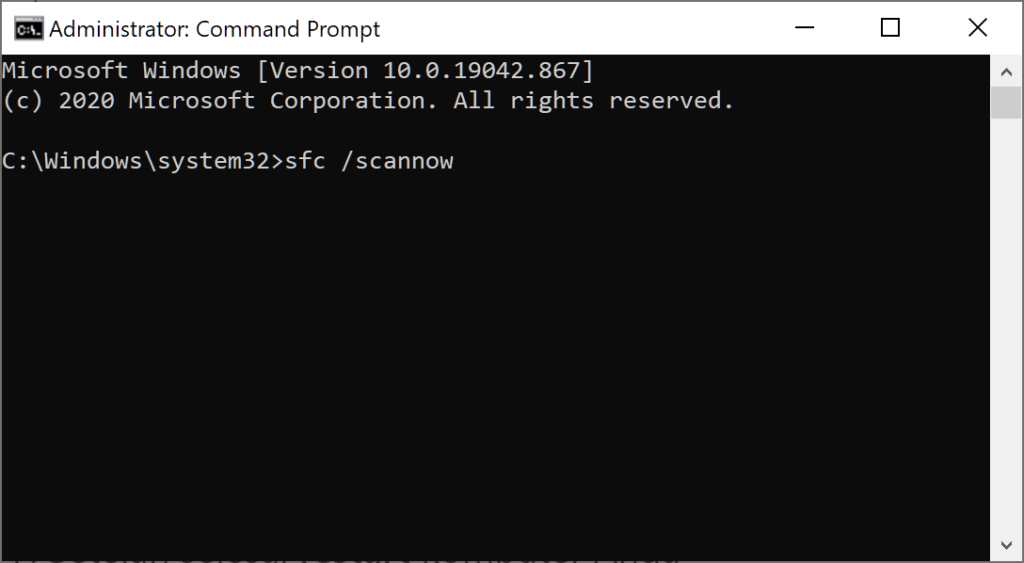
    Type the command prompt in your Start menu search bar, then right-click the most suitable one and select Run as administrator. (Alternatively, press  Windows Key + X, then select  Command Prompt (Admin)  from the menu.) Next, type chkdsk /r  and press Enter. This command will scan your system for errors and fix any issues along the way.

    8 Ways to Fix WHEA Uncorrectable Error Windows 10 PC

    Step 2: Check Your System Hardware

    WHEA_UNCORRECTABLE_ERROR is closely related to your system hardware. Before proceeding with the system reset and memory tests, physically check your system hardware. Check if the cooling system is working properly, your RAM is securely in its slots, and make sure the CPU is not loose, and so on.

    Step 3: Reset System Overclocking

    If you’ve overclocked your system in search of higher speeds, there’s a good chance you’ll run into WHEA_UNCORRECTABLE_ERROR. The easiest way to cross this off the list is to reset your system BIOS and remove the effects of any overclocking.

    You have to enter your system BIOS or UEFI menu. To do this, shut down your system. Next, restart your system, by pressing your BIOS/UEFI menu access button.

    BIOS and UEFI settings vary by manufacturer, but menu titles are usually similar. You are looking for the Overclocking option For the most part, overclocking options are found under the Advanced, Performance, Frequency, or Voltage menus. Find the menu and reset your overclocking options. A reset will return your system to its out-of-box state and may also remove WHEA_UNCORRECTABLE_ERROR in the process.

    Step 4: Reset BIOS/UEFI Settings

    If removing your BIOS/UEFI overlock settings doesn’t fix the WHEA_UNCORRECTABLE_ERROR, try resetting your entire BIOS. Try looking for options in the BIOS to complete a full BIOS settings reset or restore BIOS settings to default.

    Step 5: Update BIOS/UEFI Settings

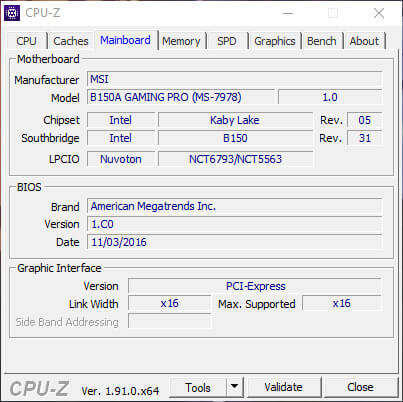
    Again, this process varies greatly depending on your system’s motherboard manufacturer. Some BIOS/UEFI settings can be automatically downloaded and updated using a desktop utility. Other manufacturers ask you to download the BIOS update and flash the firmware yourself. If you’re not sure what motherboard you have? Try downloading the CPU-Z app and running it. Go to the Mainboard tab and find your motherboard manufacturer and model. You can find your BIOS brand and version in this tab as well.

    8 Ways to Fix WHEA Uncorrectable Error Windows 10 PC

    Step 6: Check the Driver

    Sometimes new drivers have a bad effect on your system. But in this day and age, it’s getting rarer as Windows 10 takes care of most of the driver updates. However, that doesn’t mean the new drivers can’t interfere with your system. Luckily, Windows 10 lists updated drivers in the Windows updates section, so you can quickly figure out where this problem is coming from.

    Press  Windows Key + I to open the Settings panel, then select Update & Security > View update history. You can find updated drivers here. Now, type the device manager in the Start menu search bar and select the most suitable one. Go down the list and check for the error symbol. If not, your driver status is probably not the source of the problem.

    Step 7: Check RAM Using MemTest86

    Windows has an integrated memory checker, called Windows Memory Diagnostic. Unfortunately, this tool does not have a good reputation and often misses the problems found using other tools such as MemTest86.

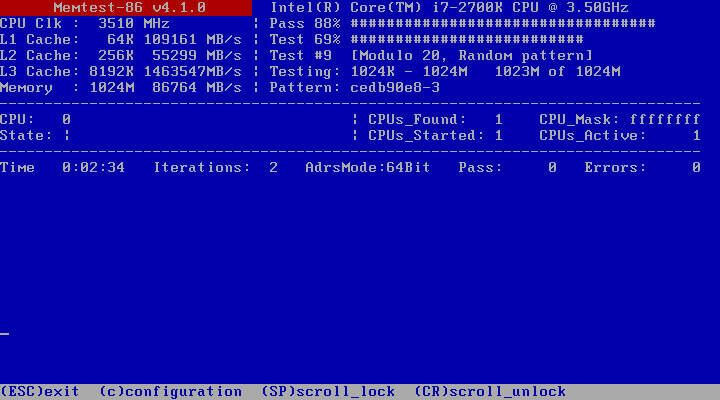
    MemTest86 is a free memory testing tool for x86 machines. You can boot MemTest86 from a USB flash drive (or bootable disk) and leave it to check your system RAM. Now, the MemTest86 RAM check takes a long time to complete, a single pass can take hours depending on the amount of RAM you have installed.

    8 Ways to Fix WHEA Uncorrectable Error Windows 10 PC

    To get the full MemTest86 experience, you’ll need to run at least two passes. However, by most reports, MemTest86 should expose serious RAM issues after a short time.

    Go to the MemTest86 download page and download the Image for creating a bootable CD (ISO format). Next, you need to mount the MemTest86 ISO to a USB flash drive.

    Burn MemTest86 using the tools of your choice, then shut down your system. Restart the system while pressing the key for your Boot Selection menu (usually F10, F11, DEL, or ESC), then select the bootable MemTest86 USB flash drive. The memory test will start automatically. If it returns a RAM error, complete an internet search for the error code and type it in to find the next course of action.

    Step 8: Reset Windows 10 (Final Option)

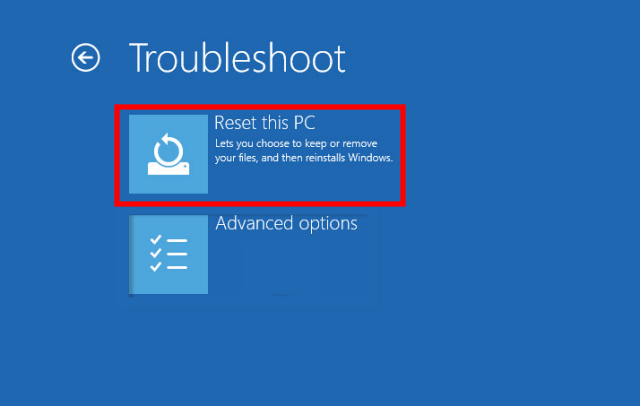
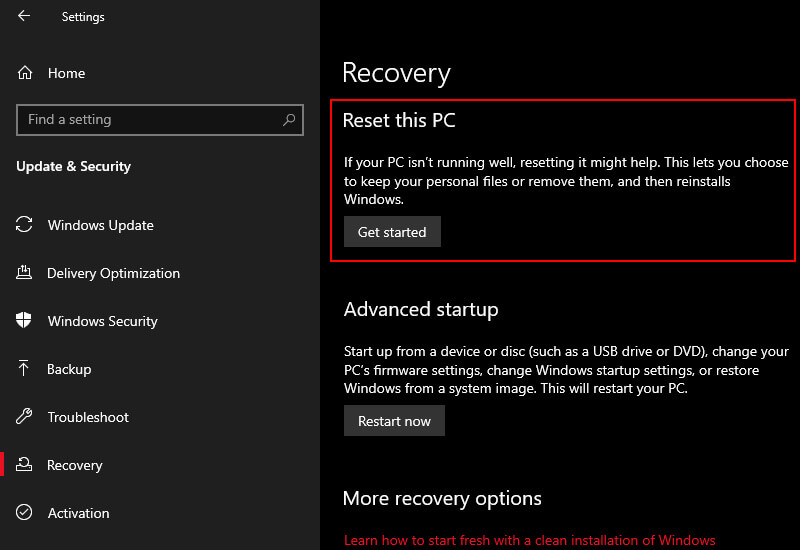
    If nothing else works, you can use Windows 10’s Reset function to refresh your system. Reset Windows 10 replaces your system files with a completely new set of files and it can remove all the issues related to WHEA_UNCORRECTABLE_ERROR while keeping most of your important files intact. Go to Settings > Update and Security > Recovery, then under Reset, this PC select Get Started.

    Your system will restart as soon as you press the button, so make sure you back up important files beforehand. Your system will restart, then you can choose to Keep my files or Remove everything.

    Reset Windows 10 (Final Option)

    Conclusion:

    This is the explanation of how to fix WHEA’s uncorrectable error in Windows 10.  Look forward to other interesting articles and don’t forget to share this article with your friends. Thank you…

  • How to Minimize The Windows 11 Taskbar 2025

    How to Minimize The Windows 11 Taskbar 2025

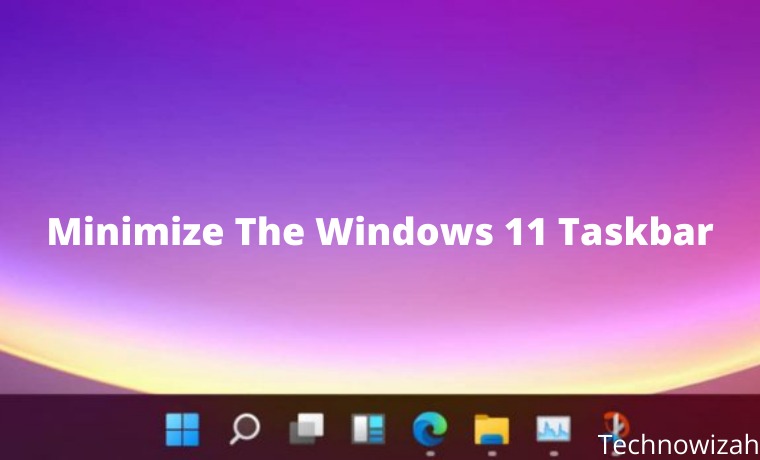
    How to Minimize The Windows 11 Taskbar – we will explain how to shrink the Windows 11 taskbar and also how to restore the Windows 11 Taskbar to its original state.

    How to Minimize The Windows 11 Taskbar
    How to Minimize The Windows 11 Taskbar

    How to Minimize The Windows 11 Taskbar

    Currently, the only way to do this is to edit the registry.

    The easiest way to change the size of the Windows 11 taskbar is to edit the registry.

    You can learn more about using the registry here, but as long as you follow closely and back up the registry beforehand, it should be easy and safe.

    Read more:

    1. Find Registry Editor and then open it.

    2. Use the folder on the left side to navigate to the Advanced button in this path:

    HKEY_CURRENT_USER\Software\Microsoft\Windows\CurrentVersion\Explorer\Advanced\

    3. Right-click Advanced in the left pane and go to New > DWORD (32-bit) Value.

    4. When asked for a name, type this and then press Enter:

    taskbar

    5. Double-click the value to open the edit box. Change the number to one of these and then select OK:

    0 for small taskbar

    2 for large taskbar

    6. Restart the computer or log out and log back in. You can do this by right-clicking the Start button and selecting an option in the Shutdown or Sign Out menu.

    How to restore the Windows 11 Taskbar

    How to restore the Windows 11 Taskbar
    How to restore the Windows 11 Taskbar

    The default taskbar size can be restored by going back to step 5 and deleting the TaskbarSi value.

    After rebooting, the Windows 11 taskbar will return to its normal size.

    Or, if you don’t want to delete the value, double-click it to change the value data.

    Instead of 0 or 2, make the number 1 and then reboot your computer.

    The benefit of doing this is that you don’t have to regenerate the values ​​if you later decide to resize the taskbar again.

    You can edit the registry values ​​as often as you want.

    Be sure to keep a backup of the registry, especially if you plan to edit the registry frequently to resize the taskbar repeatedly.

    If you accidentally delete or edit a different value, restoring a registry backup is always an option.

    How to shrink the Windows 11 Taskbar icon

    Fortunately, there is no separate registry value that you need to create to change the taskbar icon size.

    Resizing the taskbar itself also changes the icon size.

    Selecting 0 in step 5 above makes the taskbar icon smaller, while 2 will make the icon larger.

    You can see here how the icons differ between different taskbar sizes.

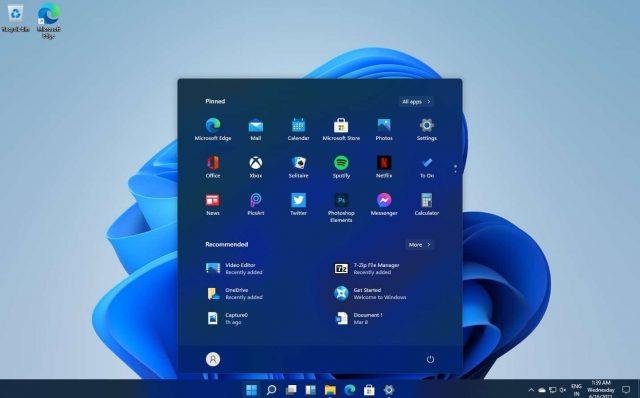
    Windows 11 taskbar size is small, default, and large

    If you want to resize the taskbar icons because they take up too much space at the bottom of the screen, consider hiding the taskbar.

    Do this by right-clicking the taskbar, going to Taskbar settings, and enabling Automatically hide the taskbar in desktop mode.

    Doing this will automatically hide the taskbar whenever your mouse exits it, instantly providing more space on the screen.

    It will appear again when the mouse moves along the bottom of the screen.

    FAQ

    How to get rid of Task View on Windows 11 taskbar?

    To remove the Task View icon from the taskbar, right-click the toolbar and select the Show Task View button from the list of options. You can also uncheck the box next to the Show Task View button from Settings > Taskbar.

    How to return the volume mixer to the taskbar in Windows 11?

    While you can’t pin the volume mixer to the taskbar, you can easily access it by right-clicking the volume icon on the far right side and selecting the Volume mixer. Alternatively, go to Settings > Sound > Volume Mixer to control volume settings for different apps and devices.

    Read more:

    Conclusion:

    This is an explanation of how to shrink the Windows 11 Taskbar and how to return it to its normal size. I hope this quick guide was helpful and helped you solve the problem on your Windows 11 laptop.

  • 6 Ways to Fix The RPC Server Is Unavailable Error in Windows 2025

    6 Ways to Fix The RPC Server Is Unavailable Error in Windows 2025

    6 Ways to Fix The RPC Server Is Unavailable Error in Windows 10 PC – Remote Procedure Call ( RPC )  is a technology that has existed since the advent of computers and utilizes interprocess communication techniques. Its main purpose is to enable the client and server to communicate with each other over the network.

    6 Ways to Fix The RPC Server Is Unavailable Error in Windows 10
    6 Ways to Fix The RPC Server Is Unavailable Error in Windows 10

    How to Fix The RPC Server Is Unavailable Error in Windows 10 PC Laptop

    If you get the error message The RPC server is unavailable, it means that your Windows computer is having problems communicating with other devices or machines over the network you are using. But you don’t have to worry. Most Windows users can solve it with one of the following solutions.

    Read more:

    What Causes “The RPC Server Is Unavailable” Error?

    Since RPC is a different device communication, several different modules may be responsible for causing the error message. The RPC server is unavailable error message  can be triggered by any of the following:

    • One or more services required by RPC are disabled.
    • Remote assistance is disabled by the Firewall.
    • IPV6 or File Printer Sharing is disabled.
    • The IP address corrupts the RPC server.
    • RPC services are disabled through the Registry.

    #1. Make sure the RPC Service is running properly

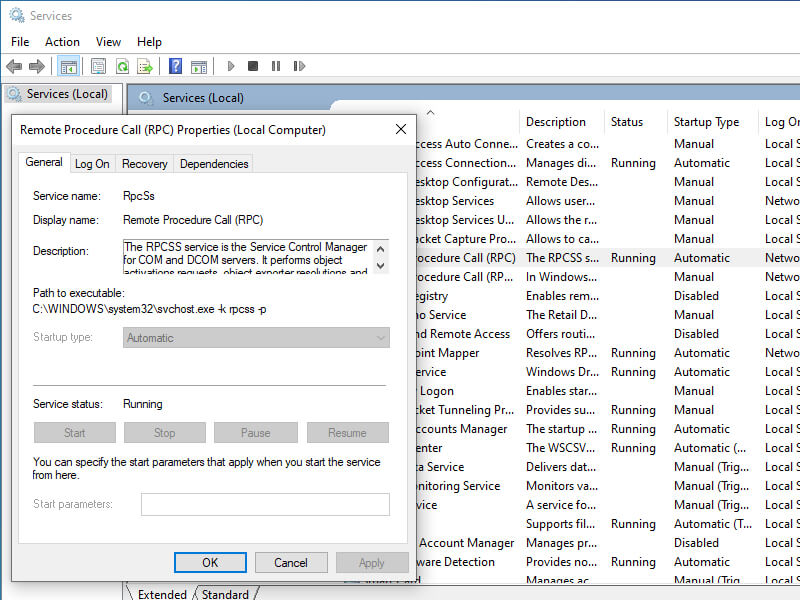
    The problem “The RPC server is unavailable” can be caused by the RPC service not working on each connected computer. You can follow the steps below to make sure that all the services related to RPC are running normally.

    Make sure the RPC Service is running properly
    Make sure the RPC Service is running properly
    1. Press the Windows key + R  on your keyboard to open the Run dialog. Then type “ services.msc ” and press  Enter.
    2. In the Services window, scroll down to find DCOM Server Process Launcher,  Remote Procedure Call (RPC), and  RPC Endpoint Mapper items. Make sure their status is  Running and their startup is set to  Automatic.

    #2. Enable Remote Desktop/Assistance In Firewall

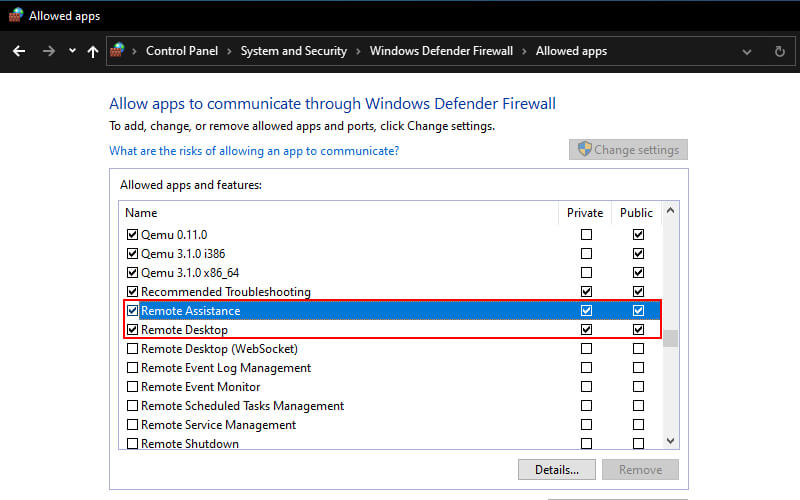
    Firewalls can block traffic requested by RPC and therefore cause problems The RPC server is unavailable. You should check your firewall configuration and see if it is blocking network connections for RPC. To do this, follow these steps:

    Enable Remote DesktopAssistance In Firewall
    Enable Remote DesktopAssistance In Firewall
    1. Press the Windows key + R  on your keyboard to open the Run dialog. Then type “ control ” and press  Enter.
    2. In the Control Panel, look for the Windows firewall. And then click on  Allow an app through Windows Firewall under  Windows Firewall.
    3. Scroll down to find  Remote Assistance. Make sure the communication is enabled  (All item boxes must be checked ).

    #3. Change Startup Options From Selective To Normal

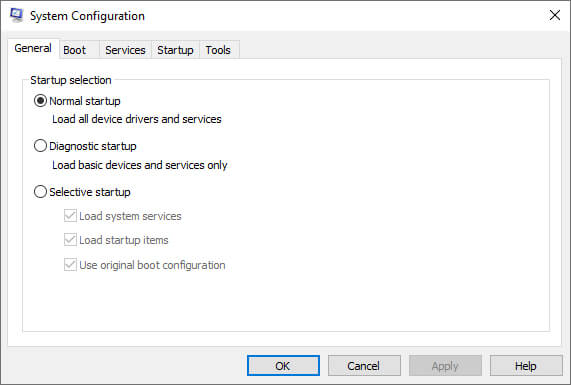
    The selective startup is a boot method that allows your computer to boot up with a minimal number of items loaded. This is usually done when troubleshooting problems with your computer that may involve other third-party applications. However, every time you boot using selective startup, your computer will also not load all the RPC components to your computer. In that case, you can choose a normal startup and see if this fixes the problem. Here’s how:

    Change Startup Options From Selective To Normal
    Change Startup Options From Selective To Normal
    1. Press the Windows key + R, type “ msconfig ” in the dialog box, and press Enter.
    2. Once the System Configuration window opens, select the General tab and select the Normal startup option.
    3. Click  Apply  >  OK  to save changes and exit.
    4. You will be asked to restart the computer. Restart immediately using the window that appears and check if the error message is resolved.

    #4. Enable IPV6 And File & Printer Sharing For Network Connected

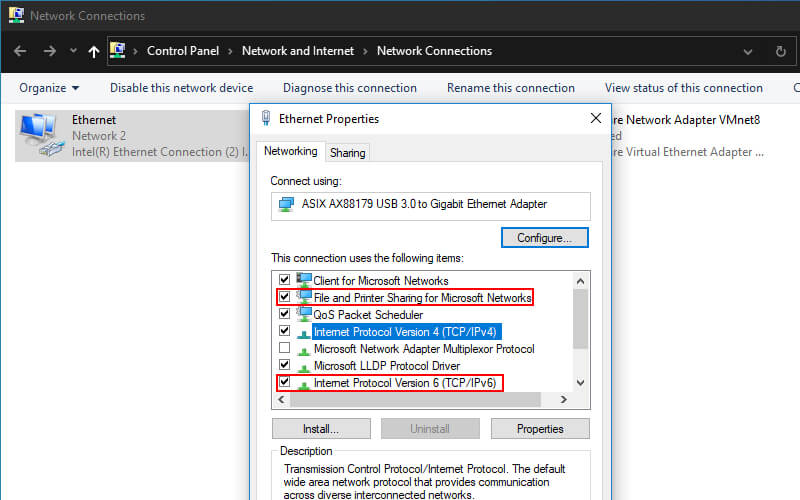
    In some cases, you may encounter  Error 1722: The RPC server is an unavailable issue in cases where there is a network connection interruption caused by one or more settings. In this case, enabling IPV6 and File and printer Sharing for the connected network can solve the problem. To do this, follow the steps below:

    Enable IPV6 And File & Printer Sharing For Network Connected
    Enable IPV6 And File & Printer Sharing For Network Connected
    1. Press the Windows key + R  and then type “ ncpa.cpl ” in the Run dialog box and press Enter to open the Network Connections window.
    2. In the Network Connections window, right-click on the network you are currently connecting to and press  Properties.
    3. Once you have entered the Properties of your network connection, go to the Network tab and scroll down through the list of items.
    4. Locate  File and  Printer Sharing for Microsoft Networks and  Internet Protocol Version 6 (TCP/IPv6)  and make sure that the two related boxes are checked.
    5. Click OK to save changes.
    6. Restart your computer and see if the problem is resolved.

    #5. Do Flush DNS & Renew

    This solution requires you to ensure that the services involved in the RPC connection are running (as described in solution 1 above) before you proceed to clearing DNS and updating the connection.

    If you are sure that the required services are running, follow the instructions below to clear the DNS and update the connection.

    1. Type the command prompt in your Start menu search bar, then right-click the most suitable one and select  Run as administrator.
    2. In the Command prompt, type the command “ ipconfig /flushdns ” and press Enter to clear the current IP Configuration.
    3. After the command is successfully carried out, also type the command ” ipconfig /renew ” and press Enter to update the IP Configuration.
    4. Once the IP is updated, close the Command Prompt run remote commands, and see if the issue is resolved.

    #6. Force RPC Services To Start Using Registry Editor

    You should check your Registry settings to make sure RPC is running properly on your computer. To use the Registry Editor to force RPC services to start, do the following:

    1. Log in to your operating system as  Administrator  (Registry Editing requires  Administrator Privileges ).

    2. Press the Windows key + R  on your keyboard to open the Run dialog. Then type “ Regedit ” and press  Enter.

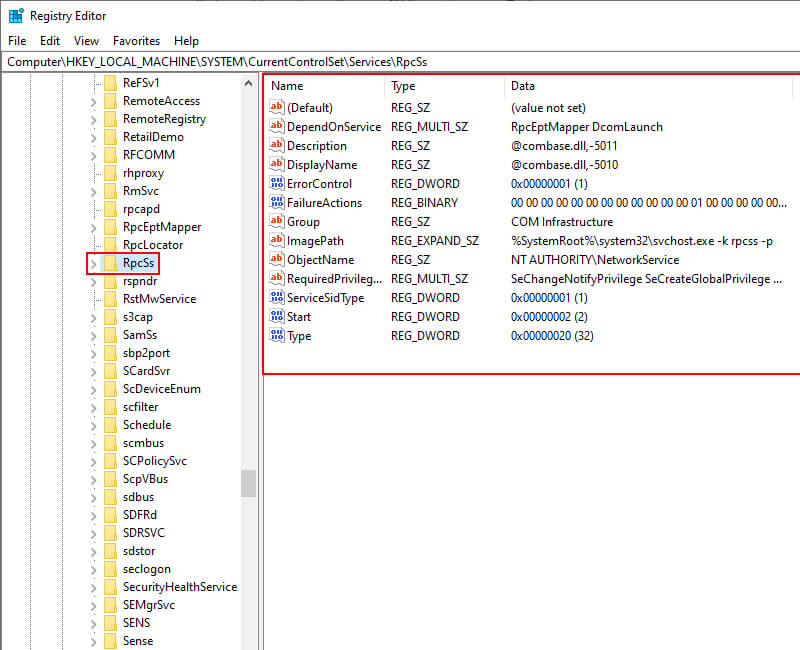
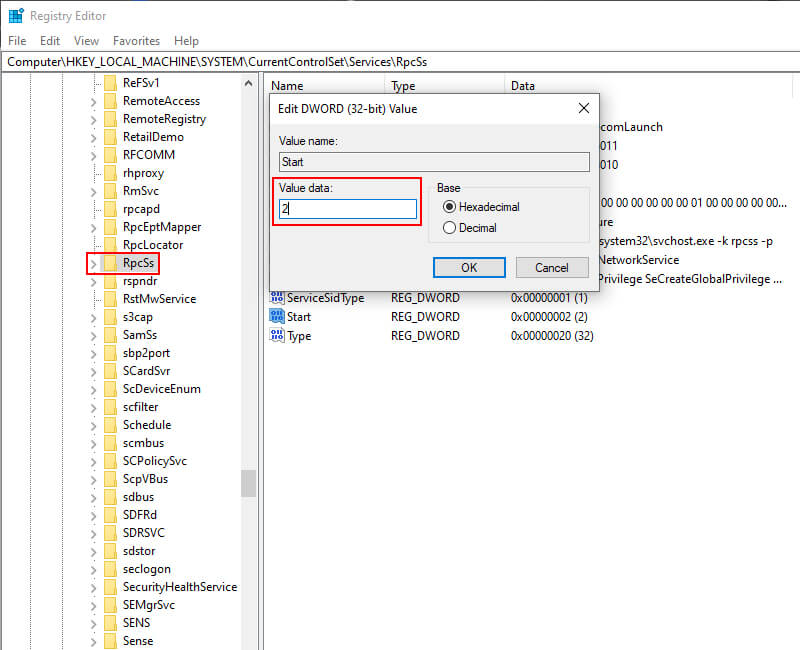
    3. When your Registry Editor is opened, navigate to  HKEY_LOCAL_MACHINE\SYSTEM\CurrentControlSet\services\RpcSs. See if any item is missing as the image below shows. If so, it is recommended that you reinstall your Windows.

    Force RPC Services To Start Using Registry Editor
    Force RPC Services To Start Using Registry Editor

    4. If you find the Remote Procedure Call (RPC) is not set properly when you try method 1, you can edit the  Start registry key in  RpcSs. Double-click on  Start to edit the value. Set the value data to  2.

    Force RPC Services To Start Using Registry Editor
    Force RPC Services To Start Using Registry Editor

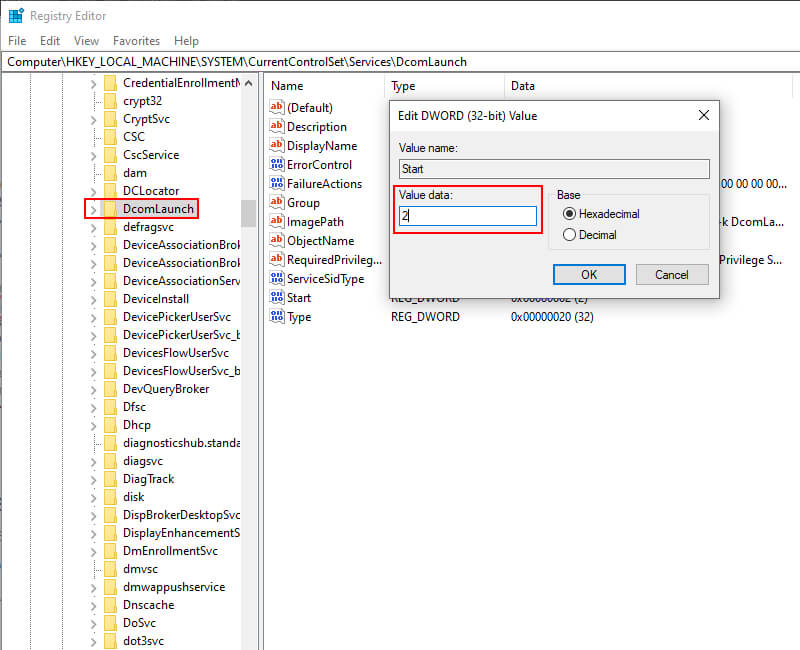
    5. Navigate to   HKEY_LOCAL_MACHINE\SYSTEM\CurrentControlSet\services\DcomLaunch. If you find the  DCOM Server Process Launcher is not set properly, double-click on the Start registry key button to edit its value. Set the value data to  2.

    Force RPC Services To Start Using Registry Editor
    Force RPC Services To Start Using Registry Editor

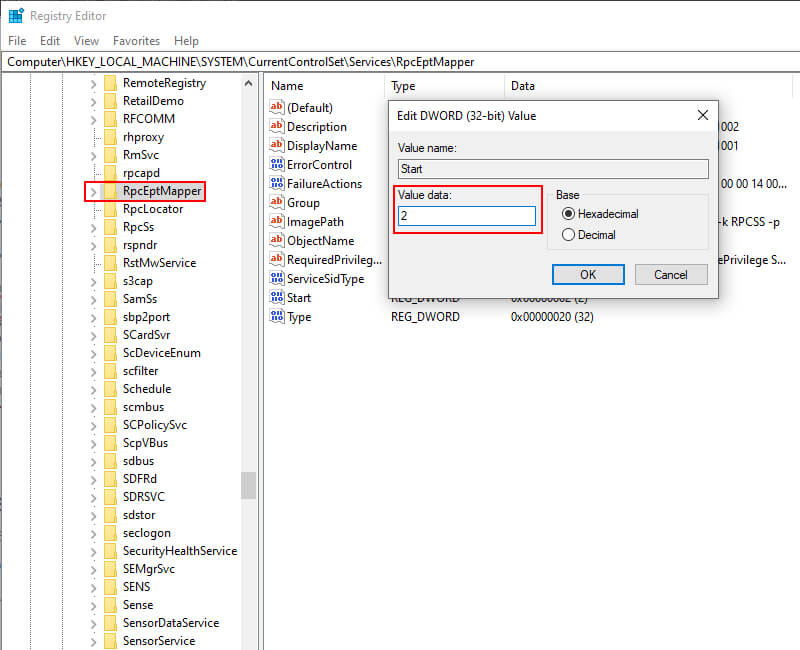
    6. Navigate to  HKEY_LOCAL_MACHINE\SYSTEM\CurrentControlSet\services\RpcEptMapper. If you previously found the RPC Endpoint Mapper setting incorrect, double-click on the  Start registry key to edit the value. Again, set the data value to  2.

    Force RPC Services To Start Using Registry Editor
    Force RPC Services To Start Using Registry Editor

    Read more:

    Conclusion:

    This is the explanation of 6 ways to fix the RPC server as an unavailable error in Windows, Hopefully, one of the methods above can solve the problem you are experiencing.

    But if you have probably tried all the methods above, and you are still getting the error “The RPC Server Is Unavailable.

    In this case, we suggest you restore your system to the latest restore point or reinstall Windows on your computer. You can also contact your device manufacturer for further assistance.

  • 6 Ways to Fix Network Cable Unplugged Errors in Windows 2025

    6 Ways to Fix Network Cable Unplugged Errors in Windows 2025

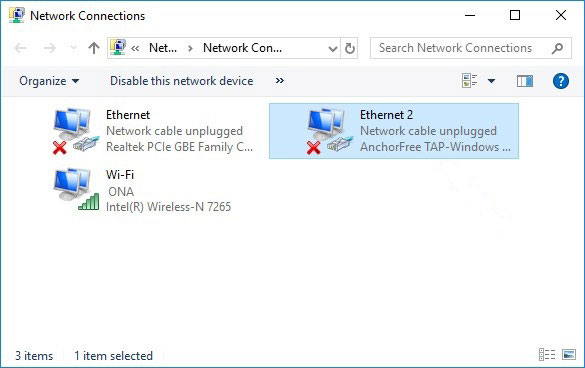
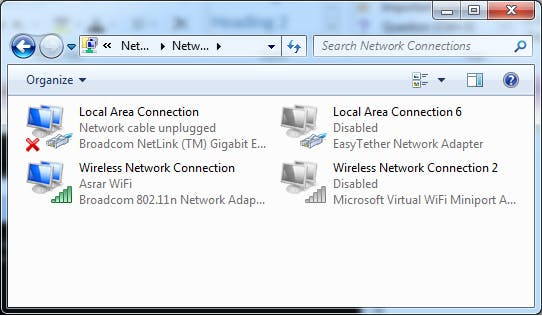
    6 Ways to Fix Network Cable Unplugged Errors in Windows – When your computer is unable to connect to the network, you may see an error message that says “A network cable is unplugged” and see a red “X” on the taskbar or in Windows Explorer.

    6 Ways to Fix Network Cable Unplugged Errors in Windows
    6 Ways to Fix Network Cable Unplugged Errors in Windows

    How to Fix Network Cable Unplugged Errors in Windows

    This message may appear only once every few minutes or once every few days, depending on the nature of the problem.

    Read more:

    This error can also occur when you are using WiFi.

    Causes of Network Cable Unplugged Error in Windows

    Causes of Network Cable Unplugged Error in Windows
    Causes of Network Cable Unplugged Error in Windows

    Several things can cause a network error cable is unplugged.

    Usually, a message appears on the computer when the installed Ethernet network adapter fails to establish a local network connection.

    There are various causes of network connection failure, such as a bad Ethernet cable, a faulty network adapter, or a malfunctioning network device driver.

    Several people who have upgraded from an older Windows version to Windows 10 have also reported this issue.

    How to Fix Network Cable Unplugged Errors in Windows 10

    How to Fix Network Cable Unplugged Errors in Windows 10
    How to Fix Network Cable Unplugged Errors in Windows 10

    If your computer is having problems with the network cable unplugged, try the following steps to resolve the issue and reconnect the laptop to the network:

    1. Restart the computer by turning it off completely, letting it sit for a few minutes, and then restarting the computer.

    If you are using a laptop, remove the battery if possible, then leave it for 15 to 30 minutes.

    Just unplug the laptop charger from the wall outlet and remove the battery.

    After that, replace the laptop battery, and turn on your laptop.

    2. Disable the Ethernet network adapter if you are not using it.

    Do this if you are using a WiFi network with a computer with a built-in Ethernet adapter.

    Double-click on ‘ A network cable is unplugged ‘ to disable the adapter and select the Disable option.

    3. Check both ends of the Ethernet cable to make sure they are not loose.

    One end is connected to your computer, and the other end is connected to a router network device.

    If this doesn’t work, try testing the damaged cable.

    Check your ethernet cable before buying a new one.

    Plug the same cable into another computer or temporarily swap the Ethernet cable for a good cable.

    4. Update the network adapter driver software to a newer version if available.

    If you’re running the latest version and the error still appears, consider uninstalling and reinstalling the driver or reverting to an earlier version.

    It doesn’t seem possible to check the internet for outdated network drivers when the network can’t reach the internet.

    However, some free driver update tools like Driver Talent for Network Cards and DriverIdentifier help.

    5. Use Device Manager or Network and Sharing Center (via Control Panel) to change the Ethernet adapter’s Duplex setting to the Half Duplex or Full Duplex option instead of the default Auto option.

    This change works around the technical limitations of the adapter by changing its speed and operating time.

    Some people have reported more success with the Half Duplex option, but this setting lowers the maximum total data rate the device supports.

    Go to the device properties and find the Speed ​​& Duplex setting in the Advanced tab to adjust it.

    6. the Ethernet adapter is a removable USB dongle, PCMCIA, or PCI Ethernet card on some older computers.

    Remove and reinsert the adapter hardware to verify that it is properly connected.

    If that doesn’t help, try changing your adapter.

    Read more:

    Conclusion:

    This is the explanation of 6 ways to Fix network cable unplugged errors in Windows, If none of the how to fix the network cable unplugged that we mentioned above resolve the error, it may not be a faulty Ethernet cable but a faulty connected device, such as an adapter.