Author: Nazrul Islam

  • 7 Ways to Fix Windows Was Unable To Complete The Format 2024

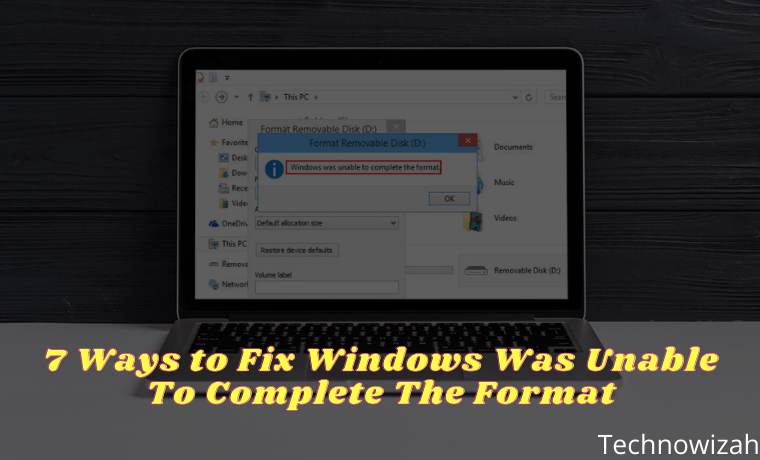
    7 Ways to Fix Windows Was Unable To Complete The Format – Have you tried to format the flash drive and see the “Windows was unable to complete the format” error? You may feel irritated, as this leaves you with an unusable device.
    7 Ways to Fix Windows Was Unable To Complete The Format
    7 Ways to Fix Windows Was Unable To Complete The Format

    How to Fix Windows Was Unable To Complete The Format 2024

    Do you see this error format with a flash, micro SD, SD card, or something similar, don’t worry! Because the Admin will show you how to solve Windows was unable to complete the format error.

    Read more:

    How to Format Pendrive in Windows?

    To make sure we’re starting on the same page, let’s take a quick look at how to format a flash drive in Windows 10. Keep in mind that this process will delete all the files currently on your Pendrive!

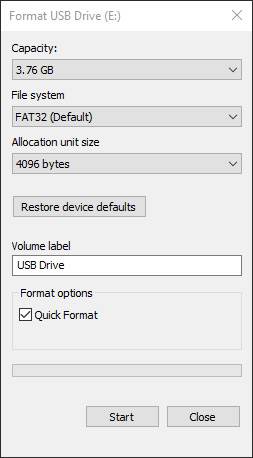
    Open a File Explorer window and browse to  This PC  to see all the drives connected to your computer. On that page, find your flash drive, right-click and select  Format.

    This will bring up the basic Windows format menu. If you are not sure which option to choose press the Restore device defaults button to use the included device. Click  Start to format the flash.
    How to Format Pendrive in Windows
    How to Format Pendrive in Windows

    If when you try this several times and keep getting the message “Windows was unable to complete the format”, proceed to the steps to fix it.

    #1. Try Formatting Through Disk Management

    For advanced disk needs, Windows provides the Disk Management tool, which has more options than This PC. So, this should be your first pick when standard formats don’t work.

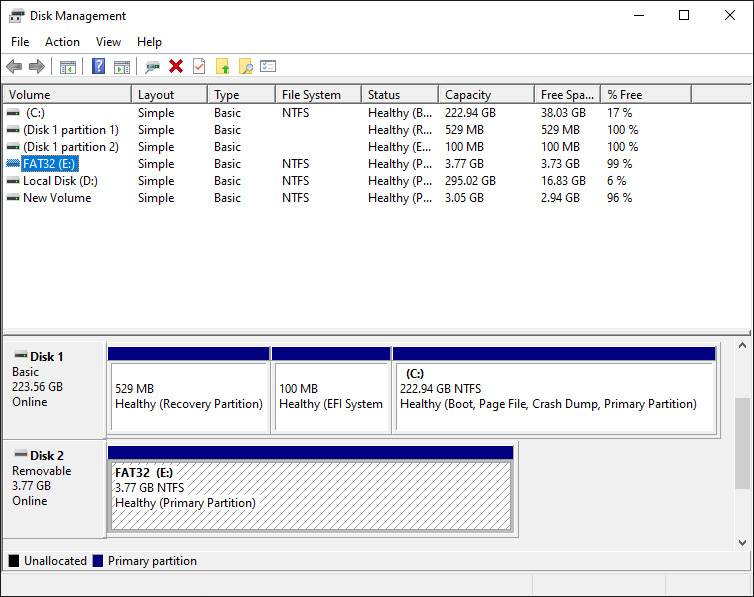
    Press  Win + X  or right-click on the Start button to open a list of shortcuts, then click  Disk Management to access them.

    You’ll see a list of volumes attached to your computer at the top, as well as a visual representation of them at the bottom.
    Try Formatting Through Disk Management
    Try Formatting Through Disk Management

    If you see  RAW next to the drive size at the bottom (and under  File System in the top pane), it means Windows doesn’t recognize the drive’s file system.

    In some cases, this indicates that the drive is formatted with a macOS or Linux file system that Windows cannot use.

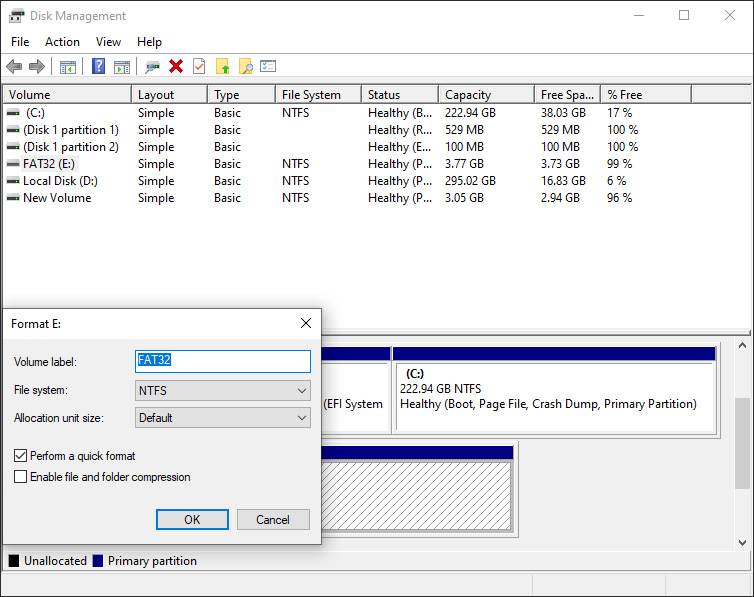
    Right-click on your USB drive (make sure you choose the correct one) and select  Format. You will see an interface similar to the one you used before.

    Select the Volume label, specify the File system  (FAT32 is best for smaller devices or devices you plan to use across platforms), and leave the Allocation unit size as  Default.
    Try Formatting Through Disk Management
    Try Formatting Through Disk Management

    If you leave  Perform a quick format checked, Windows will not check for bad sectors on the disk. We’ll cover this in a later troubleshooting step, but you can feel free to uncheck it now and see if Windows finds any issues. Keep in mind that this may take longer to complete.

    Delete And Recreate Volume

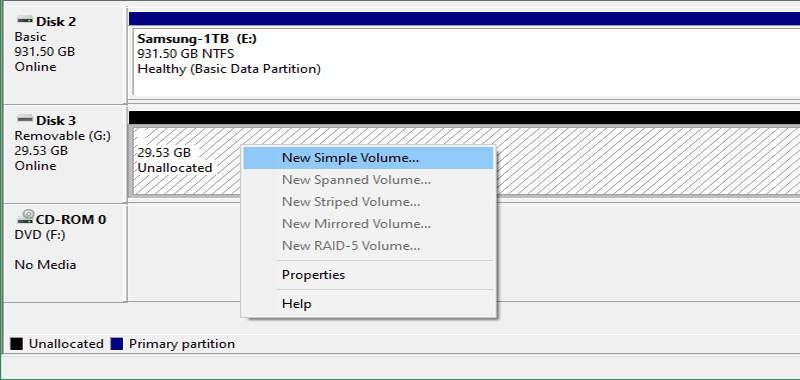
    If this fails, you can try the Delete Volume option in the drive’s right-click menu. Deleting a volume will erase everything Windows has assigned to disk, leaving only unallocated space.

    Therefore, you need to create a new volume by right-clicking it, selecting  New Simple Volume, and following the steps (which are similar to other formatting methods).
    Delete And Recreate Volume
    Delete And Recreate Volume

    #2. Remove Write Protection On the Drive

    Write Protection, as the name suggests, prevents any system from adding new data to the drive.

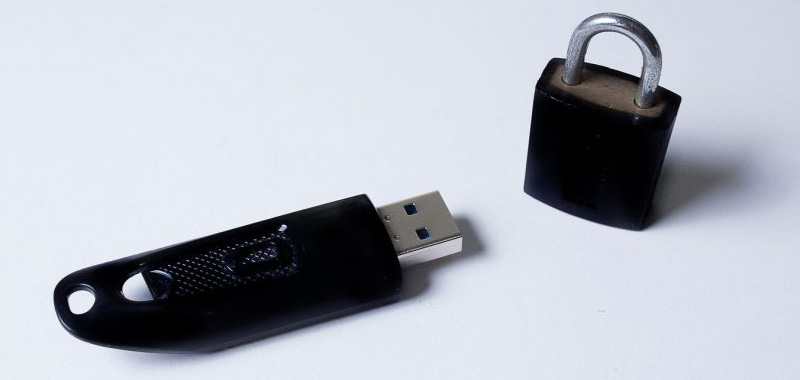
    The most common reason for this is the physical switch on the drive itself, especially with SD cards. Look at your drive and make sure all the sliders or switches are not locked or read-only.
    Remove Write Protection On Drive
    Remove Write Protection On Drive

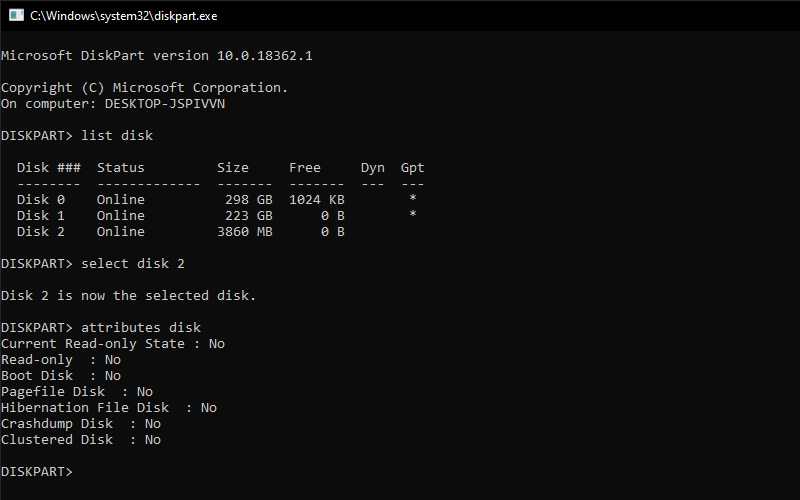
    After checking this, you should also remove the write protection software on your drive. To do this, press  Win + R  to open the Run dialog and enter diskpart. Confirm the UAC prompt that appears, then you will see the Command Prompt interface.

    Enter the list disk and press  Enter. You will see a list of disks and should be able to identify the USB flash drive by its size. Insert select disk X  to make changes to the proper device.

    Once you see confirmation that you have selected the correct disk, enter disk attributes to view the information. If you see  Yes next to the Current Read-only State, then the disk has to write protection.
    Remove Write Protection On Drive
    Remove Write Protection On Drive

    To remove this, enter the disk’s clear read-only attributes. Windows then displays a message that the attribute was successfully removed, enter the exit command to exit the window. Now that there is no write protection, try formatting your disk again.

    #3. Use SD Memory Card Formatter

    If you can’t format the SD card in Windows, the fix might be using a specific utility instead of the Windows tool.

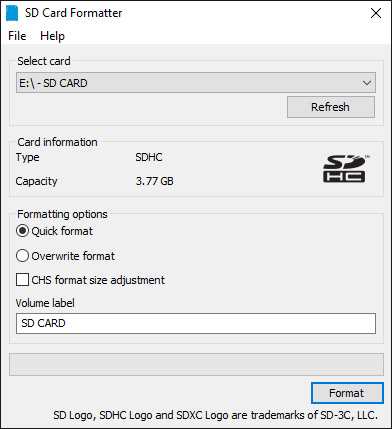
    The SD Association recommends using the  SD Memory Card Formatter,  not the one provided by your operating system. Download the tool if you are specifically having problems with the SD card.

    The tool is simple and looks similar to the options you tried above. Make sure you choose the right card in the dropdown menu at the top.

    Use  Format Overwrite to erase the current card content for best results and give it a name in the Volume label field.
    Use SD Memory Card Formatter
    Use SD Memory Card Formatter

    #4. Scan the Drive for Errors

    Sometimes, you will encounter a format error because the drive has bad sectors or similar issues. At this point, it’s worth checking the drive to see if there’s anything wrong with it.

    To do this, open  This PC  again. Right-click on the Flashdisk and select  Properties. On the resulting menu, switch to the Tools tab and click the Check button under  Error-checking. Select  Repair drive to run a scan on the drive then wait for it to finish and try again.
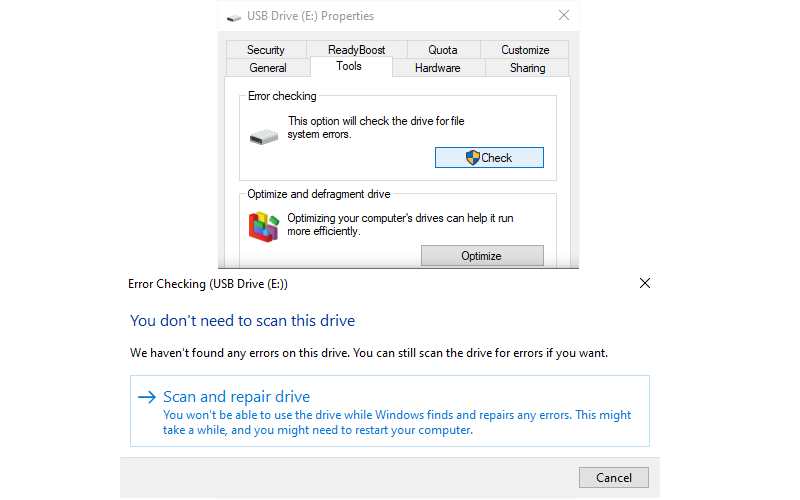
    Scan the Drive for Errors
    Scan the Drive for Errors

    #5. Use the Third-Party Formatting Tool

    If you still can’t format your disk, a third-party tool can solve your problem. Oftentimes, such tools use a different formatting method than Windows and can bypass any issues Windows has with your disk.

    You can download and install third-party formatting tools like Paragon Partition Manager, it’s an application that has been around for years and has won several awards.

    #6. Scan for Malware

    While it’s most likely not the cause of your problem, it’s worth running a malware scan if you’re still unable to format the drive. Some malware can interfere with normal file operating systems, including formatting drives.

    The admin recommends running a scan with the free version of  Malwarebytes and seeing if it finds the infection. Then try formatting again.

    #7. Try Formatting On Another OS
    Try Formatting On Another OS
    Try Formatting On Another OS

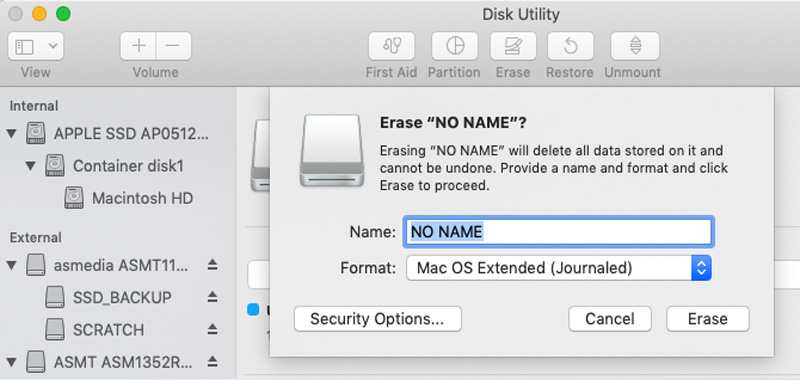
    Before you give up on an unformatted drive, there is one more way you can try to solve the problem. If you have access to a machine running macOS or Linux, try using those operating systems to format your external drive.

    Even if you have to reformat the drive again to use it with Windows, it’s good to know if the problem is with your hardware or Windows.

    If your drive formats fine on Mac or Linux, it means that there is some problem with your Windows operating system.

    Read more:

    Conclusion:

    So those are some ways to solve Windows was unable to complete the format error. If you’ve done all the steps above and still get the format error, your drive may be dead.

    Unfortunately, flash drives and SD cards have a limited number of uses, and cheap or old drives are more prone to damage. This also happens if your drive is physically damaged.

    Don’t forget to bookmark and always visit every day Technowizah.com because you can find here the latest Tech Computer Android games How-to Guide Tips&Tricks Software Review etc, Which we update every day.

  • 8 Ways to Fix The Hosted Network Couldn’t Be Started in Windows 10 [2024]

    8 Ways to Fix The Hosted Network Couldn’t Be Started in Windows 10 [2024]

    8 Ways to Fix The Hosted Network Couldn’t Be Started in Windows 10 PC – The error message “ The hosted network couldn’t be started ” can occur when Windows 10 users set up a WiFi hotspot via the command prompt. Usually, the problem is caused by the WiFi network adapter. But don’t worry! Because the admin has the answer to fix it. In this post, I will show you how to solve the hosted network that couldn’t be started on Windows 10.

    8 Ways to Fix The Hosted Network Couldn't Be Started in Windows 10
    8 Ways to Fix The Hosted Network Couldn’t Be Started in Windows 10

    What is the Error Message The Hosted Network Couldn’t Be Started?

    Internet Connection Sharing (ICS) is one way to turn a PC into a mobile hotspot. PC tethering helps to solve your router problem which only has a limit of users that can connect at the same time. The process can be done through settings. However, using the Command Prompt is the most popular way to set up a hosted network.

    Read more:

    The name itself implies that your computer serves as the “host” of your Wi-Fi network and that other devices can connect to and through it. In Command Prompt, the hosted network is started first by activating the mobile hotspot feature: netsh wlan set hostednetwork mode=allow ssid=” HotspotName” key=” password”.

    The words in quotes will be replaced with whatever name you choose for the PC hotspot and the password you choose respectively. After that, you usually proceed by starting the hosted network with the following command: netsh wlan start hostednetwork.

    This is where the problem arises for most people. Usually, after executing the above command, the user receives the error message “ The hosted network started ”. However, with this error, the feature does not start and the Command Prompt issues the following error notifications: “ The hosted network couldn’t be started ” and “ The group or resource is not in the correct state to perform the requested operation “.

    Sometimes, the error message is slightly different, but basically, the cause remains the same. Here are some other error messages from this nasty network error notification:

    • The hosted network couldn’t be started a device attached to the system is not functioning
    • Microsoft hosted network virtual adapter missing
    • The hosted network couldn’t be started because the wireless local area network interface is powered down
    • Can’t find Microsoft-hosted network virtual adapter
    • Microsoft hosted network virtual adapter not found in Device Manager
    • As they are all the same, the same solution applies to all of them.

    Note that this error usually means that the Microsoft Hosted Network Virtual Adapter, which plays an important role in PC network sharing, is missing, corrupted, or disabled. Out-of-date or out-of-date Wi-Fi, drivers can also cause this annoying problem. The wrong driver configuration also does not rule out the possibility. But you don’t need to worry, because the admin will tell you how to solve the hosted network that couldn’t be started on Windows 10.

    How to Fix The Hosted Network Couldn’t Be Started

    If there is a bug in Windows, of course, there will be a solution. The error message “ The hosted network couldn’t be started ” in Windows 10 is no different in this regard. The admin has collected several solutions that you can use to solve this problem.

    #1. Check the WiFi Connection

    You can’t use the internet through a wireless router, let alone a hosting network, if your WiFi is turned off. Sometimes we unconsciously ignore the fact that there are times when we need to manually set up a WiFi connection on our computer by clicking on the network icon on the right side of the taskbar. Also, check if you turned on airplane mode by mistake. It can also verify that the WiFi network is working.

    #2. Check PC Supports Sharing

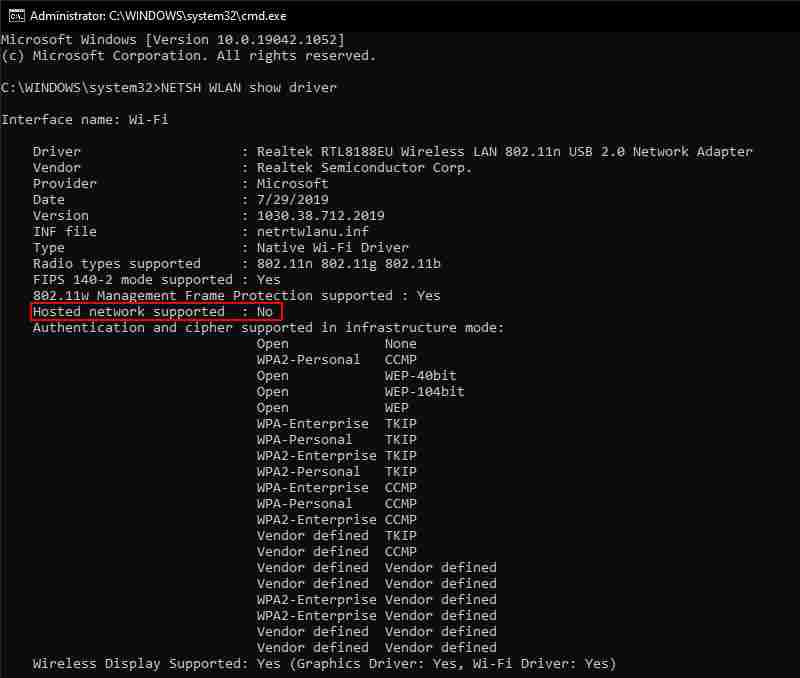
    You can’t set up a mobile hotspot if your PC doesn’t support hosted network sharing. To check, follow the instructions below:

    Check PC Supports Sharing
    Check PC Supports Sharing
    1. Press the Windows key + R to open the Run dialog box.
    2. Type ” cmd ” in the dialog box then press CTRL + SHIFT + Enter to open a Command Prompt with admin privileges.
    3. Enter the command “ NETSH WLAN show driver ” in the Command Prompt window, and press the Enter key. It tells you whether your PC or laptop supports a Hosted network.

    #3. Run Network Adapter Troubleshooter

    The Network Adapter Troubleshooter may be able to provide a fix for the “ The hosted network couldn’t be started ” problem. For that, you can try to use the troubleshooter in Windows 10. Follow the steps below to do it:

    Run Network Adapter Troubleshooter
    Run Network Adapter Troubleshooter
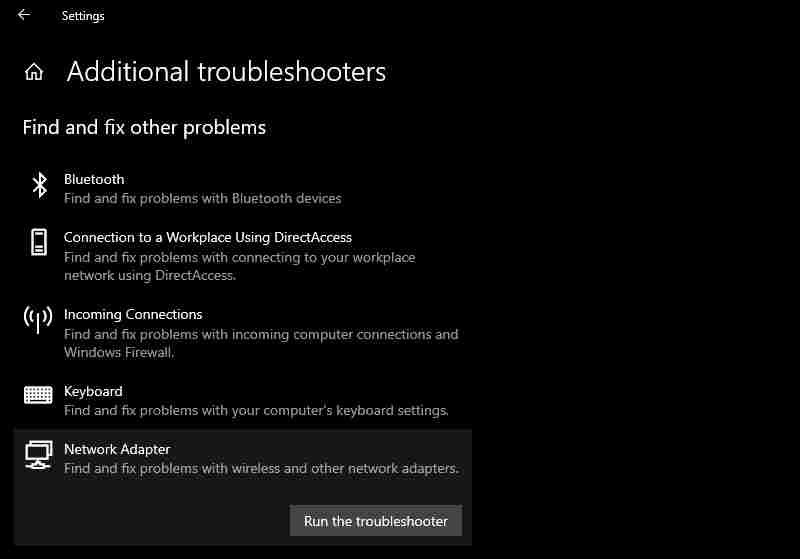
    1. Type “ troubleshoot ” in the Windows search bar and select the most suitable one.
    2. Then click on the Additional Troubleshooter section.
    3. Go to the Find and fix other problems section then select Network Adapter and click Run the troubleshooter to open the troubleshooter window.
    4. The troubleshooter then presents a selection of network adapters for repair. Select the All network adapters or WiFi option.

    #4. Check WiFi Network Sharing Settings

    If you want to enable a hosted network on your computer, it means you want to use the machine as a “hub” for other devices to connect to the internet. Of course, that option must be enabled first on your PC, otherwise, it won’t work.

    Now, the feature, or rather the network sharing option, is enabled by default. However, if all your attempts to get network sharing up and running proved to be unsuccessful, the feature may have somehow been disabled. Re-enabling the option might solve this problem once and for all:

    Check WiFi Network Sharing Settings
    Check WiFi Network Sharing Settings
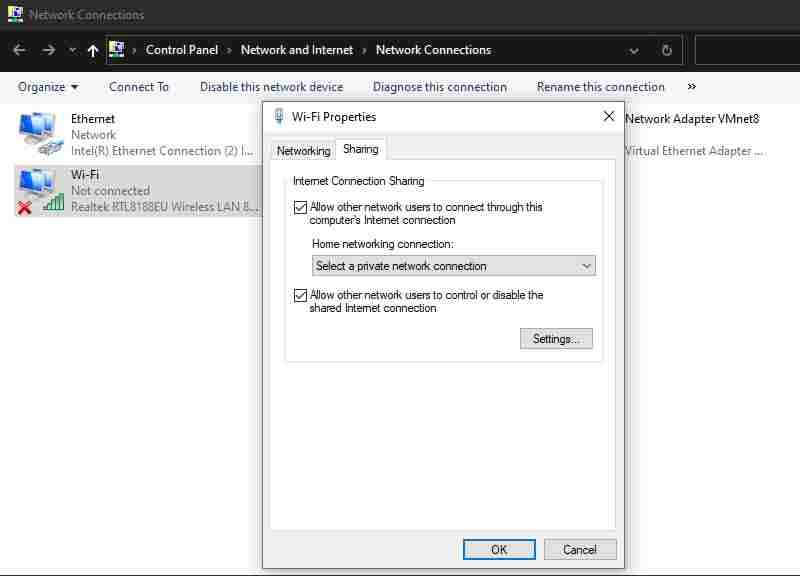
    1. Press the Windows key + R then enter “ ncpa. CPL ” in the Run dialog box, and press the OK button.
    2. Right-click the network for which you want to enable sharing and select Properties from the context menu
    3. Click the Sharing tab and then check the box Allow other users to connect through this computer’s internet connection.
    4. Also, check the option Establish a dial-up connection whenever a computer on my network attempts to access the internet which is included in the Sharing tab of Windows 8.
    5. Press the OK button to confirm the setting.

    #5. Check Power Management Settings

    Some users reported that they fixed the “ The hosted network couldn’t be started ” issue in Windows 10 by enabling the power management feature built into the network adapter. So maybe this method can solve your problem. There’s no harm in trying, at least. Follow the instructions below to try it out:

    Check Power Management Settings
    Check Power Management Settings
    • Open the Run dialog box by pressing Windows Key + R and typing “ devmgr.msc ” (without the quotes). Press the Enter key or click OK.
    • When the Device Manager window opens, navigate to the network adapters section and double-click to expand it.
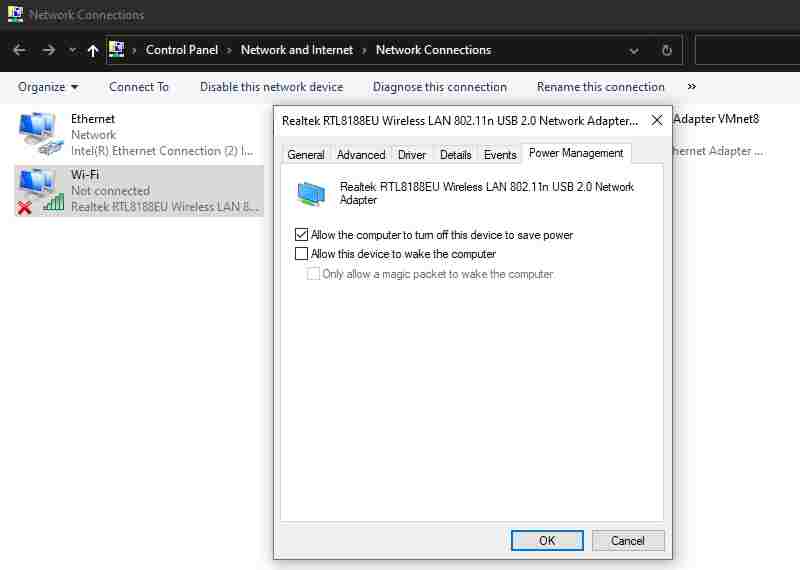
    • Right-click the problematic WiFi network adapter and select Properties.
    • In Properties, click the Power Management tab.
    • Check if the “ Allow the computer to turn off this device to save power ” option is enabled. If it’s disabled, enable it.
    • Click OK and exit all windows.

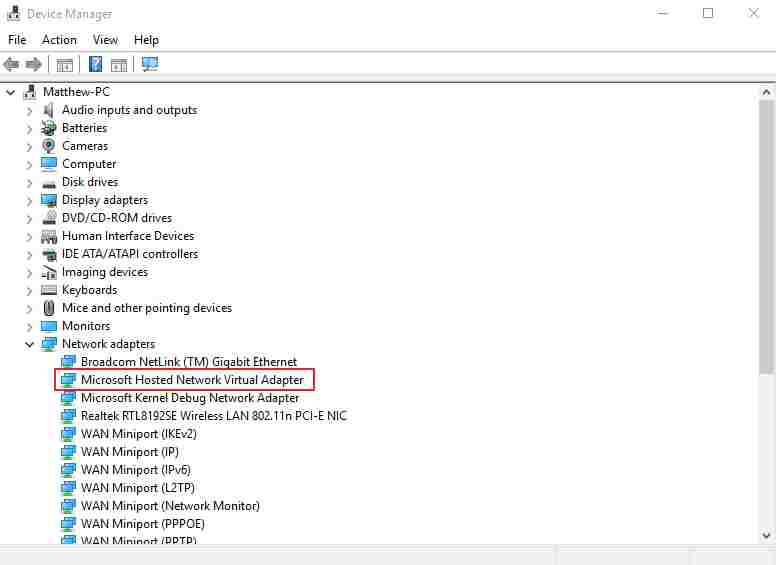
    #6. Enable Microsoft Hosted Network Virtual Adapter

    To use your PC as a mobile hotspot on Windows 10, you need a Microsoft Hosted Network Virtual Adapter. It must be present and enabled for the hosted network feature to work properly. If disabled, it can give an error message “ The hosted network couldn’t be started ”. You can check if the Microsoft Hosted Network Virtual Adapter is enabled or not and turn it on if needed. Follow the steps below:

    Enable Microsoft Hosted Network Virtual Adapter
    Enable Microsoft Hosted Network Virtual Adapter
    1. Press the Windows key + R . Type “ devmgmt.msc ” in the Run dialog box and click the OK button.
    2. Now click View in the Device Manager window.
    3. Select the Show Hidden Devices option.
    4. Double-click Network adapters, which will now include the Microsoft Hosted Network Virtual Adapter.
    5. Right-click the Microsoft Hosted Network Virtual Adapter and select the Enable device option.

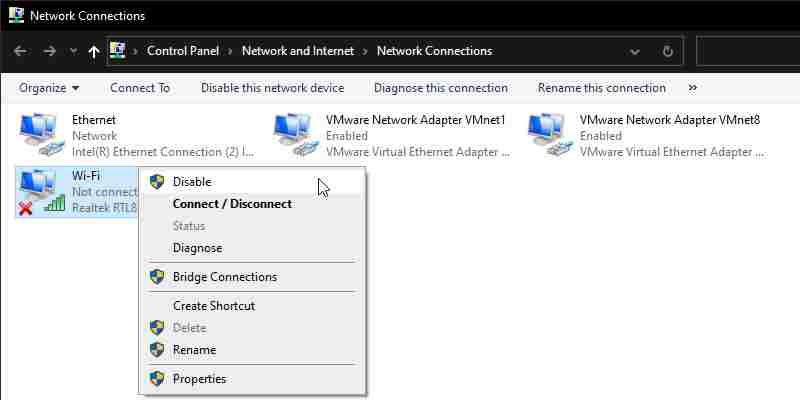
    #7. Reset WiFi Network

    Most problems with Windows can be solved by doing a simple restart. For the problem “ The hosted network couldn’t be started ” in Windows 10, resetting the WiFi network can work fine. To reset the problematic network, you must first disable it, wait a moment, then reactivate it. Hopefully, this action resolves the issue so you can continue using the sharing feature on your PC. Here’s how to do it:

    Reset WiFi Network
    Reset WiFi Network
    1. Press the Windows key + R then enter “ ncpa.cpl ” in the Run dialog box and click OK.
    2. Right-click your WiFi connection and select Disable.
    3. Wait a minute or two, then select the Enable option in the WiFi connection context menu.

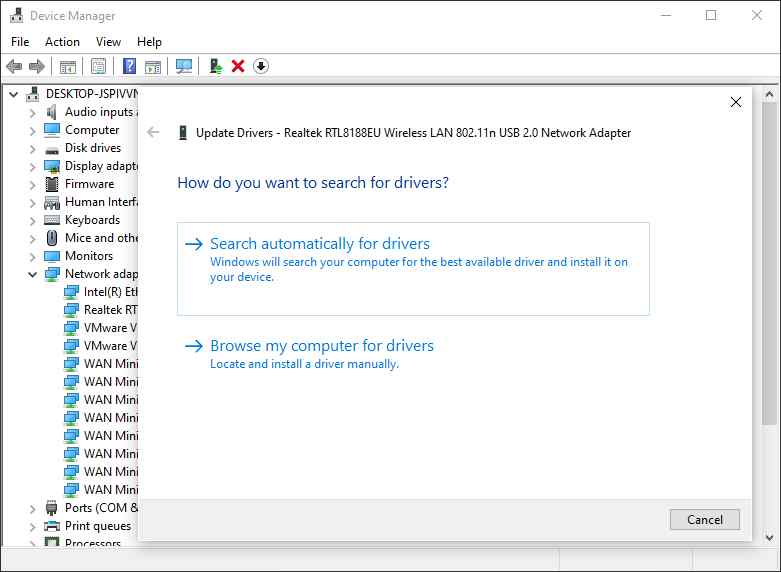
    #8. Update the Network Driver

    The error message “ The hosted network couldn’t be started ” may also be caused by an incompatible or corrupted WiFi driver. So updating the WiFi network adapter driver is a way worth trying. You can update drivers with third-party software or use Device Manager’s Search automatically. Here’s how to do it:

    Update Network Driver
    Update Network Driver
    • Press the Windows key + X to open the Quick Access menu and select Device Manager.
    • In the Device Manager window, look for Network Adapters and expand it. Right-click the Wi-Fi adapters that are giving you problems and select Update Driver.
    • In the next window, select the “ Search automatically for updated driver software ” option.
    • Windows will start a search for the required drivers and install them if they are available. Otherwise, it will tell you that the current driver is the latest one.

    Read more:

    Conclusion:

    So those are some ways to fix the hosted network that couldn’t be started on Windows 10. If all the methods above still don’t solve the problem, you can use a third-party application such as Connectify or Free Wi-Fi Hotspot to create a mobile hotspot.

    But supposedly with the solutions provided in this guide, you can solve that problem and successfully share your network via PC or laptop.

    Don’t forget to bookmark and always visit every day Technowizah.com because you can find here the latest Tech Computer Android games How-to Guide Tips&Tricks Software Review etc, Which we update every day.

  • The Latest IDM Serial Number Collection 2024 [100% Working]

    The Latest IDM Serial Number Collection 2024 [100% Working]

    The Latest IDM Serial Number Collection 2024 [100% Working] – Internet Download Manager or IDM is one of the most popular downloader software. It allows users to download all types of files automatically at 5x speed.

    The Latest IDM Serial Number Collection 2021 [100% Working]
    Image Source: iproductkeys.com

    The Latest IDM Serial Number Collection 2024 [100% Working]

    That’s why millions of Internet users use this software. But you need an IDM serial number to register because, without registration, you can’t use it for a long time. There are many to register this software for free but we always suggest buying the IDM app.

    Read more:

    IDM divides it into several parts to speed up downloads when you download files from a site. So, you will get more speed when downloading any file from the Internet. This software has free and paid versions.

    In the free version, you can use Internet Download Manager for 30 days. After the trial period expires, the app will stop working and you will have to purchase a license to reactivate it. In this article, the admin will share the latest IDM serial number for lifetime use without paying money.

    What is IDM Serial Number?

    A serial number or License key is a code or number generated by the Easysoft License serverSo, the key is a combination of the machine number with some information that can be used to register a program, software, or application.

    The IDM serial number is the key to registering your Internet Download Manager software and making it a paid version. After that, you can enjoy all the available features.

    We know that IDM is the most useful download tool. But it’s a paid tool that can cost you a lot to buy. So, if you want to use Internet Download Manager, then you need a license or serial key that will help you get IDM registered for free.

    Many people are looking for IDM serial keys. It is 100% working and solves the problem of fake IDM serial keys by using a valid serial key which solves the problem.

    The Internet download manager has a 30-day trial option for all users. After expiration, you must register with a valid serial number. The IDM serial number gives you full and lifetime access to use it without paying a single penny. With the serial key, you can also crack IDM easily. On the Internet, you will find many serial keys.

    More than 70-80% of fake IDM serial numbers have no problems. Below, we include some serial numbers that are 100% valid and tested. You can apply anyone to enable lifetime access to the Internet download manager.

    Latest List of IDM Serial Number Collection Updated 2024:

    • OV4O3-1ASY1-8CDWI-9UGX4
    • O00C4-MYLXJ-LYUDP-QFGD5
    • I80CQ-RUG1G-LEP9V-O7UN0
    • OUC2X-F1F8A-8LO76-ETQCK
    • SN1OJ-P3ZGF-RU4XN-S61TZ
    • 4P6BG-WGN41-C5CQQ-QXIO8
    • DDLFR-JKN5K-B4DE3-H2WYO
    • 9RVII-F3W58-6FAYV-WPTFD
    • M7CQ2-VARGX-QFYGZ-URKG0
    • POOUS-S8V4C-1RXUH-HG6NQ
    • 7JPTJ-4XLY3-HM4LK-9UP4Q
    • OJNGE-77NS5-MW5FC-MFB7A
    • N0Z90-KJTTW-7TZO4-I27A1
    • CJA0S-K6CO4-R4NPJ-EKNRK
    • M7CQ2-VARGX-QFYGZ-URKG0
    • 629U7-XLT5H-6SCGJ-2CENZ
    • XONF7-PMUOL-HU7P4-D1QQX
    • POOUS-S8V4C-1RXUH-HG6NQ
    • 7JPTJ-4XLY3-HM4LK-9UP4Q
    • LC3OG-66OU3-38BTX-SX20M
    • D91GM-T5X1J-DW7YG-1GHIS
    • I23LZ-H5C2I-QYWRT-RZ2BO
    • 4CSYW-3ZMWW-PRRLK-WMRAB
    • F9TZ9-P6IGF-SME74-2WP21
    • L67GT-CE6TR-DFT1D-XWVCM
    • 8XJTJ-ZTWES-CIQNV-9ZR2C4
    • PAQ34-MHDIA-1DZUU-H4DB8
    • CJA0S-K6CO4-R4NPJ-EKNRK
    • KCE9Y-PUYTC-1L2ES-77OQS
    • 9RVII-F3W58-6FAYV-WPTFD
    • N0Z90-KJTTW-7TZO4-I27A1
    • 4BTJF-DYNIL-LD8CN-MM8X5
    • XAGZU-SJ0FO-BDLTK-B3C3V
    • 4B5XT-BOSBK-94O5F-669DJ
    • DDLFR-JKN5K-B4DE3-H2WYO
    • HF0I6-AYL1O-BHDI7-DG9LW
    • 629U7-XLT5H-6SCGJ-2CENZ
    • Y5LUM-NFE0Q-GJR2L-5B86I
    • HSIWU-KRQQQ-Y870K-YI6QQ
    • L67GT-CE6TR-DFT1D-XWVCM
    • CJA0S-K6CO4-R4NPJ-EKNRK
    • 349U2-TUT4H-6HGGJ-2CHUK
    • 629U7-XLT5H-6SCGJ-2CENZ
    • XONF7-PMUOL-HU7P4-D1QQX
    • F9TZ9-P6IGF-SME74-2WP21
    • N0Z90-KJTTW-7TZO4-I27A1
    • 347FY7EYFS-DIDIEJ-FGUIDI-DGFOD
    • FDIEIDS-DFJDJEIW-DFJDIE-DGJKDIE
    • FJIS83IFI-DFOD939E-DFIDEIFK-DFJKDIW
    • U97GT-CE6SR-SET1D-DERFM

    Why Need IDM Serial Number?

    IDM Serial Key can register your Internet Download Manager application for life. On the Internet, some many websites and blogs provide IDM serial numbers that can be used for activation.

    By using the IDM serial number, you can register your Internet download manager. This requires the user to enable an Internet connection to check the validity of the IDM serial key that you enter into the server.

    So process activation will fail and IDM will detect fake serial numbers. If you turn off the Internet connection while using the IDM activation serial key, that also cannot be done because the latest version of IDM activation uses a serial number.

    Advantages of Using IDM With Serial Number

    IDM is one of the best and most comprehensive online download managers, as evidenced by its large number of features:

    Permanent Registration

    We always want to get a permanent and free application, but if you use a crack or patch, sometimes you will get some problems like a fake serial number. But if you use a serial key for IDM, you won’t face any problems. That’s why people like to use keys for registration.

    Unlock Premium Features

    Without IDM registration, you cannot enjoy premium features. After the trial period ends, you can no longer use this software. As a result, you can’t download anything quickly. So the serial number works for a long time of use of the app and unlocks all the cool features.

    Easy IDM Registration

    The admin has already informed us that there are several ways to register IDM software such as using a crack or patch. But you need to follow some complicated steps to register it. With the IDM serial number, you can be registered in a few seconds. It’s a very easy and simple way to register this Internet download manager.

    No Virus Or Malware

    Cracks and patches are not only complicated to use for registration but also sometimes you can get malware or viruses when you download. But if you use the IDM serial number, you don’t have to worry about viruses or malware. It is completely safe to use.

    So, if you are a new user of this software, the admin recommends using the serial number for IDM registration which is the safest way for you. If not, you can apply the IDM crack or patch which can be downloaded from this website.

    How to Register IDM Without Serial Key?

    First, you can download the patch for IDM. Download 32 or 64-bit according to your Windows configuration. Uninstall IDM if you installed it on your PC. Otherwise, the IDM patch will not work. Also, don’t forget to disable the internet connection. Here are the steps to register IDM without a serial key:

    • Extract the file and install the file on your PC.
    • IDM will display a dialog box. Here you will see that IDM is valid for 30 days. Now, close IDM.
    • Copy the patch file and paste it into the C drive where IDM is installed.
    • Now, open IDM and use it for life.

    But if you are still confused about how to do it, you can download IDM Without Registration without the need to manually install the patch, because it is installed automatically. You just need to download and install it.

    Read more:

    Conclusion:

    So that’s the list of the latest IDM serial numbers. IDM is indeed a program designed to download files from the Internet. To use this program for life, you need a serial key. Admin will always update the IDM serial number for free.

  • 9 Ways to Fix “Wi-Fi Doesn’t Have Valid IP Configuration” 2024

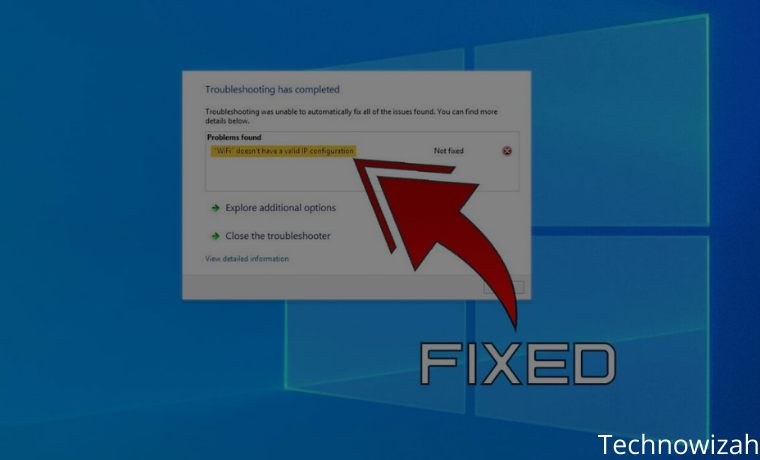
    9 Ways to Fix “Wi-Fi Doesn’t Have Valid IP Configuration – See the error “Wi-Fi doesn’t have a valid IP configuration” in Windows 10. This problem is frustrating because it prevents us from going online. This time we will explain why you are seeing the error message that Wi-Fi doesn’t have a valid IP configuration and how to fix it so you can connect again.

    9 Ways to Fix “Wi-Fi Doesn't Have Valid IP Configuration”
    9 Ways to Fix “Wi-Fi Doesn’t Have Valid IP Configuration”

    What is an Invalid IP Configuration?

    Before we get to the fix, it’s good to know a little about why this error appears. In short, when you connect to Wi-Fi, your router assigns an IP address to your computer so it can go online. If something goes wrong with the IP configuration, your computer and router will not be able to communicate.

    Read more:

    For example, your computer may try to use a different IP than the router expects. This prevents you from reaching the internet, and results in a “does not have a valid IP configuration” error. Let’s see how to fix this problem.

    Fixed “Wi-Fi Doesn’t Have Valid IP Configuration”

    #1. Restart Your Computer

    As with most problems, your first troubleshooting step should always be restarting your computer. You may see a temporary “Wi-Fi doesn’t have a valid IP configuration” message. Before you spend time on more intensive fixes, you should do a quick restart to start off clean. If you reboot and still see this error, continue.

    #2. Reboot Your Router

    Another simple fix for network problems is restarting your wireless router. Since this error involves the router assigning an IP address to your computer, it may be having problems. Like rebooting your computer, restarting your router will remove any short-term annoyances and make it start again. If you still can’t get online after cycling all the equipment, then you need to go to the next step.

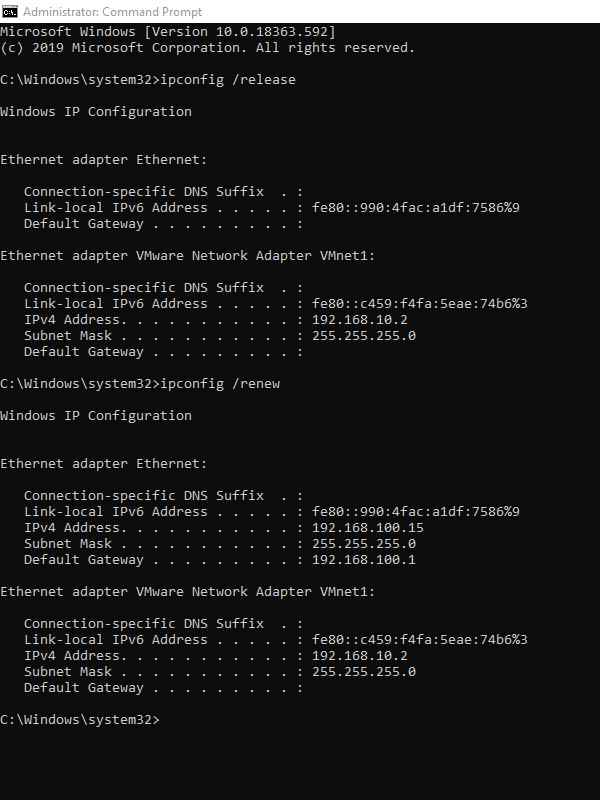
    #3. Release and Renew Your IP Address

    Using the Command Prompt tool, you can provide your computer’s current IP address and request a new one. This is a good way to clean up the invalid IP configuration problem. To do this in Windows 10, right-click on the Start button or press  Win+X  to open the Power User menu. Select  Command Prompt (Admin)  or  Windows PowerShell (Admin) from the list to open the command line. At the command line, type the following and press  Enter  :

    ipconfig /release

    This tells your computer to release the current IP address back to the pool of available addresses on the router. Next, enter this command (press  Enter  to send it) to request a new address:

    ipconfig /renew
    Release and Renew Your IP Address
    Release and Renew Your IP Address

    #4. Reset Network Protocol

    You can also use the command line to reset Winsock, which is a specification that details how your computer accesses the network. Open an administrator Command Prompt or PowerShell window as described above, then run the following commands one by one:

    netsh winsock reset
    netsh int ip reset

    Try to get online again afterward.

    #5. Check the Manual IP Address Setting

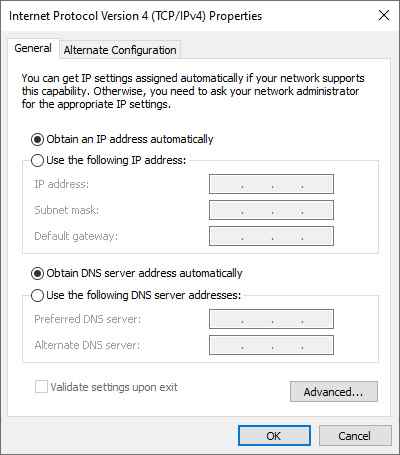
    By default, your computer and router use a protocol called DHCP (Dynamic Host Configuration Protocol) to assign IP addresses to your system without manual intervention. If you have assigned a static IP address in the past and something changes, this can cause the “Wi-Fi Doesn’t Have a Valid IP Configuration” error.

    To check this, open Settings ( Win + I shortcut  ) and browse to  Network & Internet > Status. Here, select Change adapter options.  In the box that appears, double-click on your Wi-Fi connection. You will see a new window containing information about your connection. Click  Properties at the bottom, then double-click Internet Protocol Version 4  from the list of options. This will open the properties window, where you can change the IP settings.

    Most people should select the Obtain an IP address automatically buttonIf you have used the following IP addresses enabled with the addresses listed below, try changing this to automatic and hit  OK. Then see if you can get online with these changes.

    Check Manual IP Address Setting
    Check Manual IP Address Setting

    #6. Update Your Wireless Drivers

    Since the “Wi-Fi Doesn’t Have a Valid IP Configuration” error involves a wireless connection, you should make sure the driver your computer uses for Wi-Fi is working properly. To do this, press  Win + X  again and select  Device Manager. Go to Network adapters and find your list of wireless drivers. Right-click and select Update driver > Search automatically for updated driver software.

    It may not find the new driver. In that case, you can right-click the device name and select Properties to see who made it (likely Intel or Realtek). You may be able to find an updated driver version on the hardware provider’s website.

    If that fails, you can right-click the wireless device and select Uninstall device to remove it from your computer. When you reboot, Windows will have to reinstall the new wireless drivers. However, if it doesn’t do this automatically, you’ll have to install it yourself, either using another computer or a wired connection.

    #7. Check for Malware And Antivirus Interference

    If you have reached this point, it is worth running a malware scan on your computer. Viruses and other malicious programs can sometimes mess up your internet settings to prevent you from going online. While it might not result in this particular “Doesn’t Have a Valid IP Configuration” issue, it’s still worth a try.

    Run a scan with Windows Defender or another antivirus that you have installed on your system. If you have access to another computer that can go online, download the free version of Malwarebytes and copy it to the affected computer to run an anti-malware scan. As another troubleshooting step, try disabling your antivirus and trying to get online again. Some third-party antivirus programs can interfere with normal network operation and block your network connection.

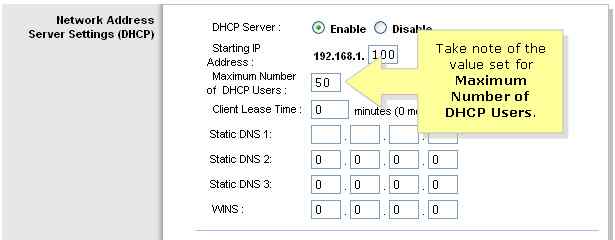
    #8. Increase the Number of DHCP Users

    Increase the Number of DHCP Users
    Increase the Number of DHCP Users

    Most routers have a default limit on the number of devices that can connect using DHCP. If you have a lot of online devices at home, there’s a good chance you’ve reached this limit, which causes the “Wi-Fi Doesn’t Have a Valid IP Configuration” error when your computer tries to get an IP address.

    You will have to log into your router, find the DHCP settings, and increase the limit to fix this issue. How to do this depends on your router, so I can’t give you exact instructions. Because each router has a different layout of settings.

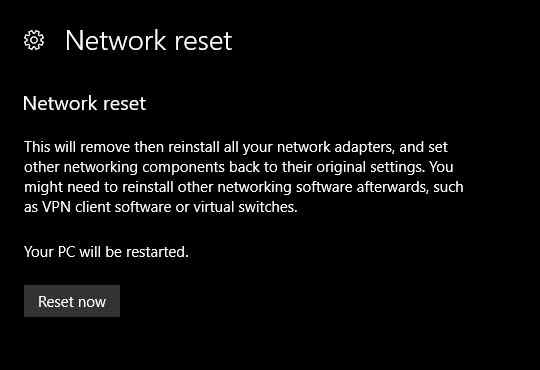
    #9. Reset Network Settings

    Reset Network Settings
    Reset Network Settings

    At this point, you’ve already tried the big fix. You should now reset your Windows 10 network settings, as there might be a deep-rooted issue. Go to Settings > Network & Internet > Status and click  Network Reset at the bottom of the page. Heed the warning that doing this will wipe all your network adapters and reset everything back to default. If you agree with that, click Reset now. This process will restart your PC.

    Read more:

    Conclusion:

    So that was how to fix it. Hopefully, you don’t have to reset all your network settings to resolve the “Wi-Fi Doesn’t Have a Valid IP Configuration” error message. This error is usually a temporary error that goes away with one of the initial steps.

    Don’t forget to bookmark and always visit every day Technowizah.com because you can find here the latest Tech Computer Android games How-to Guide Tips&Tricks Software Review etc, Which we update every day.

  • 7 Ways to Fix Dxgkrnl Video Fatal Error on Windows 10 PC 2024

    7 Ways to Fix Dxgkrnl Video Fatal Error on Windows 10 PC 2024

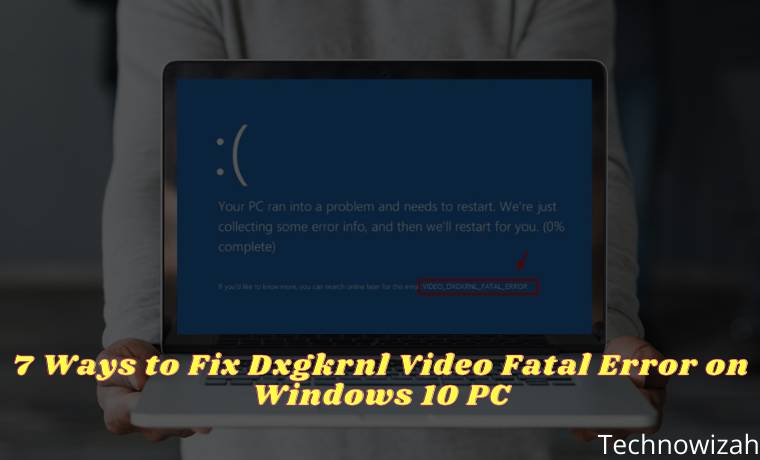
    7 Ways to Fix Dxgkrnl Video Fatal Error on Windows 10 PC – Are you getting the message “video dxgkrnl fatal error”? This message usually appears because there is a problem with the graphics card. But you don’t need to worry, because there are several methods to fix it.

    7 Ways to Fix Dxgkrnl Video Fatal Error on Windows 10 PC
    7 Ways to Fix Dxgkrnl Video Fatal Error on Windows 10 PC

    How to Fix Dxgkrnl Video Fatal Error on Windows 10 PC 2024

    Windows 10 often has errors, and one of them is the “video dxgkrnl fatal error” message appears. This error usually occurs when your PC uses an outdated graphics driver.

    Read more:

    However, there is another reason why this error message may appear. Luckily, you have a few workable and potentially fixable video dxgkrnl errors on your PC.

    #1. Use Hardware Troubleshooter

    As we know Windows 10 is rich in built-in tools, one of which is the hardware troubleshooter tool. It allows its users to find and fix hardware-related problems.

    When you see “video dxgkrnl fatal error” on your PC, it’s a good idea to run this troubleshooter to see what problems can be found and fixed. To do so:

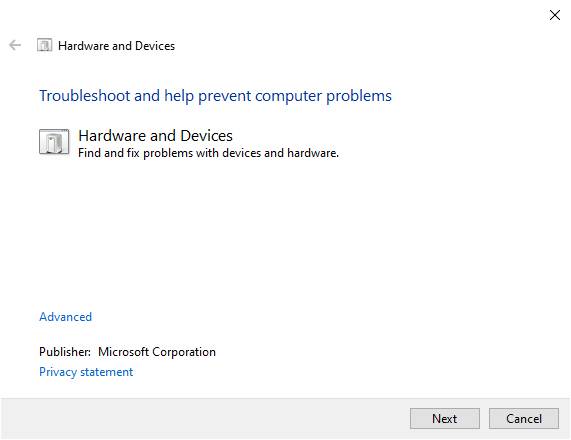
    Use Hardware Troubleshooter
    Use Hardware Troubleshooter
    1. Open the Run dialog by pressing  Windows Key + R at the same time.
    2. Type the following text msdt.exe -id DeviceDiagnostic and press Enter.
    3. On the Hardware and Devices troubleshooter screen, click the Next button.
    4. Wait for the troubleshooter to find and fix problems related to your hardware.

    #2. Fix Corrupt Files

    The most common reason for errors in Windows 10 is a corrupt file. If there are any corrupt core system files on your PC, that might be why you are seeing “video dxgkrnl fatal error”.

    In this case, use Windows 10’s built-in corrupt file checker. This is a command you can run from the Command Prompt to find and repair corrupted files on your computer. To do this, follow the steps below:

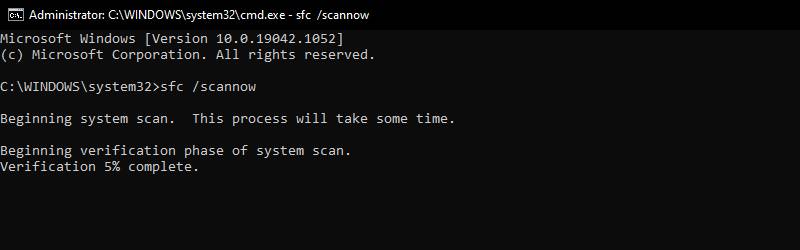
    Fix Corrupt Files
    Fix Corrupt Files
    1. Open the Start menu, search for  Command Promptright-click it and select  Run as administrator.
    2. Type the command sfc /scannow in the Command Prompt then press Enter to run it.
    3. Wait for the command to complete to find and repair corrupted files on your PC. This usually takes quite a while.

    #3. Reinstall the Graphics Card Driver Driver

    Your Windows 10 PC uses the installed graphics card driver to display items on your screen. If there is a problem or error with this driver, reinstalling the driver can fix the problem. To reinstall the graphics card driver, follow the steps below:

    Reinstall Graphics Card Driver Driver
    Reinstall Graphics Card Driver Driver
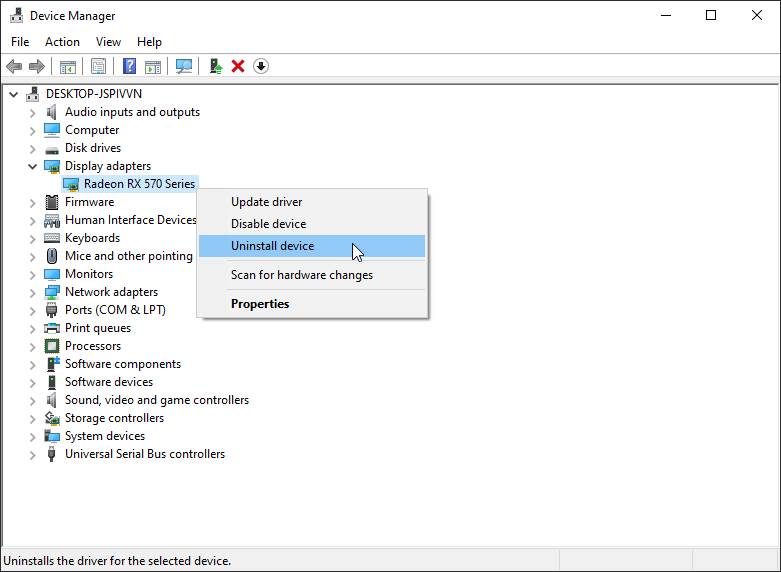
    1. Press  Windows Key + X   and select  Device Manager from the menu.
    2. Expand the Display adapters menu in Device Manager.
    3. Right-click your graphics card in the list and select  Uninstall device.
    4. Follow the on-screen instructions to remove the driver.
    5. Restart your PC.
    6. When your PC boots up again, open Device Manager.
    7. Click the Action menu at the top and select  Scan for hardware changes. This will make the device automatically find your graphics card and install the necessary drivers.

    Alternatively, you can download the required drivers from the graphics card manufacturer’s website. Manufacturers such as IntelAMD, and Nvidia all have graphics card drivers available for download on their websites.

    #4. Use System Restore

    If you see “video dxgkrnl fatal error” after making changes to your PC, that change might be the cause. In this case, you can roll back to the restore point which will revert all your changes up to the date the point was created.

    You can use System Restore on your Windows 10 PC to roll back to a specific point, and here’s how:

    Use System Restore
    Use System Restore
    1. Open the Start menu, search for  Create a restore point, and select the Best match.
    2. Click the System Restore button on the following screen.
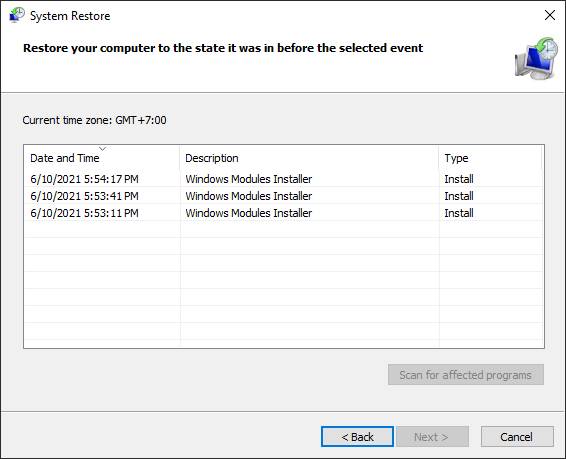
    3. Select  Next on the first screen of the  System Restores wizard.
    4. On the following screen, select a restore point to roll back. Then, click  Next at the bottom.
    5. Click  Finish to start restoring your PC.

    #5. Turn off Fast Startup

    Fast startup in Windows 10 allows the PC to boot at a faster speed. This can sometimes cause problems with other elements on the PC. It’s a good idea to turn off this option to see if your issue is resolved:

    Update Windows 10
    Update Windows 10
    1. Open Control Panel on your PC.
    2. Click  System and Security in the Control Panel window.
    3. Select  Power Options on the following screen.
    4. Click  Choose what the power button does in the left sidebar.
    5. Click  Change settings that are currently unavailable. This allows you to make changes to the fast startup options.
    6. Disable the Enable quick start (recommended) option.
    7. Click  Save Changes at the bottom to save your changes.
    8. Reboot your PC.

    #6. Update Windows 10

    Running an older version of Windows 10 almost always causes problems, one of which is the “video dxgkrnl fatal error” message. This may be caused by an outdated Windows system. To fix this, visit the Settings app and update your PC to the latest version:

    Update Windows 10
    Update Windows 10
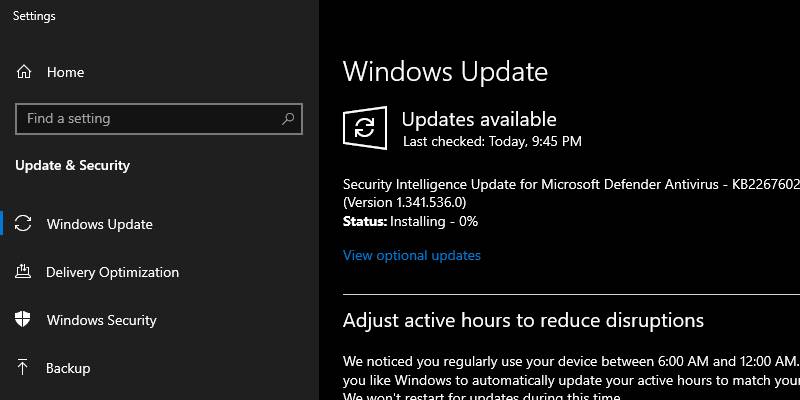
    1. Make sure your PC is connected to the internet.
    2. Press  Windows Key + I   to open the  Settings app.
    3. Click  Update & Security in the Settings window.
    4. Select  Windows Update from the left sidebar.
    5. Click  Check for updates in the right pane.
    6. If you see an available update, click  Install now to install it.
    7. Reboot your PC.

    #7. Reset Windows 10

    If you still can’t fix the “video dxgkrnl fatal error”, it might be a good idea to reset your PC. This will delete all the settings options you configured and return them to their default settings.

    You will get the option to keep or delete the saved files when you start resetting the PC. To do this, follow the steps below:

    Reset Windows 10
    Reset Windows 10
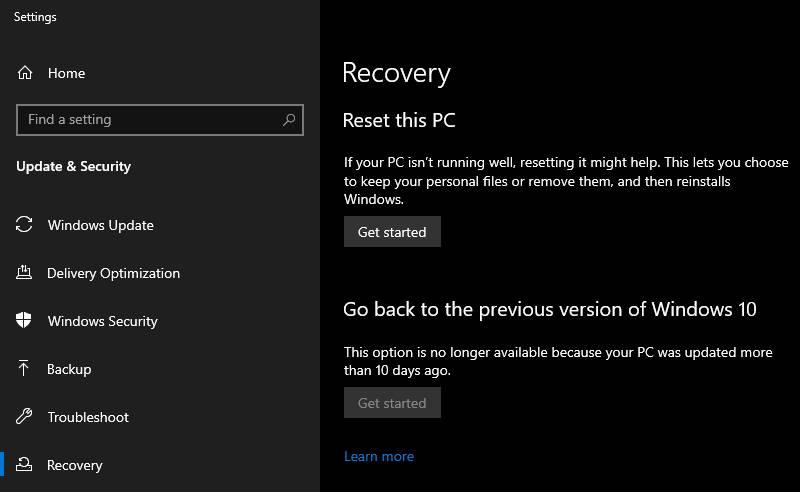
    1. Open the Settings app by pressing the Windows key + I.
    2. In Settings, click  Update & Security at the bottom.
    3. Select  Recovery from the left sidebar on the following screen.
    4. In the right pane, click  Get started in the Reset this PC section.
    5. Select  Keep my files if you want to reset the PC while saving your files.
    6. Select  Remove everything to delete all your files and settings.
    7. Complete the reset process.

    Read more:

    Conclusion:

    So those are some ways to solve DXGKRNL VIDEO FATAL ERROR on Windows 10. If you ever get this error message, don’t panic. This problem can be fixed in most cases, and basically, you just need to apply some standard fixes. The guide above will help you do just that.

    Don’t forget to bookmark and always visit every day Technowizah.com because you can find here the latest Tech Computer Android games How-to Guide Tips&Tricks Software Review etc, Which we update every day.