Author: Nazrul Islam

  • Paper Sizes A4, A3, A0, A2, A1, A5, A6, A7, A8, A9, A10 (cm, mm, inch and Pixel)

    Paper Sizes A4, A3, A0, A2, A1, A5, A6, A7, A8, A9, A10 (cm, mm, inch and Pixel)

    Paper Sizes A4, A3, A0, A2, A1, A5, A6, A7, A8, A9, A10 (cm, mm, inch, and Pixel) – Most people don’t know much about paper sizes A0, A1, A2, A3, A4, A5, A6, A7, A8, A9, A10 in Millimeters, Centimeters or Inches.
    Paper Sizes A4, A3, A0, A2, A1, A5, A6, A7, A8, A9, A10 (cm, mm, inch and Pixel)
    Paper Sizes A4, A3, A0, A2, A1, A5, A6, A7, A8, A9, A10 (cm, mm, inch and Pixel)

    Paper Sizes A4, A3, A0, A2, A1, A5, A6, A7, A8, A9, A10 (cm, mm, inch and Pixel) 2024

    The A-series paper size is the length and width of the paper in standard units based on widely applicable international standards set by ISO 216 (International Organization for Standardization).

    Read more:

    The A-series paper sizes are often used in digital paper formats and have 11 types of paper sizes A0, A1, A2, A3, A4, A5, A6, A7, A8, A9, and A10 in addition other sizes are not mentioned in the ISO 216 decision, namely 2A0 and 4A0.

    In Indonesia itself, A4 paper size is most often used for writing papers, papers, and office documents and is also used in applications such as Microsoft Word, PDF, or Excel.
    Paper Sizes A4, A3, A0, A2, A1, A5, A6, A7, A8, A9, A10 (cm, mm, inch and Pixel)

    Paper Size Table A0, A1, A2, A3, A4, A5, A6, A7, A8, A9, A10 in MM, CM, and Inches

    A . Series Paper mm . unit unit cm Inches
    A0 841 x 1189 84.1 x 118.9 33.11 x 46.81
    A1 594 x 841 59.4 x 84.1 23.39 x 33.11
    A2 420 x 594 42.0 x 59.4 16.54 x 23.39
    A3 297 x 420 29.7 x 42.0 11.69 x 16.54
    A4 210 x 297 21.0 x 29.7 8.27 x 11.69
    A5 148 x 210 14.8 x 21.0 5.83 x 8.27
    A6 105 x 148 10.5 x 14.8 4.13 x 5.83
    A7 74 x 105 7.4 x 10.5 2.91 x 4.13
    A8 52 x 74 5.2 x 7.4 2.05 x 2.91
    A9 37 x 52 3.7 x 5.2 1.46 x 2.05
    A10 26 x 37 2.6 x 3.7 1.02 x 1.46

    Series A Paper Size Order in MM, CM, and Inches

    Paper Size A0

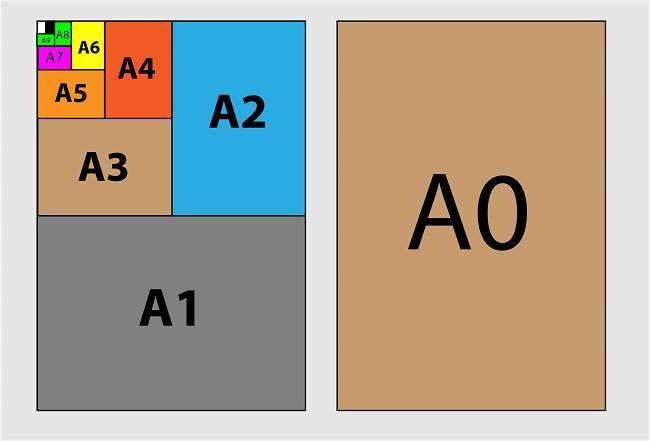
    A0 paper based on the ISO 216 standard is the largest size of the A-series paper size or 16 times that of A4 paper. To calculate A0 Paper Size in mm, cm, and inches, the width and length are as follows:
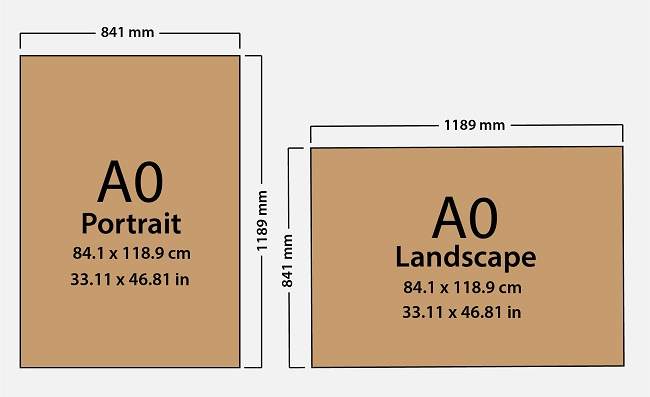
    Paper Size A0

    • A0 paper size in Millimeters is 841 x 1189 mm
    • A0 paper size in centimeters is 84.1 x 118.9 cm
    • A0 paper size in inches is 33.11 x 46.81 in

    Meanwhile, the paper size is A0 in pixels which are adjusted to the configuration of the number of color dots per inch or DPI (dots per in). Dots in computer graphics are dots of color known as pixels. The following is A0 paper size in pixels:

    • A0 paper size in 72 DPI pixels is 2384 x 3370 pixels
    • A0 paper size in 96 DPI pixels is 3179 x 4494 pixels
    • A0 paper size in 150 DPI pixels is 4967 x 7022 pixels
    • A0 paper size in 300 DPI pixels is 9933 x 14043 pixels

    A0 paper is usually used to create architectural drawings, advertisements, professional drawings, engineering drawings, or posters.

    Paper Size A1

    A1 paper based on the ISO 216 standard has a paper size 8 times that of A4 paper. To calculate A1 Paper Size in mm, cm, and inches, the width and length are as follows:
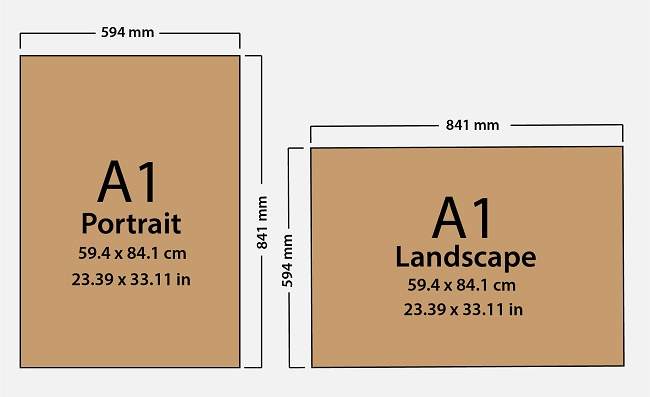
    Paper Size A1

    • A1 paper size in Millimeters is 594 x 841 mm
    • A1 paper size in Centimeter is 59.4 x 84.1 cm
    • A1 paper size in inches is 23.39 x 33.11 in

    Meanwhile, the A1 paper size is in pixels which is adjusted to the configuration of the number of color dots per inch or what is called DPI (dots per in). Dots in computer graphics are dots of color known as pixels. The following is the A1 paper size in pixels:

    • A1 paper size in 72 DPI pixels is 1684 x ​​2384 pixels
    • A1 paper size in 96 DPI pixels is 2245 x 3179 pixels
    • A1 paper size in 150 DPI pixels is 3508 x 4967 pixels
    • A1 paper size in 300 DPI pixels is 7016 x 9933 pixels

    A1 paper is usually used to create architectural drawings, flip charts, engineering drawings, or posters.

    Paper Size A2

    A2 paper based on the ISO 216 standard has a paper size 4 times that of A4 paper. To calculate A2 Paper Size in mm, cm, and inches, the width and length are as follows:
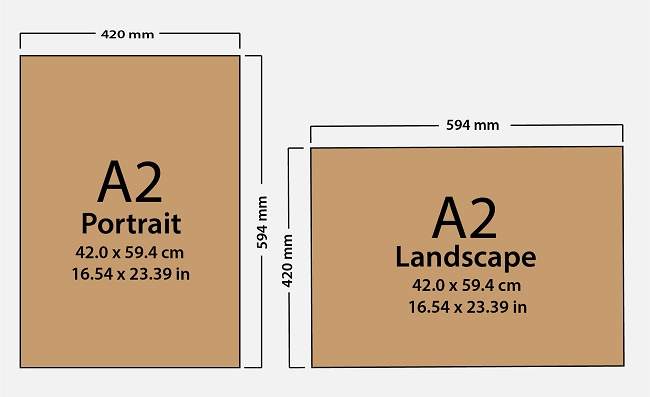
    Paper Size A2

    • A2 paper size in Millimeters is 420 x 594 mm
    • A2 paper size in Centimeters is 42.0 x 59.4 cm
    • A2 paper size in inches is 16.54 x 23.39 in

    Meanwhile, A2 paper size is in pixel units, which is adjusted to the configuration of the number of color dots per inch or DPI (dots per in). Dots in computer graphics are dots of color known as pixels. The following is the A2 paper size in pixels:

    • A2 paper size in 72 DPI pixels is 1191 x 1684 pixels
    • A2 paper size in 96 DPI pixels is 1587 x 2245 pixels
    • A2 paper size in 150 DPI pixels is 2480 x 3508 pixels
    • A2 paper size in 300 DPI pixels is 4960 x 7016 pixels

    A2 paper is usually used to make paintings, architectural drawings, flip charts, technical drawings, or posters.

    Paper Size A3

    A3 paper based on the ISO 216 standard, has a paper size 2 times that of A4 paper. To calculate A3 Paper Size in mm, cm, and inches, the width and length are as follows:
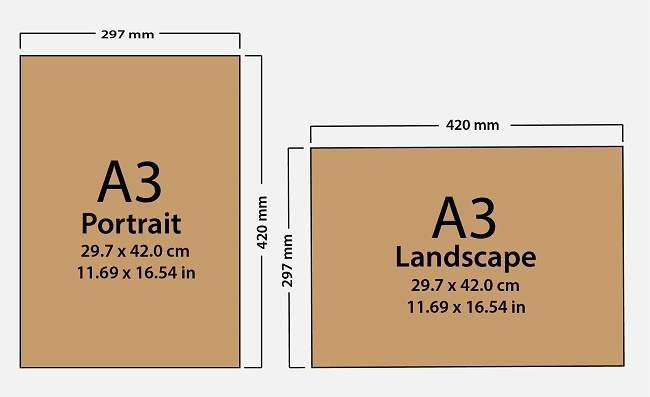
    Paper Size A3

    • A3 paper size in Millimeters is 297 x 420 mm
    • A3 paper size in Centimeters is 29.7 x 42.0 cm
    • A3 paper size in inches is 11.69 x 16.54 in

    Meanwhile, A3 paper size is in pixel units, which is adjusted to the configuration of the number of color dots per inch or DPI (dots per in). Dots in computer graphics are dots of color known as pixels. The following is A3 paper size in pixels:

    • A3 paper size in 72 DPI pixels is 842 x 1191 pixels
    • A3 paper size in 96 DPI pixels is 1123 x 1587 pixels
    • A3 paper size in 150 DPI pixels is 1754 x 2480 pixels
    • A3 paper size in 300 DPI pixels is 3508 x 4960 pixels

    A3 paper is usually used to make picture books, diagrams, posters, or graphic designs

    Paper Size A4

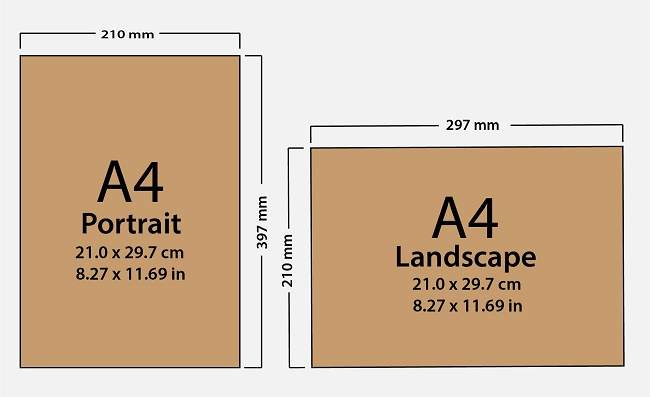
    A4 paper is the most popular paper size unit used to print documents with ISO 216 standards. To calculate A4 paper size in mm, cm, and inches, the width and length are as follows:
    Paper Size A4

    • A4 paper size in Millimeters is 210 x 297 mm
    • A4 paper size in Centimeters is 21.0 x 29.7 cm
    • A4 paper size in inches is 8.27 x 11.69 in

    Meanwhile, A4 paper size is in pixel units, which is adjusted to the configuration of the number of color dots per inch or DPI (dots per in). Dots in computer graphics are dots of color known as pixels. The following is A4 paper size in pixels:

    • A4 paper size in 72 DPI pixels is 595 x 842 pixels
    • A4 paper size in 96 DPI pixels is 794 x 1123 pixels
    • A4 paper size in 150 DPI pixels is 1240 x 1754 pixels
    • A4 paper size in 300 DPI pixels is 2480 x 3508 pixels

    A4 paper is usually used in the size of written documents, such as letters, thesis papers, magazines, picture books, and so on.

    Paper Size A5

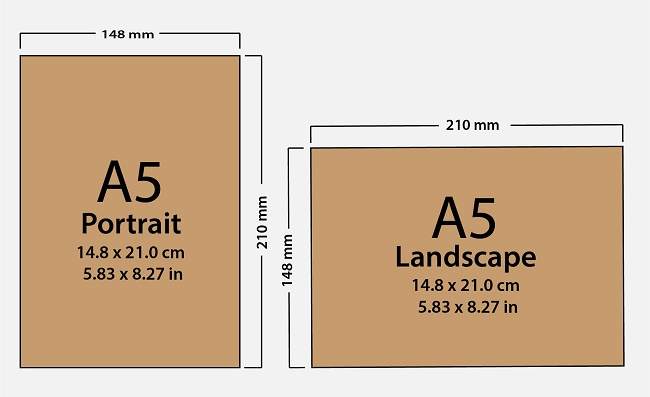
    A5 paper based on the ISO 216 standard, has a paper size of A4 paper. To calculate A5 Paper Size in mm, cm, and inches, the width and length are as follows:
    Paper Size A5

    • A5 paper size in Millimeters is 148 x 210 mm
    • A5 paper size in Centimeters is 14.8 x 21.0 cm
    • A5 paper size in inches is 5.83 x 8.27 in

    Meanwhile, the A5 paper size is in pixel units, which is adjusted to the configuration of the number of color dots per inch or DPI (dots per in). Dots in computer graphics are dots of color known as pixels. The following is A5 paper size in pixels:

    • A5 paper size in 72 DPI pixels is 420 x 595 pixels
    • A5 paper size in 96 DPI pixels is 559 x 794 pixels
    • A5 paper size in 150 DPI pixels is 874 x 1240 pixels
    • A5 paper size in 300 DPI pixels is 1748 x 2480 pixels

    A5 paper is usually used to create questionnaires, forms, product catalogs, or product manuals.

    Paper Size A6

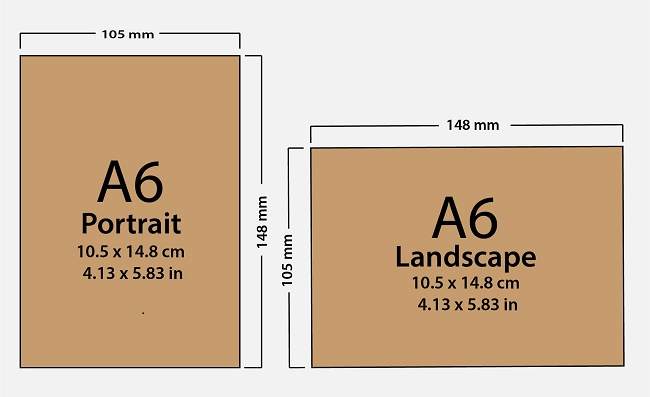
    A6 paper based on ISO 216 standard, has a paper size of 1/4 of A4 paper. To calculate A6 Paper Size in mm, cm, and inches, the width and length are as follows:
    Paper Size A6

    • A6 paper size in Millimeters is 105 x 148 mm
    • A6 paper size in Centimeter is 10.5 x 14.8 cm
    • A6 paper size in inches is 4.13 x 5.83 in

    Meanwhile, A6 paper size is in pixel units, which is adjusted to the configuration of the number of color dots per inch or DPI (dots per in). Dots in computer graphics are dots of color known as pixels. The following is A6 paper size in pixels:

    • A6 paper size in 72 DPI pixels is 298 x 420 pixels
    • A6 paper size in 96 DPI pixels is 397 x 559 pixels
    • A6 paper size in 150 DPI pixels is 620 x 874 pixels
    • A6 paper size in 300 DPI pixels is 1240 x 1748 pixels

    A6 paper is usually used to make small notes, product catalogs, or product manuals.

    Paper Size A7

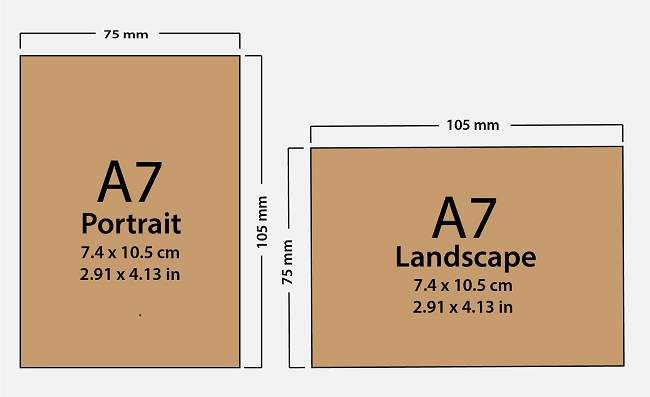
    A7 paper based on the ISO 216 standard, has a paper size of 1/8 of A4 paper. To calculate A7 Paper Size in mm, cm, and inches, the width and length are as follows:
    Paper Size A7

    • A7 paper size in Millimeters is 74 x 105 mm
    • A7 paper size in Centimeters is 7.4 x 10.5 cm
    • A7 paper size in inches is 2.91 x 4.13 in

    Meanwhile, the A7 paper size is in pixels which are adjusted to the configuration of the number of color dots per inch or what is called DPI (dots per in). Dots in computer graphics are dots of color known as pixels. The following is A7 paper size in pixels:

    • A7 paper size in 72 DPI pixels is 210 x 298 pixels
    • A7 paper size in 96 DPI pixels is 280 x 397 pixels
    • A7 paper size in 150 DPI pixels is 437 x 620 pixels
    • A7 paper size in 300 DPI pixels is 874 x 1240 pixels

    A7 paper is usually used to make membership cards, pocketbooks, sticky notes, and manuals on small products.

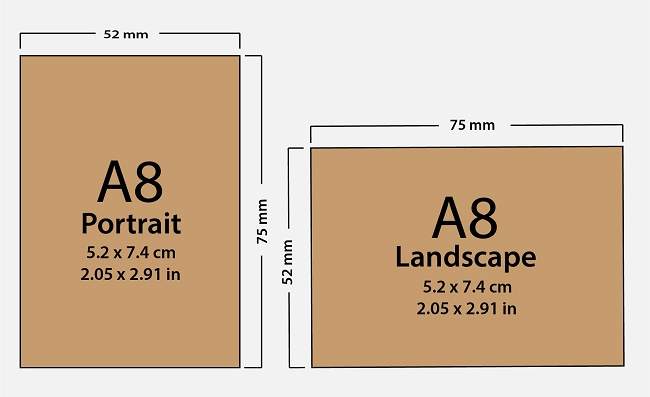
    Paper Size A8

    A8 paper based on ISO 216 standard, has a paper size of 1/16 of A4 paper. To calculate A8 Paper Size in mm, cm, and inches, the width and length are as follows:
    Paper Size A8

    • A8 paper size in Millimeters is 52 x 74 mm
    • A8 paper size in Centimeters is 5.2 x 7.4 cm
    • A8 paper size in inches is 2.05 x 2.91 in

    Meanwhile, the A8 paper size is in pixels which are adjusted to the configuration of the number of color dots per inch or what is called DPI (dots per in). Dots in computer graphics are dots of color known as pixels. The following is A8 paper size in pixels:

    • A8 paper size in 72 DPI pixels is 147 x 210 pixels
    • A8 paper size in 96 DPI pixels is 197 x 280 pixels
    • A8 paper size in 150 DPI pixels is 307 x 437 pixels
    • A8 paper size in 300 DPI pixels is 614 x 874 pixels

    A8 paper is usually used as a ticket, card, or coupon.

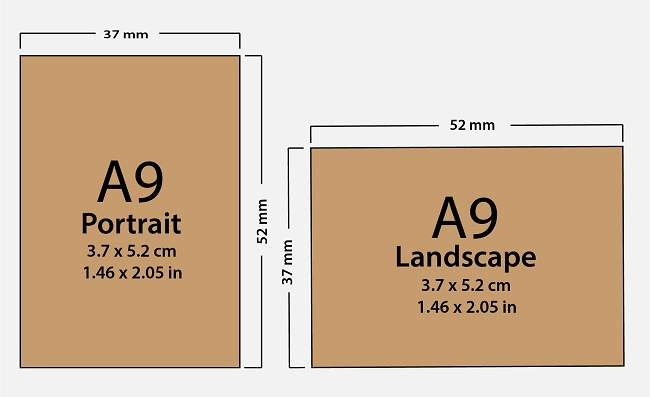
    Paper Size A9

    A9 paper based on ISO 216 standard, has a paper size of 1/32 of A4 paper. To calculate A9 Paper Size in mm, cm, and inches, the width and length are as follows:
    Paper Size A9
    • A9 paper size in mm is 37 x 52 mm
    • A9 paper size in cm is 3.7 x 5.2 cm
    • A9 paper size in inches is 1.46 x 2.05 in

    Meanwhile, the A9 paper size is in pixel units, which is adjusted to the configuration of the number of color dots per inch or DPI (dots per in). Dots in computer graphics are dots of color known as pixels. The following is A9 paper size in pixels:

    • A9 paper size in 72 DPI pixels is 105 x 147 pixels
    • A9 paper size in 96 DPI pixels is 140 x 197 pixels
    • A9 paper size in 150 DPI pixels is 219 x 307 pixels
    • A9 paper size in 300 DPI pixels is 437 x 614 pixels

    A9 paper is usually used to print passport photos, frames, or food labels with clear plastic.

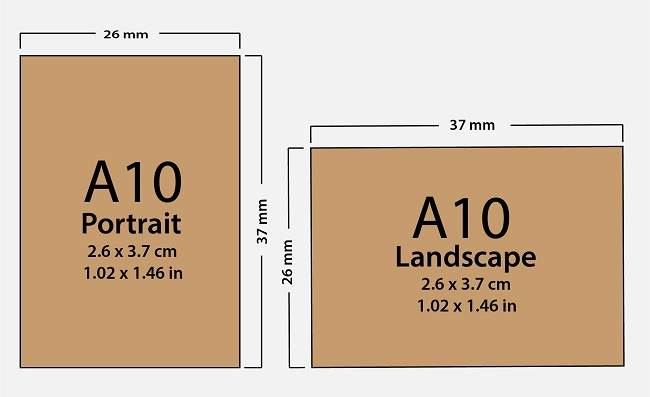
    Paper Size A10

    A10 paper based on the ISO 216 standard, has a paper size of 1/64 of A4 paper. To calculate A10 Paper Size in mm, cm, and inches, the width and length are as follows:
    Paper Size A10

    • A10 paper size in mm is 26 x 37 mm
    • A10 paper size in cm is 2.6 x 3.7 cm
    • A10 paper size in inches is 1.02 x 1.46 in

    Meanwhile, A10 paper size is in pixel units, which is adjusted to the configuration of the number of color dots per inch or DPI (dots per in). Dots in computer graphics are dots of color known as pixels. The following is A10 paper size in pixels:

    • A10 paper size in 72 DPI pixels is 74 x 105 pixels
    • A10 paper size in 96 DPI pixels is 98 x 140 pixels
    • A10 paper size in 150 DPI pixels is 154 x 219 pixels
    • A10 paper size in 300 DPI pixels is 307 x 437 pixels

    A9 paper is usually used for food labels with clear plastic or the like.

    Series A Paper Size Determination (ISO 216)

    The following is the determination of the A-Series Paper Size Based on ISO 216:

    • The length divided by the width is 1.4142
    • A0 paper size has an area of ​​one square meter
    • For each subsequent sequence of paper sizes, A(n) is defined as A(n – 1) cut in half and parallel to the shorter side.
    • Size Standard length and width of each size are rounded to the nearest millimeter

    Tolerance to A. Series Paper Sizes

    The following is the Tolerance for A Series Paper Sizes Based on ISO 216:

    • Paper Size Tolerance ± 1.5 mm (0.06 inch) for dimensions up to 150 mm (5.9 inches)
    • Paper Size Tolerance ± 2 mm (0.08 inch) for lengths in the 150-600 mm (5.9-23.6 inch) range
    • Paper Size Tolerance ± 3 mm (0.12 inch) for any dimensions over 600 mm (23.6 inches)

    Read more:

    Conclusion:

    Thus the article about paper sizes A0, A1, A2, A3, A4, A5, A6, A7, A8, A9, A10 in MM, CM, and Inches.  Hopefully, this paper-size article is useful and can provide the information you need.

  • 15 Best VPN Applications For Android Free and Unblocked 2024

    15 Best VPN Applications For Android Free and Unblocked 2024

    15 Best VPN Applications For Android Free and Unblocked – Using the best VPN application on Android allows us to easily access blocked sites or services. For example Reddit, Tumblr, and other sites that are blocked by the Ministry of Communications and Informatics or cellular operators.

    15 Best VPN Applications For Android Free and Unblocked
    15 Best VPN Applications For Android Free and Unblocked

    Best VPN Applications For Android Free and Unblocked 2024

    For your information, a Virtual Private Network commonly known as a VPN application is one solution to open blocked sites. There are several reasons why a site is blocked.

    Read more:

    However, some sites are useful but are blocked, such as Reddit or as happened with Tumblr.

    This time, the Technowizah team has summarized the recommendations for the 15 best 2021 VPN applications on Android and of course free ones that you can use to access blocked sites. There anything? Let’s look at the following list.

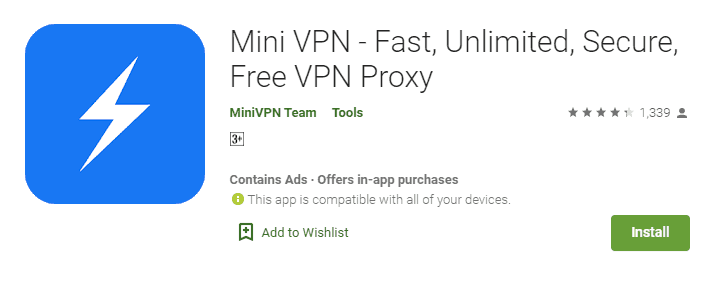
    #1. Mini VPN

    Mini VPN
    Mini VPN

    As the name implies, the Mini VPN application has a fairly small file size, only 11 MB. However, its ability to access blocked sites is unquestionable.

    This free Android VPN has several advantages. These include encrypted connections, hidden IP addresses, and making the data on Android devices more secure.

    Mini VPN also provides a network of servers from various countries, such as Canada, the United States, the United Kingdom, Germany, and so on. So if access on one server is slow, just change to another server. You can get this application on the playstore.

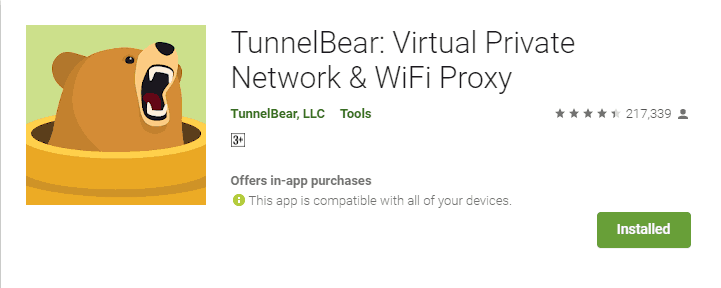
    #2. TunnelBear VPN

    TunnelBear VPN
    TunnelBear VPN

    One of the best VPN apps for Android that you can also use is TunnelBear VPN. Well, the application has various advantages.

    The advantage of this best VPN is that it is available on multiple platforms. , the application can also be found on iOS and Windows. So, you can rely on this application for the various gadgets you have.

    Thanks to the TunnerBear VPN application, all blocked sites can be accessed smoothly and successfully. Curious about the capabilities of the TunnelBear application? Let’s just download it via playstore or appstore.

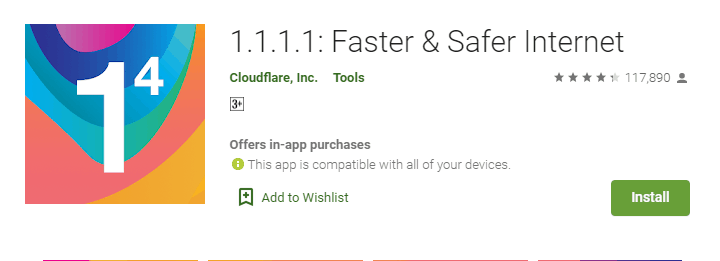
    #3. 1.1.1.1: Internet Faster & Safer

    3. 1.1.1.1 Internet Faster & Safer
    3. 1.1.1.1 Internet Faster & Safer

    Another best free VPN app is 1.1.1.1 by Cloudflare. If you are not familiar with the name Cloudflare, they are a company that offers a secure internet network.

    This best VPN already has data encryption features, so your data privacy is safer. Uniquely, the application also promises that it will not sell your data.

    Armed with the one-touch setup feature, you can easily use this application without having to bother with various configurations. 1.1.1.1: Faster & Safer Internet can be obtained by downloading in the playstore.

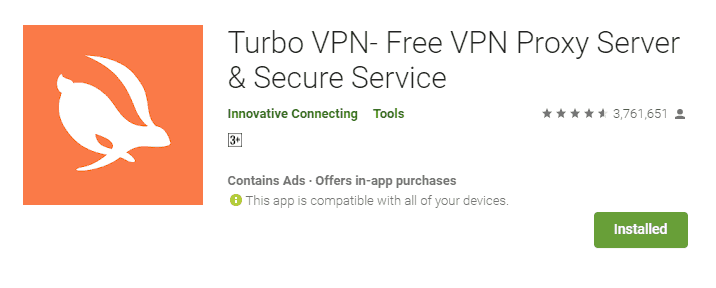
    #4. Turbo VPN

    Turbo VPN
    Turbo VPN

    The Turbo VPN application has also been tested and is very reliable to open blocked sites. Also, this 2021 best VPN application on Android is available for free.

    Another advantage of Turbo VPN is that the application can be used on various networks, such as 4G, 3G, to WiFi. There are also many choices of servers that you can use according to your taste.

    Turbo VPN can be used on smartphones using Android version 4.1 and above. Curious to try it? You can directly download the Turbo VPN application on the playstore.

    #5. Secure VPN

    Secure VPN
    Secure VPN

    Similar to Mini VPN, the Secure VPN app also has a smaller size. This fastest Android VPN app only has a size of 3 MB! Surely it will not make your smartphone memory full.

    In addition to its relatively light size, the Secure VPN application offers features in the form of high internet speeds and extra security.

    The application also provides a choice of servers from America, Europe, and Asia. You just choose which server offers maximum speed to use.

    #6. ExpressVPN

    ExpressVPN
    ExpressVPN

    ExpressVPN is a VPN app that has thousands of servers located in 94 countries. Not only on Android, but the Express VPN application is also available on Windows, Mac, iOS, and Linux-based devices.

    Besides being able to be used to access blocked ones, this best VPN also offers security when you are surfing by using WiFi facilities in public areas, such as offices or malls.

    This application will also hide the location and IP address, and leave no activity logs or connection logs. You can use all kinds of features in ExpressVPN smoothly.

    #7. Thunder VPN

    Thunder VPN
    Thunder VPN

    Thunder VPN is one of the best Android VPN apps with simple UI and UX. You don’t need to bother with various configurations, just click one button, and the VPN service is activated immediately.

    This application can run on various networks, such as WiFi, 4G, and 3G. There is a smart choose server feature that allows the application to automatically select the server with the best connection.

    An encryption feature is also built into Thunder VPN, so you can use VPN applications and browse safely and comfortably.

    #8. Unlimited Free VPN Monster

    Unlimited Free VPN Monster
    Unlimited Free VPN Monster

    Having trouble accessing blocked sites? Using the Unlimited Free VPN Monster application could be the answer. Monster’s best free VPN also offers unlimited bandwidth so you can use it satisfactorily.

    In addition to making it easier for you to open blocked sites, the application will protect your passwords and personal data when connected to public WiFi networks. With this, you don’t have to worry about data leaking to unauthorized parties.

    #9. Hotspot Shield Free VPN

    Hotspot Shield Free VPN
    Hotspot Shield Free VPN

    The best VPN application 2021 on Android is incomplete if you don’t include this one application. Hotspot Shield Free VPN has been tested to help users access blocked sites.

    This application has also received an award in the form of the world’s fastest VPN by Speedtest. Hotspot Shield Free VPN offers security and privacy to its users.

    The developers of the app claim that they do not record the user’s browsing activity.

    #10. Speedify

    Speedify
    Speedify

    The best free VPN app that you can use is Speedify. Besides being able to help access blocked sites, the application is said to offer stable internet speeds.

    So, you will not be annoyed with unstable internet speed when using a VPN application. Speedify offers a solution to these problems.

    #11. Windscribe 

    Windscribe 
    Windscribe

    Do you want to download a VPN and get a bonus internet quota at the same time? If Yes, the answer is to download Windcribe VPN. This best VPN service has the advantage of providing a quota of up to 10GB per month.

    Windscribe VPN allows you to choose servers from different countries. The goal is that you can choose which server is compatible with your mobile device and mobile network. Another advantage Windscribe is also available on iOS and Windows.

    #12. Nord VPN

    Nord VPN
    Nord VPN

    Nord VPN app offers a service to access unlimited sites. There are many country options that you can use for network servers. Not only that Nord VPN also offers security when you access Wifi networks in public areas.

    By activating Nord VPN, your phone can be more secure because Nord VPN will protect your cellphone from potential cyber-attacks that can arise from Wifi in parks or cafes.

    #13. VPN Robots 

    VPN Robots 
    VPN Robots

    The Robot VPN app doesn’t just offer unlimited access. At Robot VPN, you can also get a VPN Proxy for 24 hours without having to register or configure a difficult system.

    In addition, Robot VPN also provides security services when you access Wifi networks in public areas. With this feature, you can be free from cybercrime by hackers who use Wifi networks.

    #14. Speedy Quark VPN 

    Speedy Quark VPN 
    Speedy Quark VPN

    The best free VPN, not only allows you to access sites that are blocked by the government or mobile operators. VPN applications such as Speedy Quark VPN also provide convenience and security when accessing the internet.

    Speedy Quark VPN is backed by an encryption service so no one can track your online activities.

    #15. Tom VPN

    Tom VPN
    Tom VPN

    Tom VPN is a VPN application that is claimed to be more stable and secure than similar applications. Tom VPN is capable of hiding and changing your IP address, encrypting internet traffic, and allowing you to access content anonymously.

    Another advantage is that Tom VPN provides more than 30 server locations to choose from such as the United States, Brazil, France, Germany, India, Russia, South Korea, United Kingdom, and Japan.

    Read more:

    Conclusion:

    Those were the 15 best Android VPN applications that you must try. You don’t have to be confused anymore to access blocked sites or services. But it needs to be underlined, don’t use this VPN application for negative things.

  • 3 Ways to Enable Bluetooth in Windows 10 Laptop PC 2024

    3 Ways to Enable Bluetooth in Windows 10 Laptop PC 2024

    3 Ways to Enable Bluetooth in Windows 10 Laptop PC – Many Windows computers come with Bluetooth connectivity, which you can use to connect devices such as smartphones, speakers, headphones, printers, earbuds, and other devices.

    3 Ways to Enable Bluetooth in Windows 10
    3 Ways to Enable Bluetooth in Windows 10

    3 Ways to Enable Bluetooth in Windows 10 Laptop PC 2024

    If your computer doesn’t have Bluetooth, you can use a Bluetooth adapter. This is an inexpensive way to get Bluetooth connectivity for your device and is easy to install. However, Bluetooth tends to consume a device’s battery life while in use, and leaving it on can present some security risks.

    Read more:

    If you want to use Bluetooth for wireless audio, to transfer multiple files, or to use a wireless mouse, keyboard, or other devices, here is a guide on how to enable Bluetooth in Windows 10.

    3 Ways to Enable Bluetooth in Windows 10 Laptop PC

    There are three methods you can use to enable Bluetooth in Windows 10

    1. Enable Bluetooth via Windows Settings
    2. Turn on Bluetooth from the Action Center
    3. Use Swift Pair

    We will discuss this one by one.

    #1. Enable Bluetooth in Windows Settings

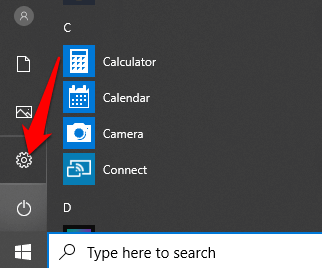
    The first step before using your Bluetooth device is to configure Bluetooth settings in Windows 10. To do this, open the Settings app in Windows 10 by clicking the Start button, and then clicking the Settings icon.

    3 Ways to Enable Bluetooth in Windows 10

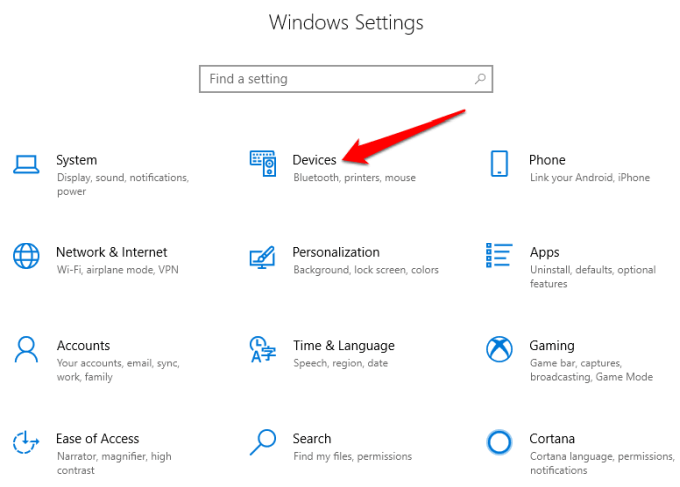
    Next, click  Devices

    3 Ways to Enable Bluetooth in Windows 10

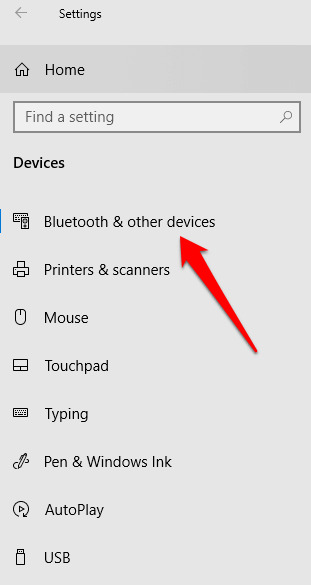
    Click  Bluetooth & Other Devices.

    3 Ways to Enable Bluetooth in Windows 10

    Note:  If the Bluetooth switch is not available in Bluetooth & Other devices settings, your Windows computer may not have the Bluetooth feature, or the associated hardware is not recognized.

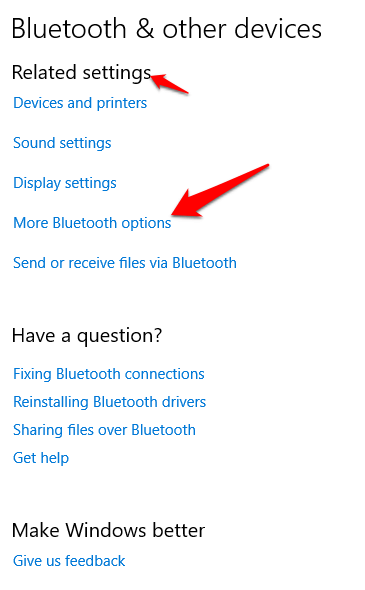
    Click  More Bluetooth options under the Related Settings section for other Bluetooth settings.

    3 Ways to Enable Bluetooth in Windows 10

    #2. Turn on Bluetooth in the Action Center

    The Action Center in Windows 10 lets you access actionable quick settings and app notifications.

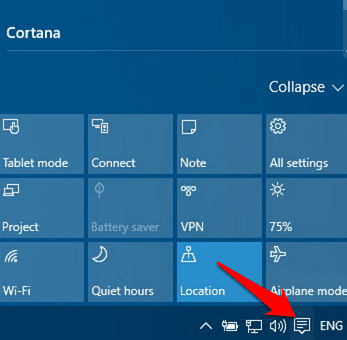
    You can find the Action Center icon on the taskbar at the bottom right side of the computer screen.

    3 Ways to Enable Bluetooth in Windows 10

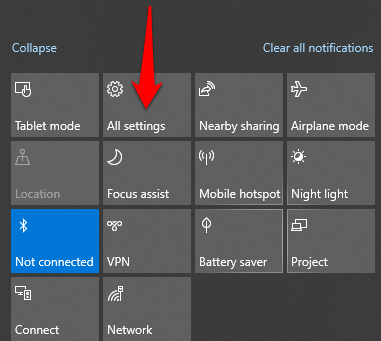
    When you click on it, you’ll see a quick setting and an app notification icon. Click  All Settings.

    3 Ways to Enable Bluetooth in Windows 10

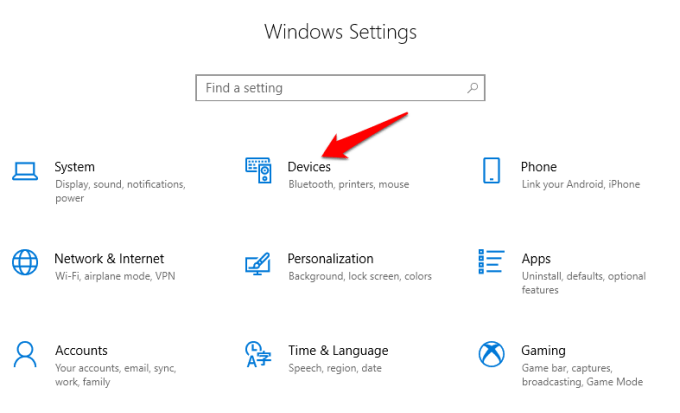
    Next, click  Devices.

    3 Ways to Enable Bluetooth in Windows 10

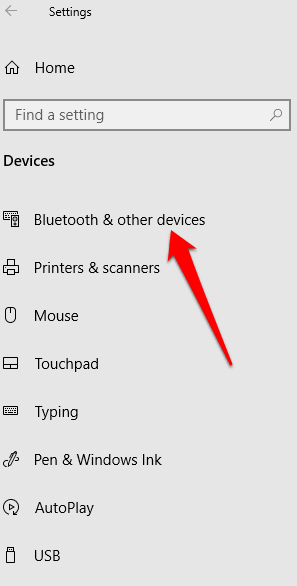
    Click  Bluetooth and other devices on the left side.

    3 Ways to Enable Bluetooth in Windows 10

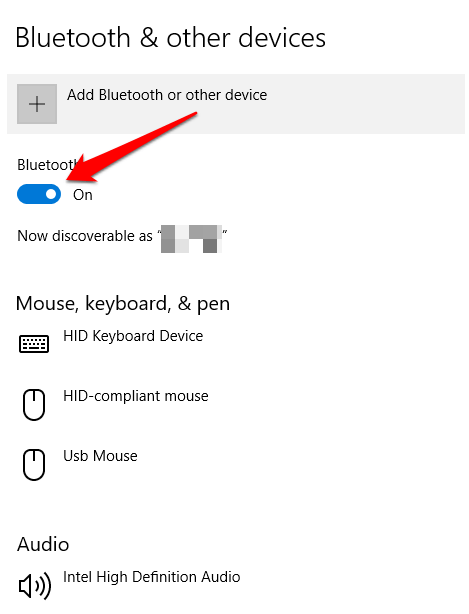
    Switch the Bluetooth slider On.

    3 Ways to Enable Bluetooth in Windows 10

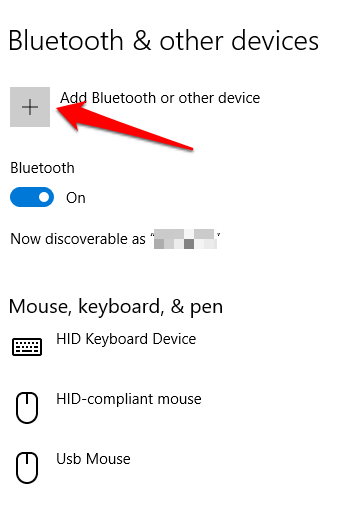
    Click  Add Bluetooth or another device.

    3 Ways to Enable Bluetooth in Windows 10

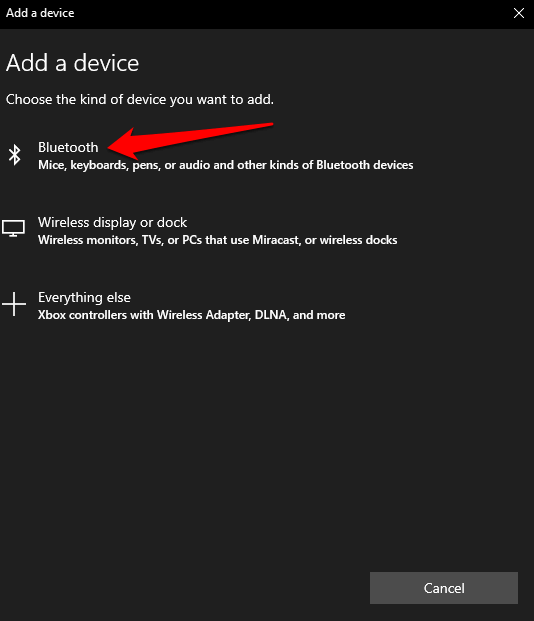
    Click  Bluetooth. Windows will start searching for available Bluetooth devices.

    3 Ways to Enable Bluetooth in Windows 10

    If your other device has Bluetooth enabled or is in pairing mode, you will see the device name appear in the list of available devices.

    From here, you can click or tap on the device you want to pair with, and once connected, it will become part of your list of peripheral connections.

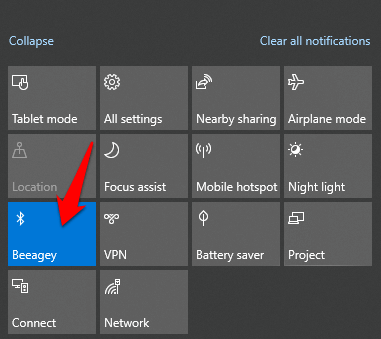
    Or, click the Bluetooth button in the Action Center to turn it on or off. If it is not connected, you will see a Bluetooth icon labeled “Action Center”.

    If it’s gray, Bluetooth is off. If you click on it, the button turns blue indicating that Bluetooth is turned on (the Bluetooth icon will also appear on your taskbar).

    3 Ways to Enable Bluetooth in Windows 10

    The Bluetooth device you pair with Windows 10 automatically connects whenever it’s in range or when it’s turned on.

    Swift Pair is a service in Windows 10 that makes it possible to pair supported Bluetooth devices with your PC, thereby reducing the steps required to pair the devices.

    If your device supports Swift Pair, you’ll get a notification whenever it’s in range or nearby for easy discovery.

    #3. Use a Swift Pair

    To use Swift Pair, turn on the device and make it discoverable (this method depends on the device you are pairing with. You can visit the manufacturer’s website or use the manual book for more information).

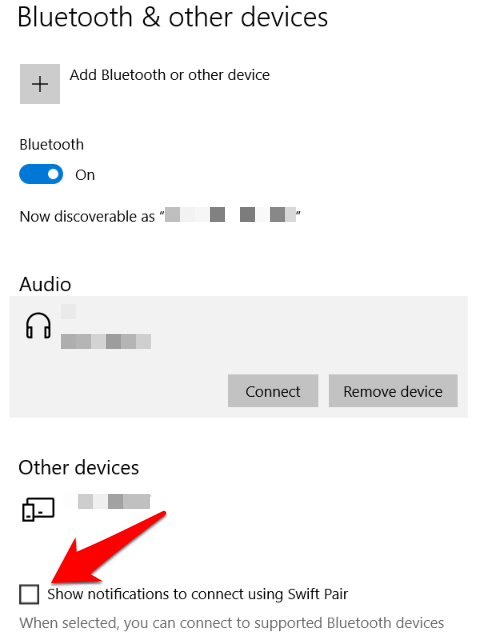
    Go to  Settings> Devices> Bluetooth & Other devices and click Show notifications to connect using Swift Pair. 

    3 Ways to Enable Bluetooth in Windows 10

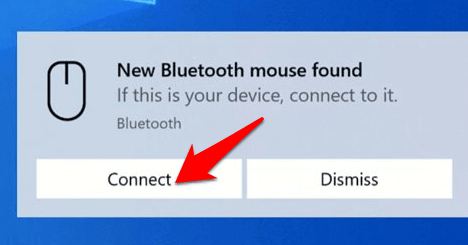
    Select  Yes  (if this is your first time using Swift Pair) to get notifications and use the service. Click  Connect when the “New Bluetooth device was found” notification appears. Once connected, click  Close.

    3 Ways to Enable Bluetooth in Windows 10

    Read more:

    Conclusion:

    We hope you now know how to enable Bluetooth in Windows 10 and pair all of your Bluetooth devices with your computer.

    Now you can send and receive files from your Bluetooth device to your PC, and listen to podcasts and other audio files.

  • 5 Ways To Fix Proxy Server Error in Windows 10 [2024]

    5 Ways To Fix Proxy Server Error in Windows 10 [2024]

    5 Ways To Fix Proxy Server Error in Windows 10 – When you are busy browsing, suddenly a proxy server error should not panic, please follow the repair steps described in this article.

    5 Ways To Fix Proxy Server Error in Windows 10
    5 Ways To Fix Proxy Server Error in Windows 10

    How To Fix Proxy Server Error in Windows 10 [2024]

    As time goes by, internet users are increasing rapidly. One of the problems that are often encountered when browsing is Unable to connect proxy server.

    Read more:

    As an active internet user, you are expected to know every cause of errors while surfing the internet, such as the Windows 10 proxy server error for example.

    Usually what causes proxy errors is a change in Windows 10 settings itself, either intentionally or unintentionally.

    The presence of malware on the computer can also cause setting errors which result in the computer not being able to connect to the network due to interference.

    The way to solve proxy server errors is not difficult, besides that it does not require additional software.

    If the computer you are using is experiencing problems as mentioned above, then the way to fix it is to apply one of the following methods:

    #1. Check Proxy Settings

    The first simple way you can try is to disable the proxy and then return it to its default settings. It’s like this:

    1. Press the key combination “Windows+S”.
    2. Then type “control panel” then press the Enter key.
    3. Then click the “Network and Internet” menu.
    4. Then click “Internet Options”.
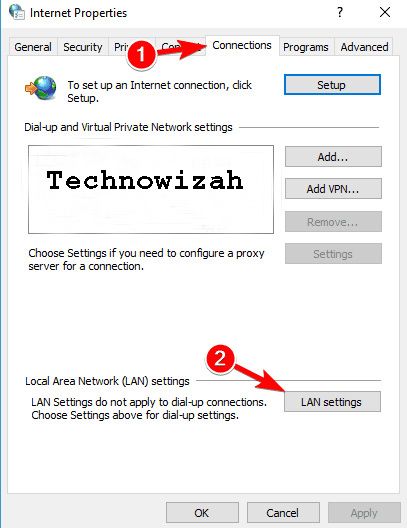
    5. Then click the “Connections” tab.

    Check Proxy Settings
    Check Proxy Settings
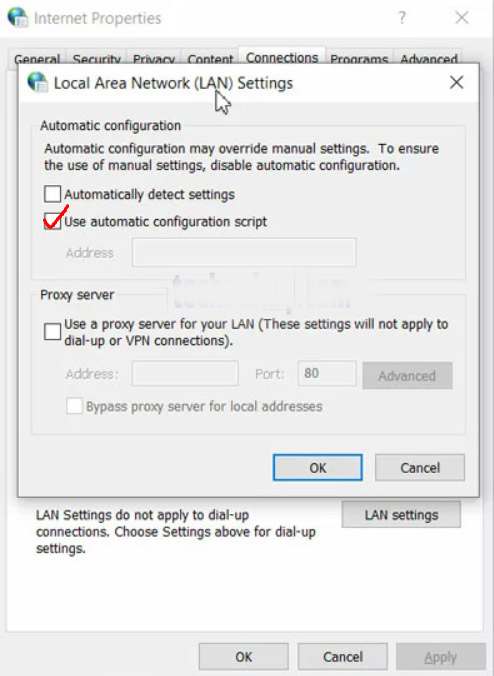
    1. Then click the “LAN settings” button.
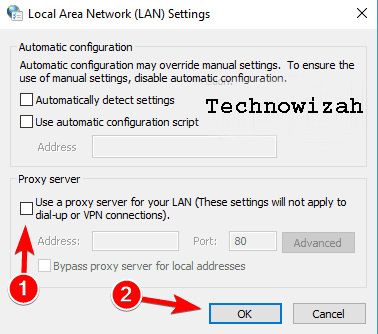
    2. Then uncheck the option “Use a proxy server for your LAN”.
    3. Put a checkmark on the “Automatically detect settings” option.

    Check Proxy Settings
    Check Proxy Settings
    1. Finally, click OK to save and apply the settings.
    2. Please exit all programs.

    After the process returns the proxy settings to default, the server that is used switches to the ISP server or internet provider from the provider used.

    Now try using a computer or laptop for streaming or browsing. If successful means that the cause lies in the previous incorrect proxy configuration.

    #2. Reset Internet Options

    Internet Options is a settings menu provided by Windows to set proxy, security, connection, and other similar functions.

    If your computer is having problems with proxies, try resetting Internet options in the following way:

    1. Click the Start menu.
    2. Then type “Internet options”, then press Enter.
    3. After the Internet Options settings menu opens, please click the “Advanced” menu.
    4. Then scroll down, then click the “Reset” option.
    5. Next, an approval question will appear, at this stage please click the “Delete Personal Settings” option.
    6. Then click Reset again.
    7. If so, the computer will restart.
    8. After the restart process is complete, please connect the computer to the internet and try browsing again. The proxy server error problem should have been resolved.

    #3. Delete Proxy

    Maybe the cause of the proxy error is because someone else or we forgot to add a new proxy in the internet options settings.

    So that we can find out the cause, please delete the newly added proxy settings and leave it using the default settings in the following way:

    1. Go to the Internet options menu.
    2. Then click Connections.
    3. Then click LAN Settings.

    Delete Proxy
    Delete Proxy
    1. Uncheck the Use A Proxy Server For Your LAN section.
    2. Then put a checkmark on the Automatically detect settings option.
    3. If so, please click Ok to save the settings.

    Then the computer will use the IP provided by the internet provider that is used. To make sure, try opening Chrome and then visiting the site you want to open.

    #4. Reset Google Chrome

    Some users are having proxy issues stating that the problem is caused due to Chrome settings.

    Therefore, try reverting Google Chrome Settings to their default settings.

    But keep in mind that this method will clear the cache as well as the extensions that have been installed.

    It’s best to make a backup first. After that, just follow these steps:

    1. Open Google Chrome.
    2. Then click the three-dot icon menu in the upper right corner.
    3. Then click “Settings”.
    4. Next, scroll down and click “Continue”.
    5. Then click the “Restore to original default” option in the Reset menu and clean it.
    6. Then click the Reset settings button.

    After Chrome has returned to its default settings, the Windows 10 proxy error problem should have been resolved.

    #5. Reinstall Chrome

    If the previous method didn’t solve the problem, it could be because of the Chrome installation process.

    To fix this, try reinstalling Chrome with the latest version.

    In addition, you can also try the beta version of Chrome or Canary.

    The Canary version of Chrome provides the latest fixes, but it’s not entirely for the smooth running of the operating system.

    There is a possibility that you will experience other problems if you use this version.

    In addition, Google always releases bug fixes via beta which can be the best choice.

    Read more:

    Conclusion:

    Those are some of the methods that you can try to use to solve proxy errors in Windows 10 and other versions of Windows.

  • 5 Ways To Unlock Samsung Cellphone Pattern 2024

    5 Ways To Unlock Samsung Cellphone Pattern 2024

    5 Ways To Unlock Samsung Cellphone Pattern – The era of technology development is currently quite fast and inevitably everyone must follow the development of information technology so as not to feel left behind. In the developments that we all go through, of course, we still have to pay attention to the security that exists in the virtual world.

    5 Ways To Unlock Samsung Cellphone Pattern
    5 Ways To Unlock Samsung Cellphone Pattern

    How To Unlock Samsung Cellphone Pattern 2024

    Today’s crimes are very diverse and occur anywhere and anytime, making us have to be even more careful to increase security, especially in cyberspace, one of which is by protecting our smartphones by using a password or pattern so that it is not easily opened by anyone.

    Read more:

    Smartphones currently available are equipped with advanced security features. Security features are available to maintain the privacy of its users. These security features are in the form of a PIN, password pattern, fingerprint, or face id. One smartphone that has this security feature is Samsung. Samsung is a good choice and a favorite of many people compared to other brands.

    Included in the brand that is a favorite of many people, the security feature that is a favorite is the pattern system. But there are problems with it, such as people who forget easily, will have difficulty opening the pattern from the cellphone itself.

    Frequently changing patterns can be the cause of you forgetting your Samsung cellphone pattern. Here we will provide an alternative way if you forget the pattern of the cellphone you have.

    How to Unlock Samsung Cellphone Pattern

    If you forget the pattern of your Samsung cellphone, there’s no need to worry and don’t be too hasty to take it to a cellphone service repairman. You can follow the method that we offer today.

    1. How to open a Samsung cellphone pattern using the Samsung My Mobile web. This way you don’t need a long time to be able to open it. To use this method, make sure the panda is connected to a Samsung account.
    2. If you have not connected to a Samsung account, then this method cannot be done. When the account on your cellphone can be connected, you can visit the Samsung mobile website. You can use a laptop or PC to access it more easily. When it is connected, sign in and log in using the account that is already connected to your cellphone.
    3. If you have successfully signed in, you will find the device name h panda on the left side of the screen then unlock my screen or unlock the screen.
    4. Then a notification will appear that your cellphone screen lock is unlocked. Don’t worry, the data in the cellphone will not be lost.

    You can copy the tutorial above to open a locked pattern lock because you forgot your Samsung cellphone, the great thing is that the above steps can be practiced alone on all types of Samsung including A10, J2 Prime, A01 Core, A11, J7 Prime, Note, and others.

    There are still other ways to be able to open your Samsung cellphone pattern, pay attention to the methods below that we have summarized and you can use one of them if you have problems forgetting your Samsung cellphone pattern.

    #1. Using Samsung Find Mobile

    Maybe you think that Samsung Find Mobile is used to track the whereabouts of a lost Samsung cellphone. This is indeed true. Please note that it does not only function as tracking a lost cellphone. Not only that but Samsung Find Mobile can also be used to open cellphone patterns for those of you who forget. Let’s see how to open the Samsung cellphone pattern below.

    • The first step is to open the browser on your laptop or you can use the cellphone you have.
    • In the browser menu, visit the Find My Mobile website at the address https://findmymobile.samsung.com
    • Then click the sign option and log in using your Samsung account that is already connected to your Samsung smartphone that forgot the pattern.
    • When you have successfully logged in to the Find My Mobile web, the name of your smartphone will appear on the left. If you have more than one Samsung cellphone then there are several names and types of cellphones displayed.
    • Next, click on the Unlock My Screen option
    • After doing some of the above processes, there will be a notification tone that your Samsung smartphone has been successfully unlocked.
    • The last step, check your Samsung cellphone, and the usual pattern lock to open is no longer there and your cellphone is already unlocked.

    #2. Using Hard Reset

    This method of opening a Samsung cellphone pattern is not recommended, because it can eliminate data, and also the settings will return to factory settings. This one method is also a bit complicated in the process of doing it. The risk that must be borne is that all data in the form of contacts, files, and data stored in the phone’s memory will be lost. If you are ready and don’t mind it, then you can do it, but if you don’t mind you can try another way.

    • The first step is to turn off your Samsung smartphone that has forgotten the pattern lock.
    • Make sure the cellphone is turned off, then do this Press and hold the three Power + Home + Volume Up buttons simultaneously. Wait a few moments until the Samsung logo appears.
    • Then wait a few moments until several hard reset options appear.
    • Then select the wipe data/factory reset option. If you are confused about how to choose it, you can use the volume up and volume down buttons to scroll through the options and use the tower button to select.
    • If so, select yes – delete all user data to start the hard reset process on your Samsung cellphone.
    • This process takes a few moments, you just have to wait for the process to complete.
    • When the process is complete, immediately reboot or rest your Samsung cellphone.
    • And the process is complete, your Samsung cellphone is not locked anymore.

    #3. Using Android Device Manager

    Another way to open a Samsung cellphone pattern that you can do is to take advantage of the services in the Android device manager to be able to open a forgotten Samsung cellphone pattern. Follow the method below to get started.

    • The thing that needs to be prepared is a computer or laptop or you could be by borrowing your friend’s Android first for the opening process.
    • Then immediately open the browser on your device earlier. To open the browser, it is recommended to use Google Chrome for fast internet access.
    • Visit the Android Device Manager site.
    • If you have visited it, log in using a Google account that is already connected to your Android and you forgot the pattern lock.
    • When logged in, you will be given 3 options, namely ring, lock and delete.
    • If you want to open a forgotten cellphone pattern, you have to choose the lock or lock option.
    • Then you will be asked to create a new password.
    • Next, confirm the new password that has been created and Continue by clicking the lock.
    • Wait a few moments and enter the latest password that you created earlier.
    • And the process is complete, your Samsung cellphone that forgot the pattern is already open.

    #4. Using the Android Debug Bridge (ADB)

    You can try to open the forgotten Samsung cellphone pattern to overcome the forgotten Samsung cellphone password that is locked using ADB, let’s see how below.

    • Prepare in advance the Android phone and also a USB data cable that will be used to connect to a computer or pc.
    • Plug in the USB cable and connect your Android to the computer, then remember to go into the ADB installation directory
    • Then, open the Command Prompt / CMD command on the computer, press Windows and R type cmd or click start-CMD
    • When the CMD command appears, type the ADB shell rm/data/system/gesture.key then press enter on the keyboard.
    • Then, Reebok or restart your Android phone, then the cellphone pattern on the panda will be lost.

    #5. By using an Emergency Call Number (Emergency)

    If the method for opening the Samsung cellphone pattern that you forgot above is still quite complicated and the steps still make you confused, then in the fifth tip you can use an “emergency call” to overcome the forgotten pattern on your Samsung cellphone. How to? look carefully below.

    • First, you need to prepare the emergency call number for the Samsung cellphone and forget the password.
    • And for the emergency call number to unlock the Samsung cellphone is  911.
    • Submit your problem with the Emergency number.
    • And wait a while, later the pattern that is locked because you forgot it will be resolved properly.
    • Finished.

    Conclusion

    Those are some 5 Ways To Unlock Samsung Cellphone Patterns, hopefully, they will be useful and can help those of you who are looking for How to Unlock Samsung Cellphone Patterns or How to Unlock Locked Samsung Cellphones Without Reset.