Author: Nazrul Islam

  • How To Play PS2 Games With PCSX2 2024

    How To Play PS2 Games With PCSX2 2024

    How to Play PS2 Games With PCSX2 – Of course, gamers in the past, it was no strangers to games on PS2. But now, the number of PS2 rentals or their current sellers has greatly reduced, the effect of which is of course hard to find.

    How To Play PS2 Games With PCSX2
    How To Play PS2 Games With PCSX2

    How To Play PS2 Games With PCSX2 [2024]

    However, nowadays technology has advanced. Playing PS2 games on a PC or Laptop is already possible by using an application, which is usually called an emulator.

    Read more:

    This emulator’s exact name is  PCSX2. It’s been around for a long time. But of course for those who have just heard, then let’s discuss it here.

    What is PCSX2?

    What is PCSX2
    What is PCSX2

    PCSX2  is an open-source PS2 game emulator application and was initially released stable in 2016. Intended for 3 operating systems at once (Windows, macOS, and Linux).

    The purpose of this application is to develop and allow computer users to play PS2 games without using the console directly.

    Functionally, we’ve already tried it. And that’s pretty good. Our favorite games can be run without problems.

    So for those of you who have just heard and want to try it, you don’t have to worry. Because here we will discuss it. Incidentally, PCSX2 is also free.

    System Required For PCSX2

    The first thing we need to know, of course, is the system requirements of the emulator.

    If it’s just running it might not be a problem. But if the specifications of the computer users are below the system requirements of the emulator, it will be broken later.

    Minimum System Requirements Recommended System Requirements
    Intel Pentium 4 / AMD Athlon 64 (Or above) Intel Core I3 I5 I7 | AMD Phenom X4 3.2Ghz or better
    Any GPU that  supports  Pixel Shader 2.0 (Except certain series) NVIDIA 8800GT (With at least DirectX10 Support)
    512MB or 2GB RAM (For Vista) RAM 1GB (XP) 2GB (Vista or 7)

    These requirements will certainly be much better if your computer specs are on it. Because based on our own experience, whether or not it lags depends on the game being played later.

    How to Install PCSX2 on a PC / Laptop

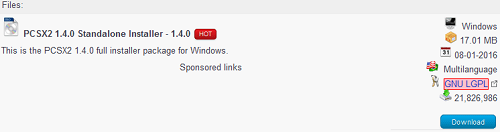
    Step 1: First, please get the file for free on the  Windows PCSX2 page.  Choose the  Standalone Installer.
    How to Install PCSX2 on PC Laptop
    How to Install PCSX2 on PC Laptop

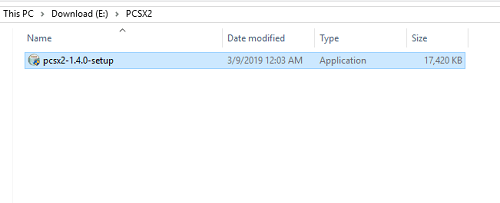
    Step  2: Open the file.

    How to Install PCSX2 on PC Laptop

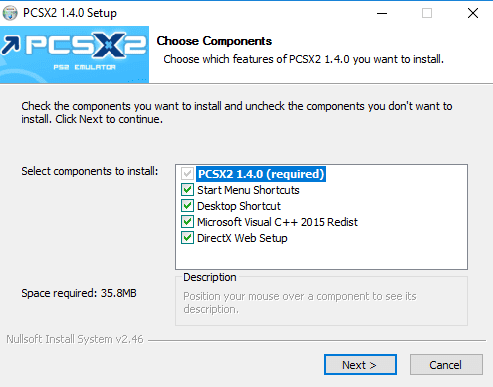
    Step 3: Click  Next. For the Install settings option, just leave the default.
    How to Install PCSX2 on PC Laptop

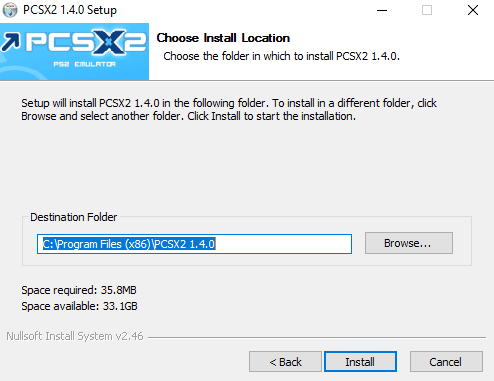
    Step 4: Select where the PCSX2 directory will be installed. If you have clicked  Next again.
    How to Install PCSX2 on PC Laptop

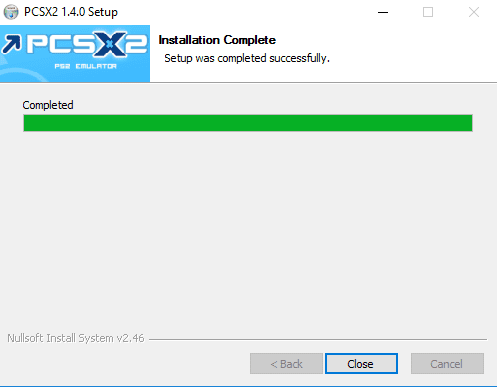
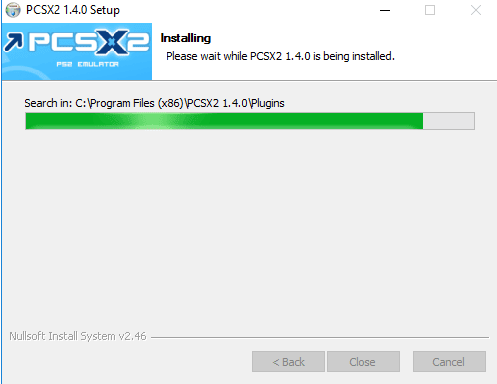
    Step 5: Wait for the installation process to complete.
    How to Install PCSX2 on PC Laptop

    Step 6: Click  Close and done.

    How to Install PCSX2 on PC Laptop

    How to set PCSX2 to run smoothly and not lag

    After being installed using the steps above, PCSX2 is now actually ready for you to use right away.

    However, it’s a good idea to try setting the settings first, at least so that the lag can be reduced later.

    The method:

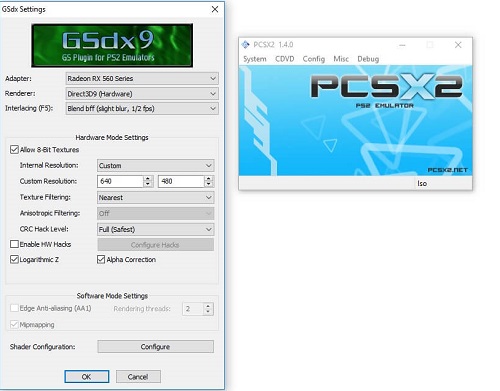
    Step 1: Click  Config  >  Video (GS)  >  Plugin Settings  > Then set it like this:
    How to set PCSX2 to run smoothly and not lag
    • Adapter: Select the main VGA used by the Computer / Laptop.
    • Renderer: Select Direct3D9 Hardware.
    • Internal Resolution: Select Custom.
    • Resolution: Adjust as needed.
    • Texture Filtering: Select  Nearest.
    • The rest adjusts to what is drawn.

    Step 2: Click  Config  >  Video (GS)  >  Windows Settings  > Then select  Aspect Ratio to  Widescreen (16:9).
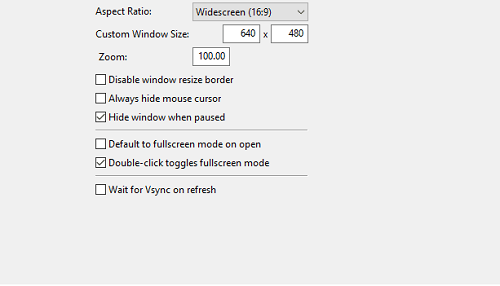
    How to set PCSX2 to run smoothly and not lag

    Step 3  : Select  Config  >  Audio  (SPU2)  >  Plugin Settings  > Then set the settings as shown below:
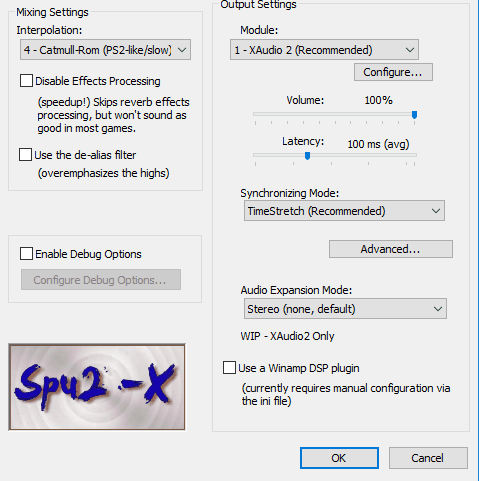
    How to set PCSX2 to run smoothly and not lag
    • Module: XAUDIO2
    • Interpolation: Catmull (Can be changed to  Nearest )
    • Latency: 100MS

    Step 4: When finished, close all settings windows and try playing the emulator (Click File > Boot DVD or click CDVD > ISO Selector > Browse).
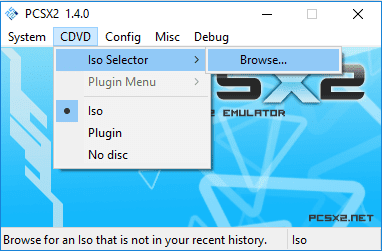
    How to set PCSX2 to run smoothly and not lag

    Conclusion:

    This article is a guide for those who are curious to play PS2 games on a PC or a laptop, and for those who are curious about how to install the PCSX2 emulator.

    Hopefully, by following the method above hopefully, the problem you are experiencing can be resolved.
  • How To Change Font Colour of WhatsApp Chats And Status 2024

    How To Change Font Colour of WhatsApp Chats And Status 2024

    How To Change Font Colour of WhatsApp Chats And Status – WhatsApp has evolved over the years to add many useful features for its users. But when it comes to customization, WhatsApp has remained simple. Users cannot add their fonts or styles to text and status to make it more personal.

    How To Change Font Colour Of WhatsApp Chats And StatusHow To Change Font Colour of WhatsApp Chats And Status 2024

    This is a big limitation that many users find it limiting. But it too can be changed with the help of a few tricks. With the tricks that are listed below, you can change the font color of WhatsApp chat and the status.

    Changing the Font Color in Chat: 3rd Party Application

    You can only change the fonts to a few different styles natively. You cannot even change it to any color other than black with the default option. To use different styles and colors, you have to use a 3rd party application from the play store.

    As there is no native option, there are a ton of 3rd party apps present in the play store to do this such as “color texting messenger”, “cool fonts for WhatsApp”, and “WhatsBlue Text”. These apps are free and easy to use. You can choose anyone but be careful about the permission that you give.

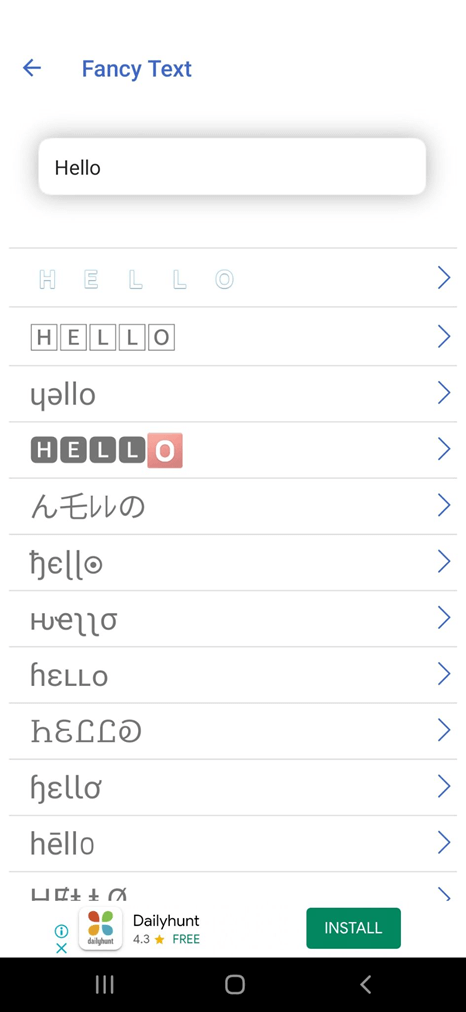
    WhatsBlue Text is a great 3rd party app that lets you customize your font in a million ways. There is a ‘Fancy Text’ option in this app that lets you format your message in different styles and colors including Blue.

    You can view different styles and select the one that suits you the most to send through WhatsApp chat. There are many WhatsApp mods like FMWhatsApp available, that can be used for these tricks.

    Changing the Font Color in Chat 3rd Party Application

    Changing the Font Color in Chat 3rd Party Application

    Changing the Font Style: The default way

    WhatsApp does have some features to make your chat a bit more personal. You can change the style of your font natively on WhatsApp. You can make your text bold, italic, strikethrough, and even monospace.

    For Bold option

    Type the text on your chat or status.

    Enclose the text with a single ‘*’ character and hit send.

    *This is a sample message*

    For Italic option

    Type the text on your chat or status.

    Enclose the text with a single ‘_’ character and hit send.

    _This is a sample message_

    For Strikethrough option

    Type the text on your chat or status.

    Enclose the text with a single ‘~’ character and hit send.

    ~This is a sample message~

    For the Monospace font  option

    Type the text on your chat or status.

    Enclose the text with a single ‘“`’ character and hit send.

    “` This is a sample message“`

    You can also combine the different font style options and send them in a single chat text. You just have to enclose the different characters around the text that you want to format.

    Changing the Font Style The default way

    How to Format chat using the WhatsBlue text app.

    • Open the WhatsBlue Text app and start typing the message that you want to send as a chat.
    • This app will list the written text in all different types of styles and colors.
    • You can choose the desired one that suits you the most and select one of the three options available.
    • You can share, copy, or WhatsApp the formatted text. Select the WhatsApp option to send the formatted text to your favorite chat.

    In this way, you can change the default color and style of the WhatsApp font and use your own.

    Changing the Font color in the WhatsApp status

    Unlike WhatsApp chat, you do have some formatting options with WhatsApp status natively. You can change the background color, add pictures, and many more. With text, you can only format it with limited options such as bold, italic, strikethrough, and monospace. To expand your personality with the text on WhatsApp status, you should use a good 3rd party app. You can even use the above-mentioned WhatsBlue text app to format the font of your WhatsApp status.

    How to Format status font using WhatsBlue text app.

    The steps to format the status font is very similar to changing the chat font.

    • Open the WhatsBlue Text app and start typing the message that you want to send as a chat.
    • This app will list the written text in all different types of styles and colors.
    • You can choose the desired one that suits you the most and select one of the three options available.
    • You can share, copy, or WhatsApp the formatted text. Now select “My status” in the WhatsApp option to keep the formatted text as your status.

    As you can see, the steps to format the status font is very similar to changing the chat font. You just have to select “My status” instead of sending it to your chat.

    Conclusion:

    Changing the font color and style of WhatsApp chat and status is straightforward with 3rd party app. You can use the WhatsBlue app to personalize your WhatsApp communication which can never be done with the default app. We hope this post helps you to easily personalize your WhatsApp font for chat and status.

  • Here’s How to Use Emojis on Windows PC Laptop 2024

    Here’s How to Use Emojis on Windows PC Laptop 2024

    Here’s How to Use Emojis on Windows PC Laptop – Who doesn’t like Emoji? Almost everyone will like emojis to give variety to the message or note that we want to convey. But Emoji that we usually use on smartphones. How about emoticons on a Windows laptop or PC?

    Here's How to Use Emojis on Windows PC Laptop
    Here’s How to Use Emojis on Windows PC Laptop

    How to Use Emojis on Windows 10,8.1,7 PC Laptop 2024

    Thanks to Microsoft for making the operating system the most universal among all operating systems. Now, Emoji can be used on any PC running Windows 10 platform via the on-screen keyboard (touch screen or using the mouse).

    Read more:

    Plus, in the upcoming Windows 10 Anniversary Update, we’ll be treated to a large and new emoji created by the Microsoft design team. This emoji is also built-in for Windows 8.1 and is also supported in Windows 7 which means we can technically use it by copying/pasting.

    If you still don’t know and want to know how to bring up emojis on laptops and PCs? No need to worry, the Technowizah team has prepared a Windows 10, 8.1, and 7 emoji tutorial for you.

    How to Bring Up Emojis in Windows 8.1 and 10

    How to bring up emoticons on a Windows laptop is easy. To access it, we must use the on-screen keyboard. The trick is to just press the keyboard icon in the system tray.How to Bring Up Emojis in Windows 8.1 and 10

    How to Bring Up Emojis in Windows 8.1 and 10

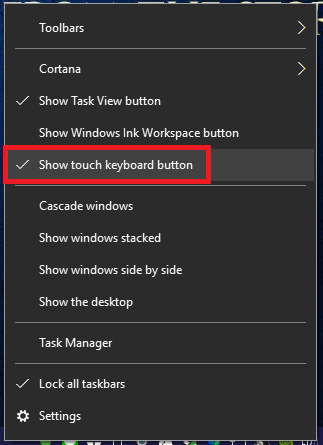
    If there is no keyboard icon, right-click on the taskbar and check the Show Touch keyboard button. For Windows 8.1 users, you can find it by right-clicking the taskbar, then Toolbars  > Touch keyboard.

    How to Bring Up Emojis in Windows 8.1 and 10

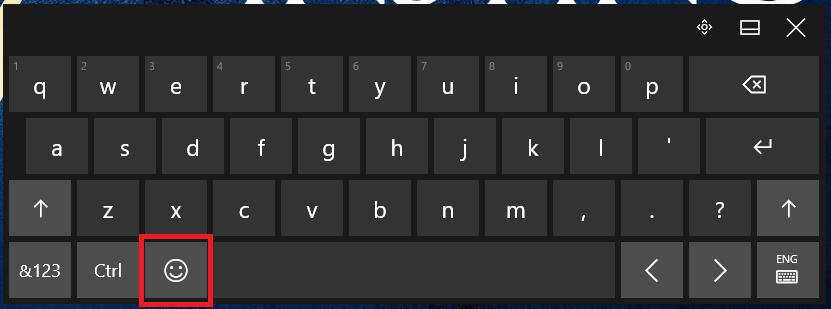
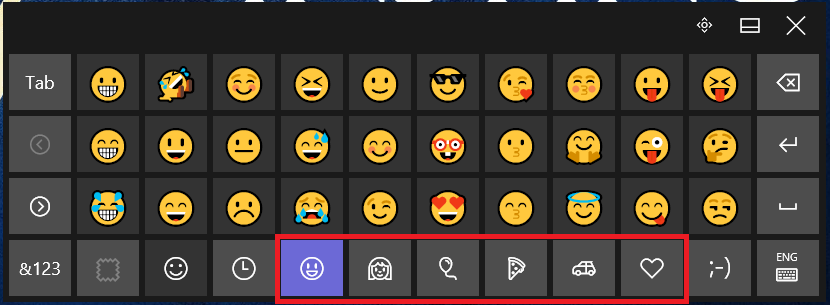
    To use an emoji, just press the emoji key which is to the left of the space key. Emojis here have been categorized into 7 types.

    How to Bring Up Emojis in Windows 8.1 and 10

    To change the category, press the emoji category button at the bottom of the keyboard.

    How to Bring Up Emojis in Windows 8.1 and 10

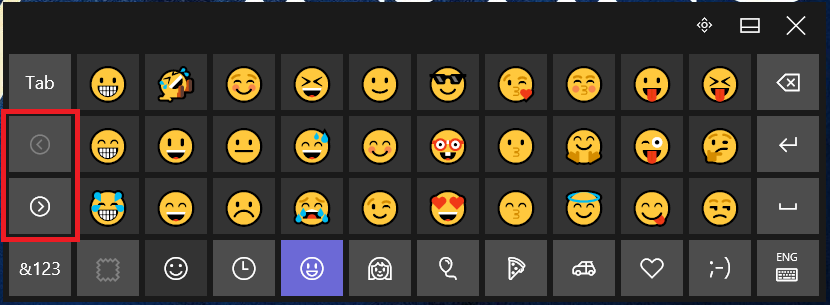
    To search for emojis in the same category, press the ( > ) or ( < ) keys on the left of the keyboard.

    How to Bring Up Emojis in Windows 8.1 and 10

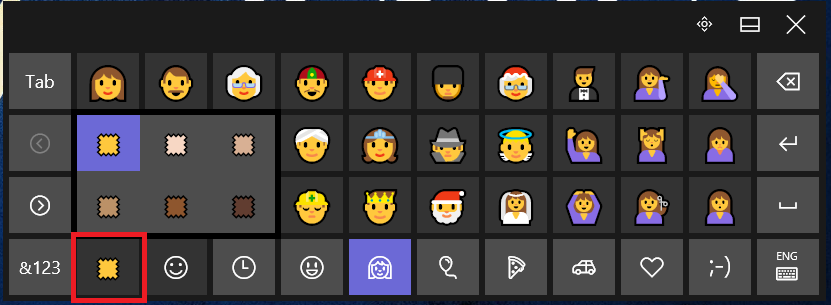
    To change the color of the emoji, select a category of people and then press the color button at the bottom left of the keyboard. There are six different types of colors.

    How to Bring Up Emojis in Windows 7

    How to Bring Up Emojis in Windows 7Windows 7 supports emojis, which means we can see emojis when we access a website that contains emojis (usually it looks just like a box).
    But Windows 7 does not have a touch keyboard (the on-screen keyboard) that allows us to use emojis when typing.

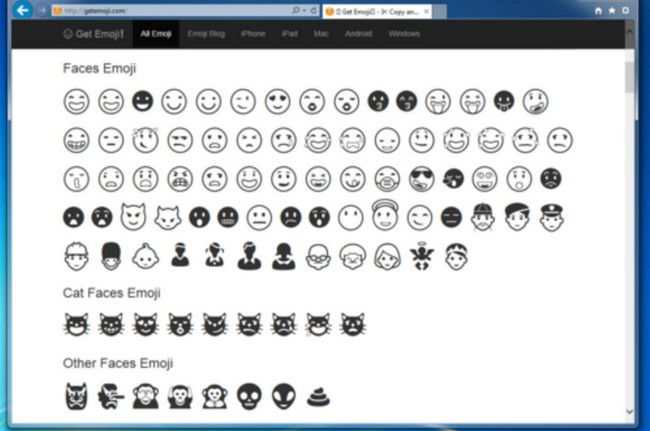
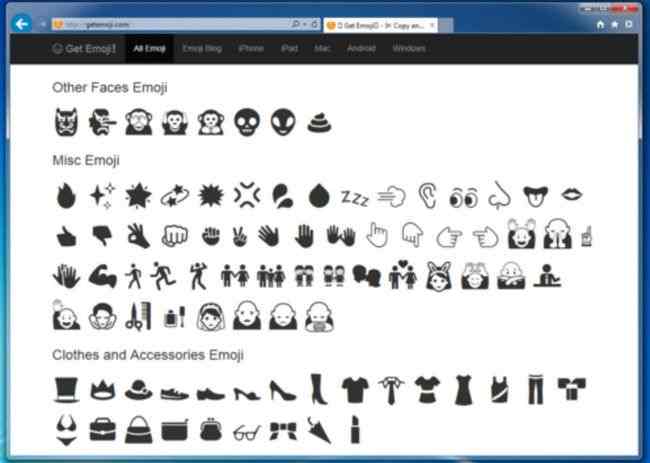
    How to Bring Up Emojis in Windows 7To bring up emoticons on a Windows 7 laptop, we only have to copy and paste (copy-paste) Emoji from Get Emoji or other Emoji providers.
    Select the desired Emoji, then Ctrl+C, and paste the Emoji into your writing with Ctrl+V. For the record, Windows 7 can only support black and white emojis.

    Read more:

    Conclusion:

    That was the tutorial on how to use emojis on a Windows PC. The method is very easy, you still immediately try it on your PC device.

  • 3 Ways to Enable Dark Mode on Mac PC Laptop 2024

    3 Ways to Enable Dark Mode on Mac PC Laptop 2024

    3 Ways to Enable Dark Mode on Mac PC Laptop – Your Apple Mac or MacBook has a dark mode that can help you work better at night and in low light conditions.

    3 Ways to Enable Dark Mode on Mac
    3 Ways to Enable Dark Mode on Mac

    How to Enable Dark Mode on Mac PC Laptop 2024

    Once enabled, supported apps and websites automatically switch to dark mode with white text. In the following, we will discuss how to enable Mac dark mode.

    Read more:

    #1. How to Enable Mac Dark Mode from the Control Center

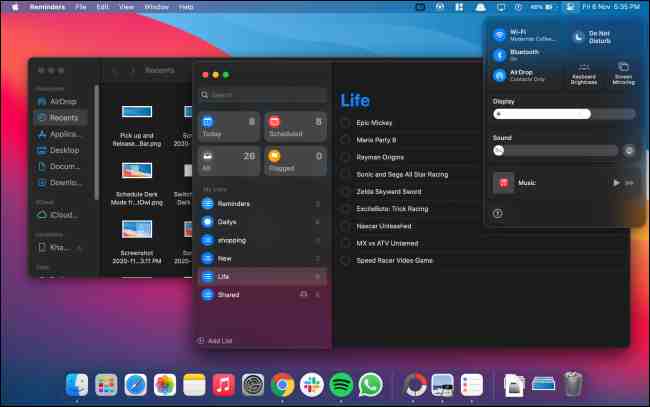
    The dark mode was first introduced with macOS Mojave. You can enable or disable it from System Preferences. Mac users running macOS Big Sur and later can now enable or disable dark mode right from the Control Center.

    How to Enable Mac Dark Mode from Control Center

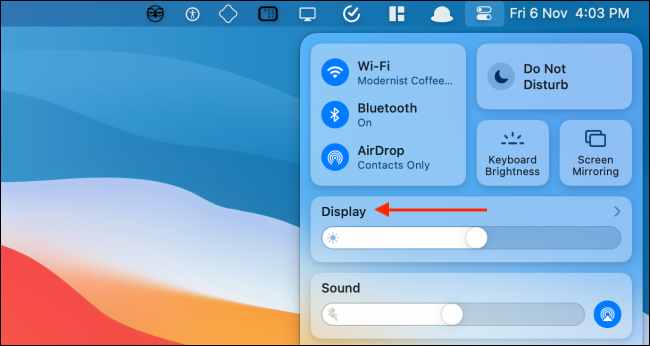
    Click the ” Control Center ” icon from the top right corner of your screen.

    How to Enable Mac Dark Mode from Control Center

    From the Control Center drop-down window, click the “ Display ” module.

    How to Enable Mac Dark Mode from Control Center

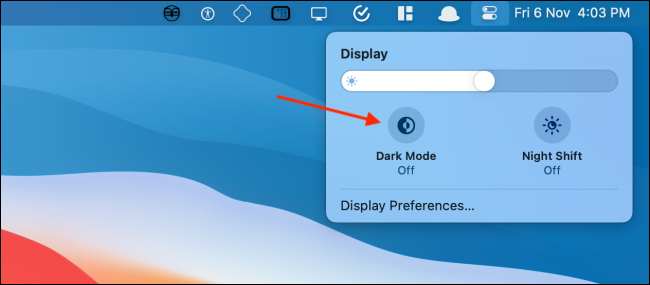
    The Display Module will now expand. Here, select the ” Dark Mode ” button to enable or disable the feature.

    How to Enable Mac Dark Mode from Control Center

    #2. How to Enable Dark Mode Switch Mac in Menu Bar

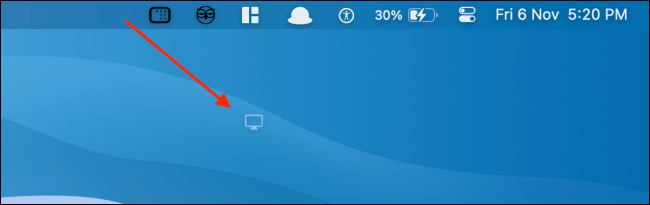
    With previous versions of macOS, you needed a third-party app to access the dark mode switch from the menu bar. Thanks to the Control Center introduced in Big Sur, you can add this switch to the menu bar without installing anything.

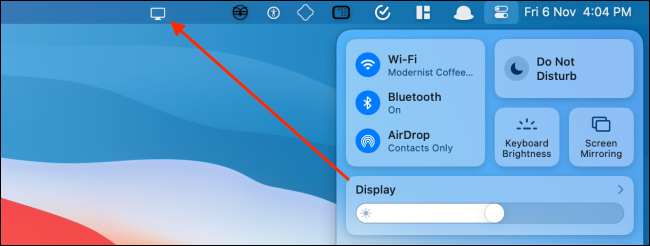
    Open ” Control Center ” on your Mac, then drag and drop the ” Display ” panel onto the menu bar.

    How to Enable Dark Mode Switch Mac in Menu Bar

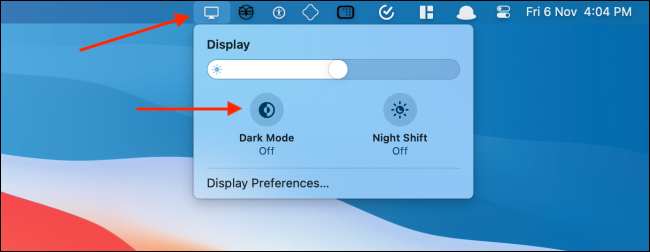
    The Display Panel will change to an icon and reside permanently on the menu bar of your Mac. Click the ” Display ” button to expand the window. From here, select the “ Dark Mode ” button to quickly enable or disable visual features.

    How to Enable Dark Mode Switch Mac in Menu Bar

    You can rearrange or remove the “ Display ” icon from the menu bar quite easily. Press and hold the “ Command ” key then drag and drop the Display icon where you want to move it.

    If you want to remove the “ Display ” icon, drag it to the “ Desktop ” and then release it.

    How to Enable Dark Mode Switch Mac in Menu Bar

    #3. How to Enable Mac Dark Mode from System Preferences

    If you use macOS Mojave or Catalina on a Mac, you don’t have access to Control Center. Luckily, you can enable or disable dark mode from System Preferences on modern versions of macOS.

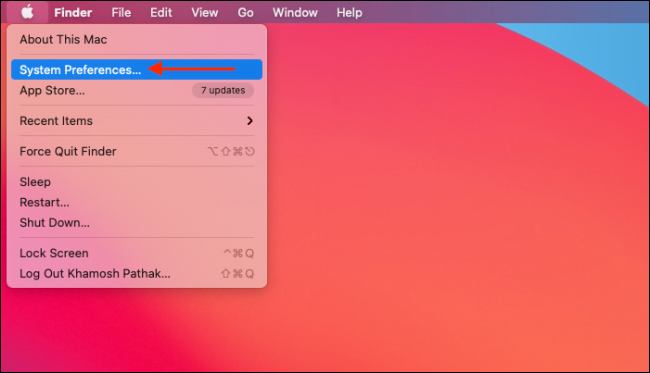
    Click the ” Apple ” button from the menu bar and select the ” System Preferences ” option.

    How to Enable Mac Dark Mode from System Preferences

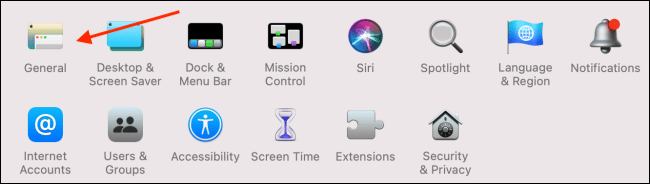
    Here, go to the ” General ” section.

    How to Enable Mac Dark Mode from System Preferences

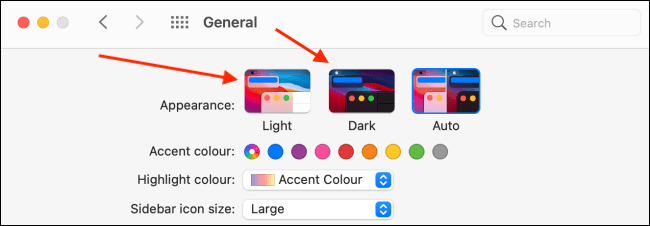
    From the ” Appearance ” section, you can switch between ” Light ” and ” Dark ” modes.

    How to Enable Mac Dark Mode from System Preferences

    How to Schedule Dark Mode on Mac

    macOS can also turn dark mode on or off automatically based on the time of day. Go to System Preferences> General, and from the ” Appearance ” section, select the ” Auto ” option.

    How to Schedule Dark Mode on Mac

    Once this option is enabled, macOS will automatically enter dark mode at night. And when you open your Mac in the morning, macOS will return to light mode.

    If you want to turn on dark mode at a certain time, you can use a third-party app called  NightOwl. This app is a free menu bar utility that works with macOS Mojave or higher.

    This utility also functions as a quick toggle to enable and disable dark mode from the menu bar. Just right-click the “ NightOwl ” icon from the menu bar to enable or disable dark mode.

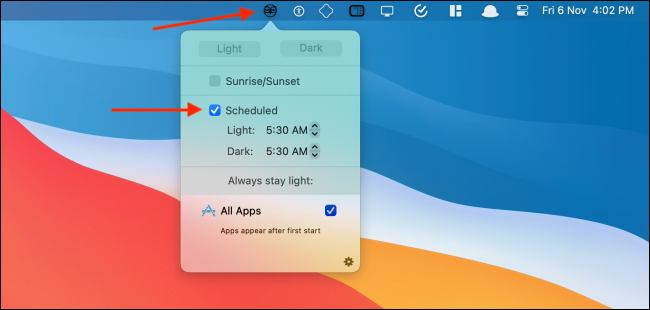
    After NightOwl is installed and you agree, you can click the ” NightOwl ” button and activate the ” Scheduled ” feature. Then, enter the time when you want to turn on the Light or Dark mode.

    How to Schedule Dark Mode on Mac

  • 7 Ways To Find IP Address on Windows 10 Laptop PC 2024

    7 Ways To Find IP Address on Windows 10 Laptop PC 2024

    7 Ways To Find IP Address on Windows 10 Laptop PC – Your IP Address (Internet Protocol) is like a home address, but for your WiFi network. Without an IP Address, the internet won’t know where to send all the data you want, such as e-mails and websites. Here’s how to find your IP address on a Windows 10 computer.

    How to Find IP Address on Windows 10 PC
    How to Find IP Address on Windows 10 PC

    How to Find IP Address on Windows 10 Laptop PC 2024

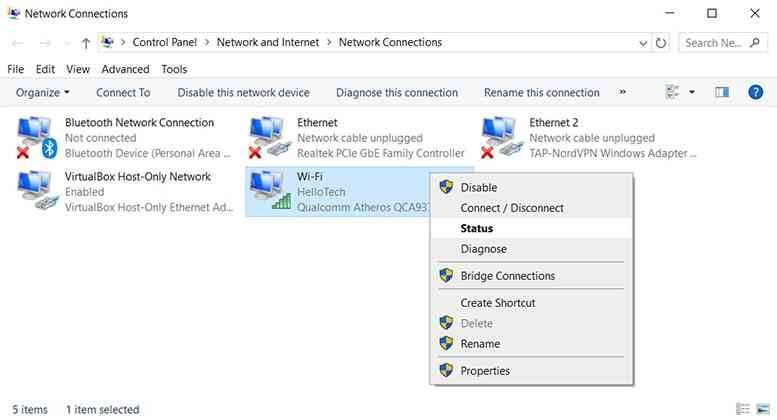
    To find your IP address on a Windows 10 computer, go to Control Panel  >  Network and Internet  >  Network and Sharing Center> Change adapter settings. Right-click Ethernet and go to  Status  >  Details.

    Read more:

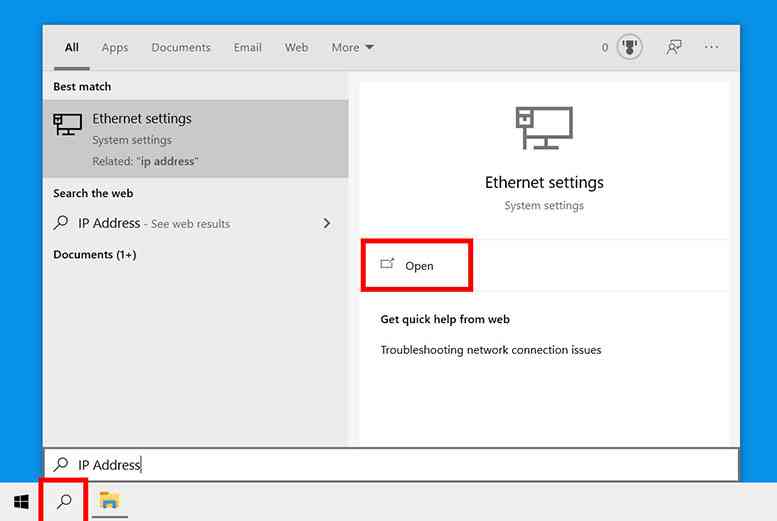
    1. Click the magnifying glass icon in the lower-left corner of the screen.
    2. Then type the IP Address into the search bar.
    3. Next, click Open.
      How to Find IP Address on Windows 10 PC
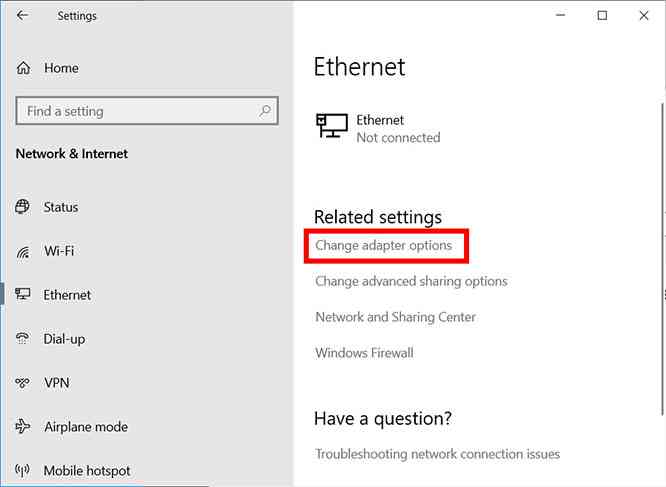
    4. Then click Change adapter options.
      How to Find IP Address on Windows 10 PC
    5. Next, right-click your network and select Status. If you are connected to the internet via WiFi, right-click it, and if you are using an Ethernet connection.
      How to Find IP Address on Windows 10 PC
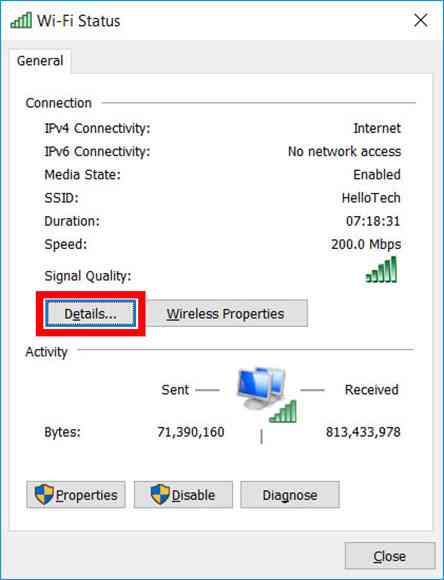
    6. Then click  Details.
      How to Find IP Address on Windows 10 PC
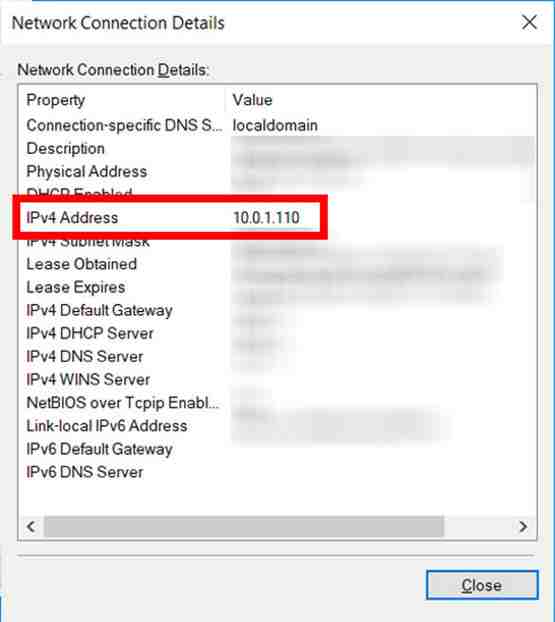
    7. Finally, you will see the computer’s IP Address next to the IPv4 Address.

    How to Find IP Address on Windows 10 PC

    What is the Difference Between Private and Public IP Addresses?

    A public IP address is a globally unique IP address assigned to devices by internet service providers. Private IP addresses are assigned to devices in a private network by routers. This is why you can have the same local IP Address as someone else, but not the same private IP Address.

    Read more:

    Conclusion:

    Think of it like this: A public IP Address is like the address of your apartment building, whereas a private IP Address is like your apartment number.