Author: Nazrul Islam

  • 10 Ways to Fix The System Cannot Find The File Specified 2024

    10 Ways to Fix The System Cannot Find The File Specified 2024

    10 Ways to Fix The System Cannot Find The File Specified – A faulty operating system can prevent you from running applications or accessing any files. Speaking of errors, many Windows 10 users have complained about the issue on forums that they can’t access their files because of ‘ The System Cannot Find The File Specified.

    10 Ways to Fix The System Cannot Find The File Specified
    10 Ways to Fix The System Cannot Find The File Specified

    How to Fix The System Cannot Find The File Specified on Windows 10 [2024]

    If you’re experiencing The System Cannot Find The File Specified as an error message, don’t worry. Because this is a pretty standard Windows error. There are various factors that can trigger the ‘The System Cannot Find The File Specified’ error message.

    Read more:

    You may get error messages because your system files are missing or corrupted, files required for certain software are missing or corrupted, disk failure, partition issues, incorrect file information, etc.

    How to Fix The System Cannot Find The File Specified

    Luckily, we have found some of the best methods that can fix the ‘The System Cannot Find The File Specified’ error message in no time. So, here we are going to share the 10 best methods to fix ‘The System Cannot Find The File Specified’ from Windows 10 computers.

    #1. Install Windows Updates

    The ‘The System Cannot Find The File Specified’ error message mostly occurs on older versions of Windows. So, the solution to fixing the error message also lies in installing Windows Update. So, to install pending Windows Updates, follow some of the simple steps listed below.

    1. First press Windows Key + I on your keyboard to open Windows Settings.

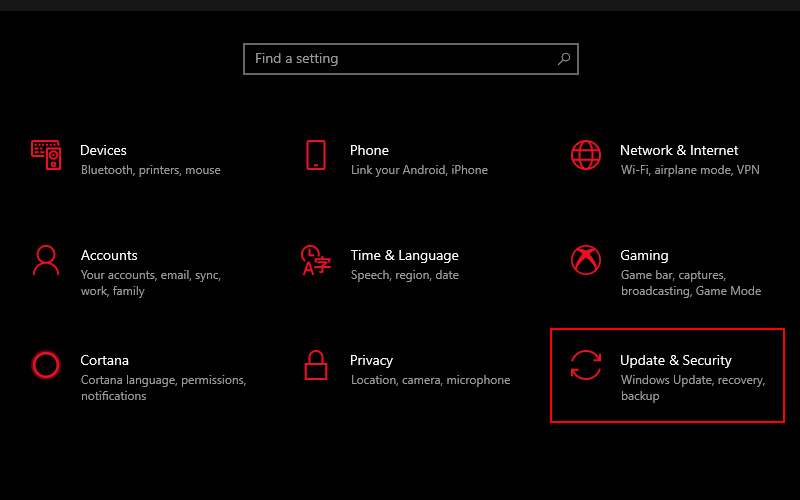
    2. Once the Settings window opens. There you need to click on ‘ Update & Security ‘.
    Install Windows Updates
    Install Windows Updates

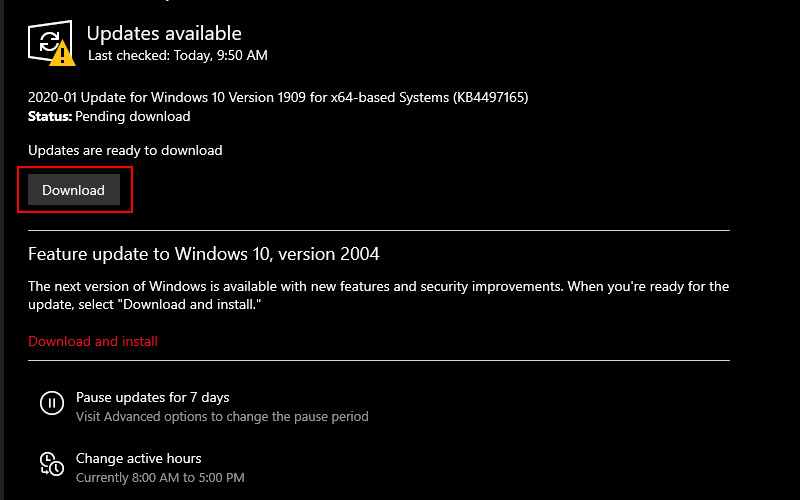
    3. In the next window, you need to click on the ‘ Check for Updates ‘ button.
    Install Windows Updates
    Install Windows Updates

    Now the Windows update utility will check for pending updates, if it finds it, it will install them on your computer.

    #3. Update Drivers

    If you get the error message ‘The System Cannot Find The File Specified’ due to a driver issue, then you need to update the old driver. You can either uninstall & reinstall the drivers from the Device Manager, or you can rely on third-party tools to update the drivers. We highly recommend you use a third-party tool to update all drivers, as updating all drivers manually is a troublesome task. So, you can install an application to update all your drivers such as Driver Booster.

    #4. Use System File Checker

    In this method, we need to use the Command Prompt to use the System File Checker (SFC) to fix the error message ‘The System Cannot Find The File Specified’. So, let’s check how to use the SFC command in CMD.

    1. First press Windows Key + R then type cmd then press CTRL + SHIFT + ENTER to open Command Prompt in Administrator mode.

    2. You will now see a Command Prompt window open. There you have to enter the following command ‘  sfc /scannow‘ and press Enter.
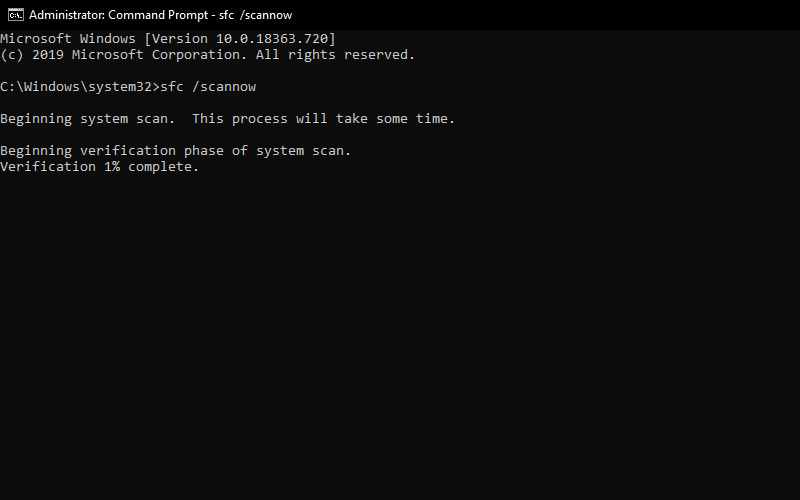
    Use System File Checker
    Use System File Checker

    3. Now, wait for the System File Checker (SFC) utility to complete the scan.

    Make sure to restart the computer after the scan is complete. This will most likely fix the ‘The System Cannot Find The File Specified’ error from your computer.

    #5. Use CHKDSK Scan

    If the SFC command still doesn’t work to solve the problem. You can run CHKDSK to scan for corrupted files and fix the “The System Cannot Find The File Specified” error. To use it, follow the steps below.

    1. Just as before, open Command Prompt in Administrator mode.

    2. Now enter the following command in Command Prompt chkdsk /r
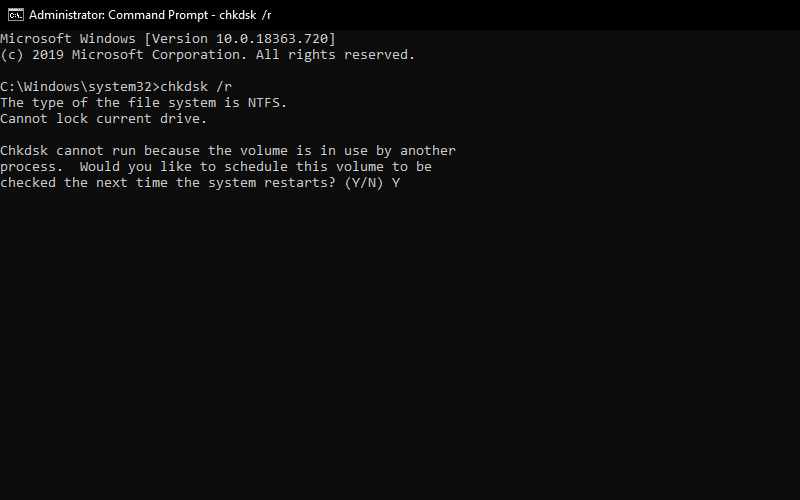
    Use CHKDSK Scan
    Use CHKDSK Scan

    3. Press the Enter key to run this command and it will automatically fix the error.

    4. After this command is finished, restart your PC.

    #6. Check System Log

    If all the above methods still fail to fix The System Cannot Find The File Specified from your computer, then we suggest you check the system log file. Here are the steps you need to follow.

    1. Go to the C:/Windows/INF file  directory  and open the INF folder folder
    2. In the INF folder, find the setupapi.dev.log file and open it.
    3. Now press  CTRL + F search for cannot find the file ‘  and press Enter.
    4. Now you will get the missing files. Simply, copy & paste to the Windows/INF folder.
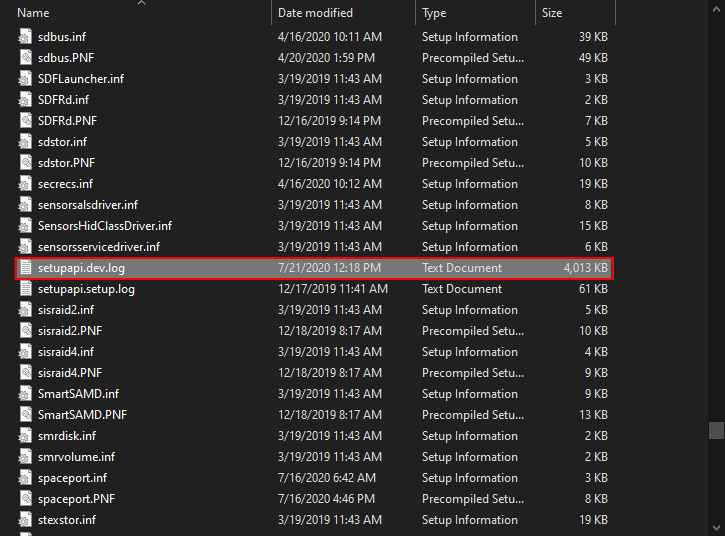
    Check System Log
    Check System Log

    Now restart your computer to fix ‘The System Cannot Find The File Specified’ from Windows 10.

    #7. Edit Registry File

    This is one of the methods you can try to fix the “The System Cannot Find The File Specified” problem.

    1. Press  Windows Key + R  simultaneously to open the Run Dialog box then type Regedit and press  Enter.

    Note: Modifying the registry comes with certain risks, you should export the registry first to make a backup. Click  File  >  Export to create it.

    3. After you have backed up the registry, navigate to  HKEY_LOCAL_MACHINE\SOFTWARE\Microsoft\Windows\CurrentVersion.

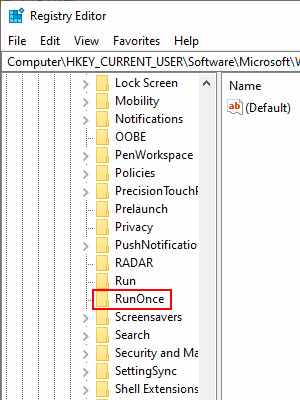
    4. Open the key and look for the RunOnce button. You can create it if this key doesn’t exist. Click the CurrentVersion button and choose  New  >  Key from the menu.
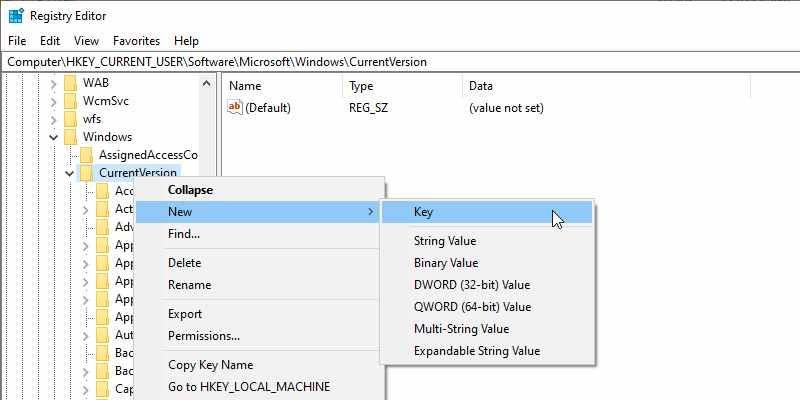
    Edit Registry File
    Edit Registry File

    5. Type  RunOnce as the new key.

    7. Check if the RunOnce key is there.
    Edit Registry File
    Edit Registry File

    8. Exit Registry Editor and restart your PC.

    #8. Delete ProfileImagePatch Key

    Well, if you are still getting the error message ‘The System Cannot Find The File Specified’ when creating system images or backups, then you need to try this method. The problem occurs when Windows caches the old Profile image path. So, follow this method to fix the ‘The System Cannot Find The File Specified’ error message from Windows 10.

    1. First, press Windows Key + R to open the Run Dialog box. In the RUN Dialog box, enter ‘Regedit and press Enter.

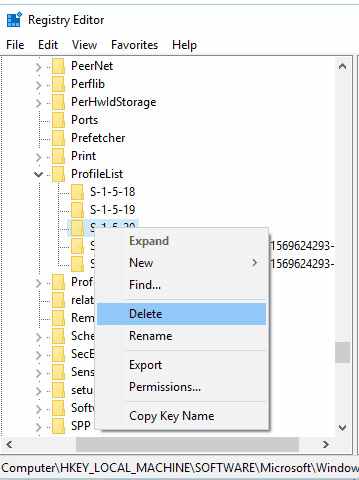
    2. Now in the Registry editor, you need to browse to the HKEY _LOCAL_MACHINE\\SOFTWARE\\Microsoft\\Windows NT\\CurrentVersion\\ProfileList patch

    3. Now go to the ProfileLisk key and check all sub-keys if they have the ProfileImagePatch value in the right-side panel.

    4. If you find a sub-key that has a ProfileImagePath value, delete it.
    Delete ProfileImagePatch Key
    Delete ProfileImagePatch Key

    Now simply restart your computer and ‘The System Cannot Find The File Specified’ will be fixed.

    #9. USB Format

    Maybe The system cannot find the file specified error may occur while inserting your USB flash disk, for that can format your drive to fix the problem. Follow the steps below to do it.

    Note: This will erase all the data on the USB flash drive, so make sure to back up your USB to avoid data loss.

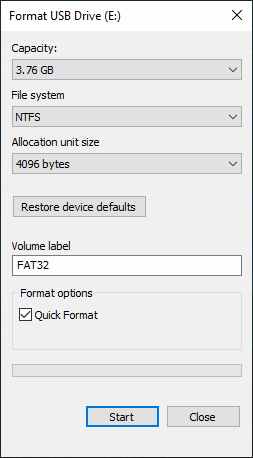
    1. First open This PC  > right-click on your USB flash drive then click  Format.

    2. Make sure the Quick Format option is checked.

    3. Click  Start to format it.
    USB Format
    USB Format

    #10. Scan for Virus And Malware

    Malware and Viruses sometimes damage important system files. So, the System cannot find the specified file errors can also occur due to threats and viruses. So, if you are using an Antivirus program, then run a deep scan. If you don’t have an antivirus application, you can try an application like Malwarebytes to remove virus and malware threats from your computer.

    Easy Solution To Fix The System Cannot Find The File Specified

    Although the fixes given earlier are a bit technical and if you don’t have any technical computer knowledge then it will be difficult for you to do. So, to make this process easier for you, try installing the PC Repair Tool application.

    It is one of the best repair tools that can easily deal with all kinds of Windows-related problems such as registry errors, DLL errors, driver issues, update errors,  and more.

    And most importantly, you don’t have to type any commands and do anything manually. It will automatically scan, detect, and fix errors and also improve the performance of your PC.

    Read more:

    Conclusion:

    So, here are some of the best methods to resolve the ‘The system cannot find the file specified error’ from a Windows 10 computer. Make sure to carry out the repairs one by one carefully and hopefully one of these methods can help you fix your problem.
  • 10 Recommended Lightest Android Emulators for PC 2024

    10 Recommended Lightest Android Emulators for PC 2024

    10 Recommended Lightest Android Emulators for PC – For those of you who want to run Android games or applications but your Android smartphone specifications don’t support it, or you want to feel the sensation of playing Android games on a PC with a wider screen, you can try using an Android emulator.

    10 Recommended Lightest Android Emulators for PC
    10 Recommended Lightest Android Emulators for PC

    10 Recommended Lightest Android Emulators for PC 2024

    By using the Android Emulator, you can easily run Android games or applications on your Laptop or PC.

    Read more:

    In addition, you can also play Android games longer using a PC that has an Android emulator installed because you don’t need to worry about the health of your smartphone battery.

    Currently, there are many Android emulators that have been developed by technology companies to run Android games or applications on PCs, but not all of these Android emulators have lightweight specifications and are suitable for your PC.

    The Lightest Android Emulator For PC Laptop

    Here we provide a list of 10 of the lightest Android emulators for PC or laptops, even some of the emulators below only require a minimum specification of 1.6GB of ram only.

    #1. NoxPlayer

    NoxPlayer is one of the most popular Android emulators for gamers, in addition to its many features, this emulator is also very light when run.

    NoxPlayer can be used on PCs with Windows or Mac OS operating systems with excellent features such as Multi simulator which can open different games or applications in one emulator so you can use multiple accounts at once easily.

    In addition, NoxPlayer also supports the use of game consoles such as joysticks, mice, and keyboards using the Android 7 operating system and very powerful performance.

    Specifications needed:

    OS Windows 7/8/8.1/10 (32-bit/64-bit)
    CPU Intel/AMD Dual-core processor
    GPU OpenGL 2.0 and above
    RAM 1.5GB RAM/4GB RAM (recommended)
    Memory 1.5GB
    File Size 310MB

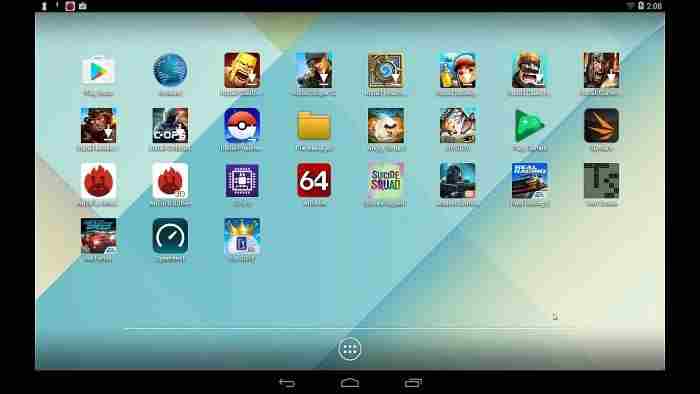
    #2. Droid4x

    Droid4x
    Droid4x

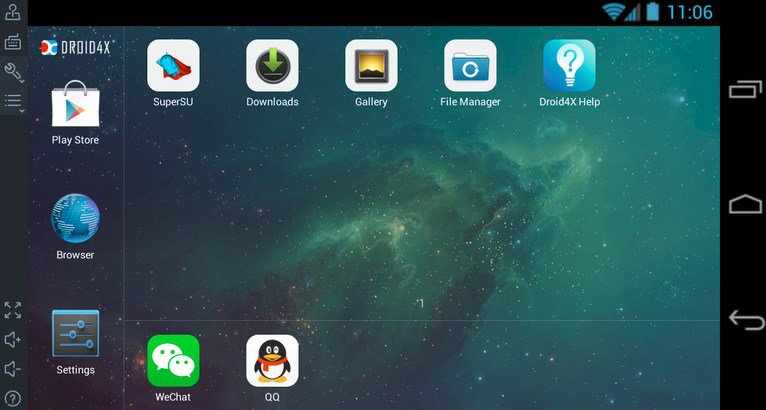
    The next lightest Android emulator is Droid4x, Droid4x has various advantages compared to other Android emulators. In addition to its small and light size, this emulator can be used for game recording and it supports a touchscreen if your laptop screen can be operated with a touch screen.

    In addition, Droid4x also supports add-ons that allow you to use your smartphone as a controller using the accelerometer.

    You are also allowed to customize the keyboard and gamepad as a  controller, which will certainly make it easier for you to play Android games.

    Specifications needed:

    OS Windows 7/8/8.1/10 (32-bit/64-bit)
    CPU Intel/AMD Dual-core processor
    GPU OpenGL 2.0 and above
    RAM 1GB RAM/4GB RAM (recommended)
    Memory 4GB
    File Size 8MB

    #3. LDPlayer

    LDPlayer
    LDPlayer

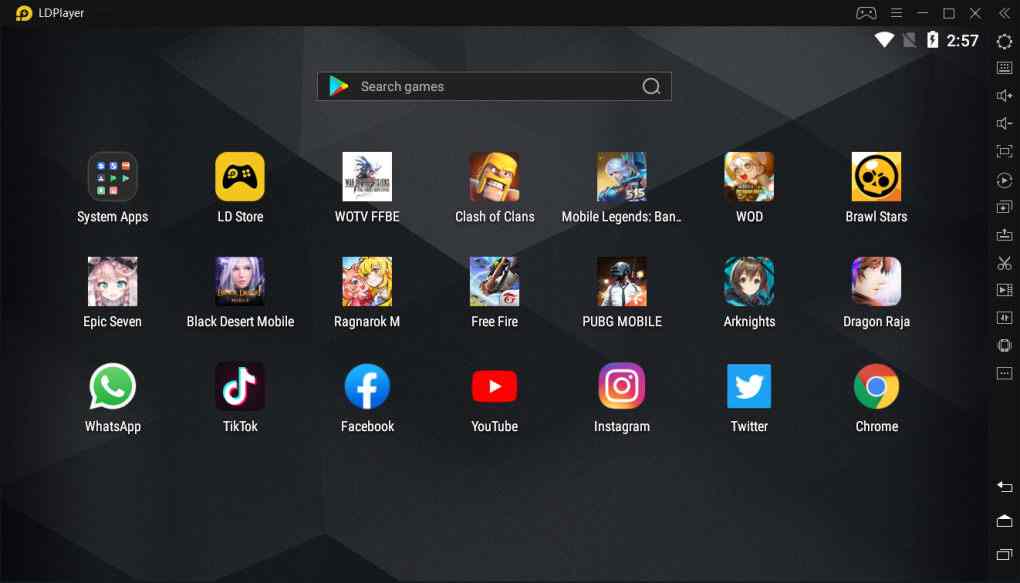
    LDPlayer was created with the aim of making it easier for gamers to play Android games using a PC.

    LDPlayer has a myriad of excellent features such as Custom Control to configure keyboard, mouse, and gamepad, Multi-Instance which allows you to open several games at the same time, Macros/scripts to manage, and run games automatically, and supports high FPS.

    For those of you who want to experience the experience of playing Android games on a PC that supports high performance with full custom control of the keyboard, mouse, and gamepad, LDPlayer is the right choice.

    Specifications needed:

    OS Windows 7/8/8.1/10 (32-bit/64-bit)
    CPU Intel/AMD Dual-core processor
    GPU OpenGL 2.0 and above
    RAM 2GB RAM
    Memory 2GB
    File Size 3MB

    #4. MEmu Play

    MEmu Play
    MEmu Play

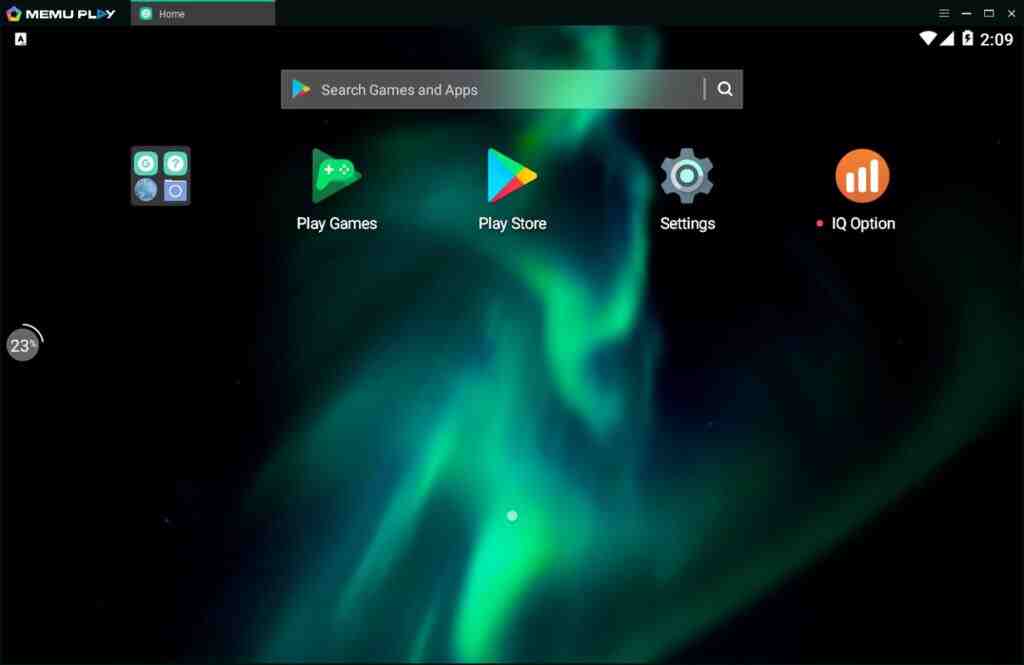
    The next lightest Android emulator is MEmu Play, With MEmu Play you can easily run games with high frame rates without fear of lag, MEmu Play will also make it easier for you to configure gameplay with its built-in key mapping feature.

    With improved OpenGL and DirectX 3D rendering, it allows you to play games with high-quality graphics to perfection.

    OS Windows 7/8/8.1/10 (32-bit/64-bit)
    CPU Intel/AMD 64-bit processor
    GPU OpenGL 2.0 and above
    RAM 2GB RAM
    Memory 2GB
    File Size 341MB

    #5. KoPlayer

    KoPlayer
    KoPlayer

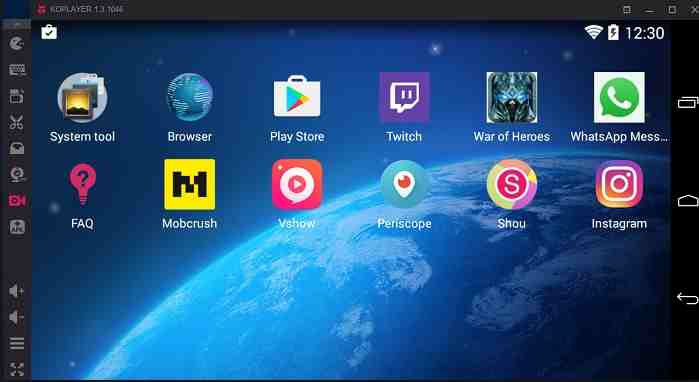
    KOPlayer is an Android emulator that can be run on Windows and Mac operating systems with several advantages such as ease of use due to its simple interface that allows you to install downloaded applications just by drag and drop.

    In addition to its simple interface, Koplayer also has a screen recording feature that you can use to record the game you are playing so you can share or upload it to social media and even YouTube.

    Overall, this Android emulator doesn’t really feature great features, but for those of you who are quite satisfied with a simple, lightweight, and smooth emulator to play Android games, then KOPlayer is the right choice.

    OS Windows 7. Windows 8.1, Windows 10, OSX-10.8+
    CPU Dual-core AMD or Intel CPU
    GPU OpenGL 2.1 and above
    RAM 2GB RAM/4GB RAM (recommended)
    Memory 2GB
    File Size 3MB

    #6. Phoenix OS

    Phoenix OS
    Phoenix OS

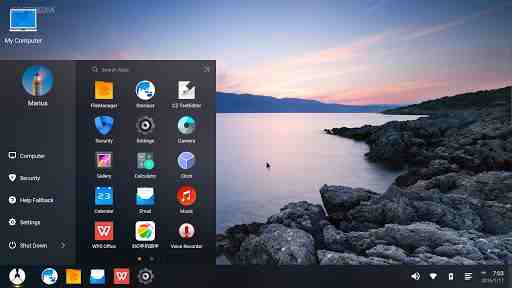
    Then there is Phoenix OS, from the name alone you should already know that this OS comes from China. Phoenix OS is an Android-based operating system intended for PCs.

    yes right, this is an operating system, not just an Android emulator. However, this operating system should be an alternative for you to use as a medium to run Android applications on a PC.

    In addition to its light size, the OS installation process is also quite easy, but you need to know because this OS comes from China, you won’t find Google Play services, but you can still play Android games by installing the apk directly.

    OS Windows 7. Windows 8.1, Windows 10, OSX-10.8+ (for installation)
    CPU Dual-core AMD or Intel CPU
    GPU OpenGL 2.0 and above
    RAM 2GB RAM (minimum)
    Memory 4GB (minimum)
    File Size 634MB

    #7. LeapDroid Android Emulator

    LeapDroid Android Emulator
    LeapDroid Android Emulator

    LeapDroid is an Android emulator that is quite light, its size is only 250MB with a very simple interface.

    You can easily customize the controller in this emulator so that the Android games you play can run smoothly as you wish.

    OS Windows 7. Windows 8.1, Windows 10
    CPU Dual-core AMD or Intel CPU
    GPU OpenGL 2.1 and above
    RAM 2GB RAM (minimum)
    Memory 2GB (minimum)
    File Size 250MB

    #8. YouWave

    YouWave
    YouWave

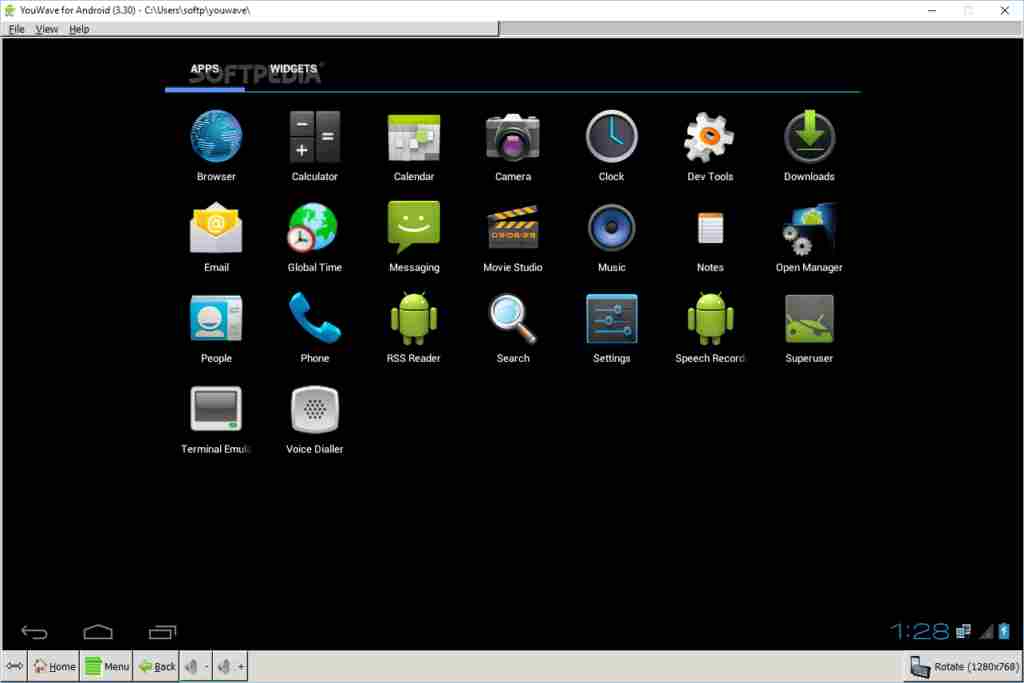
    When viewed from the appearance, this emulator really has nothing special at all, the interface is very simple and seems old school.

    But in terms of performance, this Android emulator is one of the fastest emulators that you can try.

    Youwave supports Android version 4.0 ICS for the free version and Android 5.1 lollipop for the premium version.

    This emulator also supports multiplayer features so you don’t have to worry about playing online games with your friends.

    #9. Gameloop

    Gameloop
    Gameloop

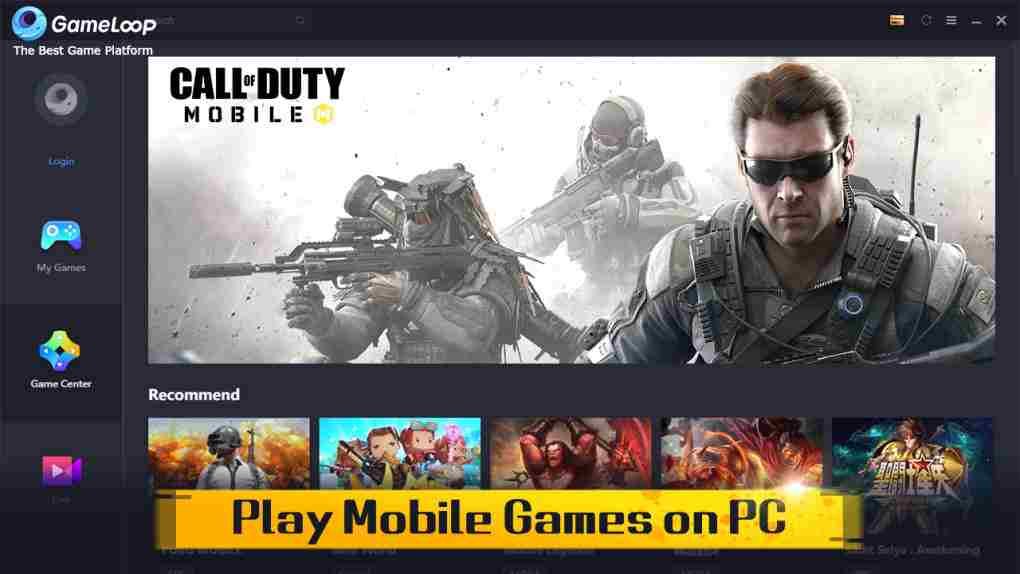
    For those of you lovers of PUBG Mobile games, you should try this Android emulator, because this gameloop emulator was developed directly by Tencen as the developer of PUBG Mobile.

    With direct support from Tencent, of course, the features in this emulator are very supportive and make it easier for you to play Android games, especially PUBG.

    This emulator is indeed specifically for playing games because its performance is also very powerful, besides being able to play PUBG this emulator can also be used to run other popular games such as mobile legend, free fire, Call of Duty, and various other popular games.

    OS Windows 7/8/8.1/10 (32-bit/64-bit)
    CPU Intel/AMD Dual-core processor
    GPU OpenGL 3.0 and above
    RAM 3GB RAM/8GB RAM (recommended)
    Memory 6GB
    File Size 9MB

    #10. Bluestacks

    Talking about Android emulators, it will be less if you don’t include bluestacks in the list because this emulator is one of the most popular Android emulators in the world.

    The initial version is indeed quite heavy to run but after various developments, until Bluestacks version 4 this emulator feels lighter.

    The advantage of this emulator is that in terms of its stable performance, it is used for both Mac and Windows PCs, besides that you can play several games simultaneously or you can also play the same Android game with different accounts simultaneously with the multi-instance feature.

    OS Windows 7 and above
    CPU Intel/AMD processor
    GPU OpenGL 3.0 and above
    RAM 2GB RAM
    Memory 5GB
    File Size 452MB

    Read more:

    Conclusion:

    that’s a list of the 10 lightest Android emulators that you can try, each emulator has its own advantages and disadvantages both in terms of minimum requirements and the user interface and features offered.

    Before deciding to use one of the emulators above, you must first adjust your usage needs, whether just for playing games, testing applications, or other needs, also adjust to the specifications of the PC or computer you have so that the lightest Android emulator above can run optimally. on your device.

  • First Person Games vs Third Person Games Differences 2024

    First Person Games vs Third Person Games Differences 2024

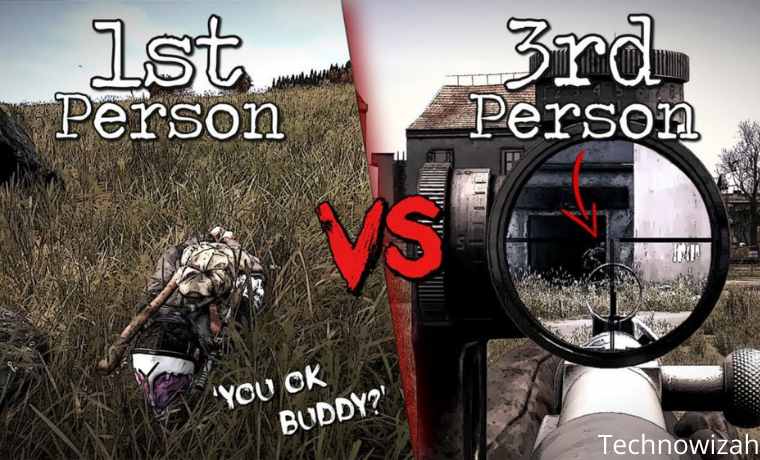
    First Person Games vs Third Person Games Differences – Ever wondered what makes a game first-person or third-person? In this article, we will discuss what is the difference between first-person and third-person games.

    First Person Games vs Third Person Games Differences
    First Person Games vs Third Person Games Differences

    First Person Games vs Third Person Games Differences 2024

    All video games need to present the game to players in some way, and most do so with a first-person or third-person camera view. Although the differences are very clear, there are many differences between the way a first-person or third-person game works.

    Read more:

    What is the Difference Between First-Person And Third-Person Games?

    To know the difference between first-person and third-person games, let’s look at the basics of each visual style. Since video games can be so different, we’ll talk in general terms.

    Keep in mind that first-person and third-person views usually apply to 3D games, because 2D games usually feature angles that only have two sides. Although technically we can think of 2D games as third-person, it won’t really be the same as third-person cameras in 3D games.

    What is a First-Person Game

    First-person games are games that you play from your character’s perspective. Because first-person tells the story through “I” statements, first-person gameplay lets you see exactly what your character sees.

    Having said that, there is no “game camera” that you can manipulate to get a better view of the world around the game. Your only option is to look around like to see what’s right behind you by moving your entire character’s display.

    This affects how you interact with the game world in many ways. For example, if you want to find out if an enemy is hiding around a corner, you can’t check this without exposing yourself in the same corner.

    In most first-person games, your character’s hands (and weapons, if any) are almost always within your sights. You are usually limited to seeing other things in your character. As a result, most first-person games characterize their protagonists through the way other characters interact with them.

    Example of First-Person Games

    • Counter-Strike
    • Far Cry 4
    • Resident Evil 7
    • The Witness
    • Driverclub

    What is a Third-Person Game

    In contrast to first-person, third-person games refer to games where you see your character as a spectator instead of controlling the game from their direct view. Usually, you see your character from an over-the-shoulder or behind-the-back perspective.

    In third-person games, the camera follows behind the player character, allowing you to see more of what’s around them than in first-person games. For example in third-person games, you can swing the camera around the corner to see what’s behind it, while keeping your character safe on the other side.

    Since the third-person view allows you to see your character all the time, this game can show his personality more easily. Seeing how characters walk, interact with their environment, react to events, and even the clothes they wear can help you learn more about the event through visual clues.

    Example of a Third-Person Game

    • Gears 5
    • Days Gone
    • GTA V
    • World War Z
    • Need For Speed ​​Payback

    Do Second-Person Games Exist?

    With all this discussion about first and third-person games, you might be wondering if second-person video games even exist.

    While video games can use a second-person story structure, a second-person camera system makes no sense. The closest similarity would involve you watching your character’s actions through other people’s eyes.

    Unsurprisingly, second-person camera systems in games are quite rare. There are a few scattered examples, like Siren on PS2 where you have to play through your enemy’s eyes, but that’s not something you’ll see often.

    If you are interested in seeing how second-person games happen, you can click here to watch second-person video games.

    Read more:

    Conclusion:

    Now you know the difference between first-person and third-person games. Both have their advantages and disadvantages. Actually, in the example above, there are several games that have both first-person and third-person views like GTA V. Try playing games in various genres to decide which one you like!

  • 10 YouTube URL Tricks You Should Know 2024

    10 YouTube URL Tricks You Should Know 2024

    10 YouTube URL Tricks You Should Know – Although YouTube remains the premier video site on the web. But whether you’re a casual user or a daily online video viewer, there are many ways to transform YouTube.

    10 YouTube URL Tricks You Should Know
    10 YouTube URL Tricks You Should Know

    10 YouTube URL Tricks You Should Know 2024

    The main category of these is custom YouTube URLs. Let’s take a look at some YouTube URL tricks to help you get more out of the service.

    Read more:

    #1. Link To Any Video Section

    This YouTube URL trick is usually used when you copy a link to a YouTube video, it starts from scratch. If you want to show someone a little video or skip a long intro, you can add a timestamp to the URL to start it at that time. You can do this in a number of ways.

    By manually adding  &t=YmXX to the end of the video URL, you will set it to start Y  minutes and  XX seconds into the video. You can also eliminate minutes, or simply use a second, like 90  – for one and a half minutes. So this video:

    youtube.com/watch?v=ne9QZ2MCO24
    

    Shareable 90 seconds in using this URL:

    youtube.com/watch?v=ne9QZ2MCO24&t=1m30s
    

    If you don’t want to use the manual method, pause the video when you want to share it, then right-click and select Copy video URL at the current time.

    #2. Unlimited Video Loop

    YouTube is a great place to listen to music. If you like a song and want to listen to it over and over again, you can add a repeater after youtube in the URL. This will open the video on  YouTubeRepeater.com which plays the video for you. You just change this URL:

    youtube.com/watch?v=oeb5LdAyLC8

    Here’s to repeating it:

    youtuberepeater.com/watch?v=oeb5LdAyLC8
    

    You can change the playback using the options below the video if you want to start or end at various points. To do this without changing the URL, just right-click any YouTube video and turn on Loop.

    #3. Bypass Age Restrictions

    YouTube has an age limit for certain videos marked as containing adult content. If you don’t have a YouTube account or feel like logging in to watch it, you can do a little trick to bypass the login process. Take the YouTube URL for a restricted video like this:

    youtube.com/watch?v=wvZ6nB3cl1w
    

    Just add the gene  in front of  youtube  as shown here:

    genyoutube.com/watch?v=wvZ6nB3cl1w
    

    The video will open on a new page that has no age limit.

    #4. Skip a Specific Number of Intros

    Similar to the trick that lets you choose a start time, you can also choose to skip a certain number of seconds at the beginning of the video. You can’t specify minutes with this one, so use 90 (seconds) for a minute and a half. So, to get past the first 30 seconds of this video:

    youtube.com/watch?v=fEErySYqItI
    

    Add  &start=30 at the end of the URL and get this:

    youtube.com/watch?v=fEErySYqItI&start=30

    It’s similar to timing but a bit faster to type and doesn’t require you to remember specific timestamps.

    #5. Claim Custom YouTube Channel URL

    If you have your own YouTube channel and meet certain requirements, you can set a vanity URL for your page. So it’s worth doing for easier connecting. To get a custom URL, your channel must meet the following criteria:

    • Have at least 100 subscribers
    • Minimum age 30 days
    • Have uploaded profile photo and channel art

    If you meet this, go to   YouTube’s Advanced settings page by clicking the gear on the top right, selecting  Settings, and clicking Advanced settings on the left.

    Here, under Channel settings, you’ll see the text You’re eligible for a custom URL  if that’s the case. Click the link next to this and proceed through the steps to create a custom URL and confirm the terms of use.

    Once your custom URL is set up, anyone can head to youtube. com/[YourCustomURL] to visit your channel. Note that you can only have one custom URL at a time. You cannot change it, but you are allowed to delete your current URL and create a new one, if available.

    #6. Watch YouTube TV

    YouTube TV is an interface designed for smart TVs and apps on consoles. It’s still YouTube but with less clutter and some easier shortcuts for the remote. You may not want to make this your primary YouTube interface, but you do need to check out a cleaner look. Just visit this URL to try it out:

    youtube.com/tv

    #7. Go to Your Subscriptions

    Even if you try, much of the advice YouTube offers is useless. Whether your recommendations are filled with weird content or a homepage with videos you don’t care about, you can set up a better YouTube landing page. When you are logged in, try changing your YouTube bookmarks from the main site to your subscriptions page using this URL:

    youtube.com/feed/subscriptions
    

    It lets you see the latest videos from your subscribed channels, so you don’t miss their new content. That way, you control what you see rather than YouTube deciding for you.

    #8. Get Thumbnails of Any Video

    It’s common when Google searches for images to see images from YouTube videos, usually titled maxresdefault. You can actually view high-quality thumbnails for any YouTube video (if any) by visiting the following URL:

    img.youtube.com/vi/[VideoID]/maxresdefault.jpg
    

    Replace  [VideoID]  with the text after v =  at the end of the YouTube video. So to see the thumbnail for this video:

    youtube.com/watch?v=YMbm_SFJugQ

    Visit this link:

    img.youtube.com/vi/YMbm_SFJugQ/maxresdefault.jpg
    

    #9. Create GIF From a Video

    Found a YouTube video that has a GIF-worthy moment? You can easily create an animated GIF from any part of the video by adding the gif before the YouTube link. So to edit this video into a GIF:

    youtube.com/watch?v=5rX1EF_VzeE
    

    Change the URL to this:

    gifyoutube.com/watch?v=5rX1EF_VzeE

    You will be taken to gifs.com, where you can add various effects and crop the GIF to your liking. Once done, share the GIF to social networks with an easy link or you can download it. Note that very long videos will not work with this service.

    #10. Destroy YouTube Videos

    This one is not a real URL hack, as you can’t visit it directly from YouTube. However, it still uses the YouTube URL, so we include it. Visit YouTubeDoubler and you can add two YouTube URLs to mix together.

    You can choose to start any video at any given time to help them sync. Whether you’re looking at how two songs sound when playing simultaneously or want to add funny background music to a clip, look and see what you can come up with!

    Conclusion:

    So those are 10 YouTube URL tricks that you should know. This trick will let you get more experience from YouTube. Some are built on YouTube itself, while others rely on outside services. It’s possible that all of this may stop working in the future, so your mileage may vary over time.

  • How to Reset Administrator Password on Windows 10 PC 2024

    How to Reset Administrator Password on Windows 10 PC 2024

    How to Reset Administrator Password on Windows 10 PC – If you don’t remember the Administrator password in Windows 10, you can remove the admin password via Settings or log in with another admin account. Here’s how to reset the Windows 10 Administrator password :

    How to Reset Administrator Password on Windows 10
    How to Reset Administrator Password on Windows 10

    How to Reset Administrator Password on Windows 10 PC 2024

    Read more:

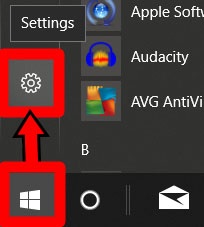
    1. Open the Windows Start menuYou can do this by clicking the button in the lower-left corner of the screen, which resembles the Windows logo.

    2. Then select Settings. It’s the gear icon directly above the power button.

    Reset Administrator Password on Windows 10

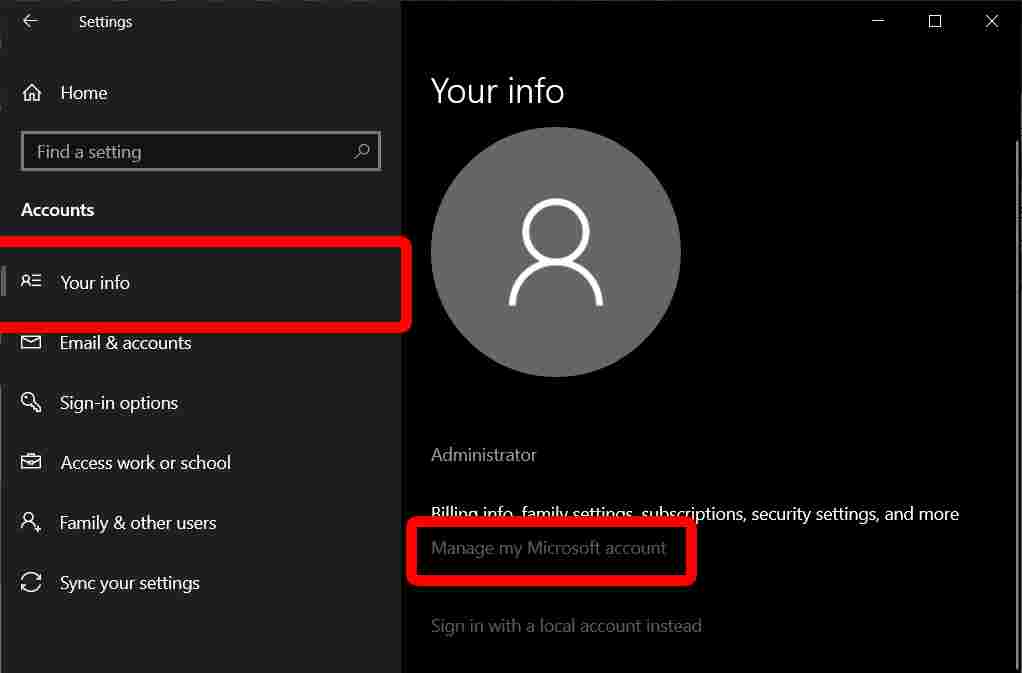
    3. Then click Accounts.

    4. Next, click Your infoYou can find this option on the left sidebar.

    5. Click Manage my Microsoft Account. This will take you to your Microsoft account web page.

    Reset Administrator Password on Windows 10

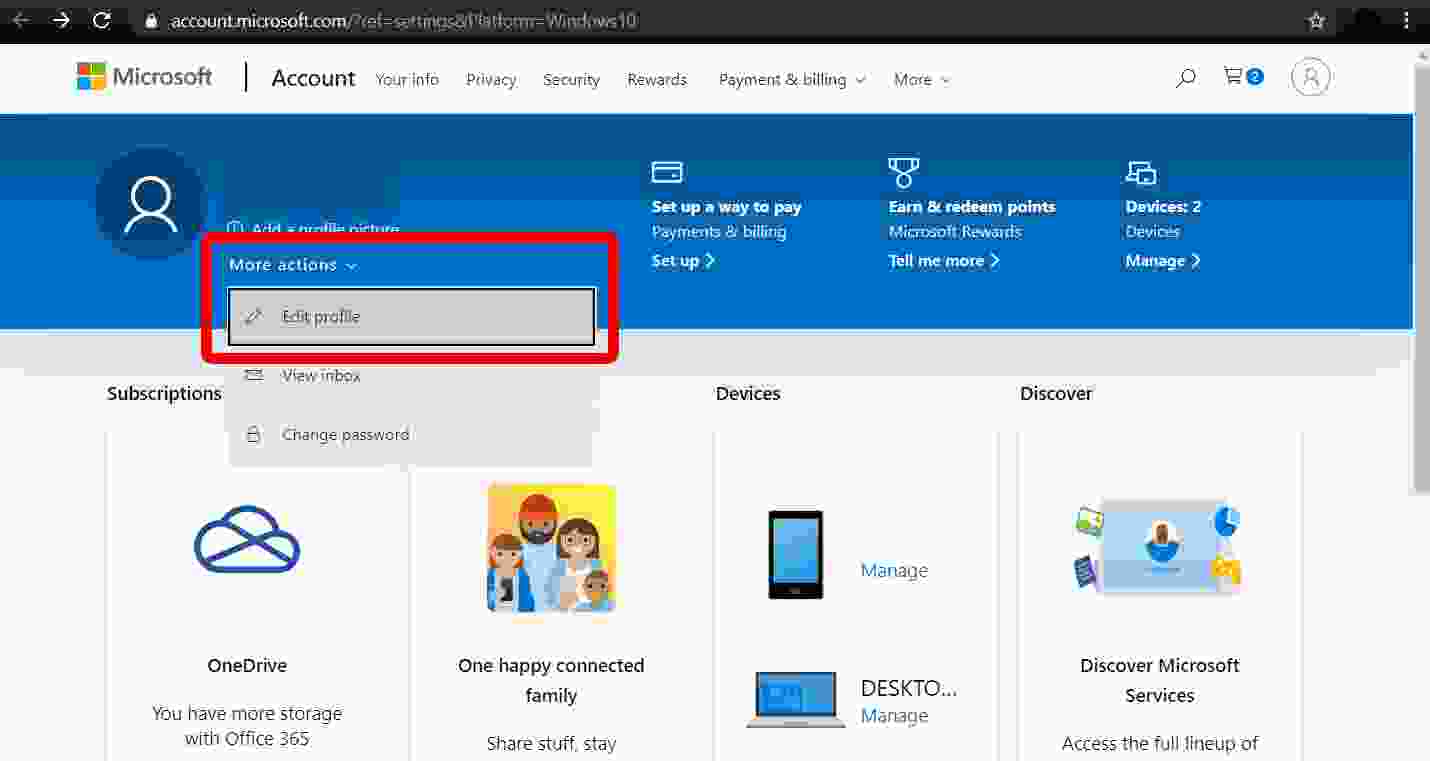
    6. Then click More actionsYou can find this drop-down menu next to the user’s account name in the top left corner.

    7. Next, click Edit Profile from the drop-down menu.

    Reset Administrator Password on Windows 10

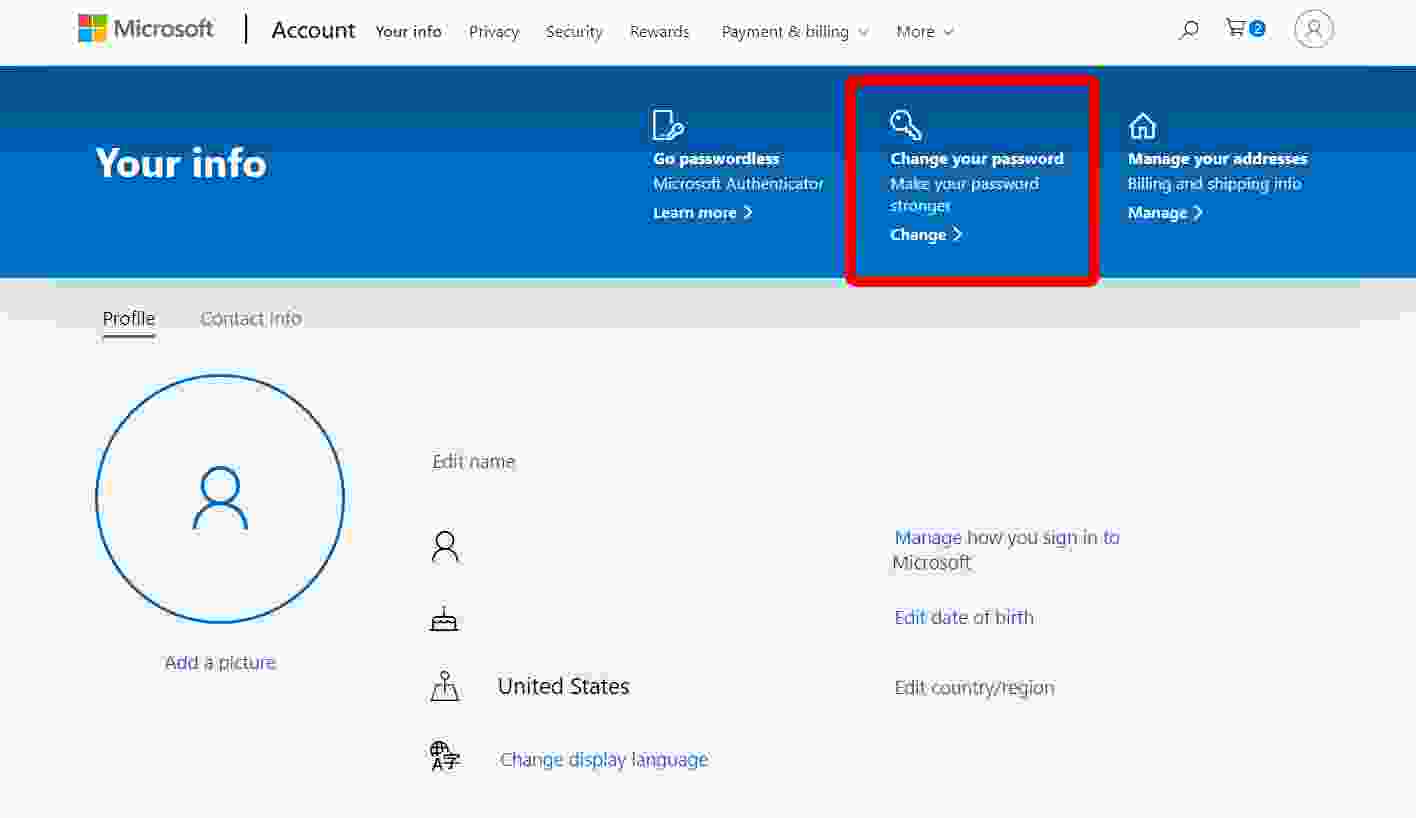
    8. Then click change your password. You can find it at the top of the window.  

    Reset Administrator Password on Windows 10

    9. Enter your current password and your new Password. If you don’t remember your current password, you can click Forgot your password.

    10. Then click Save.

    11. Restart your computer to log in with the new password.

    If you are trying to change the local account, you will have to do it through the Control Panel. Here’s how:

    How to Reset Windows 10 Administrator Password with Another Admin Account

    If you have another admin account (or another user with an admin account can log in), you can use that account to reset your password. This method can be done through the Control Panel. Go to Change account type, select the account for which you want to reset the password, type a new password, and click Change password.

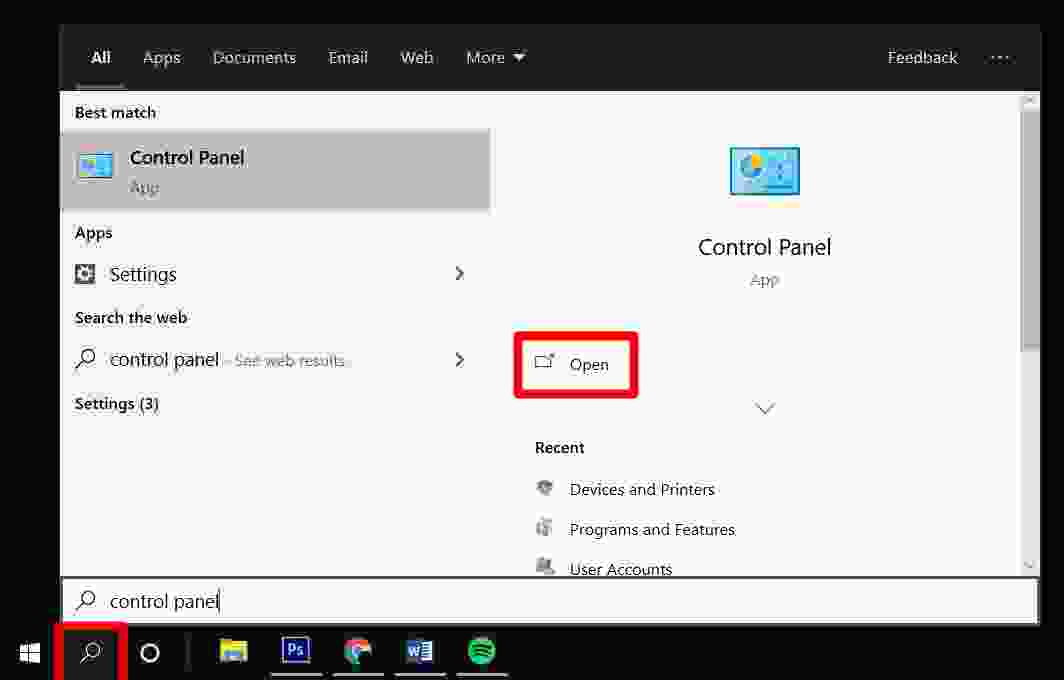
    1. Open the Windows Search Bar. You can do this by clicking on the magnifying glass icon in the lower-left corner of your screen.

    2. Then type Control Panel and hit enter.

    How to Reset Windows 10 Administrator Password with Another Admin Account

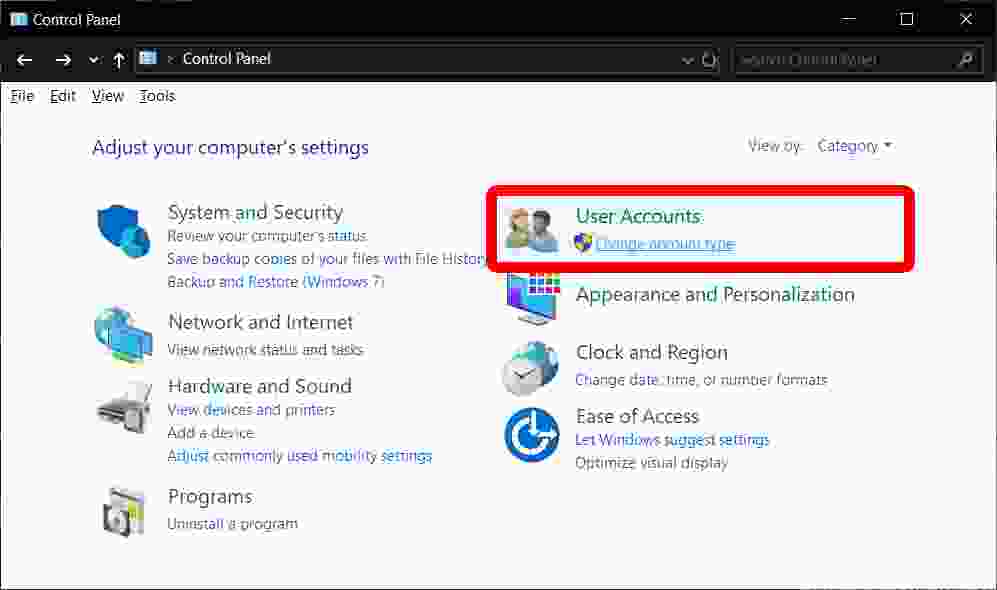
    3. Click Change account type under User Accounts. If you don’t see this option, click View by in the top right corner of the window and select Category.

    How to Reset Windows 10 Administrator Password with Another Admin Account

    4. Select the user profile for which you want to reset the password.

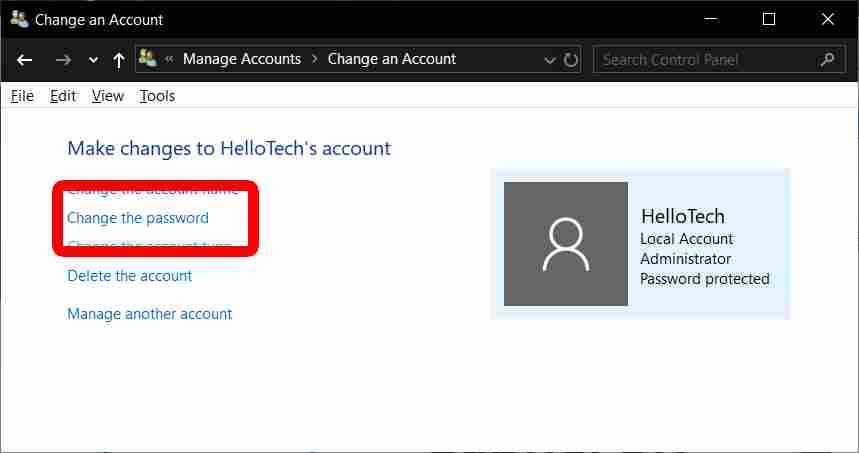
    5. Click Change password.

    How to Reset Windows 10 Administrator Password with Another Admin Account

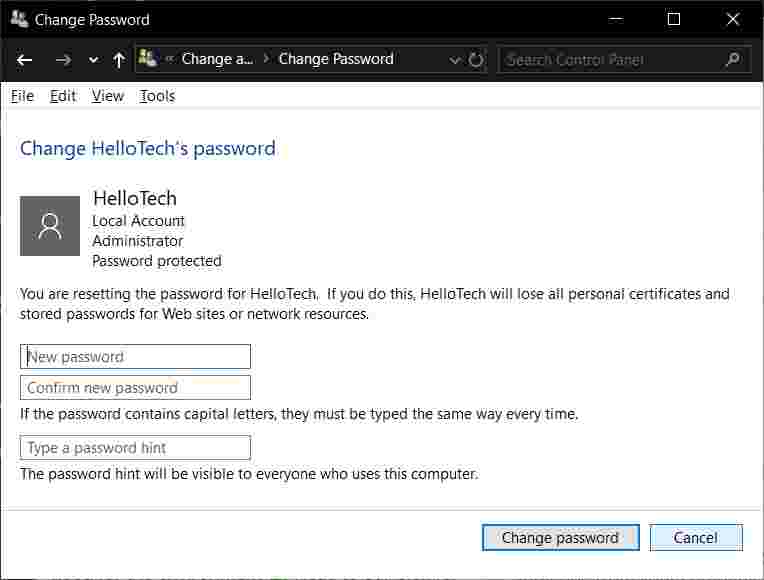
    6. Enter the new user’s password twice. Type a password hint.

    7. Then click Change password.

    How to Reset Windows 10 Administrator Password with Another Admin Account

    8. Finally, restart your computer to enter with a new password.

    Read more: