Author: Nazrul Islam

  • 13 Best Free Laptop PC Screen Recorder Applications 2024

    13 Best Free Laptop PC Screen Recorder Applications 2024

    13 Best Free Laptop PC Screen Recorder Applications – On this page, we will review some Lightweight PC / Laptop Screen Recorder Applications or what is commonly called PC Screen Recorder (Free and Best in 2023).

    13 Best Free Laptop PC Screen Recorder Applications
    13 Best Free Laptop PC Screen Recorder Applications

    13 Best Free Laptop PC Screen Recorder Applications 2024

    Current technological advances have led to the emergence of several new types of professions. One of them is a professional YouTuber.

    Read more:

    Maybe a question arises in your mind, how do you record a laptop screen? For example, recording Live Streaming of a soccer match.

    Or record games played on a PC or laptop like the YouTubers Gamers. Well, here’s the answer, they use a screen recorder application or an application to record the PC screen.

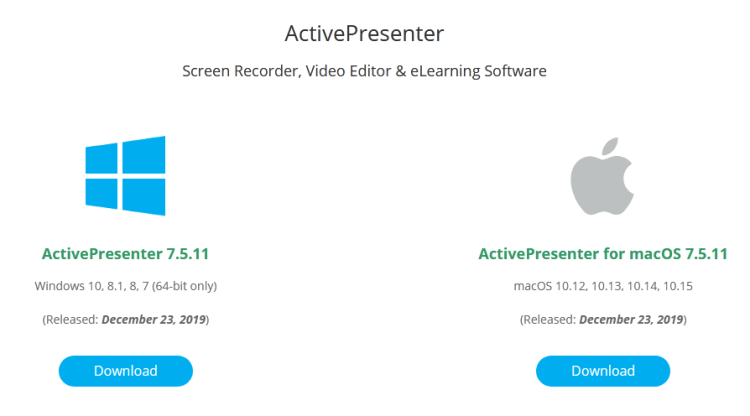
    #1. OBS Studio PC Screen Recorder Application
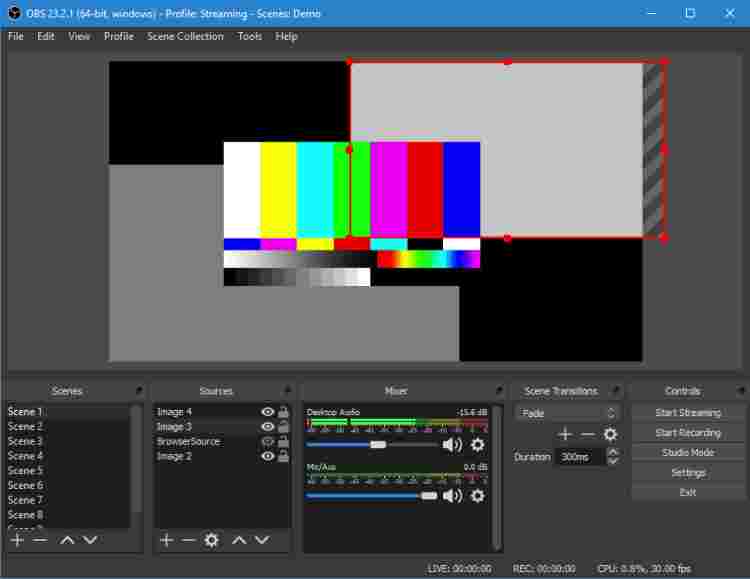
    OBS Studio PC Screen Recorder ApplicationOpen Broadcaster Software or commonly called OBS is open-source and multi-platform software. With these properties, OBS is free software to use on any operating system.

    And also OBS can be owned by anyone without paying or for free. Its simple appearance makes this application popular with YouTubers.

    You should try this application to record your PC screen. Because this PC screen recording application has several advantages. Among others are:

    • Open Source
    • Large Selection of Video Filters
    • The menu theme can be changed
    • Supports streaming / live broadcast.

    Like other applications, OBS Studio also has drawbacks. The drawback is the incomplete guide to using this application.

    So you have to learn for yourself how to make the most of this software to use it.

    If you want to try it, please download OBS.

    Download

    #2. Atomi Active

    Atomi Active

    Atomi Active is an application that has a minimalist design. But make no mistake, even with a minimal design you can still record your PC screen with high resolution.

    This application can also be used to record the entire screen or just certain parts of your PC. So it is suitable for those of you who want to make long-duration videos.

    So, so that the recorded video looks more attractive and neat, you can edit it first with a PC video editing application. Choose the best application and learn to use it.

    As one of the best screen recording applications, Atommi Active has several advantages that they offer. These advantages include the following:

    • No watermark
    • Various effect features
    • Editing features
    • Multiple formats

    And behind the myriad of advantages that this application offers, it also has drawbacks. Among them is the lack of a feature to upload directly to YouTube or Facebook.

    So it is quite difficult for you to upload the video that you make.

    Download

    #3. Screenpresso

    Screenpresso

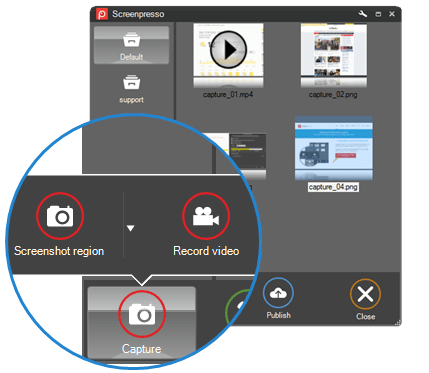
    The next screen recorder is Screenpresso. This application has two versions, namely paid and free. The two versions have differences.

    This application is certainly very useful for those of you who want to record a standard PC screen. There are several advantages and disadvantages of this Screenpresso application.

    The advantages of ScreenPresso are as follows:

    1. Can record audio and webcam simultaneously with the screen.
    2. Can be used for commercial use.
    3. The output is not heavy.
    4. Quick Access feature to review previous video recordings.
    5. Share features on several social media.

    The following are the Cons of Screenpresso:

    1. The recording duration can only be a maximum of 3 minutes in the free version.
    2. Cannot remove the watermark in videos in the free version.
    3. There is no support and guidance for Android in the free version.

    Download Screenpresso

    #4. Icecream PC Screen Recorder

    Icecream PC Screen Recorder

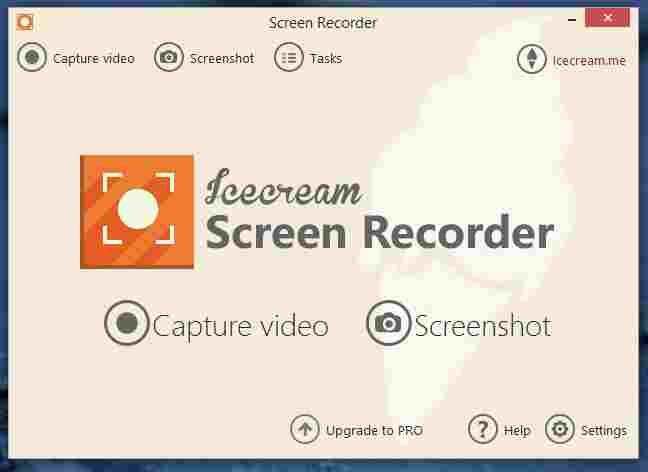
    Icecream Screen Recorder can be used to record ongoing webinars, record video calls, or play games.

    The user interface in this software can be easily understood, so this screen recorder is the favorite of video makers. Icecream Screen Recorder can also be used as a way to screenshot on a laptop.

    It is not without reason why this application is the main choice as screen recording software on their PC, because this software has several advantages.

    Some of these advantages include the following:

    • There are shortcut configurations for Pause, Record, and Stop.
    • Can do a screen recorder and face cam on pc.
    • Record audio and video at the same time
    • There is a project history

    Apart from the advantages offered, this application also has several drawbacks. One of them is that in the free version, this application only allows a maximum of 10 minutes of recording.

    And then the editing options, are very limited to the free version. So to enjoy the full features of this application you have to pay for it. Download Icecream Screen Recorder.

    Download

    #5. Windows 10 Game Bar

    Windows 10 Game Bar

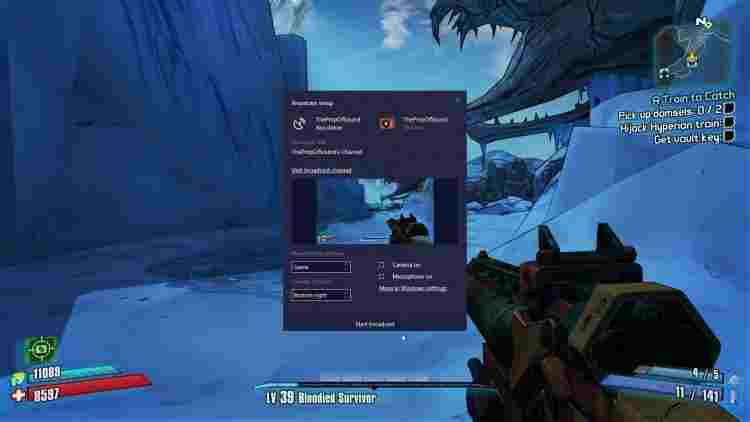
    Windows 10 Game Bar is the default software from Windows 10. The way to run this program on your Windows 10 is by pressing Windows + G and the program window will open.

    One of the advantages of this application is the DVR game feature. This feature allows someone to record the PC screen more smoothly so that the resulting video will be better.

    Also, the recording from this application has a size that is not too big, so it doesn’t take up your storage memory.

    Download

    #6. ShadowPlay

    ShadowPlay

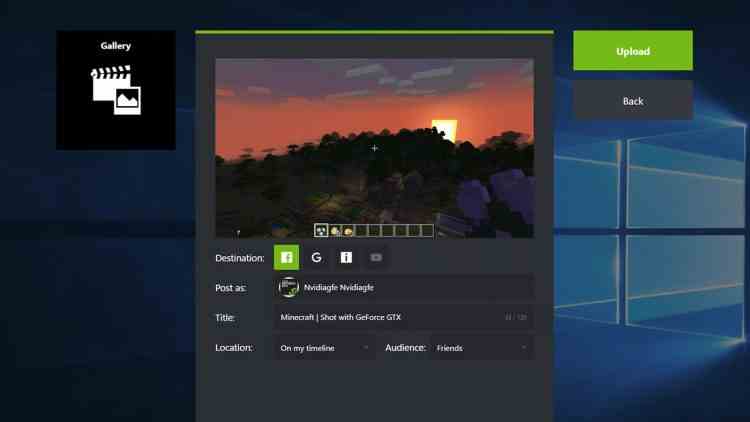
    This application is hardware accelerated screen recording, meaning that this application will use the hardware from the GeForce GPU from Nvidia to help record the PC screen.

    This application has several excellent features, one of which is recording backward up to 20 minutes.

    With this feature you can record the moments that you have missed, you just have to press the shortcut to mark the end of the video.

    And this screen recorder application will automatically record backward of up to 20 minutes. So that you can record the precious moments that you miss.

    Download

    #7. WM Capture

    WM Capture

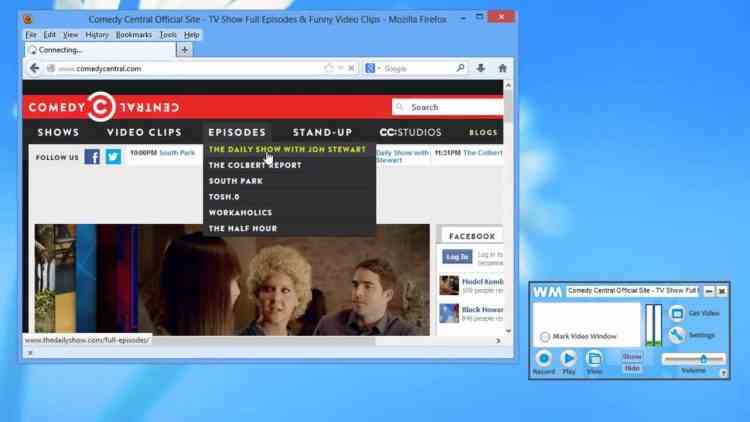
    WM Capture is an application that you can use to record your PC screen without fear of watermarking the video.

    The uniqueness of this application is that you can determine when to start recording, thanks to the scheduled recording feature. And of course, you can record only certain parts of the screen.

    As one of the best screen recorder applications for PC, this application has several advantages. One of them is having a variety of outputs.

    The output format of the resulting video consists of various kinds such as MPEG, WMV, AVI, and DVD-ISO. And this of course helps you in determining the recording format.

    Download

    #8. Dxtory

    Dxtory

    Dxtory is known as a lightweight laptop screen recording software with easy-to-understand displays and settings.

    In addition, this application also has the advantage of recording in high quality, so it is very useful for various purposes.

    You can also use a computer photo editing application as an additional tool for content creation if you are a content, creators.

    Dxtory Features:

    • The size of the software is very small, not up to 10MB.
    • Recording data from a surface memory buffer, so it doesn’t eat big RAM performance.
    • The software is very responsive and doesn’t make games lag.
    • The recording quality is good, without any compression process.

    Download

    #9. XSplit Gamecaster

    XSplit Gamecaster

    One of the advantages possessed by XSplit Gamecaster is its ability to record very great streaming.

    This application can show various kinds of streaming that you are doing stably without any obstacles.

    In addition, you don’t have to bother when using it, because, with just one button, you can start recording.

    What’s even greater, this application runs by adjusting the configuration of each laptop used.

    Download

    #10. Action!

    Action!

    Just hearing the name of this application is very interesting. Yes, it turns out that the name of this screen recorder application is the same as the quality.

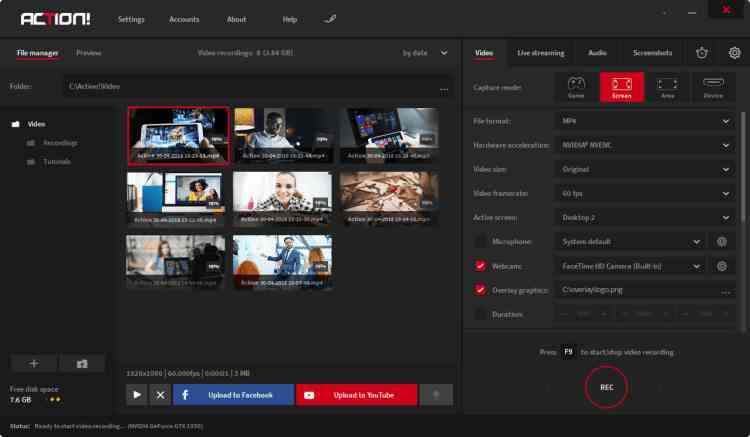
    So, this application has the advantage that it can stream in real-time and they have a wide variety of videos with good quality, namely HD resolution.

    Do not stop there, this application also offers a variety of interesting features to record a video. Even the resulting sound quality is also perfect.

    This application can also be used to perform screenshots at high speed. no wonder Action is also very suitable as an application for recording tutorials.

    After recording the screen activity, the video will be in MP4 and AVI format. So, it is certain that this application is perfect for you.

    How? Do you want to try out the quality of this PC screen recorder application? Apart from being easy to use, this application is also perfectly suited to your needs.

    Download

    #11. Ezvid Screen Recorder

    Ezvid Screen Recorder

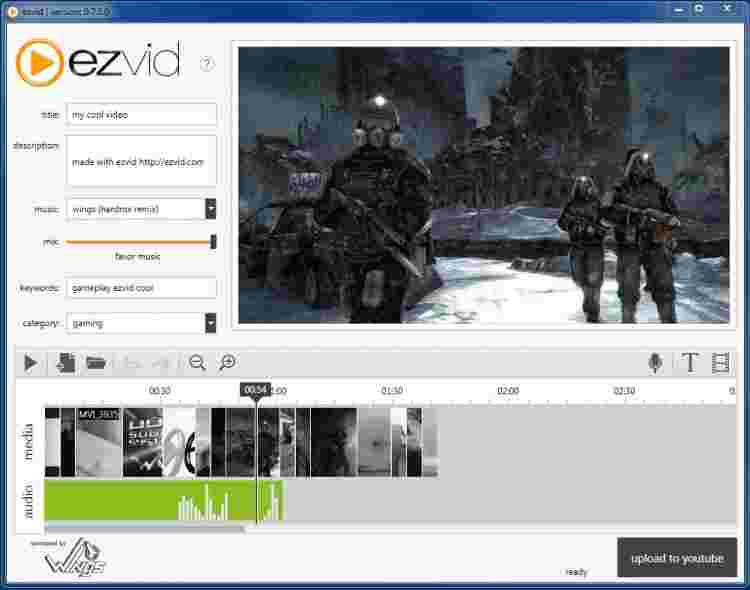
    The next screen recorder application that you can use is Ezvid. Ezvid is a screen recording software that you can download for free without a watermark.

    It doesn’t stop there, this application also has lots of video editing features that can be used immediately after you finish recording the screen.

    By utilizing this PC screen recorder application, you can produce recording quality like a professional.

    Unfortunately, this application has a drawback where to use this application you need a PC that has a capacity of 10 GB.

    This is what makes this application very unsuitable when used on PCs with older generations. Because the installation process carried out will also take a very long time.

    Well, for those of you who qualify, just download Ezvid on your PC right now.

    Download

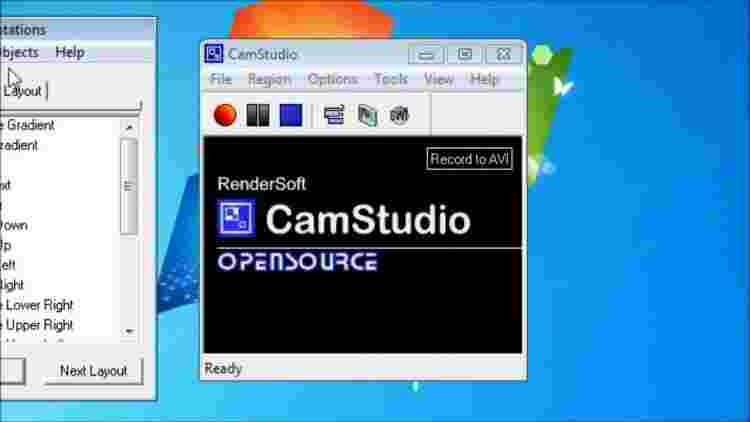
    #12. Camstudio

    Camstudio

    The next software you can rely on to record your PC screen with good quality and resolution is CamStudio.

    This application is open-source software that can be downloaded for free. This application is also quite popular and has a lot of enthusiasts.

    One of the interesting things about this application is its ability to convert the recordings from AV to SWF format where it can be used for various website purposes.

    Another advantage that this application has is its ability to record image by image in one recording.

    The drawback that this application has is that there is a software installation bug from a 3rd party that is directly installed with the program.

    Download

    #13. TinyTake

    TinyTake

    The last application you can rely on to do PC screen recording is TinyTake. This application is perfect for those of you who have a busy life, routine, and hobby of making video recordings with a PC screen.

    Now, by using this application, you can devote all your creativity to producing an interesting video to upload to YouTube and other social media.

    One of the capabilities offered by this application is the ability to record the screen and web games simultaneously.

    Unfortunately, this application is a paid application and if you use it in free mode, the screen recording can only be done for 5 minutes.

    However, for screen recording that is done for 5 minutes in free mode, it does not have a watermark. That makes the resulting quality very satisfying with high image resolution.

    Another advantage offered by this application is its ability to record with just one click.

    Download

    Read more:

    Conclusion:

    This is the 13 best free laptop PC screen recorder applications, Remember, the best choice depends on your specific requirements, such as desired features, ease of use, and editing capabilities. Consider trying out a few options to find the one that suits you best.

  • 4 Ways To Activate Office 2016 Permanently Offline 2024

    4 Ways To Activate Office 2016 Permanently Offline 2024

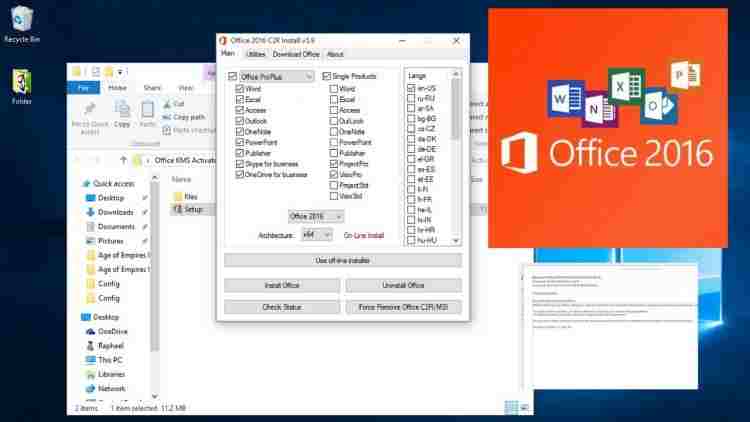
    4 Ways To Activate Office 2016 Permanently Offline – How to activate Microsoft Office 2016 can be done in 4 easy things and you can do it with or without additional software. Check out the full story!

    How To Activate Office 2016 Permanently
    How To Activate Office 2016 Permanently

    How To Activate Office 2016 Permanently on Laptop PC 2024

    Microsoft Office 2016 requires activation so that this program can be used smoothly on a computer or laptop.

    If you install Office 2016 but don’t activate it, then many tools cannot be run and will hinder your work, of course.

    Read more:

    There are several ways to activate Microsoft Office 2016 which of course can be done simply. Doing this activation can use additional software or no software at all.

    This depends on which one you want to try. Check out the following how to activate Microsoft Office 2016 and follow the steps carefully.

    #1. Activate Microsoft 2016 with KMS Office 2019

    Activate Microsoft 2016 with KMS Office 2019

    Activation requires a product key. But usually, the price is expensive, therefore many people choose the freeway.

    The freeway is to use the activator software tool, this time with KMS Office 2019. Using this tool means you activate offline. Check out how:

    • Make sure you already have the KMS Office 2019 software on your laptop or computer.
    • If you don’t have it, download it first, then extract the KMS Office 2019 file.
    • After extracting it, there will be a folder with the file name OInstall.
    • You can run the file as an administrator.
    • After the KMS office 2019 window opens, you will be at the Main Window and click Utilities. You can put a checkmark on the checkbox.
    • Convert Office 2016 to automatically change to Volume License. Wait for the conversion process to complete, there will be a notification that the conversion is complete.
    • Click on the Activate Office section so you can buy Microsoft Office 2016 activation.
    • When the Windows Security Alert window appears, click Allow Access.

    You just have to wait for the process to finish and be successful. Then it will appear that the activation process has been successful and Office 2016 can be used with the help of the Office Activator.

    #2. Activate Microsoft Office 2016 with KMS Auto Lite

    Activate Microsoft Office 2016 with KMS Auto Lite

    You can get the Office 2016 activation code with the following activator tool. You can use KMS Auto-Lite and it’s easy too.

    • First, turn off the internet or antivirus on your computer or laptop.
    • Download KMS Auto-Lite, and when finished, extract the files from the application.
    • Open the KMS Auto Lite folder, then there will be two choices of options according to the Hindu architecture you have. KMSAuto X64 for Windows 64-bit and KMS Auto for Windows 32-bit.
    • Create the KMS Auto Lite application as an administrator.
    • Please do the office 2016 conversion to get a Volume License.
    • Return to the main page by selecting it and clicking Main Window.
    • Then do the GVLK installation and checklist on Forcibly. You can click the Office Key and enter the office product key.
    • Wait for the process and a notification will appear from Key Installed Successful on a blue screen if the process is successful.
    • The last step is to just activate Office 2016. Later when the activation is successful, a success notification will appear.

    #3. Activate Microsoft Office 2016 with KMS Pico

    Activate Microsoft Office 2016 with KMS Pico

    Product Key Office 2016 Crack can also be done with KMS Pico. It is also an activator tool.

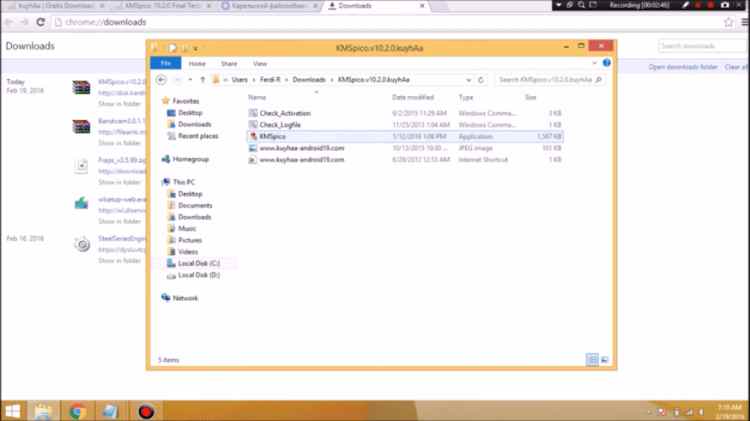
    • Make sure the KMS Pico software is already on your computer or laptop. If not, download it first, and usually, the download is in the form of a .rar file, then you have to extract it.
    • After the file is extracted, then open the KMSPico.exe file. run the file as administrator.
    • Later the Extracting window will automatically appear and the activation process will be carried out immediately.
    • If the activation process is successful, the activation window will disappear automatically.
    • Indeed, more people use KMS Pico, because it’s easier and the activation process can be done automatically without any other commands.

    After the activation process is complete, you can immediately go up and try to open one of the Microsoft Office applications and prove whether all the tools there can be used.

    #4. Activation of Microsoft Office 2016 Without Software Assistance

    Activation of Microsoft Office 2016 Without Software Assistance

    The last one is how to activate Office 2016 without software. The trick, of course, is to buy a key office product first at a retail store or the official Microsoft Store Indian website. This is certainly not fail-safe.

    • First, install Microsoft Office 2016 on a computer or laptop. This Microsoft Office is compatible with Windows 7 to Windows 10.
    • You can choose Microsoft Office, for example, Excel 2016.
    • Then open the program, later the program will not open and you will be directed to enter the 2016 office product key.
    • Enter the product that you bought earlier in the Microsoft Office packaging box. you can also get information from your Office account
    • Later, if the product key is known, then you can immediately install it by clicking Install.
    • The activation process will begin immediately.
    • Later a dialog box will appear and you can select Accept.
    • after that, there will be a notification that the Microsoft 2016 activation process has been completed.

    The activation process can permanently store the documents you work on directly on OneDrive. This storage feature will also appear in every Microsoft Office 2016 program that you have.

    Disclaimer: All forms of download files on the Technowizah.com site are just for educational purposes only.

    DMCA: Technowizah.com complies with 17 U.S.C. * 512 and the Digital Millennium Copyright Act (DMCA). Our policy is to respond to any infringement notices and take appropriate action. If your copyrighted material has been posted on the site and you want this material removed, Contact us.

    Read more:

    Conclusion:

    Those are some ways to activate Microsoft Office 2016, either by using additional software or without using the software.

    If you have a special budget, of course, you should buy an Office 2016 product key to be more satisfied without using additional free software.

    But if you have a minimum budget, you can try the activation process with the activator tool above.

  • Install TWRP 3.3.1+How to ROOT Samsung Galaxy A10 [2024]

    Install TWRP 3.3.1+How to ROOT Samsung Galaxy A10 [2024]

    Install TWRP 3.3.1+How to ROOT Samsung Galaxy A10 – Even though it is long and complicated, installing a custom recovery and rooting the Samsung A10 cellphone is not a difficult matter to implement. In this case, two options can be selected, the first Root via TWRP and the second without TWRP.

    Install TWRP 3.3.1+How to ROOT Samsung Galaxy A10
    Install TWRP 3.3.1+How to ROOT Samsung Galaxy A10

    Install TWRP 3.3.1+How to ROOT Samsung Galaxy A10 [2024]

    However, precision is needed in doing so, otherwise, the process will fail and can cause permanent damage to the device.

    Read more:

    Install TWRP and Root the Galaxy A10 itself apart from having many benefits, it also has many risks that must be borne. For that, before deciding you want to do it, you should first consider it.

    #1. Benefits & Risks of Installing TWRP / ROOT Samsung A10

    So, to make it easier for you to make a decision, here are some of the advantages (benefits) and disadvantages (risks) of installing TWRP / Root Samsung Galaxy A10 (SM-A105F, SM-A105FN, SM-A105G, SM-A105M) Android Q 10 / Pie 9.0.

    1.1. Benefits

    1. Install a custom ROM via TWRP
    2. Flash various mod zip files.
    3. Flashing the Xposed Module.
    4. Flash an image file.
    5. Root and Unroot.
    6. Backup & Restore ROM / System / Nandroid.
    7. Factory reset / hard reset.
    8. Wipe data, cache, and Dalvik.
    9. Access all files present in the root directory of the device.
    10. Improve performance through overclocking.
    11. Save battery power by underclocking.
    12. Remove built-in apps/bloatware.
    13. Can block ads that often appear.
    14. View, edit, or delete any system files in the root directory.
    15. Internal storage space is more relieved.

    1.2. Risk

    1. Weak security system so that it is easily attacked by viruses/malware.
    2. Store / official warranty is lost.
    3. Causes permanent damage to the device.
    4. It May result in a bootloop.

    #2. INSTALL TWRP & ROOT Samsung A10

    There are two methods you can take to root Samsung A10. First flash via TWRP custom recovery and second root without Recovery. The method via TWRP requires you to replace the default / parik recovery (CWM) with TWRP custom recovery so you can flash the root file.

    While root without TWRP can be applied via the ODIN flashtool application. So you just have to choose which method to use. Now to start the process, here are the steps.

    Warning!: Modifying and rooting the device can cause a loss of warranty, the KNOX security system is broken, bootlop can cause damage. For that, AndroLite.com is not responsible for things that occur due to the use of information and files on this site. Do With Your Own Risk.
    Urgent!: The root process can also result in deleting all data in the phone’s internal memory. For that, before doing so, please move (BACKUP) all data to other storage, such as memory cards (microSD), computers, clouds (cloud), and so on.

    2.1. Preparation

    1. To install TWRP and Root, you need a laptop or PC.
    2. A USB cable to connect your phone to a computer.
    3. OEM Unlock and USB Debugging are enabled.
    4. Download one of the following TWRP files and save it on your computer.
    5. SAMSUNG_USB_Driver.exe (install on the computer).
    6. ODIN3_v3.13.3.zip (extract on the computer).
    7. Magisk Manager.apk (install on mobile).
    8. Magisk_Root.zip (save on phone).
    9. DM / No-Verity.zip (save on phone).
    10. Multi-disabler-Samsung-v2.2.zip (save on phone).
    11. Additional files for ROOT WITHOUT TWRP option.

    2.2. Root via TWRP Recovery

    Before starting root, you need to install a custom recovery first to be able to flash root files such as Magisk Root, Super SU, and so on.

    2.2.1. Install TWRP

    1. Turn off the Galaxy A10 device until it is completely dead.
    2. Boot into Downloading mode. In this case, two options can be done:
      • Option # 1: Press and hold POWER + VOL UP + VOL DOWN.
      • Option # 2: Press and hold VOL UP + VOL DOWN then plug the USB cable that is already connected to the computer (while still pressing the Vol Up + Vol Down buttons).

      Release the buttons when the screen displays “Warning”.

    3. At the Warning screen, press the Volume Up button to continue to the Downloading Mode main menu.
    4. Open the computer then run the ODIN application by running as administrator.Root via TWRP Recovery
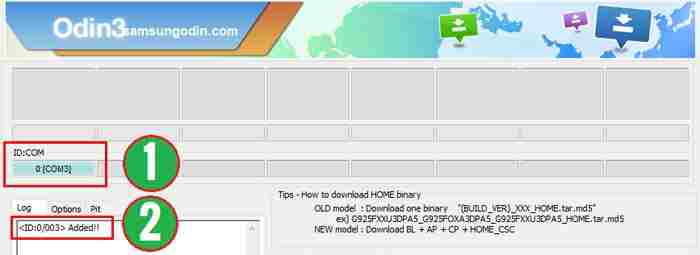
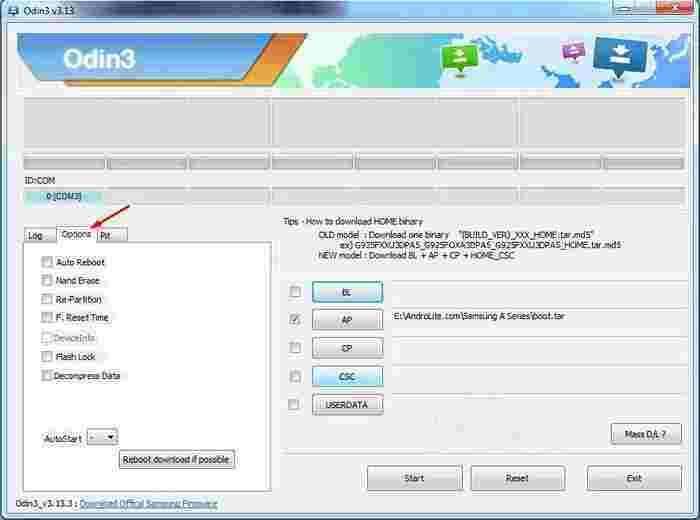
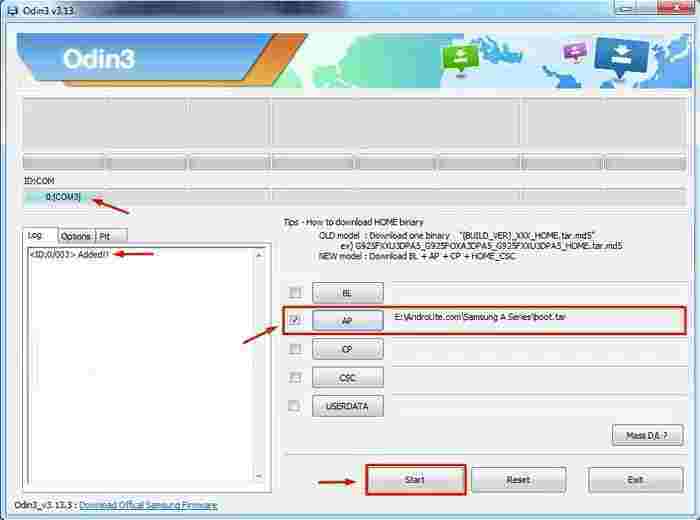
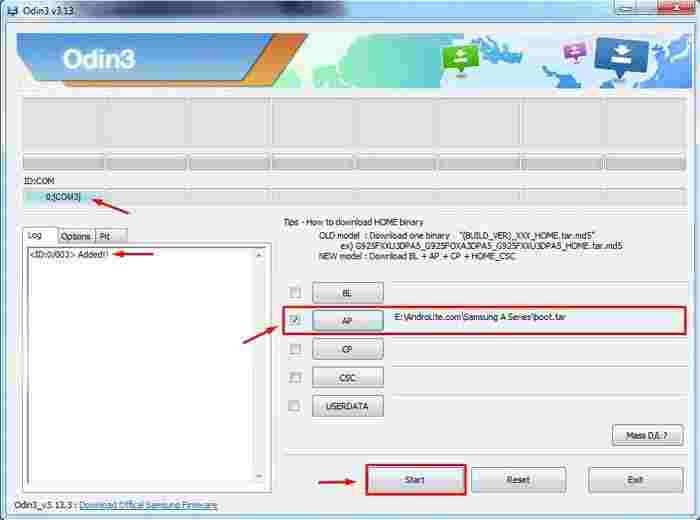
    5. Make sure Odin has detected your Galaxy A10 device by seeing the message ‘ Added !! ‘on the’ Log ‘tab or there is a port address under ID: COM.Root via TWRP Recovery
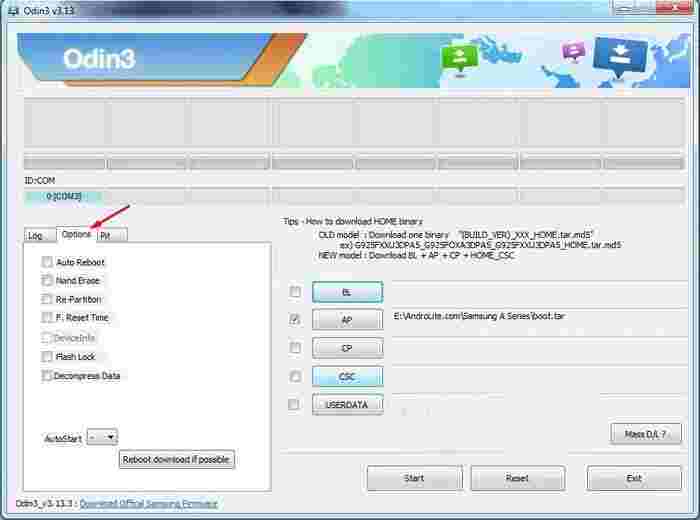
    6. Next, click the ‘ Options ‘ tab. Remove all ticks (  ) in the column.Root via TWRP Recovery
    7. Click the ” AP ” button then locate and select the TWRP-3.3.1-A10.img / TWRP-3.3.1-A10.tar file that is on the computer.Root via TWRP Recovery
    8. To start the TWRP installation process, please click the ‘ Start ‘ button and wait for it to finish.Root via TWRP Recovery
    9. When finished, please unplug the USB cable that connects the phone to the computer.
    10. To exit Download Mode and boot into TWRP for the first time, please press and hold the ” POWER + VOL DOWN ” button. When the screen is blank/black, immediately release the Volume Down button then move your finger to the Volume Up button while keeping the Power button pressed.
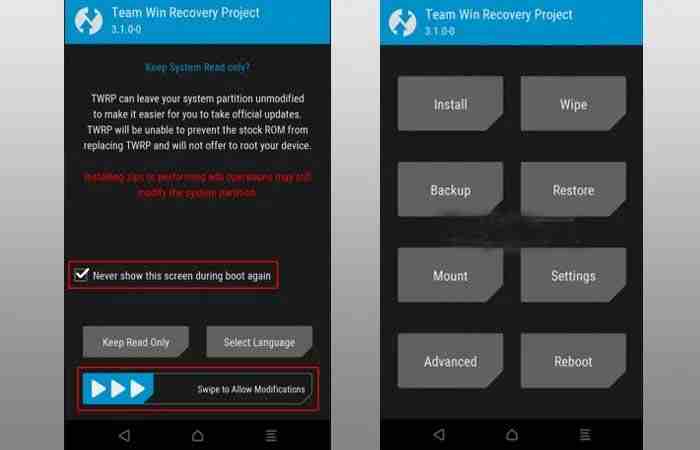
    11. When in the TWRP start menu, check “Never show this screen during boot again” then wipe to the right on “Swipe to allow Modification”.Root via TWRP Recovery
    12. Next, tap Wipe » Format Data » type ” Yes ” » OK, and wait for the process to finish.
    13. To prevent bootloop when the phone restarts, flash the Dm / No-verity.zip and Multi-disabler-Samsung-v2.2.zip files. The trick is to tap Install > Select Storage > then find the two files. After that, swipe right on ” Swipe to confirm flash ” to start flashing and wait for it to finish.
    14. At this point, you can reboot the system.
    15. Done.

    2.2.2. Root via TWRP

    1. Turn off the device until it is off.
    2. Next, please Boot the phone into TWRP Recovery mode:
      • Option # 1: Press and hold POWER + VOL UP.
      • Option # 2: With the phone turned on, press and hold the ” POWER + VOL DOWN ” button. When the Samsung boot logo appears, release the Volume Up button then move your finger to the Volume Up button while keeping the Power button pressed.
    3. If you are already on the TWRP menu, then tap Install.
    4. Flash the following three files (in order). To do this, tap Install » Select Storage » Find & Select Files :
      • Magisk_Root.zip
      • DM / No-Verity.zip
      • Multi-disabler-Samsung-v2.2.zip

      Swipe right on “Swipe to confirm flash” to start the flashing process.

    5. Next, please select Reboot » Reboot to System.
    6. To set up Magisk, please install Magisk_Manager.apk on your cellphone.
    7. To check the root status, please download the Root Checker application and then run it.
    8. Done.

    2.3. Root WITHOUT TWRP

    Slightly different from the method above, rooting without TWRP recovery is also one of the best options for rooting. How to? Here’s the complete tutorial.

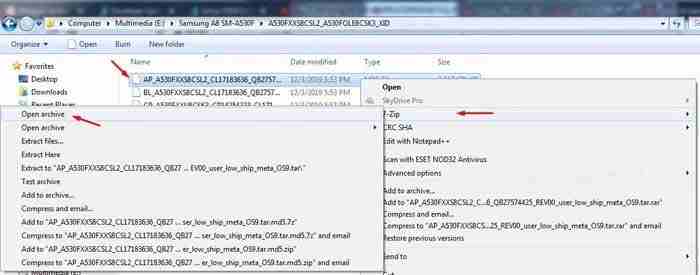
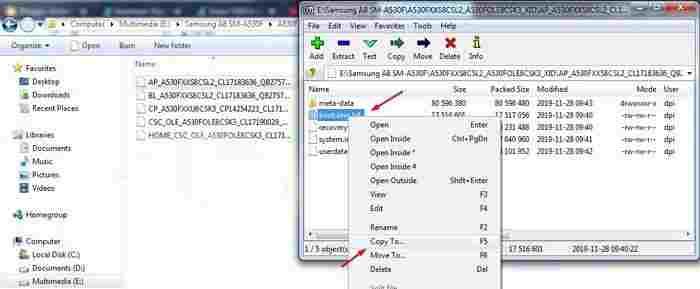
    1. Extract Firmware / ROM using the 7-Zip application. From the extract, right-click on the AP_A105FXX.tar.md5 file, select 7-Zip » Open Archive.Root WITHOUT TWRP Inside the 7-Zip application, right-click on the file boot.img.lz4 » Copy To. This file will be moved to the extracted firmware folder. Move (Copy) this file to the external memory of the phone.Root WITHOUT TWRP
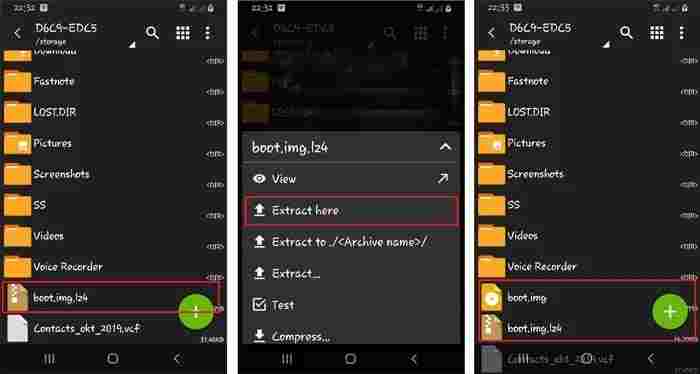
    2. Run the ZArchiver application. Tap on the boot.img.lz4 file then select Extract Here. Now in the same place, you will see 2 files with different extensions, first boot.img.lz4 and second boot.img. Please delete boot.img.lz4.Root WITHOUT TWRP
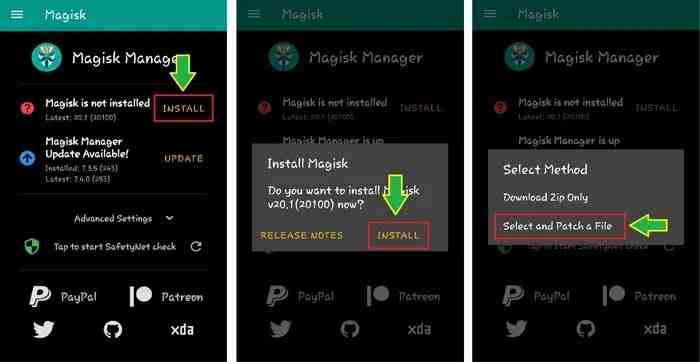
    3. Install magisk_manager.apk then run it. Tap Install which is beside Magisk is not installed. Tap again Install » Select and Patch a File » Find the boot.img file and wait for the flash process to complete.Root WITHOUT TWRP To see the patched boot.img file, please go to Internal Memory> Download> Magisk_patched.img.
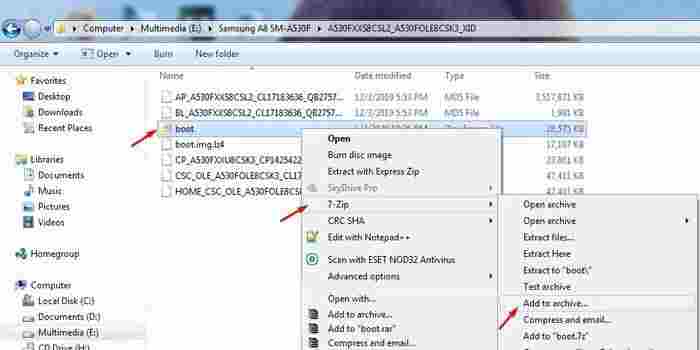
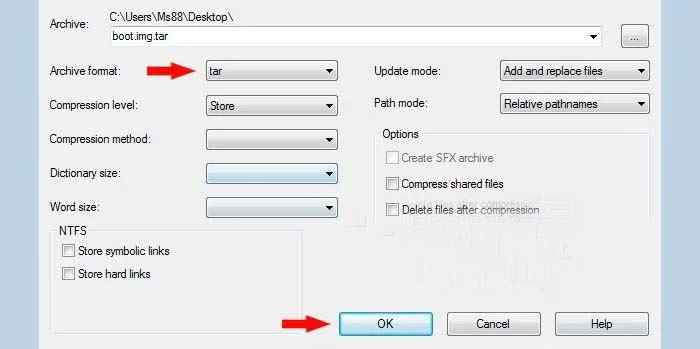
    4. Then copy back the Magisk_patched.img file to the computer then rename it to boot.img.Root WITHOUT TWRPAfter that, right-click on the file boot.img » 7-Zip » Add to archive. In the Archive Format column, select tar then clicks OK.Root WITHOUT TWRP
    5. Turn off the phone then Boot into Downloading Mode. In this case, two options can be done:
      • Option # 1: Press and hold POWER + VOL UP + VOL DOWN.
      • Option # 2: Press and hold VOL UP + VOL DOWN then plug in the USB cable (while still pressing the Vol Up + Vol Down buttons).
    6. In the Warning screen, press and hold the VOL UP button for approximately 10 seconds or until it enters the ” Unlock Bootloader? ” Continue by selecting the ” Yes ” option by pressing the ” VOLUME UP ” button.
    7. When the screen displays the message ” The phone’s bootloader is unlocked … “, please press the ” POWER ” button to continue. Wait for the phone to finish erasing data (Erasing).
    8. When finished, the screen will return to the message ” The phone’s bootloader is unlocked … “. Again press the ” POWER ” button to continue or wait for the phone to restart itself.
    9. When the cellphone is completely turned on, please do the initial configuration just like the new cellphone, but DO NOT “Sign in” or create a new Google and Samsung account (skip it if you get it).
    10. Turn off the device again then boot back into Downloading Mode. The method is the same as step # 2 above. At the Warning screen, press the Volume Up button to continue to the Downloading Mode main menu.
    11. Run the ODIN application run as administrator.
    12. Make sure ODIN has detected the device by seeing the ‘ Added !! ‘on the’ Log ‘tab or there is a port address under ID: COM. Remove all the checkmarks on the ‘ Options ‘ tab.Root WITHOUT TWRP
    13. Click the AP button then locate and select the boot.tar file. Click ‘ Start ‘ to start the rooting process and wait for it to finish.Root WITHOUT TWRP
    14. If successful, please unplug the USB cable that connects the cellphone to the PC and reboot the phone by pressing and holding the ” POWER + VOL DOWN ” button. Release both keys when the Samsung boot logo appears.

    #3. Samsung A10 Bootloop Solution

    If the device has a bootloop (stuck / stops only at the Samsung boot logo) when applying the tutorial above, several solutions can be done.

    1. Re-flash Firmware.
    2. Do a factory / hard reset via Recovery.
    3. Make sure to flash the Dm / no-verity and Multi-disabler-Samsung-v2.2.zip files as soon as the twrp installation is complete.

    The guidelines above can be applied to all series/models of the Samsung Galaxy A10, namely SM-A105F / DS, SM-A105FN / DS, SM-A105G / DS, SM-A105M / DS, whether it is still running the Android Pie v9.0 OS or the latest version is currently Android Q 10.0.

    Read more:

    Conclusion:

    Well, that’s the most complete tutorial on how to install TWRP and ROOT Samsung Galaxy A10 on this occasion. Hopefully, this tutorial is successful for you to apply. But if you have any questions, feel free to leave a comment.

  • 9 Ways To Fix IDM Fake Serial Number Error 2024

    9 Ways To Fix IDM Fake Serial Number Error 2024

    9 Ways To Fix IDM Fake Serial Number Error – Everyone might have installed Internet Download Manager (IDM) on their Laptop or computer, which is used to make it easier and easier to download documents, songs, videos, and other file types. But we are often faced with a registration message or fake serial number in IDM.

    9 Ways To Fix IDM Fake Serial Number Error
    9 Ways To Fix IDM Fake Serial Number Error

    How To Fix IDM Fake Serial Number Error 2024

    In this article, we will learn how to eliminate or fix the latest IDM Fake Serial Number in IDM. Also, read properly following the tutorial until it’s finished.

    Read more:

    By Rename File

    The first way to deal with the Fix IDM Fake Serial Number is by renaming the idmhelp_old.exe file. following the steps below:

    • First, you can leave IDM or close IDM.
    • Close IDM in the Tray Icon.
    • Then you have to open the directory IDM software that normally resides in the Local Disk C.
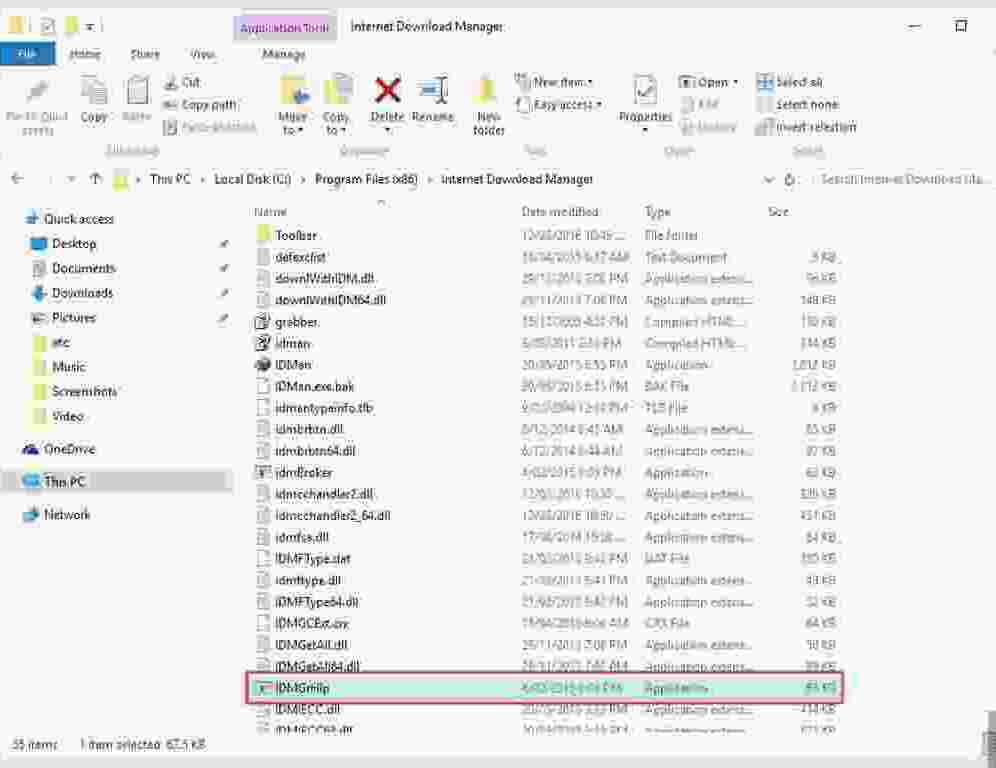
    • Next, look for the IDMGrHIp.exe file and you can change the name and extension to idmhelp_old.exe.
    • Then you can press Enter or click ok when you have finished renaming the file.

    By Editing the Hosts File

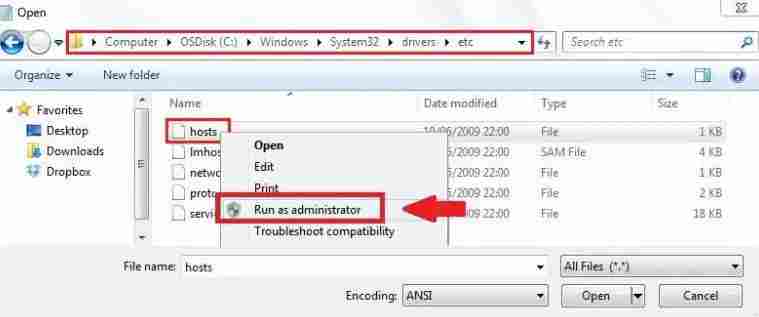
    Another way to deal with a fake serial number on your computer is to edit the host’s file, here are the steps:

    • First, you have to enter the C folder on your computer.
    • Then you can enter the WINDOWS folder.
    • If so, then you can enter the System32 folder again.
    • After that, you can enter the Drivers folder.
    • Click the folder named etc.
    • And in the etc folder, you will find the host file.
    • If you have found the host’s file, then you can right-click on it.
    • Select the Open with a menu in the options that are displayed.
    • Click Notepad.
    • Please type the text below, for example:

    127.0.0.1 secure.internetdownloadmanager.com
    127.0.0.1 mirror.internetdownloadmanager.com

    • Save this host’s file and change the properties of this file to Read-Only by right-clicking on the host’s file.
    • Then you can select properties.
    • Then you can check the read-only option.
    • And you can run IDM again.

    With How To Clean Regedit

    Another way to deal with fake serial numbers on Internet Download Manager is by cleaning Regedit. You can do this by following the steps below:

    • First, you can download the latest version of IDM or the old version. You can download it by searching the internet.
    • If IDM has finished downloading, try not to be connected to the internet. So you better turn off the Wifi first.
    • Then you can delete the IDM installation that is already on your laptop or computer.
    • Then you can enter the run menu, you can use the method to click the Windows key + R to run it.
    • After that, you can type Regedit in the column and then click Ok.
    • After that, you can search for HKEY_LOCAL_MACHINE and select the Software folder.
    • Then you can select Internet Download Manager and delete the selected Internet Download Manager. This is so that no more fake serial numbers are detected in the computer system.
    • Then you can reinstall the new IDM that you downloaded earlier.
    • Enter the serial number and patch according to the instructions or like your process.

    Eliminating Fake Serial Number Messages with Patches

    The following is how to use the IDM patch:

    1. The first step, please download the IDM 6.31 Patch file

    2. Then please extract the patch.exe file

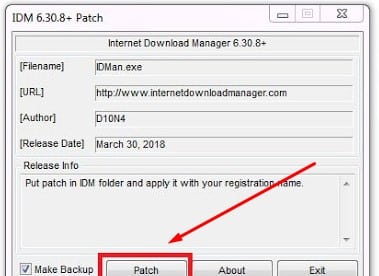
    3. Copy the IDM 6.31 patch file and paste it into your IDM installation directory which is located at C: \ Program Files \ Internet Download Manager for Windows 32bit version. For Windows with a 64bit version it is: C: \ Program Files x86 \ Internet Download Manager

    4. Then right-click on the Patch file earlier and select Run as administrator then click Patch.

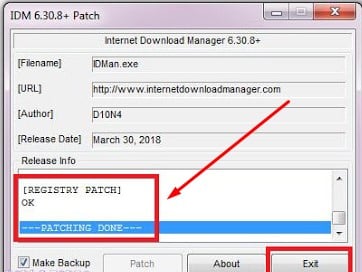
    Eliminating Fake Serial Number Messages with Patches

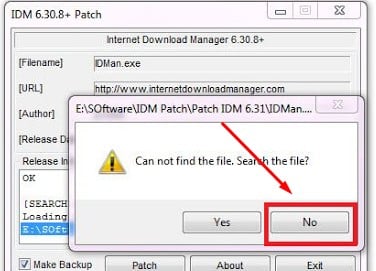
    5. In the new window that appears just select No.

    Eliminating Fake Serial Number Messages with Patches

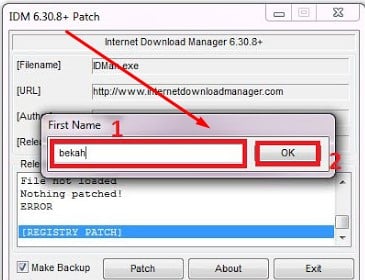
    6. Then we will be faced with a form to fill in our initial name. Just type anything but it contains a name then click Ok.

    Eliminating Fake Serial Number Messages with Patches

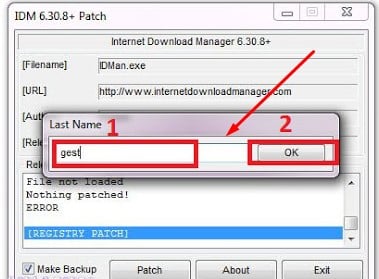
    7. In the next form that appears, type the last name again and then click Ok again.

    Eliminating Fake Serial Number Messages with Patches

    8. Patch IDM 6.31 will patch automatically.

    Eliminating Fake Serial Number Messages with Patches

    9. The final step is to restart your PC / laptop.

    # 2. How to Get Rid of Fake Serial Number IDM

    1. Rename the file

    Rename the fileThe way to get rid of the first fake IDM serial Number is by renaming the file. The methods are:
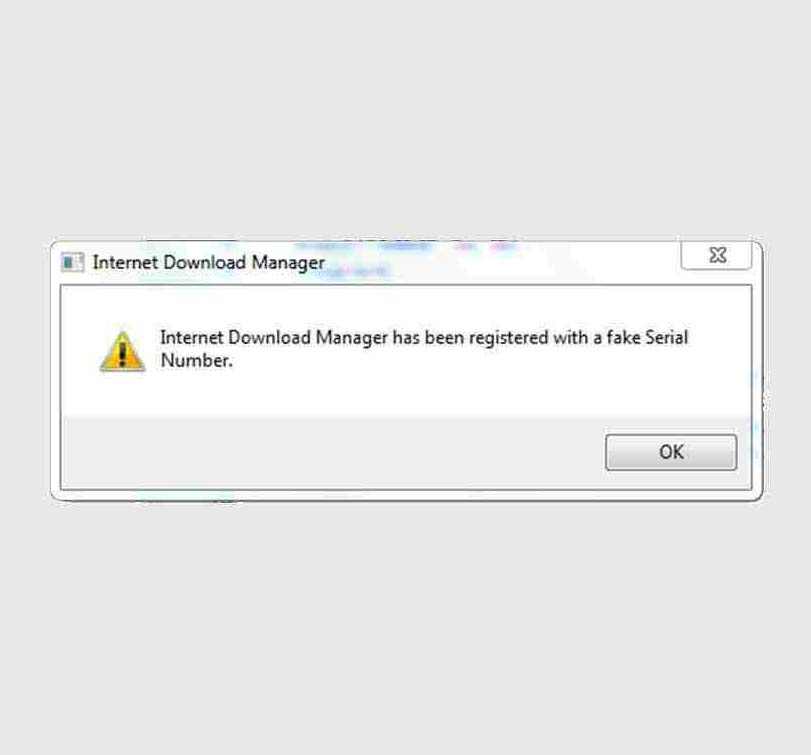
    • Close IDM first, and also close the one in the system tray (lower right corner).
    • Open the IDM installation folder, generally located in the C: > Program Files> Internet Download Manager folder.
    • Rename the file ” IDMGrHlp.exe ” to ” idmhelp-old.exe “.
    • Restart your computer.
    • Reopen the IDM installation folder.
    • Click the file named ” idmBroker.exe ” and rename it to ” IDMGrHlp.exe “.
    • Restart your computer again.
    • Done, IDM has been successfully changed to the Full Version.

    2. Reset Trial

    Reset TrialApart from the method above, you can use the method below:
    • Make sure you are using the latest version of IDM.
    • Download IDM Fake Serial Remover first.
    • Turn off the antivirus first so that the process runs smoothly.
    • Extract the files that you have downloaded. Later, the extract results in a folder in which there are several files.
    • Install a file called TrashReg.exe.
    • Open the application and delete the file called ” Visual Protect 3.5+ “.
    • Enter the task manager by pressing CTRL + ALT + DEL.
    • Select the Process section. Look for a file called ” IDMan.exe ” and end processes. If not, continue to the next stage.
    • Now run the application ” IDM Trial Reset.exe ” which is in the extracted folder.
    • Click the Trial reset tab and check ” Automatically “, and wait for the process to finish.
    • If so, copy the files named ” IDMGrHlp.exe “, ” Patch.exe “, and ” Registration.reg ” to the IDM installation folder and select replace/overwrite. (Generally, the folder is located at C: \ Program Files \ Internet Download Manager \.
    • Right-click Patch.exe> ​​Run Administrator> click Patch> fill in the first and last name (it’s up to you).
    • Close Patch, and click 2x on the file called ” Registration.reg“.
    • Done.

    3. Edit Host File

    Edit Host File

    The last way is to add a few IP lines in the Windows Hosts file, it takes care to apply this method.

    Host data:

    127.0.0.1 tonec.com
    127.0.0.1 www.tonec.com
    127.0.0.1 registeridm.com
    127.0.0.1 www.registeridm.com
    127.0.0.1 secure.registeridm.com
    127.0.0.1 secure.internetdownloadmanager.com
    127.0.0.1 mirror.internetdownloadmanager .com
    127.0.0.1 mirror2.internetdownloadmanager.com
    127.0.0.1 www.internetdownloadmanager.com

    How to edit the host’s file:

    • Open My Computer or Windows Explorer
    • Look for the host file at C: \ Windows \ System32 \ drivers \ etc
    • Right-click when found.
    • Select open with Notepad.
    • Under 127.0.0.1 localhost, add the host above.
    • Save this file in the read-only form (I right-click on the host and then select properties . Check Read-Only )
    • Done.

    Conclusion:

    This is the article on 9 ways to fix IDM fake serial number error, In this way, your IDM message will no longer appear fake serial number. Hope it is useful for you.

  • (100% Working) 6 Ways To Fix Windows License Will Expire Soon 2024

    (100% Working) 6 Ways To Fix Windows License Will Expire Soon 2024

    (100% Working) 6 Ways To Fix Windows License Will Expire Soon – Is your laptop/computer having “your Windows license will expire soon”? It would be nice if you overcome or eliminate the notification message so that your windows are permanently active.

    (100% Working) 6 Ways To Fix Windows License Will Expire Soon
    (100% Working) 6 Ways To Fix Windows License Will Expire Soon

    How to Get Rid of Your Windows License Will Expire Soon 2024

    Cause

    The message that appears in Windows 10 can be caused by two reasons, namely:

    1. You use an activator whose active period is only 180 days
    2. Using the original Windows 10 license but with a limited active period.

    You will not be disturbed when you have removed the notification.

    Get Rid of Your Windows License Will Expire Soon

    When the laptop appears, the license has expired, it indicates that your Windows has expired.

    Read more:

    So that means, your Windows license is no longer valid (but it can still be used).

    It’s just that you will find a watermark in the lower right corner that says Activate Windows- Go to settings to activate Windows.

    You can remove the text in the following way too.

    #1. Reactivate Windows

    To deal with a laptop whose Windows license will expire soon, you can use this first method.

    This method is included in the easiest category and you can do it yourself. Still using the help of software programs or applications.

    You can get this application on the internet, under the name KMSPico. In full, you can see my previous post about how to activate Windows.

    There I have explained step by step how to activate Windows.

    #2. End Windows Explorer Process

    How to Fix Windows License Will Expire Soon
    End Windows Explorer Process

    If you want to deal with expired windows, do the steps below.

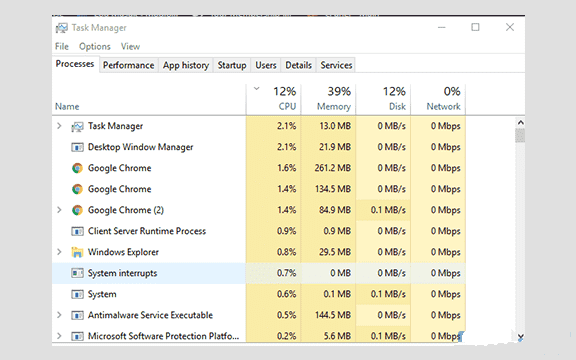
    First, you have to enter the task manager program. See the guide below for more details.

    • To enter the Task Manager program, you can use the shortcut CTRL + SHIFT + ECS.
    • After logging in, you can search for programs in the Processes menu.
    • Look for a running program called Windows Explorer.
    • Right-click on the program and select End Task.

    #3. Rerun the Windows Explorer program

    After you do the End Task in the steps above. You can use the method below to reactivate your Windows manager. The method is the same, just follow the steps below.

    How to Fix Windows License Will Expire Soon
    Rerun the Windows Explorer program
    • First, please enter the task manager or those who have previously opened the task manager program, and go to the next step.
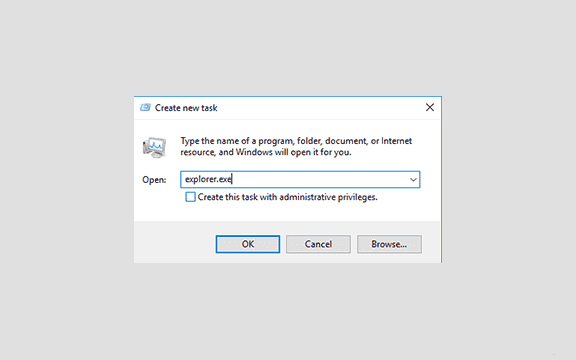
    • Select the File menu then select the menu in the new window at the bottom called Run New Task.

    How to Fix Windows License Will Expire Soon
    Rerun the Windows Explorer program
    • Then enter the sentence as drawn or you can just copy this sentence “explorer.exe” without the quotes.
    • Then after it has been entered into the box, please press the OK menu at the bottom.

    How to Fix Windows License Will Expire Soon
    Rerun the Windows Explorer program
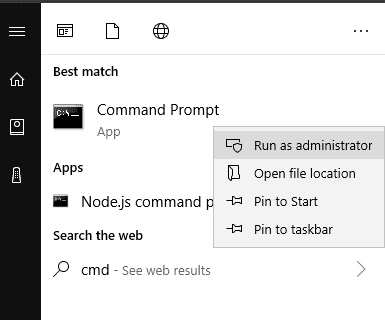
    • You can open CMD by pressing the Start Menu -> typing CMD -> Then selecting the Command Prompt section -> Right-click -> selecting Run As Administrator.
    • You can type the following sentence slmgr -rearm then press enter on the keyboard to start the process.
    • Wait a few moments, a notification window will appear containing the Command completed successfully.
    • After that, there will also be a notification to restart the computer.
    • Please press OK to restart your laptop PC.

    At this point, it’s finished, but if there is still writing Windows is not activated on your computer, then you have to reactivate using the method I explained above.

    #4. Uninstall Product Key

    This second method is quite extreme because you have to remove your Windows license.

    The product key is the name, so you have to uninstall it first to solve Windows 10 expiring soon.

    The stages are below:

    • First, you have to open CMD, the steps to open cmd can use the previous step. Don’t forget to Run As an Administrator in the Command Prompt program.
    • After the CMD program is open, please enter the following sentence: slmgr / upk .
    • Then press enter on your PC laptop keyboard.
    • If the uninstall process is complete and running successfully, usually a message like this “Uninstalled product key successfully” will appear.
    • After that, you can press OK.

    Then you can restart your computer or laptop. After turning it on, you will not see the window expired warning again.

    However, your windows are now not activated or there is no product key.

    To get a product key or activate Windows please use the previous method for Windows activation.

    #5. Changing Group Privacy

    To get rid of the words Windows 10 expired product key, I often use the method to change the group privacy.

    Are you curious about using it too? Please follow the steps below so that you get a way to get rid of the license that will expire soon win 10.

    • First, you must open a program called Group Policy Editor via the start menu search or use the steps below.
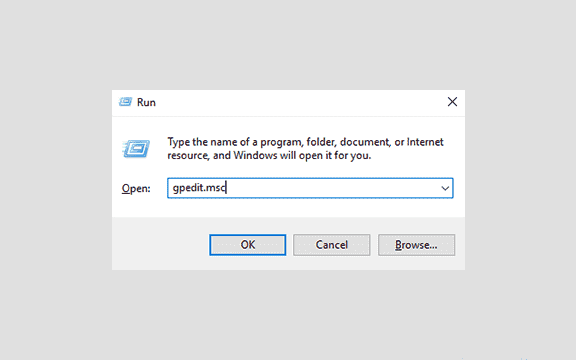
    • Please press the CTRL + R combination on your keyboard enter the following sentence gpedit.msc in the search field then press OK.

    Changing Group Privacy
    Changing Group Privacy
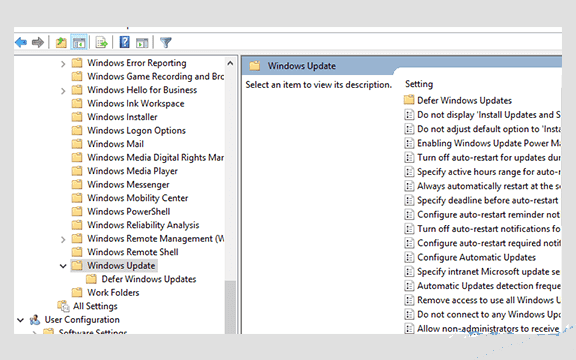
    • After that, a new window will appear showing the program from Gpedit.
    • Please enter into the following folder: Computer Configuration> Administrative Templates> Windows Components> Windows Update.

    Changing Group Privacy
    Changing Group Privacy
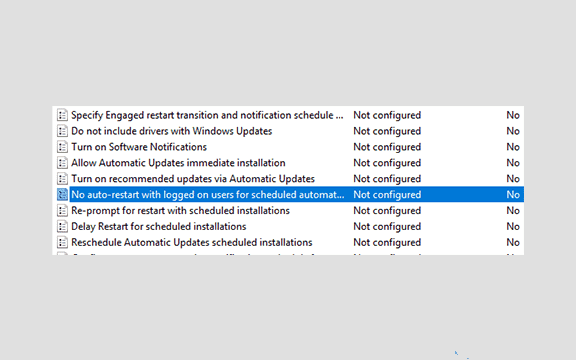
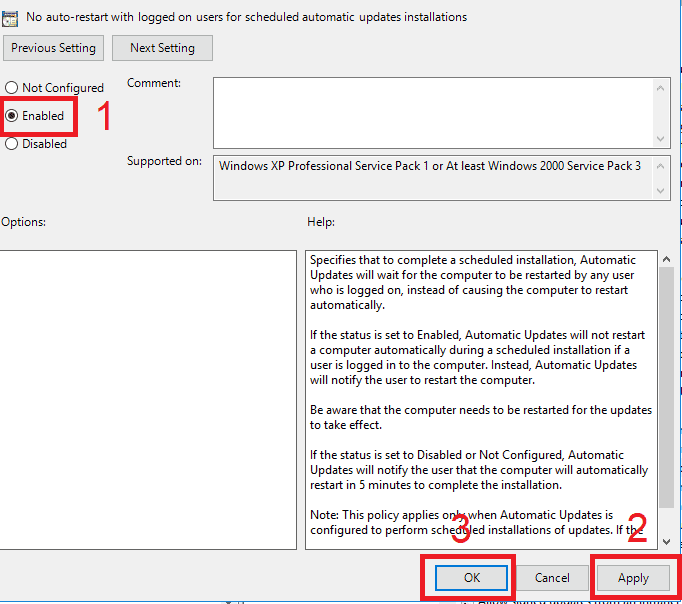
    • Then just select the file called No Auto Restart with Logged on User For Scheduled Automatic.

    no auto restart
    no auto restart
    • Double-click or double-click on the file to open it.

    Double click or double click on the file to open it
    Double click or double click on the file to open it
    • You can change what was not configured to be enabled. Then you can press the Apply button then OK.
    • After that is all done, you can restart the computer or laptop you are using. Look what happened, your problem is solved.

    #6. Find the Product Key in CMD

    Previously, you uninstalled the product key, but the uninstallation step still didn’t work.

    You can use the steps below to deal with outdated windows.

    • Open Command Prompt then run it using Run As Administrator.
    • You can type in a sentence like this: wmic path SoftwareLicensingService get OA3xOriginalProductKey.
    • Then press enter on your keyboard.
    • After that, the product key that you use on laptops and computers will appear.
    • Retype the product key into Notepad or the like because the CMD program can’t copy it.
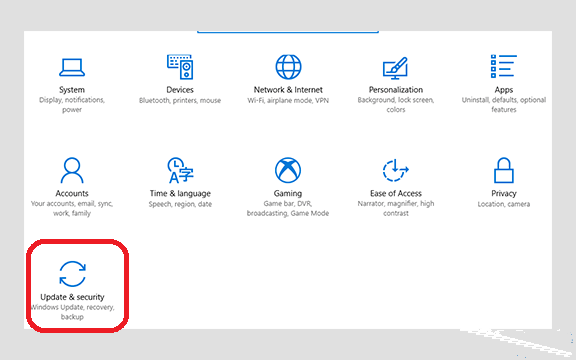
    • The next step is, please open your Windows Settings by pressing the shortcut CTRL + I on your keyboard.

    Find the Product Key in CMD
    Find the Product Key in CMD
    • Then a new window will appear, please select the Activation menu. Then you select Change Product Key.
    • Later the Enter a Product Key window will appear. Please enter the product key that you noted earlier in the notepad and then enter it in the column provided in the Windows settings.

    How to Overcome Windows 7 Expired Without Reinstalling

    In Windows 7, the active period can also expire, but with different notifications.

    If in Windows 7 it will display a Windows 7 notification note with the desktop display turning black.

    Read more:

    Conclusion:

    So, friends, That’s my brief review of the Windows that appears notification that your Windows license will expire soon.