How to Fix ‘This copy of Windows is not Genuine’ – “This copy of Windows is not genuine” is one of the most common errors found in the Windows operating system.
How to Fix ‘This copy of Windows is not a genuine error
How to Fix Error This copy of Windows is not Genuine Error 2024
As a result of this error, the desktop wallpaper that you set will be changed to a black screen. The battery life will decrease due to this message will keep appearing on the laptop, and many other problems.
Some Windows 10 features will no longer work unless you clear this message.
These alerts can be very annoying, especially when working with important things and they appear periodically.
However, you can still do other things on your PC, like complete your work and use the computer as before.
The main reason your computer displays this error is that you didn’t activate your Windows license after the trial period was up.
You can also receive this error because the license of the Windows operating system you are using has expired, is blocked, or is unofficial.
In addition, if you share your Windows license with other people, such as friends or other family members, Microsoft can block your license as well.
This is because one license is used on many computers, or you activate the same license too often.
If you are seeing this error on your Windows computer, this post will give you tips on how to fix it.
“Windows is not genuine”: Here’s how to remove this warning
Method #1: Use the RSOP command
You can try to solve the error generated on your Windows screen via the RSOP method.
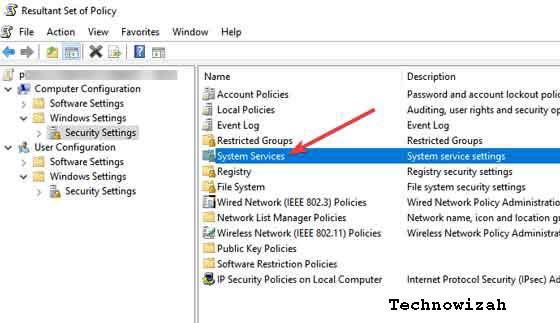
RSOP stands for Resultant Set of Policy Window, by following the steps below:
1. Press the Windows key and R from the keyboard to open the Run window. 2. Type rsop.msc and press the Enter key
3. Navigate to Windows settings, click on the Security system, and then go to System services
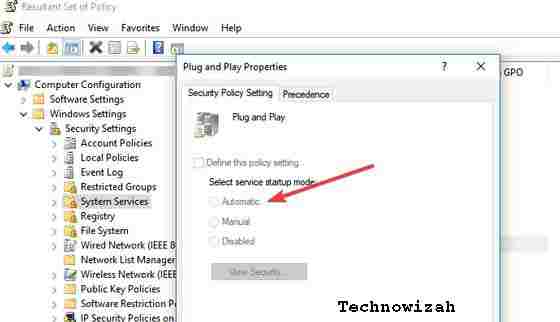
4. Look for the Plug and play service, then right-click on it and then start looking for Startup and then click on Automatic
5. Press the Windows and R keys as in the first step, then type or copy and paste this command: gpupdate / force into the Run box
6. Restart your computer
Method #2: Use the SLMGR-REARM command
Using Command Prompt and these simple commands, you can fix this problem in 32-bit and 64-bit Windows, and in all versions of the Windows operating system:
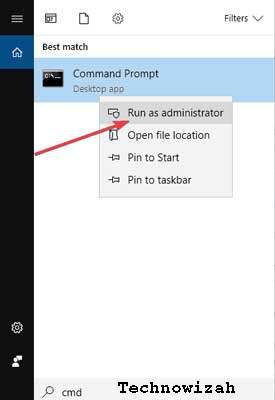
1. Run Command Prompt as administrator by clicking Start, typing cmd in the search box, and then right-clicking on Command prompt and selecting Run as administrator.
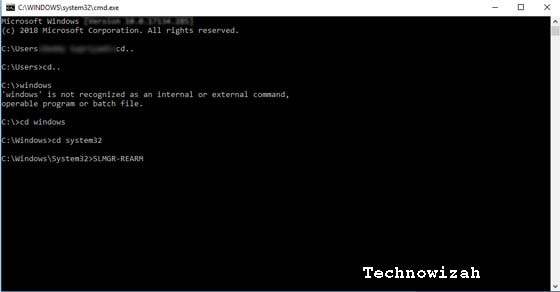
2. Type SLMGR – REARM or SLMGR / REARM
3. You will see a confirmation window, click OK and restart your computer.
Note: SLMGR is a Windows software license management tool. The REARM command will reset the machine license status.
Solution #3: Check if your license is legitimate and official
If you think you have purchased a genuine license, and it turns out that the license is fake, then you can report the problem to Microsoft, report the counterfeit software you have got, and see what happens.
You should also contact your vendor as Microsoft support in most cases will only help you solve the problem when you buy Windows OS from a Microsoft store.
Solution #4: Run the Microsoft Genuine Advance Diagnostic Tool
The Microsoft Genuine Advantage help tool provides detailed information about the Microsoft Genuine Advantage components and settings currently on your system.
You can diagnose and automatically solve the problem ” Windows is not genuine “.
Run this tool, copy the findings to your clipboard, and then send Microsoft a genuine Windows technical support request.
Download this tool, run MGADiag.exe, and click Continue for examination results.
There will be some useful information such as Validation Status which might tell you whether the product key is valid or not.
Or is the product key blacklisted by Microsoft.
You may also be notified if the LegitCheckControl.dll file has been tampered with in which case some form of error during your Windows installation has been detected. If there is a problem the tool can fix, click the Resolve button.
Solution #5: Uninstall Update KB971033 if you are using Windows7
The KB971033 update can be a source of trouble if you are using Windows 7.
If you get the message ” Windows is not genuine ” – “This copy of Windows is not genuine “, then this means that Windows has an updated file that can detect your Windows operating system.
Therefore, you need to uninstall and update KB971033 to resolve this problem.
Open the Control Panel
Go to the Windows update section
Click View installed updates
After all update installations are loaded, look for update KB971033 and uninstall it
Restart your computer
Solution #6: Turn off Automatic Update
To make sure that the ” Windows is not genuine ” message doesn’t return, make sure you turn off Windows Automatic Updates.
To turn off Windows Automatic Update, you need to:
Open the Control panel from the Start button
Go to the Windows update option
Click the Install Updates Automatically option and select Never check for updates (Not Recommended)
Click Apply to change the settings and restart your computer
Note: Your computer now never gets this error warning again. However, you can’t upgrade your Windows to the latest version to fix bugs or get new features.
Overall, we hope that the methods described above were able to help you fix the error message stating that your copy of Windows is not genuine.
There are many other methods you can apply, but most of them are not easy to follow. Also, to avoid such problems, you should not support and install a pirated version of Windows OS, and we recommend that you purchase an Authorized License from Microsoft.
Types of Linux Operating Systems and their Strengths – There is nothing wrong with getting to know various kinds of Linux operating systems with all their uniqueness and advantages.
Types of Linux Operating Systems and their Strengths
Types of Linux Operating Systems and Their Strengths 2024
The operating system is a program designed to manage hardware resources on a computer, and functions as a place to provide general services for software applications.
An operating system is a type of software in a computer system. Where without an operating system, users cannot run application programs on the computer, except for booting applications. The operating system also has systematic scheduling consisting of memory usage, data processing, data storage, and other resources.
Where the operating system here acts as an intermediary between software and hardware, and vice versa. However in its execution, the application code is usually executed directly by the hardware and will contact the operating system if the connection is lost.
Until now, there are quite a lot of different types of operating systems in circulation. Where each type of operating system has advantages and disadvantages so that users can choose which operating system is the best according to their needs.
What is Linux?
Linux is a UNIX-based operating system, one example of the development results of free software (Freeware) and open source (Open Source), the average Linux OS user is a programmer to create a program and also a developer to develop applications more easily.
Now in this article, Koneksia.com will discuss the various types of Linux operating systems along with their advantages and disadvantages, so that you can get to know the Linux operating system more clearly, including:
Advantages of the Linux Operating System
Linux can be obtained easily and even free (freely) without the need to pay a license and a user and can download Linux source code. Even if you want to see this OS you can because Linux is Free and Open Source Software, in other words, Linux can be developed by anyone.
In installing Linux, all hardware can be detected immediately and includes applications that support Linux OS. So that once installed, the application can be used immediately. Thus you no longer need to install other hardware drivers such as VGA, motherboard, chipset, and soundcard.
Linux also provides a fairly complete software collection, where this software is usually needed for desktops, laptops/notebooks, and PC servers. If during installation, the software is missing, the user can easily add the software via the repository that has been provided. However, some software on Linux requires installing several Windows applications on Linux such as Crossover and wine.
Linux is proven to be reliable and stable. This is the reason why many servers use Linux OS compared to other OS. Even after completing the system configuration, the user does not need to restart (warm boot)
Of the many types of OS (operating system), Linux is an OS that is safe against viruses, because besides the number of viruses on this OS is very minimal, Linux OS manages very tight security so that it will usually make the virus unable to operate/run on Linux OS This way, the user can immediately delete the virus easily via the delete button.
Linux also can do bug or flaw fixes very quickly. This is because Linux is developed by a Linux community, where the Linux community can provide suggestions and fix bugs or defects through documentation.
Many kinds of Linux have their characteristics and advantages. Make sure you choose the type of Linux that suits your needs.
Disadvantages of the Linux Operating System
Linux lacks support from hardware manufacturers in terms of controllers (drivers). So that requires Linux developers to create this driver control system.
Linux also lacks support from some gamers. So that when playing games on Linux, the game display is not full-screen.
Linux still has some software that can only run on other operating systems and there is no open-source replacement software on Linux OS.
There are various types of Linux operating systems, including Debian Linux (server OS), Redhat Linux (easy installation for beginners), and SuSe Linux (Linux OS that supports the Indonesian language programming language). For more details, see some of the Types of Linux Operating Systems below:
Types of Linux Operating Systems
#1. Red Hat Linux
If you are looking for a type of Linux operating system, the installation process is very easy to do. Then your answer is Redhat Linux. The RedHat Linux operating system is one of the oldest GNU / Linux systems, offering convenience, a fully graphical display mode from the time of installation, and being user-friendly.
The latest version of Red Hat is the RedHat Linux 9.0 Distribution, it is a stable version and fixes and improves system administration which comes with the latest desktop managers like KDE 3.1 and GNOME 2.2, and the latest applications such as GIMP 1.2.3 graphics, OpenOffice, KOffice, Diagrams, Multimedia applications Player, etc.
#2. Debian Linux
Debian is a type of Linux operating system that has been around for a long time since 1999 and continues to be developed regularly every year until now it has entered version 8.
If you are looking for an operating system that is suitable for server computers or for admin computers. So the answer is the Debian Linux operating system because this operating system is suitable if it is used as a server or admin computer.
This type of Linux operating system is less suitable for personal purposes because its function is more for use on server and admin computer systems.
#3. Ubuntu Linux
Ubuntu is a type of Linux operating system that is based on Debian. The difference is this Ubuntu operating system can be used not only on server computers and admin computers but also can and is suitable for use on personal or personal computers. The Ubuntu project itself is financed by Canonical Ltd (a company owned by Mark Shuttleworth).
Since then, Canonical has released a new version of Ubuntu every 6 months. Each release is supported for 18 months for the system, security, and bug updates. Every 2 years (version xx.04 with x even numbers) will get Long Term Support (LTS), for 3 years for the desktop and 5 years for the server edition.
Even the latest version is also conditioned for use on smartphone devices. Therefore, this type of Linux operating system is the most widely used of the various existing Linux operating systems. On October 31, 2011, Mark Shuttleworth announced that Ubuntu 14.04 would support smartphones, tablets, and smart TVs.
#4. Linux Mint
If Ubuntu was a development of Debian, then Linux Mint is arguably the grandson of Debian because it was developed based on Ubuntu. The Linux Mint operating system was developed for personal or personal (PC) use and is divided into 2 variants, namely CINNAMON and MATE.
CINNAMON is a Linux Mint OS that is more modern than Linux MATE, but the drawbacks are less stable than MATE Linux, CINNAMON Linux also doesn’t support many graphics cards on some computers or laptops.
#5. Fedora Linux
Fedora (formerly Fedora Core, sometimes also known as Fedora Linux) is a Linux distribution based on RPM and yum developed by the Fedora Project which is supported by the programming community and sponsored by Red Hat. The latest version is Fedora 24.
Fedora 24 is considered to have many advantages in terms of platforms and applications, such as the ‘Glitch-Free’ version for PulseAudio, the Security system, the Audit and Intrusion-Detection Sectool, and the PackageKit-Framework. Even so, Fedora has shortcomings, including updates that are not as regular as Ubuntu due to the type and development process.
#6. SuSE Linux
The SuSE Linux operating system is the most interesting and used in most European countries. Although it is widely used by some Europeans there. The appearance of a fresher design and ease of management make it an added value for this Linux operating system.
The SuSE Linux operating system can also use Indonesian as one of the language choices used in this computer operating system. With the choice of Indonesian, of course, it makes it easy to operate your computer.
#7. CentOS Linux
CentOS is an enterprise operating system built on the Linux framework. This CentOS operating system was first released in 2004 and is one of the largest and most popular among Linux users. CentOS can be used and is also developed for free, the CentOS operating system is not intended for beginners.
However, CentOS is intended for server users who have more knowledge, can use Linux, as well as users who can do computer programming, and also know the systems and applications that are currently running.
#8. Slackware Linux
Slackware is the oldest of all Linux operating systems, created by Patrick Volkerding. Slackware was originally a personal project, and in order not to get serious, Patrick named this project “slack” from the Church of SubGenius which means a state in which a person uses the least amount of energy possible to live.
Which are your favorite Linux Operating System Types? maybe interested in moving from Windows OS to Linux OS? or do you have your favorite distro choice that hasn’t been mentioned? please leave them in the comments!
21 Best Free VPN for Windows 10 Laptop PC -Download the best Free VPN for Windows 10 laptops & PCs that you can try to use to surf safely and access almost any blocked site on the internet without a hitch. For anyone surfing the Internet, personal safety and security are some of the most important things that are always on their mind.
Download Best Free VPN for Windows 10 Laptop
Download Best Free VPN for Windows 10 Laptop PCs 2024
Some people choose to download VPN or Virtual Private Network software for PCs/laptops and mobile devices. VPN is a technology that adds a layer of security so that your data is not accessed by intruders when you are browsing or playing games on the Internet.
Choosing a VPN service is a daunting task in today’s era of online privacy and security concerns. With hundreds of different VPN providers out there, choosing the right one often means looking to strike the right balance between service, ease of use, and price.
List of the 21 Best Free VPNs for Windows 10 PC / Laptops
#1. OpenVPN
One of the most popular implementations of VPN technology, OpenVPN is an open-source solution for creating a Virtual Private Network (VPN). OpenVPN uses customized protocols to achieve secure connectivity, using SSL (Secure Socket Layer) for security processes.
Many VPN providers offer OpenVPN as the protocol of choice, and the reasons for this are many, best free VPN for Windows 10.
To be able to use a VPN using OpenVPN, you must get access to the OpenVPN servers that many VPN service providers provide for FREE. One of the service providers that I recommend and have always been my favorite is TcpVPN.com. In addition to these sites, you can search for it on Google using the keyword ” free OpenVPN ” or ” free PPTP VPN “.
Indeed, using OpenVPN is a bit complicated compared to other applications on this list, because you have to download the configuration file from the VPN service provider (you also have to create an account for server access) and copy it to the OpenVPN config folder.
But this is the best app if you want to get a VPN for free, without bandwidth limitations and other restrictions. Even some VPN service providers allow using VPN for Torrent downloads, the best free VPN for Windows 10.
Windscribe is a good alternative for someone looking to use a free VPN plan that comes with 10GB of bandwidth (per month) best free VPN for Windows 10.
Windscribe’s server network performance isn’t as fast as ExpressVPN or NordVPN, but Windscribe does offer an OpenVPN tunneling protocol with 256-bit AES encryption.
Despite being a relatively new Windscribe VPN service, the Windscribe Chrome extension provides users with free proxy access and is already being used by more than a dozen people.
Visit:- windscribe.com
#3. Psiphon
Psiphon allows you to bypass internet connection limits. Psiphon allows you to bypass internet restrictions on campus, company, or country and allows you to safely access knowledge and ideas that are censored in countries that restrict access to such knowledge and ideas. best free VPN for Windows 10.
Psiphon is a tool that uses several online security applications including VPN, SSH, and HTTP Proxy technologies for complete, open, and unlimited internet access.
Visit:- psiphon.ca
#4. Hide.me
The VPN application for PC Hide.me will make you completely anonymous on the web by hiding your identity or location on the Internet. Hide.me encrypts your activities to protect you from hackers and other malicious activists.
Hide.me opens censorship and all blocks on the Web so you can browse websites without restrictions. You can also watch global TV from anywhere in the world. best free VPN for Windows 10.
Visit:- hide.me
#5. Hola
Unlike other VPN applications for PCs and mobile devices, Hola is a peer-to-peer VPN like any other P2P network. Hola is a community-based service where users help each other to make content on the web accessible to everyone. best free VPN for Windows 10.
Hola encrypts your data and routes your traffic through other access points (peers) to provide a high level of anonymity. Hola can even stream live torrents and play live videos without downloading. Even though it is not the fastest VPN, Hola provides unlimited access for its users.
Visit:- hola.org
#6. SurfEasy
The SurfEasy VPN VPN application can unblock Internet access and secure your web connection. SurfEasy lets you surf the internet safely on any network, it also allows you to enjoy any website without any restrictions or censorship from any government agency.
SurfEasy offers protection for your identity and privacy so you don’t leave traces online, and even protects web activity on public Wi-Fi hotspots and unsecured networks.
Visit:- surfeasy.com
#7. TunnelBear
TunnelBear provides unlimited, simple, and private global internet access. TunnelBear offers 500MB of free data usage per month which is sufficient for light browsing needs.
The TunnelBear VPN application allows you to browse the web privately and experience the Internet without censorship and access to blocked sites.
TunnelBear can even block trackers that track your activity on the Web such as advertisements, analytics, scripts, etc.
Visit:- tunnelbear.com
#8. Hideman VPN
The Hideman VPN application offers anonymity and data encryption for Internet sessions and activities. Hideman VPN offers free usage with connection and data traffic restrictions but is suitable for moderate uses such as light browsing and downloading.
Hideman VPN routes your internet traffic through various server locations in 20 countries, making it difficult for anyone to guess your information and whereabouts.
Visit:- hideman.net
#9. Betternet
With Betternet you will surf the internet in peace without worrying about hackers and not being able to access blocked sites. Betternet is a free VPN application for computers that lets you access any website from any country.
Betternet allows you to surf the web anonymously without leaving a trace and protects your data from malicious attacks and unauthorized parties such as hackers and government agencies. best free VPN for Windows 10.
During the first installation, you will be offered to use Betternet for 7 days. after that, if you don’t subscribe to the premium package you will use the free version of Betternet.
Visit:- betternet.co
#10. Hotspot Shield
Hotspot Shield protects your online privacy and lets you bypass internet censorship and access the sites or services you want. Hotspot Shield protects your Internet session by using an encrypted HTTPS connection and protects your personal information from hackers. Hotspot Shield uses “ malware protection and compression ” technology that can protect you from malicious sites and reduce data plan usage on your mobile device.
For the paid version, Hotspot Shield provides packages starting from 100,000 every month. Hotspot Shield is also available as an app for Android and iOS.
Visit:- hotspotshield.com
#11. ZPN
ZPN is a reliable and fast VPN application for anyone who wants to encrypt their Internet connection in an attempt to carry out transactions safely and the security of other online activities. best free VPN for Windows 10.
ZPN offers 10GB of free usage per month claims not to log your internet data traffic, and acts as a virtual firewall, making you completely anonymous on the Internet. With ZPN you can connect to public Wi-Fi hotspots safely without fear of hackers and trackers.
Visit:- securitykiss.com
#12. FinchVPN
FinchVPN is a great VPN app with very powerful features. FinchVPN offers easy-to-use multiple control panels and VPN servers in different locations in the world. FinchVPN keeps no logs and claims to encrypt all your activities, sessions, and web connections.
Visit:- finchvpn.com/pricing
#13. SecurityKISS
VPN application for PC SecurityKISS secures your Internet connection by creating a special connection path (tunnel). SecurityKISS protects your privacy, ensures anonymity, and bypasses Internet restrictions by ISPs or countries. best free VPN for Windows 10.
SecurityKISS offers 300 MB per day of free usage which is sufficient for moderate internet usage. SecurityKISS claims to offer high anonymity by logging only the minimum required information and ensures high speed using data compression technology.
Visit:- securitykiss.com
#14. ZenVPN
ZenVPN’s VPN app for pc offers secure and uncensored internet. ZenVPN protects your identity and hides your web activities from interested parties such as hackers and spies for people or government agencies. best free VPN for windows 10.
ZenVPN does not log traffic usage thus ZenVPN offers a complete privacy solution without tracking history. You can use the free 250 MB per day plan that ZenVPN offers.
Visit:- zenvpn.net/en/free-vpn
#15. VPNBook
VPNBook is a free VPN service based in Switzerland. VPNBook strives to become a major player in the online privacy industry. The free version of VPNBook doesn’t offer many servers to its users. However, VPNBook offers several features, including four dedicated servers which make it worth considering. best free VPN for windows 10.
To be able to use the VPNBook service. After registering and logging in on the VPNBook website. Download the provided OpenVPN certificate bundles file. The file that was downloaded earlier can be used on OpenVPN to access the VPNBook free VPN service.
Visit:- vpnbook.com/freevpn
#16. Speedify
Speedify is a unique mobile-focused VPN that aims to take advantage of multiple internet connections. Speedify also has a very useful “failover” feature. Speedify is a pretty good VPN service. The speed isn’t great, but it can be used as a daily VPN service.
Speedify offers a free plan that limits usage to 5GB / month and can only be used on one device. Speedify is a great deal on a free product, especially since you get access to all the regular servers, and you can use the service without giving up personal information to create an account.
Visit:- speedify.com
Best Paid VPN Applications for Windows 10 PC Laptops
#17. ExpressVPN
ExpressVPN offers access to more than thousands of servers in 148 locations in 94 countries, with the widest platform support you can find anywhere.
ExpressVPN provides almost all the features it needs. Bitcoin payment? Of course. P2P support? Yes. to unblock Netflix? Of course. Encryption, kill switch, DNS leak protection, solid and reliable performance. best free VPN for windows 10.
The downside of the Express VPN service is that it only supports three simultaneous connections per user (other VPN standards are around five), also a pretty expensive price.
But if you want a service that’s fast, full of the best features, and with all the support you need to help you use it, ExpressVPN is perfect. Even though they don’t have a free trial, ExpressVPN does have a 30-day, no-questions-asked money-back guarantee if you’re not satisfied with the service.
Visit:- expressvpn.com
#18. CyberGhost VPN
CyberGhost VPN is one of the most trusted VPN applications. CyberGhost VPN is very easy to install and gives you a sense of security and an unrestricted browsing experience.
CyberGhost VPN can open any type of content on the Internet that is blocked for you to access even if you live in the most restricted part of the world. CyberGhost VPN offers security and anonymity without compromising online privacy or slowing down your connection.
Visit:- cyberghostvpn.com/en_US
#19. IPVanish
IPVanish claims to be the “World’s Best VPN”, and while we won’t agree, IPVanish does have some impressive statistics including 1000+ VPN servers in 60+ countries, unlimited P2P traffic, and ten simultaneous connections. best free VPN for windows 10.
Other advantages of IPVanish are always-on servers, fast connection, above-average download speed, torrent support on every server, and we can unblock US Netflix.
There are some problems with IPVanish too. The app is so powerful that it means we have a lot to learn, and we noticed a few minor usability issues. The small number of servers did not appear to be in the advertised locations. Apart from that, they are very expensive in the premium range of the VPN range.
Visit:- ipvanish.com
#20. NordVPN
You get more than 5000+ servers in 60+ countries, 2048-bit encryption, 6-device support, strong DNS leak protection, two kill switches (only for apps and systems), and proxy extensions for Chrome and Firefox browsers. best free VPN for windows 10.
There is also a fast and smart DNS-like SmartPlay feature that can be used to bypass geo-restrictions and unblock a large number of streams and other services.
Our performance tests found it difficult to connect to several servers, but once we got online, download speeds were well above average on all but the most remote connections.
Visit:- nordvpn.com
#21. ZenMate
ZenMate encrypts and secures your Internet connection to protect internet privacy while browsing. ZenMate will not provide opportunities for tracking, or interception, of your data. You can browse the web anonymously without leaving a trace and can browse any content you want anywhere in the world. best free VPN for windows 10.
Visit:- zenmate.com
Conclusion:
However, I would recommend that you conduct your own research and due diligence before choosing a free VPN for your Windows 10 Laptop PC as the landscape of VPNs is constantly evolving, and some free VPNs may have changed their policies or services since my knowledge cutoff.
It’s also important to note that while free VPNs may provide some basic level of privacy and security, they often have limitations, such as data caps, slow speeds, and fewer server locations, compared to their paid counterparts.
6 Ways to Fix Content File Locked on Steam – Are you Steam users facing locked content files? If so, surely this problem is preventing you from updating the game so you can’t play it without installing the game update.
6 Ways to Fix Content File Locked on Steam
How to Fix Content File Locked on Steam 2024
But you don’t have to worry anymore because the admin will show you the solution to how to solve the content file locked error on Steam and then you can follow the steps and fix it. But before that, let us have a quick overview of the matter.
This error occurs when a user tries to update any game on Steam. This may be because Steam cannot write any file updates to the hard disk. So, when it fails to update the file, it will throw this error.
In addition, users complained that they found csgo content file locked, pubg content file locked, space engineers content file locked, dota 2 content file locked, paladins content file locked, smite content file locked, miscreated content file locked, payday 2 content file locked, ark content file is locked in this game.
This error is not limited to the games mentioned above. It can happen in any game on Steam. Fortunately, here the admin will teach you how to fix locked content files on Steam.
How to Fix Content Files Locked On Steam
Now without wasting any more time, let’s move on to the content file-locked solution.
#1. Find And Repair Corrupt Files
Find And Repair Corrupt Files
There might be corrupted files and problems might occur because of these files. You can try to find and delete the corrupted file and then Steam will download it again automatically.
Follow the steps below to do this:
The first step is to close Steam and navigate to your Steam directory. Most are located in C:/Program Files (x86)/Steam. At the time of installation, if you have chosen another location then you have to navigate to it.
Now go to the ‘ logs ‘ folder and open ‘ txt ‘.
Now, after opening the file, go to the bottom of the text file and look for the latest error.
There may be various errors shown here with date and time, APPID, and error description.
Now, you have to navigate to the root of the mod folder and delete it.
Now, try restarting Steam and you will see that Steam is asking for an update because you have deleted the files. Update and then check if the problem is resolved or not.
#2. Move Steam Installation And Game Files
Move Steam Installation And Game Files
Another solution is to relocate the Steam Installation and Game files. Relocating Steam to a new location may fix the problem so let’s do it.
Follow the steps below:
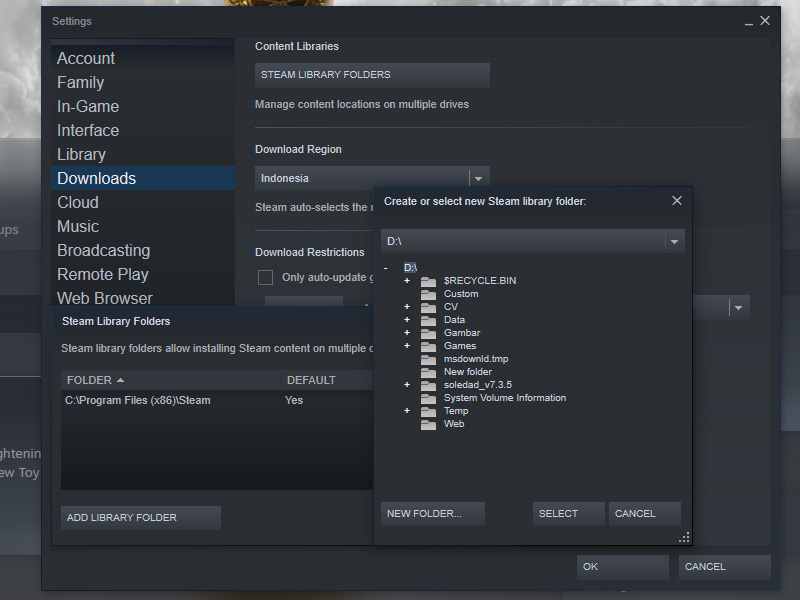
Open Steam and click Settings.
Click on ‘ Download ‘ and click on ‘ Steam Library Folders ‘.
Now, it’s time to add a new path for Steam, so click on ‘ Add Library Folder ‘ and add a new path.
Now, you have to move the file from the current location to the new location.
Close Steam now.
Now, open the current Steam location on the C drive (C:\Program Files\Steam).
Cut all the files and folders from here and paste them into the new location you have decided on.
Now, you have to launch Steam again and log into your account.
Now, if you are facing any problems while migrating files and folders from their previous location to a new location or after launching them again, have a look at the below steps and follow them.
The first step is to close Steam.
Now, go to the location where you have moved all the files and folders, i.e. the new location.
Now, find the ‘SteamApps’ folder and move it from here to your desktop.
Now, you have to take the hard step of Uninstalling Steam. You can do this by going to the Control panel–> Programs and features then right-clicking Steam and clicking Uninstall. This will remove Steam from your system.
Now, install Steam again.
Now, move the SteamApps folder to the new directory where you just installed the game. With this step, all games and saved data will be back with you.
Now, open Steam and log into your account.
Now, check the status of the problem.
#3. Reset Winsock
Reset Winsock
The problem may occur because of the Winsock catalog. Follow the steps below to run the command to reset Winsock.
Type run in the Windows search box and right-click the first result that appears. Click Run as administrator.
Now, type netsh Winsock reset in the Run box and hit enter.
The command will run and then restart your system and check if the problem is resolved or not.
#4. Check Disk Scan
Check Disk Scan
Oftentimes, the game and its files are perfectly fine but the Hard disk where the files are stored is corrupted. There may be bad sectors on the drive and therefore certain parts of the disk cannot be accessed. Disk speed slows down due to bad sectors.
Now, you need to check if the problem is related to your hard disk. You can try running a scan using “Disc Check” to check the drive for bad sectors. Follow the steps below to do this:
Press Windows Logo key + R type cmd in it and press Enter.
Type “ chkdsk c: /f ” and run the command by pressing the enter key.
Now, press “ Y ” and it will confirm the disk scan.
Now, the disk scanning process will start and you will be notified if there is a problem on the hard disk or is it fine.
After the disk scan is complete, check if the problem is still there or is it solved.
#5. Run Steam As an Administrator
Run Steam As Administrator
Let’s try running Steam as an administrator and see if the problem persists or goes away. You have to grant full access to Steam to be able to access all the folders and files. If access is not granted, the message ” Content File Locked ” will appear. Follow the steps below and check if the issue is resolved or not.
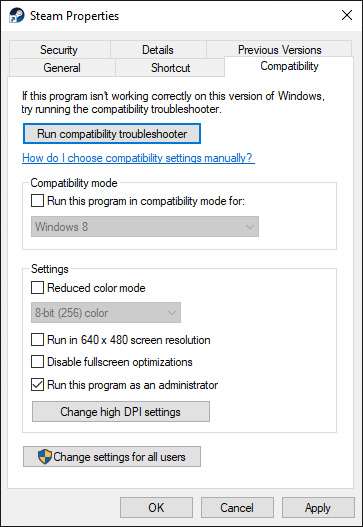
The first step is to right-click on the Steam icon and select the “ Properties ” option.
Now, the Properties window will open and you have to click on the “ Compatibility ” tab.
Now, there will be an option to “ Run as Administrator “. Put a checkmark.
Now, click on Apply and Ok so the changes will be saved.
Now, fire up Steam and see what happens.
#6. Disable Antivirus
Antivirus might cause the problem. It might block the work you want to do, so try to disable the antivirus until you update the game and then you can turn it back on.
Disabling antivirus is easy. You just need to go to the Antivirus dashboard and look for the Disable option. Disable for 30 minutes or more. You can also search the documentation on the antivirus site to disable the antivirus you are using.
So those are some ways to overcome Steam Content File Locked. So follow the above solution properly and fix the problem.
Note: If none of the above methods have solved the problem for you, we recommend using the Restore Repair Tool which can scan the repository to replace corrupted and missing files. This works in most cases, where the problem stems from a corrupt system. Restore will also optimize your system for maximum performance. You can download Restore.
9 Ways to Fix No WiFi Networks Found Windows 10 PC – WiFi networks that are within range of your PC appear automatically in the list of available networks. If you have a password to one of the available networks, you can connect it. If the network isn’t secured, you don’t need a password for it just connects.
9 Ways to Fix No WiFi Networks Found Windows 10
How to Fix No WiFi Networks Found Windows 10 PC Laptop 2024
If you have a list of available networks open and you see the No WiFi networks found message when you are supposed to see at least one network, here are a few things you can try to fix the problem.
Before you proceed with any of the fixes in this article, take the following actions, and check whether the network appears or not.
Restart your PC.
Please check if other devices in the house (tablets, phones, etc.) can detect other Wi-Fi networks
Restart your computer and reset your Wi-Fi router
If you’re using a laptop, make sure your physical Wi-Fi switch is turned on
Check if your Wi-Fi is active by going to the Start button and then going to Settings. Click on Network & Internet and then check whether Wi-Fi is active or not.
Make sure airplane mode is disabled. To do this, go to the Start button and click on Network & Internet. Open Airplane Mode and make sure it is not active.
If no network appears, here’s how to fix No WiFi Networks Found in Windows 10:
#1. Reset network adapters
Your network adapter may be experiencing a problem that a system restart cannot fix. In that case, resetting it is a good idea.
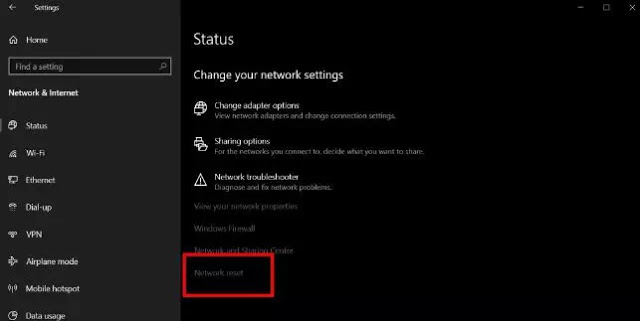
1. Open the Settings app.
2. Open the Network and Internet group.
3. Select the Status tab.
4. At the bottom, click the Network Reset option.
Reset network adapters
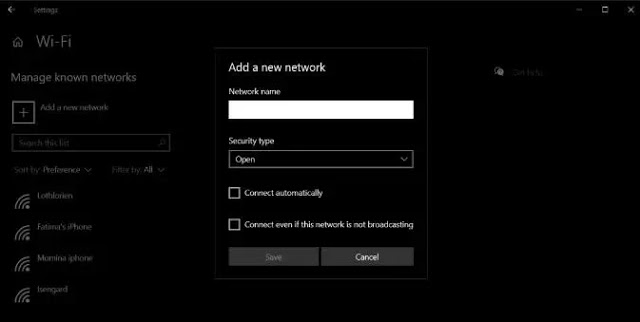
#2. Hidden SSID
The SSID or name for the network you want to connect to may be hidden. To be able to connect, you need to contact your system administrator and find out the name and password. Once you know both of them, you can connect to the network.
1. Open the Settings app and go to Network and Internet.
2. Select the WiFi tab.
3. Click Manage known networks.
4. Click Add a new Network.
5. In the window that opens, enter the network name, select the security type (check with network admin), and enter the password.
Hidden SSID
#3. Test network signal
WiFi networks have a limited range and the range is determined by the router used. In general, a typical home router has a maximum range of approximately 50 meters. If your Windows 10 PC is far from the router, then it can’t get a strong enough signal, it won’t show the network.
1. Move your PC as close to the router as possible.
2. Check if the network appears in the list of available networks.
3. If yes, start moving slowly until the network disappears or you return to where it was.
4. Connect to the network.
This solution is temporary as your problem is basically from a weak signal. Try moving a place closer to the router, or try installing additional access points that can improve the router signal.
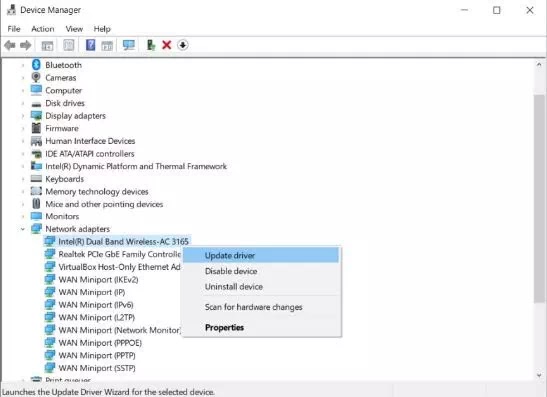
#4. Update the network adapter driver
Outdated network drivers can prevent Windows 10 from reading available networks. Check and install available driver updates for your network adapter.
1. Open the Device Manager.
2. Open the Network Adapters group and expand it.
3. Right-click on your network adapter and select Update driver from the context menu.
4. Install any available updates, and start restarting your PC.
Update the network adapter driver
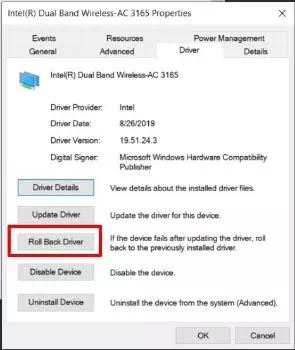
#5. Downgrade the network driver
It is possible that a driver update was installed and that is what is causing the problem. In this case, you will have to roll the driver back to an older version.
1. Open the Device Manager.
2. Open the Network Adapters group and expand it.
3. Right-click on your network adapter, and select Properties.
4. Open the Driver tab.
5. Click the Roll Back Driver button.
6. Restart your PC.
Downgrade the network driver
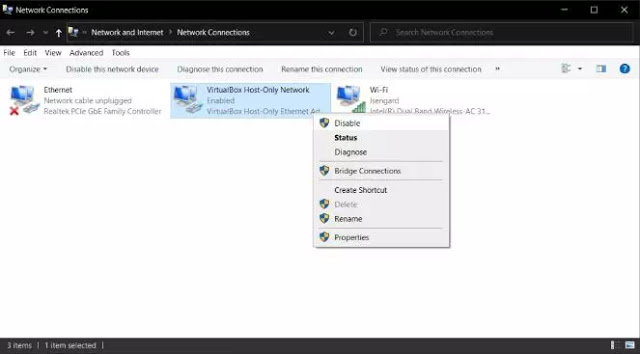
#6. Uninstall / disable virtual network adapters
Some applications may install a virtual network adapter on your system. A common example of an application that does this is a virtualization application, for example, VirtualBox. Removing it, or disabling it can fix your network problems. To disable virtual network adapters:
1. Open Control Panel.
2. Open Network and Internet.
3. Select Network and Sharing.
4. Click Change adapter settings.
5. Right-click the virtual network adapter, and select Disable from the context menu.
To uninstall a virtual network adapter, uninstall the application that was installed it.
1. OpenControl Panel.
2. Open Programs.
3. Select Uninstall a program.
4. Open the list of installed applications, select the one that installs the virtual network adapter, and click the Uninstall button.
Uninstall disable virtual network adapters
#7. Disable VPN
The VPN app can modify network settings on a Windows 10 PC and the modifications might result in your system no longer detecting the wireless network.
1. Turn off the VPN service you are using, restart the system, and check the network. 2. After the network appears, connect to one and then enable the VPN service again. 3. If the connection is lost or stops working after activating the VPN, check if the service you are using is prohibited by your ISP or in your country. 4. Try using a different VPN service or try using a VPN that only controls your browser or certain apps rather than network traffic for the entire system.
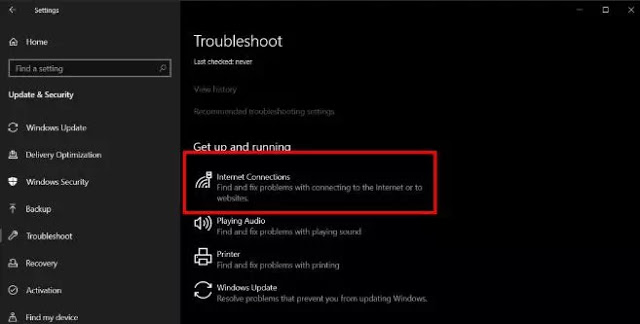
#8. Run the Internet Connections troubleshooter
The Internet Connections troubleshooter might be able to find out and fix any faulty settings or those that have been corrupted by other applications and prevent Windows from reading the available networks.
1. Open the Settings app.
2. Open Update and Security.
3. Select the Troubleshoot tab.
4. Select and run the Internet Connections troubleshooter. It might force Windows 10 to show you available networks.
Run the Internet Connections troubleshooter
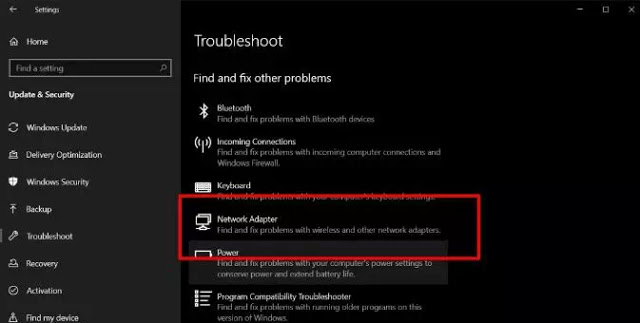
#9. Run the Network adapter troubleshooter
Like an Internet Connections troubleshooter, a Network adapter troubleshooter can also help solve No WiFi Networks Found in Windows 10.
1. Open the Settings application.
2. Open the Update and Security group.
3. Select the Troubleshoot tab.
4. Select and run the Network adapter troubleshooter.
Those are some solutions to fix the lack of WiFi networks found in Windows 10. I hope that one of the solutions above can help you solve this problem. If not, you may have to check if the hardware on your PC is damaged. A sign of hardware damage is if other devices can connect to the network you are trying to connect to but your PC is not connected.