10+ Best Free Calendar Apps for Windows 10 PC – For those of you who have a schedule, or event, or a busy activity, definitely really need a calendar to be a reminder of your date. The calendar is one of the most important things in our daily life.
10 Best Free Calendar Apps for Windows PC Laptop
10 Best Free Calendar Apps for Windows 10 PC Laptop
With the calendar, we can find out the date, month, and also the year that we are passing or which we have not passed. We can also find out when big days or certain events. The calendar is very important for those of us who are very easy to forget something.
Well, usually the calendar you use must be a calendar made of paper aliases that you often display in your room or living room. Currently, the use of such calendars is still less effective being used as a reminder of daily, weekly, monthly, and even yearly schedules or activities.
You must still often forget your own schedule that you have made on the calendar, right. Now, with increasingly sophisticated technology, now there are many calendar applications that you can use as organizers, managers, and even reminders of your daily schedule, events, or activities.
Not even just the basic features, there are many other additional features that you can use in one calendar application. Well, in this article, we will explain what calendar applications you can use on your PC or laptop. Immediately, please see the following explanation.
#1. Desktop Calendar
Desktop Calendar
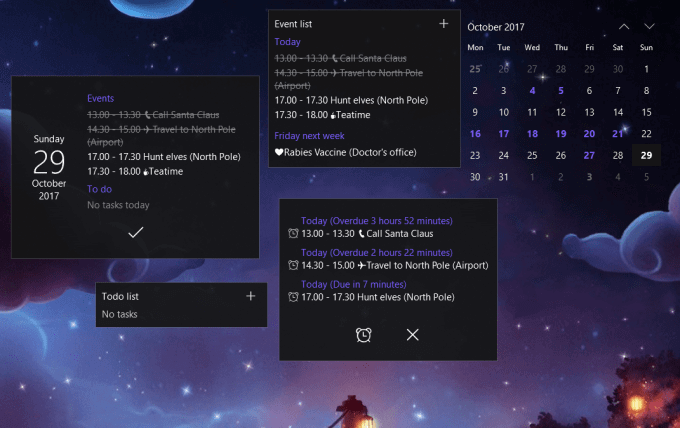
Desktop Calendar is a calendar application for PC / laptops that is provided free of charge. This application will display a calendar on the desktop screen of your laptop or PC and will also provide reminders of facts or things that you have made or that you need to remember of course.
By using this application, you can create, modify, delete, and add reminders or reminders. You can also choose the day, week, month, and year freely according to your wishes. You can also resize the calendar and move it around, and you can also change the color for the reminder, month, day, week, and so on.
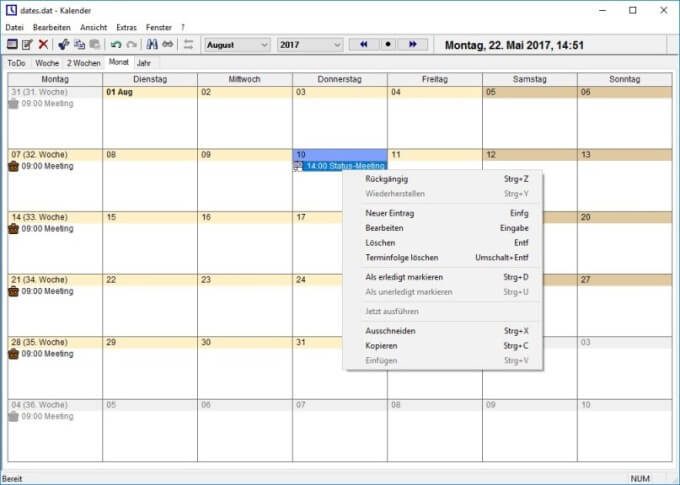
Rainlendar has various features that are very useful for you such as adding reminders and scheduling tasks. In addition, you can change the theme or skin of this Rainlendar application according to your wishes.
You can customize the theme according to your wishes, so the display will become more attractive. The Rainlendar application also has a feature to create to-do lists that can help you organize daily events or activities and remind them to use an alarm.
Another feature that Rainlendar has is that you can automatically repeat activities that you have added so that these activities will become a routine that you must do. You can also search and print any events or activities that you have added before.
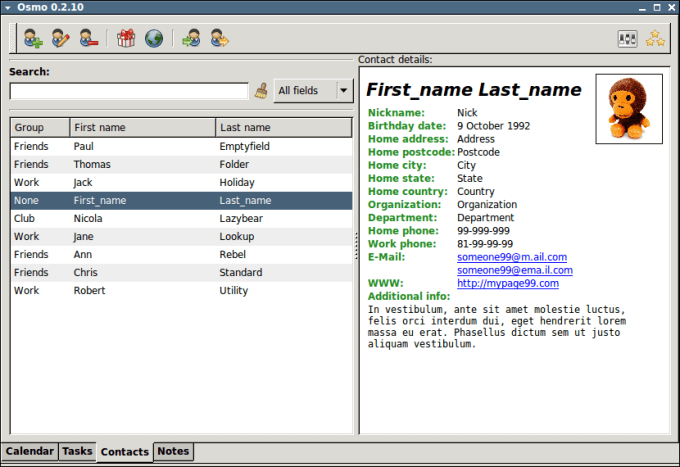
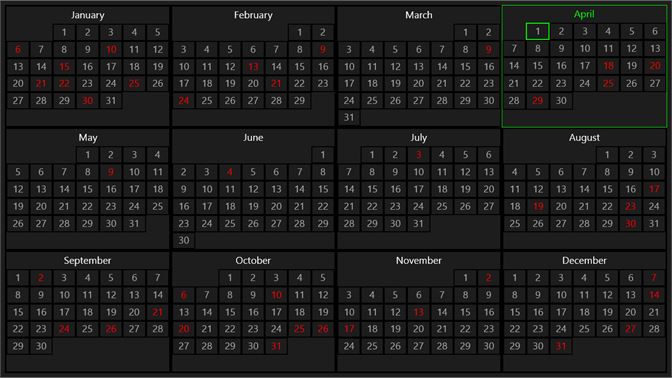
Osmo is also a calendar application for PC / laptops that you can use for free. Besides being able to display the calendar, the Osmo application can also display the week, the number of days remaining in this year, the day of the year, the current time, and so on.
The Osmo app is very easy to use and also very light. By using this Osmo application you will get to keep track of the application so that you will not be left behind from important tasks or schedules such as daily, weekly, monthly, and even yearly schedules.
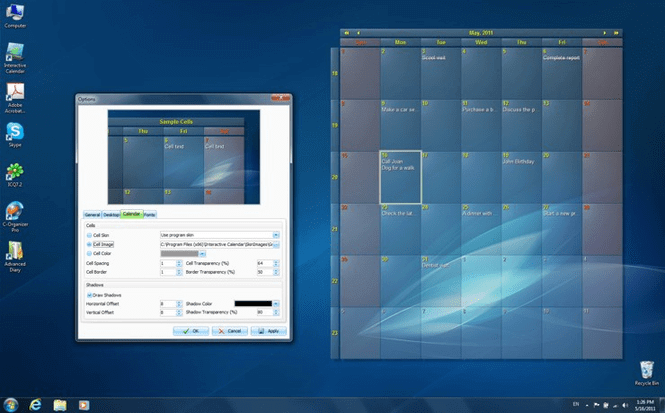
Interactive Calendar is a free application that you can also use for your PC or laptop. This application is certainly very useful if you install it on your PC or laptop. You can plan your daily, weekly, and monthly schedule by using this Interactive Calendar application.
This application can also be used to plan weekends so that your personal and business life will be balanced with help of this application.
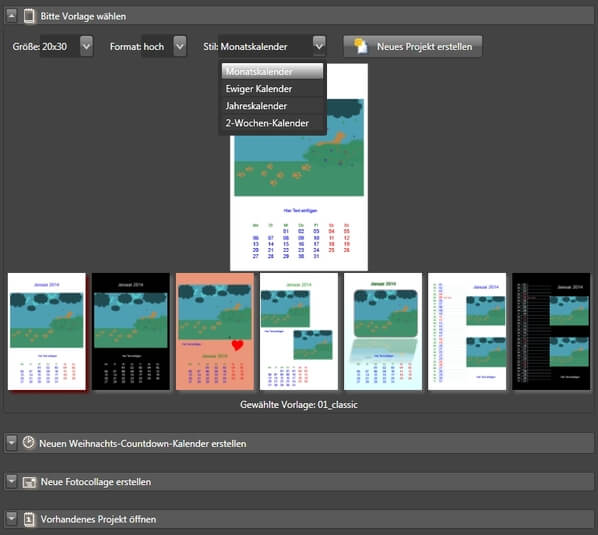
TKexe Calendar is a free application that you can use for your PC or laptop. This application is quite unique because you can create a calendar on one page and can add images to your liking.
You can add up to 20 images in a month. The images you use can be given additional special effects or can also be rotated. You can also add important tasks easily, manage schedules and activities, and can add reminders.
TaskTome is a calendar application that is also provided for free. The features that this application has in addition to the calendar are personal financial management features, notes, and recording tasks. The note and calendar features are certainly very useful for professionals with the support of other categories already available.
You can also do a plan that can be customized. The TaskTome application also gives you the option to enter a list of red dates from various countries in the world.
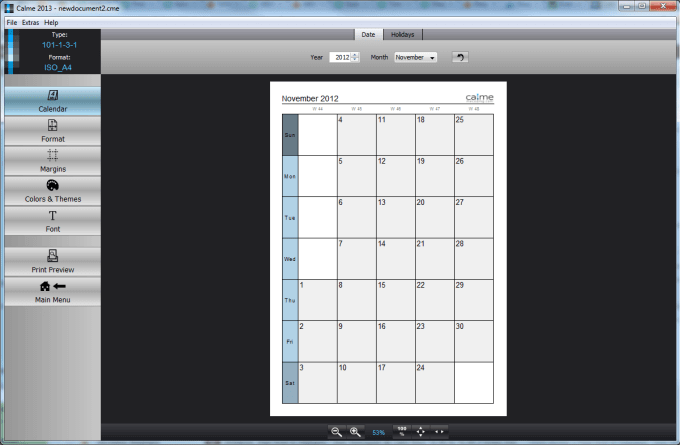
Calme is a calendar application for PC / laptops that you can also use for free. You can customize your calendar by editing the size, font, color, border, and margins on the calendar.
The Calme application is useful for recording important events and tasks and setting reminders or reminders, planning daily, weekly, and even monthly schedules.
The Birthdays application is one of the best and most free calendar applications that can help you record the age and birthdays of your friends or family. In addition, the Birthdays application also provides a status bar that can display anyone whose birthday is close to today.
This application is very easy to use. If you are a person who loves your friends and family, you are very suitable to use this application so that you don’t miss the birthdays of your friends and family.
UK’s calendar application has key features that can help you to do better personal and professional schedule planning. This app is like your personal to-do-list app which can be of benefit to you.
So, you will not miss any events or events or your daily work schedule. In addition, you can attach a to-do list on the date you have specified and you can also add other events.
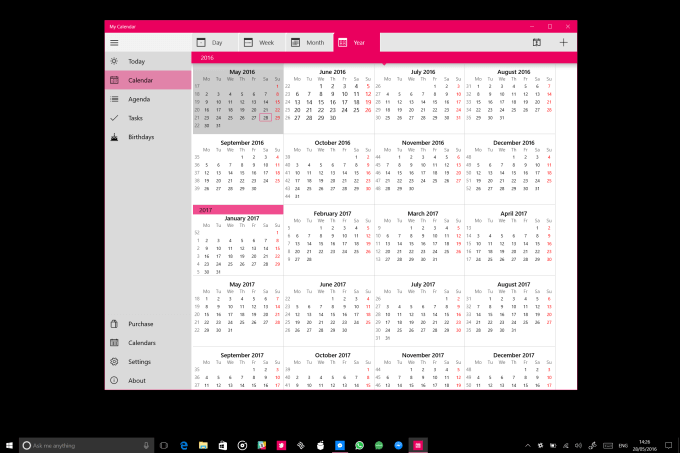
The My Calendar app is a pretty simple app for those of you who use Windows. Although the My Calendar application looks quite simple, this application has very useful features such as managing daily work schedules and important meetings and recording birthdays for those closest to you.
In addition, the My Calendar application has a feature to make changes to the theme or appearance. You can easily adjust the appearance of the application according to your wishes.
This is the explanation of the 10+ best free calendar apps for Windows 10 PC, You can decide which calendar app you want to use according to your needs. I hope this article is helpful to you.
15+ Best and Free Apps from Microsoft Store For Windows 10 PC – The Microsoft Store is an application distribution platform made specifically for Windows 10 and Windows 8. In it, there are tons of useful applications if you are smart enough to look for them, and the great thing is that the average application in the Microsoft Store can be used for free.
Here’s How to Download The Best and Free Apps from Microsoft Store on Windows 10 PC
On this occasion, I will provide recommendations for the best free applications on the Microsoft Store that can increase your productivity.
For a guide on how to install it, you can see here: How to install an application from the Microsoft Store
The following are the best free apps on the Microsoft Store:
#1. PhotoScape X
PhotoScape X
For business editing photos on your laptop, you can rely on PhotoScape X, this application is highly recommended for you to have.
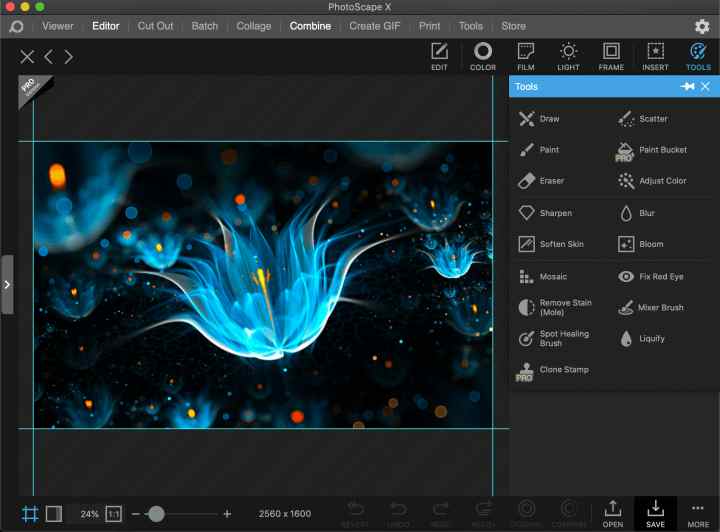
PhotoScape X is a PC photo-editing application that is very easy to use for beginners who do not have advanced editing skills. Unlike complex editors like PhotoShop, this app has simple and easy-to-understand navigation and menus.
Basically, in PhotoScape X there are several editors that are combined into one application, namely:
Viewer as gallery
Editor for editing photos
Combine to combine photos
Cutout to remove the background
GIF maker to make photos into GIFs
Print-to-print photos
The advantage of this application lies in its ease of use. The UI that looks modern and the navigation layout that is easy to understand will make the photo editing process no longer difficult.
PhotoScape X can be used for free, but if you want to get all of its features you have to upgrade to the Pro version.
#2. Microsoft To Do
Microsoft To Do
The second best free app from the Microsoft Store is Microsoft To-Do which functions as a daily planner to make your daily schedule easier to manage. Programs like this will be very useful for those of you who have busy activities.
Microsoft To-Do features:
Daily planner to make a daily activity plan
Synchronization on all connected devices under the same account
Share lists with friends and family
Themes that can be personalized as desired
Add notes to each task
Attach files up to 25MB
Free to use on all devices
You can list the activities you want to do for the day and set an alarm to remind you when the activity should be done. You can also make small notes which will be synchronized on all your devices.
Currently, Microsoft To-Do is not only available for Windows devices but also Android and Apple versions so that the notes you make can be accessed on all the devices you have.
#3. OneDrive
OneDrive
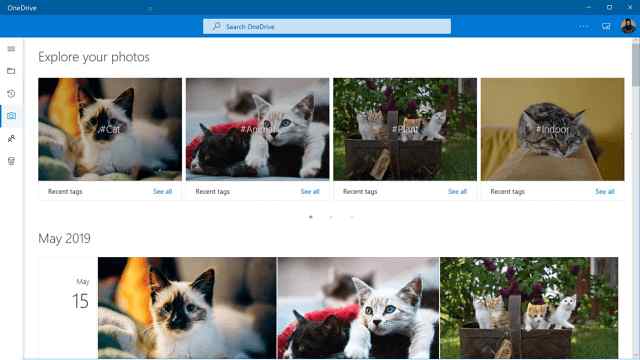
To store files in the cloud we can use a free service provided by Microsoft, namely OneDrive. Anyone who has created a Microsoft account will get 5GB of storage on OneDrive for free.
To access OneDrive you can use the browser, but it’s even easier if we install the desktop application in Windows 10. The OneDrive application that is already installed will be integrated with Windows Explorer so that you can access the folder directly without opening the browser.
Apart from OneDrive, there are still several Cloud Storage applications that you can install on Windows 10, namely Dropbox, iCloud, and Google Drive.
#4. VLC Media Player
VLC Media Player
Windows 10 has a built-in video player app that you can use. Unfortunately, this application has limited features, so those of you who like watching will feel less satisfied when using it.
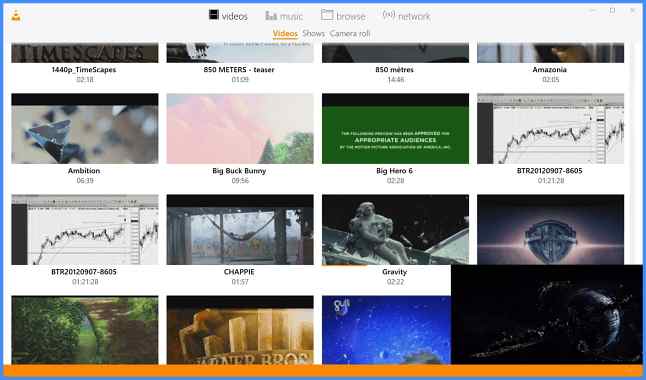
For that, we need a video player application that is just as light but has more complete features. The application we recommend is VLC Media Player. The app is available for free on the Microsoft Store and you can install it from there.
VLC Media Player is an open-source-based application that is free to use. This application has very complete features, you can use it to watch videos in various formats, add subtitles, and stream online videos.
The advantages of VLC lie in its very broad support for almost all available video formats. You can play videos and movies in any format, which the default Windows 10 video player application cannot.
#5. WhatsApp Desktop
WhatsApp Desktop
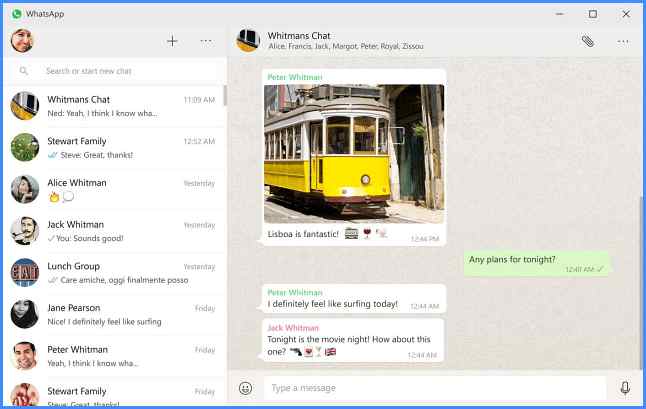
To use WhatsApp on a laptop without having to open a browser you can use the WhatsApp Desktop application. This application can be obtained directly from the Microsoft Store and is an official version, not a mod version.
After installing the application you can log in using the WhatsApp account on the smartphone, the method is the same as logging in to WhatsApp Web in a browser.
Overall, the features on WhatsApp Desktop Windows 10 are almost the same as the WhatsApp Web version in the browser, the advantage lies in the login cache which will not be deleted even if you clear history on the browser. Thus, we don’t need to log in repeatedly when using WhatsApp in a browser.
#6. Recipe Keeper
Recipe Keeper
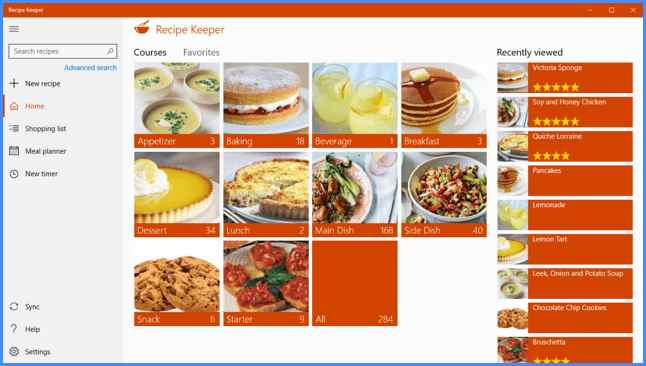
This application is suitable for women who like to cook, you can collect all the recipes found on the internet, in books, or from other people into one application so that it is easier to open again when needed.
Recipe Keeper can be a personal magazine that contains recipes that you want to try. You can also create a shopping list for the necessary ingredients with this application and open it on a mobile device.
One cool feature is Recipe Keeper’s ability to scan cookbooks and enter them directly into the app. This way you can quickly save recipes without the hassle of retyping them.
#7. Fotor
Fotor
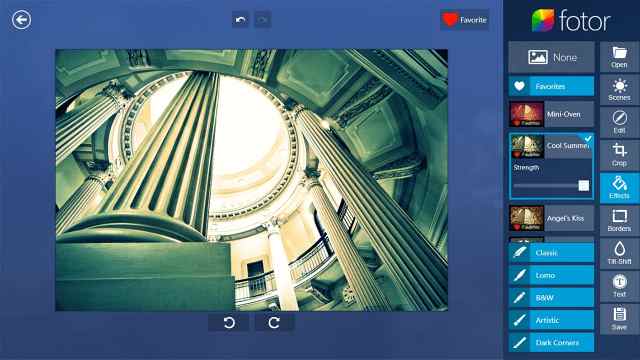
The best application on the Microsoft Store which is next is Fotor. This application is a free photo editor that you can use on PCs and Windows 10 laptops.
Fotor can be used to do simple editings such as cutting, cropping, and resizing, to more complex ones, such as applying effects, filters, and color corrections.
One of the features that you will love is the 1-Tap Enhance feature which allows you to edit photos to be more attractive with just one click.
Besides that, Fotor can also be used as a RAW photo editor for a collection of photos that are taken from cameras and smartphones.
#8. One Note for Windows 10
One Note for Windows 10
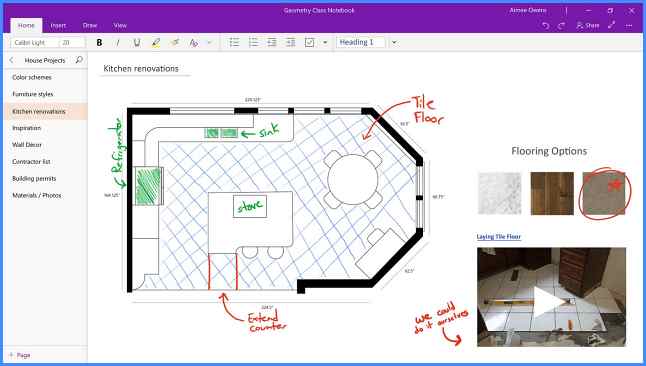
One Note is a digital notebook application for Windows 10 laptops that can be used to make notes of whatever you want to keep.
While reading an interesting text you may want to save it so you don’t forget it, that’s when the One Note app will come in very handy. This application can save notes that you make on your laptop and then open them on other connected devices, and vice versa.
Apart from taking notes, One Note also provides a drawing feature that allows us to make notes equipped with hand drawings. This application is very suitable for use by students and students to keep notes of material obtained from class.
#9. Zoom Rooms
Zoom Rooms
In this digital era, learning activities, meetings, and seminars no longer have to be face-to-face. There is already technology that allows us to do it over long distances without being face-to-face. One application that can be used is Zoom Rooms.
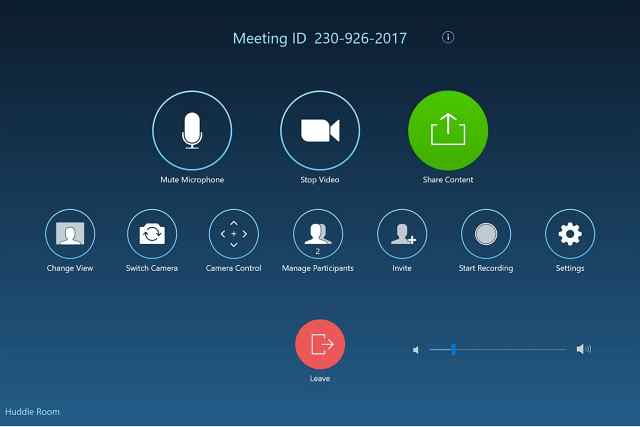
Zoom Rooms is a video-conferencing application that functions to conduct long-distance meetings using the Internet network. Users can connect, have conversations, and see the other party through video captured by the camera.
This application also supports cross-platform use, which means that they can be connected even if the devices used are different (PC, laptop, tablet, smartphone).
For Windows 10 users, Zoom Rooms can be installed for free from the Microsoft Store. You must try it.
#10. Total PC Cleaner
Total PC Cleaner
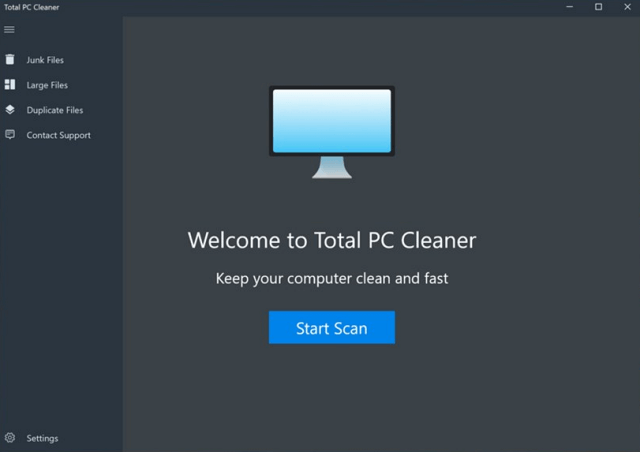
The best Microsoft Store application that you must have next is Total PC Cleaner. This application serves to clean junk files in Windows 10.
As we know, junk files such as temporary files and cache are the cause of the C drive being full, especially if you leave it too long without ever cleaning it. Windows 10 will also save the remaining update files which are usually quite large, using this cleaner application we can clean them easily.
Cleaning junk files on your computer is also a pretty powerful way to speed up Windows 10, and most importantly, we can use storage space for other, more useful things.
You can get Total PC Cleaner directly from the Microsoft Store. The appearance of this application is so simple that you will immediately understand and be able to use it.
#11. Telegram Desktop
Telegram Desktop
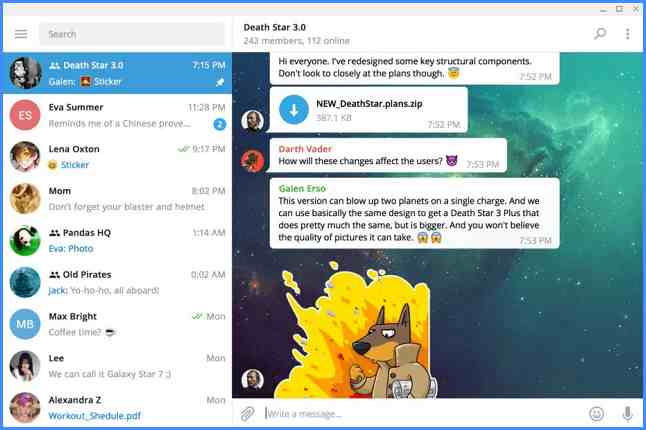
Telegram is a messaging application that is quite popular besides WhatsApp. Reportedly Telegram has a higher level of security than other applications. If you use it on a smartphone, then you can also install the desktop version on a laptop.
Telegram Desktop is available on the Microsoft Store and can be used for free. You just have to install it and then log in with an existing account on your smartphone. This application will work in an integrated manner on these two devices.
Unlike WhatsApp desktops which can only be opened when the smartphone is active, Telegram can run independently even though the smartphone is off.
#12. Language Dictionary
To translate English to Indonesian on a laptop you can use a dictionary application. One that is available on the Microsoft Store is a Language Dictionary that supports Indonesian translation.
Language Dictionary is an offline dictionary application that contains fairly complete vocabulary data. This application can also run well on Windows 10 because it is designed to run on this operating system. For those of you who are always dealing with English, this application is a must for you.
#13. WPS Office Suite
WPS Office Suite
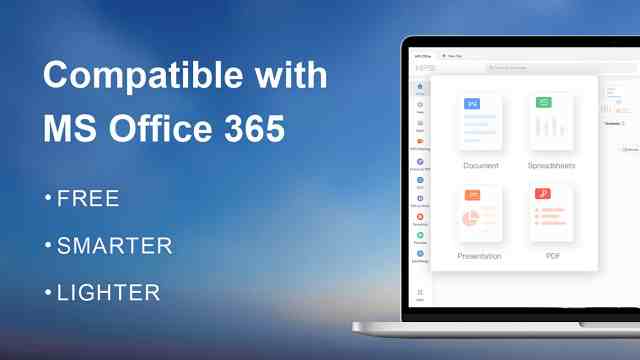
WPS Office Suite is an office application that you can get for free from the Microsoft Store. This application is one of the mandatory applications in Windows 10 which will be very useful for you.
You can use this application to edit documents such as Word, Excel, and PowerPoint. Its functions and features are also quite complete and can run well on Windows 10 so it is suitable as a paid alternative to Microsoft Office.
The WPS Office Suite also provides a cloud feature that lets you store and edit files online. This can be very useful for people with high mobility so they can continue their work from anywhere as long as there is an internet connection
#14. PDF X
PDF X
To open PDF files with a computer nowadays is no longer a difficult thing, in fact, almost all of the latest browsers have a PDF file reader feature that can be used.
In Windows 10, PDF files can be opened with the Microsoft Edge or Google Chrome browsers that are already installed, but if you want more complete features then you can use the additional PDF Reader application.
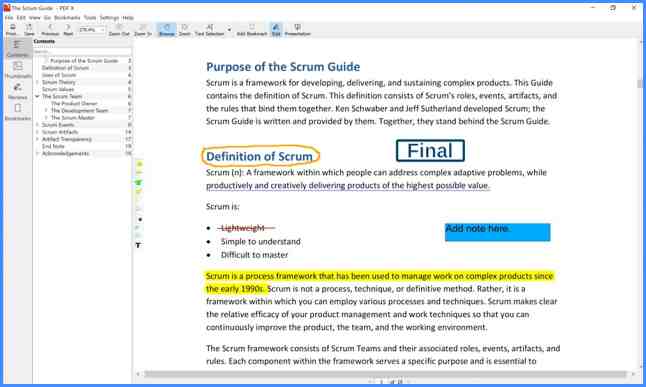
One of the best PDF Reader apps on Windows 10 is PDF X. It’s a pretty lightweight app and it’s also quite comprehensive. You can use it on a laptop for free.
PDF X can be used to open, edit, and share PDF files with other users. One cool feature is that this application can open PDF files that are password-protected.
To find a specific part of the document you can also use the search feature which will really help speed up your work.
#15. Complementary applications
Apart from the essential applications above, there is other good software in the Microsoft Store that you might be interested in installing.
Such as:
Netflix: to watch movies online from the Netflix site
Flipboard: a magazine application for collecting interesting sites
TeamViewer: a remote desktop application
Duplicates Cleaner: an application to clean duplicate files on a laptop
Sticky Notes: an application used to take notes on the desktop
Evernote Touch: alternative notepads like One Note
Grammarly: grammar proofing when typing in English
Windows Terminal: a terminal application for Windows 10, much like the terminal on macOS and Linux
Book Bazaar Reader: for those who like to read books, this application is a must-have, functions as a PDF reader for various free books from the public domain
Autodesk SketchBook: an application for drawing sketches
Those are some of the best free applications on the Microsoft Store that you can install on PCs and laptops to make work easier and increase your productivity.
Best 8 Video Editing Tools To Edit Gaming Videos – Creating stunning gaming videos doesn’t require you to be a professional video editor. A feature-rich, user-friendly, and intuitive video editing tool is all you need. However, finding that one professional tool is not as simple as it sounds.
Best 8 Video Editing Tools To Edit Gaming Videos
Video Editing Tools To Edit Gaming Videos
With tons of video editing tools out there, it is hard to spot the one that will match your needs and work wonders for you. You are likely to spend many hours researching the best option. But, not to worry, we’ve made it easy for you.
We’ve conducted extensive research and compiled a list of the eight best editing tools to help you get started. Just add them to your collection now and complete your project in no time.
Let’s get started!!
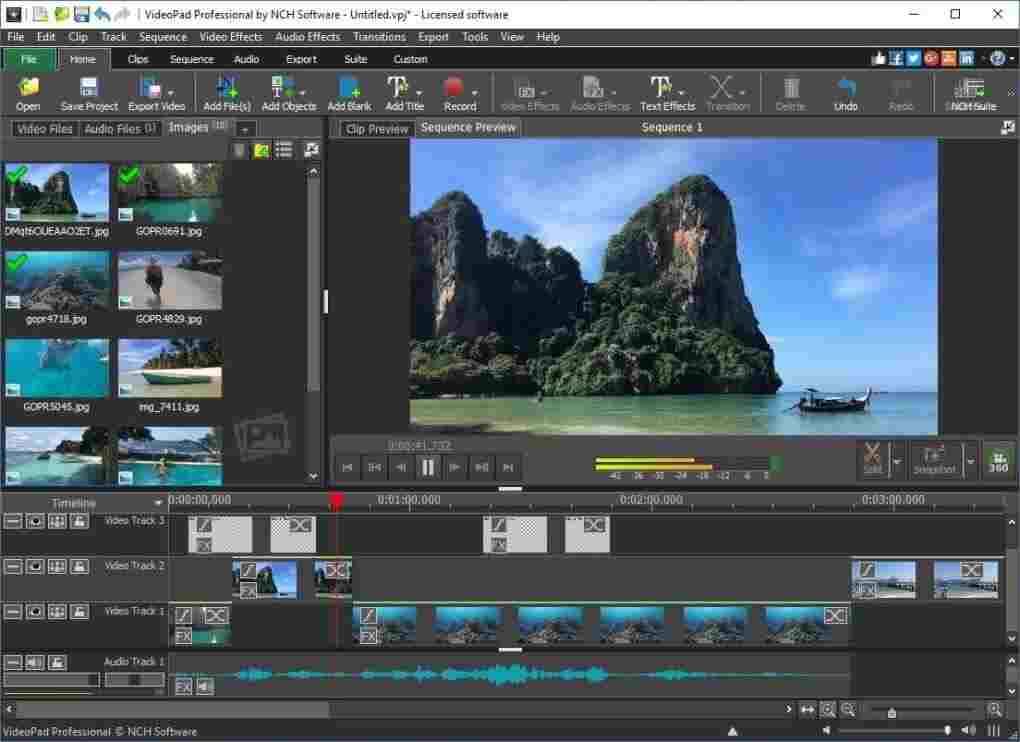
#1. VideoPad
Let’s kick off with a premium video editor tool, VideoPad. Ideally designed for beginners, this feature-packed editing tool is an excellent pick for those who wish to create a superior-quality gaming video without leaving a hole in their pocket.
This tool offers a gamut of functions, including 3D video editing, a sound effects library, and different video compositions and styles. Once you are done editing, this tool can simply export your video to any platform you want, including YouTube, Google Drive, Facebook, etc. The only shortcoming of this editing tool is that it may be too simple for advanced users.
Features:
A massive library of customizable transitions
Compatible with Mac and Windows
Double built-in screen
Allows social media sharing
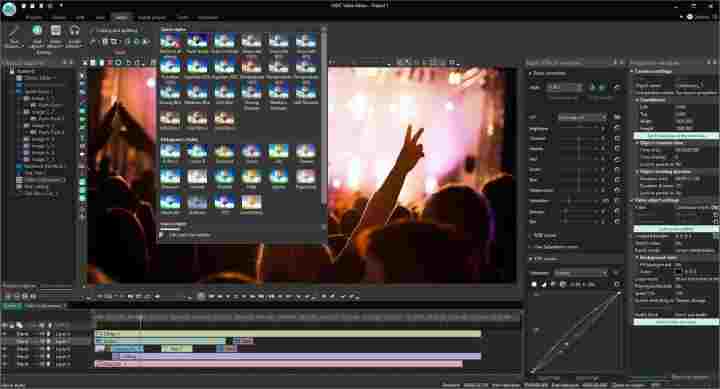
#2. VSDC Free Video Editor
A desktop-based video editing tool, the VSDC Free Video Editor is a powerful, user-friendly program to edit your favorite videos easily. It is only compatible with Windows and is available in both free and paid versions. What makes it worth it is its free version includes a complete video editing suite, including a chroma key and mask tool.
Developed by Multilab LLC, it is a non-linear editing tool that can efficiently process high-resolution footage, including 4K UHD, VR 360-degree, and 3D videos.
Features:
Video stabilization
Social media sharing
Robust post-production effects
Easy to use
#3. InVideo
It is a professional video editing tool that allows you to create stunning videos without spending a dime. It is loaded with tons of features and is suitable for beginners and professional video makers alike. It features 5000+ readymade templates that can add a professional touch to your videos in no time.
On top of everything, this video editing tool is simple to use. Referred to as the best online video editor, All you need to do is just select the template that fits your project, customize it by adding a free stock of music or images, and download or export the video to whatever platform you feel like.
Features:
Works across all languages
User-friendly interface
Gives access to the premium video library
Allows to add unlimited team members
#4. Lightworks
Simple and intuitive, Lightworks is one of the most accessible and easy-to-learn Linux video editing tools to add to your collection. It has a vast array of detailed video tutorials and boasts a suite of original stock videos and music clips.
This free video editing toolis compatible with Windows, Mac, and Linux. Built by world-leading editors, it is a non-linear editing system ideal for students, schools, colleges, and universities for editing and mastering digital video.
Features:
Supports a wide range of video formats
Allows real-time project sharing
Speed optimization
Easy sharing of videos
#5. HitFilm Express
Robust and powerful, HitFilm Express is a free gaming video editing tool with professional-grade VFX tools and everything you require to create stunning gaming video content.
It performs the role of both editor and compositor within a single platform and can stack unlimited videos as long as your system can handle it. It may seem advanced initially if you are new to the video editing field, but it is worth the learning curve. It includes various animation tools to create audio and video transitions, thus eliminating the need to capture composite shots.
Features:
An adaptive trimmer to re-trim your videos
Unlimited audio and video timeline-track creation
Auto-stabilization
Compatible with Mac and Windows
#6. DaVinci Resolve
The only video editing tool that combines editing, visual effects, motion graphics, color correction, and audio post-production in one platform, DaVinci Resolve is an ideal pick for advanced video makers.
Developed initially by DaVinci Systems, it supports online and offline editing and features a dual timeline for quick navigation, cutting, and trimming. It has an intelligent audio editing system that automatically syncs audio and visual clips to create a stunning gaming video.
Features:
Works great with Mac, Windows, and Linux
Supports processor-intensive file formats, including H.264 and RAW
Boasts a high-performance playback engine
Built-in tools for adding picture-in-picture effects
#7. Shotcut
An open-source, accessible, and cross-platform online video editor, Shotcut supports a wide range of video formats, including 4K, ProRes, FFmpeg, and a lot more. It also offers a good collection of tutorial videos.
Since it was initially designed for Linux, you may find its interface a bit tricky compared to others. It is equipped with a native timeline editing feature that allows users to import their gaming videos directly to their project files to save time and effort.
Features:
Excellent compatibility
Free to use
Simple user-interface
Support for the latest audio and video format
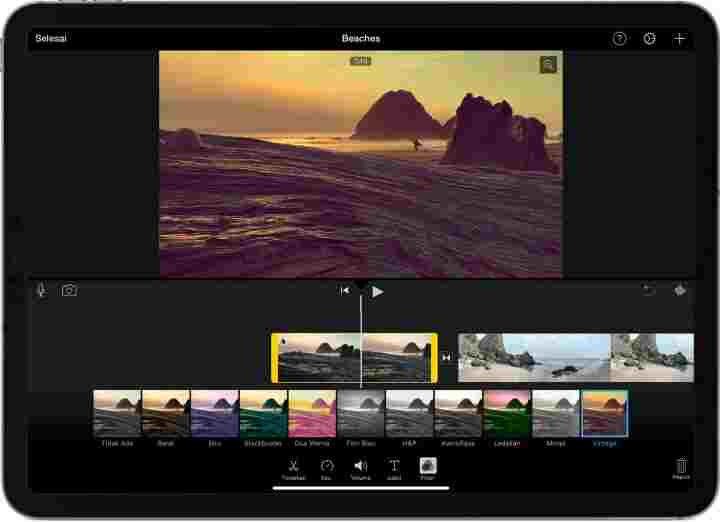
#8. iMovie
Created by Apple Inc., iMovie is mainly designed for iOS, macOS, and iPadOS devices. It is equipped with a simple drag-and-drop interface that allows you to move your files from your drive to the workstation before you commence work.
It comes with a streamlined design and intuitive multi-touch gestures to create gaming videos like a pro. Since Apple designed it for iOS only, it has no Windows PC version. The developers constantly update this video editing tool and add new features regularly.
Features:
Simple and easy-to-use
Supports 4K resolution
Available for free
Contemporary video filters
Cloud-storage functionality
Speed control
Conclusion:
So, that’s all about the best gaming video editing tool out there for those who play Android or PC games. We hope this guide helps you make the right choice. All of these editing tools come with their own set of advantages and disadvantages.
Therefore, it is recommended that you pick the feature-packed option that meets your video editing requirements. Spend time checking the various tools available before identifying the one that works best for you. There’s no point investing in the most expensive tool if you are never going to use all the features it provides.
So, if you arenew to the video-making process and looking for the best editing tool, your search ends with these 8 tools. With thousands of readymade templates, this platform is the best choice for making awesome gaming videos.
11 Best Free Video Editing Applications For Windows PC – To create interesting video content, we need a lightweight and powerful editor application. But the average application that is popular today is not free, you have to pay a license to use it.
10 Best Free Video Editing Applications For Windows
Best Free Video Editing Applications For Windows 10 PC Laptop
But the question is, should we use paid video editing applications to create interesting video content?
Not really. It turns out that there is a free video editing application that is good enough for editing videos on a PC with results that are no less interesting than expensive applications. Many YouTubers and Instagram activists also use free applications. It all depends on the skill and creativity that uses it.
In this post, I will provide several choices of free, lightweight, and easy video editing applications that you can use on PCs and laptops. Equipped with an explanation of its features, along with its advantages and disadvantages.
#1. EaseUS Video Editor
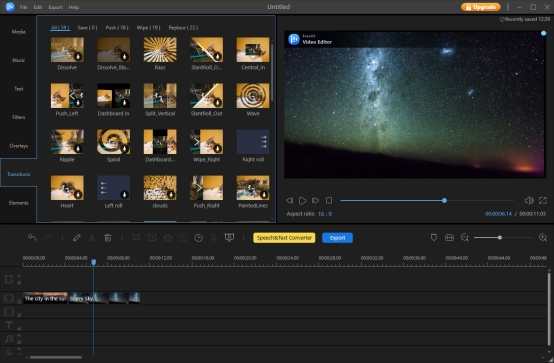
EaseUS Video Editor is an easy-to-use video editing software for beginners. Nowadays, since videos are so popular, anyone could be a video creator. No matter what kind of videos you’d like to create – birthday video, wedding video, tutorial video, product demo, website guides, etc., you can rely on this amazing video editor for Windows 10.
This software is a novice-friendly video editor. It features a super simple and clean interface – even your grandma can quickly start making videos with it. You can import your video resource from your PC or many portable video devices, like Apple, Samsung, HTC, SanDisk, Sony, LG, Huawei, BlackBerry, Amazon, etc.
In addition, it includes nearly all the features a handy video editing software might have, such as basic timeline editing features, speech & text converter, green background cutout feature, and many more.
Better still, it also offers built-in resources, including music, filters, overlays, transitions, and many other elements. With a mouse click, you can apply the video resource as you want to your video, to add a creative touch to your masterpiece.
100+ built-in quality video effects, such as filters, overlay, transition, etc.
Edit and manage multiple videos and audio tracks on the timeline
Easily Trim, crop, split, rotate, and mix video and audio as you want
Add subtitles or text to your video with ease
Add watermark, zoom, mosaic, etc.
Convert your video to a file type you prefer, for example, convert MP4 to GIF, MP4 to MP3, YouTube video to MP3, etc.
Speed up/slow down your video/audio
Record your narrations with one mouse click
Convert speech to text or text to speech
Support green effects to separate the subject from the green background
Audio enhancement
Advantages:
Perfect for beginners
Straightforward interface
Complete features
Multiple tracks
Video effects, filters, etc.
Unique speech&text converter
Audio optimization
A free version is available
Deficiency:
Only available for Windows
The free trial has some limitations of features
#2. Shotcut
Shotcut
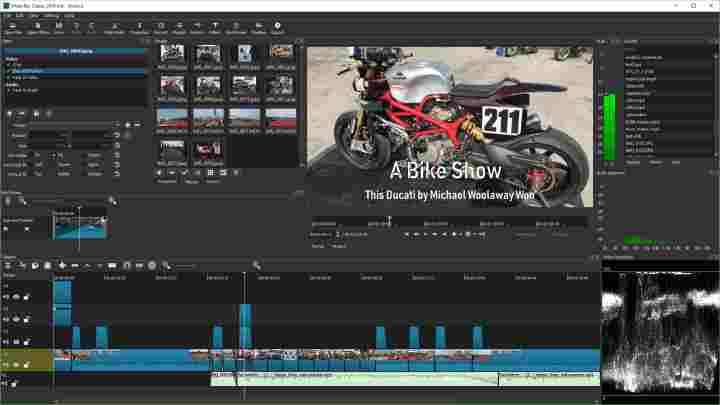
Shotcut is an open source-based video editor application that can be used cross-platform on Windows, macOS, and Linux operating systems. This application is the right choice for beginners who are new to the world of video editing.
Shotcut has sufficient features to carry out a professional editing process, but it has a display and navigation that is quite easy to understand. This application is also quite light to use on laptops with low specifications.
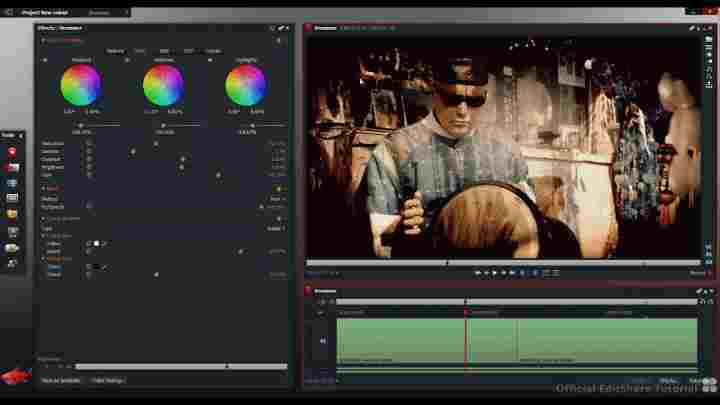
You can edit videos in a multilayer manner, add audio, apply effects, combine several video clips, cut the part of the video that you want to remove, and many other features.
Because it is open-source-based, Shotcut can be used free of charge by anyone for various purposes. Shotcut is also light enough to use on PCs and laptops with low specs, with a fairly fast rendering process. This application is included in the list of must-have applications in Windows 10.
For those of you who want to work as a Youtuber, or want to make promotional videos on Instagram but have a limited budget to buy expensive software, try using Shotcut first, guarantee you will like it.
Balance, Bass & Treble, Band Pass, Compressor, Copy Channel, Delay, Downmix, Expander, Gain, High Pass, Invert, Limiter, Low Pass, Noise Gate, Normalize: One Pass, Normalize: Two Pass, Notch, Pan, Pitch, Reverb, Swap Channels
Audio mixing across all tracks
Fade in and out the audio and fade video from and to black with easy-to-use fader controls on the timeline
Video Effects and Filters
360 videos
Trimming, cutting, cropping, muting, and other professional editor features
Drag-n-drop files from the file manager
Scrubbing and transport control
Keyframes for filter parameters
Cross-Platform & Codec Independent
Display and Monitoring
OpenGL GPU-based image processing with a 16-bit linear floating point per color component
AMD, Intel, and NVIDIA hardware encoding
Advantages:
Free, open-source
The lightweight video editing application
Suitable for beginners
Cross-platform can be used on PCs and laptops with Windows, Linux, and Mac operating systems
Complete features for professional editing
Multi-track editing
Complete effects and filters
Lightweight and fast rendering process
Hardware support can use CPU and GPU acceleration
Deficiency:
There is no filter preview
It takes time to understand the Navigation UI
#3. Openshot
Openshot
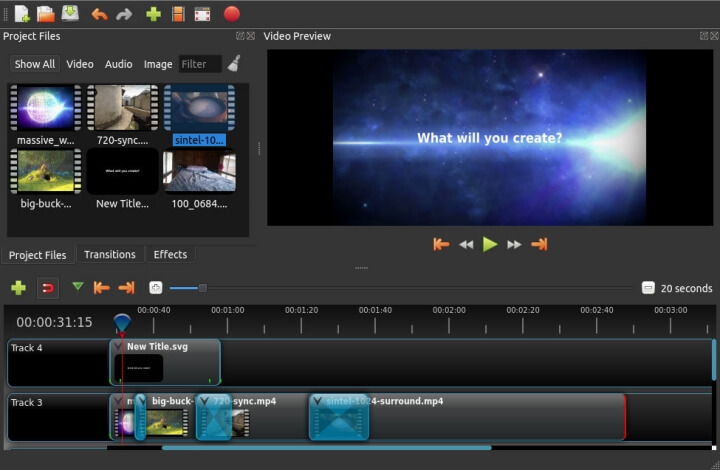
Openshot is an open-source video editor application that you can use for free. This application is very light and easy to use, perfect for beginners who want to learn to edit videos.
The appearance of this application is very easy to understand, for Mac users its appearance will remind you of the iMovie application.
Editing videos at Openshot can be done as easily as drag and drop, there are no complicated menus that will confuse you like using other professional video editors.
But make no mistake, the features in the Openshot application are complete enough to create interesting videos according to your needs. Want to make cool aesthetic videos for Instagram or want to edit videos with slow-motion effects? You can edit it at Openshot.
For beginner YouTubers, this application is also very suitable to use, apart from being free, this application also supports multi-track layer editing which can be used to combine several videos into one interesting video.
The appearance of the application is not confusing
Can edit multi-track with unlimited layers
Audio mixing
Suitable for beginners
Deficiency:
The rendering process is a bit slow
Tutorials that discuss using Openshot are a few
#4. Blender
Blender
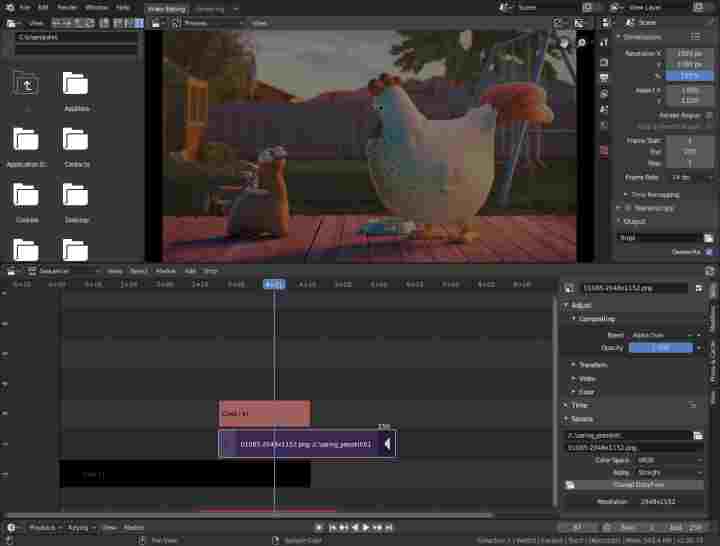
The next best free video editing application for PC is Blender. Maybe you’ve heard the name as a 3D animation maker application, but it turns out that Blender also has features that can be used to edit videos.
Blender’s video editor can be used to do basic editing, such as cutting videos, combining clips, and inserting audio. The live preview feature will make the editing process easier.
Blender is an open-source application that is completely free, you can use it on any computer device you own without having to pay for a license. This application can also be used on Windows, Mac, and Linux operating systems.
This application is designed for 3D modeling, so the features are too many and a little confusing when used for editing videos
The tutorials available mainly cover 3D modeling, with only a few on video editing
#5. Lightworks
Lightworks
Lightworks is the right choice for those of you who are looking for a free professional video editing app. Whatever the need, whether it’s to make YouTube videos, short films, or videos for promotional purposes, you can do this with this application.
The features in Lightworks are no less complete than expensive applications such as Adobe Premiere, Final Cut Pro, or Sony Vegas. With this application, you can edit videos in a non-linear and multi-track manner so you can have more freedom in your creation.
Using the free version of Lightworks allows you to produce great videos with 720p HD resolution for YouTube. If you want to produce videos with 4K resolution you have to buy the pro version.
This application is suitable for those of you who want to jump into the world of professional video editing or want to be a YouTuber but are not ready to buy expensive software. You can use the free version first to master editing skills with Lightworks, after which you can easily upgrade to the pro version.
There are many editing tutorials with Lightworks that you can learn from
UI can be modified according to user taste
Cross-platform can be used on Windows, Mac, Linux
Deficiency:
The UI will be difficult to understand for beginners
For 4K video editing, you must use the paid version
Video export is limited to the MPEG format for the free version
#6. Davinci Resolve Free
Davinci Resolve Free
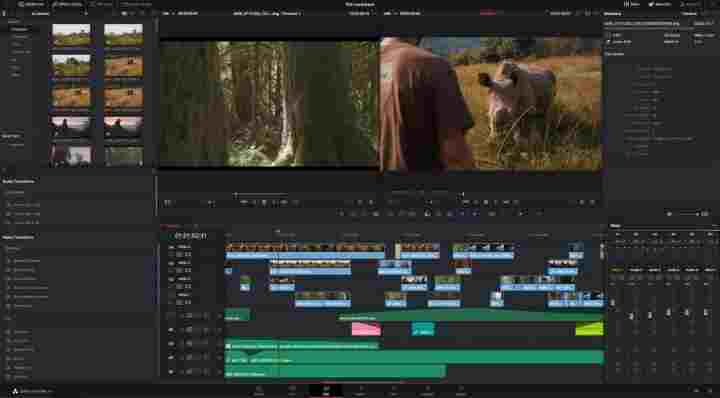
Davinci Resolve is an application for editing videos with professional features and a modern UI. This application also provides a free version that can be used for free on PCs and laptops.
The appearance of this application at a glance is similar to Adobe Premiere with editing features such as slicing, trimming, filters, cool effects, and color correction. You can produce professional editor-class videos and films when you master them.
This application is also suitable for those of you who want to dive into the world of professional video editing, make promotional videos on Instagram and Facebook, to become a YouTuber.
You can use the free version of Davinci Resolve to edit videos, but if you want all of its features you’ll have to buy the pro version.
The features are so many that it takes time to understand, especially for beginners
#7. HitFilm Express
HitFilm Express
Want to edit a video recorded with a smartphone camera into an interesting movie? Or intend to be a gaming YouTuber with full-effect videos? This HitFilm Express application is what you need.
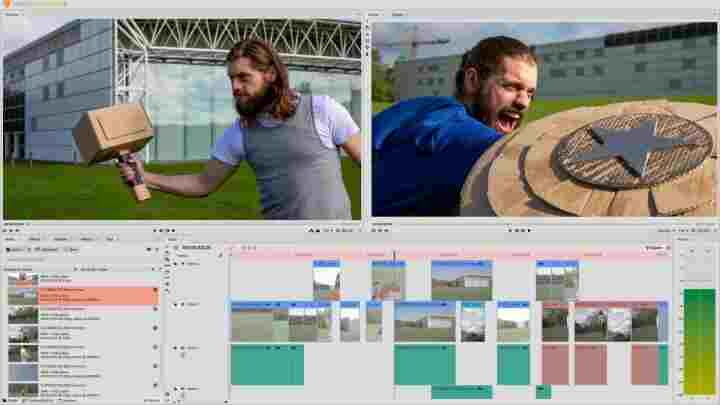
HitFilm Express is a professional video editor application for PCs that can be used on Windows and Mac operating systems. In it, some features are complete enough to make video editing ranging from slicing, trimming, audio mixing, effects, filters, and much more.
Speaking of effects, HitFilm Express provides more than 180 types of cool effects that are ready for you to use to create epic films. If you just want to edit slow-motion videos, it will feel very easy. Even films like Star Wars are made with this application.
HitFilm Express is a paid application with a hefty price, but those of you who are still in the learning stage can use the free version. To get the free version, the conditions are enough to share the status on social media.
Has many interesting effects that are ready to use
Suitable for professional editing
Perfect for vlogging, film making, and YouTuber Gaming
Deficiency:
The free version has limited feature access
It takes time to understand the navigation UI and its features
#8. Avidemux
Avidemux
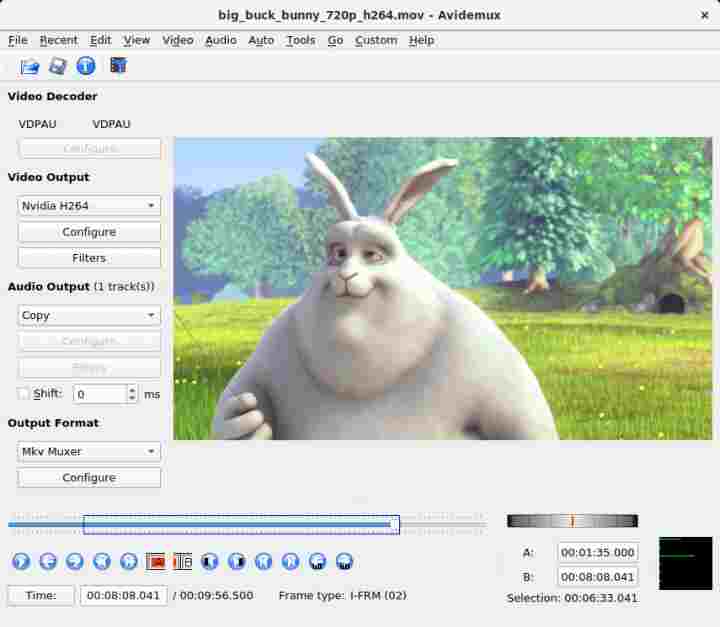
Avidemux is a video editing application that is very light and easy to use. This application is suitable for beginners who want simple video editing such as cutting and merging videos, inserting audio, and adding text.
For those of you who are truly beginners in the world of editing, this application is perfect for starting learning. Avidemux can also be used on low-spec laptops with Windows, macOS, and Linux operating systems.
Apart from being used for basic editing, Avidemux also has filtering and encoding features that you can take advantage of.
The next free PC video editing application is AVSDC Free Video Editor which is available for free for Windows users. This application is a professional editor that provides a free version with quite complete features.
One of the advantages is the color blending feature which allows making the nuances in the video more alive. With a little creativity in this section, you can produce a video that suits your needs.
VSDC Free Video Editor is also suitable for celebrities, or those of you who want to make Instagram content more interesting. It includes filters similar to those on Instagram, ready to be used to make videos better, faces smoother, and other beauty effects.
It has lots of great effects, similar to the Instagram effect
UI navigation is quite easy to understand
Deficiency:
Only available for Windows
#10. iMovie
iMovie
iMovie is a great app for learning to edit videos on Mac for free. This application is like a native application on macOS which is very easy to use.
For basic edits like video trimming, merging clips, and adding sound this app is more than sufficient. If the need is just for making a simple documentary film or a school assignment then using iMovie is the best choice for Mac users.
What’s more, iMovie also has ready-to-use filters with a cool cinematic touch. This filter can be used for free to edit videos into interesting films. If you want to make a video with a slow-motion effect in certain parts, iMovie also has a feature.
Limited features, not as complete as other professional video editors
#11. VideoPad
Producing cool videos with professional quality doesn’t have to always use expensive software, as long as you have the creativity and willingness to learn, free applications like VideoPad can be very powerful.
VideoPad is a free video editing application specifically for Windows PC and laptop users. This application is very easy to use by beginners but has complete editing features. Even for those who don’t have any experience at all, it won’t be difficult to use it.
The VideoPad application display is fairly simple with easy-to-understand menus. Not much navigation is confusing like other advanced editor applications so it is suitable for starting the learning process in the world of video creators.
VideoPad supports multi-track editing, meaning you can create multiple video layers in one timeline, add transition effects, and audio, create zoom effects, and much more. The more creative you use it, the resulting video is no less good than an expensive editor.
21 Best Free VPN for Windows 10 Laptop PC -Download the best Free VPN for Windows 10 laptops & PCs that you can try to use to surf safely and access almost any blocked site on the internet without a hitch. For anyone surfing the Internet, personal safety and security are some of the most important things that are always on their mind.
Download Best Free VPN for Windows 10 Laptop
Download Best Free VPN for Windows 10 Laptop PCs 2024
Some people choose to download VPN or Virtual Private Network software for PCs/laptops and mobile devices. VPN is a technology that adds a layer of security so that your data is not accessed by intruders when you are browsing or playing games on the Internet.
Choosing a VPN service is a daunting task in today’s era of online privacy and security concerns. With hundreds of different VPN providers out there, choosing the right one often means looking to strike the right balance between service, ease of use, and price.
List of the 21 Best Free VPNs for Windows 10 PC / Laptops
#1. OpenVPN
One of the most popular implementations of VPN technology, OpenVPN is an open-source solution for creating a Virtual Private Network (VPN). OpenVPN uses customized protocols to achieve secure connectivity, using SSL (Secure Socket Layer) for security processes.
Many VPN providers offer OpenVPN as the protocol of choice, and the reasons for this are many, best free VPN for Windows 10.
To be able to use a VPN using OpenVPN, you must get access to the OpenVPN servers that many VPN service providers provide for FREE. One of the service providers that I recommend and have always been my favorite is TcpVPN.com. In addition to these sites, you can search for it on Google using the keyword ” free OpenVPN ” or ” free PPTP VPN “.
Indeed, using OpenVPN is a bit complicated compared to other applications on this list, because you have to download the configuration file from the VPN service provider (you also have to create an account for server access) and copy it to the OpenVPN config folder.
But this is the best app if you want to get a VPN for free, without bandwidth limitations and other restrictions. Even some VPN service providers allow using VPN for Torrent downloads, the best free VPN for Windows 10.
Windscribe is a good alternative for someone looking to use a free VPN plan that comes with 10GB of bandwidth (per month) best free VPN for Windows 10.
Windscribe’s server network performance isn’t as fast as ExpressVPN or NordVPN, but Windscribe does offer an OpenVPN tunneling protocol with 256-bit AES encryption.
Despite being a relatively new Windscribe VPN service, the Windscribe Chrome extension provides users with free proxy access and is already being used by more than a dozen people.
Visit:- windscribe.com
#3. Psiphon
Psiphon allows you to bypass internet connection limits. Psiphon allows you to bypass internet restrictions on campus, company, or country and allows you to safely access knowledge and ideas that are censored in countries that restrict access to such knowledge and ideas. best free VPN for Windows 10.
Psiphon is a tool that uses several online security applications including VPN, SSH, and HTTP Proxy technologies for complete, open, and unlimited internet access.
Visit:- psiphon.ca
#4. Hide.me
The VPN application for PC Hide.me will make you completely anonymous on the web by hiding your identity or location on the Internet. Hide.me encrypts your activities to protect you from hackers and other malicious activists.
Hide.me opens censorship and all blocks on the Web so you can browse websites without restrictions. You can also watch global TV from anywhere in the world. best free VPN for Windows 10.
Visit:- hide.me
#5. Hola
Unlike other VPN applications for PCs and mobile devices, Hola is a peer-to-peer VPN like any other P2P network. Hola is a community-based service where users help each other to make content on the web accessible to everyone. best free VPN for Windows 10.
Hola encrypts your data and routes your traffic through other access points (peers) to provide a high level of anonymity. Hola can even stream live torrents and play live videos without downloading. Even though it is not the fastest VPN, Hola provides unlimited access for its users.
Visit:- hola.org
#6. SurfEasy
The SurfEasy VPN VPN application can unblock Internet access and secure your web connection. SurfEasy lets you surf the internet safely on any network, it also allows you to enjoy any website without any restrictions or censorship from any government agency.
SurfEasy offers protection for your identity and privacy so you don’t leave traces online, and even protects web activity on public Wi-Fi hotspots and unsecured networks.
Visit:- surfeasy.com
#7. TunnelBear
TunnelBear provides unlimited, simple, and private global internet access. TunnelBear offers 500MB of free data usage per month which is sufficient for light browsing needs.
The TunnelBear VPN application allows you to browse the web privately and experience the Internet without censorship and access to blocked sites.
TunnelBear can even block trackers that track your activity on the Web such as advertisements, analytics, scripts, etc.
Visit:- tunnelbear.com
#8. Hideman VPN
The Hideman VPN application offers anonymity and data encryption for Internet sessions and activities. Hideman VPN offers free usage with connection and data traffic restrictions but is suitable for moderate uses such as light browsing and downloading.
Hideman VPN routes your internet traffic through various server locations in 20 countries, making it difficult for anyone to guess your information and whereabouts.
Visit:- hideman.net
#9. Betternet
With Betternet you will surf the internet in peace without worrying about hackers and not being able to access blocked sites. Betternet is a free VPN application for computers that lets you access any website from any country.
Betternet allows you to surf the web anonymously without leaving a trace and protects your data from malicious attacks and unauthorized parties such as hackers and government agencies. best free VPN for Windows 10.
During the first installation, you will be offered to use Betternet for 7 days. after that, if you don’t subscribe to the premium package you will use the free version of Betternet.
Visit:- betternet.co
#10. Hotspot Shield
Hotspot Shield protects your online privacy and lets you bypass internet censorship and access the sites or services you want. Hotspot Shield protects your Internet session by using an encrypted HTTPS connection and protects your personal information from hackers. Hotspot Shield uses “ malware protection and compression ” technology that can protect you from malicious sites and reduce data plan usage on your mobile device.
For the paid version, Hotspot Shield provides packages starting from 100,000 every month. Hotspot Shield is also available as an app for Android and iOS.
Visit:- hotspotshield.com
#11. ZPN
ZPN is a reliable and fast VPN application for anyone who wants to encrypt their Internet connection in an attempt to carry out transactions safely and the security of other online activities. best free VPN for Windows 10.
ZPN offers 10GB of free usage per month claims not to log your internet data traffic, and acts as a virtual firewall, making you completely anonymous on the Internet. With ZPN you can connect to public Wi-Fi hotspots safely without fear of hackers and trackers.
Visit:- securitykiss.com
#12. FinchVPN
FinchVPN is a great VPN app with very powerful features. FinchVPN offers easy-to-use multiple control panels and VPN servers in different locations in the world. FinchVPN keeps no logs and claims to encrypt all your activities, sessions, and web connections.
Visit:- finchvpn.com/pricing
#13. SecurityKISS
VPN application for PC SecurityKISS secures your Internet connection by creating a special connection path (tunnel). SecurityKISS protects your privacy, ensures anonymity, and bypasses Internet restrictions by ISPs or countries. best free VPN for Windows 10.
SecurityKISS offers 300 MB per day of free usage which is sufficient for moderate internet usage. SecurityKISS claims to offer high anonymity by logging only the minimum required information and ensures high speed using data compression technology.
Visit:- securitykiss.com
#14. ZenVPN
ZenVPN’s VPN app for pc offers secure and uncensored internet. ZenVPN protects your identity and hides your web activities from interested parties such as hackers and spies for people or government agencies. best free VPN for windows 10.
ZenVPN does not log traffic usage thus ZenVPN offers a complete privacy solution without tracking history. You can use the free 250 MB per day plan that ZenVPN offers.
Visit:- zenvpn.net/en/free-vpn
#15. VPNBook
VPNBook is a free VPN service based in Switzerland. VPNBook strives to become a major player in the online privacy industry. The free version of VPNBook doesn’t offer many servers to its users. However, VPNBook offers several features, including four dedicated servers which make it worth considering. best free VPN for windows 10.
To be able to use the VPNBook service. After registering and logging in on the VPNBook website. Download the provided OpenVPN certificate bundles file. The file that was downloaded earlier can be used on OpenVPN to access the VPNBook free VPN service.
Visit:- vpnbook.com/freevpn
#16. Speedify
Speedify is a unique mobile-focused VPN that aims to take advantage of multiple internet connections. Speedify also has a very useful “failover” feature. Speedify is a pretty good VPN service. The speed isn’t great, but it can be used as a daily VPN service.
Speedify offers a free plan that limits usage to 5GB / month and can only be used on one device. Speedify is a great deal on a free product, especially since you get access to all the regular servers, and you can use the service without giving up personal information to create an account.
Visit:- speedify.com
Best Paid VPN Applications for Windows 10 PC Laptops
#17. ExpressVPN
ExpressVPN offers access to more than thousands of servers in 148 locations in 94 countries, with the widest platform support you can find anywhere.
ExpressVPN provides almost all the features it needs. Bitcoin payment? Of course. P2P support? Yes. to unblock Netflix? Of course. Encryption, kill switch, DNS leak protection, solid and reliable performance. best free VPN for windows 10.
The downside of the Express VPN service is that it only supports three simultaneous connections per user (other VPN standards are around five), also a pretty expensive price.
But if you want a service that’s fast, full of the best features, and with all the support you need to help you use it, ExpressVPN is perfect. Even though they don’t have a free trial, ExpressVPN does have a 30-day, no-questions-asked money-back guarantee if you’re not satisfied with the service.
Visit:- expressvpn.com
#18. CyberGhost VPN
CyberGhost VPN is one of the most trusted VPN applications. CyberGhost VPN is very easy to install and gives you a sense of security and an unrestricted browsing experience.
CyberGhost VPN can open any type of content on the Internet that is blocked for you to access even if you live in the most restricted part of the world. CyberGhost VPN offers security and anonymity without compromising online privacy or slowing down your connection.
Visit:- cyberghostvpn.com/en_US
#19. IPVanish
IPVanish claims to be the “World’s Best VPN”, and while we won’t agree, IPVanish does have some impressive statistics including 1000+ VPN servers in 60+ countries, unlimited P2P traffic, and ten simultaneous connections. best free VPN for windows 10.
Other advantages of IPVanish are always-on servers, fast connection, above-average download speed, torrent support on every server, and we can unblock US Netflix.
There are some problems with IPVanish too. The app is so powerful that it means we have a lot to learn, and we noticed a few minor usability issues. The small number of servers did not appear to be in the advertised locations. Apart from that, they are very expensive in the premium range of the VPN range.
Visit:- ipvanish.com
#20. NordVPN
You get more than 5000+ servers in 60+ countries, 2048-bit encryption, 6-device support, strong DNS leak protection, two kill switches (only for apps and systems), and proxy extensions for Chrome and Firefox browsers. best free VPN for windows 10.
There is also a fast and smart DNS-like SmartPlay feature that can be used to bypass geo-restrictions and unblock a large number of streams and other services.
Our performance tests found it difficult to connect to several servers, but once we got online, download speeds were well above average on all but the most remote connections.
Visit:- nordvpn.com
#21. ZenMate
ZenMate encrypts and secures your Internet connection to protect internet privacy while browsing. ZenMate will not provide opportunities for tracking, or interception, of your data. You can browse the web anonymously without leaving a trace and can browse any content you want anywhere in the world. best free VPN for windows 10.
Visit:- zenmate.com
Conclusion:
However, I would recommend that you conduct your own research and due diligence before choosing a free VPN for your Windows 10 Laptop PC as the landscape of VPNs is constantly evolving, and some free VPNs may have changed their policies or services since my knowledge cutoff.
It’s also important to note that while free VPNs may provide some basic level of privacy and security, they often have limitations, such as data caps, slow speeds, and fewer server locations, compared to their paid counterparts.